Bemærk
Adgang til denne side kræver godkendelse. Du kan prøve at logge på eller ændre mapper.
Adgang til denne side kræver godkendelse. Du kan prøve at ændre mapper.
Når du har publiceret din agent og gjort den tilgængelig i Microsofts Administration, kan du oprette agentforekomster og agentbrugere. Disse forekomster og brugere bruger agentplanen og agentkoden, du har oprettet.
Denne artikel opdeler processen i tre hovedtrin:
Hvis du støder på udfordringer, så se afsnittet Fejlfinding.
Forudsætninger
- Agentplanen er korrekt indstillet som beskrevet i Opsætningstrinnet for agentplan.
- Agentprogrammet er korrekt publiceret som beskrevet i Publicer agent til Microsoft Administration.
1. Konfigurér agenten i Teams udviklerportalen
Efter publicering skal du konfigurere agentplanen i Teams-udviklerportal for at forbinde din agent til Microsoft 365-beskedinfrastrukturen. Uden denne konfiguration modtager din agent ikke beskeder fra Teams, mail eller andre Microsoft 365-tjenester.
Få dit plan-id
Åbn
a365.generated.config.jsoni din arbejdsmappe, og kopieragentBlueprintId-værdien.Gå til udviklerportal
Åbn din browser og gå til konfigurationssiden:
https://dev.teams.microsoft.com/tools/agent-blueprint/<your-blueprint-id>/configurationErstat
<your-blueprint-id>medagentBlueprintId-værdien, du kopierede.Bemærk!
Hvis du ikke har adgang til Udviklerportalen, kan du kontakte din lejeradministrator, der kan give dig adgang eller udføre denne konfiguration for dig.
Konfigurer agenten
I udviklerportalen:
Angiv agenttype til API-baseret
Angiv meddelelses-URL-adresse til din agents meddelelsesslutpunkt. Find
messagingEndpoint-værdien ia365.generated.config.json.Vælg Gem.
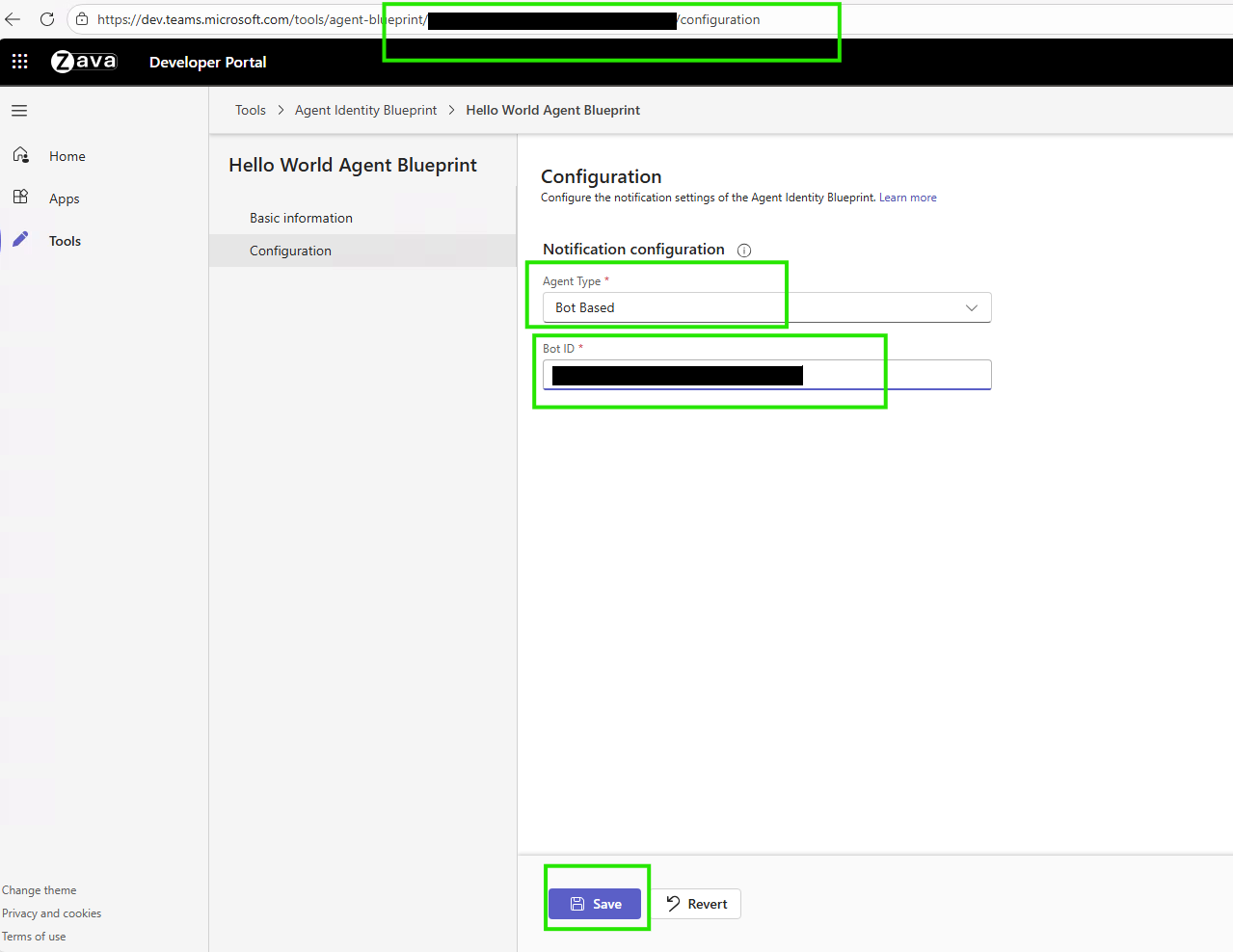
Denne konfiguration er nødvendig, før du kan oprette agentforekomster i Teams.
Få mere at vide om agentidentitetsplaner og konfiguration af udviklerportal.
2. Opret agentforekomst
Nu kan du anmode om en forekomst af din agentplan fra Teams. Få mere at vide om, hvordan du opdager, opretter og onboarder en agent.
Når du anmoder om en agentforekomst, sender Teams anmodningen til din lejeradministrator for godkendelse. Administratorer kan gennemgå og godkende anmodninger fra siden Microsoft Administrator – Anmodede agenter.
Når administratoren har godkendt din anmodning, opretter Teams din agentforekomst og gør den tilgængelig i Teams.
3. Test din udrullede agent
Når du har oprettet en agentforekomst, test den i Microsoft 365 for at sikre, at den fungerer korrekt i produktion.
Efter udrulning, og med agentnotifikationer aktiveret i Agent 365 SDK, integreres din agent med Microsoft 365-tjenester. Det fungerer med Teams til chats, kanaler og møder; med mail og kalender til afsendelse, modtagelse og planlægning; og med SharePoint og OneDrive til dokumentadgang og fildeling. Den understøtter også samarbejdsfunktioner såsom organisatorisk tilstedeværelse, Planner-opgaver og dokumentkommentarer.
Vigtigt!
Ligesom almindelige brugere kræver agentbrugere også relevante Microsoft 365-licenser for at få adgang til tjenester. Almindelige licenser omfatter Microsoft 365 E5, Teams Enterprise og Microsoft 365 Copilot.
Få vist udrullet agent i Administration
Når du publicere din agent, vises den i Microsoft Administration med henblik på anvendelse. Den kan tage noget tid at overføre.
Gå til Microsoft 365 Administration – agenter til:
- Få vist din publicerede agent
- Administrer agentindstillinger
- Overvåg agentforbrug
- Konfigurer tilladelser
Test agent i Teams
Når du har udrullet, publiceret og konfigureret din agentplan og oprettet en agentbruger, skal du teste agentbrugeren direkte i Microsoft Teams:
Start test
Søg efter din nye agentbruger i Teams.
Bemærk!
Oprettelsesprocessen for agentbruger er asynkron. Det kan tage et par minutter til flere timer, før agentbrugeren bliver søgbar, efter du har oprettet den.
Start en ny chat med den nyoprettede agentforekomst.
Send testmeddelelser for at bekræfte agentfunktionaliteten.
Eksempel på testmeddelelse
Hvis du har konfigureret agenten med mail, skal du sende denne besked for at teste mailfunktionaliteten. Opdater modtagerens recipient@contoso.com mailadresse.
Send an email to <recipient@contoso.com> with subject "Hello from Teams" and message "This is a test message from my agent!"
Agenten behandler anmodningen og sende mailen uden at kræve mere bekræftelse.
Tjekliste til bekræftelse
Efter at have oprettet din agentforekomst, skal du sikre dig, at den fungerer korrekt i Teams.
✅
Udviklerportal-konfiguration blev gemt
✅
Agent vises i søgefeltet i Teams-apps
✅
Du kan oprette en forekomstagent i Teams
✅
Agentforekomst oprettet
✅
Agentbruger vises i organisationen
✅
Agent svarer på beskeder
✅
Agent kan udføre handlinger
✅
Programlogfiler viser ingen fejl
✅
Observerbarhed fungerer i Administration
Hvis din agentforekomst ikke fungerer som forventet, se afsnittet Fejlfinding for detaljerede løsninger på almindelige problemer.
Kontrollér, at konfigurationen af udviklerportalen er gemt
Naviger til https://dev.teams.microsoft.com/tools/agent-blueprint/<your-blueprint-id>/configuration
✅ Agenttype viser: API-baseret✅Meddelelses-URL-adresse matcher din agents meddelelsesslutpunkt ✅ Viser meddelelsen Blev gemt
Bekræft at agenten vises i Teams
Åbn Teams >Apps
Søg efter dit agentnavn
✅ Agenten vises i søgeresultater ✅ viser agentens ikon og beskrivelse
Bekræft, at du kan oprette en agentforekomst i Teams
Vælg din agent i Teams Apps
✅ Anmod om forekomst/Opret forekomst-knappen er aktiveret ✅ Kan anmode om forekomst uden fejl
Kontrollér, at agentforekomsten er oprettet
Efter at have valgt Anmod om forekomst:
✅ Anmodning sendes med succes til administrator
Kontrollér, at agentbrugeren vises i organisationen
I Microsoft 365 Administration:
- Gå til:
https://admin.cloud.microsoft/#/agents/all - Gå til fanen Alle agentanmodninger
✅ Din anmodning om agentforekomst er registreret med status som afventer gennemgang ✅ Administratoren kan godkende agentforekomsten til brug ✅ Brugeren kan oprette en forekomst fra Teams og give den et navn.
Verificér at agenten svarer på beskeder
I Teams-chatten med din agent - Send en testbesked: Hello!
✅ Agent viser skriveindikator ✅ Agent svarer inden for få sekunder. ✅ Svaret er sammenhængende og relevant
Kontrollér, at agenten kan udføre handlinger
Hvis du konfigurerer værktøjer, afprøv deres funktionalitet. For eksempel, hvis du tilføjer Mail MCP-serveren, skal du sende en testmail til dig selv.
Agenten bør:
✅ Bekræfte anmodningen ✅ Udføre værktøjsopkaldet ✅ Bekræfte vellykket gennemførelse
Du bør kontrollere, at mailen modtages i din indbakke.
Kontrollér funktionalitet
Den følgende tjekliste giver en systematisk testtilgang for din agent:
Grundlæggende funktionalitet:
✅ Agenten svarer på enkle hilsner. ✅ Agenten håndterer samtaler med flere trin. ✅ Agenten giver relevante svar.
Funktionalitet for værktøjer:
Det afhænger af MCP-serverens konfiguration
✅ Kan sende mails. ✅ Kan få adgang til kalender. ✅ Kan søge i dokumenter. ✅ Kan udføre konfigurerede handlinger.
Fejlhåndtering:
✅ Håndterer ugyldige anmodninger hensigtsmæssigt. ✅ Giver nyttige fejlmeddelelser. ✅ Går ikke ned ved uventet input.
Ydeevne:
✅ Svarer inden for få sekunder. ✅ Ingen timeoutfejl. ✅ Ensartede svartider.
Kontrollér logfiler for programmet
For at se, hvad din agent laver, tjek applikationsloggene ved at bruge kommandoen az webapp-logtail.
# Real-time logs from Azure
az webapp log tail --name <your-web-app> --resource-group <your-resource-group>
Hvad du skal se efter i logfiler:
✅ Indkommende forespørgsler fra Teams ✅ Succesfuld godkendelse ✅ Værktøjskald bliver udført ✅ Sendte svar ❌ Fejlmeddelelser eller undtagelser
Bekræft observerbarhed i Administration
Når din agent er startet:
Gå til:
https://admin.cloud.microsoft/#/agents/all.Vælg din agent, og åbn fanen Aktivitet.
Du bør se:
✅ Sessioner, der vises. ✅ Hver session viser udløsere og handlinger. ✅ Værktøjskald logges med tidsstempler.
Næste trin
Din agent er nu live i cloudmiljøet og klar til at arbejde sammen med dit team i Microsoft 365. Det, der startede som lokal kode, er nu en registreret, virksomhedsklar assistent, hvor brugere kan oprette agentforekomster på tværs af din organisation.
Din agents udviklingslivscyklus er fuldført, men dens effekt er kun lige begyndt. Meget af det, du har opbygget i Agent 365-udviklerlivscyklussen, er åben kildekode og åbent for bidrag fra communityet. Indberet fejl, anmod om nye funktioner og pullanmodninger:
- Agent 365-eksempler: Har du nogle interessante og sjove eksempelagenter? Del din agentkode med åben kildekode-communityet her!
- Node.js SDK: Agent 365 SDK i Node.js.
- Python SDK: Agent 365 SDK i Python.
- .NET SDK: Agent 365 SDK i C# (.NET).
- Agent 365 DevTools CLI: En CLI, der hjælper dig gennem hele Agent 365-udviklingscyklussen.
Fejlfinding
Dette afsnit indeholder almindelige problemer ved oprettelse og test af agentforekomster.
Tip
Agent 365 Fejlfindingsguide indeholder overordnede anbefalinger til fejlfinding, bedste praksis og links til fejlfindingsindhold for hver fase af udviklingslivscyklussen for Agent 365.
Agenten vises ikke i Teams
Symptom: Agenten vises i Administration, men du kan ikke finde den i Teams Apps.
Rodårsagen: Manglende konfiguration af udviklerportalen.
Løsning:
Hent dit plan-ID fra
a365.generated.config.json– søg efteragentBlueprintId.Konfigurér i udviklerportalen:
Gå til:
https://dev.teams.microsoft.com/tools/agent-blueprint/<your-blueprint-id>/configurationAngiv agenttype til API-baseret
Angiv meddelelses-URL-adresse til din agents meddelelsesslutpunkt. Find
messagingEndpoint-værdien ia365.generated.config.json.Vælg Gem.
Vent 5-10 minutter på overførslen.
Bekræftelse:
- Åbn Teams > Apps >. Søg efter din agent.
- Agent vises og kan tilføjes.
Kan ikke oprette agent-instans i Teams
Symptom: Agenten vises i Teams, men du kan ikke tilføje eller oprette en forekomst; knappen "Anmod om forekomst" virker ikke.
Rodårsag: Microsoft Agent 365 Frontier er ikke aktiveret for lejeren.
Løsning: Kontakt administratoren for din lejer for at bekræfte, at Microsoft Agent 365 Frontier er aktiveret for lejeren.
Bekræftelse:
Frontier-funktioner vises i Microsoft 365 Copilot og Microsoft 365 Apps, når din licens og administrationsindstillinger tillader det.
Agent svarer ikke på beskeder
Symptom: Du opretter en agentforekomst, men den svarer ikke på beskeder. Du ser ingen logfiler i programmet.
Rodårsag: Flere mulige årsager – problemer med slutpunkt for beskeder, godkendelsesproblemer eller konfigurationsfejl.
Grundlæggende fejlfinding
Kontrollér, at webapplikationen er i drift:
az webapp show --name <your-app-name> --resource-group <your-resource-group> --query state
# Should be: "Running"
Kontrollér meddelelsesslutpunktet:
- Det skal være:
https://<your-app-root-url>/api/messages - Kontrollér det i
a365.config.jsonoga365.generated.config.json
- Det skal være:
Test slutpunktet direkte:
curl https://<your-app-root-url>/api/messages
# Should not return 404
Tjek programlogfiler:
az webapp log tail --name <your-app-name> --resource-group <your-resource-group>
# Look for incoming requests and errors
Avanceret diagnostik
Kontrollér godkendelse:
- Kontrollér om tokens er udløbet. Forny dem om nødvendigt.
- Kontrollér legitimationsoplysninger i Web App-konfigurationen.
Kontrollér konfiguration af værktøj/MCP:
- Kontrollér, at MCP-serverne er konfigureret.
- Kontrollér at tilladelser er givet.
Test lokalt:
- Kør agenten lokalt med samme konfiguration.
- Test med Agents Playground.
- Hvis det fungerer lokalt, men ikke i cloud > udrulningsproblem
Almindelige løsninger
- Slutpunkt for beskeder er forkert: Opdater i Azure Portal og udviklerportal.
- Web-app er stoppet: Start den i Azure Portal eller CLI.
- Token er udløbet: Opdater tokens i Web App-miljøvariablerne.
- Manglende miljøvariabler: Kontrollér app-indstillinger i Azure Portal.
- MCP-serverproblemer: Kontrollér serviceprincipal og tilladelser.
- Kodefejl: Kontrollér programmets logfiler for undtagelser.
Kontrol
Send en besked til din agent i Teams, og kontrollér programmets logfiler for indkommende anmodninger.
Du kan også prøve følgende:
- Fejlsøg udrulning af en agent på Amazon Web Services.
- Fejlsøg udrulning af en agent på Google Cloud Platform.
Værktøjsopkald fejler
Symptom: Agenten svarer på beskeder, men værktøjsopkald fejler. Du ser adgang nægtet eller timeout-fejl.
Rodårsag: Manglende MCP-serverrettigheder, tjenesteprincipal ikke konfigureret, netværksforbindelsesproblemer eller forkert værktøjskonfiguration.
Løsninger
Prøv følgende løsninger, når værktøjskald fejler:
Bekræft tilladelser i Administration
Gennemgå og godkend de nødvendige MCP-servertilladelser:
- Gå til:
https://admin.cloud.microsoft/#/agents/all - Vælg din agent > Tilladelser
- Sørg for, at listen inkluderer og godkender de nødvendige MCP-servere
- Gå til:
Tjek tjenesteprincipal
Kør engangs-opsætningsscriptet, hvis du ikke har kørt det før:
# Download and run:
# https://github.com/microsoft/Agent365-devTools/blob/main/scripts/cli/Auth/New-Agent365ToolsServicePrincipalProdPublic.ps1
Kontrollér konfiguration af MCP-slutpunkt
Sørg for, at du bruger produktions-MCP-slutpunktet:
# Should be production endpoint, not mock
MCP_PLATFORM_ENDPOINT=https://agent365.svc.cloud.microsoft
Kontrollér administreret identitet
Kontrollér, at administreret identitet er aktiveret i din webapp:
# Verify managed identity is enabled
az webapp identity show --name <your-app-name> --resource-group <your-resource-group>
Kontrol
Test værktøjsopkald gennem Teams, og kontrollér loggene for succesfuld udførelse.
Du kan også prøve disse trin:
Licenstildeling mislykkes
Symptom: Du kan ikke tildele en licens til en agentbruger. Du ser licensfejl i Administration.
Årsag: Utilstrækkeligt antal licenser tilgængelige, forkert licenstype eller tilladelsesproblem.
Løsninger
Prøv følgende løsninger, når licenstildelingen fejler:
Kontrollér, at der er licenser tilgængelige:
- Kontrollér Microsoft 365 Administration >Fakturering>Licenser.
- Sørg for, at Microsoft Agent 365 Frontier er aktiveret for lejeren.
Tildel licens manuelt:
- Gå til Microsoft 365 Administration >Brugere.
- Find agentbrugeren.
- Tildel passende licens.
Påkrævede licenser til fuld funktionalitet:
- Microsoft 365 E5 (eller tilsvarende).
- Teams Enterprise.
- Microsoft 365 Copilot (til Copilot-funktioner).
Kontrol
Kontrollér, at brugerprofilen i Administration viser tildelte licenser.