Hi L,
Thank you for your patience and cooperation. I look forward to your update.Thank you for reaching out and sharing the details of the issue you are experiencing with PowerPoint. I understand how stressful this must be, especially with your school project deadline approaching, and I am glad to help you get this resolved as quickly as possible.
Based on your description, the error message appearing each time you open PowerPoint, along with the app closing after pressing the report button, is often caused by corrupted cache files, a damaged Office installation, or outdated cached credentials. To resolve this, please follow the steps below in order.
Step 1: Clear the PowerPoint cache
- Close PowerPoint completely.
- Press the Windows key + R on your keyboard to open the Run dialog box.
- Type
%localappdata%\Microsoft\Office\16.0\OfficeFileCache and press Enter.
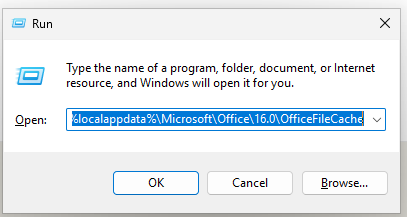
- Select all files inside the folder and delete them.
Step 2: Run an Office repair
- Close all Office applications (Word, PowerPoint, Excel, Outlook, etc.).
- Open Windows Settings (press Windows + I).
- Go to Apps > Installed apps.
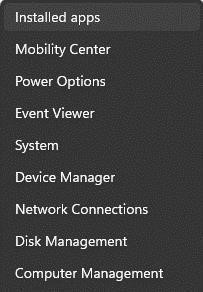
- Find Microsoft 365 / Microsoft Office in the list.
- Select the three dots (…) next to it and choose Modify.
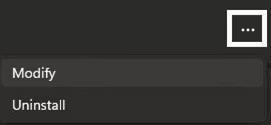
- If prompted by User Account Control, select Yes.
- Choose Online Repair > then select Repair.
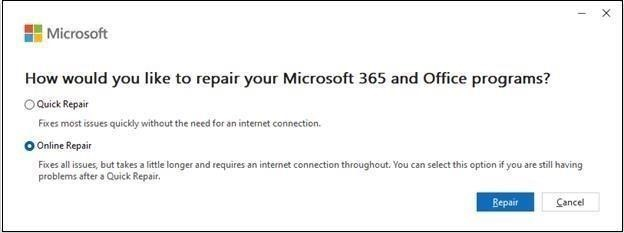
- Follow the on‑screen instructions until it completes.
Step 3: Clear cached credentials
- Go to Control Panel > User Accounts > Credential Manager > Windows Credentials
- Under the section Generic Credentials, look for any entries that has Outlook, Office or having your email address in the name and remove them.
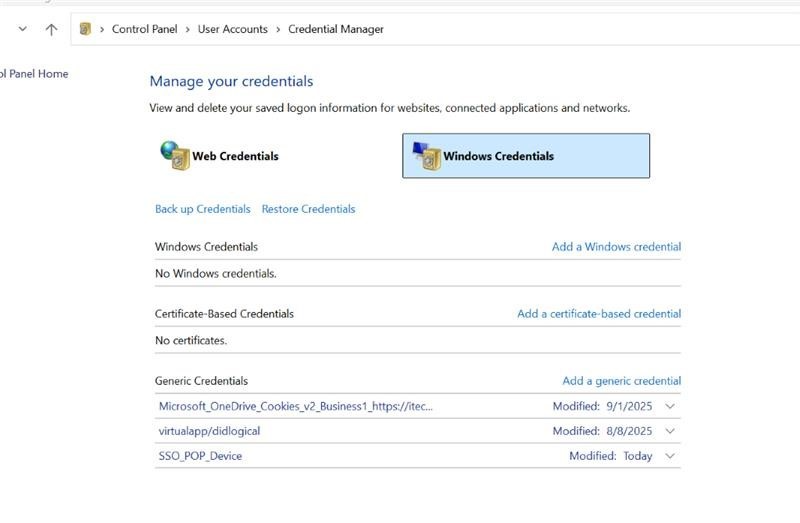
- Restart your computer.
I hope this information is helpful. Please follow the steps above and let me know if it works for you. If not, we can continue working together to resolve the issue.
Thank you for your patience and understanding. If you have any questions or need additional assistance, please don’t hesitate to reach out so I can continue to support you. If you found the response useful, please consider marking it as accepted, as this may help other community members who are looking for similar guidance.
I look forward to continuing the conversation.
If you have extra questions about this answer, please click "Comment".
Note: Please follow the steps in our documentation to enable e-mail notifications if you want to receive the related email notification for this thread.
' cx='32' cy='32' r='32' /%3E%3Ctext x='50%25' y='55%25' dominant-baseline='middle' text-anchor='middle' fill='%23FFF' %3EL%3C/text%3E%3C/svg%3E)

' cx='32' cy='32' r='32' /%3E%3Ctext x='50%25' y='55%25' dominant-baseline='middle' text-anchor='middle' fill='%23FFF' %3EJT%3C/text%3E%3C/svg%3E)