Note
Access to this page requires authorization. You can try signing in or changing directories.
Access to this page requires authorization. You can try changing directories.
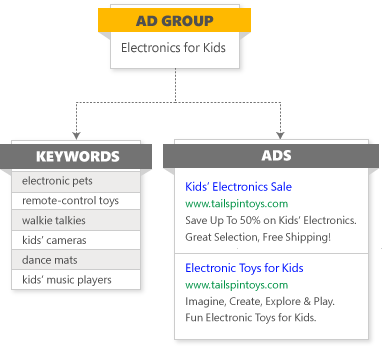
Ad groups are the best way to organize your campaigns by specific products or services that you offer. An ad group in an Audience campaign contains the audiences you want the ads in the ad group to target. An ad group in a Search campaign contains a set of keywords and ads that are related to a common theme. Not only do they make it easier to manage related ads, audiences, and keywords, well-organized ad groups make your ads more relevant to customers. This, in turn, can help improve your ROI.
For example, Sarah owns a toy store and wants to create ads to highlight specials she will be offering. She could create different ad groups in a Search campaign for “electronics for kids” and “riding toys,” which will each contain different sets of keywords and ads. When she wants to make adjustments to these ads, she can easily make changes to all the ads in a given ad group simultaneously.
Create an ad group in a Search campaign
You can either create a Standard ad group for Multimedia ads and Responsive Search ads or create a Dynamic ad group for Dynamic Search ads.
- From the navigation menu on the left, hover over Campaigns and select Ad groups.
- Select Create.
- Choose which campaign you want to create the ad group in.
- Select Continue.
- The ad group creation wizard will then walk you through the process:
Create a Standard ad group
- Ad group
Your website
Enter the URL of your website, and Microsoft Advertising will search it for ad group and keyword suggestions. If your website doesn't have all its necessary content yet, select the My website is not ready checkbox.
Ad group type
For your ad group type, choose Standard. Standard ad groups contain Multimedia ads and/or Responsive Search ads.
Ad group name
Give your ad group a unique name. Campaigns are made up of one or more ad groups. Each ad group can be based on a theme of the campaign, and it's a good idea to have your ad group's name reflect its theme. For example, if your campaign's goal is to sell men's clothes, you might have ad groups such as “Dress shirts,” “Coats and jackets,” and “Spring sale.”
Note
An ad group name cannot contain scripts, HTML, or other markup language.
Language
This is the language you'll write your ads in. This should match the language of the sites that you'd like your ads to appear on. Learn more about language options in Microsoft Advertising
- Keywords: In the second step, you add the relevant keywords and phrases to reach customers who are searching for your product or service. Your ads will show in response to search queries based on the keywords you provide. Learn more about keywords and how to build keyword lists
Keywords
If you entered a URL for Your website, this is where you'll see our suggested ad groups and keywords. You can also enter a different URL or a word or phrase relevant to your product or service and get keyword suggestions for it. Select the arrows to move ad groups or keywords into the Enter keywords box on the left.
Enter keywords
If you're entering keywords manually, type or paste them here. In this box, you'll also set the appropriate match type for your keywords. Learn more about keyword match types
- Create ads: In the third step, you create the ad(s) for your ad group.
Ad type
You can choose to create a Multimedia ad or Responsive Search ad.
Creating ads
See these help pages for more information on the specific steps for creating ads per ad type: Multimedia ad or Responsive Search ad. You can add assets to your ads, including headlines, descriptions, and images.
- Targets & bids: In the fourth step, you set your bids and adjust your targets and advanced ad group settings.
Bid
Try changing the bid amounts and see how the performance estimates change.
Targeting
You can choose any combination of the possible target criteria:
Location
Select locations you want to target or exclude. You can target and change your bid adjustment for:
United States and Canada
All available countries/regions
Selected countries/regions and states/provinces
Selected counties within the United States
Selected cities, metro areas, and postal codes* within Australia, Canada, France, Germany, United Kingdom, United States
Note
- Not all postal codes are supported for targeting exactly within their boundaries. If you target an unsupported postal code, it will be converted into a radius target (see below).
- For Canadian and UK postal codes, only the first segment (for Canada, the first 3 characters; for UK, the first 2-to-4-character segment) is recognized. If you enter the second segment, you will only be able to use radius targeting.
- The boundaries of some postal codes in Australia, Canada, France, Germany, and United Kingdom do not appear accurately on the map you see in Microsoft Advertising, but targeting within them will still function accurately.
A specified radius around a postal code, coordinates*, landmark, or area. (Note: You cannot exclude using radius targeting.)
*Coordinates can be searched for in the format "[latitude], [longitude]" with the degrees in decimal form — for example, "44.590,-104.716".
Age
Choose one or more age ranges of people you want to see your ads.
Gender
Choose the gender of the people you want to see your ads.
Device
Choose the types of devices you want your ads to appear on.
Company
With company targeting, you can target your ads to be more (or less) likely to appear for people who most recently worked at specific companies (according to their LinkedIn profiles).
- Search for a company by name.
- You will see relevant companies, along with the approximate number of employees each company has (according to LinkedIn).
- For the appropriate company, select Target or Exclude.
Note
You cannot target more than 1,000 companies in a single ad group.
Industry
With industry targeting, you can target your ads to be more (or less) likely to appear for people who most recently worked in specific industries (according to their LinkedIn profiles).
- Search or browse for a type of industry.
- For the appropriate industry, select Target or Exclude.
Job function
With job function targeting, you can target your ads to be more (or less) likely to appear for people who most recently had specific kinds of jobs (according to their LinkedIn profiles).
- Search or browse for a type of job function.
- For the appropriate job function, select Target or Exclude.
Advanced ad group settings
Here you have the option to change your campaign's Ad schedule, Start and end dates, bids for your Multimedia ads, and Ad distribution settings.
Create a Dynamic ad group
- Ad group
Your website
Enter the URL of your website, and Microsoft Advertising will search it for ad group suggestions. If your website doesn't have all its necessary content yet, select the My website is not ready checkbox.
Ad group type
For your ad group type, choose Dynamic. Dynamic ad groups contain Dynamic Search ads.
Ad group name
Give your ad group a unique name. Campaigns are made up of one or more ad groups. Each ad group can be based on a theme of the campaign, and it's a good idea to have your ad group's name reflect its theme. For example, if your campaign's goal is to sell men's clothes, you might have ad groups such as “Dress shirts,” “Coats and jackets,” and “Spring sale.”
Note
An ad group name cannot contain scripts, HTML, or other markup language.
Dynamic ad targets
We automatically generate Dynamic Search ads for you based on your website's content. Set up dynamic ad targets to tell us which pages of your website to focus on. Learn more about dynamic ad targets.
- Create ads
Creating ads
Add your Ad text, Path, and advanced URL options.
- Targets & bids
In the third step, you set your bids and adjust your targets and advanced ad group settings.
Bid
Try changing the bid amounts and see how the performance estimates change.
Targeting
You can choose any combination of the possible target criteria:
Location
Select locations you want to target or exclude. You can target and change your bid adjustment for:
United States and Canada
All available countries/regions
Selected countries/regions and states/provinces
Selected counties within the United States
Selected cities, metro areas, and postal codes* within Australia, Canada, France, Germany, United Kingdom, United States
Note
- Not all postal codes are supported for targeting exactly within their boundaries. If you target an unsupported postal code, it will be converted into a radius target (see below).
- For Canadian and UK postal codes, only the first segment (for Canada, the first 3 characters; for UK, the first 2-to-4-character segment) is recognized. If you enter the second segment, you will only be able to use radius targeting.
- The boundaries of some postal codes in Australia, Canada, France, Germany, and United Kingdom do not appear accurately on the map you see in Microsoft Advertising, but targeting within them will still function accurately.
A specified radius around a postal code, coordinates*, landmark, or area. (Note: You cannot exclude using radius targeting.)
*Coordinates can be searched for in the format "[latitude], [longitude]" with the degrees in decimal form — for example, "44.590,-104.716".
Age
Choose one or more age ranges of people you want to see your ads.
Gender
Choose the gender of the people you want to see your ads.
Device
Choose the types of devices you want your ads to appear on.
Company
With company targeting, you can target your ads to be more (or less) likely to appear for people who most recently worked at specific companies (according to their LinkedIn profiles).
- Search for a company by name.
- You will see relevant companies, along with the approximate number of employees each company has (according to LinkedIn).
- For the appropriate company, select Target or Exclude.
Note
You cannot target more than 1,000 companies in a single ad group.
Industry
With industry targeting, you can target your ads to be more (or less) likely to appear for people who most recently worked in specific industries (according to their LinkedIn profiles).
- Search or browse for a type of industry.
- For the appropriate industry, select Target or Exclude.
Job function
With job function targeting, you can target your ads to be more (or less) likely to appear for people who most recently had specific kinds of jobs (according to their LinkedIn profiles).
- Search or browse for a type of job function.
- For the appropriate job function, select Target or Exclude.
Advanced ad group settings
Here you have the option to change your campaign's Ad schedule, Start and end dates, and Ad distribution settings.
Create an ad group in an Audience campaign
- From the navigation menu on the left, hover over Campaigns and select Ad groups.
- Select Create.
- Choose which campaign you want to create the ad group in.
- Select Continue.
- Enter the Ad group name.
- Choose the Start and end dates.
- The ad group creation wizard will then walk you through the next steps in the process:
Choose your audience and targeting settings
Choose the audiences you want the ads in the ad group to target. You can choose any combination of the possible target criteria:
FAQ
In-market audiences: In-market audiences are curated lists of customers who have shown purchase intent signals within a particular category, including web searches, clicks, and page views on the Microsoft Advertising Network. Learn more about in-market audiences
Location: Select locations you want to target or exclude. You can target and change your bid adjustment for:
United States and Canada
All available countries/regions
Selected countries/regions and states/provinces
Selected counties within the United States
Selected cities, metro areas, and postal codes* within Australia, Canada, France, Germany, United Kingdom, United States
Note
- Not all postal codes are supported for targeting exactly within their boundaries. If you target an unsupported postal code, it will be converted into a radius target (see below).
- For Canadian and UK postal codes, only the first segment (for Canada, the first 3 characters; for UK, the first 2-to-4-character segment) is recognized. If you enter the second segment, you will only be able to use radius targeting.
- The boundaries of some postal codes in Australia, Canada, France, Germany, and United Kingdom do not appear accurately on the map you see in Microsoft Advertising, but targeting within them will still function accurately.
A specified radius around a postal code, coordinates*, landmark, or area. (Note: You cannot exclude using radius targeting.)
*Coordinates can be searched for in the format "[latitude], [longitude]" with the degrees in decimal form — for example, "44.590,-104.716".
Age: Choose one or more age ranges of people you want to see your ads.
Gender: Choose the gender of the people you want to see your ads.
Audience: With audience targeting, you can reach curated groups of customers to help get your ads in front of the right people when they're ready to take action and make purchase. You can also exclude audiences if you don't want them to see your ads. Learn more about your options for audiences. With audience targeting, you can reach curated groups of customers to help get your ads in front of the right people when they're ready to take action and make purchase. You can also exclude audiences if you don't want them to see your ads. Learn more about your options for audiences. To target an audience:
- Under Ad group targeting select Add targets and then select which type of audience you want to target.
- Search or browse for an existing audience, and then select it in the left pane to move it into the Selected pane on the right.
- If you want to create a new audience, select the link at the bottom of the area. For example, Create remarketing list.
To exclude an audience, follow the same process under Ad group exclusions.
Company: With company targeting, you can target your ads to be more (or less) likely to appear for people who most recently worked at specific companies (according to their LinkedIn profiles).
- Search for a company by name.
- You will see relevant companies, along with the approximate number of employees each company has (according to LinkedIn).
- For the appropriate company, select Target or Exclude.
Note
You cannot target more than 1,000 companies in a single ad group.
Industry: With industry targeting, you can target your ads to be more (or less) likely to appear for people who most recently worked in specific industries (according to their LinkedIn profiles).
- Search or browse for a type of industry.
- For the appropriate industry, select Target or Exclude.
Job function: With job function targeting, you can target your ads to be more (or less) likely to appear for people who most recently had specific kinds of jobs (according to their LinkedIn profiles).
- Search or browse for a type of job function.
- For the appropriate job function, select Target or Exclude.
Predictive targeting: After you set your targeting preferences, you can choose to enable or disable Predictive targeting. Predictive targeting helps you easily find new audiences that you may not have considered targeting, who are more likely to convert. For more information, see Predictive targeting. Once you submit your criteria, select Save & go to next step.
Create your ads
The steps for ad creation depend on which ad type(s) you want to create: Display, Native, or Online Video. For more information about the ad creation process for each ad type, see these articles:
Edit an ad group
- From the navigation menu on the left, hover over Campaigns and select Ad groups > Ad groups.
- Select the ad group you want to edit.
- Select Settings and make any necessary changes.
- Select Save.
Change ad rotation
- From the navigation menu on the left, select Campaigns.
- Select the campaign you want to edit.
- Select Ad groups from the side menu.
- Select the ad group you want to edit.
- Select Settings from the side menu.
- Below Ad rotation within your Advanced ad group settings, choose Optimize - prioritize ads that perform well or Rotate ads more evenly - include all ads, even those with a lower CTR.
- Select Save.