Share via

Copilot icon now covers the corner of my slide, cant turn it off

JayC 30 Reputation points
2026-05-11T17:13:47.5966667+00:00

User's imageToday I launched power point and there is this annoying copilot icon that covers the corner of my slide. You cant move it, you cant turn it off. How do I get rid of this.

Microsoft 365 and Office | PowerPoint | For business | Windows

Answer accepted by question author

  1. Hendrix-C 15,905 Reputation points Microsoft External Staff Moderator
    2026-05-14T20:39:13.78+00:00

    Hi @JayC,

    Thank you for your prompt response.

    You can share the link of your feedback here in the comment of this post and I’ll be happy to upvote it to help bring more visibility.

    In the meantime, I kindly ask if you can upvote this feedback as well Get rid of floating Copilot icon on bottom right of worksheets · Community. Although it's not a PowerPoint but Excel feedback, it's the same issue of frustration with the Copilot floating icon across Office apps. The more upvotes the feedback receives, the greater its visibility will be, which also increases the likelihood that the issue will be prioritized by Microsoft and the solution published as soon as possible.

    User's image

    I'm sure there are other users who have been in the same situation but don't know where to share their feedback, so hopefully you will click "Accept Answer" in this post if you can. This will help pin the post to the top, making it easier for other users who may be experiencing the same issue to find your post, understand the context, and support the feedback. Your voice matters, and collective feedback is one of the most effective ways to drive meaningful improvement.

    Thank you for your patience and understanding during this process. I wish you a wonderful day ahead.

    Was this answer helpful?

    1 person found this answer helpful.

2 additional answers

Sort by: Most helpful
  1. Hendrix-C 15,905 Reputation points Microsoft External Staff Moderator
    2026-05-11T17:55:09.0166667+00:00

    Hi @JayC,

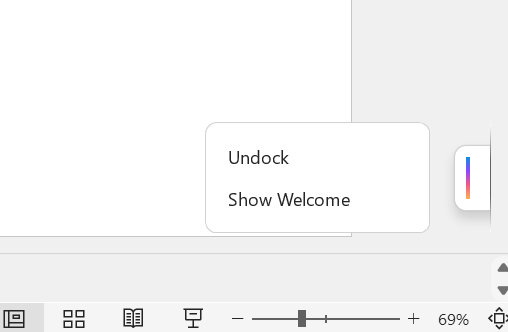
    According to your concern, unfortunately there is no supported way to drag it somewhere else or make the Copilot floating button customizable. This icon will by default show up when you have Copilot license along with the Microsoft 365 subscription. You can hide it on the right scroll bar by right clicking the Copilot icon > Dock. The Copilot icon will be hidden like this:
    User's image

    If you want to completely remove it, the only supported option is to disable Copilot entirely by going to File > Options > Copilot > uncheck "Enable Copilot" refer to Turn off Copilot in Microsoft 365 apps - Microsoft Support. If the Enable Copilot option is not available, you may need to contact your internal help desk or your company IT department for further assistance, and they may need to unassign your Copilot license to remove this floating Copilot icon in the Microsoft 365 apps. If you don't know who your IT administrator is, please refer to this article: How do I find my Microsoft 365 admin? - Microsoft Support

    I understand this may not be the answer you were hoping for. As a forum moderator who work independently of the product team, I don't have visibility into internal design decisions or the ability to adjust how the feature behaves. I can only help confirm how the product currently works and make sure you have clear information.

    Many users have also reported the same frustration with the floating Copilot in Microsoft 365 desktop apps. If this is affecting your workflow or if you think this is an area that should be improved, I sincerely encourage you to submit suggestions directly to the team through the official PowerPoint feedback community: PowerPoint · Community. The product team doesn't actively monitor issues on this forum, so submitting feedback through official channels ensures that your input is truly communicated to them.

    I greatly appreciate for taking your time bringing this up. I'm sure there are other users who have been in the same situation but don't know where to share their feedback, so hopefully you will click "Accept Answer" in this post if you can. This will help pin the post to the top, making it easier for other users who may be experiencing the same issue to find your post, understand the context, and support the feedback. Your voice matters, and collective feedback is one of the most effective ways to drive meaningful improvement.

    If you have any concerns or questions in the future, please don’t hesitate to reach out. Not only will I be happy to assist you, but all moderators in the Q&A forum will also do their best to provide support and guidance.

    Thank you for your kindness and contributions to the forum. Wishing you a great day ahead.


    Note: If you wish to receive email notifications related to this thread, please follow the steps in our documentation to enable email notifications.

    Was this answer helpful?


  2. Q&A Assist
    2026-05-11T17:14:01.88+00:00
    AI generated content. This question contains an answer created with AI from Q&A Assist. Learn more

    The in-document Copilot icon in Office apps is controlled by the Copilot feature in each app. To remove it from PowerPoint on Windows, turn off Copilot for that app, then make sure PowerPoint is updated to a build where the intrusive icon behavior has been fixed.

    1. In PowerPoint, go to File > Options > Copilot.
    2. Clear the Enable Copilot checkbox.
    3. Select OK, then close and restart PowerPoint.

    If the checkbox is not available, update PowerPoint to a version that includes the Enable Copilot control:

    • On Windows, the Copilot checkbox is available starting with PowerPoint Version 2501.
    • If the checkbox is missing, first check which version of Office is installed, then update Office and try again.

    For similar in-document Copilot icons in Word, users have reported that installing an updated build (for example, 16.103.1 on the Current Channel (Preview)) removed the intrusive logo from the document window. Keeping Office on the latest build is therefore important after disabling Copilot.

    If Copilot remains visible even after disabling it and updating, wait for the updated build to reach the update channel in use; the fix is delivered via Office updates rather than a separate setting.


    References:

    Was this answer helpful?

Your answer

Answers can be marked as 'Accepted' by the question author and 'Recommended' by moderators, which helps users know the answer solved the author's problem.