Code 12: Driver Error in Windows Hyperv VM for NVIDIA GPUs

Anonymous
2023-12-04T07:49:23+00:00

I’m facing an issue with NVIDIA GPUs in my Windows virtual machine (VM) using Hyper-V with Discrete Device Assignment (DDA).

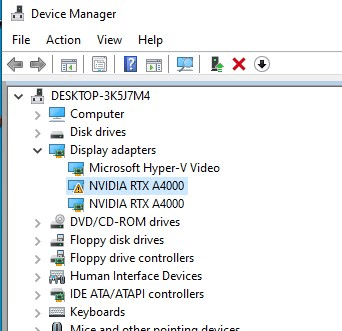
I’ve added two GPUs to my Hyper-V Windows VM, both visible in Device Manager under Display Adapters. However, one GPU is working perfectly, while the other is encountering a Code 12 error.
Here’s what I’ve tried:

  1. GPU Assignment with DDA:
    • I successfully added two GPUs to my Hyper-V Windows VM using the Discrete Device Assignment (DDA) method.
        PS C:\Users\Administrator> Dismount-VMHostAssignableDevice -LocationPath "PCIROOT(16)#PCI(0200)#PCI(0000)" -force
        PS C:\Users\Administrator> Dismount-VMHostAssignableDevice -LocationPath "PCIROOT(C9)#PCI(0200)#PCI(0000)" -force
        PS C:\Users\Administrator>Add-VMAssignableDevice -LocationPath "PCIROOT(36)#PCI(0000)#PCI(0000)" -VMName Windows10
        PS C:\Users\Administrator>Add-VMAssignableDevice -LocationPath "PCIROOT(C9)#PCI(0200)#PCI(0000)" -VMName Windows10
      
  2. NVIDIA Driver Installation:
    • After adding the GPUs, I installed the NVIDIA drivers on the VM.
  3. Device Manager Status:
    • Both GPUs are visible in Device Manager under Display Adapters.
  4. Code 12 Error:
    • One GPU is working fine.
    • The second GPU, however, displays a warning and is not functioning properly.
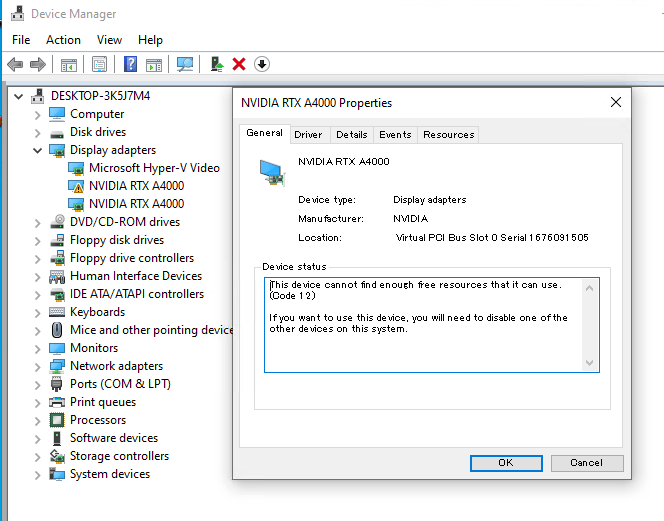
    • The error message states: “This device cannot find enough free resources that it can use. (Code 12) If you want to use this device, you will need to disable one of the other devices on this system.”
5. Disable/Enable Test:

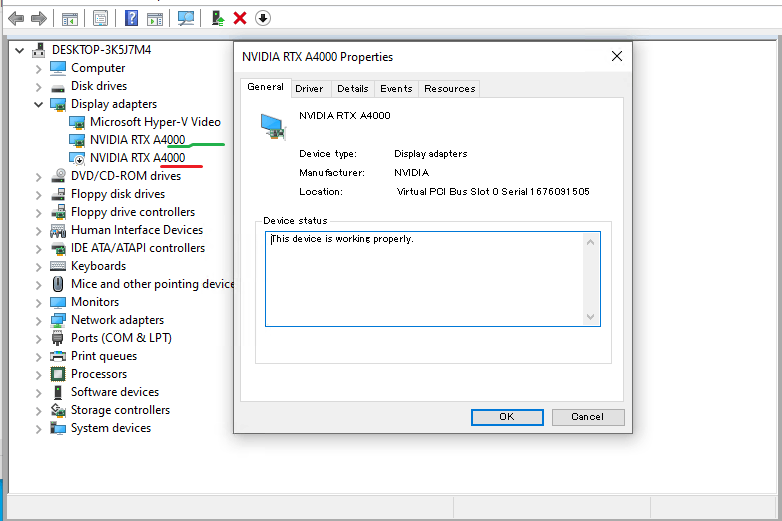
  • When I disable the GPU1 adapter, GPU2 works fine.
  • Enabling GPU1 and disabling GPU2 and vice versa also confirms the individual functionality of each GPU.
Question:
How can I overcome the Code 12 error and utilize both NVIDIA GPUs simultaneously in my Hyper-V Windows VM?

Any insights, experiences, or tips from the community would be greatly appreciated.

Thanks in advance!

Windows for business | Windows Server | Storage high availability | Virtualization and Hyper-V

Locked Question. This question was migrated from the Microsoft Support Community. You can vote on whether it's helpful, but you can't add comments or replies or follow the question.

0 comments No comments
{count} votes

11 answers

Sort by: Most helpful
  1. Anonymous
    2024-02-27T18:08:16+00:00

    Hey there, just following this on our setup.

    Using an RTX 4060 (8gb), I set LowMemoryMappedIoSpace to 2gb and HighMemoryMappedIoSpace to 16gb.

    Once I've done this and then try running the VM again, I just get a black screen and nothing else. I'm a little bit stuck as if i change the HighMem to 4GB for example, the VM loads but the GPU is not working within VM as not enough resources have been assigned.

    Not sure if you've experienced this? If not I'll open up a new support ticket.

    0 comments No comments
