Note
Access to this page requires authorization. You can try signing in or changing directories.
Access to this page requires authorization. You can try changing directories.
Ransomware poses a serious risk by driving high recovery costs and operational disruption, making prevention and rapid recovery critical to business resilience. Secure backups act as the last line of defense, enabling cost-effective data restoration without paying ransoms or enduring prolonged downtime.
Microsoft prioritizes cyber safety. Azure security baselines align with industry standards such as Center for Internet Security (CIS) and National Institute of Standards and Technology (NIST). The Microsoft Cloud Security Benchmark (MCSB) defines these baselines. The MCSB provides prescriptive guidance to secure workloads, data, and services across Azure and multicloud environments. Its Backup and Recovery control area emphasizes configured, isolated, and monitored backups to protect against ransomware and destructive attacks.
This article describes how Azure Backup helps organizations protect backup data, reduce ransomware risk, and ensure reliable recovery during security incidents. Azure Backup is a secure, cost-effective service that protects a broad range of workloads and stores data in Recovery Services vaults and Backup vaults. Built-in security, encryption, monitoring, and storage replication for Azure Backup help you maintain data confidentiality, integrity, and availability. With alignment to Microsoft’s Secure Future Initiative, Azure Backup includes capabilities such as multiuser authorization, immutability, soft delete, private endpoints, security alerts, and reporting. These capabilities create a logical air gap and enable continuous monitoring of backup security posture.
Azure Backup helps protect backup data through four core security pillars:
- Access Control: Helps you control who accesses your backup data
- Secure backup storage: Perform and store backup data securely
- Data recoverability: Ensure that the BCDR data is safe and recoverable
- Backup Governance: Govern, monitor, and detect threats in your BCDR data
The following diagram shows the security best practices for an organization’s business continuity and disaster recovery (BCDR) data across the four pillars:

Pillar 1 - Access Control
Effective backup security depends on strong access control and least-privilege enforcement to safeguard backup data and operations. This section outlines the Azure Backup capabilities that support access control.
- Multifactor authentication (MFA): Adds an extra layer of security by requiring more verification during sign-in, reducing the risk of unauthorized access.
- Azure role-based access control (Azure RBAC): Lets you define who can access Azure resources, what actions they can perform, and the scope of that access to enforce least-privilege permissions.
- Multiuser authorization (MUA): Adds an extra layer of protection for critical operations on Recovery Services vaults and Backup vaults by requiring explicit approval from a security administrator.
Multifactor authentication (MFA)
Multifactor authentication (MFA) adds an extra layer of security by requiring more verification during sign‑in. By enforcing a second factor, you reduce the risk of unauthorized access because attackers can't easily obtain or replicate this verification. MFA protects access to Azure Backup and backup data even when user credentials are compromised. Azure Backup supports securely managed, phishing‑resistant MFA to help safeguard user accounts. MFA is now enforced for all Azure portal sign‑ins and is extended to PowerShell, CLI, and infrastructure‑as‑code tools. To learn more, see:
- Update on MFA requirements for Azure sign-in - Microsoft Community Hub.
- Overview of MFA.
- How-to enable MFA.
As a best practice, create two or more emergency access accounts. This action helps to mitigate the risk of being locked out of your Microsoft Entra organization when administrator sign-in or account activation is unavailable. Learn more about manage emergency access admin accounts. Microsoft Entra ID also recommends best practices for all isolation configurations. Learn more about Microsoft Entra ID best practices.
Azure role-based access control (Azure RBAC)
Azure role‑based access control (Azure RBAC) helps you define who can access Azure resources, what actions they can perform, and the scope of that access. By enforcing least‑privilege permissions, you reduce the risk of accidental or malicious changes to the backup environment while ensuring users have only the access required to perform their tasks. Learn more about using Azure RBAC to manage backup data in Azure Backup.
Azure Backup provides the following built-in roles to control backup management operations:
| Role | Description |
|---|---|
| Backup Contributor | Allows you to create and manage all backup operations, except deleting the Recovery Services vault or assigning access to other users. This role provides full backup management administration. |
| Backup Operator | Allows you to perform all contributor operations except removing backups and managing backup policies. This role is equivalent to Contributor but restricts destructive actions, such as stopping backups with data deletion or removing registration of on‑premises resources. |
| Backup Reader | Allows you to view all backup management operations without making changes. This role is suited for monitoring and auditing backup activities. |
The following diagram explains how different Azure built-in roles work.
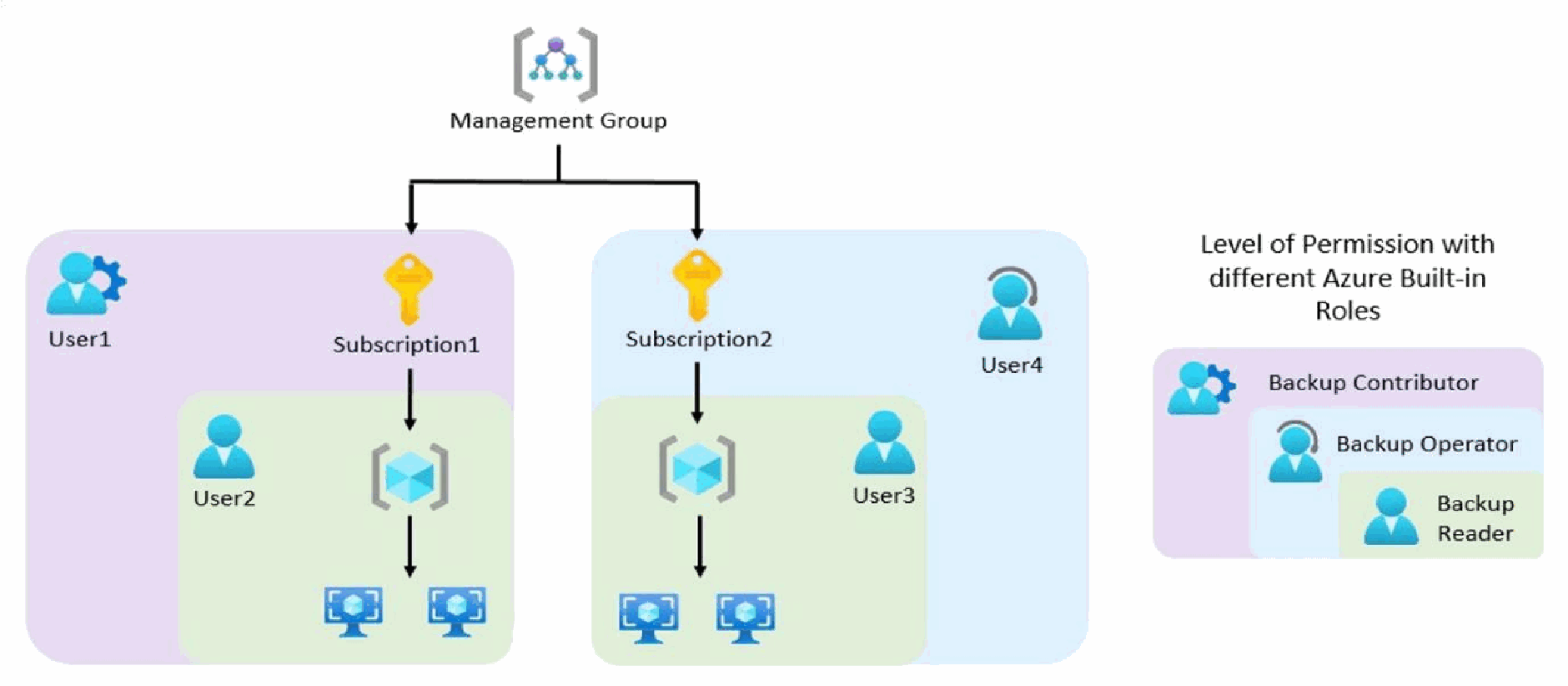
The diagram shows how built-in roles define different scopes of access to backup data for four users.
- User2 and User3 are Backup Readers and have the permission to only monitor the backups and view the backup services. In terms of the scope of the access, User2 can access only the Resources of Subscription1, and User3 can access only the Resources of Subscription2,
- User4 is a Backup Operator and has the permission to enable backup, trigger on-demand backup, trigger restores, along with the capabilities of a Backup Reader. However, in this scenario, its scope is limited only to Subscription2.
- User1 is a Backup Contributor and has the permission to create vaults, create/modify/delete backup policies, and stop backups, along with the capabilities of a Backup Operator. However, in this scenario, its scope is limited only to Subscription1.
As best practices:
Use custom roles in Azure RBAC to define permissions that match specific job responsibilities and continuously enforce least‑privilege access across the organization. Learn more about the Azure management and governance permissions for creating custom roles.
Assign roles only at the required scope (subscription, resource group, or resource) to avoid granting broader access than necessary and never assign permissions at the root tenant scope unless explicitly required.
Multiuser authorization (MUA)
Multiuser authorization (MUA) adds an extra layer of protection for critical operations on Recovery Services vaults and Backup vaults. Use an Azure resource called Resource Guard to ensure that privileged operations run only with explicit approval. Administrators with elevated roles, such as subscription owners or RBAC administrators, can otherwise delete backup data or disable security controls, either intentionally or through compromised credentials. When you enable MUA on a vault, every destructive or high‑impact operation requires approval from a security administrator, reducing the risk of data loss and security breaches.
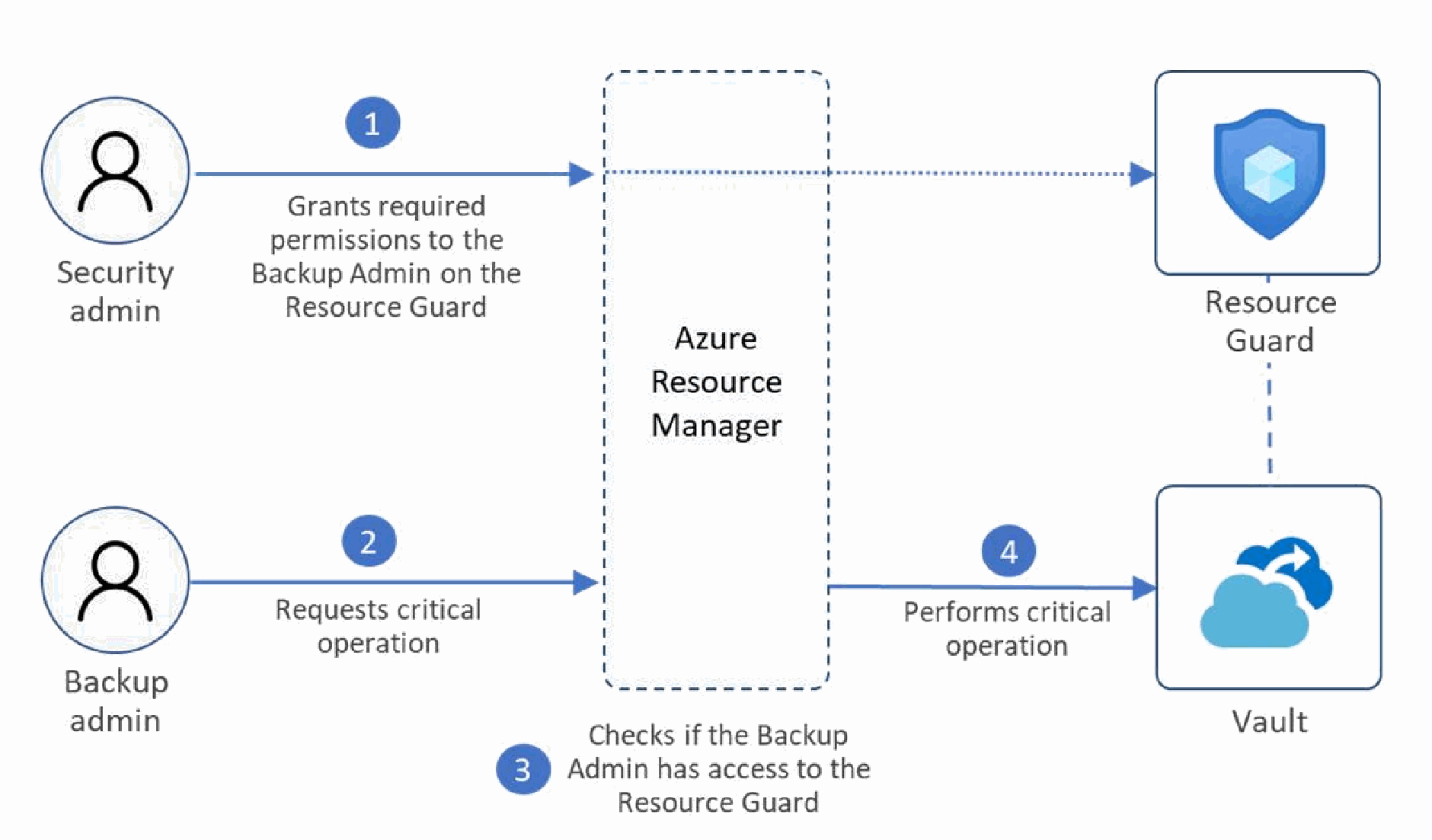
Multiuser authorization (MUA) protects critical operations such as immutability disablement, backup policy changes, restore actions, and encryption setting updates. If you don't enable MUA, any compromised user with Backup Contributor access can perform these operations and cause data loss, so you should enable MUA on the vault to strengthen security.
As best practices:
Create the Resource Guard in a different tenant from the primary tenant that hosts production. The Resource Guard maximizes permission isolation and prevents inheritance of group-level access on the Resource Guard. This capability ensures that compromised credentials in the primary tenant can't perform MUA‑protected critical operations unless a security admin in the secondary tenant explicitly approves them. It enforces cross‑tenant control for critical backup operations. Learn how to create Resource Guard in a different tenant and add MUA.
Use Microsoft Entra Privileged Identity Management (PIM) for temporary access to critical operations by assigning only the Backup MUA Operator role on the Resource Guard. This role avoids delete permissions, enforces least privilege, and ensures just‑in‑time access. Always set start and end dates for role assignments and periodically review active assignments to prevent unintended or prolonged access. Learn how to assign user permissions using PIM.
Learn more about Multiuser authorization (MUA) for Azure Backup.
Pillar 2 - Secure Backup Storage
Strong backup security relies on encryption and network security across backup and restore operations. Azure Backup validates data integrity during these processes and notifies you when validation fails. The following key features further strengthen security and provide greater control over backups.
- Encryption of backup data: Protects backup data at rest and in transit with encryption, including options for customer-managed keys (CMK) to control encryption keys.
- Private endpoints for backup data transfer: Provides secure, private connectivity to backup storage and keeps data transfer within a protected network boundary.
Encryption of backup data
Encryption ensures that backup data is protected both at rest and in transit. With Azure Backup, all your backup data is encrypted by default with Microsoft-managed keys. All the data in vaults is encrypted at rest with 256-bit Advanced Encryption Standard (AES) encryption compliant with Federal Information Processing Standards (FIPS) 140-2. All communication and data transfer over HTTPS and Transport Layer Security (TLS) 1.2+ ensuring data in transit is encrypted and remains within Azure Network. Azure Backup also supports backup and restore of Azure Virtual Machines (VMs) that have their OS/data disks encrypted with Azure Disk Encryption (ADE).
To enable control over the encryption key by configuring key rotation and lifecycle or to bring their own keys for encryption, use Customer-Managed Keys (CMK) for encryption of the backup data. Learn more about how to enable CMK.
As best practices:
Protect CMK‑related changes with MUA by enabling Multiuser authorization on the vault. This feature prevents users with Backup Contributor permissions from changing encryption keys or the associated managed identity without approval. MUA safeguards critical operations such as switching from Microsoft‑managed keys to CMK and modifying CMK encryption settings.
Enable infrastructure encryption at vault creation to meet compliance requirements for dual encryption at the storage layer. Infrastructure encryption applies only at creation time. You can't enable the encryption type when the datasource backup copies get stored in the vault.
Learn more about encryption of backup data.
Private endpoints for backup data transfer
Private endpoints provide secure, private connectivity to backup storage and keep data transfer within a protected network boundary. Each private endpoint uses one or more private IP addresses from your Azure Virtual Network (VNet), which brings the backup service directly into your VNet. This approach minimizes exposure to the public internet and reduces the risk of unauthorized access or data breaches. Learn more about private endpoints for Azure Backup.
For Azure VMs, all communication and data transfer occur through the Azure fabric, so no firewall exceptions are required. For databases running on Azure VMs and for on‑premises servers, private endpoints enable secure network connectivity for backup and restore operations.
Learn how to create and manage private endpoints (with v2 experience) for Azure Backup.
Pillar 3 - Data recoverability
Backup data recoverability is critical for maintaining business continuity and minimizing downtime during data loss incidents. Immutable vaults safeguard backup data from deletion or modification, even during security compromises, whereas soft delete supports active recovery of backup data from accidental or malicious deletions. This section outlines the capabilities that help you ensure backup data remains recoverable when needed.
- Immutability for backup data: Protects backup data from deletion or modification by enforcing write‑once, read‑many (WORM) storage and vault lock states to prevent destructive operations.
- Soft delete for permanent deletion protection of backup data: Retains deleted backup data for a configurable period, allowing recovery from accidental or malicious deletions.
- Data redundancy for backup data protection: Supports multiple data‑redundancy options to protect backup data against hardware failures and regional outages.
- Cross Subscription Restore for backup data recovery: Enables recovery of backup data to an isolated subscription when the primary subscription is compromised or untrusted.
Immutability for backup data
Immutable vaults ensure that once backup data is stored, deletion remains blocked until the defined retention period expires. This protection preserves data integrity and safeguards backups from both insider and external threats. Immutable vaults also block destructive operations such as reducing retention, stopping backups, or deleting backup data.
Immutability applies at two layers: the storage layer through write‑once, read‑many (WORM) protection, and the management layer through two vault lock states - Enabled and Locked. In the Enabled state, a Backup Contributor can disable immutability when operational flexibility is required, such as adjusting retention or stopping backups. In the Locked state, immutability becomes irreversible, which prevents any destruction of backup data and automatically enforces WORM protection on the underlying storage. Organizations with compliance requirements for WORM‑based storage must use immutability in the Locked state.
The following diagram shows the workflow for data protection with immutable vault in locked state.

As best practices:
Review all protected items and backup policies before locking immutability, because immutability applies at the vault level. After you lock immutability, you can't modify retention periods defined in backup policies or delete backup data before the configured retention expires.
Keep immutability in the Enabled state when flexibility is required, such as when backup policies remain undefined or when you anticipate the need to delete backup data. This state allows a Backup Contributor to adjust backup policies for protected items. Use Multi‑User Authorization (MUA) on the vault to selectively allow temporary disablement of immutability when required.
Lock immutability to protect production data against compromised credentials and insider threats, because no user can delete backup data or the vault. Locked immutability also prevents subscription cancellation, as Azure enforces guardrails that require deletion of all resources before cancellation, which immutability blocks.
Learn more about immutability for backup data.
Soft delete for permanent deletion protection of backup data
Soft delete helps you recover backup data after accidental or malicious deletion. The service retains deleted backup data for a configurable period of up to 180 days (default 14 days), which a Backup Contributor can use to restore it when needed. This protection prevents permanent data loss caused by unintended actions.
As a best practice, set the soft delete retention period to more than 35 days or align it with your backup policy retention. This way, deleted backup data stays in the soft‑deleted state for the same duration as policy retention and remains available for recovery.
Data redundancy for backup data protection
Azure Backup supports multiple data‑redundancy options, including Locally redundant storage (LRS), Zone‑redundant storage (ZRS), and Geo‑redundant storage (GRS). LRS replicates backup data three times within a single datacenter in the primary region. ZRS maintains data residency and improves resiliency within the same region by replicating backup data across availability zones. GRS replicates backup data to a secondary region to protect against region‑wide outages.
As best practices:
Choose Zone‑redundant storage (ZRS) during vault creation because Azure Backup operates as a zone‑redundant service for both Recovery Services vaults and Backup vaults. This redundancy keeps the vault operational during a zonal outage.
Select Geo‑redundant storage (GRS) when strict data isolation is required. Secondary copies of backup data reside in a different region and provide protection against region‑wide failures.
Apply the 3‑2‑1‑1 backup strategy by maintaining three copies of data (one production and two backups), storing them on two different media types, and keeping one copy offsite along with one immutable and isolated backup. This workflow strengthens protection against ransomware threats.
The following backup protection workflow illustrates how Azure Backup implements the 3‑2‑1‑1 mechanism for Azure VM data protection.
The Azure VM hosts the primary data copy, while Azure Backup maintains the first backup copy in a Recovery Services vault. Backup data in the Recovery Services vault uses Azure Blob storage, where you can enable and lock immutability to prevent deletion or retention reduction before expiry. Multi‑user authorization (MUA) further strengthens security by enforcing approval‑based control over critical operations on the vault.
An isolated second backup copy adds resilience through Geo‑redundant storage (GRS). This mechanism replicates backup data to a physically separate secondary region and provides strong isolation from the primary environment. For scenarios that require separation across different media types, an offline backup copy on tapes offers more isolation and protection.
Azure Backup integrates with Azure Advisor and Microsoft Defender for Cloud that recommend configuration of backup‑related security for production environments. You can find these recommendations under the Security section in both services.
Learn more about storage redundancy types for Azure Backup in Recovery Services vaults and Backup vault.
Cross subscription restore for backup data recovery
If a subscription becomes compromised or you lose trust in the primary subscription, use cross-subscription restore to recover data to an isolated subscription within the same tenant. This capability lets you restore Azure virtual machines by creating new VMs or restoring disks from Azure Backup restore points to any permitted subscription, while honoring RBAC controls.
Because restore operations can expose sensitive data, classify restore and cross-subscription restore actions as critical operations under Multi-user authorization (MUA). This control ensures that security admins can access and restore backup data.
Learn how to enable cross-subscription restore for Azure Backup in Recovery Services vault and Backup vault.
Pillar 4 – Backup governance
Effective data governance and management help you understand the security, compliance, and integrity of your backup data. This section outlines the key features that provide clear visibility and help you strengthen backup data security.
- Business continuity and disaster recovery (BCDR) Security Posture: Assesses the security of protected items and categorizes them into four levels based on the presence of security controls such as immutability, soft delete, and multiuser authorization.
- Azure Policies for backup data protection: Provides built-in Azure Policy definitions to audit and enforce security features for backup datasources, such as immutability, soft delete, and private endpoint usage.
- Security Alerts and Reports for monitoring backup data security: Offers real-time visibility into the security state of your backup environment with built-in alerts and comprehensive reporting through Azure Monitor logs and workbooks.
Business continuity and disaster recovery security posture
Business continuity and disaster recovery (BCDR) security posture, part of the Resiliency service, helps you assess and apply security controls for backup data across your environment. It categorizes the security of protected items into four distinct levels.
The following table outlines these security levels and their associated requirements:
| Security Level | Description | Requirements |
|---|---|---|
| Excellent | All backups are protected against accidental deletion and ransomware attacks. | Either immutability or soft-delete vault setting must be enabled and irreversible (locked/always-on). Multiuser authorization (MUA) must be enabled on the vault. |
| Good | Existing backups are protected against accidental deletions and offer better chances of data recovery. | Either immutability with lock or soft delete must be enabled. |
| Fair | All critical backup operations get an extra layer of protection. | MUA must be enabled on the vault. |
| Poor | Basic protection against accidental deletions only. | No advanced protection capabilities or only reversible capabilities are enabled. |
As a best practice, regularly evaluate and improve your BCDR security posture by using security scores and security levels to identify gaps in the protection of your backup items. Ensure all production items protected with Azure Backup maintain Good or Excellent security levels to strengthen your overall security posture. Improve these security levels by enabling immutability, soft delete, and multiuser authorization (MUA) on your vaults.
Azure Policies for backup data protection
Azure Policy helps you enforce organizational standards and assess compliance at scale. Azure Backup supports multiple audit policies and modifiable aliases that you can use to evaluate backup item compliance and deploy custom policies when required. The following table lists the Azure Policy definitions you can use to enforce security features for your backup workloads.
| Policy | Effects |
|---|---|
| Immutability must be enabled for backup vaults | Audit |
| Immutability must be enabled for Recovery Services vaults | Audit |
| Multiuser authorization (MUA) must be enabled for Recovery Services vaults | Audit |
| Multiuser authorization (MUA) must be enabled for Backup vaults | Audit |
| Soft delete should be enabled for Backup vaults | Audit |
| Soft delete must be enabled for Recovery Services vaults | Audit |
| Azure Recovery Services vaults should use private link for backup | Audit |
| Azure Recovery Services vaults should disable public network access | Audit, Modify |
| Configure Recovery Services vaults to use private DNS zones for backup | DINE |
| Configure Recovery Services vaults to use private endpoints for backup | DINE |
| Azure Recovery Services vaults should use customer-managed keys for encrypting backup data | Audit |
Security alerts and reports for monitoring backup data security
Security alerts give you real-time visibility into the security state of your backup environment and help you promptly detect suspicious activities. Built-in alerts notify you immediately of events such as data deletion in a soft-delete–enabled vault or protection changes with reduced retention, without the need for extra configuration or custom alert authoring. When you enable monitor settings in the vault properties, you automatically receive the security alerts listed in Monitor Azure Backup protected datasources.
You can also configure an action group to receive notifications through voice calls, Short Message Service (SMS), or email when a security alert triggers. Learn more about Azure Monitor action groups. Azure Backup reports help you analyze the health of your backup estate by allowing you to write custom queries on diagnostic logs. Azure Backup uses Azure Monitor logs and Azure workbooks to give you comprehensive insights across your entire backup environment.
Learn how to configure Azure Backup reports.
Summary of data protection best practices
Adoption of recommended best practices across each security capability strengthens ransomware readiness and response. This approach reduces ransomware risk, limits potential impact, and improves the security posture of your production backup datasources.