Note
Access to this page requires authorization. You can try signing in or changing directories.
Access to this page requires authorization. You can try changing directories.
In this article, you learn how to use GitHub Copilot app modernization to assess, remediate, containerize, and deploy Java applications to Azure Container Apps. GitHub Copilot app modernization is an AI-powered assistant that combines GitHub Copilot with open-source tools like OpenRewrite to automate complex upgrade and migration steps.
The tool supports both Maven and Gradle projects, targets upgrades between Java versions 8, 11, 17, and 21, and focuses on modernizing Spring Boot applications. It provides predefined tasks for common migration scenarios and incorporates best practices for running applications on Azure Container Apps.
Prerequisites
- An Azure account with an active subscription. Create one for free.
- A GitHub account with an active GitHub Copilot subscription under any plan.
- One of the following editors:
- The latest version of Visual Studio Code. Must be version 1.106 or later.
- GitHub Copilot in Visual Studio Code. For setup instructions, see Set up GitHub Copilot in Visual Studio Code. Be sure to sign in to your GitHub account within Visual Studio Code.
- GitHub Copilot app modernization. Restart Visual Studio Code after installation.
- The latest version of IntelliJ IDEA. Must be version 2023.3 or later.
- GitHub Copilot. Must be version 1.5.59 or later. For more instructions, see Set up GitHub Copilot in IntelliJ IDEA. Be sure to sign in to your GitHub account within IntelliJ IDEA.
- GitHub Copilot app modernization. Restart IntelliJ IDEA after installation.
- The latest version of Visual Studio Code. Must be version 1.106 or later.
- Java 21 or later.
- Maven or Gradle to build Java projects.
- Docker installed and running (for containerization).
- Azure CLI installed and configured.
Note
If you're using Gradle, only the Gradle wrapper version 5 or later is supported. The Kotlin Domain Specific Language (DSL) isn't supported. The function My Tasks isn't supported yet for IntelliJ IDEA.
Upgrade JDK and framework versions
Before you migrate to Azure Container Apps, make sure your Java application runs on a supported and up-to-date JDK version. Upgrading your JDK and frameworks first ensures that subsequent migration steps target a modern codebase.
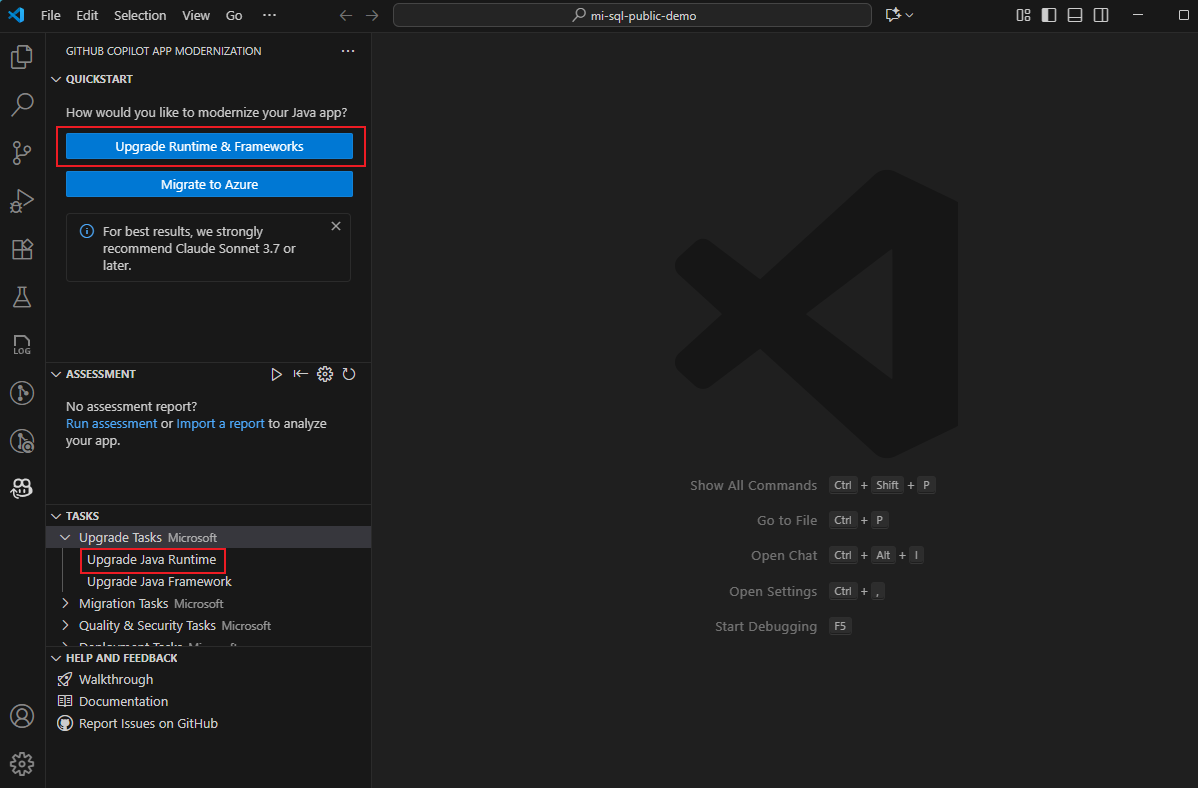
There are two ways to upgrade your JDK version. Both ways use the GitHub Copilot app modernization pane, which you can access from the sidebar in Visual Studio Code.
- Select Upgrade Runtime & Frameworks in the QUICKSTART section.
- Alternatively, run the Upgraded Java Runtime task in the TASKS - Upgrade Tasks section.
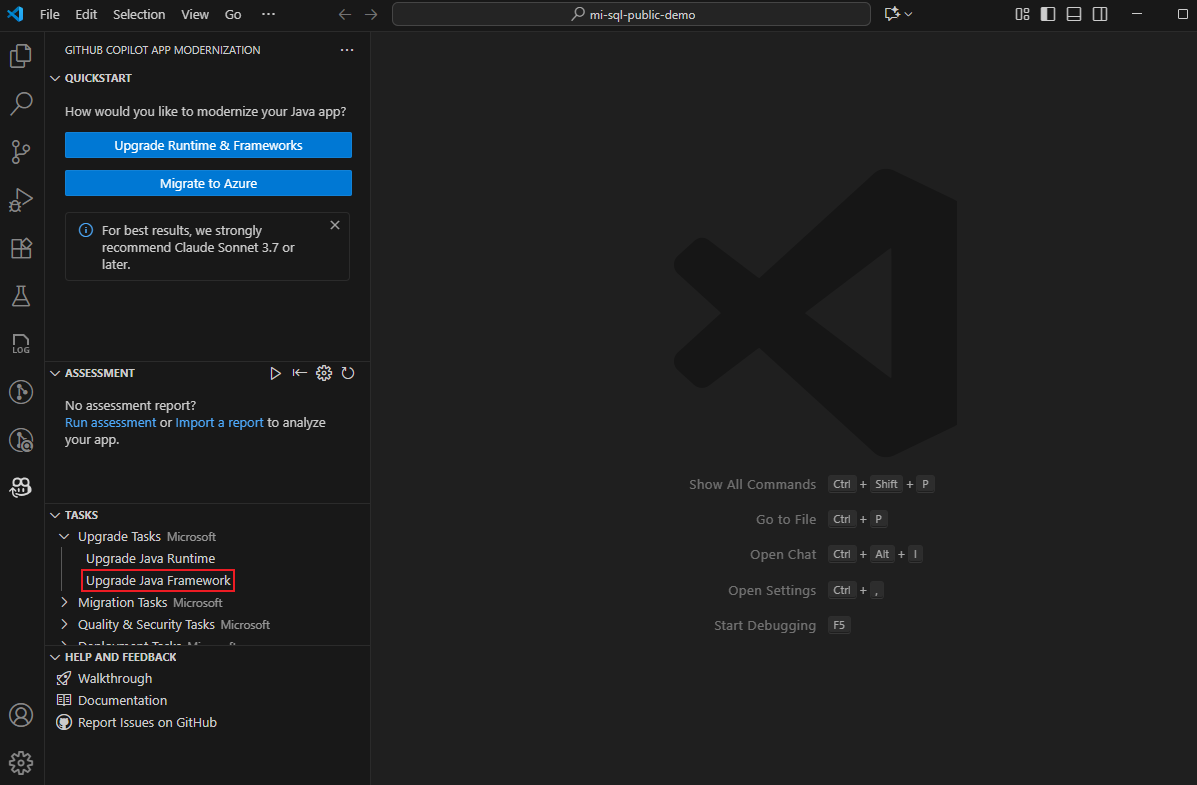
To upgrade the Spring framework or a non-Microsoft dependency, run the Upgrade Java Framework task in the TASKS - Upgrade Tasks section.
Assess cloud readiness for Azure Container Apps
The assessment identifies cloud readiness challenges in your codebase and rates their impact. It provides specific recommendations for Azure Container Apps.
Configure the assessment
Before running the assessment, configure it by selecting Configure Assessment in the GitHub Copilot app modernization Assessment pane.
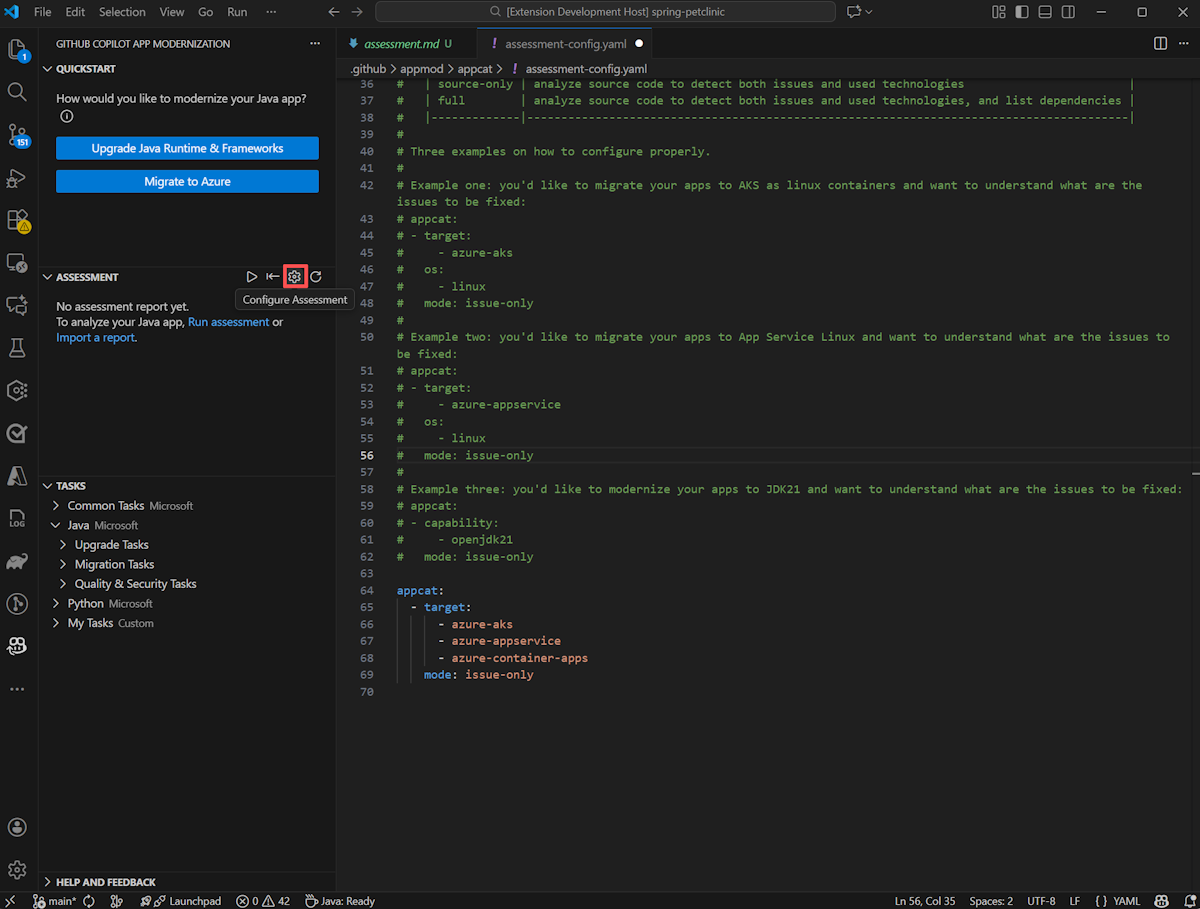
For Azure Container Apps, use the following configuration:
appcat:
- target:
    - azure-container-apps
  os:
    - linux
  mode: source-only
Run the assessment
Use the following steps to run the assessment:
In the sidebar, select the GitHub Copilot app modernization pane and then select Migrate to Azure or Run Assessment in the ASSESSMENT section.
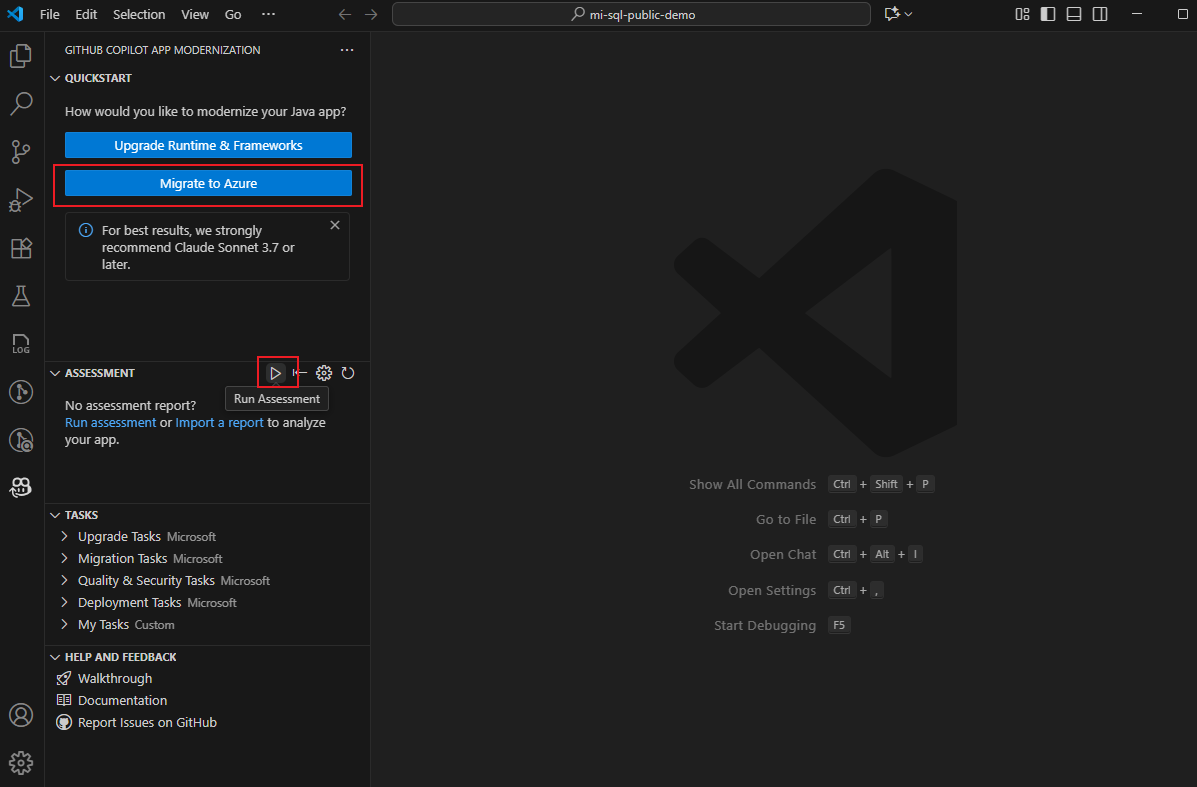
The GitHub Copilot chat window with agent mode opens to call the modernization assessor. Select Continue to confirm.
The modernization assessor verifies your local environment first. If AppCAT and its dependencies aren't installed, the agent helps you install them. After installation, the agent calls AppCAT to assess your project. This step can take several minutes to complete.
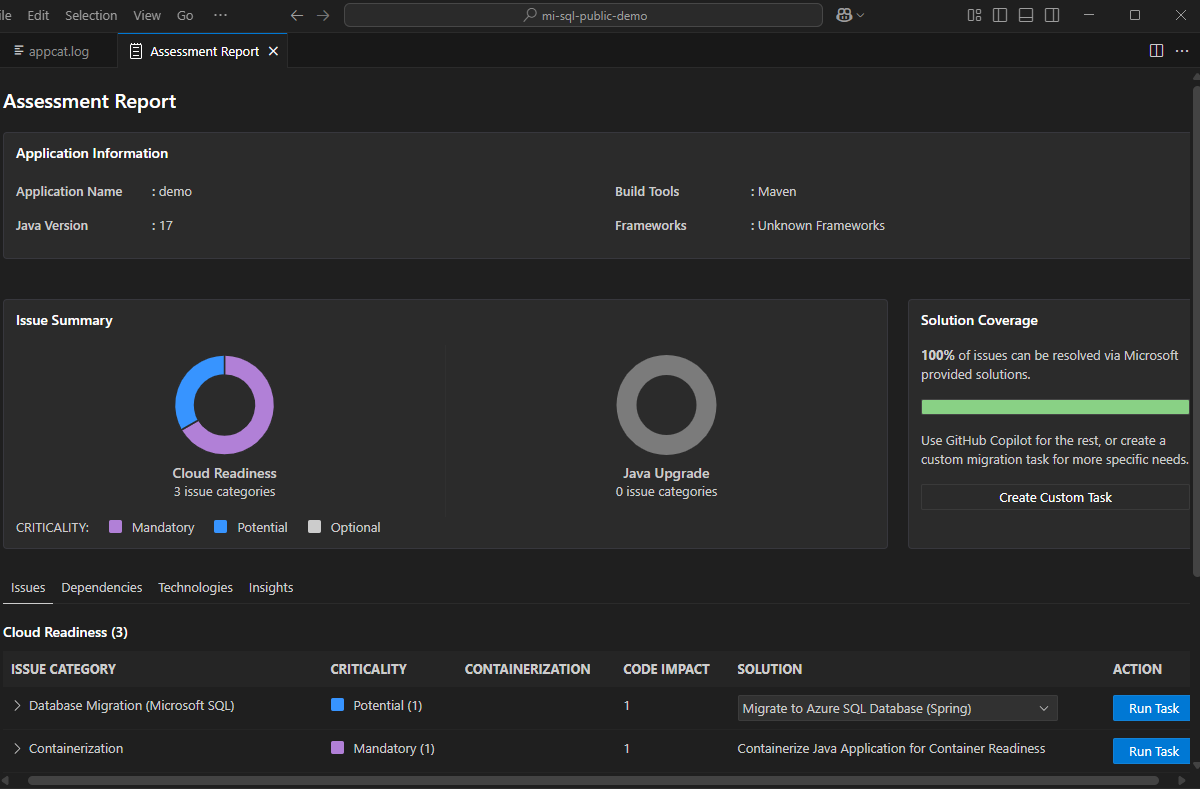
When the assessment finishes, the modernization assessor produces a categorized view of cloud readiness problems in the Assessment Report.
Interpret the assessment report
The assessment report provides comprehensive analysis results. The report consists of several key sections:
- Application Information: Basic information including Java version, frameworks, build tools, project structure, and target Azure service.
- Issue Summary: Overview of migration issues categorized by domain with criticality percentages.
- Detailed Analysis organized into four tabs:
- Issues: A categorized list of cloud readiness and Java upgrade issues that you need to address.
- Dependencies: All Java-packaged dependencies found within the application.
- Technologies: Technologies grouped by function found in the analyzed application.
- Insights: File details and information to help you understand the detected technologies.
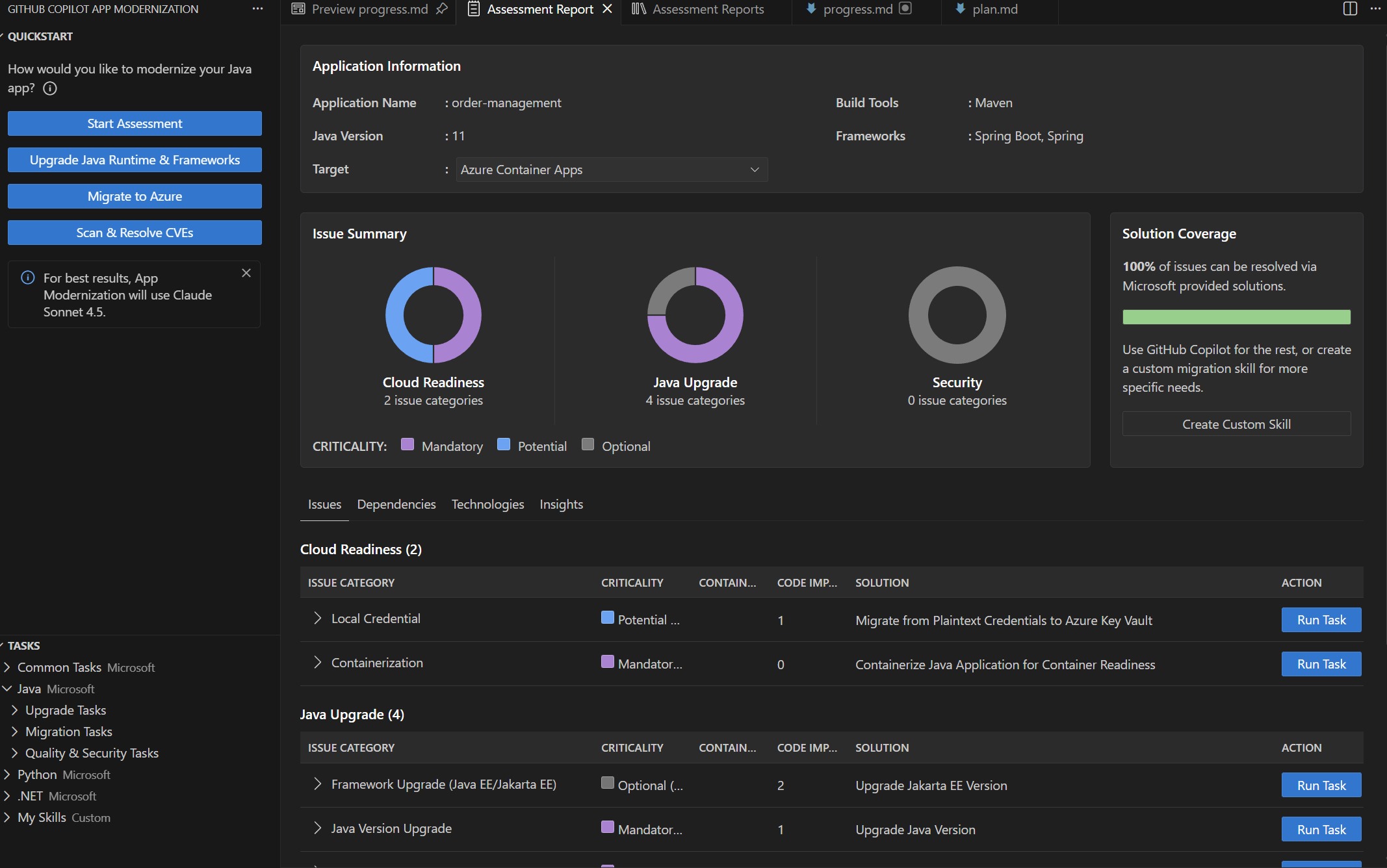
The report categorizes issues by the following criticality levels:
| Criticality | Description |
|---|---|
| Mandatory | Issues that you must fix for migration to Azure Container Apps. |
| Potential | Issues that might affect migration and need review. |
| Optional | Low-impact issues. Fixing them is recommended but optional. |
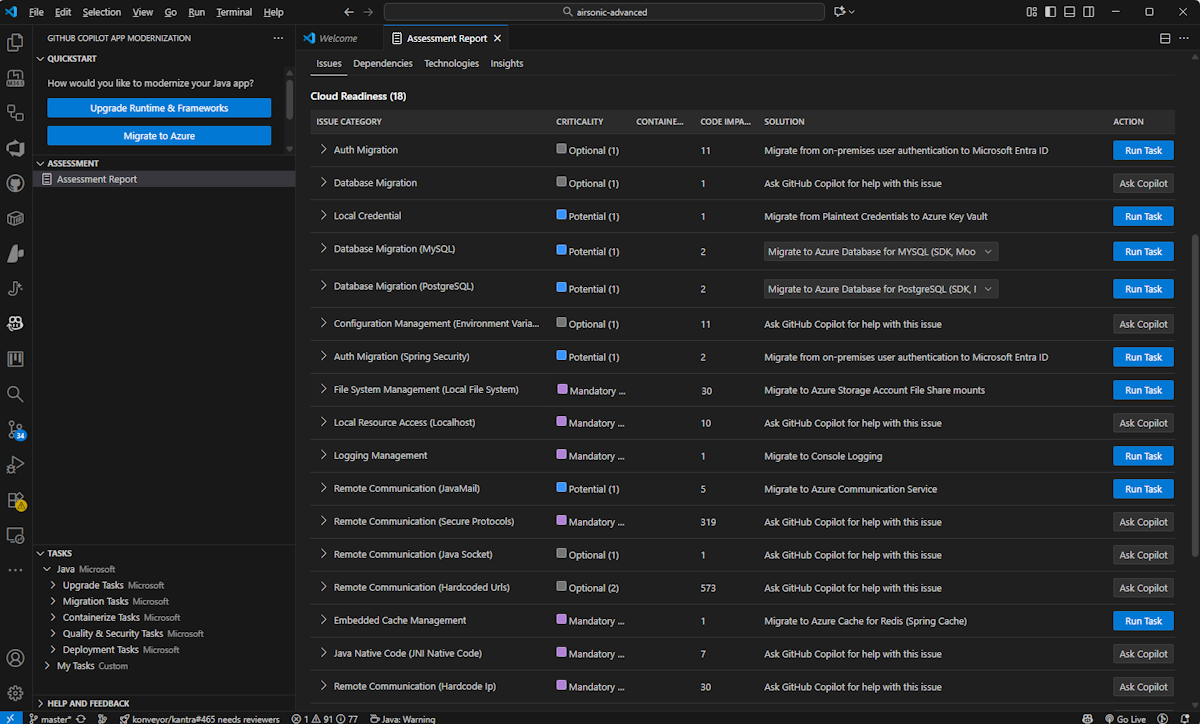
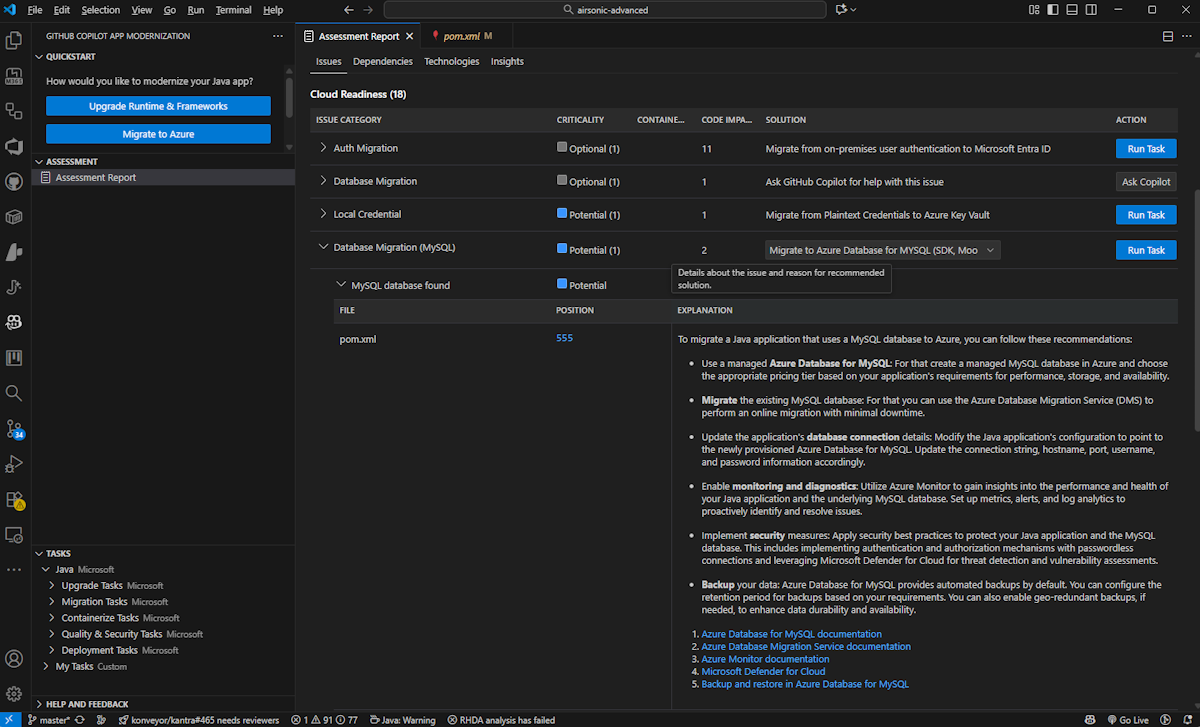
You can expand each reported issue to see a list of impacted files and a detailed description including the problem, known solutions, and supporting documentation.
Manage assessment reports
The extension supports importing, exporting, and deleting assessment reports so you can share findings with your team or keep your workspace organized.
- Import: Select Import in the assessment section to import reports from AppCAT CLI results, an exported report, or an app context file.
- Export: Right-click Assessment Report and select Export to share reports with others.
- Delete: Right-click Assessment Report and select Delete to remove a report.
Remediate migration issues
After you complete the assessment, remediate the identified problems by using predefined or custom tasks. GitHub Copilot app modernization provides two approaches: predefined tasks that address common migration patterns, and custom tasks you define for your organization's specific needs.
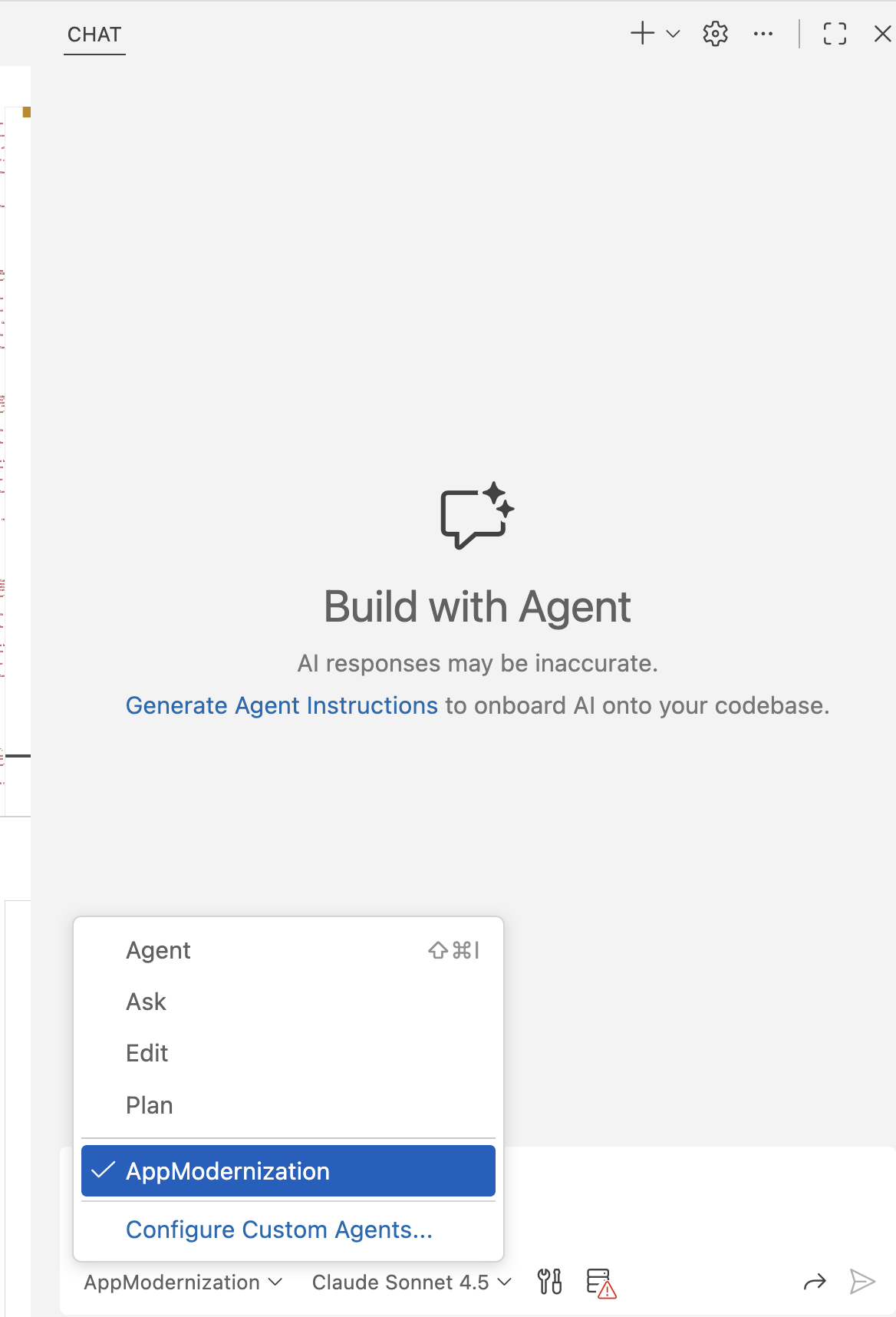
Select the AppModernization agent
The AppModernization agent provides the best experience for Java application migration and modernization tasks. To select it:
- Open the Copilot chat window by selecting the chat icon in the Activity Bar.
- In the chat window, locate the agent selector dropdown menu at the top of the chat input box and select AppModernization from the list.
Note
In Visual Studio Code, app modernization uses the AppModernization custom agent with the recommended model selected by default for best results. You can change the model by selecting Configure Custom Agents from the Agent menu.
With the AppModernization agent selected, use simple, natural language prompts to perform migration tasks:
- Database migration:
migrate to Managed Identity for Azure SQL Database - Storage migration:
migrate from AWS S3 to Azure Storage Blob - Messaging migration:
migrate from RabbitMQ to Azure Service Bus - Secret management:
migrate secrets to Azure Key Vault - Authentication migration:
migrate to Microsoft Entra ID authentication
Run predefined migration tasks
The GitHub Copilot app modernization feature supports the following predefined tasks for Azure Container Apps migrations:
| Task | Description |
|---|---|
| Spring RabbitMQ to Azure Service Bus | Converts Spring AMQP/JMS with RabbitMQ to Azure Service Bus, preserving messaging patterns and enabling secure authentication. |
| Managed Identities for Database migration | Prepares your codebase for Managed Identity authentication to Azure SQL Server, Azure Database for MySQL, Azure Database for PostgreSQL, Azure Cosmos DB for Cassandra API, and Azure Cosmos DB for MongoDB. |
| Managed Identities for Credential Migration | Transforms your Java applications to use Azure Managed Identity authentication for messaging services like Azure Event Hubs and Azure Service Bus, eliminating connection strings. |
| AWS S3 to Azure Storage Blob | Converts code that interacts with AWS S3 into code that operates with Azure Storage Blob, maintaining the same semantics. |
| Logging to local file | Converts file-based logging to console-based logging, making it ready for integration with Azure Monitor. |
| Local file I/O to Azure Storage File share mounts | Converts local file reads and writes to unified mount path access, enabling Azure Storage File share mounts on Azure Container Apps. For more information, see Use storage mounts in Azure Container Apps. |
| Java Mail to Azure Communication Service | Converts applications that send mail over SMTP to use Azure Communication Services, which is fully compatible with Azure Container Apps hosting. |
| Secrets and Certificate Management to Azure Key Vault | Migrates hardcoded secrets and local TLS/mTLS certificates to Azure Key Vault. For more information, see Manage secrets in Azure Container Apps. |
| User authentication to Microsoft Entra ID | Transitions local user authentication mechanisms (such as LDAP-based) to Microsoft Entra ID for authentication. For more information, see Authentication and authorization in Azure Container Apps. |
| SQL Dialect: Oracle to PostgreSQL | Converts Oracle-specific SQL queries, data types, and proprietary functions to PostgreSQL equivalents for use with Azure Database for PostgreSQL. |
| AWS Secret Manager to Azure Key Vault | Transforms all aspects of secret management from AWS Secret Manager to Azure Key Vault. |
| ActiveMQ to Azure Service Bus | Converts ActiveMQ message producers, consumers, connection factories, and queue/topic interactions to Azure Service Bus equivalents. |
| AWS SQS to Azure Service Bus | Translates SQS-specific code constructs to Azure Service Bus counterparts, preserving messaging semantics. |
Apply a predefined task from the assessment
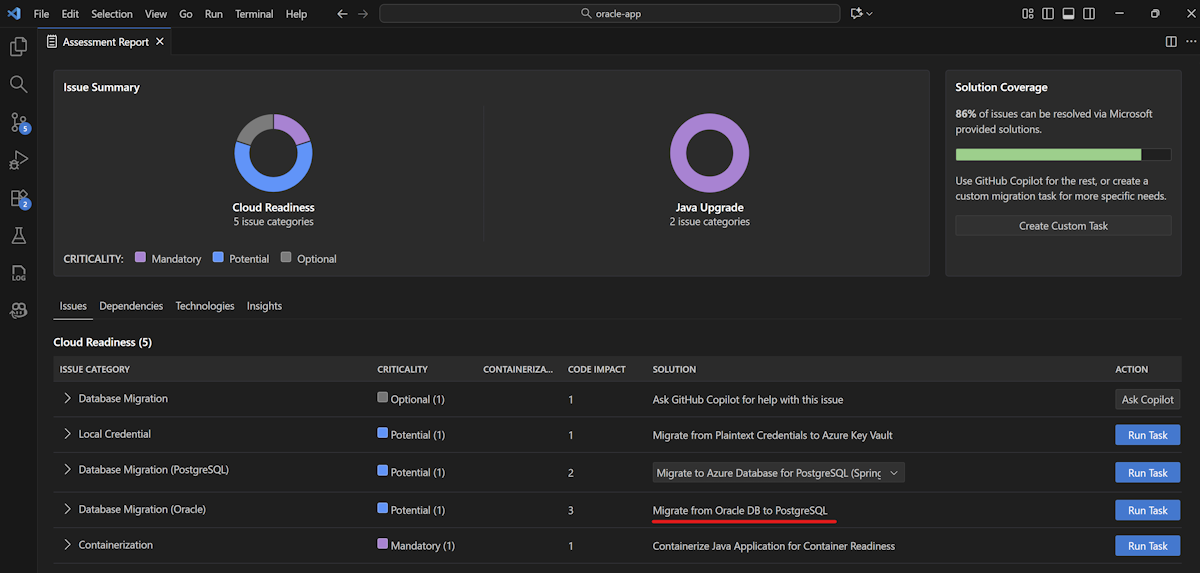
- In the Assessment Report, select the desired solution under a detected issue and select Run Task.
- The Copilot chat window opens with Agent Mode. The agent generates
plan.mdandprogress.md, and you can review the plan before proceeding. - Manually input
continueto confirm and start the migration process. - Before you make code changes, the agent checks the version control system status and checks out a new branch.
- Repeatedly select or input Continue to confirm tool usage and wait for the code changes to finish.

Review validation results
After you finish the code changes, the agent runs an automatic validation loop that includes the following checks:
- Validate-CVEs: Detects Common Vulnerabilities and Exposures in current dependencies and fixes them.
- Build-Project: Attempts to resolve any build errors.
- Consistency-Validation: Analyzes the code for functional consistency.
- Run-Test: Runs unit tests and automatically generates a plan to fix failures.
- Completeness-Validation: Catches migration items missed in initial code migration and fixes them.
After all checks finish, enter continue to generate the migration summary. Review the code changes and confirm by selecting Keep.
Create custom tasks
In addition to predefined tasks, you can create custom tasks based on your organization's specific migration patterns. Custom tasks use references from Git commits, external links, or text files to guide the migration agent.
Create a custom task from Git commits
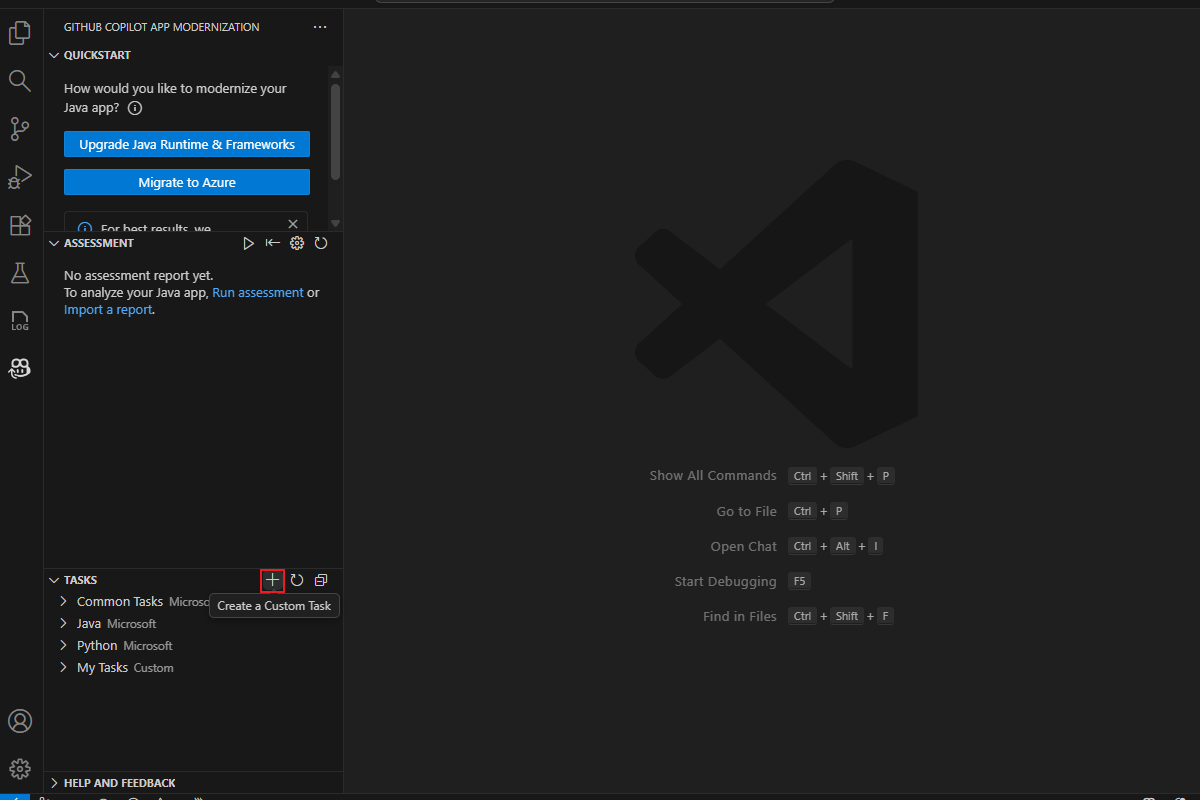
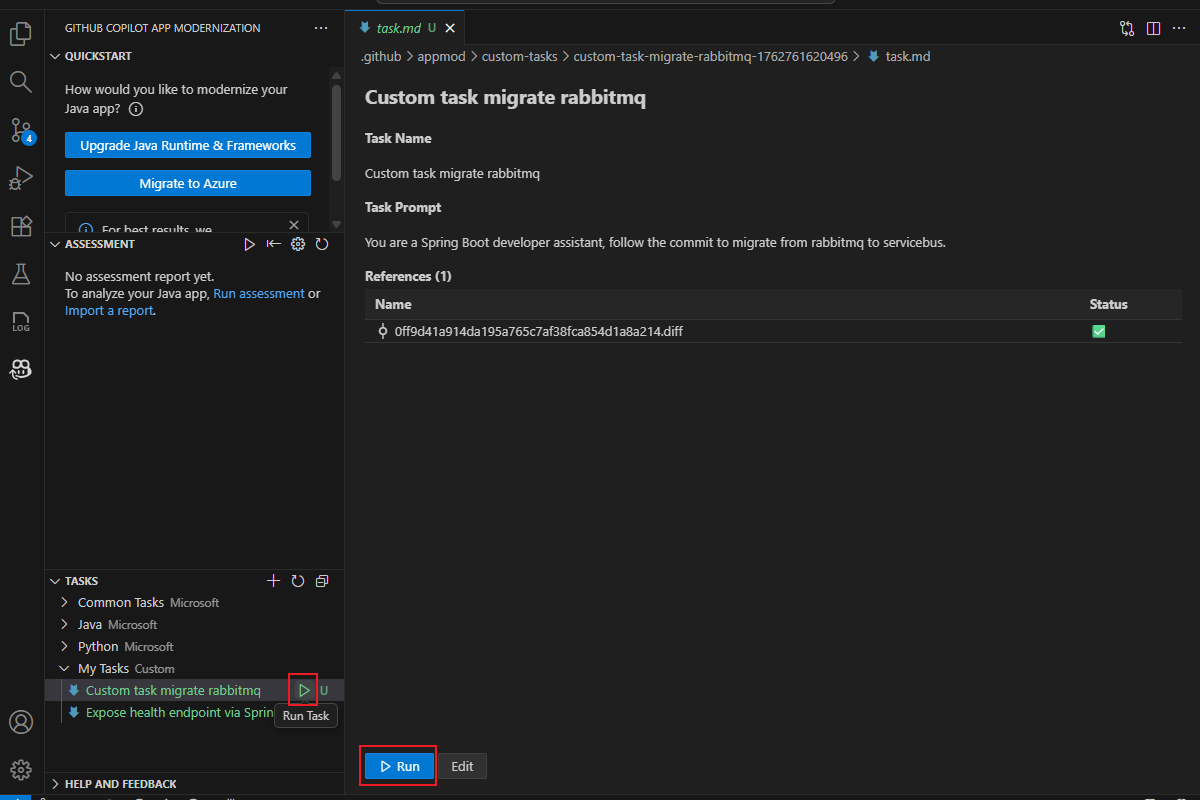
In the Activity sidebar, open the GitHub Copilot app modernization extension pane, hover over the TASKS section, and then select Create a Custom Task.
In the opened
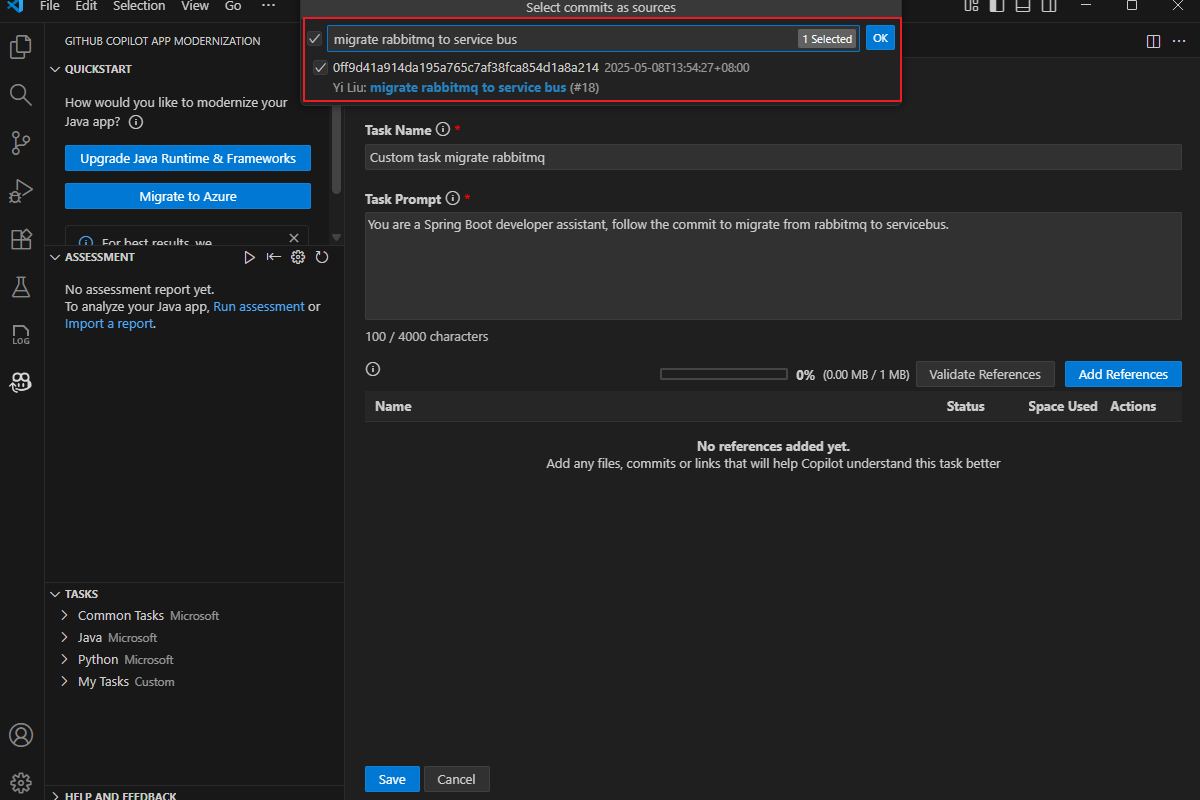
task.mdfile, enter the task name and task prompt.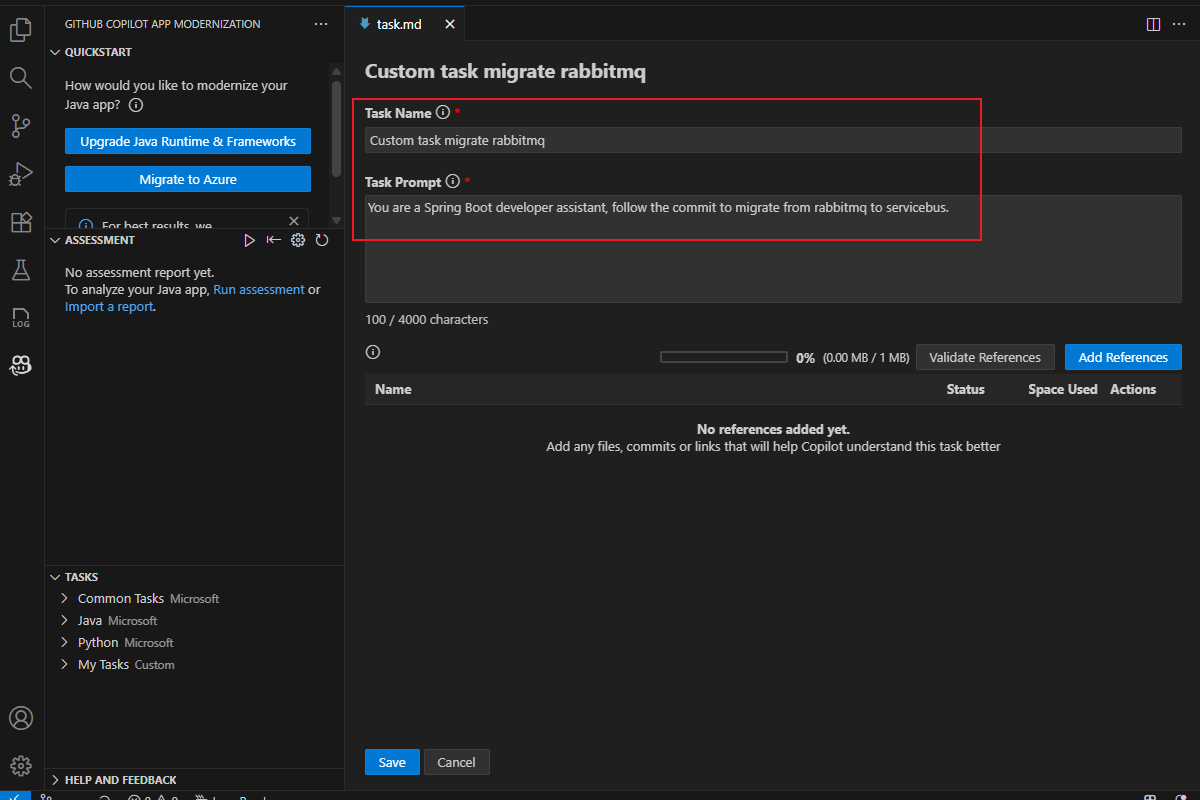
Select Add References and then select Git commits in the pop-up dialog box.
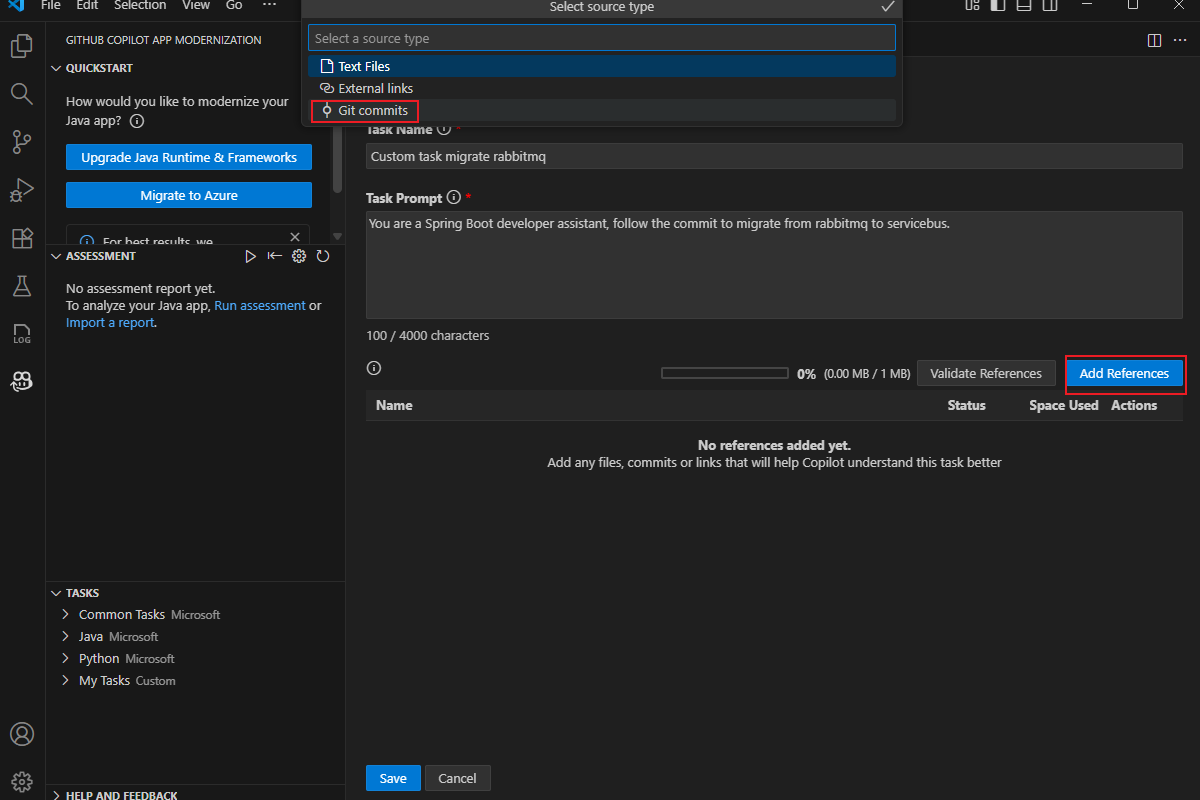
Search for and select the relevant commit, and then select OK.
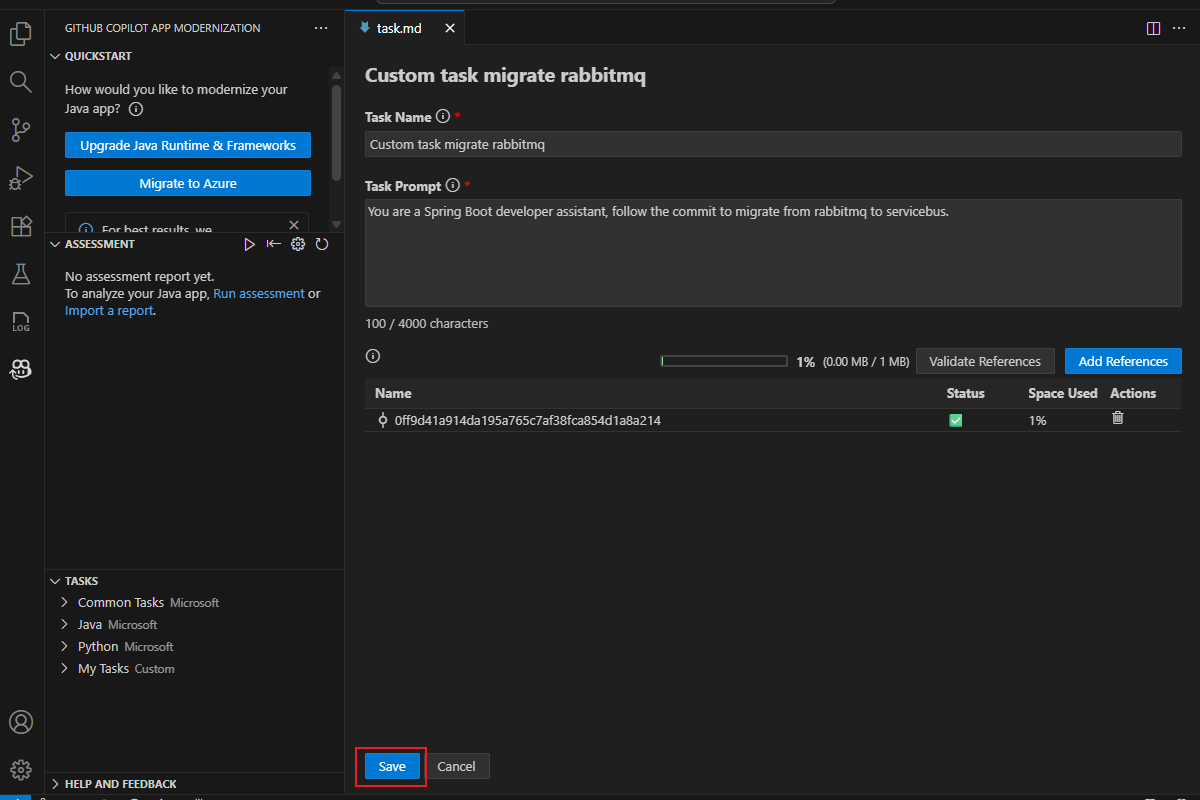
Select Save. Your custom task now appears in the TASKS - My Tasks section.
Create a custom task from external links and text files
Open the
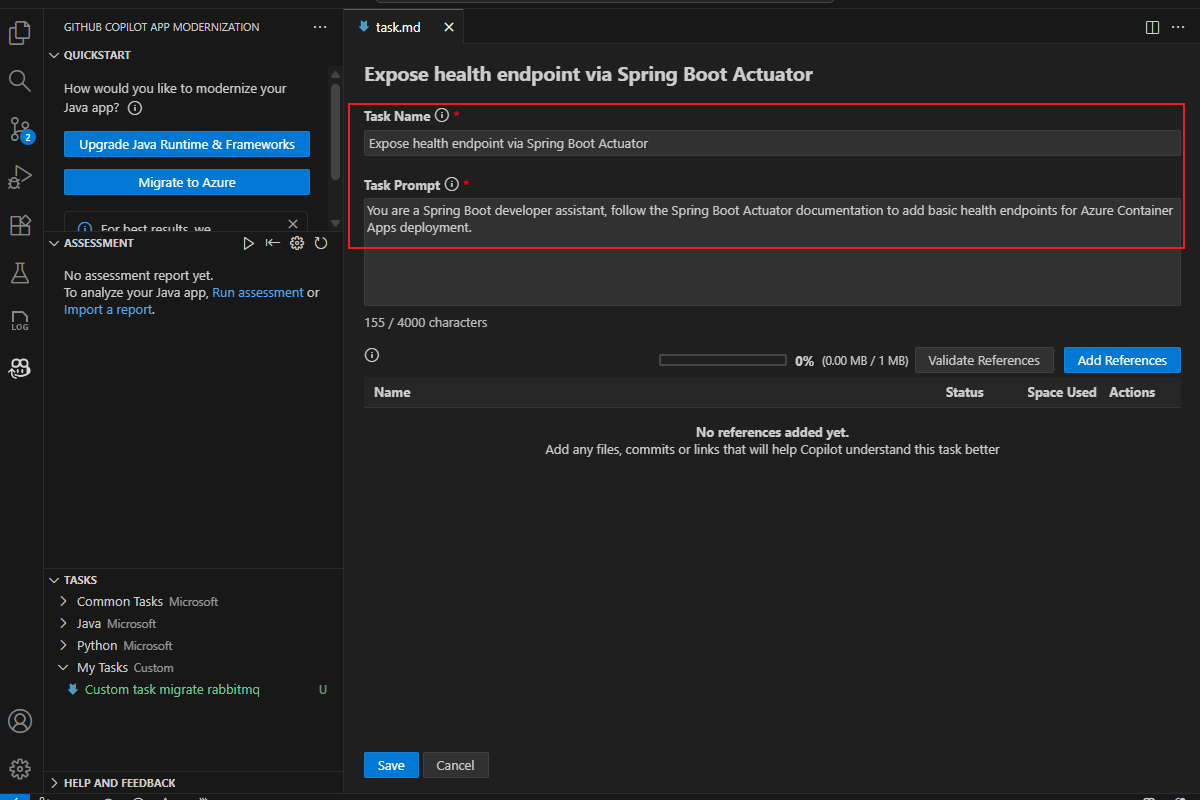
task.mdfile and enter the task name and prompt. For example:- Task Name:
Expose health endpoint via Spring Boot Actuator - Task Prompt:
You are a Spring Boot developer assistant, follow the Spring Boot Actuator documentation to add basic health endpoints for Azure Container Apps deployment.
- Task Name:
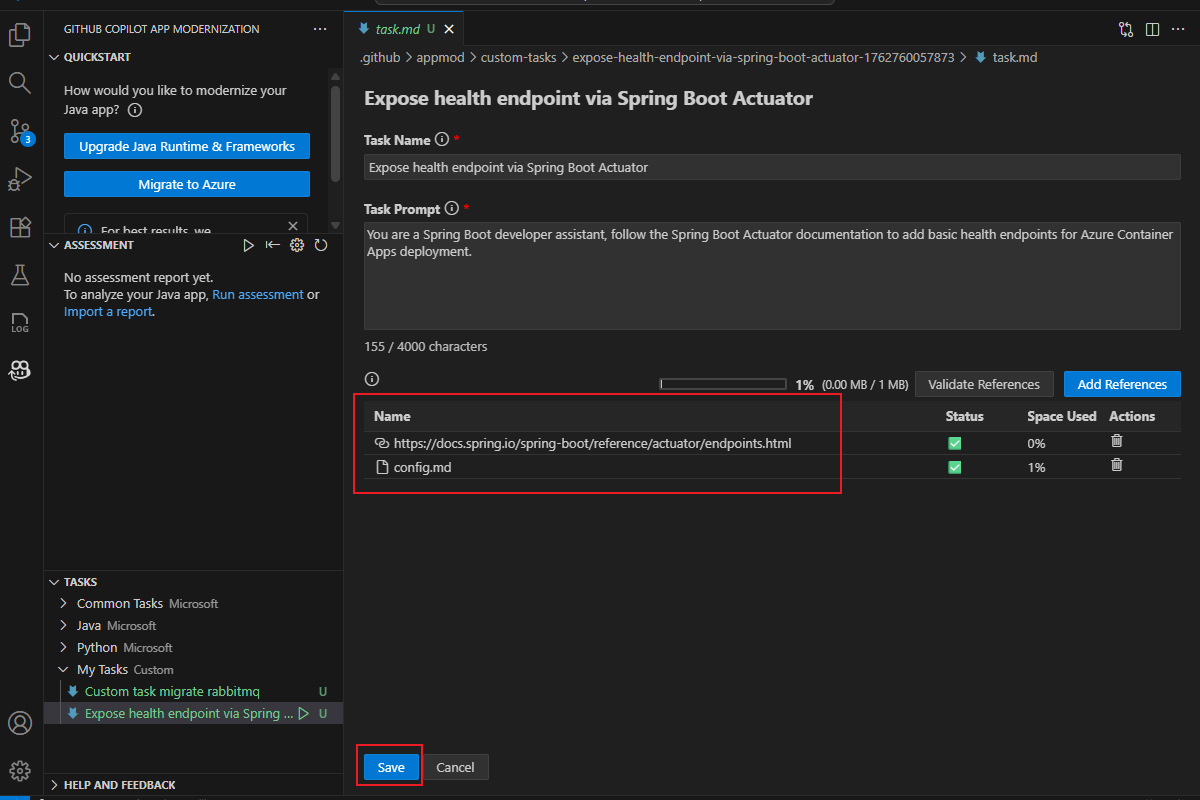
Select Add References, select External links, and then paste the URL reference. Select Add References again, select Text Files, and then add a file with extra instructions.
Select Save to create the task.
Share custom tasks
You can share custom tasks with other team members by sharing the task folder.
To share a custom task, copy the folder under .github/appmod/custom-tasks and share it with the intended recipient. The recipient pastes the task folder into the .github/appmod/custom-tasks directory and selects Refresh Task in the extension pane.
Run a custom task
Select Run at the bottom of the task file, or find your task in the TASKS - My Tasks section and select Run Task. The Copilot chat window opens in Agent Mode and automatically runs the migration workflow.
If your application uses an Oracle database, continue to the next section. Otherwise, skip to Containerize your application.
Migrate from Oracle to PostgreSQL
Note
This section applies only if your application uses an Oracle database. If your application doesn't use Oracle, skip to Containerize your application.
GitHub Copilot app modernization provides a dedicated migration task for the Oracle to Azure Database for PostgreSQL scenario that includes:
- AI-powered database migration tooling: For more information, see What is the PostgreSQL extension for Visual Studio Code preview?.
- Smart SQL conversion in app code: Built-in SQL conversion functionality in GitHub Copilot app modernization, seamlessly integrated as part of a unified task workflow.
Use the Oracle to PostgreSQL migration task
Run the application assessment as described in Assess cloud readiness for Azure Container Apps.
After the assessment completes, review the report. If your application uses Oracle, the report reveals an Oracle-related issue Database Migration (Oracle) with the default solution Migrate from Oracle DB to PostgreSQL.
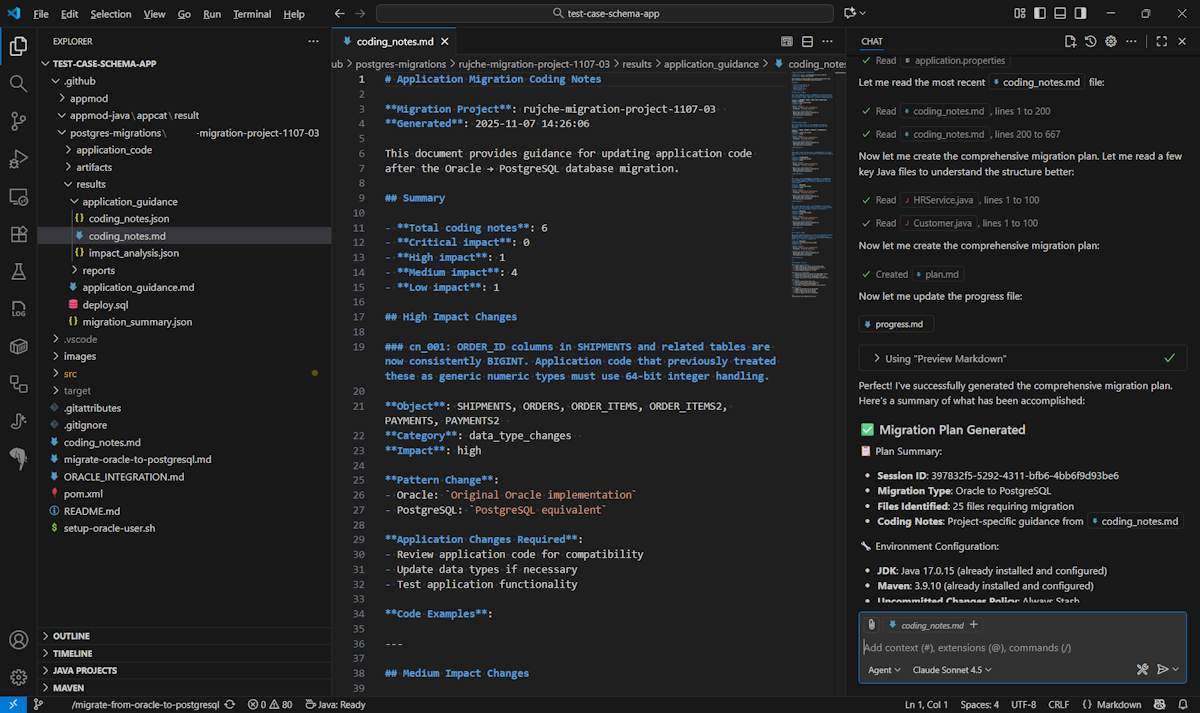
Optionally, check whether
coding_notes.mdis present in the.github/postgre-migrations/*/results/application_guidance/folder. If present, app modernization references these notes for higher quality SQL conversion. If not, contact your database team to generate them by using the PostgreSQL Visual Studio Code extension.Select Run Task to execute the migration.
Containerize your application
After you complete code migration, containerize your Java application to prepare it for deployment to Azure Container Apps.
Make sure you have Docker installed and running.
In Visual Studio Code, open your migrated project.
In the Activity sidebar, open the GitHub Copilot app modernization extension pane.
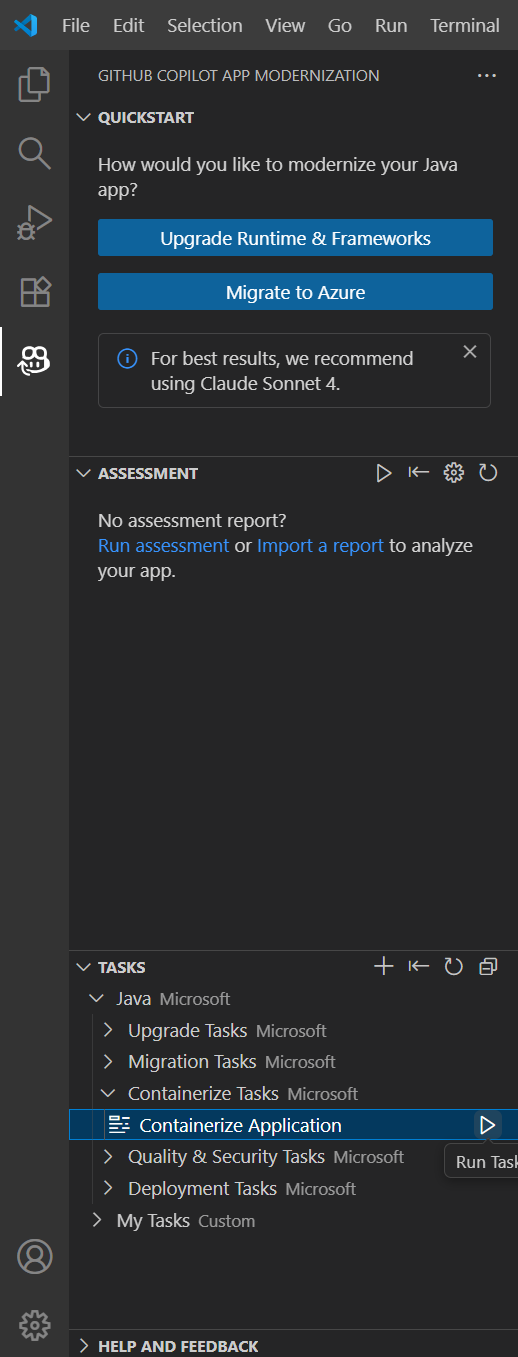
In the Tasks section, open Java, then open Containerize Tasks and select Containerize Application.
Confirm each tool action by selecting Continue when prompted.
Copilot goes through the following steps:
- Checks that Docker is installed and running.
- Checks that the application code is ready to run in a container.
- Creates a Dockerfile for each project.
- Builds Docker images for each project.
- Creates a summary of the containerization results.
Note
For the best results, use the latest recommended model shown in the extension's agent settings. It might take Copilot a few iterations to correct containerization errors.
For more information about the containerization tools, see the containerization-assist repository on GitHub.
Deploy to Azure Container Apps
After you containerize your application, deploy it to Azure Container Apps.
In Visual Studio Code, open your migrated project.
In the Activity sidebar, open the GitHub Copilot app modernization extension pane.
In the Tasks section, open Java, then open Deployment Tasks and select one of the following deployment options:
- Deploy to Existing Azure Infrastructure: Copilot asks for your existing resource group and deploys to the corresponding resources.
- Provision Infrastructure and Deploy to Azure: Copilot creates new Azure resources and deploys your project.
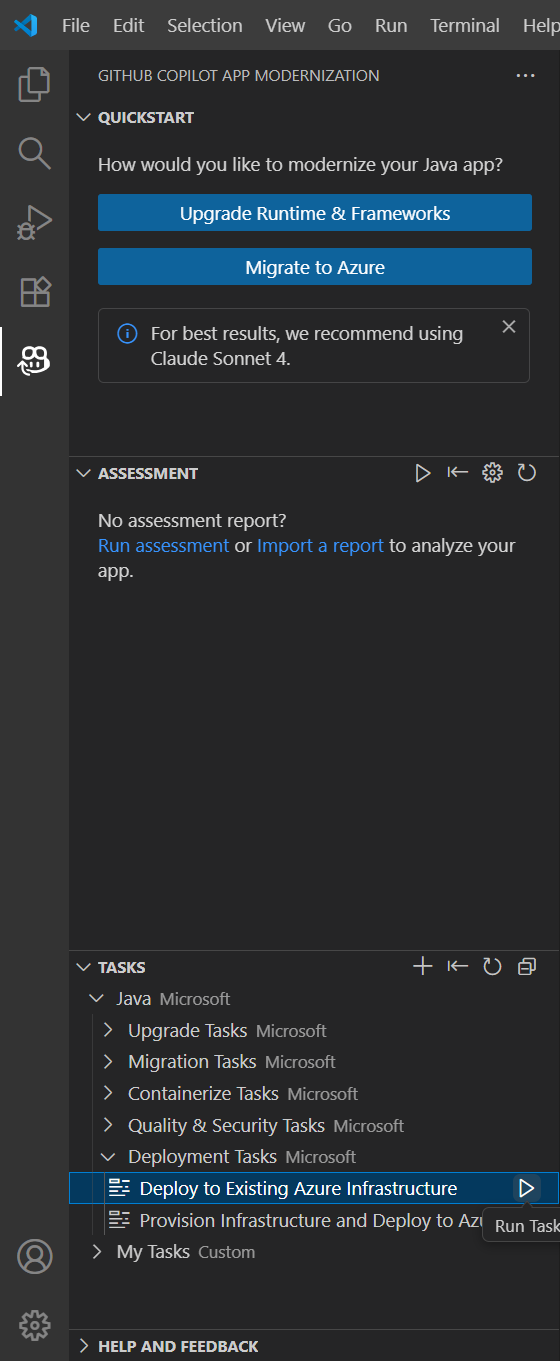
Confirm each tool action by selecting Continue when prompted, and provide the required information, such as subscription and resource group.
Copilot goes through the following steps:
- Generates a deployment plan markdown file with the deployment goal, project information, Azure resource architecture, Azure resources, and execution steps.
- Follows the execution steps in the plan.
- Fixes any deployment errors.
- Generates a summary file that explains the results of the deployment.
Note
For the best results, use the latest recommended model shown in the extension's agent settings. It might take Copilot a few iterations to correct deployment errors.
Post-migration best practices
After you migrate your Java application to Azure Container Apps, consider the following best practices:
- Configure health probes: Set up health probes to enable Azure Container Apps to monitor the health of your application.
- Set up logging: Configure console-based logging to integrate with Azure Monitor for centralized log aggregation and analysis.
- Configure scaling rules: Set up scaling rules based on HTTP traffic, CPU, memory, or custom metrics to handle varying workloads.
- Manage secrets: Use Azure Container Apps secrets management or Azure Key Vault to securely store and access sensitive configuration values.
- Set up CI/CD pipelines: Automate your deployment pipeline using GitHub Actions or Azure Pipelines for continuous integration and delivery.
- Enable blue-green deployments: Use revisions and traffic splitting to implement zero-downtime deployments.
- Configure custom domains: Set up custom domains and certificates for production traffic.
- Monitor with metrics and alerts: Use metrics and alerts to proactively monitor application health and performance.
- Enable zone redundancy: Configure zone redundancy for high availability across availability zones.