Note
Access to this page requires authorization. You can try signing in or changing directories.
Access to this page requires authorization. You can try changing directories.
Azure Cosmos DB Query Advisor uses AI to help you write and understand queries without leaving your editor. Generate SQL queries from natural language prompts or get plain-language explanations of existing queries directly in the Visual Studio Code query editor.
What this feature does
Azure Cosmos DB Query Advisor helps you generate Azure Cosmos DB SQL queries from plain-language prompts and explains existing queries directly in the Visual Studio Code query editor.
Prerequisites
- Visual Studio Code 1.103 or later.
- Azure Cosmos DB extension.
- GitHub Copilot and GitHub Copilot Chat available in Visual Studio Code.
- Access to an Azure Cosmos DB account that uses the NoSQL API, or a local emulator setup.
Generate a query from natural language
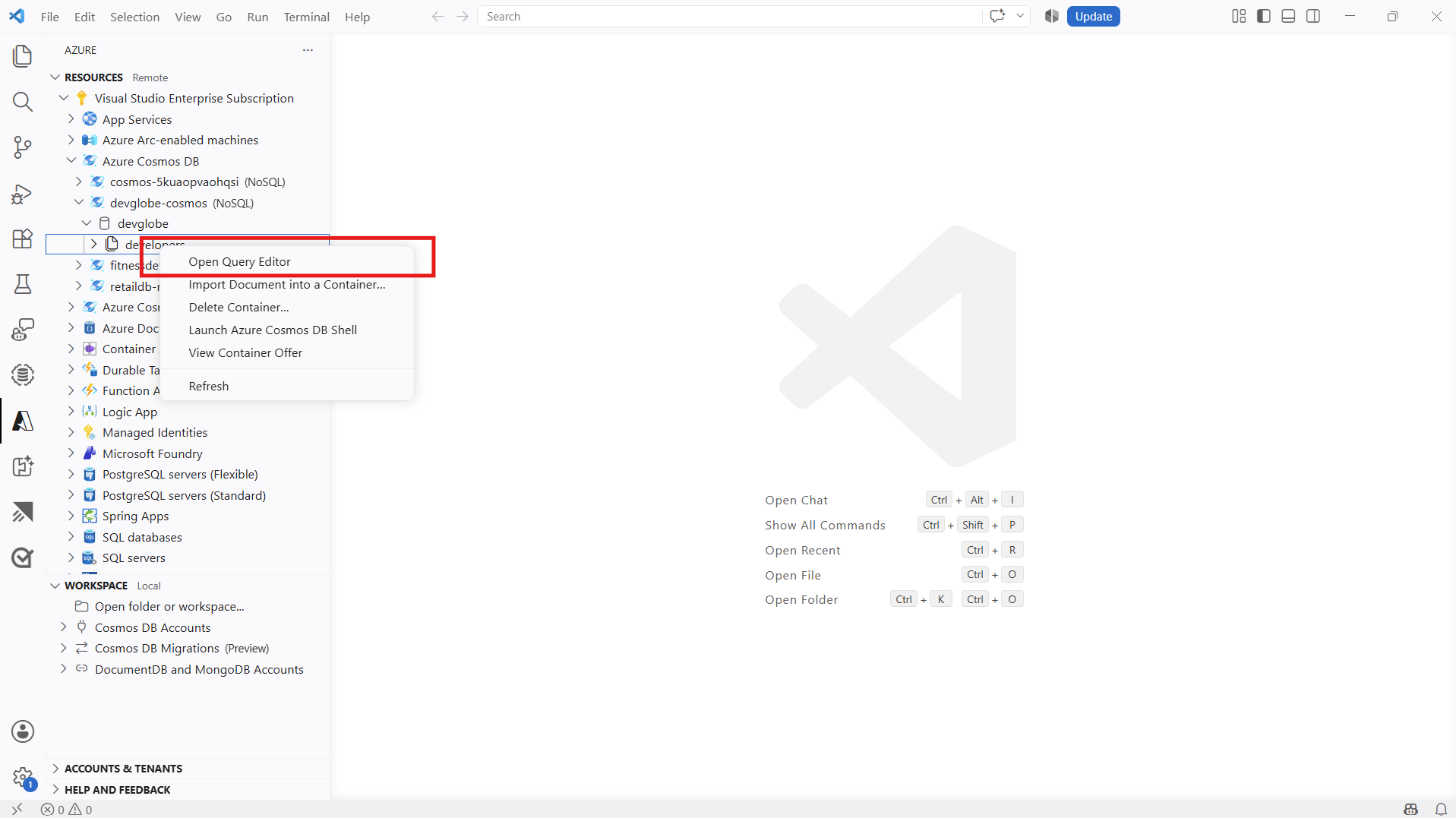
Right-click your Azure Cosmos DB container in the resource tree and select Open Query Editor.
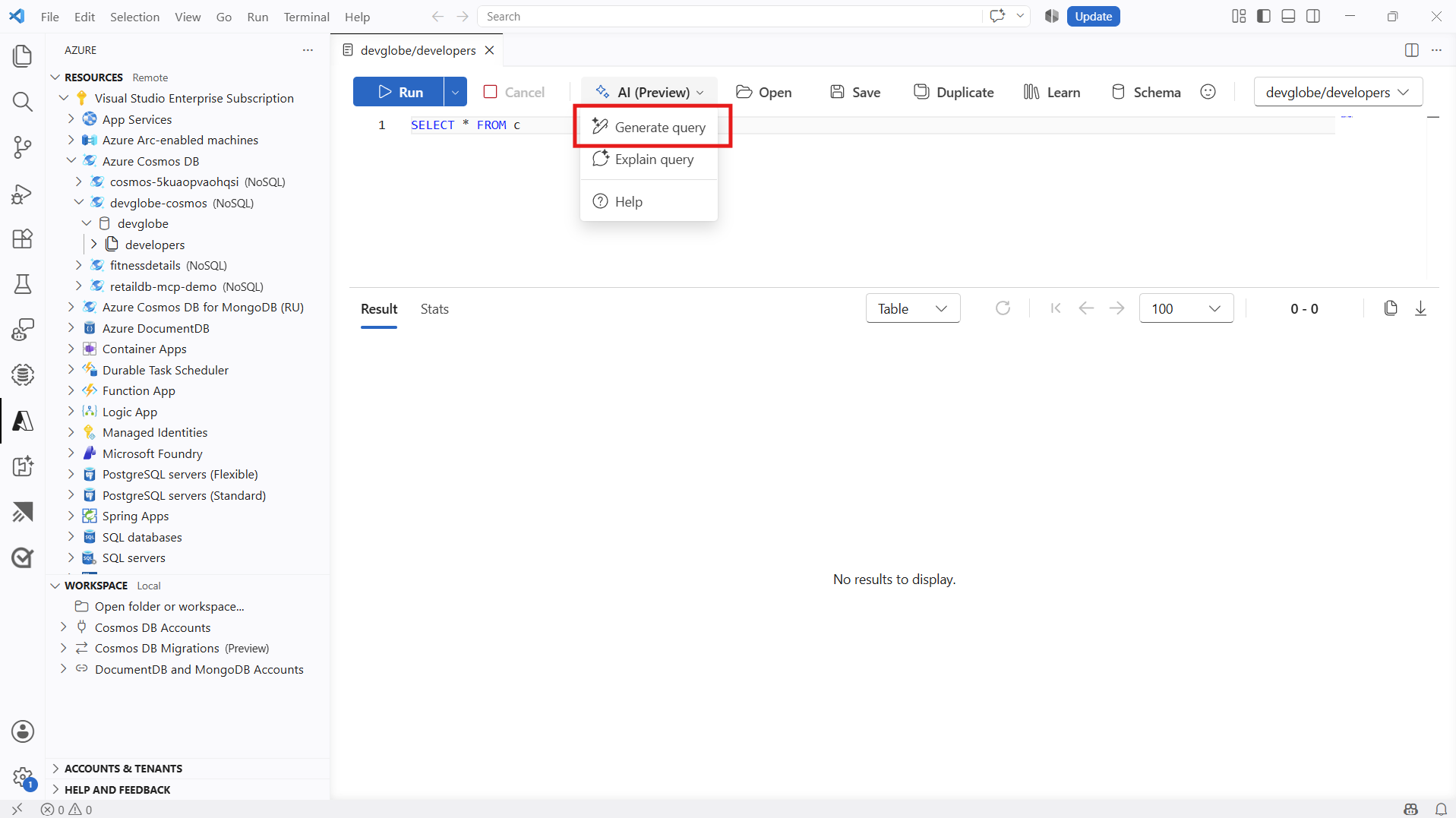
In the query editor toolbar, select the AI (Preview) button and choose Generate query.
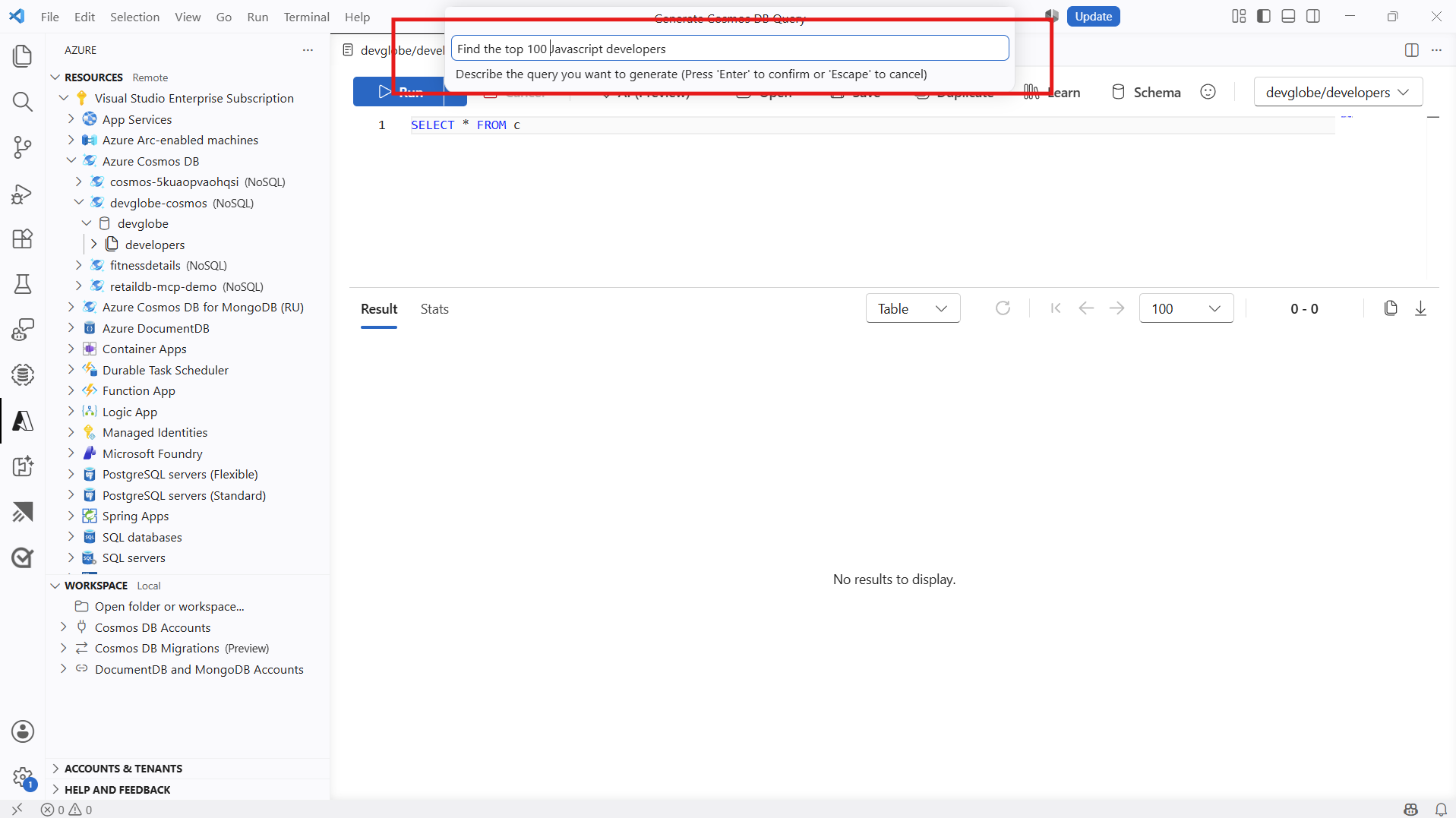
Enter a natural language prompt that describes the query you want to generate, and then press Enter to confirm.
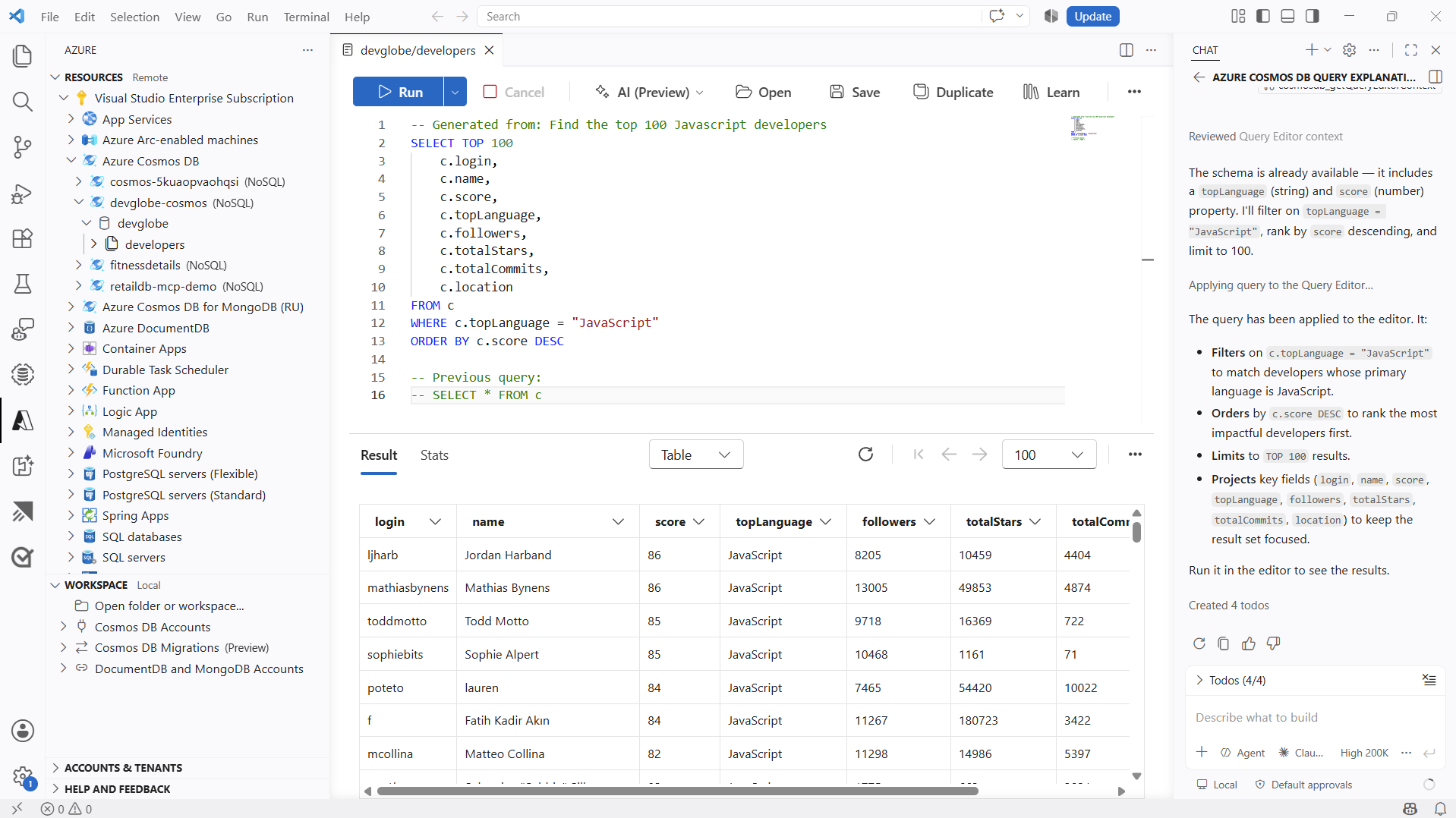
The generated query is inserted into the editor, executed automatically, and results display in the table view. The Chat panel provides an explanation of the generated query.
Example prompts:
Find the top 100 JavaScript developers.
Return top 20 users with the highest loyaltyPoints.
Show products where inventoryCount is less than 10.
Explain an existing query
With a query open in the editor, select the AI (Preview) button and choose Explain query.
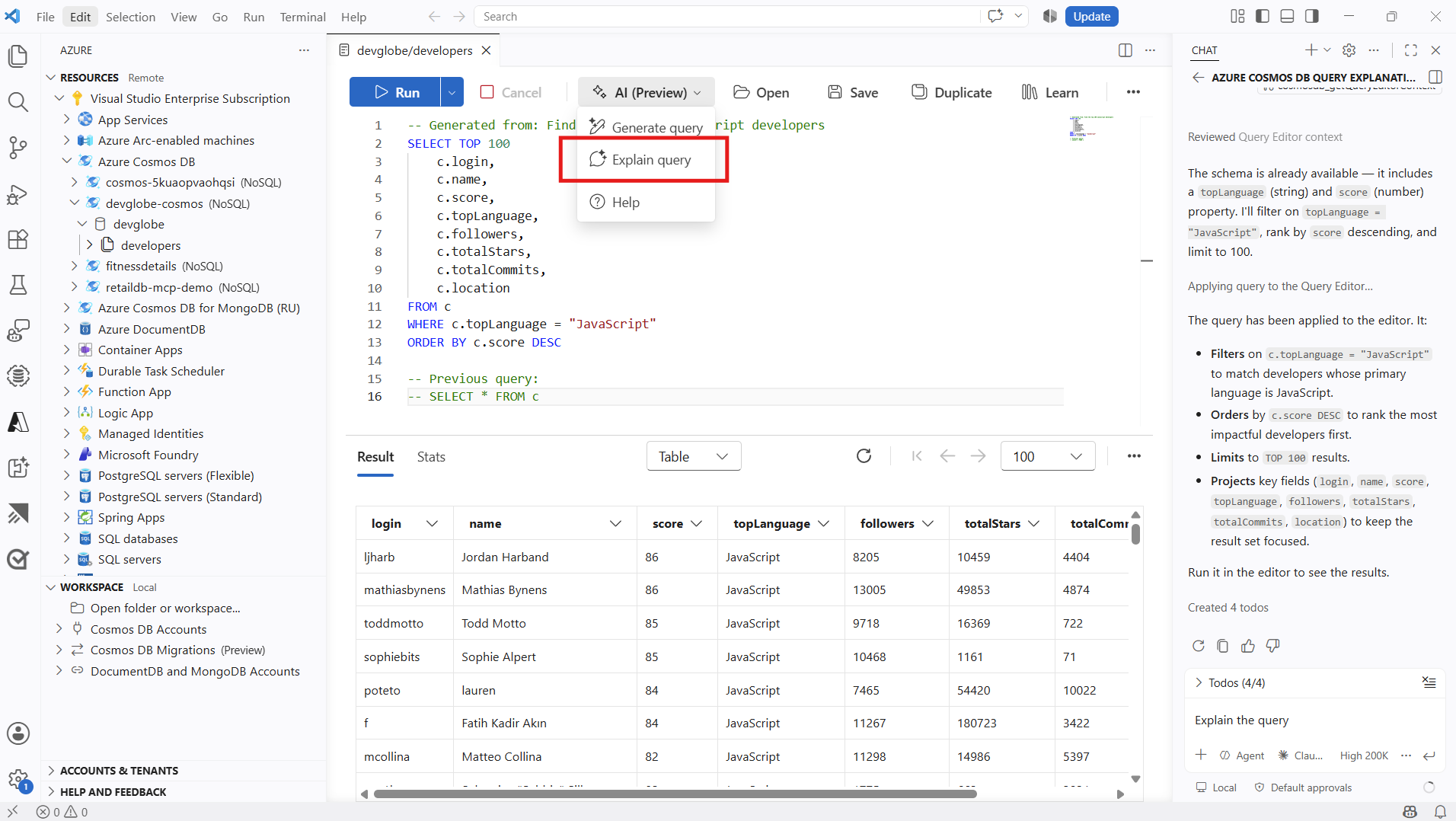
The Chat panel opens with a detailed explanation of the query logic, including filters, projections, ordering, and limits.
Refine generated output
If the first query is close but not exact, refine it with a follow-up prompt such as:
Keep the filters, return only id and status, and add ORDER BY c._ts DESC.
Best results come from prompts that include:
- Expected fields.
- Exact filter criteria.
- Sort and pagination requirements.
Validate correctness and performance
- Confirm field names and value types against your container schema.
- Verify partition key assumptions for large containers.
- Check query results in table, JSON, or tree view.
- Re-run with narrower filters if RU consumption is high during iteration.
Known limitations
- Generated queries can require manual refinement for complex schemas.
- Schema sampling and query history can influence follow-up suggestions.
- Validate AI assistant usage with your organization policy before testing production-like data.
Troubleshooting
- If generation fails, confirm container context is selected in the query editor.
- If results don't match intent, rewrite the prompt with explicit fields and filters.
- If query output is empty, test with
SELECT TOP 10 * FROM cto inspect available data.