Note
Access to this page requires authorization. You can try signing in or changing directories.
Access to this page requires authorization. You can try changing directories.
Use this article to onboard to Azure Enclave by registering the required resource providers and preparing the permissions needed to manage Azure Enclave resources in your subscription.
Prerequisites
- You must already have an Azure tenant and subscription.
- You must be an Owner of an existing Azure subscription.
Register the required resource providers and configure NetworkWatcherRG access
Option 1: PowerShell
PowerShell is the fastest way to register all required resource providers to begin using Azure Enclave.
Sign in to your Azure tenant and open the subscription.
In the Azure portal, select the
Cloud Shellicon at the top of the window.
Set the Azure context for your subscription. For example, run
Set-AzContext -Subscription <subscription-id>.Copy and paste this code into Cloud Shell, and then press Enter.
# Register the Azure Enclave Resource Provider and grant permissions to the Resource Provider application

$resourceProviders = @(
   "Microsoft.Advisor",
   "Microsoft.AlertsManagement",
   "Microsoft.Authorization",
   "Microsoft.Automation",
   "Microsoft.Billing",
   "Microsoft.Capacity",
   "Microsoft.ChangeAnalysis",
   "Microsoft.ClassicSubscription",
   "Microsoft.CognitiveServices",
   "Microsoft.Compute",
   "Microsoft.Consumption",
   "Microsoft.CostManagement",
   "Microsoft.DesktopVirtualization",
   "Microsoft.Features",
   "Microsoft.GuestConfiguration",
   "Microsoft.Insights",
   "Microsoft.KeyVault",
   "Microsoft.Logic",
   "Microsoft.ManagedIdentity",
   "Microsoft.MarketplaceOrdering",
   "Microsoft.Network",
   "Microsoft.OperationalInsights",
   "Microsoft.OperationsManagement",
   "Microsoft.PolicyInsights",
   "Microsoft.Portal",
   "Microsoft.ResourceGraph",
   "Microsoft.ResourceHealth",
   "Microsoft.ResourceNotifications",
   "Microsoft.Resources",
   "Microsoft.Security",
   "Microsoft.SecurityInsights",
   "Microsoft.SerialConsole",
   "Microsoft.SqlVirtualMachine",
   "Microsoft.Storage",
   "Microsoft.Support",
   "Microsoft.Web",
   "Microsoft.Mission"
)

$resourceProviders | foreach {Register-AzResourceProvider -ProviderNamespace $_ -Verbose}
(Optional) Enable the
EncryptionAtHostfeature.The EncryptionAtHost feature enables encryption at the compute host level.
# Register the feature
az feature register --namespace Microsoft.Compute --name EncryptionAtHost

# Check registration status (may take 10-15 minutes)
az feature show --namespace Microsoft.Compute --name EncryptionAtHost

# Once registered, refresh the provider
az provider register --namespace Microsoft.Compute
After the update is complete, proceed to Azure setup or next steps.
Option 2: Azure portal
Sign in to your Azure tenant and open the subscription.
Under
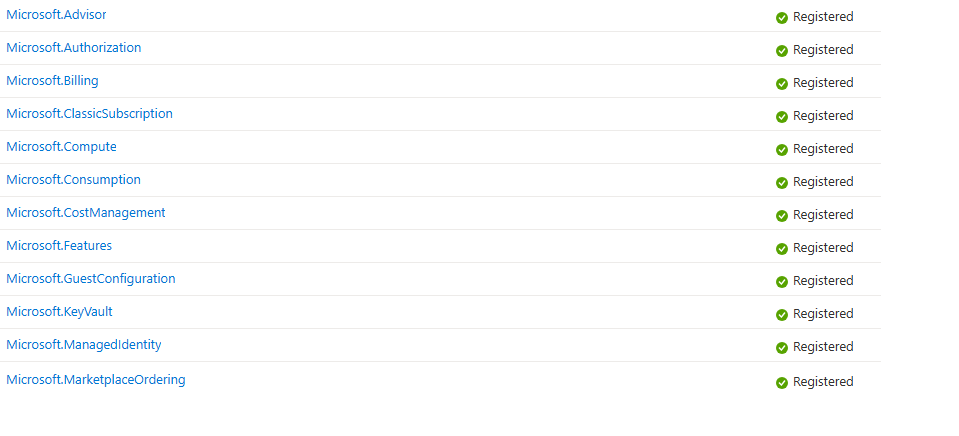
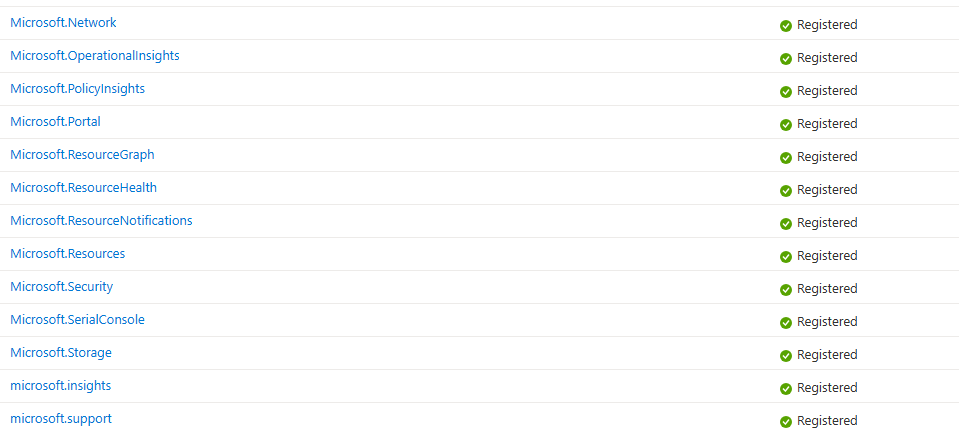
Settings, selectResource providers.Register the resource providers listed in Option 1: PowerShell in the subscription. The PowerShell script is the fastest option and the authoritative source for the required registrations. These images show the expected end state.
Search for and select
Microsoft.Mission, and then selectRegister.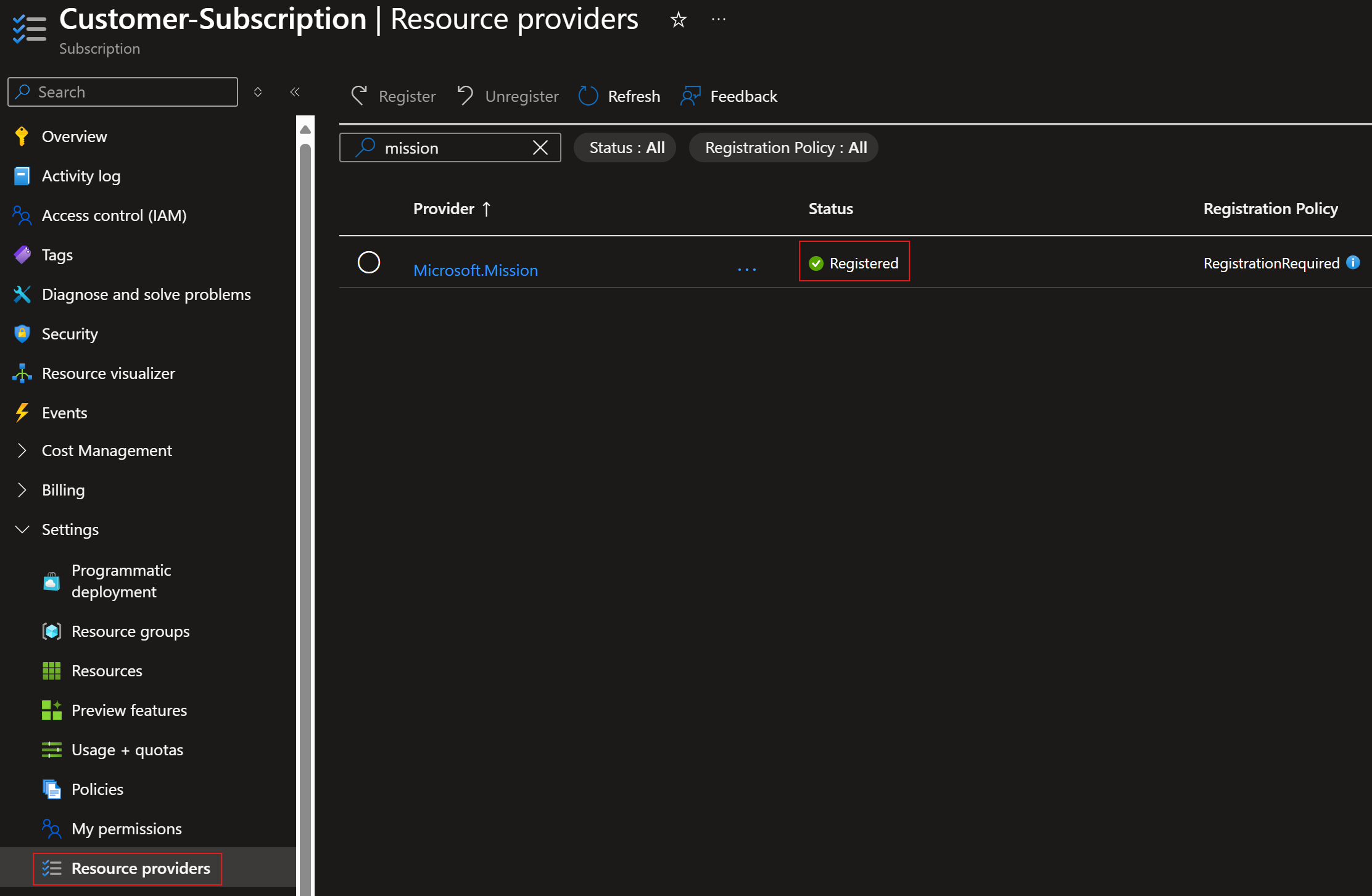
Proceed to Azure setup or next steps.
For reference, you can also review the generic instructions for enabling a preview feature.
Configure NetworkWatcherRG access
To avoid potential problems with virtual network flow log creation, ensure the NetworkWatcherRG resource group exists in each subscription and that the Mission Enclave app has the Network Contributor role on that group before you create your first enclave. If the network watcher instance is automatically created (for example, through an existing Azure resource deployment in that region), review the role assignment on your list of network watcher instances. Learn more about Network Watcher.
Important
If NetworkWatcherRG doesn't exist or the Mission Enclave app doesn't have the Network Contributor role on it, enclave deployments might fail when attempting to create virtual network flow logs. The Owner or Contributor roles also work but grant more permissions than required.
Select the
NetworkWatcherRGresource group, selectAccess control (IAM), then selectAddandAdd role assignment.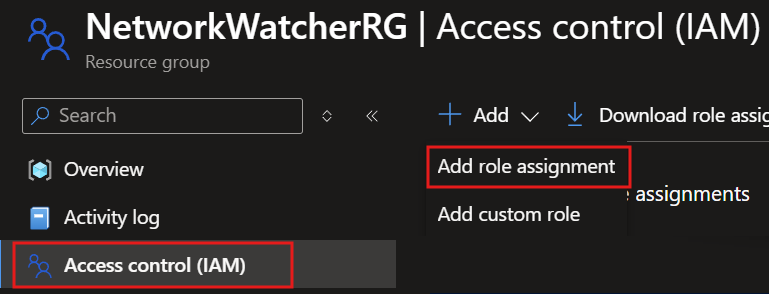
Type
Network Contributor, selectNetwork Contributor, and then selectNext.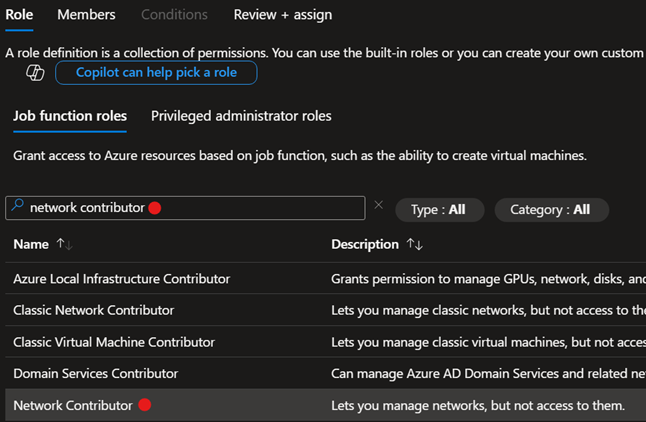
Select
Select members, typeMission Enclavein the search box, select theMission Enclaveapp, and then selectSelectandNext, thenReview + assign.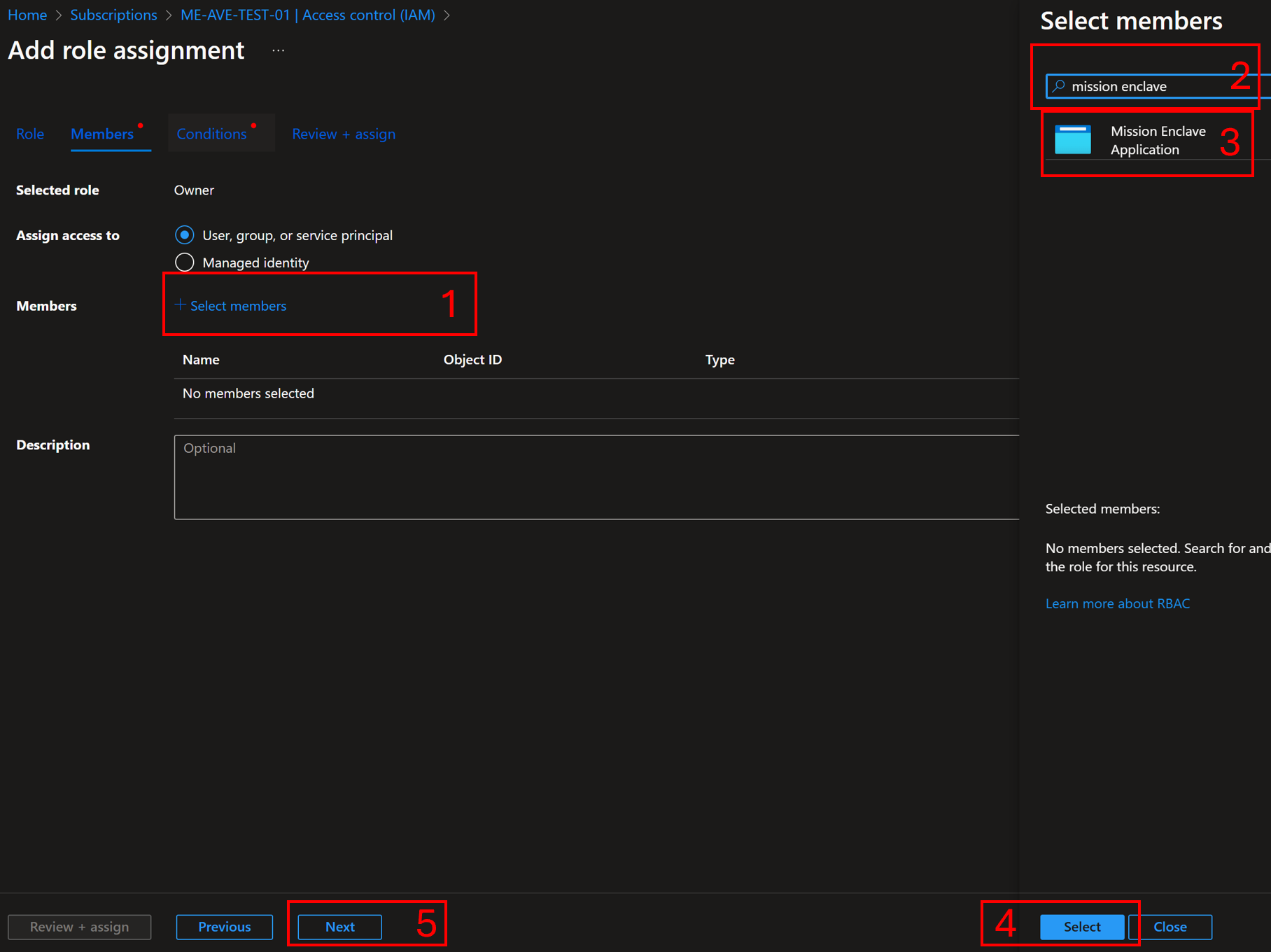
Once the update is complete, you can start deploying Azure Enclave resources.
When a community or enclave is created, Azure Enclave attempts the following steps:
- Check if the
NetworkWatcherRGresource group exists. If not, attempt to create that resource group in the same location as the community. - Check if the
Mission Enclaveapp already has anOwner,Contributor, orNetwork Contributorrole assignment onNetworkWatcherRG. If any of these roles is already present — including a pre-existingOwnerassignment — Azure Enclave leaves it in place rather than creating an additional assignment. If none of these roles is present, Azure Enclave attempts to assign theMission Enclaveapp theContributorrole onNetworkWatcherRG. This elevation is delegated on behalf of the signed-in caller, so it requires the deploying identity to hold sufficient permission (for example, User Access Administrator) to grant the role. - If any step fails, enclave deployments might fail when attempting to create virtual network flow logs.
Transition steps for existing preview customers
Existing preview customers must re-register the Azure Enclave resource provider so their subscriptions can use the latest Azure Enclave API and service updates.
Complete these steps to use the latest Azure Enclave API:
- In the Azure portal, navigate to your subscription.
- Under
Settings, selectResource providers. - Search for and select
Microsoft.Mission, and then selectRe-register. - Repeat these steps for any additional subscriptions.
Next steps
After registering the Azure Enclave resource provider, you can start deploying Azure Enclave resources into your subscription.
Start building your Azure Enclave community:
Establish network connectivity within your community:
Create resources within your workloads to meet your objectives:
- Create resources from the service catalog
- Create resources with a template or bicep template from these examples