Note
Access to this page requires authorization. You can try signing in or changing directories.
Access to this page requires authorization. You can try changing directories.
Start a configured migration wave, respond to approvals and manual work, and recover from failures as migration progresses. This article also covers pausing, canceling, and completing a run.
Prerequisites
- Ensure your wave's Execution status is Not Started, not Pending configuration. If it's Pending configuration, then configure and customize your wave first.
- You have the Azure Migrate Owner or Azure Migrate Execute Expert role on the Azure Migrate project for execution actions, including starting, pausing, resuming, canceling, retrying, approving, and completing manual work.
- Ensure the Azure Migrate project's managed identity has both Azure Migrate Execute Expert and Contributor at each required scope: the Azure Migrate resource group and every target subscription used by the wave. See Permissions.
- Review the preparation required by your selected migration methods. Tool readiness varies by method: some migration methods set up a tool, while others validate an existing setup.
Start the run
Start the wave after completing configuration and stakeholder review.
- In the Azure Migrate project, go to Execute > Waves, open the wave, and select Execution plan. Start from the individual wave, not the Waves list page.
- Complete your review of the current execution plan and inputs, and then select Start execution and accept the confirmation.
- Execution runs opens as execution starts. Monitor shared setup and validation in initialization, and workload-specific validation in application step groups. If validation fails, recover from the failure before the affected work can proceed.
Start applies to the whole wave, not to individual groups or steps. No step can be skipped. Execution is forward-only: pause or cancellation doesn't provide rollback.
For the execution order, see Step groups and execution order and Dependencies and readiness.
While the run is active, the wave's workloads and execution plan are locked. Inputs are frozen except on a failed step being retried.
Approve ready workloads at approval steps
Approval steps let you release ready workloads individually or in batches.
- In Execution runs, find approval steps with Execution status set to Needs action.
- Select the step name to open Step details and read the decision it requires. Review the associated Workloads.
- Review which workloads are ready. A workload is eligible for approval when its dependencies are satisfied.
- When the intended workloads are ready, select Approve in the Action column or Step details to open Approve step.
- Under Select workloads to approve, all ready workloads are selected by default. Review and adjust the selection to include only the workloads you want to release now.
- Select Approve to approve the selected workloads.
- Return to pending approval steps as additional workloads become ready.
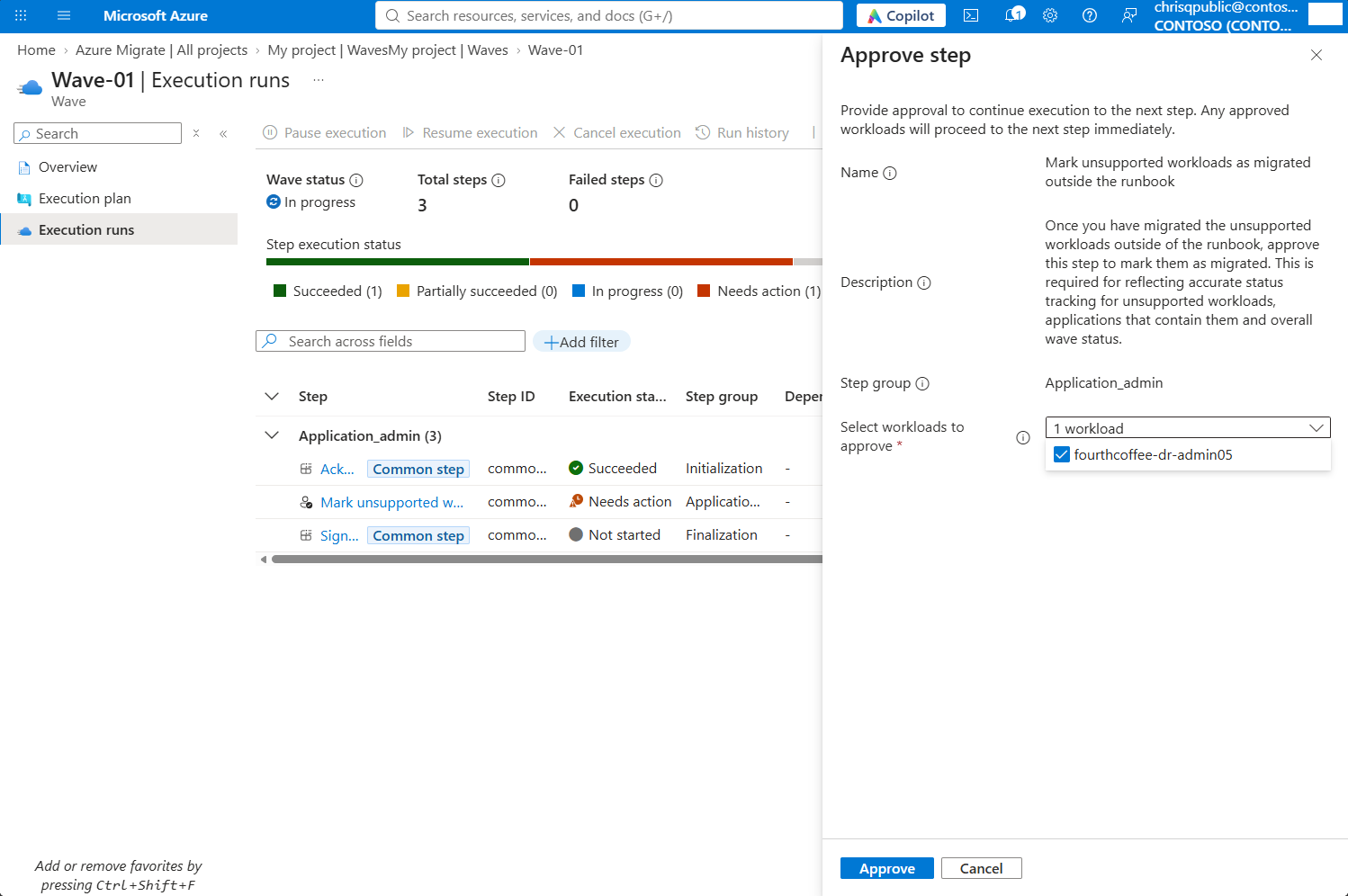
Approval is per workload, not a configurable approve-all policy. For the required roles, see Permissions.
If you aren't ready to proceed, withhold approval. Fix any issue first, then approve when ready. Dependent work waits; independent work can continue. There's no reject action. If the wave shouldn't proceed at all, cancel the run.
Complete manual work when requested
Record completion only after finishing the required work outside Azure Migrate.
- In Execution runs, find a manual step showing Needs action and open Step details. The status is Needs action in both views.
- Read its description and complete the work outside Azure Migrate.
- Select Mark as complete in the Action column or Step details.
- In the Mark as complete pane, review the step's name and description, and then select Complete to record that the work is done so dependent work can continue.
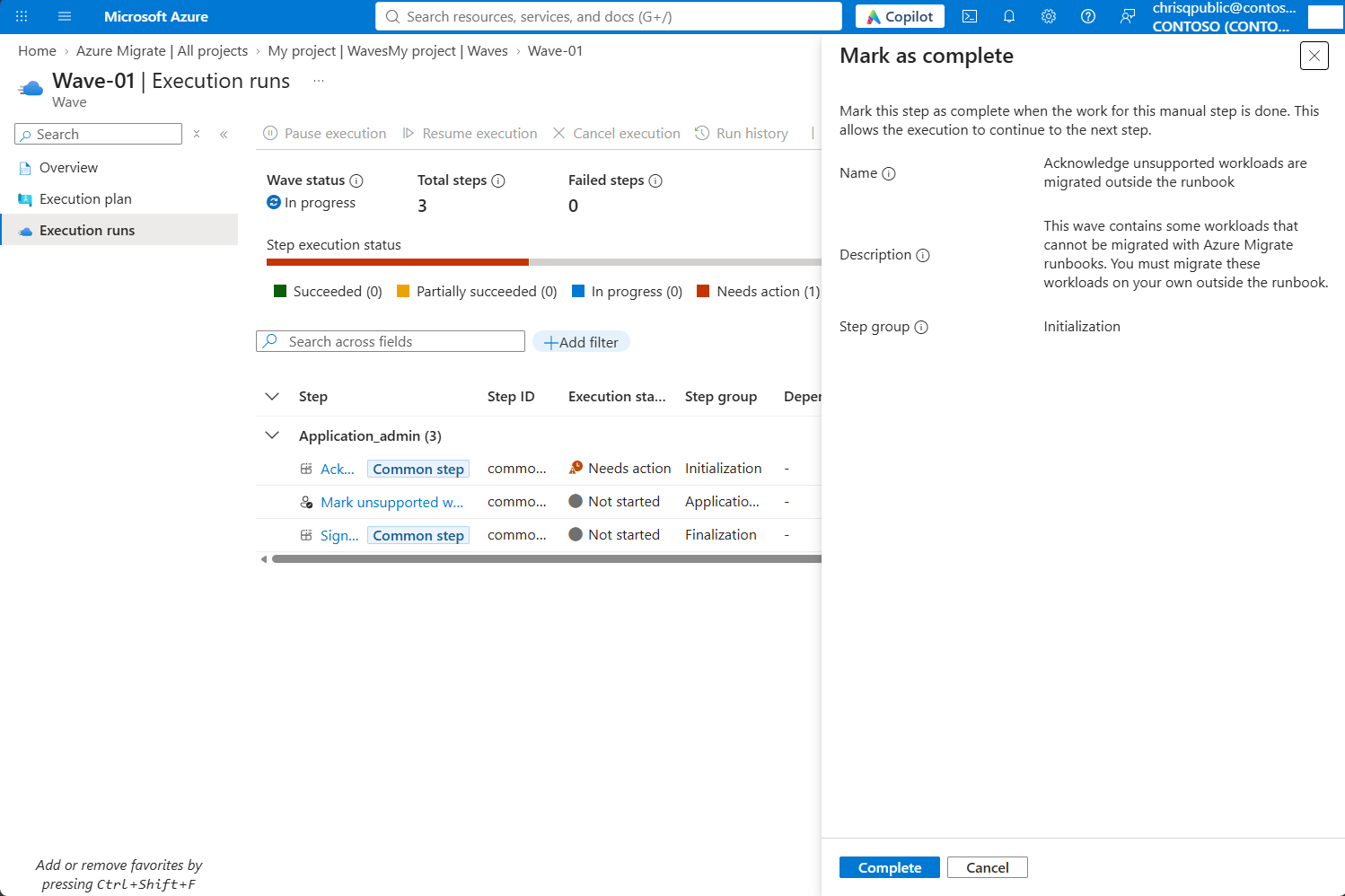
For how manual work differs from an approval step, see Manual steps vs. approval steps.
Recover from failures
When a step fails, independent work still progresses. Failure isolation explains the effect on other workloads.
Diagnose the failure
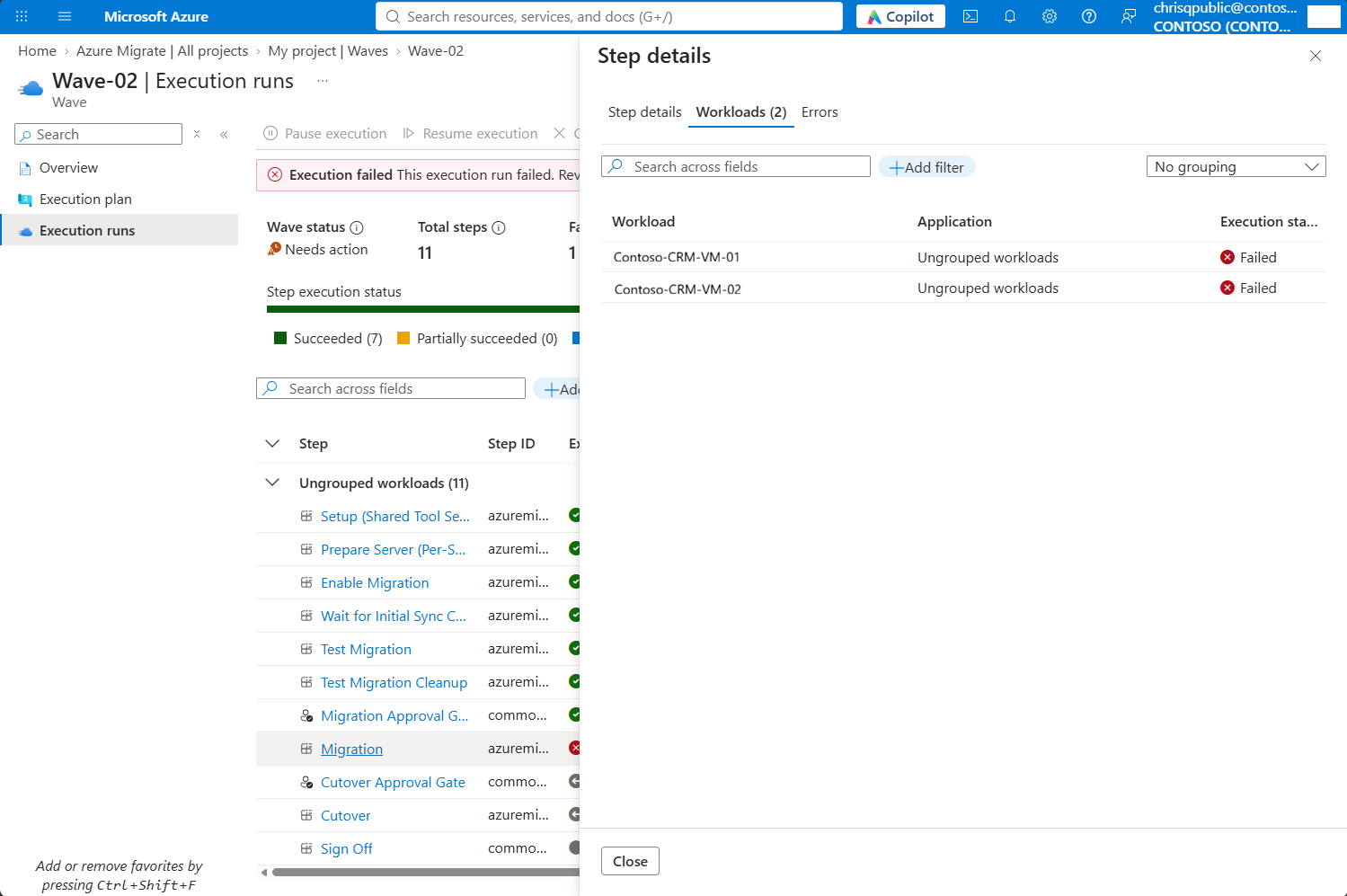
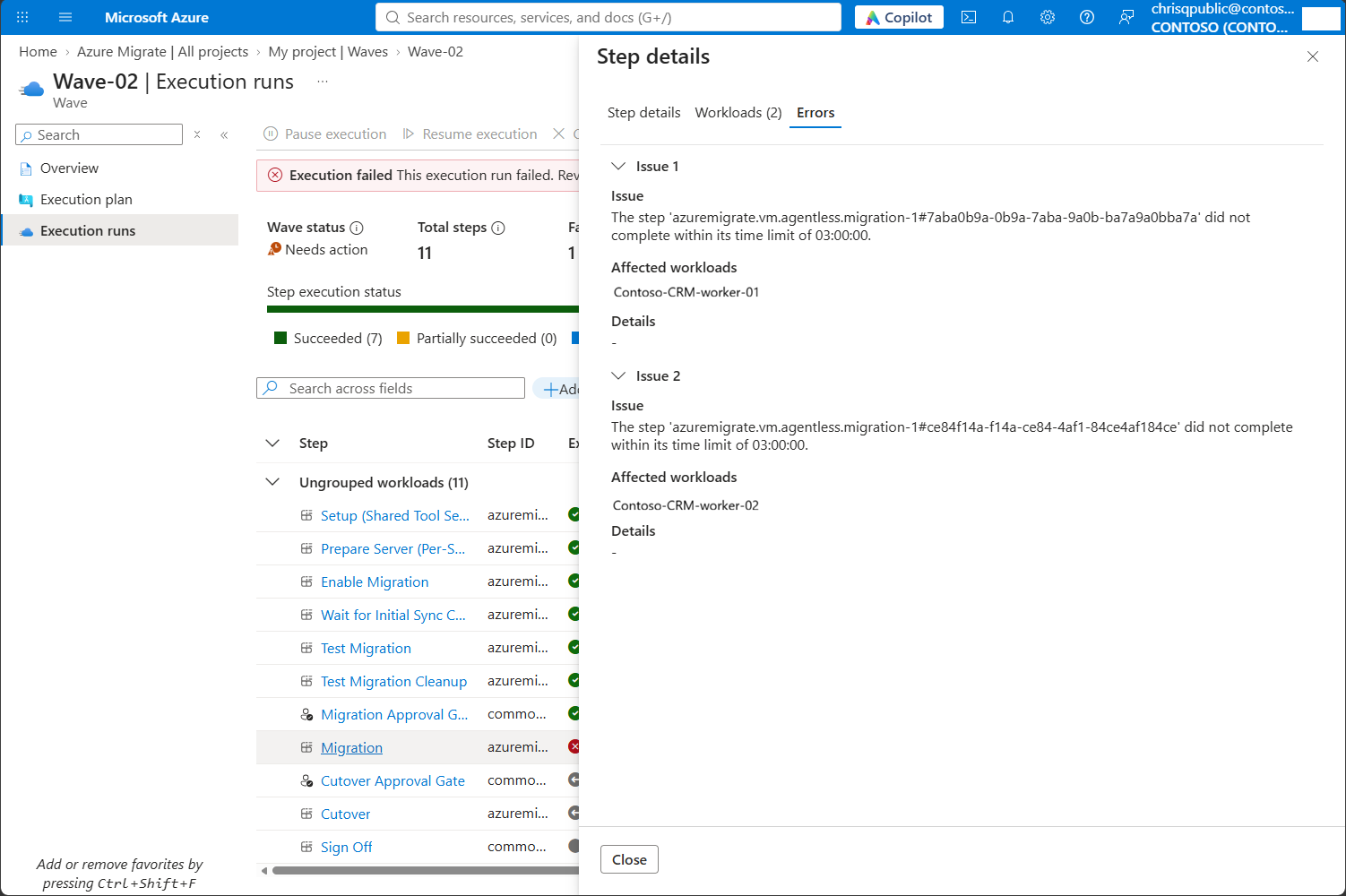
- In Execution runs, find a step with Execution status set to Failed or Partially succeeded. Failed means all workloads in the step failed; Partially succeeded means only some failed.
- For a Failed step, select Failed to open Errors in Step details. For either failure status, you can also open the step and select Errors to review the reported issues, affected workloads, and any available details.
- Open the Workloads tab to see which workloads failed.
- Review the affected workloads' migration-tool diagnostics when the failure information doesn't provide enough detail.
- Check whether the cause is in the wave's configuration (a wrong input) or in the environment (expired credentials, exhausted disk, missing network rule).
Retry failed work
- Resolve any environmental issue. If input values need to change, update them through the failed step's retry flow.
- Select Retry in the Action column, or Retry step in Step details, to open Retry step.
- Choose Retry with the same parameters to use the step's existing inputs, or Retry with different parameters to correct them. For different parameters, update Step inputs and any Workload level overrides needed for the workloads being retried. Resolve missing or invalid values before retrying.
- Review the workloads being retried. A workload-scoped retry runs for all failed workloads in the step; you can't select a subset. Successful workloads aren't retried. A non-workload-scoped step retries as a whole job. Select Retry step to run the retry.
- Review the retry results and confirm that dependent work can proceed.
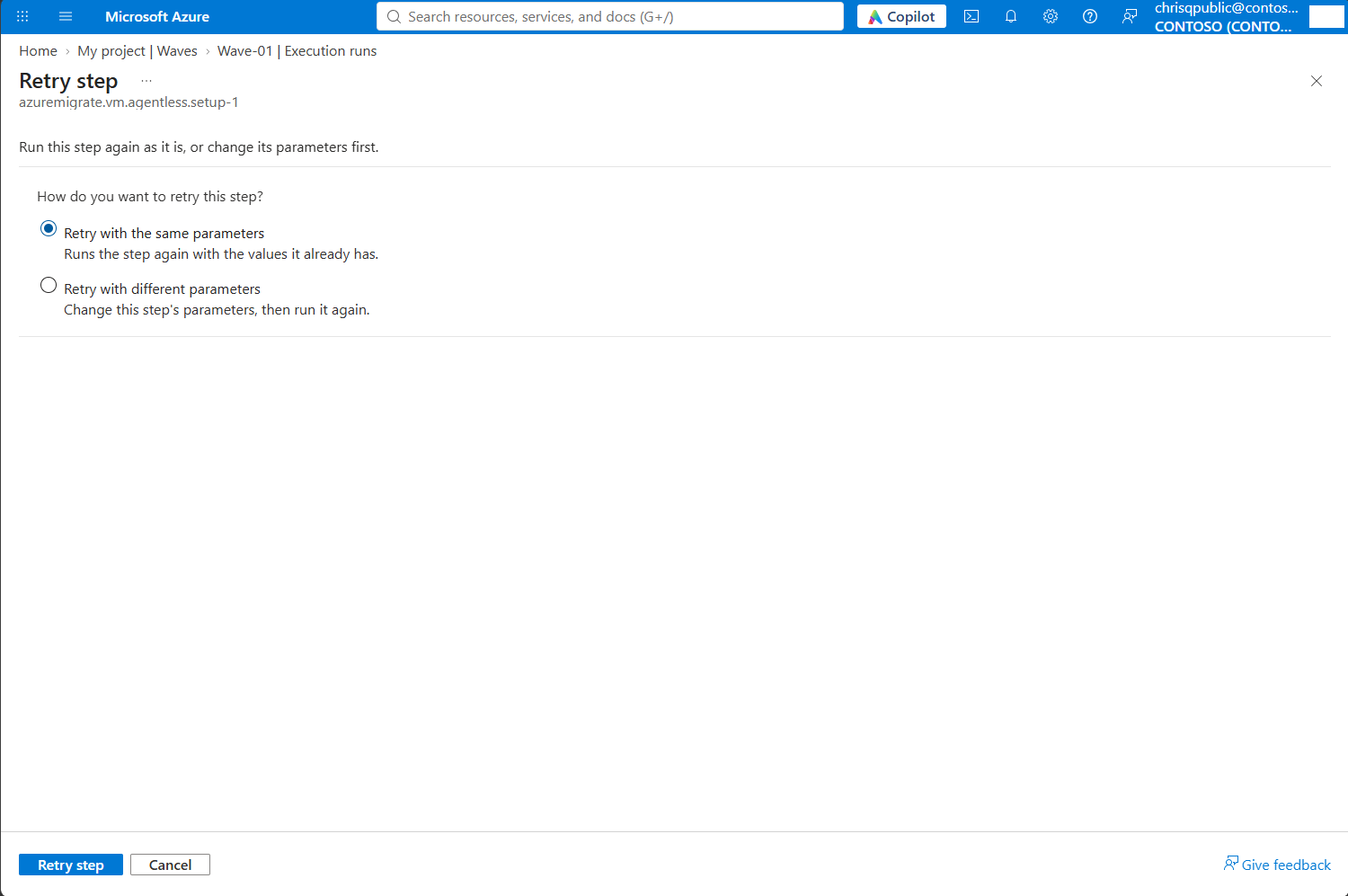
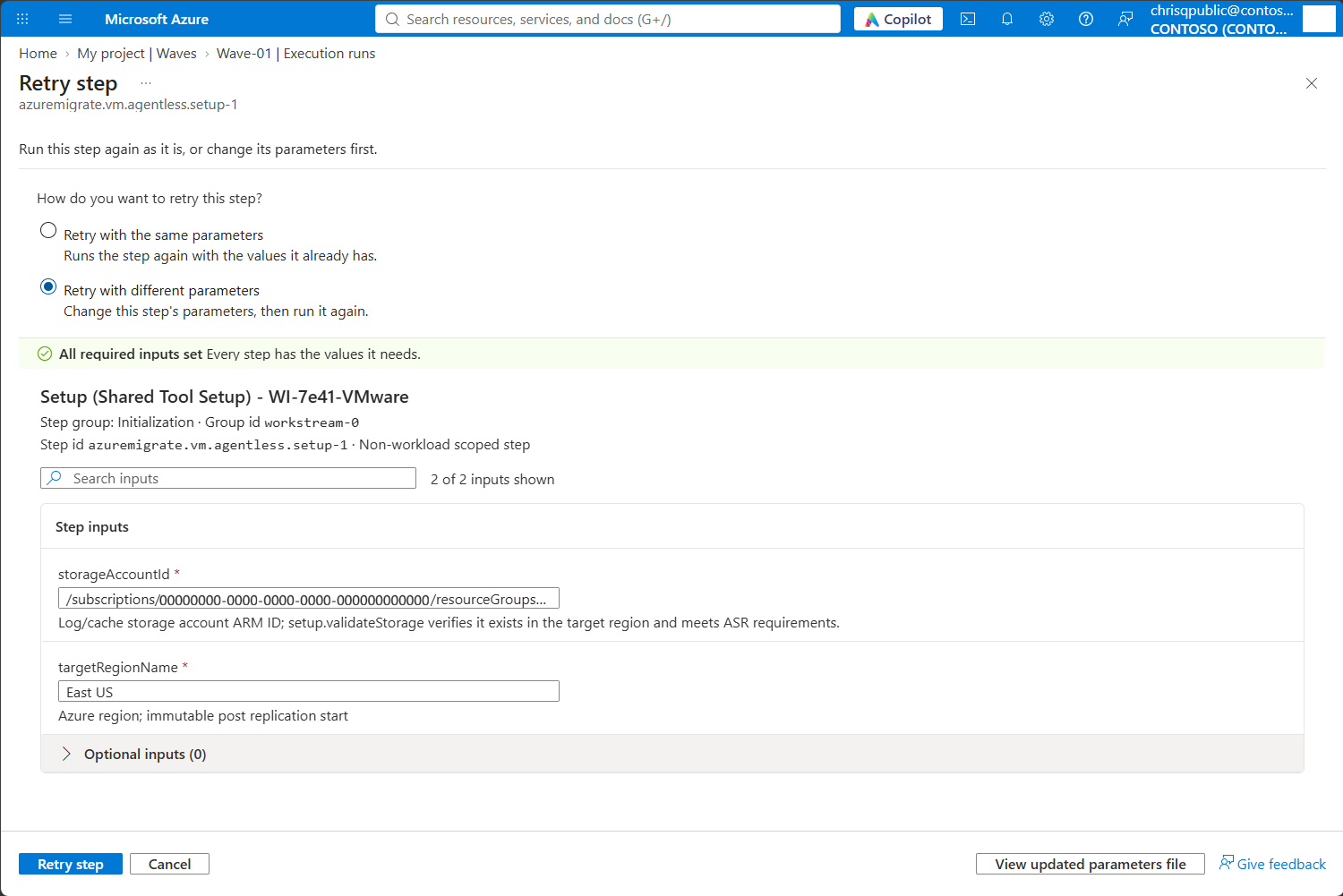
You can also retry Partially succeeded steps (steps that failed for some workloads but succeeded for others). Retry step always retries only the failed workloads.
For the state checks performed by a fresh run, see Wave changes.
Retry input changes update only the retried step's values in the parameters file; they don't change the execution spec. You can't edit inputs on other steps during the run, including steps that haven't started, or rerun successful steps within the same run.
If you need to add a step, change a dependency, or correct an input on another step, cancel, edit, and start a new run.
After cutover, fix the target or intervene outside the wave's workflow; rollback isn't available. Prepare any recovery scripts before execution. See Unsupported execution controls.
Troubleshoot recovery
| Symptom | What to do |
|---|---|
| Retry keeps failing the same way | The cause is still present. Check the underlying migration tool's status, not just the step error. |
| The step succeeded but the workload is wrong | Correct the workload outside the wave's workflow, or use the cancel/edit/restart procedure for a structural fix. |
| A failed step is blocking every workload in a dependent step | Check the dependency scope to identify whether it creates a shared barrier. |
| The run won't complete | Check for failed steps awaiting retry. The final sign-off gate waits for their resolution. |
| I need to change an input on a step that hasn't run yet | Use the cancel/edit/restart procedure. That input isn't editable during the active run. |
Pause and resume the wave if needed
Pause the wave to hold new work, then resume scheduling when the migration can continue.
- In Execution runs, select Pause execution when you need a business hold or want to stop scheduling new work while investigating. Accept the confirmation.
- Allow work in progress to reach a logical stopping point. No new work is scheduled while the wave is paused.
- If an underlying migration-tool operation must stop immediately, use that tool's controls. Pausing the wave doesn't immediately terminate replication or other tool operations already running.
- When ready to continue, select Resume execution. Scheduling restarts for eligible work.
Pause and resume apply only to the whole wave. Individual groups and steps can't be paused or resumed.
Wave execution times out if it doesn't finish within 90 days. This timeout is an overall execution window, not an inactivity timer. Pauses and pending approvals remain subject to this limit. Approval steps have no individual timeout. Only custom scripts expose a configurable timeout input. See Limits, defaults, and timeouts.
Cancel and start a new run if needed
Use this process when the current run can't continue or when a structural change is necessary.
Warning
Cancellation ends the run and skips remaining steps, including pending approvals. It doesn't immediately terminate underlying migration-tool operations, clean up resources, or roll back completed actions.
Cancellation stops scheduling new work and lets work in progress continue until it reaches a logical stopping point. It applies to the whole wave, not one group, and isn't a skip-and-continue option.
- In Execution runs, select Cancel execution and accept the confirmation.
- Review the environment and migration tools before making changes.
- If you need to change wave membership, remove applications or workloads before customizing the execution plan. Removal doesn't delete discovered resources or actual workloads.
- Open Execution plan and regenerate it if required, then make the necessary changes using Configure and customize a wave. Regeneration creates the execution plan afresh and discards all user edits, so reapply customizations afterward.
- Review the updated execution plan and configure required inputs, resolving invalid supplied values on changed or added steps.
- Start the new run after stakeholder review. Starting approves that version.
Only start the new run after the previous run is canceled. A new run executes the workflow from scratch. Migration steps check the object's state in the migration tool and complete if the intended effect has already taken place. The run doesn't resume from its previous stopping point. See the run lifecycle.
Complete finalization and sign-off
You need to sign off on the migration wave, and you can't bypass unresolved failures.
Important
Successful completion permanently locks the wave. You can't change its workloads or configuration, edit its execution plan, or execute it again.
- After migration groups complete, review the finalization steps.
- Complete required closure work, such as powering down migrated on-premises resources, updating the configuration management database and asset records, closing change tickets, or producing a migration summary. Add organization-specific manual, approval, or custom script steps before execution.
- Resolve any failed steps, pending gates, or incomplete manual work.
- When the remaining work is complete, open the final sign-off step, select Mark as complete, and then select Complete.
- Confirm that the wave reports Completed and workload status reflects the migration outcome, then review migration outcomes.
If you can't complete the remaining work, use the cancellation procedure. The run is canceled, and the wave's Execution status is Needs action, not Completed.