Note
Access to this page requires authorization. You can try signing in or changing directories.
Access to this page requires authorization. You can try changing directories.
Monitor a wave's migration steps, investigate issues, and report progress after execution starts.
Use this procedure to monitor an active migration or review a completed wave. Step execution and overall migration progress are available in different views.
Prerequisites
- Have the Azure Migrate Owner or Azure Migrate Execute Expert role on the Azure Migrate project to view migration progress and download execution artifacts.
Open the view for your task
Choose a wave-level or project-level view based on the scope of the progress you need to review.
- Open the Azure Migrate project that contains the wave.
- Choose the view that matches what you need to review:
| View | Scope | Use it to |
|---|---|---|
| Execution runs | One wave's execution | Review step status, workloads within steps, approvals, and failures |
| Overview | One wave | Review overall wave, application, and workload status |
| Waves | Project | Review execution status for all waves and open a wave for its execution details |
| Migrations | Project | Review overall application or workload migration status across waves |
- Select the relevant wave or run where applicable. Completed-wave execution views remain available for review unless the wave or its Azure Migrate project is deleted.
Review an earlier execution run
- Open the wave's Execution runs and select Run history.
- Select the execution run to review, and then select View run.
- Use the same execution view and step details as for the latest run. To export that run's artifacts, select Download while viewing it.
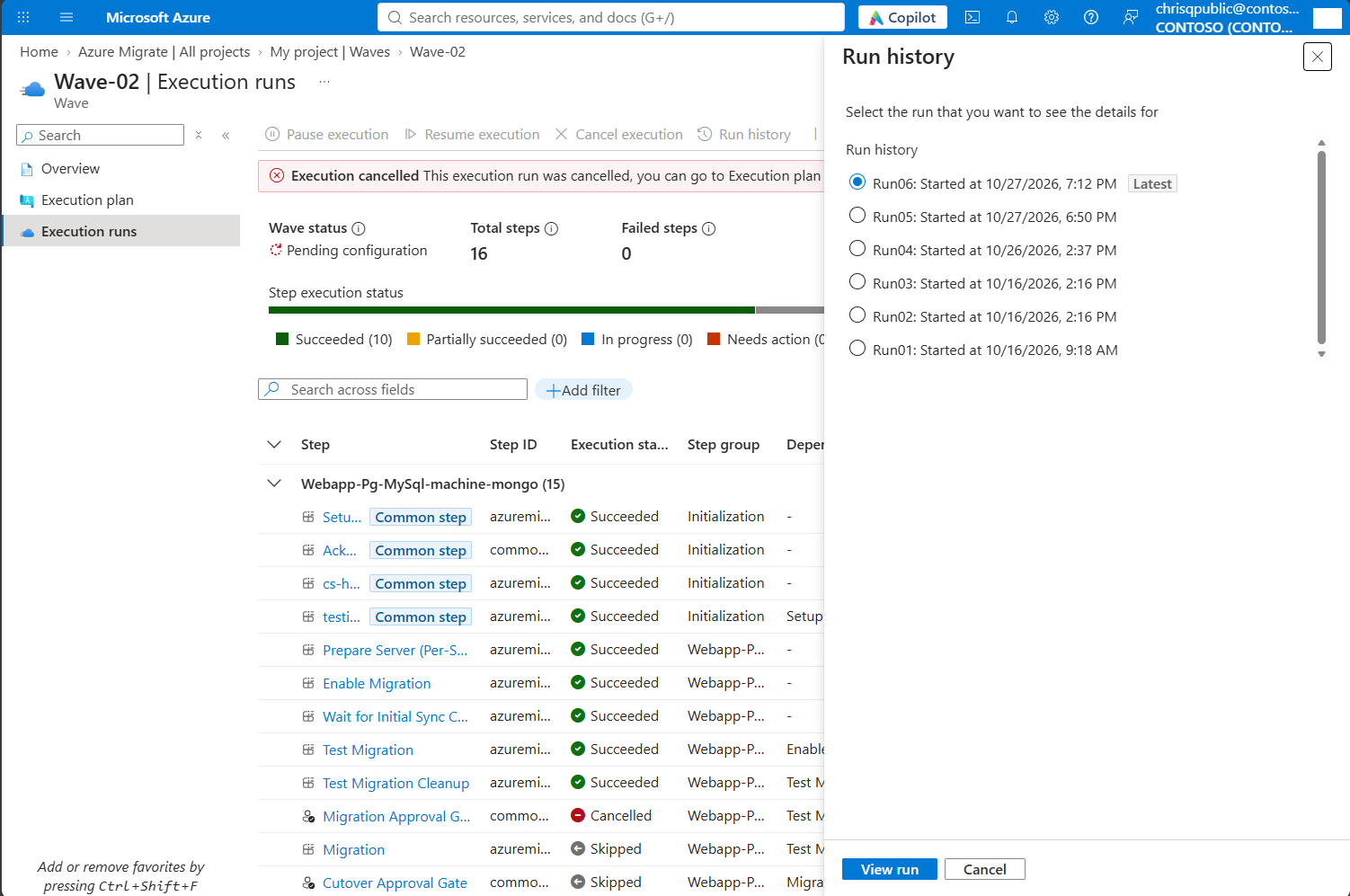
Review step and workload status
Review the execution state of individual steps and their workloads to identify work that needs attention.
- In Execution runs, use View by application, the default grouping, or select View by step group. Use filters to focus on a particular workload or application.
- Review Execution status, Depends on, Workloads, Start time, End time, and Action in the table.
- Select a step name to open Step details. Review Status, timestamps, Depends On (Steps), and the read-only Parameters.
- Open Workloads to review each workload's Status. Open Errors to review reported issues, affected workloads, and any available details.
Use Status values to interpret the execution statuses of waves, workloads, applications, and steps.
Step groups organize work but don't have separately tracked status or execution controls. Use the wave's Overview for overall workload, application, and wave progress. Consult the migration tool for tool-specific progress and diagnostics.
In Execution runs, select Download for a ZIP file containing spec.json, parameters.json, and status.json for the run you're viewing, including an earlier run. For the latest artifacts instead, use Download on Execution plan.
Use status.json to review information for the associated run, including step attempts; the portal doesn't currently show attempts. Execution records are available in Execution runs; there's no separate audit-log surface.
In status.json, retry records identify the workloads being retried, and failure records contain error details.
Investigate waiting or failed work
Use the wave-level issue details and execution-run information to identify the cause and choose the next action.
- To investigate a wave-level issue, open the wave's Overview and select View details beneath its status. In Wave status details, review Issue and Next steps.
- In Execution runs, review the banner and step statuses to identify pending approvals, manual work, or failures.
- If a step shows Not Started, review Depends on and open Step details to identify any unmet dependency. The step can be waiting for dependencies or scheduling capacity; there's no separate blocked status.
- Check whether the wave is paused before investigating a lack of new activity.
- Use the following guidance to choose the next action:
| Observation | Next action |
|---|---|
| Needs action on an approval step | Review the gate and approve ready workloads or withhold approval |
| Needs action on a manual step | Complete manual work outside Azure Migrate, then select Mark as complete and Complete |
| A workload failed, or a step is Failed or Partially succeeded | Diagnose and retry the failed work; successful workloads don't need to rerun |
| A step is waiting for work in another group | Review the dependency and resolve the predecessor's pending work |
| Some workloads progress ahead of others in one step | Check for same-workload dependencies, which allow independent progress |
| All workloads wait at the same step | Check for a whole-step dependency, which creates a shared barrier |
| A workload waits on mapped predecessors | Check only that workload's mapped predecessors. Mapped-workload dependencies don't create a shared barrier and are available only through Azure CLI and API |
| Progress is slower than expected despite available capacity | Account for concurrency limits shared across the wave and underlying tool limits |
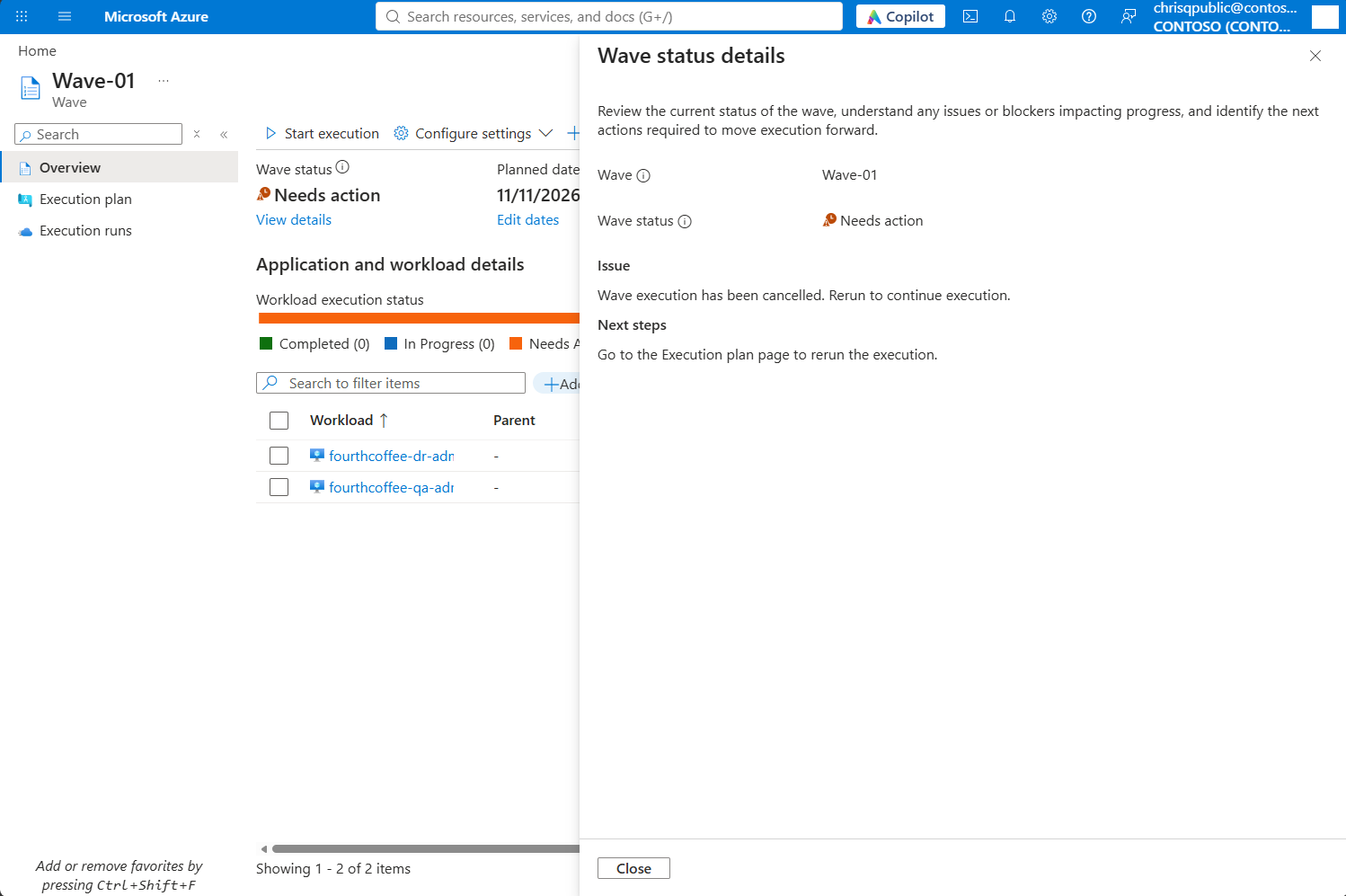
Report overall migration progress
Use wave summaries for migration outcomes and project-level views for progress across waves.
- Open the wave's Overview and review Execution status, Applications migrated, Workloads migrated, and execution-status summaries.
- Under Application/workload details, use View by application to review applications or View by workload to review workloads and their Execution status.
- Use those summaries when reporting migrated, in-progress, failed, and not-started work to stakeholders.
- Use Waves for project-wide wave execution status and Migrations for application and workload status across waves.
Use project-level views for workload status after the wave ends. Rollup explains how workload, application, and wave results relate.
Review completed wave outcomes
Review a completed run to compare its results with the intended scope and improve preparation for future waves.
- Open the completed wave's Execution runs and review step and workload status.
- Compare the result with the intended migration scope by using the views in Report overall migration progress.
- Record observations to improve preparation for the next wave:
| Review question | What to improve |
|---|---|
| Were approval gates in the right places? | Add necessary decisions and remove unnecessary optional gates before the next execution. |
| Did batch or coordinated approvals work well? | Adjust gate scope and the timing of approval decisions. |
| Which steps failed, and why? | Address recurring causes through preparation or custom checks. |
| Which inputs were difficult to obtain? | Gather those values earlier and verify their accuracy before execution. |
| Which manual tasks could be scripted? | Prepare scripts before customizing the next wave's execution plan. |
| Did groups match team ownership? | Use Azure CLI or API to split or merge groups before execution where needed. |
| How did durations compare with estimates? | Refine planning for subsequent waves. |
Use these observations when preparing the next wave.