Note
Access to this page requires authorization. You can try signing in or changing directories.
Access to this page requires authorization. You can try changing directories.
The modern evaluation engine is an opt-in feature that supported Fabric workloads can use for query evaluation and refresh execution when they connect through a virtual network (VNet) data gateway. You can enable it as a public preview setting from the Manage connections and gateways page.
The modern evaluation engine can reduce refresh duration for some workloads and improve DirectQuery startup latency for supported scenarios. Actual performance depends on the connector, data source, query shape, gateway configuration, and workload concurrency. During public preview, the setting is off by default, and existing gateways continue to use the legacy engine until you enable the option.
Prerequisites
- A configured VNet data gateway.
- Permission to manage the gateway or connection settings.
- One or more supported Fabric workloads that use the gateway.
- A validation plan for refresh duration, query latency, and capacity consumption.
Supported scenarios
The modern evaluation engine applies to supported workloads that use a VNet data gateway, including:
- Semantic model refreshes.
- Dataflow Gen2 refreshes.
- DirectQuery workloads that connect through a VNet data gateway.
Support can vary by connector and workload. Test representative workloads before enabling the setting for production gateways.
Tip
The modern evaluation engine is an opt-in setting. Existing gateways continue to use the legacy engine until you enable the option.
Enable the modern evaluation engine
Gateway administrators can enable the modern evaluation engine as an opt-in setting for a specific gateway.
- In Fabric, open Manage connections and gateways.
- Select the VNet data gateway that you want to update.
- In the gateway settings, under the advanced options, turn on Use modern evaluation engine.
- Save the change.
- Run representative refresh and DirectQuery workloads.
- Compare refresh duration, query latency, and capacity metrics before and after enabling the setting.
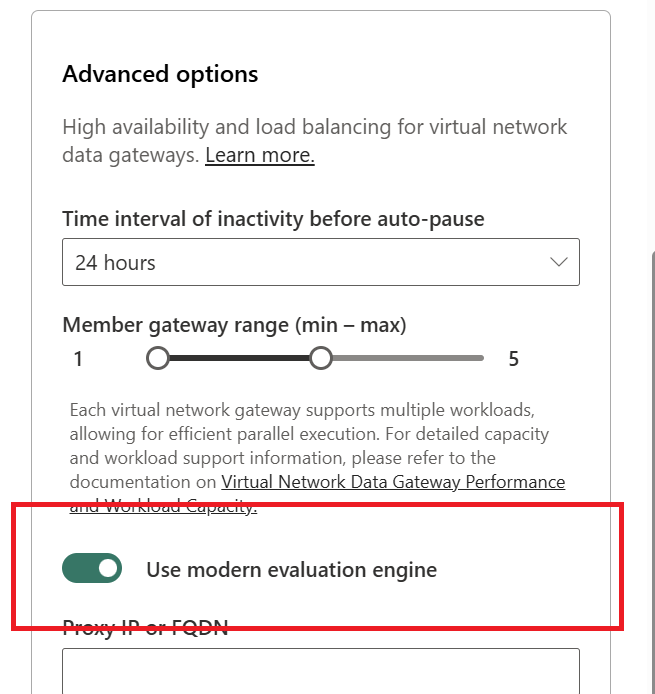
Disable the modern evaluation engine
Turn off the modern evaluation engine if you need to return a gateway to the legacy engine.
- Open Manage connections and gateways.
- Select the VNet data gateway.
- Turn off Use modern evaluation engine.
- Save the change.
- Rerun the affected workload to confirm behavior.
Performance considerations
The modern evaluation engine can improve elapsed time for some refresh and query scenarios. The following examples show observed results from benchmark runs. These results are examples only and shouldn't be used as a guarantee for a specific environment.
Refresh scenarios
| Scenario | Connector | Cloud | VNet data gateway - legacy | VNet data gateway - modern |
|---|---|---|---|---|
| Semantic model refresh | Azure Blob Storage (10 GB) | 35:10 | 42:26 | 26:59 |
| Semantic model refresh | SQL (100 million rows) | 7:50 | 13:18 | 7:40 |
| Dataflow Gen2 refresh | Azure Blob Storage (10 GB) | 19:30 (modern) | 46:09 | 25:31 |
DirectQuery scenarios
| Metric | Legacy | Modern |
|---|---|---|
| Semantic model DirectQuery cold startup, end-to-end | 10 seconds | 200 ms |
| Semantic model DirectQuery steady state, end-to-end | 200 ms | 200 ms |
Note
These results are examples from benchmark scenarios. Actual performance depends on connector behavior, source system latency, query shape, gateway configuration, model design, and workload concurrency.
Capacity and billing considerations
The modern evaluation engine can reduce wall-clock refresh time for some workloads. Capacity impact depends on which workload is running and how that workload is metered.
Shorter refresh duration or reduced CPU time can influence capacity usage in some scenarios, but the actual impact varies. Admins should compare before-and-after behavior by using the Fabric Capacity Metrics app and representative workloads from their own environment.
Workload validation
After you enable the modern evaluation engine, validate the workloads that use the gateway:
- Run a representative semantic model refresh.
- Run a representative Dataflow Gen2 refresh.
- Test DirectQuery reports that connect through the gateway.
- Review refresh history for failures or regressions.
- Compare wall-clock duration and capacity metrics against your baseline.
- If a workload doesn't behave as expected, turn off Use modern evaluation engine and contact Microsoft support with gateway diagnostics.
Troubleshooting
Refresh performance doesn't improve
Performance improvements vary by connector, query shape, source system, and available gateway resources. Compare multiple runs before and after enabling the setting, and confirm that the workload is using a supported connector and gateway path.
Capacity consumption doesn't decrease
Shorter wall-clock duration doesn't always result in a proportional capacity reduction. Gateway uptime, cooldown behavior, workload CPU time, and concurrency can affect observed capacity usage.
DirectQuery cold startup is still slow
Confirm that the report uses the VNet data gateway path and that the connector is supported. Also check whether startup time is affected by source system latency, authentication, or model initialization outside the gateway path.