Note
Access to this page requires authorization. You can try signing in or changing directories.
Access to this page requires authorization. You can try changing directories.
Incident cases are automatically created and correlated in the Microsoft Defender portal when suspicious activity is detected. Sometimes, related incident cases aren't merged automatically, or you might decide that multiple incident cases should be investigated as a single case.
Use manual merge to combine related incident cases. When incident cases are merged, one case ID is retained, case data is consolidated into the retained case, and the other case IDs are removed.
Note
Incident cases are in preview and are the recommended experience for managing incidents in the Microsoft Defender portal. The legacy incident experience remains available during this preview.
Note
Incident cases with a resolved status can't be merged.
Prerequisites
Before you begin, make sure that:
- Your tenant is onboarded to the Microsoft Defender portal.
- You have access to incident cases in the Defender portal.
- You have the Security Data Manage Microsoft Defender unified RBAC permission.
- You have access to all incident cases you want to merge.
Incident case permissions and scoping follow the same permissions model as the legacy incident experience. You can merge only incident cases included in your assigned data sources and scopes.
For more information, see Microsoft Defender unified role-based access control (RBAC).
Merge incident cases from the Cases page
To merge incident cases from the Cases page:
Sign in to the Microsoft Defender portal.
Select Cases.
Select Incident.
Select the incident cases you want to merge.
Select Merge cases.
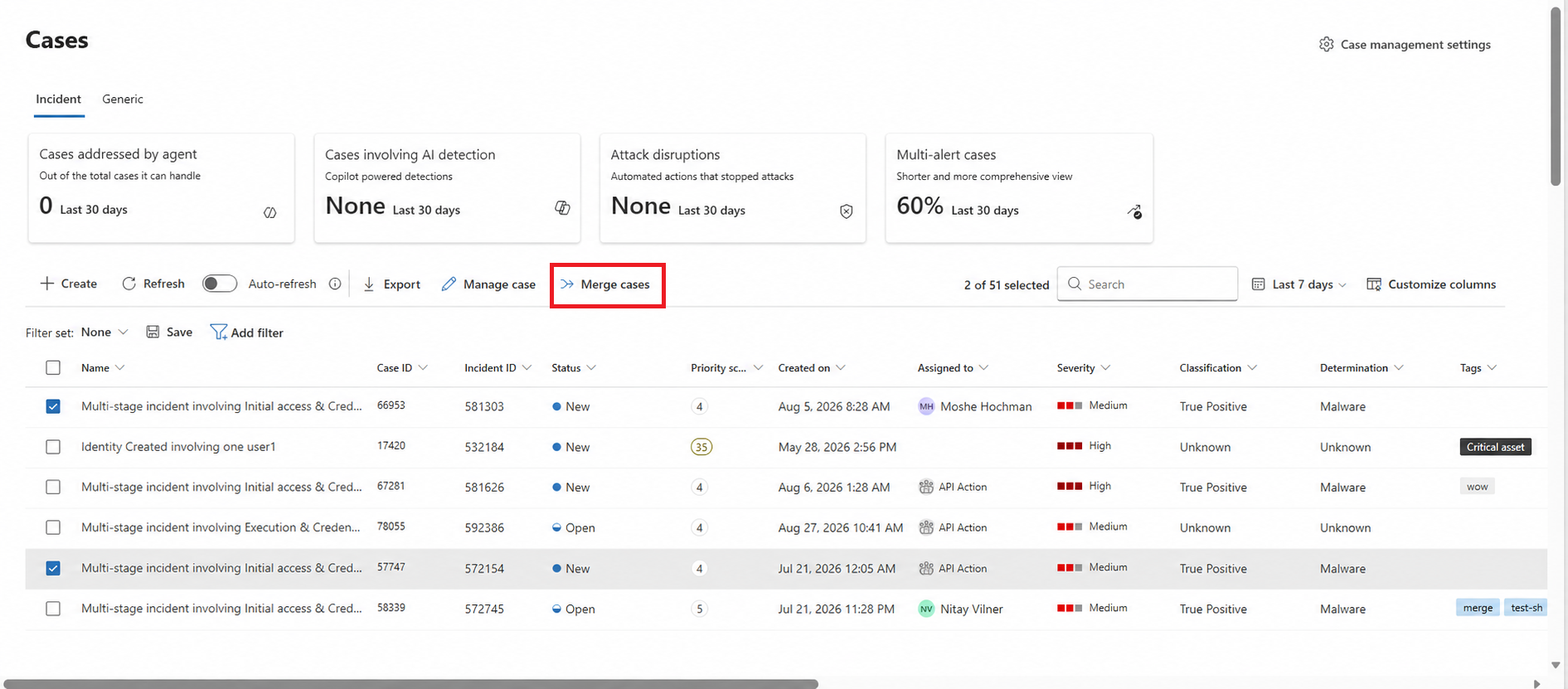
In the Merge cases pane, review the selected cases.
In Comment, enter a comment that explains why you're merging the cases.
Under The reasons for this merge are, select one or more reasons for the merge.
Reasons can include:
- Same threat source
- Similar TTPs or behavior
- Same actor
- Same campaign
- Shared indicators
- Same asset
- Network proximity
- Event causal sequence
- Temporal proximity
- Lateral movement path
Select Merge cases.
Merge an incident case from the case page
To merge incident cases from an open incident case:
To merge from the incident case page:
Sign in to the Microsoft Defender portal.
Select Cases.
Select Incident.
Open the incident case you want to merge.
Select the three-dot menu.
Select Merge cases.
In the Merge cases pane, search for the case you want to merge with.
Select the case.
In Comment, enter a comment that explains why you're merging the cases.
Under The reasons for this merge are, select one or more reasons for the merge.
Reasons can include:
- Same threat source
- Similar TTPs or behavior
- Same actor
- Same campaign
- Shared indicators
- Same asset
- Network proximity
- Event causal sequence
- Temporal proximity
- Lateral movement path
Select Merge cases.