Note
Access to this page requires authorization. You can try signing in or changing directories.
Access to this page requires authorization. You can try changing directories.
Use incident cases to investigate incidents in the Microsoft Defender portal. Incident cases bring together investigation context, related alerts, impacted assets, evidence, activities, and attachments so analysts can understand what happened and take response actions.
For case management tasks, such as assigning ownership, updating status, adding comments, managing tasks, and resolving or closing an incident case, see Manage incident cases in the Microsoft Defender portal.
Note
Incident cases are in preview and are the recommended experience for managing incidents in the Microsoft Defender portal. The legacy incident experience remains available during this preview.
Prerequisites
Before you begin, make sure that:
- Your tenant is onboarded to the Microsoft Defender portal.
- You have access to incident cases in the Defender portal.
- You have one of the following Microsoft Defender unified RBAC permissions:
- Security Data Read to view and investigate incident cases.
- Security Data Manage to view, investigate, and manage incident cases.
Incident case permissions and scoping follow the same permissions model as the legacy incident experience. Permissions for specific response actions can vary by action and workload.
For more information, see Microsoft Defender unified role-based access control (RBAC).
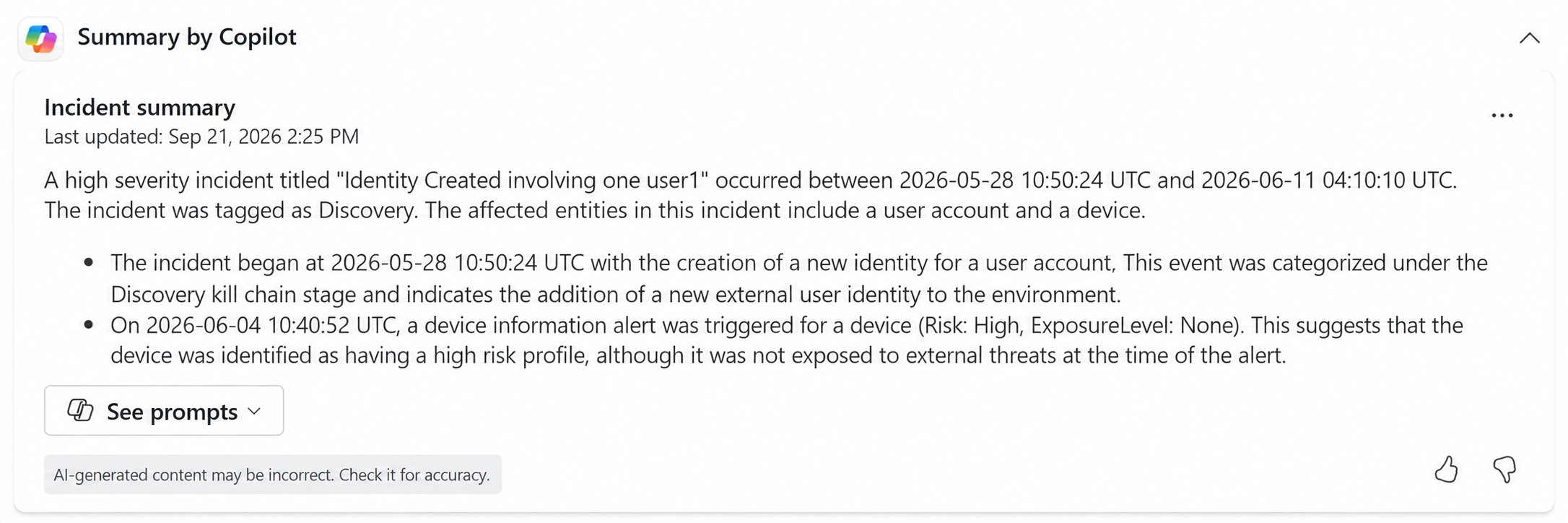
Review the incident case summary
Use the Summary page to review the main details of the incident case before you start a deeper investigation.
Use the summary to review:
- Priority assessment
- Summary by Copilot, when available
- Case details
- Case description
- Case ID
- Created and updated details
To review the incident case summary:
Sign in to the Microsoft Defender portal.
Select Cases.
Select Incident.
Select the relevant incident case.
Go to Overview > Summary by Copilot.
Review the case context, priority, and key details.
Review the attack story
Use the Attack story page to review the incident graph, related alerts, affected entities, and attack context.
Use the attack story to review:
- Incident graph
- Related alerts
- Affected entities
- Detection and category details
- First and last activity times
- Alert details
- Actions taken
- Related events
To review the attack story:
Sign in to the Microsoft Defender portal.
Select Cases.
Select Incident.
Select the relevant incident case.
Go to Overview > Attack graph.
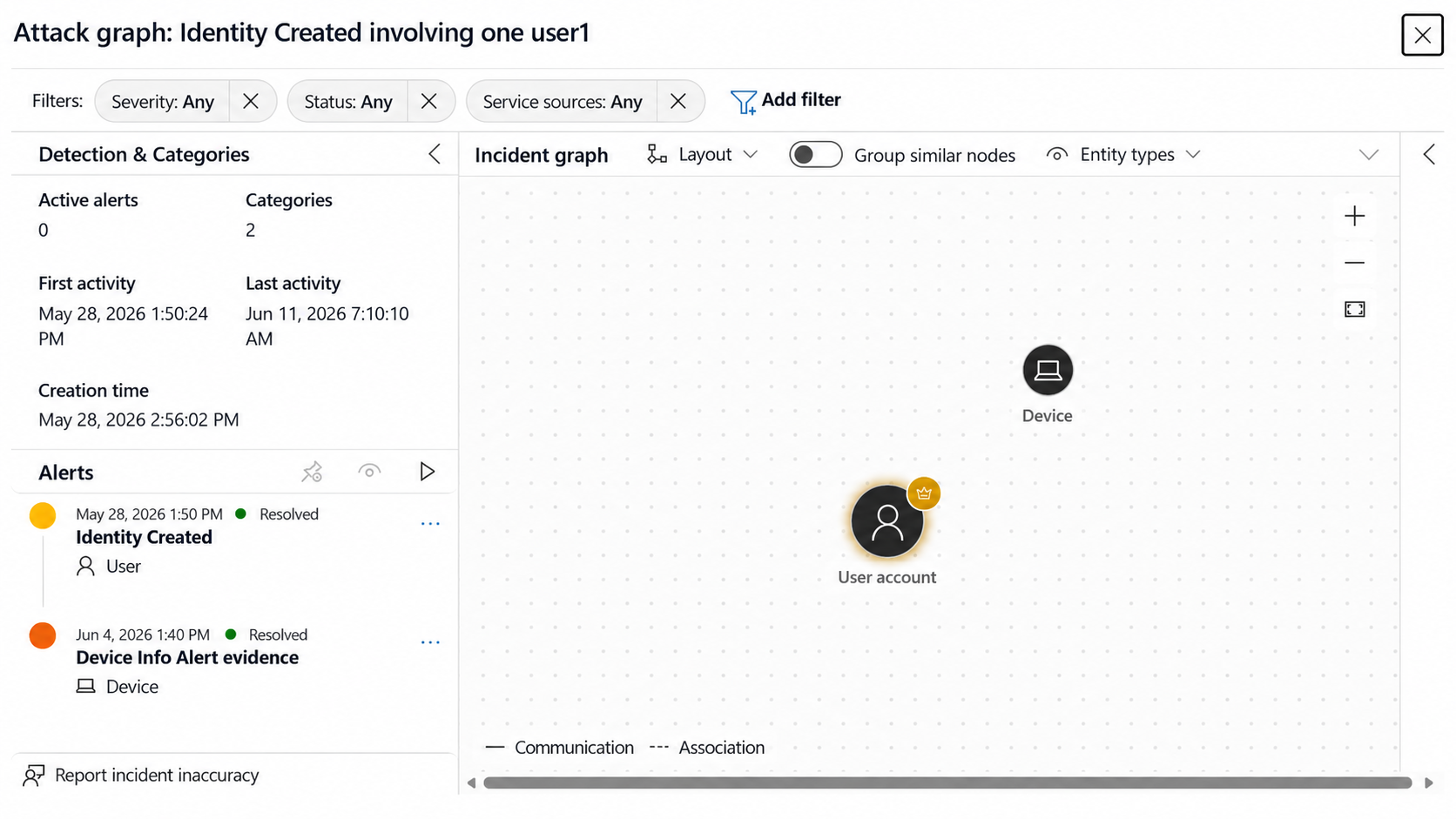
Review the detection and category details, alert list, and incident graph.
Select an alert to review more details.
Review Actions taken and Related events for the selected alert.
Filter and focus the incident graph
Use filters and graph controls to simplify the incident graph and focus on the alerts or entities that matter most.
To filter and focus the incident graph:
Sign in to the Microsoft Defender portal.
Select Cases.
Select Incident.
Select the relevant incident case.
Go to Overview > Attack graph.
Use the available filters to focus the attack story by severity, status, service source, or other available criteria.
Select Add filter to add more filters.
Select Reset all to clear the filters.
Use Layout to change the graph layout.
Turn Group similar nodes on or off to group or separate similar entities.
Select Entity types to filter the graph by entity type, or select Show all to show all entity types.
Review blast radius analysis
Use blast radius analysis to explore potential paths from breached entities to target assets in the incident graph. Blast radius analysis helps you understand possible impact and prioritize investigation or response actions.
To review blast radius analysis:
Sign in to the Microsoft Defender portal.
Select Cases.
Select Incident.
Select the relevant incident case.
Go to Overview > Attack graph.
Select an entity in the incident graph.
If blast radius analysis is available, review the blast radius paths and related target assets.
Note
Blast radius analysis availability can depend on your environment, available data, and permissions.
Review alerts
Use the Alerts page to review alerts associated with the incident case.
Use alerts to review:
- Alert severity
- Investigation state
- Alert status
- Category
- Impacted assets
- Correlation reason
- Detection source
- Product name
- First and last activity times
To review alerts:
Sign in to the Microsoft Defender portal.
Select Cases.
Select Incident.
Select the relevant incident case.
Go to Artifacts > Alerts.
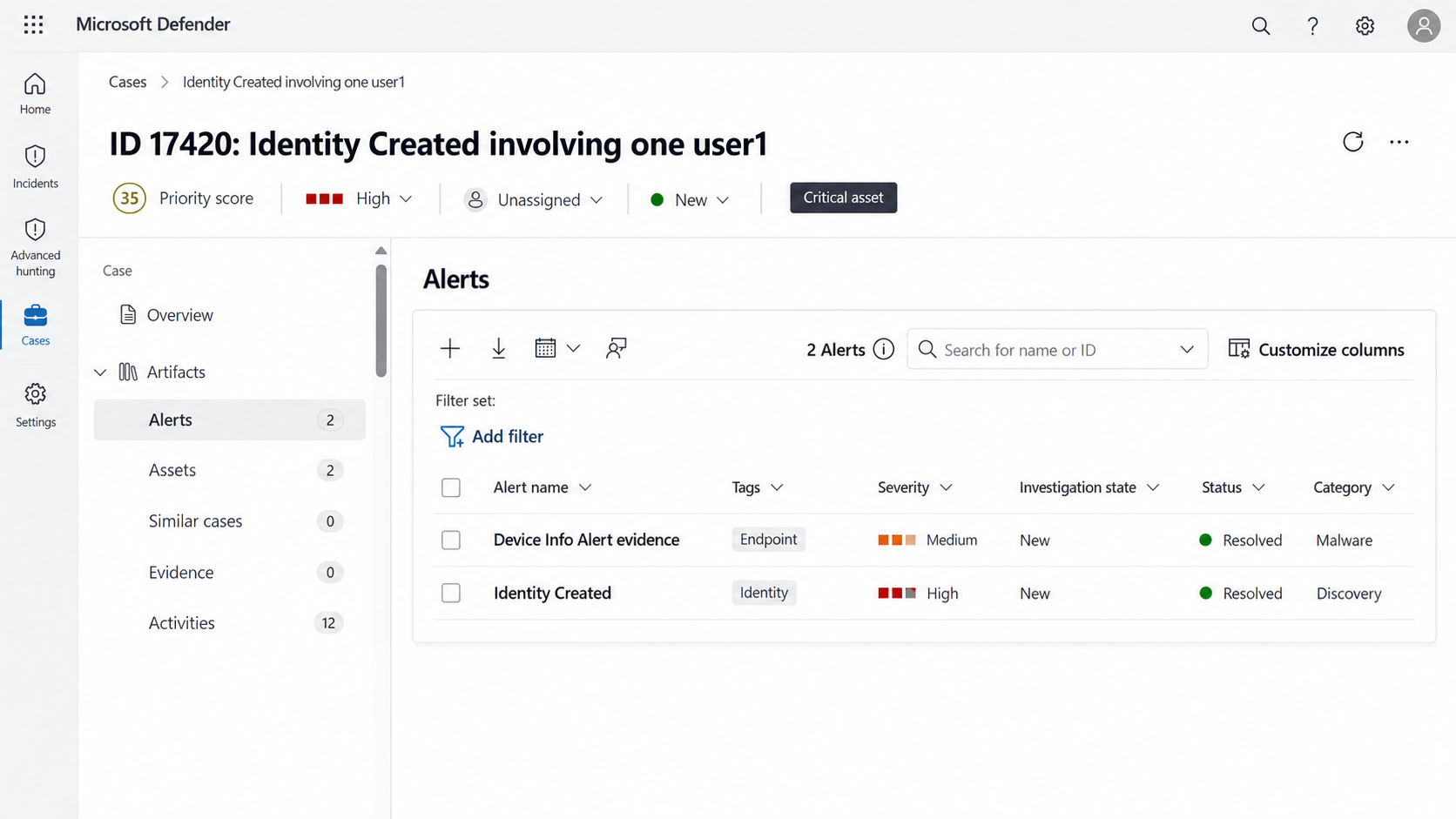
Filter, search, or customize the alerts table as needed.
Select an alert to review more details.
Alert details can include alert state, classification, assigned user, MITRE ATT&CK techniques, detection source, service source, evidence, alert description, related events, and impacted assets.
To move an alert to another incident case, see Move alerts from one incident case to another in the Microsoft Defender portal.
Review assets
Use the Assets page to review assets associated with the incident case.
Assets can include:
- Devices
- Users
- Mailboxes
- Apps
- Cloud resources
- AI agents
To review assets:
Sign in to the Microsoft Defender portal.
Select Cases.
Select Incident.
Select the relevant incident case.
Go to Artifacts > Assets.
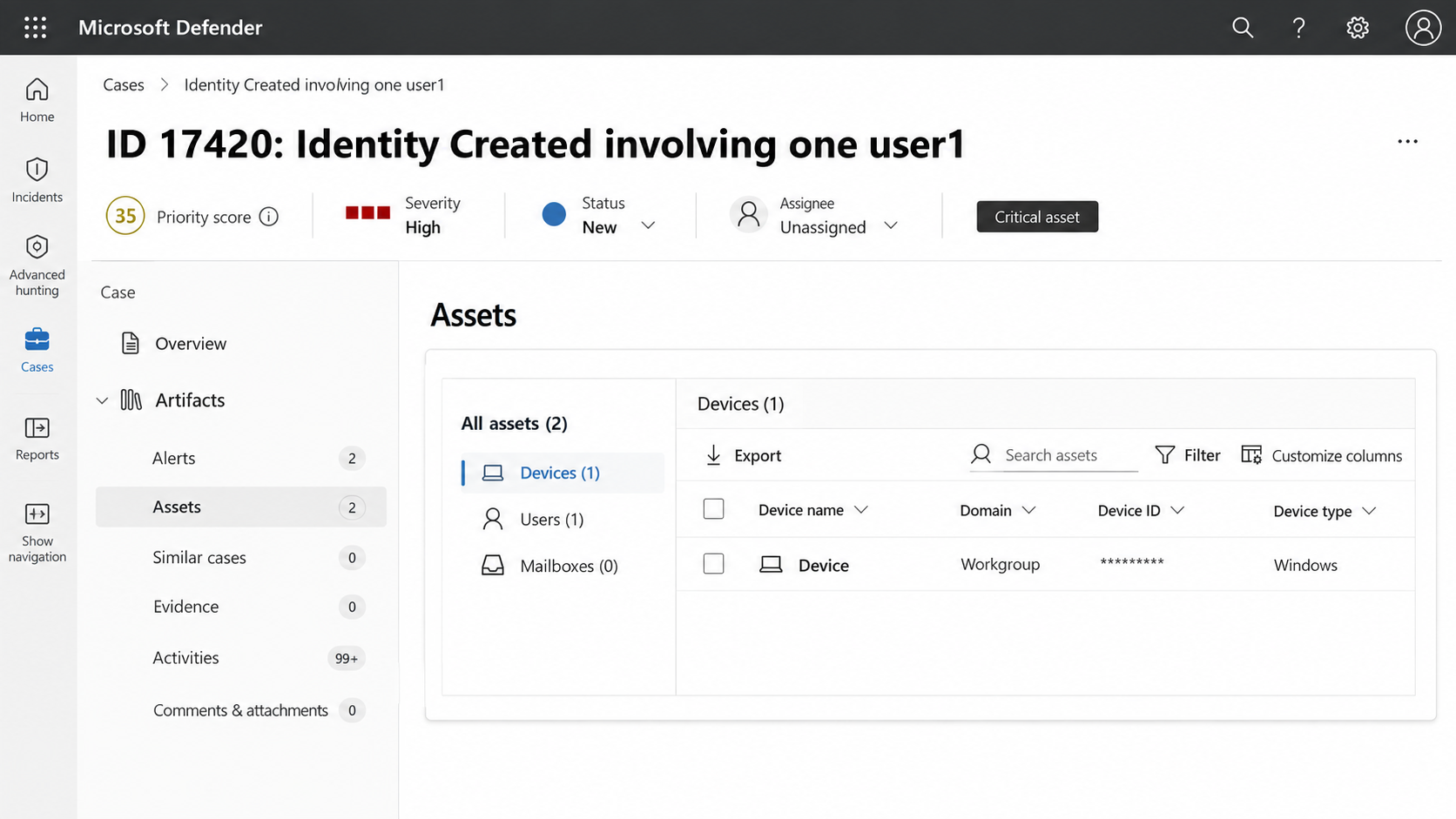
Select an asset type.
Filter, export, or customize the asset table as needed.
Select an asset to review more details.
The asset details pane provides more context about the selected asset. Details vary by asset type and can include related alerts, risk or exposure information, activity details, metadata, and links to open the asset page for deeper investigation.
Available actions vary by asset type and permissions. For example, you might be able to open the asset page, summarize the asset, view the asset in a map, manage tags, initiate an automated investigation, mark a user as compromised, or review device actions.
Review investigations
Use the Investigations page to review automated investigations associated with the incident case, when available.
Use investigations to review:
- Automated investigation status
- Investigation details
- Remediation status
- Pending actions, when available
To review investigations:
Sign in to the Microsoft Defender portal.
Select Cases.
Select Incident.
Select the relevant incident case.
Go to Artifacts > Investigations.
Review any investigations associated with the incident case.
Select an investigation to review more details, if available.
Review evidence
Use the Evidence page to review evidence associated with the incident case.
Evidence can include:
- IP addresses
- Email clusters
- Emails
- Cloud logon sessions
- Other supported entities or suspicious activity
Use evidence to review:
- First seen time
- Entity or entity type
- Verdict
- Remediation status
- Impacted assets
- Detection origin
- Threats
To review evidence:
Sign in to the Microsoft Defender portal.
Select Cases.
Select Incident.
Select the relevant incident case.
Go to Artifacts > Evidence.
Select an evidence type, or select All evidence.
Filter or customize the evidence table as needed.
Select an evidence item to review more details, if available.
Review activity history
Use the Activities page to review manual and automated activity associated with the incident case. Activities can include case updates, severity changes, automation actions, and other case management events.
Use activity history to review:
- Case creation
- Assignment changes
- Status changes
- Severity or priority changes
- Classification or determination changes
- Task updates
- Comments
- Automation updates
- Other workflow changes
To review activity history:
Sign in to the Microsoft Defender portal.
Select Cases.
Select Incident.
Select the relevant incident case.
Go to Artifacts > Activities.
Filter the activity history as needed.
Select an activity item to review more details.
Review attachments
Use the Attachments tab to review files added to the incident case. Attachments can provide supporting context for investigation, handoff, or post-incident review.
To review attachments:
Sign in to the Microsoft Defender portal.
Select Cases.
Select Incident.
Select the relevant incident case.
Select Comments & Attachments.
Select the Attachments tab.
Review the files attached to the incident case.
Select an attachment to view its details.
You can also download attachments for further review.
For information about adding or removing attachments, see Manage incident cases in the Microsoft Defender portal.
Related content
- Manage incident cases in the Microsoft Defender portal
- Manage incident case tasks in the Microsoft Defender portal
- Move alerts from one incident case to another in the Microsoft Defender portal
- Plan an incident response workflow in the Microsoft Defender portal
- Alert correlation and incident merging in the Microsoft Defender portal