Note
Access to this page requires authorization. You can try signing in or changing directories.
Access to this page requires authorization. You can try changing directories.
Note
Incident cases are in preview and are the recommended experience for managing incidents in the Microsoft Defender portal. The legacy incident experience remains available during this preview.
Use the incident cases list to triage and prioritize incident cases in the Microsoft Defender portal. The incident cases list helps analysts identify which cases need immediate attention by using priority score, severity, investigation state, impacted assets, alerts, tags, ownership, due date, and other case details.
For investigation guidance after you open an incident case, see Investigate incident cases in the Microsoft Defender portal. For case management tasks, such as assigning ownership, updating status, adding comments, and resolving or closing a case, see Manage incident cases in the Microsoft Defender portal.
Prerequisites
Before you begin, make sure that you have one of the following Microsoft Defender unified RBAC permissions:
- Security Data Read
- Security Data Manage
For more information, see Microsoft Defender unified role-based access control (RBAC).
Prioritize by priority score
Use Priority score to identify incident cases that need attention first. Priority score helps analysts focus on cases with higher potential impact or urgency.
Priority score values can include:
- Top priority: Score above 85
- Medium priority: Score between 15 and 85
- Low priority: Score below 15
The priority assessment explains why an incident case received its priority score. The assessment can include factors such as severity, threat signals, affected assets, alert types, MITRE techniques, and other case context.
To prioritize by priority score:
Sign in to the Microsoft Defender portal.
Select Cases.
Select Incident.
Review the Priority score column.
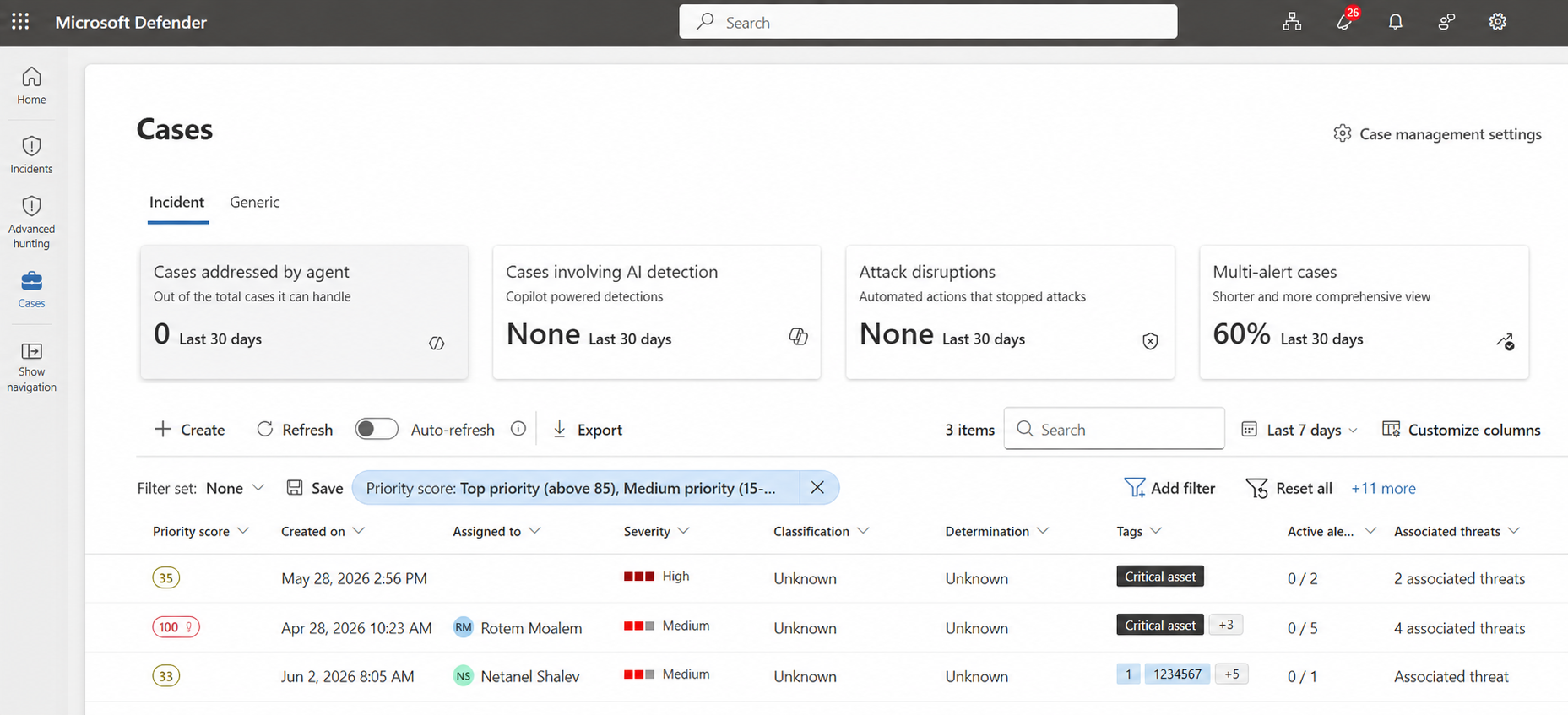
Sort the list by Priority score, or filter the list by priority score.
Select an incident case row to review the priority assessment and other case details.
Open the highest-priority incident cases first for investigation or response.
Filter incident cases
Use filters to focus the incident cases list on the cases that need attention.
Available filters can include:
- Case ID
- Priority score
- Tags
- Severity
- Investigation state
- Category
- Detection sources
- Service sources
- Product names
- Due on
- Last updated by
- Alert policies
- Data streams
- Sensitivity labels
- Status
- Assigned to
- Classification
- Determination
- Device groups
- OS platforms
- Created on
- Created by
- Workspaces
- Cloud scopes
- Subscription IDs
- AI agents
- Associated threats
- Owning Team
- Channel
To filter incident cases:
Sign in to the Microsoft Defender portal.
Select Cases.
Select Incident.
Select Add filter.
Select one or more filters.
Select the filter values you want to apply.
Select Reset all to clear the applied filters.
Create filter sets
Use filter sets to save filters that you use often. Filter sets help analysts return to specific case views, such as high-priority cases, cases assigned to a team, or cases from a specific channel.
To create a filter set:
Sign in to the Microsoft Defender portal.
Select Cases.
Select Incident.
Select the Selected filter set dropdown.
Select Create filter set.
Select the filters that you want to include in the filter set.
Select Save to save the filter set, or select Save and apply to save and apply it.
Specify a time range
Use the time range selector to control which incident cases appear in the list.
To specify a time range:
Sign in to the Microsoft Defender portal.
Select Cases.
Select Incident.
Select the time range selector.
Select one of the available time ranges:
- Last 24 hours
- Last 3 days
- Last 7 days
- Last 30 days
- Last 180 days
- Custom range
Customize columns
Use Customize columns to choose which columns appear in the incident cases list and to change their order.
To customize columns:
Sign in to the Microsoft Defender portal.
Select Cases.
Select Incident.
Select Customize columns.
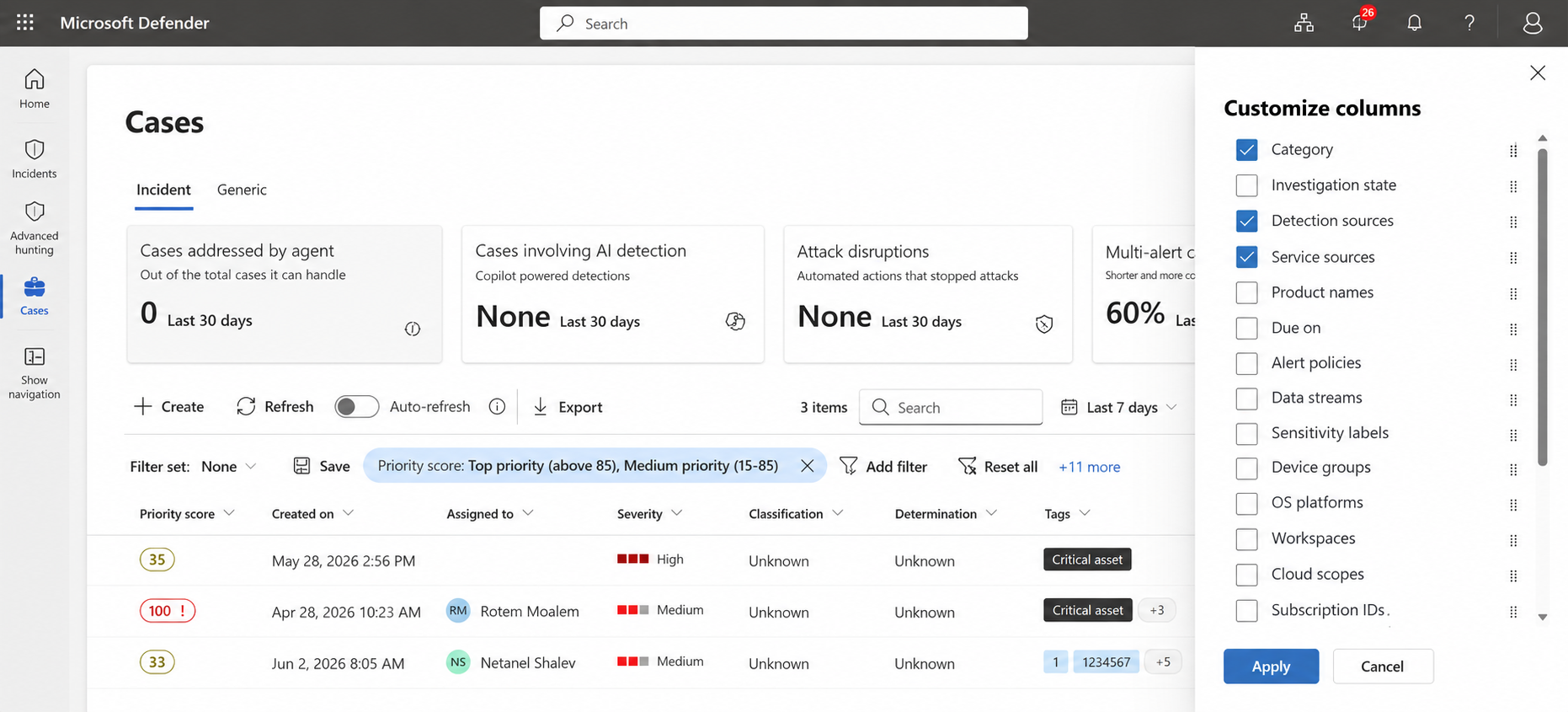
Select or clear the columns you want to show or hide.
Drag columns to change their order.
Select Apply.
Search for incident cases
Use search to find a specific incident case by name or case ID.
To search for an incident case:
Sign in to the Microsoft Defender portal.
Select Cases.
Select Incident.
In the search box, enter the incident case name or case ID.
Select the incident case from the results.
Export incident cases
Use Export to export incident case list data for reporting, review, or offline analysis.
To export incident cases:
Sign in to the Microsoft Defender portal.
Select Cases.
Select Incident.
Filter the list as needed.
Select Export.
The exported file includes the incident case list data based on the current filters and columns.
Open an incident case
After you identify an incident case that needs attention, open it to review the summary, attack story, alerts, assets, investigations, evidence, activities, attachments, and tasks.
To open an incident case:
Sign in to the Microsoft Defender portal.
Select Cases.
Select Incident.
Select the incident case name.
For more information, see Investigate incident cases in the Microsoft Defender portal.