Note
Access to this page requires authorization. You can try signing in or changing directories.
Access to this page requires authorization. You can try changing directories.
[This article is prerelease documentation and is subject to change.]
Use the Scheduling Operations Agent to quickly optimize a single technician's schedule.
Important
- This is a preview feature.
- Preview features aren't meant for production use and may have restricted functionality. These features are available before an official release so that customers can get early access and provide feedback.
Prerequisites
An administrator must set up the agent before you can use it.
Launch the Scheduling Operations Agent
You can launch the Scheduling Operations Agent in two ways:
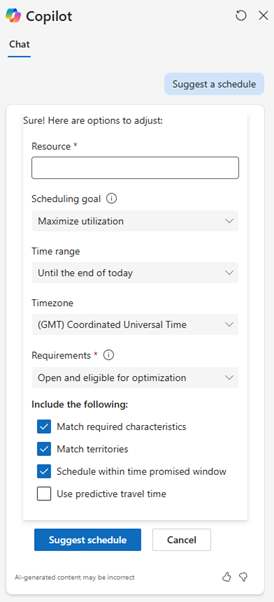
Option 1: Copilot side pane
In any Field Service page, select the Copilot icon in the app header.
In the chat box, enter a prompt such as Suggest a schedule.
Option 2: Schedule board
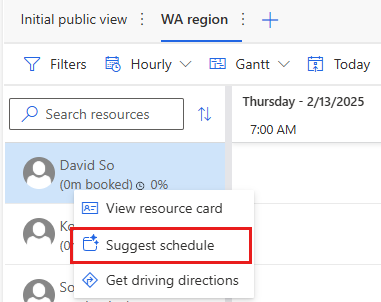
On the schedule board, right-click the technician's name.
Select Suggest schedule.
- If the selected resource type isn't supported, this option is unavailable. Check the tooltip for details.
Adjust the settings for optimization requests
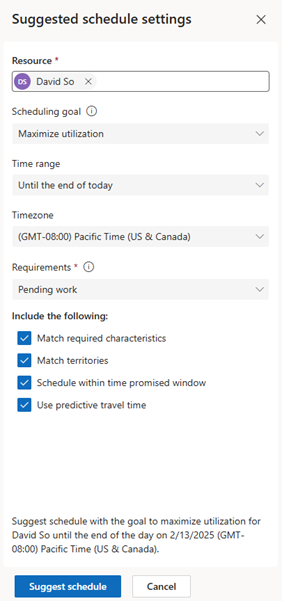
After you launch the agent, it suggests settings that you can adjust before it starts generating an optimized schedule. Adjust the settings as needed to ensure that the agent suggests a schedule that meets your business requirements.
Regardless of the settings you select, the agent doesn't move any bookings that are set to Do Not Move, and it honors the technician's work hours and break times.
Resource
The name of the resource you selected is filled in for you, but you can edit this field to optimize the schedule of any resource.
Scheduling goal
The scheduling goal tells the agent what the expected outcome of the optimization is. Choose from two options:
Maximize utilization maximizes the time that the technician spends on doing the work for the bookings, taking priority and promise windows into consideration while minimizing travel time. The agent can prefer a lower-priority work order with a promise time that expires today over a higher-priority work order that's due tomorrow.
Front-load high-priority work includes as many high-priority requirements as possible, even if it means more travel time and lower utilization. However, the agent doesn't consider the order in which the requirements are booked, so the booking with the highest priority could end up being the last one on the technician's shift.
Time range
Select the range of time over which the agent should optimize the schedule. By default, the range is from the current time through the end of the current day in the selected time zone. You can optimize the schedule over a custom range up to 72 hours and up to three days in the future.
The time zone can be different from the local time zone for the resource or the dispatcher. It defaults to the time zone that you select in the schedule board settings.
When you launch the agent, especially in the Copilot side panel, if the time range and time zone don't match or overlap with the resource's working hours, the agent returns an error message.
Requirements
To have the agent consider unfulfilled requirements when it optimizes the schedule, select a resource requirement view. You can select any view that you have access to, including shared views, system views, and personal views.
Create and select requirement views to help influence the schedule the agent suggests. For example, if the scheduling goal is to front-load high-priority work, pick a view that only lists high-priority requirements. Or, if you want the agent to only rearrange existing bookings to reduce the travel time, create and select a requirement view that returns an empty list.
Other options
Use the following constraint settings to further influence the agent's suggested schedule:
Match required characteristics (characteristics)
- Off: The agent ignores characteristics and assumes the resource can fulfill any booking or requirement.
- On: The agent enforces characteristic matching:
- If the resource has no characteristics, only bookings and requirements with no characteristics are considered.
- If the resource has characteristics, bookings and requirements with matching characteristics (or none) are considered.
- Bookings and requirements with nonmatching characteristics are removed from the suggested schedule.
Match territories looks for bookings and requirements that have the same territory as the resource. If you clear this option, the agent ignores territories and assumes the resource can work in every available territory. If you select it, the agent removes bookings from the suggested schedule that aren't in the same territory as the resource.
Schedule within time promised window considers time constraints that are placed on requirements and bookings. If you clear this option, the agent ignores time constraints. If you select it and there are requirements or bookings for which Time to Promised would expire before the end of the optimization range, the agent tries to include them in the suggested schedule as higher importance than the travel time, priority, or duration.
Caution
If you select this option and a booking in the optimization range has an expired promise window, the agent deletes that booking from the suggested schedule.
Use predictive travel time takes historical traffic information into consideration when estimating travel time. If you clear this option, the agent calculates travel time based on average travel times. If you select it, the agent uses past traffic patterns, such as morning rush hour or typical traffic jams, to estimate travel time. However, it doesn't account for real-time traffic disruptions like accidents or road maintenance. Learn more in Optimization goals in Resource Scheduling Optimization.
Review the suggested schedule
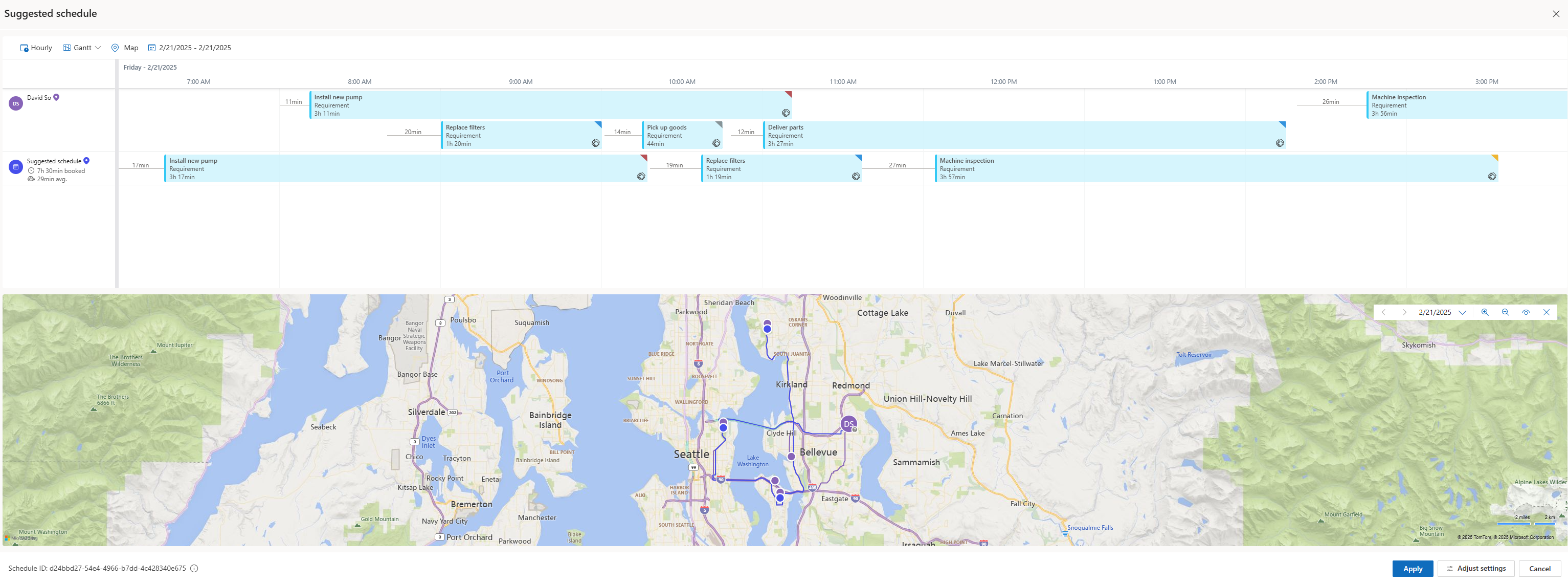
Review the agent's suggested schedule before you apply it. You can compare the original schedule with the suggested schedule in a list view or on the Gantt chart, along with the suggested travel routes.
In the following example, the technician's original schedule included a job outside of normal work hours, which would have resulted in overtime, and double bookings during the morning.

The following example shows the comparison of the original schedule with the Schedule Operations Agent's suggested schedule. The optimized schedule focuses on high-priority work, with no overlapping bookings, and optimizes travel time, all within the technician's normal working hours.
To make it easier to interpret the suggested schedule, show travel time on the schedule board. Select the gear icon in the upper-right corner, and then under Travel Duration Settings, select Show Travel Duration.
To accept a suggested schedule, select Apply.
To rerun optimization with different constraints, select Adjust settings.
To discard the suggestion without changes, select Cancel.
If results aren't meeting expectations, use Improve the Scheduling Operations Agent's suggestions (preview).