Note
Access to this page requires authorization. You can try signing in or changing directories.
Access to this page requires authorization. You can try changing directories.
Enable duplicate lead detection to help your sellers identify and address potential duplicate leads.
What is duplicate detection?
The duplicate detection capability helps sellers check for potential duplicate leads in the app. When you enable this capability, the AI model uses the following rules to identify duplicates:
- Same email address
- Same phone number
- Similar lead name and company name
- Similar lead name and the same email domain
Sellers can compare and remove the duplicate leads in the organization. For more information, see Manage duplicate leads.
Note
- If the Microsoft Power Platform duplicate detection feature is enabled in your organization, a message is displayed as shown in the following image:

- To learn about the difference between the Microsoft Power Platform and Sales duplicate detection features, see What is the difference between the duplicate detection capability in Microsoft Power Platform and duplicate detection of leads in Dynamics 365 Sales?
- For an optimal experience of the duplicate detection of leads in Dynamics 365 Sales, disable the duplicate detection of leads in Microsoft Power Platform. For more information, see Turn duplicate detection rules on or off for the whole organization.
Enable the duplicate detection feature
At the lower-left corner of the Sales Hub app, select Change area
 > App Settings.
On the site map, select Data improvement > Duplicate detection.
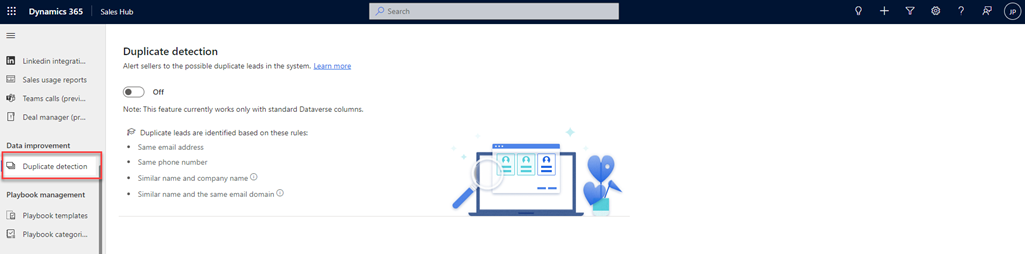
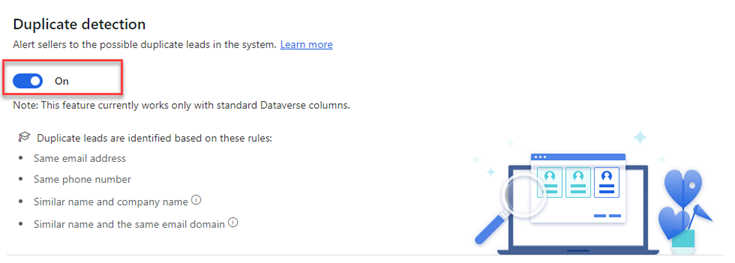
Turn on the Enable rules toggle.
Trouble identifying duplicate leads?
If the duplicate detection feature isn't working, follow these steps:
- Turn off the feature.
- Ensure that the following requirements are met:
- Turn on the feature.
Enable the Dataverse search
Dataverse search is enabled in your organization. The AI model that detects duplicate leads uses Dataverse search for better results. For more information, see Configure Dataverse search for your environment.
Enable the required fields for leads
Enable the following fields in the Quick Find All Leads view for leads, under the Find by section:
firstnamelastnameemailaddress1telephone1companyname
Note
If these fields are already enabled, remove and add them back.
To go to the Quick Find All Leads view, follow these steps:
Sign in to Power Apps.
Select an environment
Note
Create tables inside a custom solution. For more information, see Solution (glossary).
Expand Dataverse, select Tables, go to the All tab, and select the Lead table.
On the Lead table page, under the Data experiences section, select Views. If you're using a custom solution, open the solution, open the table, and then select the Views area.
On the Views page, select the Quick Find All Leads view.
Activate the required processes
Verify that the following processes are active:
- CheckForDuplicatesAction
- DuplicateDetectionTriggerAction
- GetDuplicatesAction
To go to the Processes page, follow these steps:
- In the sales app, go to Settings > Advanced Settings.
- Go to Process Center > Processes, and then select Processes on the page.
- Select the All Processes view and verify that the preceding processes are active.
Provide read permissions for process
The security roles that use the feature need at least read permission for Process under Customization.
For more information, see Security roles and privileges.
Can't find the feature in your app?
There are a few possibilities:
- You don't have the necessary license to use this feature. Check out the comparison table and the licensing guide to see which features are available with your license.
- You don't have the necessary security role to use this feature.
- To configure or setup a feature, you need to have the Administration and customization roles
- To use sales-related features, you need to have the Primary sales roles
- Some tasks require specific Functional roles.
- Your administrator hasn't turned on the feature.
- Your organization is using a custom app. Check with your administrator for exact steps. The steps described in this article are specific to the out-of-the-box Sales Hub and Sales Professional apps.
Related information
Enable duplicate lead detection for custom forms
Manage duplicate leads