Note
Access to this page requires authorization. You can try signing in or changing directories.
Access to this page requires authorization. You can try changing directories.
[This article is prerelease documentation and is subject to change.]
The canvas experience provides a modern, focused, and streamlined way to work with opportunities. Instead of navigating through multiple fields and sections to understand an opportunity, you can quickly access key opportunity information, upcoming meetings, and recent activities, and perform actions in one experience.
Important
- This is a preview feature.
- Preview features aren’t meant for production use and might have restricted functionality. These features are subject to supplemental terms of use, and are available before an official release so that customers can get early access and provide feedback.
The following image shows the opportunity canvas layout and its sections.
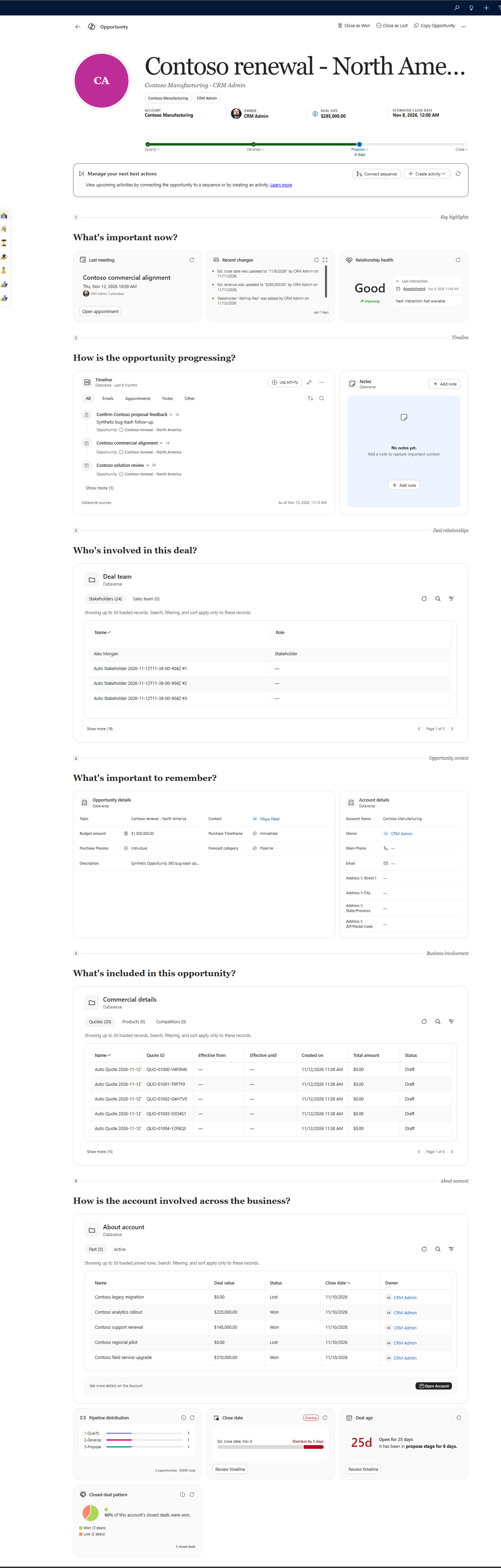
When you need fields, actions, or customizations that aren't available in the canvas, switch to the classic opportunity form.
Example: Review a deal before a customer call
Suppose you're preparing for a call related to an opportunity with Alpine Ski House. The opportunity canvas might show:
- The opportunity value, stage, and expected close date.
- The primary contact and other stakeholders.
- A recent email in which the customer asked about implementation support.
- An insight that engagement has slowed during the past 14 days.
This context helps you prepare a focused response: acknowledge the service concerns, confirm the implementation plan, and re-engage the stakeholders before discussing the close date.
Prerequisites
- Your administrator enables the Opportunity canvas for your app and grants you access. Learn more in Manage canvases in CRM Canvas Designer (preview)
- You have the necessary license and permissions to access the opportunity canvas experience. For supported licenses, see the Dynamics 365 Licensing Guide.
Open the Opportunity canvas
- Open an opportunity in your sales app.
- Select Open in canvas from the command bar. If you don't see the option, ensure that:
- You meet the prerequisites.
- You're in the full screen view or focused view. If you're in the Pipeline view, select the Main form icon to open the opportunity in full screen view, and then select Open in canvas. The system remembers your preference for the opportunity, so the next time you open it, it opens in the canvas view by default.
- Review the page to understand the opportunity's current state, key details, and upcoming activities. What's on the opportunity canvas
What's on the opportunity canvas
This article describes the default layout and sections of the opportunity canvas. If your admin customized the canvas, you might see different sections or a different order. Each section has different cards that are relevant to the opportunity context. Sections and cards appear only if the relevant data is available.
| Area | What you see | What you can do | Where the data comes from |
|---|---|---|---|
| Header | The opportunity name and key facts, such as the account, owner, deal size, estimated close date, probability, status, or rating. | Quickly assess the deal's value, status, and ownership. | The opportunity record and its related account and owner records. |
| Manage your next best actions | Suggested actions and next steps for the opportunity based on the connected sequences or activities. | Take recommended actions to move the deal forward. You can also connect a sequence or activity to the opportunity from this section. | Connected sequences and upcoming activities related to the opportunity. |
| What's important now | Past or upcoming meetings related to the opportunity, recent changes, and relationship health. | Prepare for upcoming meetings, prioritize follow-up actions, and strengthen relationships. | Appointment, audit history, and recent engagements related to the opportunity. Recent changes appear only if audit history is enabled for opportunity table and relationship health appears only if relationship analytics are enabled. |
| How is the opportunity progressing? | A timeline of emails, appointments, phone calls, notes, and other activities related to the opportunity. | Review engagement history and log new activities directly from this section to keep the deal moving. | Activity and note records related to the opportunity. |
| Notes | Notes related to the opportunity. | Review key details and decisions, and add new notes directly from this section for future reference. | Note records related to the opportunity. |
| Who's involved in this deal? | Stakeholders, team members, and other people related to the opportunity. | Identify people to engage and coordinate with your sales team. | Contacts and users associated with the opportunity as stakeholders or team members. |
| What's important to remember? | Key deal details, including the forecast category and information about the related account. | Review deal context to support planning and forecast discussions. | The opportunity record and its related account record. |
| What's included in this opportunity? | Products and quotes related to the opportunity. | Review the proposed offering and prepare for pricing discussions. | Opportunity product and quote records related to the opportunity. |
| How is the account involved across the business? | Other opportunities, relationships, and activities associated with the account across the organization. | Understand the broader account relationship and coordinate engagement across deals. | The related account record and its associated opportunity, relationship, and activity records. |
Switch between the canvas view and classic view
Switch to the classic view when you need to access features or customizations that are only available in the classic view of the opportunity.
- On the canvas view, select Open classic view in the command bar.
- On the classic view, select Open canvas view in the command bar.