Note
Access to this page requires authorization. You can try signing in or changing directories.
Access to this page requires authorization. You can try changing directories.
Note
The Excel document builder is currently in preview.
The Excel document builder in Dataflow Gen2 lets you define an Excel workbook visually, without writing Power Query M. Use data from your dataflow queries to create worksheets with formatted tables, cell ranges, and charts.
Creating the workbook definition and generating the Excel file are separate steps:
- Prepare the data in your source queries.
- Use the builder to define sheets, parts, and data sources. Selecting OK creates a document query, not an Excel file.
- Configure a file-based destination on the document query, then run the dataflow to generate the
.xlsxfile.
This article covers the visual workflow. For M-based authoring, including the navigation table schema and property names, see Excel advanced data destination. To follow a concrete scenario, see Example: create a regional sales workbook.
Understand the workbook structure
The builder uses the following terms. A source query, a part, and a worksheet are different objects, even if you give them similar names.
| Term | Meaning |
|---|---|
| Source query | A query in the dataflow that supplies a table of prepared data. Filter, group, and transform the data in this query before using it in the workbook. |
| Workbook | The Excel document you define in the builder. A workbook contains one or more worksheets. |
| Sheet | A worksheet in the workbook. Each sheet contains parts. |
| Part | An element on a sheet, such as a Table, Sheet data, Range, or Chart. Its type determines how the data appears in Excel. |
| Document query | The query the builder creates to describe the workbook structure and the data used by its parts. This query needs the workbook's output destination. |
| File-based destination | The connection and file settings that determine where the dataflow writes the Excel workbook. |
Prerequisites
Before you begin, you need:
- A Dataflow Gen2 that you can edit, with at least one query that returns a table. To get started, see Create your first dataflow.
- A connection with write access to a supported file-based destination.
Prepare the source query's rows, columns, and data types before opening the builder. For example, if a chart should show total revenue by region, group the data by region and calculate the totals in the source query.
Create an Excel document
Open your dataflow in the Power Query editor.
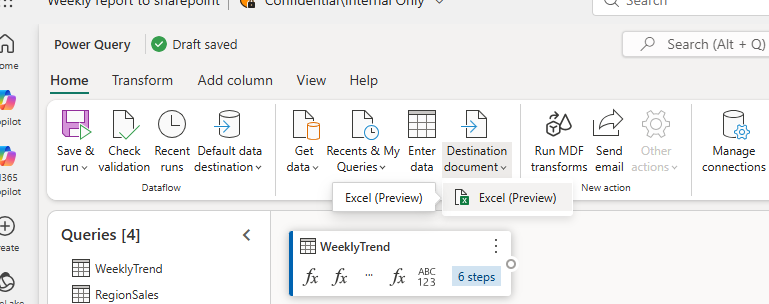
On the Home tab, select Destination document > Excel (Preview).
The Create Excel document (Preview) dialog opens with a workbook containing Sheet1 and Part1. The tree on the left shows the workbook structure. Select a sheet or part to configure it on the right.
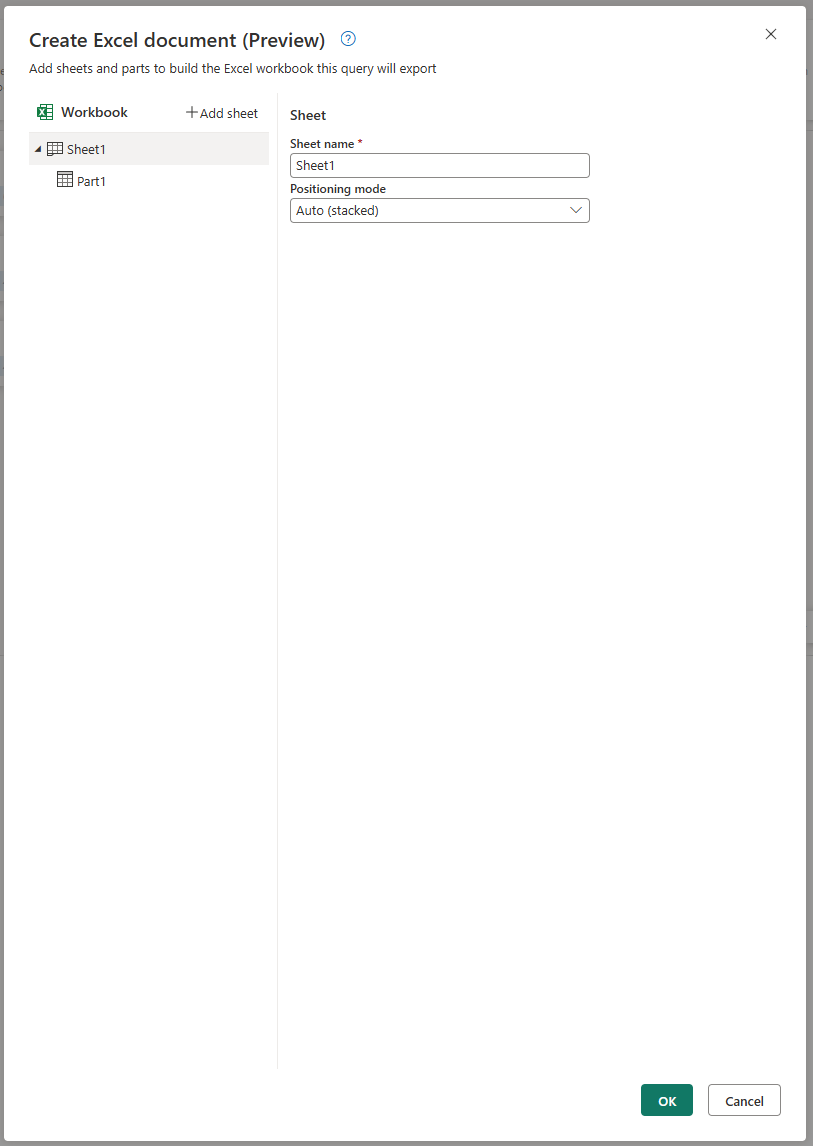
Select Sheet1 to change its Sheet name and review its Positioning mode. The initial positioning mode is Auto (stacked). For Table and Range parts, auto positioning places data regions one below another.
Next, select Part1 to configure the first part. Give the part a name, choose a part type, and select a data source as described in the following sections. Don't select OK until you've configured the parts you want to include.
Add sheets and parts
A workbook can contain multiple sheets, and a sheet can contain multiple parts. You can configure the initial Sheet1 and Part1 without adding more sheets or parts.
- To add a sheet, select Add sheet, and then enter its Sheet name.
- Select a part in the workbook tree to configure it. To add another part to a sheet, use the plus button next to that sheet.
- Enter a descriptive Name for the part. Use unique part names across the workbook so references can identify the correct part.
- Under Part type, select the kind of content to add.
| Part type | When to use it |
|---|---|
| Table | Create a formatted Excel table with features such as filter dropdowns. Use this type when you want table formatting or multiple data regions on one sheet. |
| Sheet data | Export a single data region starting at cell A1, without Excel Table features. Don't combine it with Table or Range parts on the same sheet. |
| Range | Write cells without Excel Table formatting. Use this type when you need a plain data region, control over its starting cell, or the option to omit the header row. |
| Chart | Visualize query data or reference data from another part, such as an existing table in the workbook. |
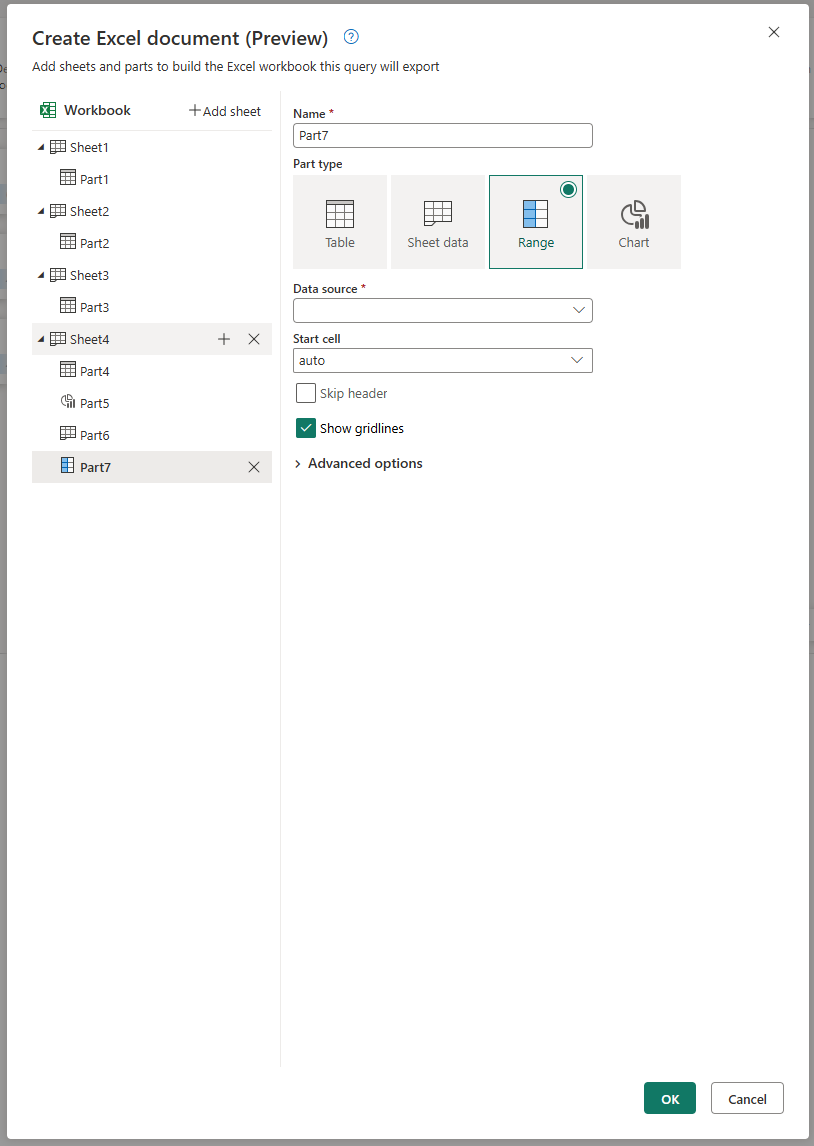
The settings you see depend on the part type. For example, a Range part includes Start cell, Skip header, and Show gridlines, with more settings under Advanced options.
Choose a layout for data parts
Use Table or Range parts when you need multiple data regions on the same sheet. You can't combine Sheet data with Table or Range parts on that sheet.
- Use auto positioning to stack Table and Range data regions vertically. Don't assume the first region starts at A1.
- If you use explicit Start cell values, enter the top-left cell for each data region, such as
B3. Allow space for the data and any header row, including changes in row counts on later runs. - Don't mix automatic and explicit data-region positioning on the same sheet. Data regions must not overlap.
If a chart references a Range part, leave Skip header cleared on that range. Charts need its headers to identify data series. For detailed layout rules, see Table and Range parts.
Choose a data source
Each part needs a data source. Select the part in the workbook tree, and then open its Data source dropdown. The source groups distinguish queries in the dataflow from parts already defined in the workbook.
| Source group | Use |
|---|---|
| Queries | Select a table-valued query from the current dataflow. Use this group to supply data for a Table, Sheet data, or Range part, or to supply query data directly to a Chart. |
| Reference to part | Select a named data part to use as a chart's source. For example, a chart on a Charts sheet can reference a table part on a Summary sheet. Select the part name, not the worksheet name. |
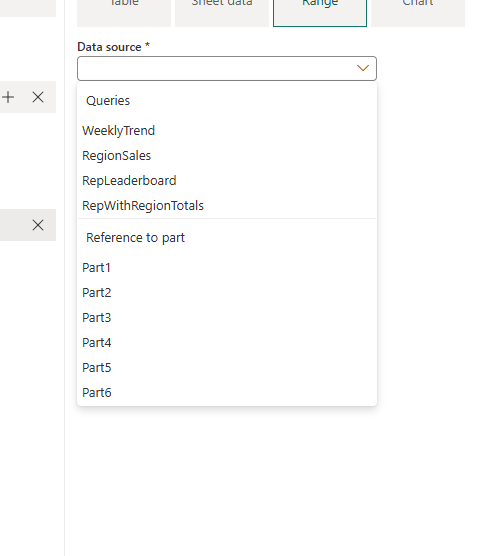
For example, a query named RegionSales can supply a table part named RegionalSalesTable. A chart that uses Reference to part selects RegionalSalesTable, not RegionSales. This reference is within the workbook definition, not a new connection to an external data source.
Sheet data uses query data, not a reference to another part. For charts, choose columns that exist in the selected source and use numeric columns for values.
Choose a source and complete the settings for every part. When the workbook is ready, select OK to create the document query.
Review the document query
The builder adds a new query to the dataflow. Selecting this query shows a document-specific preview instead of the usual table data preview.
The preview shows the workbook's sheet and part counts. Select each sheet tab to review its parts and their data sources. Check that the expected sheets, part types, and source references are present.
This view represents the document structure. It doesn't render the final Excel cells or charts.
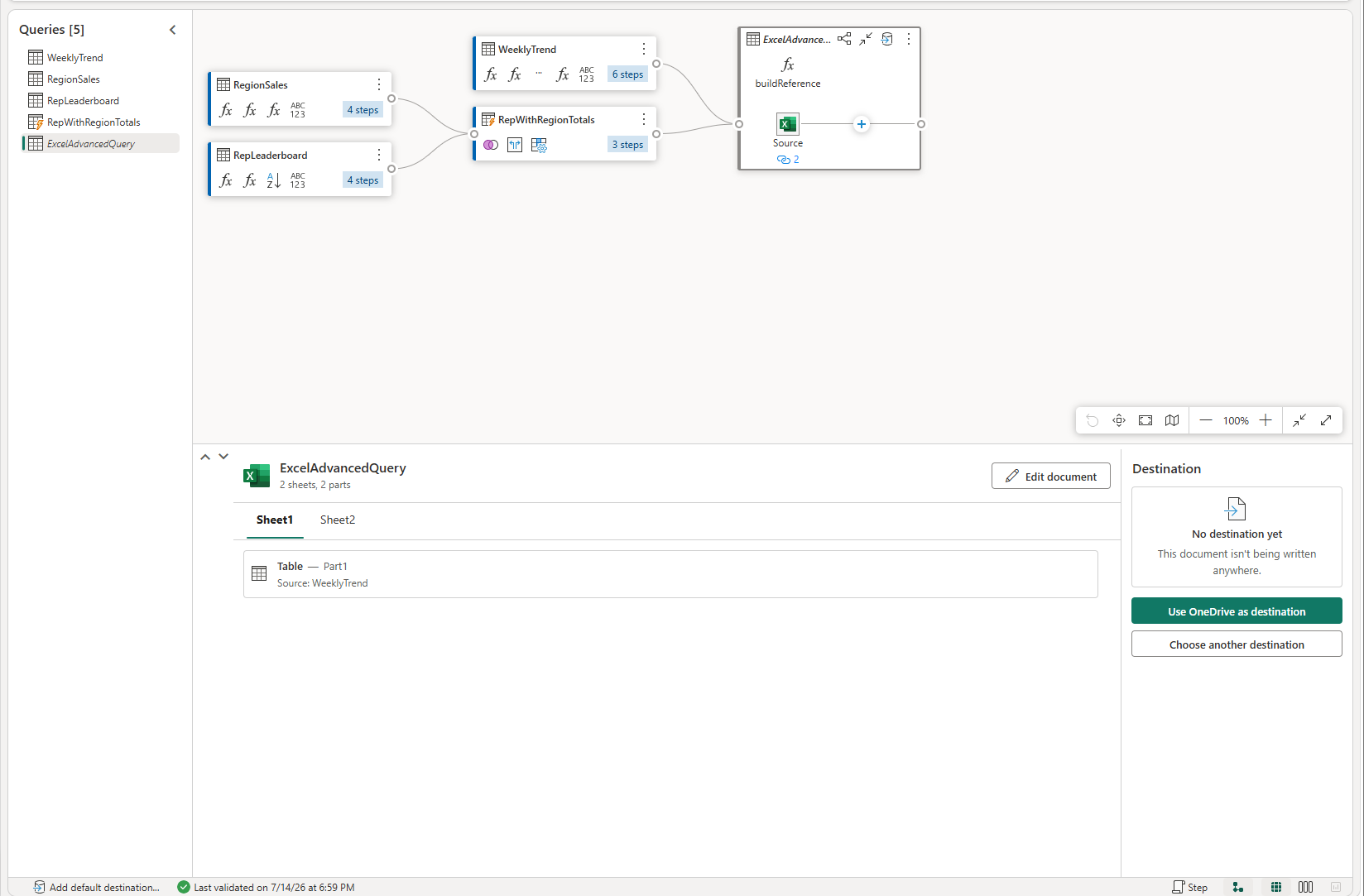
Important
Creating the document query doesn't write a file. When the Destination pane shows No destination yet, configure a destination before running the dataflow to export the workbook.
Configure the output destination
The document query supports only file-based destinations. In its Destination pane, choose how to configure the output:
| Option | Action |
|---|---|
| Use OneDrive as destination | Use the shortcut to set up OneDrive as the destination for the workbook. |
| Choose another destination | Select another supported file-based destination. |
Configure the destination on the document query, not just on one of its source queries:
- Select the document query and choose one of the destination options.
- Complete the connection, target location, and file name settings for the selected destination. Use a location where the connection can write files.
- If the destination setup asks for the file format, select Excel and Advanced format. The document query describes a workbook structure, rather than a single flat table to export.
- Complete the destination setup.
For more information, see Set up file-based destinations. If you choose a lakehouse, use its Files area rather than Tables.
Run the dataflow and open the workbook
- Select Save & run. The dataflow uses the document query to generate the workbook and write it to the configured location.
- Review the run status. If the run fails, inspect the error before retrying. For instructions, see View refresh history and monitor your dataflows.
- After the run succeeds, open the Excel file at the configured destination. Check the worksheet names, data, layout, and charts in the generated workbook.
Edit an existing document
Use Edit document to change the workbook definition saved in the dataflow, not to open an existing .xlsx file:
- Select the document query, and then select Edit document in the document preview.
- Update the sheets, parts, or data-source selections in the builder.
- Select OK, and then save and run the dataflow to generate the updated workbook.
To change the rows, columns, or calculations used by a part, edit its source query in Power Query. Review the part's data-source and chart-column selections if the source schema changes. Changes to the definition or source queries don't update the output file until the dataflow runs.
Example: create a regional sales workbook
This example uses one source query to create a formatted table and a chart on separate worksheets.
Start with a query named RegionSales that returns regional totals like the following table. Set Region to a text type and Revenue to a numeric type. The names and values are examples; you can use your own prepared query.
| Region | Revenue |
|---|---|
| North | 12000 |
| South | 18000 |
| West | 15000 |
Open Home > Destination document > Excel (Preview). In the builder, configure the workbook as follows:
| Sheet name | Part name | Part type | Data source |
|---|---|---|---|
Summary |
RegionalSalesTable |
Table | Under Queries, select RegionSales. |
Charts |
RevenueByRegion |
Chart | Under Reference to part, select RegionalSalesTable. |
- Rename the initial sheet to
Summaryand configure its initial part asRegionalSalesTable. Keep the data region's automatic positioning. - Add a sheet named
Chartsand configure a chart part namedRevenueByRegion. Choose a column chart, useRegionfor the category axis, and useRevenuefor the values. - Select OK, then select the document query. Confirm that its preview shows the two sheets and their parts.
- Configure a file-based destination for the document query, with a file name such as
RegionalSales.xlsx, then select Save & run.
After a successful run, open the workbook. The Summary worksheet should contain the three regional totals in a formatted table. The Charts worksheet should contain a chart of those totals, using the table part as its data source.
Troubleshoot common issues
Use the document preview to review the definition and the refresh history to inspect failures during file generation.
| Symptom | What to check |
|---|---|
| No Excel file appears after you close the builder. | Select the document query. Configure its destination if it shows No destination yet, then run the dataflow. If a run already failed, inspect its error and confirm the target location and write permissions. |
| A table destination isn't available for the document query. | Choose a file-based destination. A Table part creates an Excel table inside the workbook; it doesn't make the document query eligible for a database table destination. |
| A chart can't find a referenced part. | Check the referenced part's Name and its data source. A part reference must identify the data part, not the worksheet or original query. |
| A chart can't use its source data. | Check that the axis and value columns exist and that value columns have numeric types. If the source is a Range part, clear Skip header. |
| Data regions overlap or positioning fails. | Review Start cell values, header rows, and row counts. Use automatic positioning for the data regions or give them nonoverlapping explicit positions. Don't mix the two modes on a sheet. |
| A sheet can't combine the selected part types. | Don't place Sheet data with Table or Range parts on the same sheet. Use Table and Range for multiple data regions, or move Sheet data to a separate sheet. |
For specific runtime errors, see the Excel advanced destination error reference.
Considerations and limitations
- The document query requires a file-based destination. Table destinations aren't available for this query.
- The builder defines workbook content and layout. The document preview isn't a rendered Excel workbook or a cell editor.
- Excel's worksheet and cell limits still apply. Source-data errors can also prevent file generation. See Notes and limitations.
- UI labels aren't always the same as M identifiers. For example, the builder's Sheet data part corresponds to
SheetDatain a navigation table. For M-based automation, use the navigation table structure and documented runtime properties, not UI labels as code identifiers.