Note
Access to this page requires authorization. You can try signing in or changing directories.
Access to this page requires authorization. You can try changing directories.
Important
Mapping data flow transforms in dataflow gen2 are currently in public preview and are subject to change.
Mapping data flow (MDF) transforms in dataflow gen2 enable you to author, execute, and monitor Spark-based data transformations directly within Data Factory in Microsoft Fabric.
MDF transforms bring the capabilities of Azure Data Factory and Azure Synapse Analytics Mapping Data Flows into Microsoft Fabric through a familiar low-code visual authoring experience integrated with dataflow gen2.
With MDF transforms, you can:
- Migrate existing Azure Data Factory and Azure Synapse Analytics Mapping Data Flows pipelines into Fabric.
- Create new Spark-based transformations directly in Fabric.
- Execute MDF transformations using Fabric data pipelines.
- Monitor transformation execution using integrated monitoring experiences.
- Continue using familiar Mapping Data Flow transformation patterns inside Fabric.
What are mapping data flow transforms?
MDF transforms extend dataflow gen2 with Spark-powered transformation capabilities for large-scale data preparation and transformation workloads.
MDF transforms provide:
- A low-code visual authoring experience
- Spark-based execution
- Integrated orchestration through Fabric pipelines
- Monitoring and execution insights directly in Fabric
Use MDF transforms to:
- Migrate existing Azure Data Factory or Azure Synapse Analytics Mapping Data Flows pipelines to Fabric.
- Build new Spark-based transformation pipelines natively in Fabric.
MDF transforms integrate fully with dataflow gen2 and provide a familiar authoring experience similar to Azure Data Factory and Azure Synapse Analytics Mapping Data Flows.
Supported scenarios
MDF transforms currently support the following scenarios.
Migrate existing Mapping Data Flows
You can migrate existing Azure Data Factory and Azure Synapse Analytics Mapping Data Flows into Fabric using the Azure Data Factory/Synapse Analytics built-in migration experience.
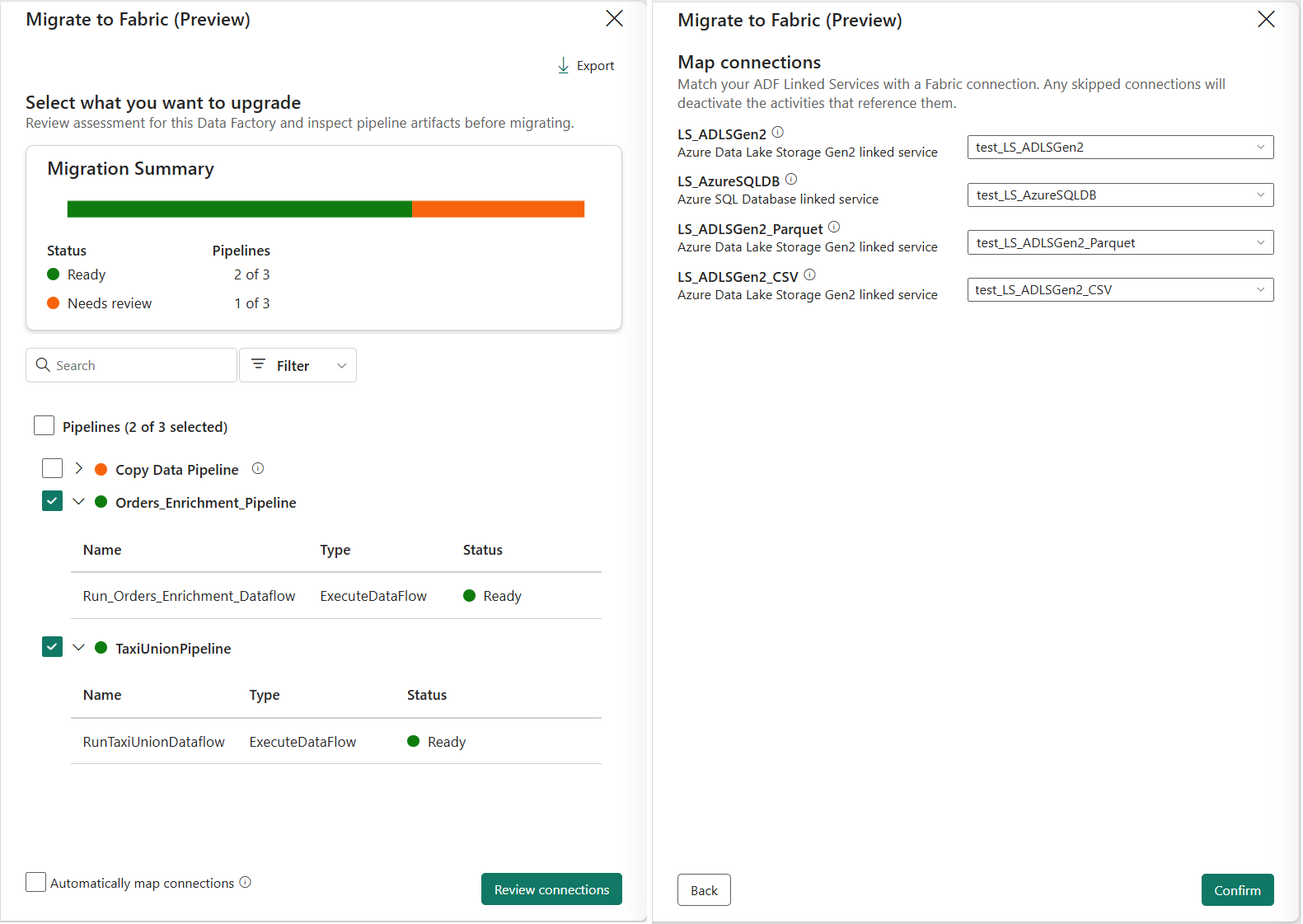
During migration:
- Mapping Data Flows are converted into MDF transforms in dataflow gen2.
- Pipelines and transformation logic are migrated together.
- MDF transforms open inside the embedded transformation canvas in dataflow gen2.
- Existing transformation logic can continue to be authored, validated, executed, and monitored in Fabric.
Create new mapping data flow transforms in Fabric
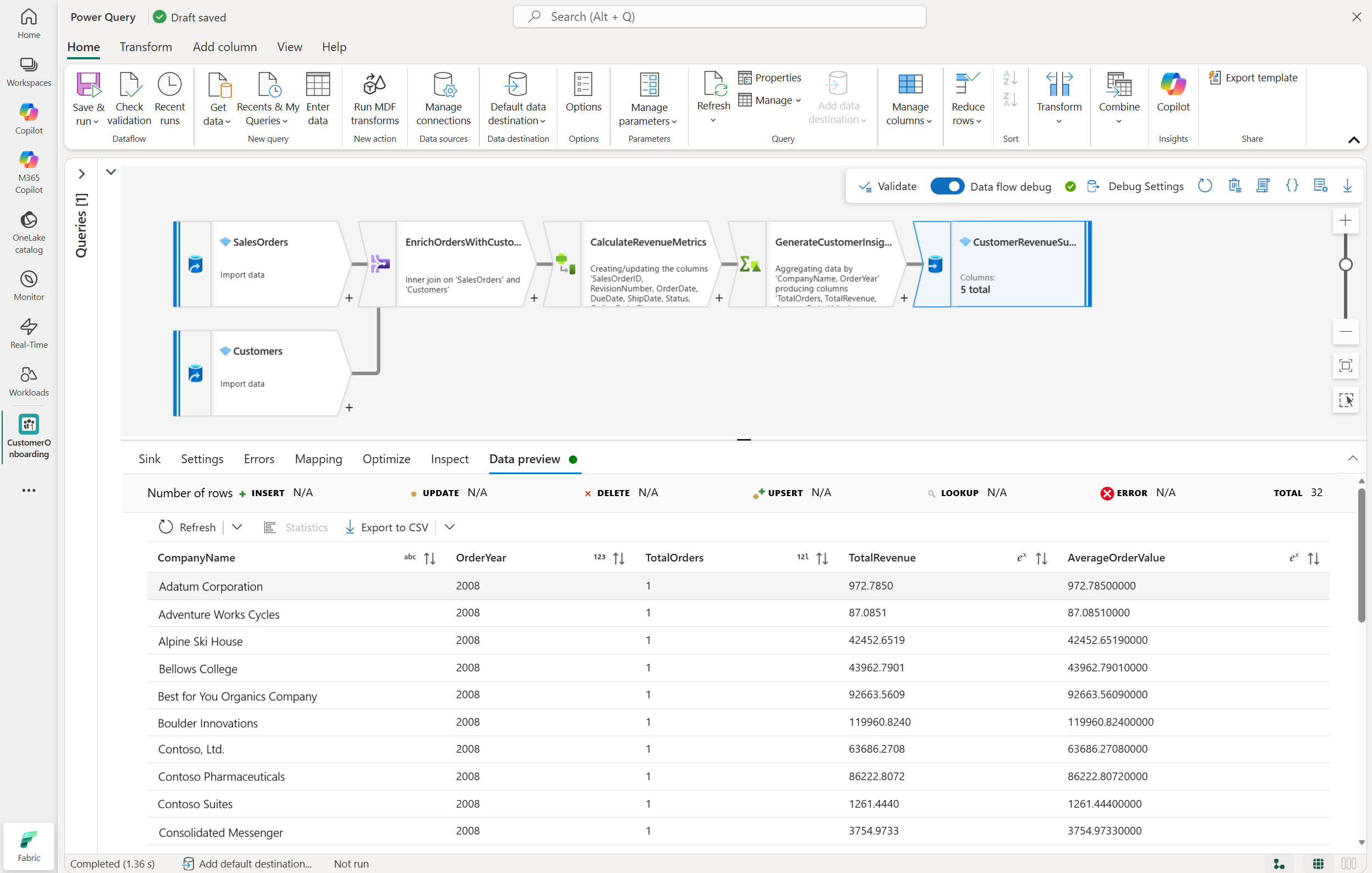
You can also create new MDF transforms directly in dataflow gen2. This experience enables you to:
- Build Spark-based transformations using a visual interface.
- Use familiar Mapping Data Flow transformation capabilities.
- Execute transformations using Fabric data pipelines.
- Monitor execution through integrated monitoring experiences.
This video demonstrates how to build, preview, run, and monitor Mapping Data Flow transforms in Microsoft Fabric Dataflow Gen2.
Prerequisites
Before you use MDF transforms in dataflow gen2, ensure the following prerequisites are met:
- A Fabric capacity.
- Contributor or higher permissions to the Fabric workspace.
- Existing Fabric connections for supported data sources.
- (Optional) An existing Azure Data Factory or Azure Synapse Analytics workspace, if you're using migration scenarios.
Limitations
The following capabilities aren't currently supported in public preview:
| Area | Limitation |
|---|---|
| Flowlets | Not supported. |
| Data Flow Library | Not supported. |
| User-defined functions (UDFs) | Not supported. |
| Dataflow execution | MDF transforms can only be executed through the pipeline Dataflow activity. Direct execution from dataflow gen2 isn't currently supported. Only the Save action is available from the Save & run menu. |
| Managed Virtual Network | Managed Virtual Network (Managed VNet) support isn't available in this preview. |
| Runtime execution | MDF transform execution currently uses the underlying Synapse Spark runtime, similar to Azure Data Factory and Azure Synapse Analytics Mapping Data Flows. |
| Feature parity | Not all Mapping Data Flow capabilities are available in this preview. |
Supported connectors
MDF transforms support most commonly used source and sink connectors available in Azure Data Factory and Azure Synapse Analytics Mapping Data Flows.
The following connectors are currently supported:
| Category | Data store | MDF transforms in dataflow gen2 (source/sink) | Supported Authentication Types |
|---|---|---|---|
| Azure | Azure Blob Storage | ✓/✓ | Basic, Organizational account, Managed Identity / Workspace Identity, Service Principal |
| Azure Cosmos DB for NoSQL | ✓/✓ | Basic, Organizational account | |
| Azure Data Explorer | ✓/✓ | Organizational account, Managed Identity / Workspace Identity | |
| Azure Data Lake Storage Gen1 | ✓/✓ | Basic, Managed Identity / Workspace Identity, Service Principal | |
| Azure Data Lake Storage Gen2 | ✓/✓ | Basic, Organizational account, Managed Identity / Workspace Identity, Service Principal | |
| Azure Database for MySQL | ✓/✓ | Basic | |
| Azure Database for PostgreSQL | ✓/✓ | Basic | |
| Azure Databricks Delta Lake | ✓/✓ Use delta format | Basic | |
| Azure SQL Database | ✓/✓ | Basic, Organizational account, Managed Identity / Workspace Identity, Service Principal | |
| Azure SQL Managed Instance | ✓/✓ | Basic, Organizational account, Managed Identity / Workspace Identity, Service Principal | |
| Azure Synapse Analytics | ✓/✓ | Basic, Organizational account | |
| Database | Snowflake | ✓/✓ | Basic |
| File | Amazon S3 | ✓/✓ | Basic |
| SFTP | ✓/✓ | Basic | |
| Generic REST | ✓/✓ | Basic, Organizational account, Service Principal | |
| Microsoft Fabric | Fabric Lakehouse | ✓/✓ | Organizational account |
| Fabric Warehouse | ✓/✓ | Organizational account |
Note
Organizational account authentication uses the signed-in user's Microsoft Entra organizational identity. Availability can depend on the connector, gateway configuration, and permissions granted to that identity.
During authoring:
- Existing Fabric connections can be reused.
- New connections can be created directly from the authoring experience using the Get Data experience.
- Source and sink configuration follows familiar Mapping Data Flow patterns.
Supported transformations
MDF transforms provide a familiar low-code visual transformation experience for building scalable Spark-based data transformation pipelines in Fabric.
The following transformations are currently supported:
| Name | Category | Description |
|---|---|---|
| Aggregate | Schema modifier | Define aggregations such as SUM, MIN, MAX, and COUNT grouped by existing or computed columns. |
| Alter row | Row modifier | Set insert, delete, update, and upsert policies on rows. |
| Assert | Row modifier | Define assert rules for rows in the data stream. |
| Cast | Schema modifier | Change column data types with type checking. |
| Conditional split | Multiple inputs/outputs | Route rows to different streams based on matching conditions. |
| Derived column | Schema modifier | Generate new columns or modify existing fields using expressions. |
| External call | Schema modifier | Call external endpoints inline for each row. |
| Exists | Multiple inputs/outputs | Check whether data exists in another source or stream. |
| Filter | Row modifier | Filter rows based on conditions. |
| Flatten | Formatters | Flatten hierarchical structures such as JSON arrays into rows. |
| Join | Multiple inputs/outputs | Combine data from two sources or streams. |
| Lookup | Multiple inputs/outputs | Reference data from another source or stream. |
| New branch | Multiple inputs/outputs | Apply multiple transformation paths on the same stream. |
| Parse | Formatters | Parse JSON, delimited text, or XML formatted strings. |
| Pivot | Schema modifier | Transform distinct row values into columns. |
| Rank | Schema modifier | Generate ordered rankings based on sort conditions. |
| Select | Schema modifier | Rename, reorder, or remove columns. |
| Sink | - | Define the destination for transformed data. |
| Sort | Row modifier | Sort rows in the current data stream. |
| Source | - | Define the source for the data flow. |
| Stringify | Formatters | Convert complex types into string values. |
| Surrogate key | Schema modifier | Generate incrementing surrogate key values. |
| Union | Multiple inputs/outputs | Combine multiple data streams vertically. |
| Unpivot | Schema modifier | Transform columns into row values. |
| Window | Schema modifier | Define window-based aggregations over data streams. |
Create a mapping data flow transform in dataflow gen2
To create a new MDF transform in Fabric:
Open your Fabric workspace.
Select New item.
Select Dataflow Gen2.
Provide a name for the dataflow gen2 item and select Create.
In the dataflow gen2 canvas, use one of the following options:
- Select Run Mapping data flow transforms from the New action grouping in the dataflow gen2 home ribbon.
- Select the Run Mapping data flow transforms (ADF Mapping Data Flows) tile from the canvas.

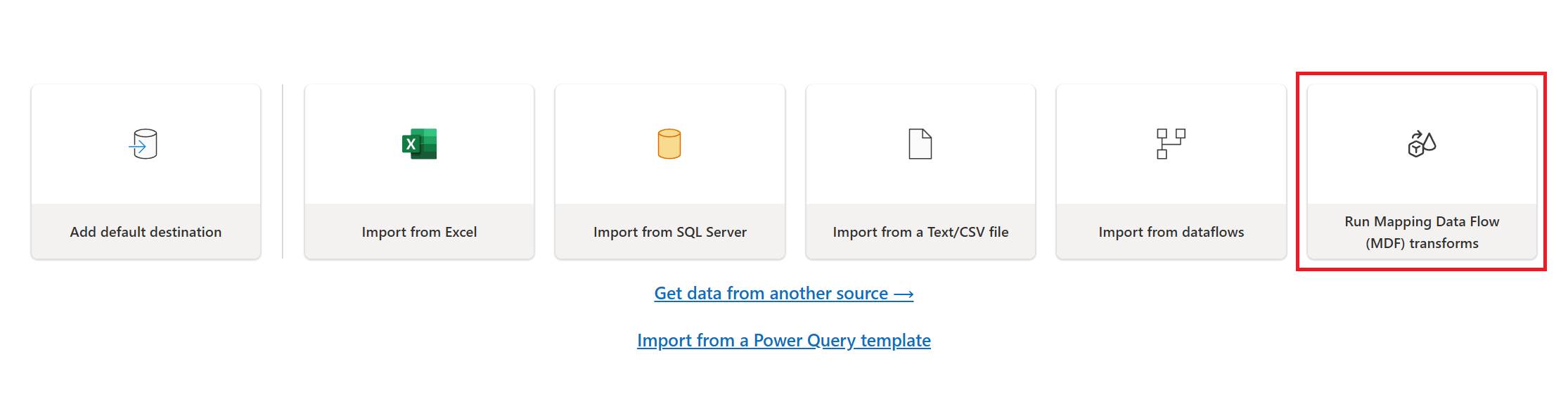
A new MDF transform action appears on the dataflow gen2 canvas and opens the embedded MDF transform authoring experience.
Tip
The MDF transform authoring experience uses a familiar visual interface similar to Azure Data Factory and Azure Synapse Analytics Mapping Data Flows.
Author mapping data flow transforms
After you create an MDF transform, you can begin authoring transformation logic.
Enable debug mode
For interactive authoring and data preview:
- Turn on the Data flow debug toggle from the floating toolbar.
- Wait for the debug session to initialize.
- After it's enabled, you can preview source and transformation data during authoring.

Note
Before starting a Data flow debug session, ensure that at least one pipeline exists in the same workspace as the Dataflow Gen2 item. Otherwise, the debug session won't start. Debug sessions might take several minutes to initialize depending on Spark runtime availability.
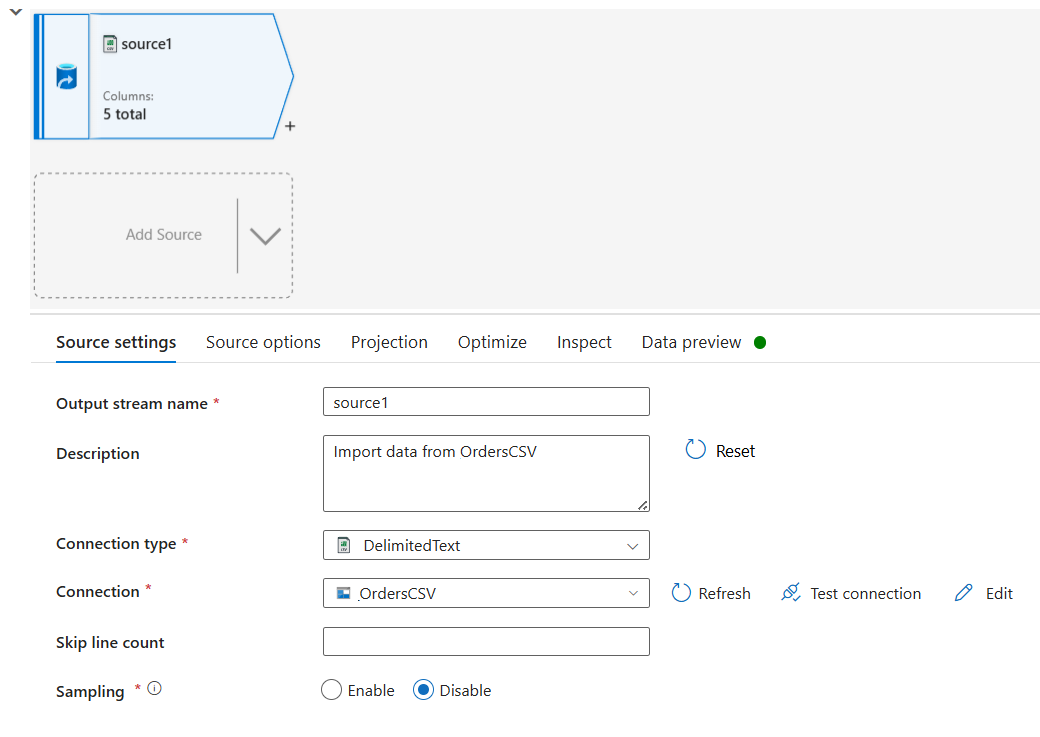
Add a source
To configure a source:
- Select Add source.
- Select the connection type.
- Select an existing Fabric connection or create new connections directly through the Get Data experience if needed.
- Browse and select the source file, table, or dataset.
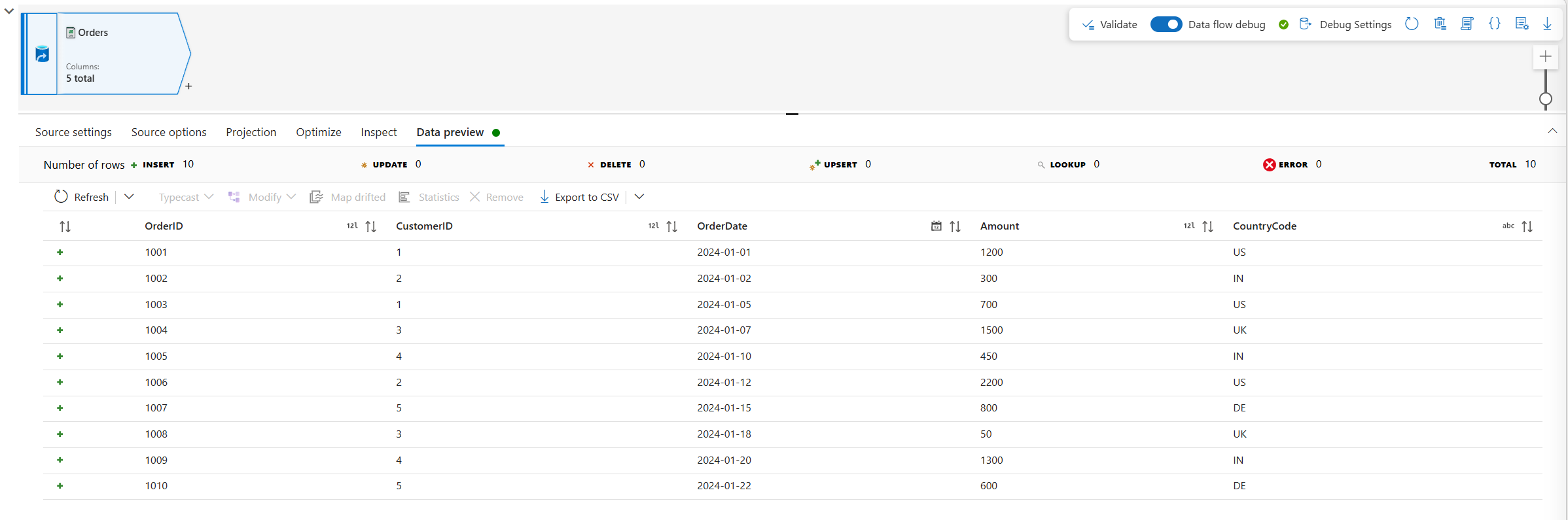
After you configure the source connection and dataset, use the Data preview tab to validate and preview the source data during interactive authoring.
Add transformations
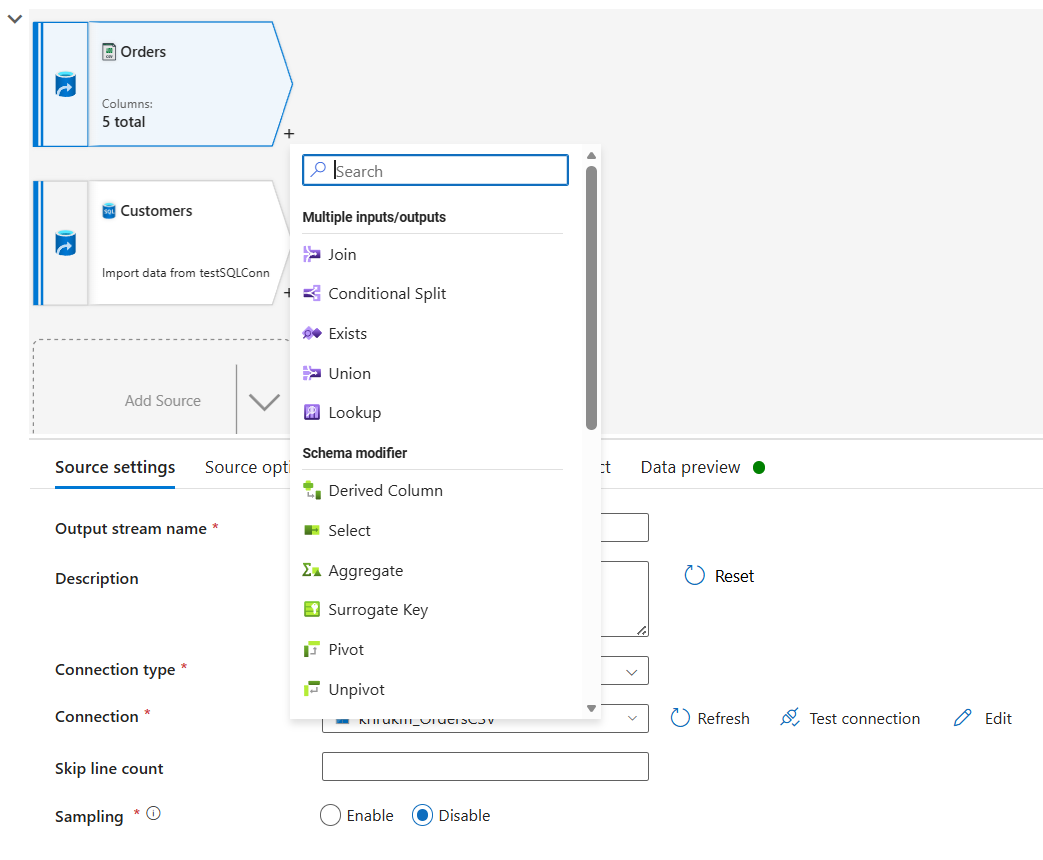
To add transformations:
- Select the + icon next to a source or transformation.
- Select the transformation type.
- Configure transformation settings.
You can continue building transformation logic using the visual transformation canvas.
Configure a sink
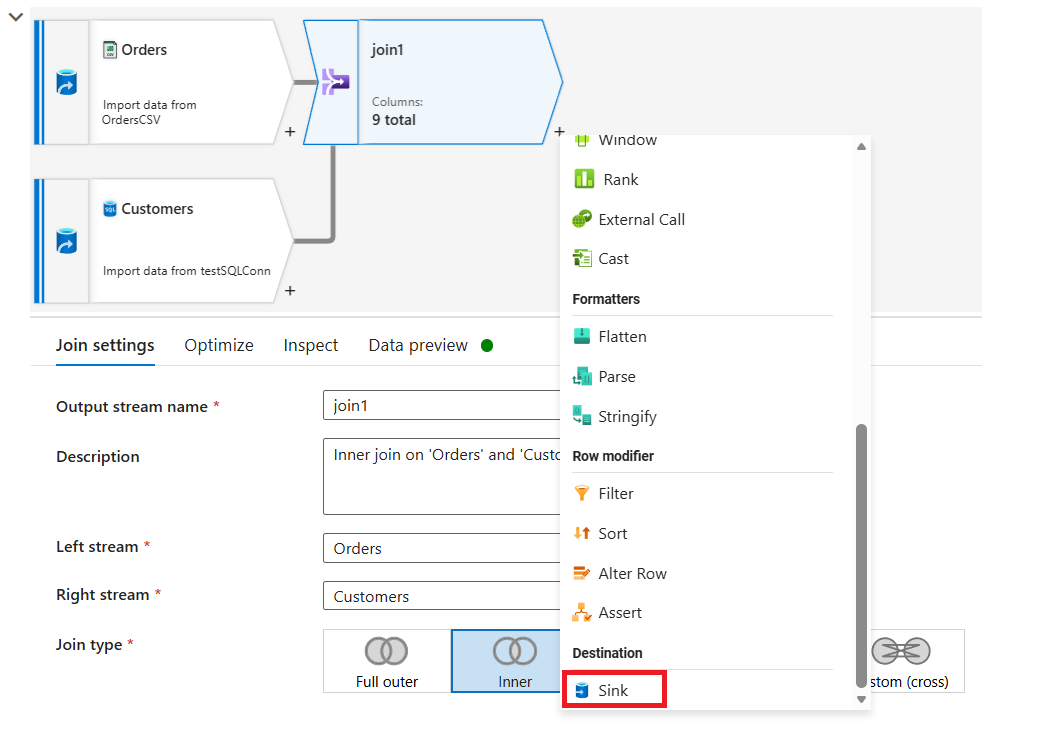
After transformation logic is complete:
- Add a sink transformation.
- Configure the destination connection.
- Configure write settings.
Validate and save
Before execution:
Select Validate from the MDF transform toolbar.
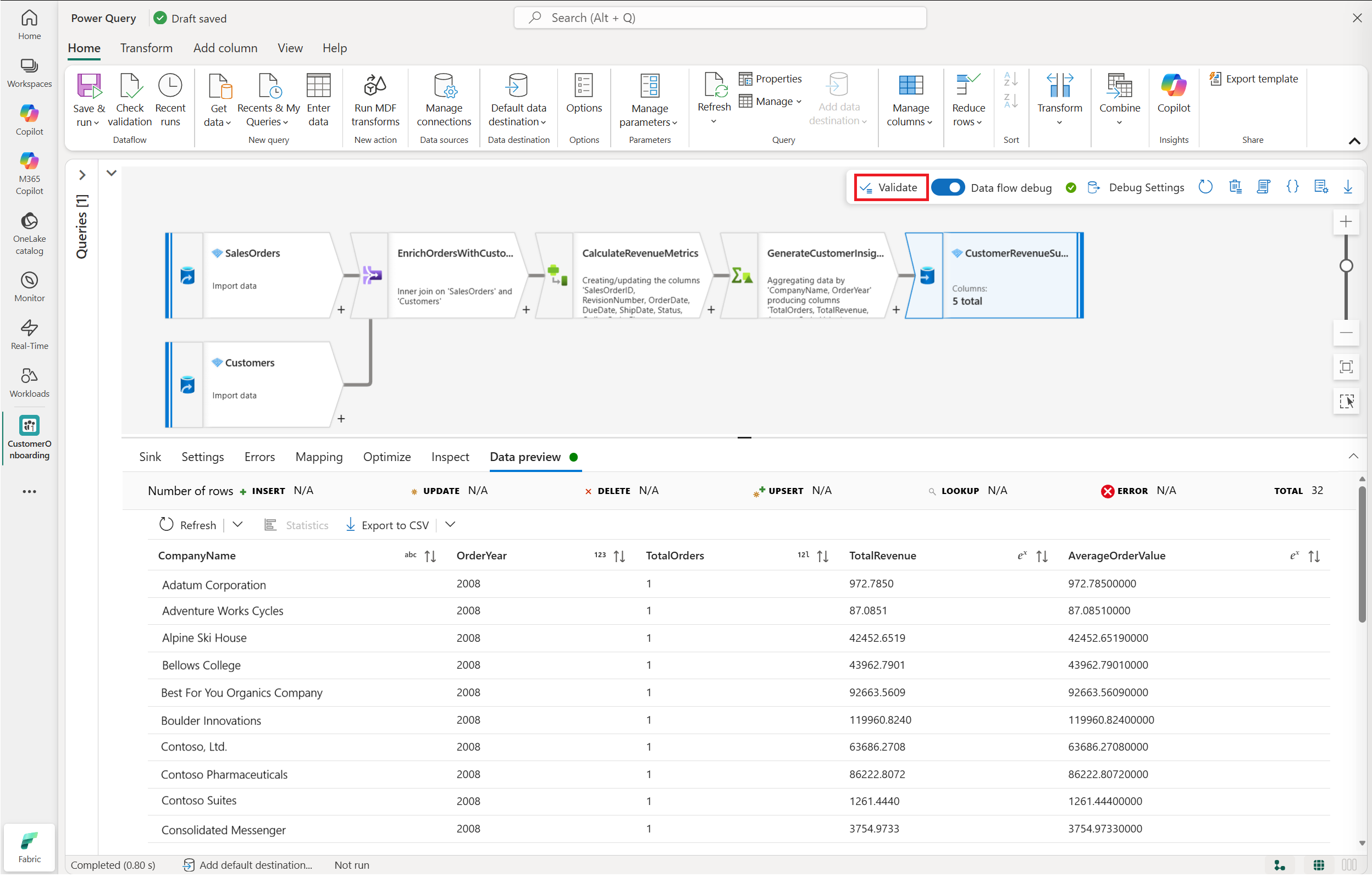
Resolve validation issues if any are reported.
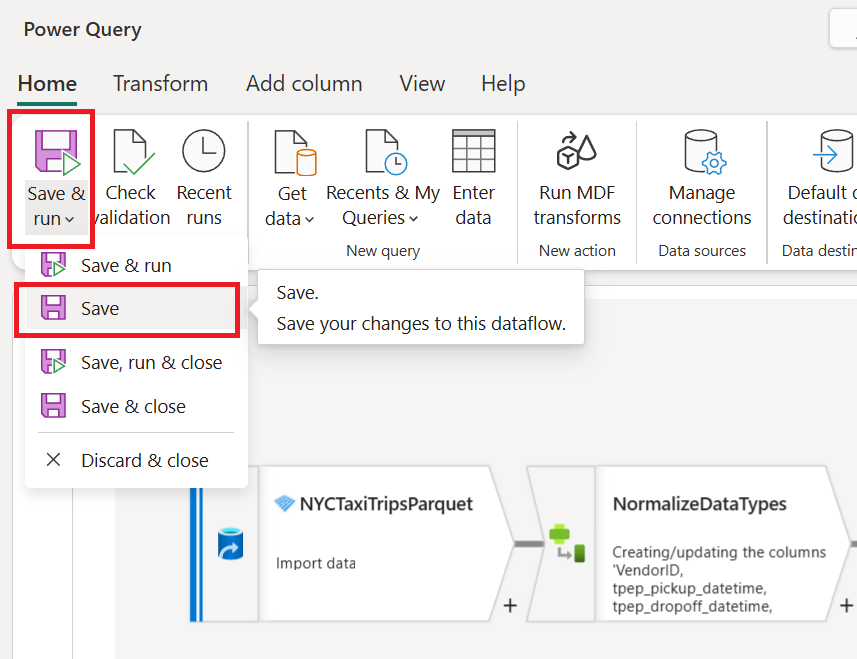
Select Save from the Save & run menu.
Note
Only the Save action is currently supported for dataflow gen2 with MDF transforms in public preview.
Execute mapping data flow transforms using Fabric pipelines
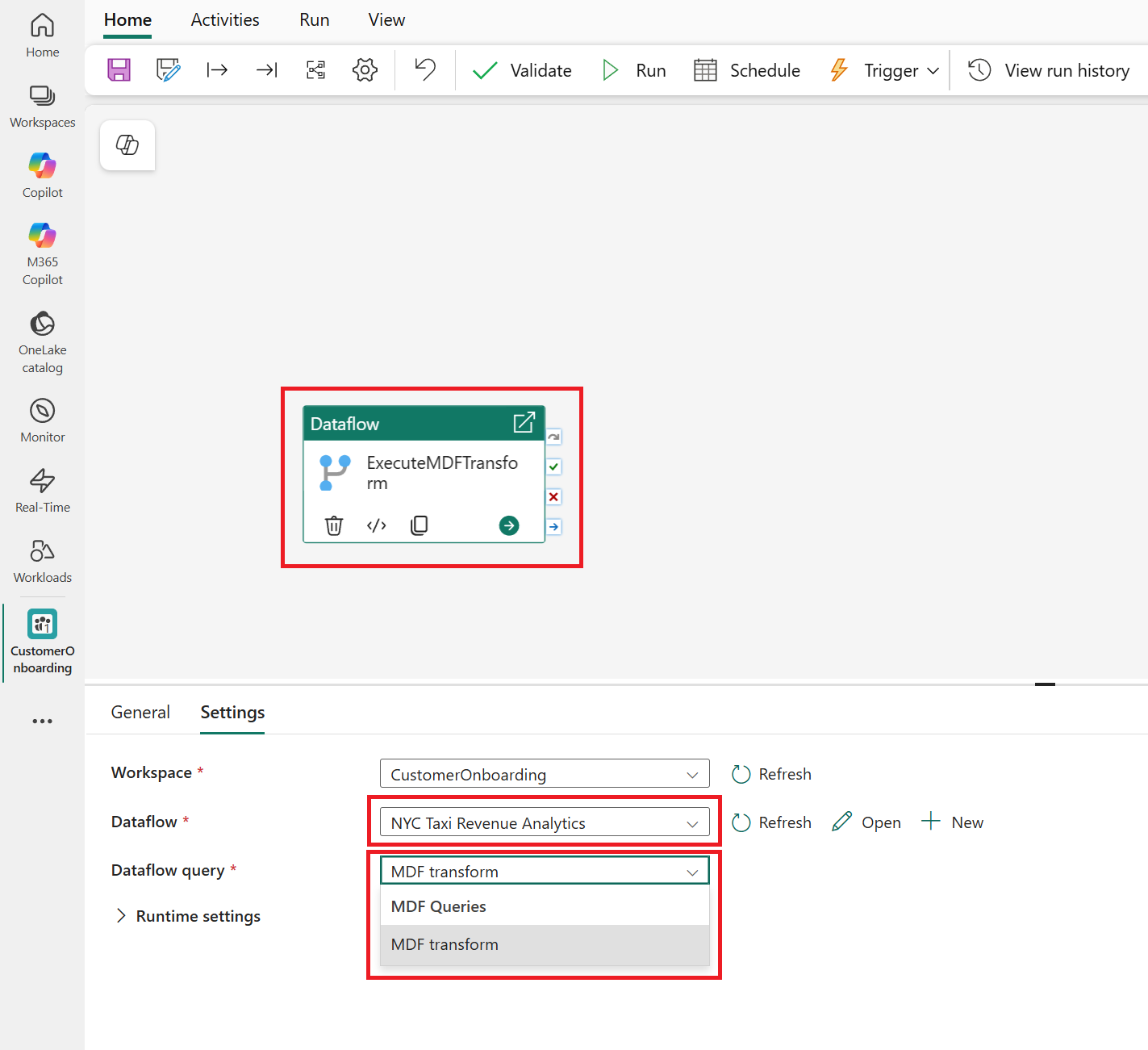
You execute MDF transforms through Fabric data pipelines using a Dataflow activity.
To execute an MDF transform:
- Create a new Fabric pipeline.
- Add a Dataflow activity to the pipeline.
- In the activity Settings, select the dataflow gen2 item containing the MDF transform.
- Select the MDF transform query to execute.
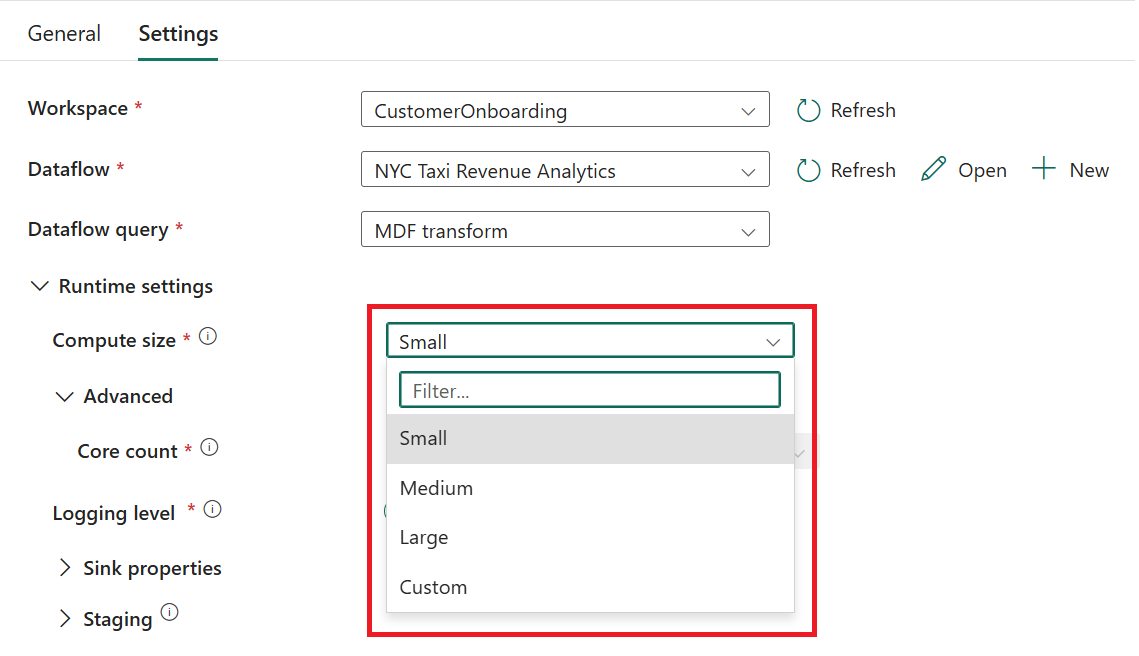
- Configure Spark runtime settings as needed.
- Validate and publish the pipeline.
- Run the pipeline manually or configure a schedule or triggers.
Configure Spark runtime settings
MDF transforms execute using managed Spark runtime integrated with Data Factory in Microsoft Fabric. You can configure Spark runtime settings during pipeline execution, including:
- Compute sizing
- Sink properties
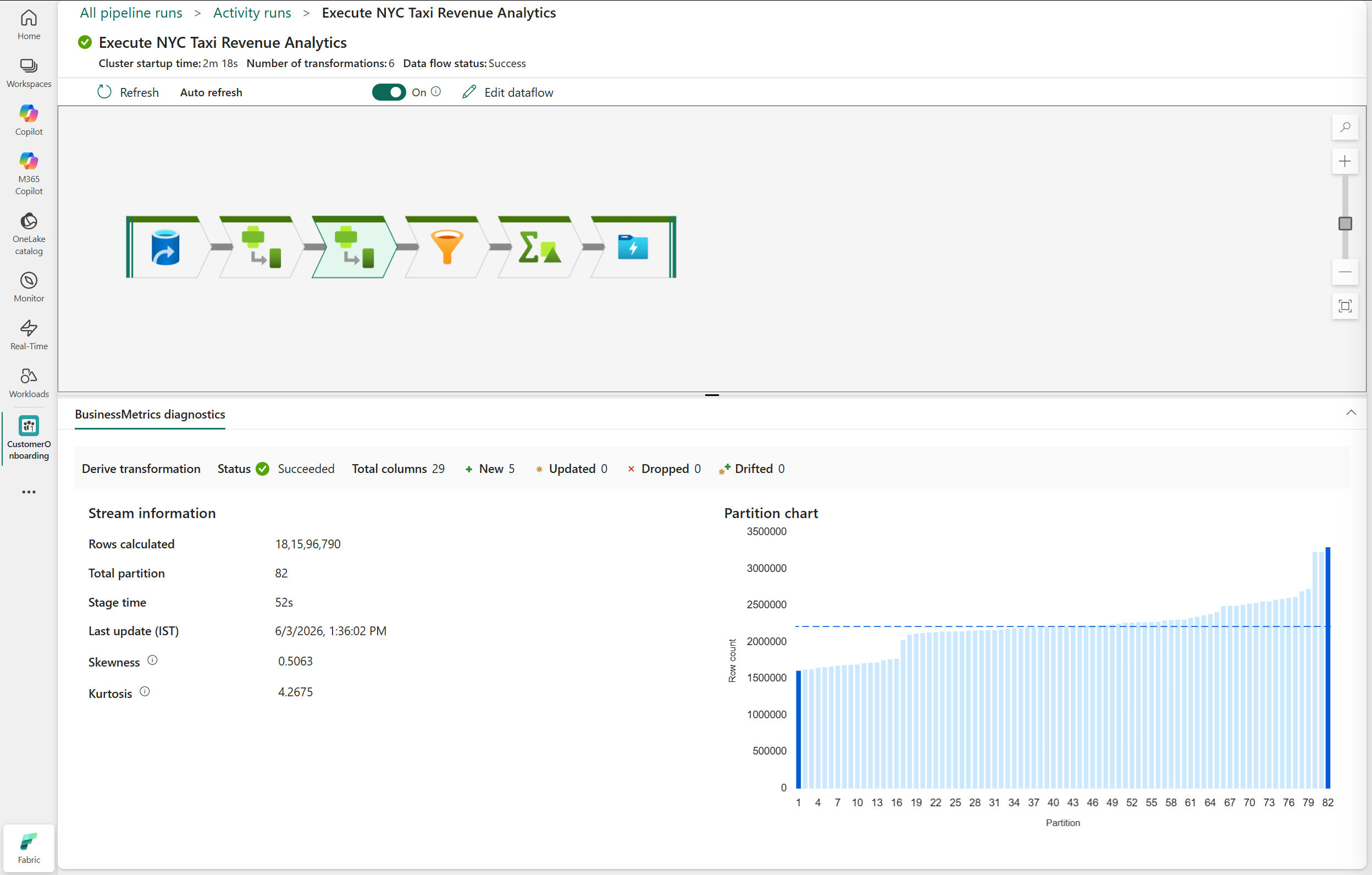
Monitor mapping data flow transform executions
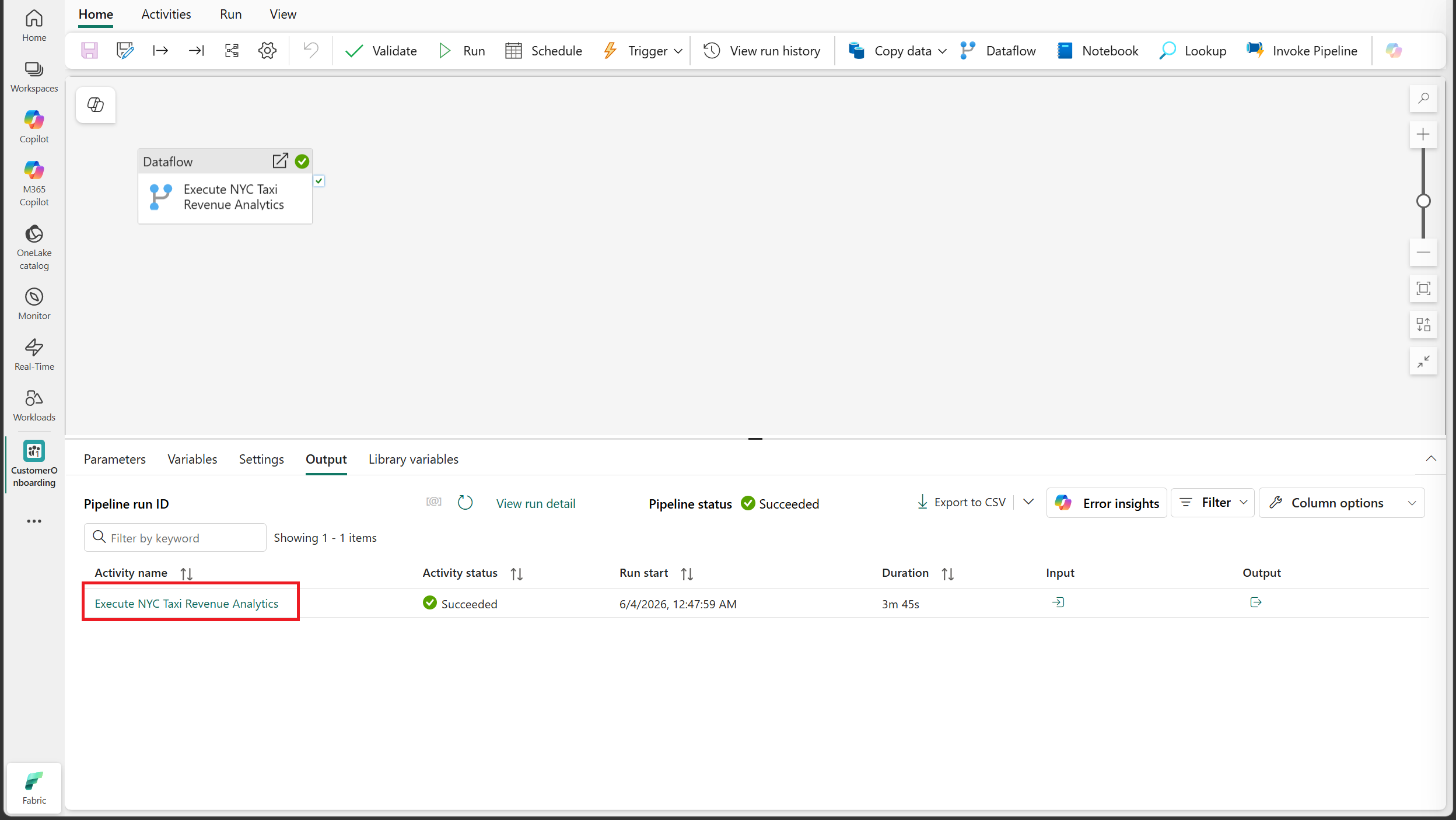
You can monitor MDF transform execution through:
The pipeline output pane
The Monitoring Hub
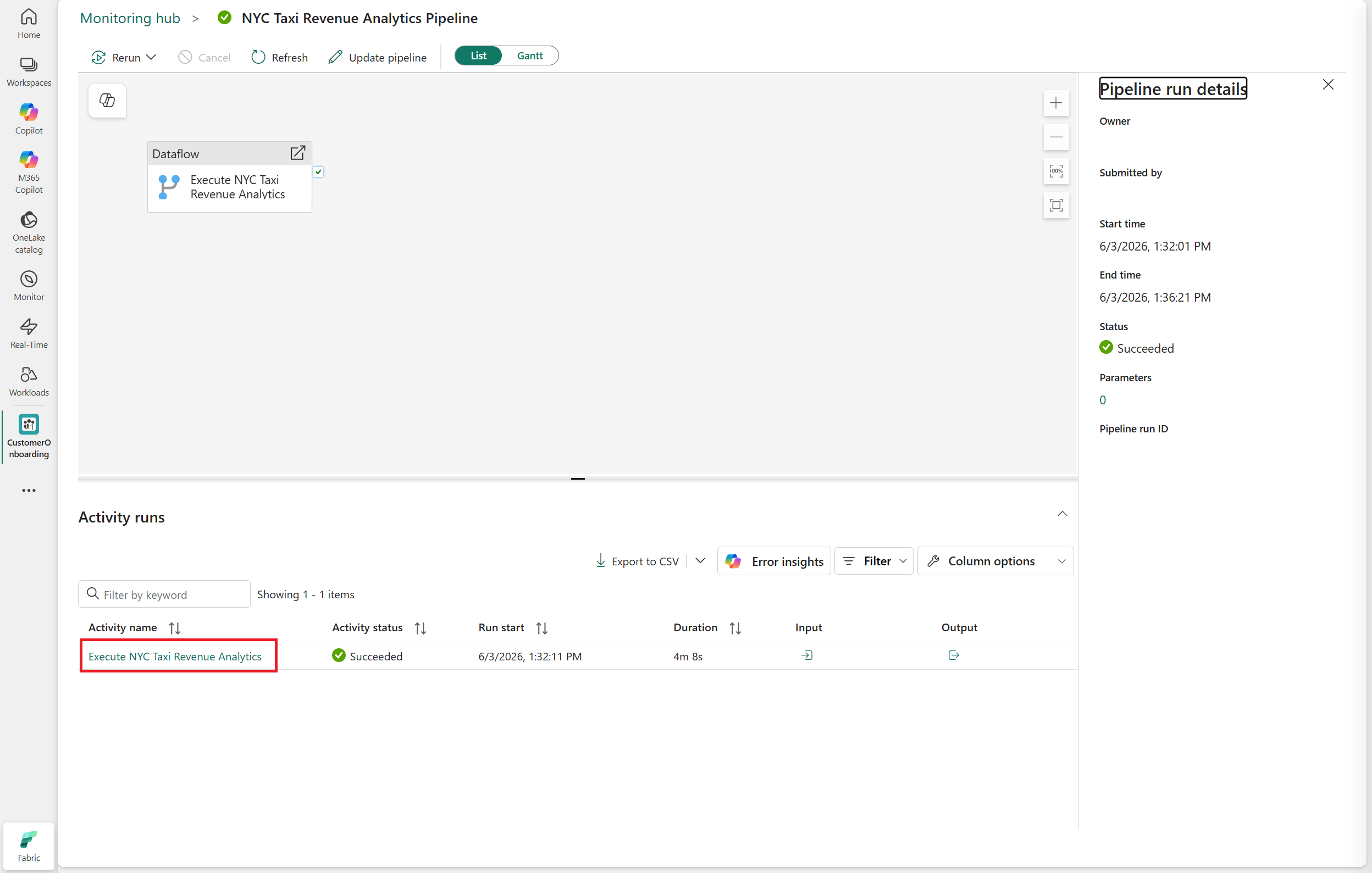
To view monitoring details:
- Open the pipeline run details.
- Select the Dataflow activity from Activity Runs.
- Review execution status and runtime details.