Note
Access to this page requires authorization. You can try signing in or changing directories.
Access to this page requires authorization. You can try changing directories.
As a data producer, use IQ Sharing to share data with another tenant. Create a Share, select the source items, add recipients, and set the required expiration date.
Note
IQ Sharing is currently in preview. This preview is provided without a service-level agreement and isn't recommended for production workloads. Certain features might not be supported or might have constrained capabilities. For more information, see Supplemental Terms of Use for Microsoft Azure Previews.
Prerequisites
Complete these prerequisites before you create a Share.
| Persona | Requirement |
|---|---|
| Fabric administrator | In the Fabric admin portal tenant settings, enable Enable Share Item (preview) in the data producer's tenant. |
| Fabric administrator | In the Fabric admin portal tenant settings, enable External data sharing in the data producer's tenant. |
| Fabric administrator (optional) | In the Fabric admin portal tenant settings, enable Enable Share Subscription Item (preview) in the data producer's tenant. This setting allows the tenant to accept Shares through IQ Sharing. It's optional for a tenant that only produces Shares. |
| Data producer | Use a workspace that contains the supported Fabric item you want to share. |
| Data producer | Have the required item permissions. |
| Data producer | Identify the intended recipients. Recipients can be users identified by email address or service principals. |
Create a Share
Note
To use IQ Sharing, create a Share (preview) item from + New item. This is different from selecting Share on an existing lakehouse, warehouse, or other Fabric item.
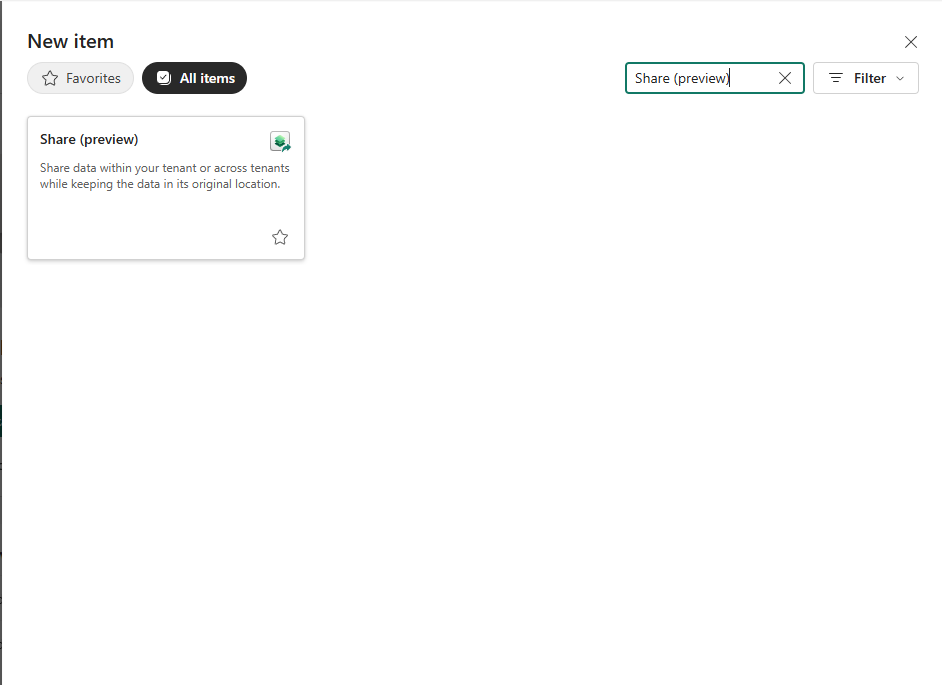
Open the workspace where you want to create the Share, and select + New item.
Search for and select Share (preview).
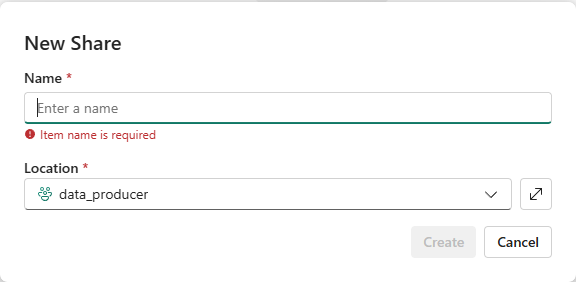
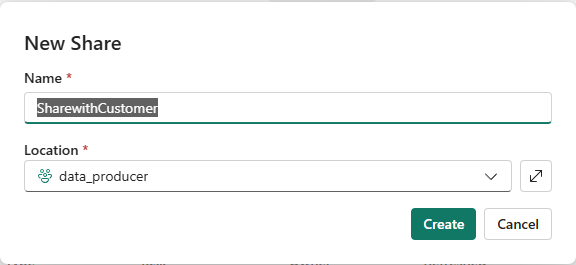
In New Share, enter a value for Name and confirm the destination under Location.
Select Create.
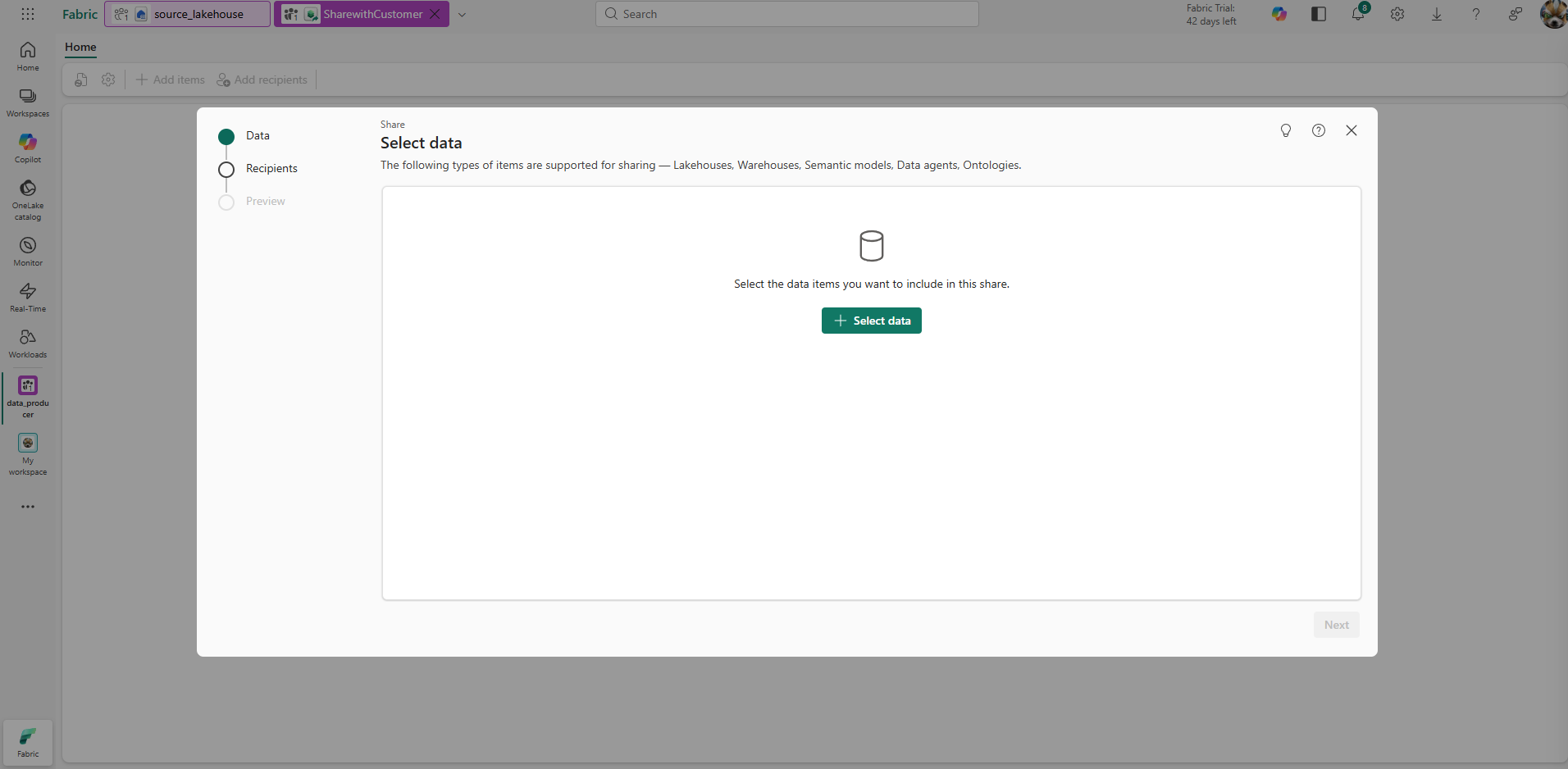
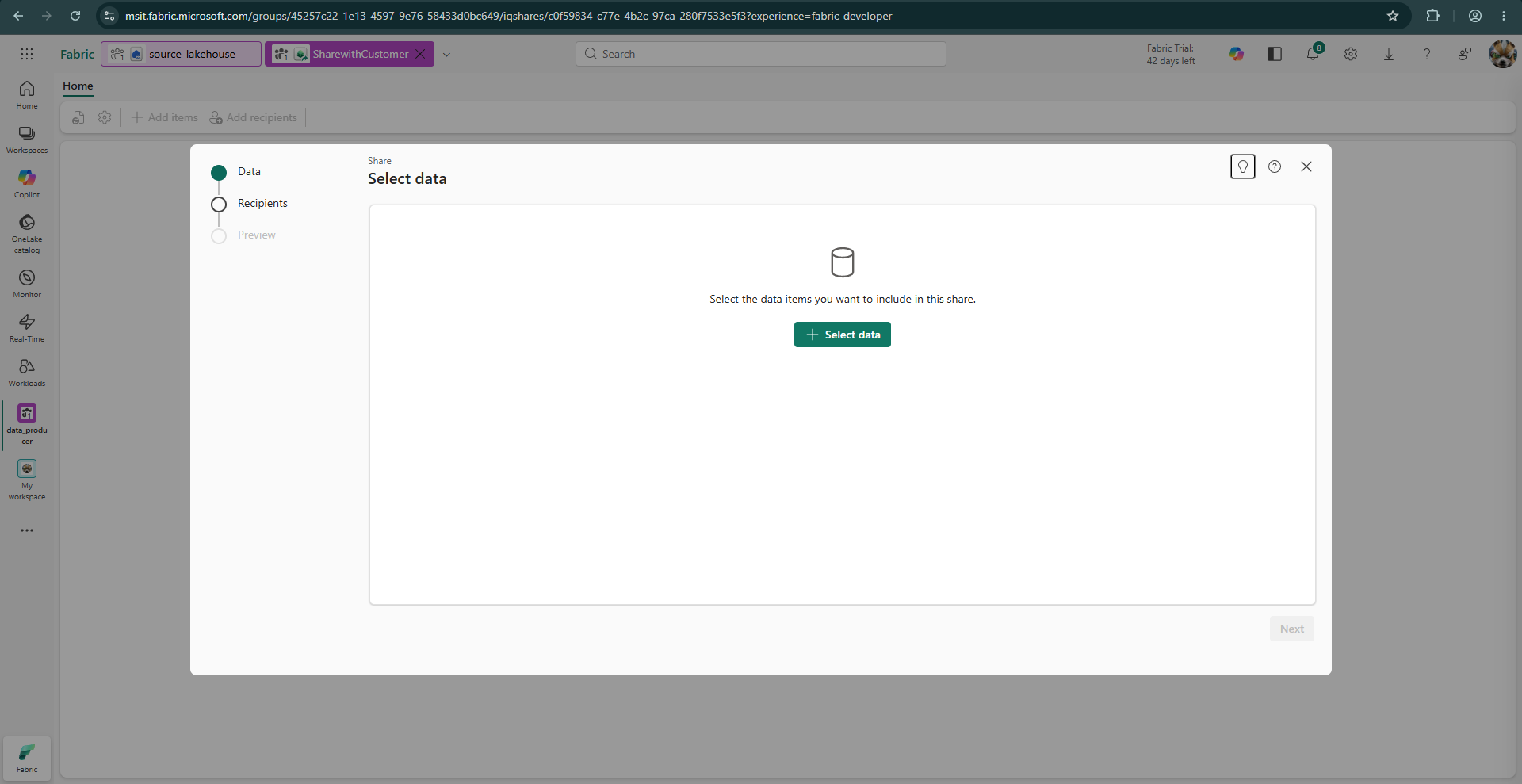
On Select data, select Select data.
Important
Select an item listed under Supported item types.
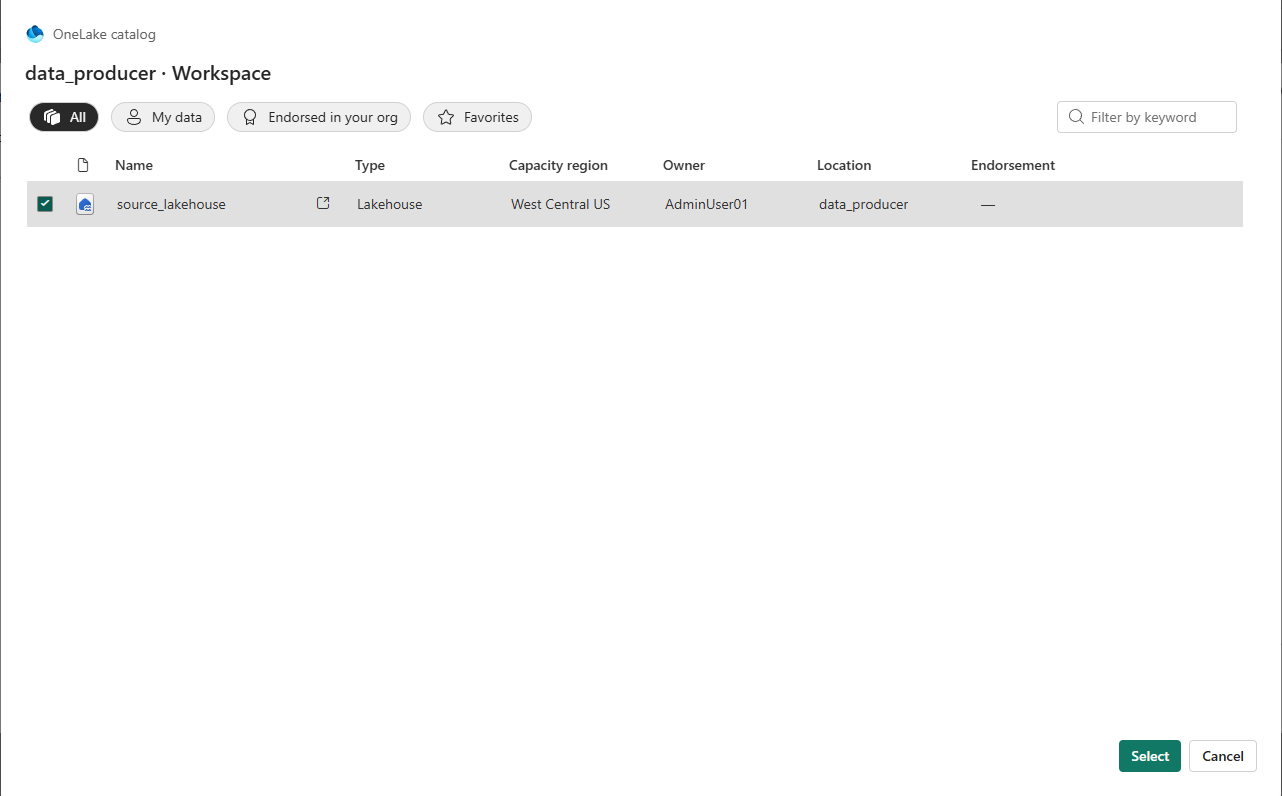
In the OneLake catalog, select the item you want to share, and then select Select.
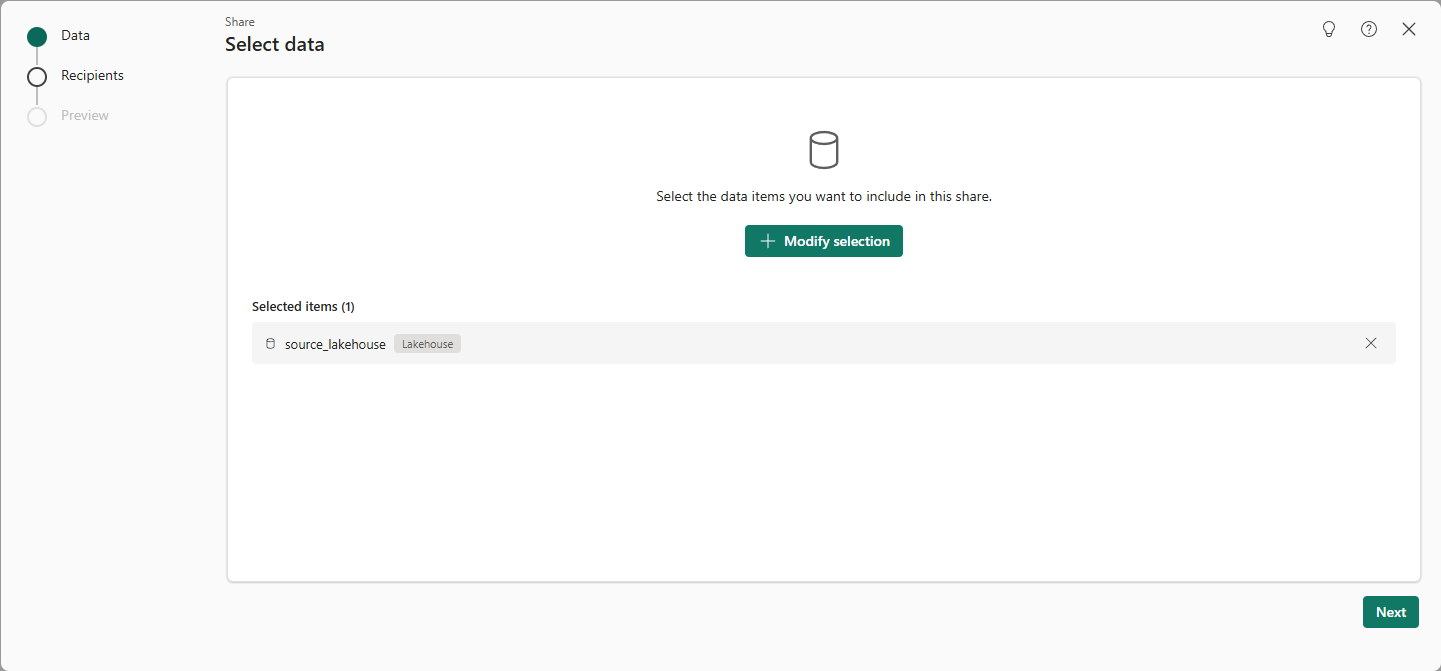
Confirm the item under Selected items, and then select Next. To change the selection, select Modify selection.
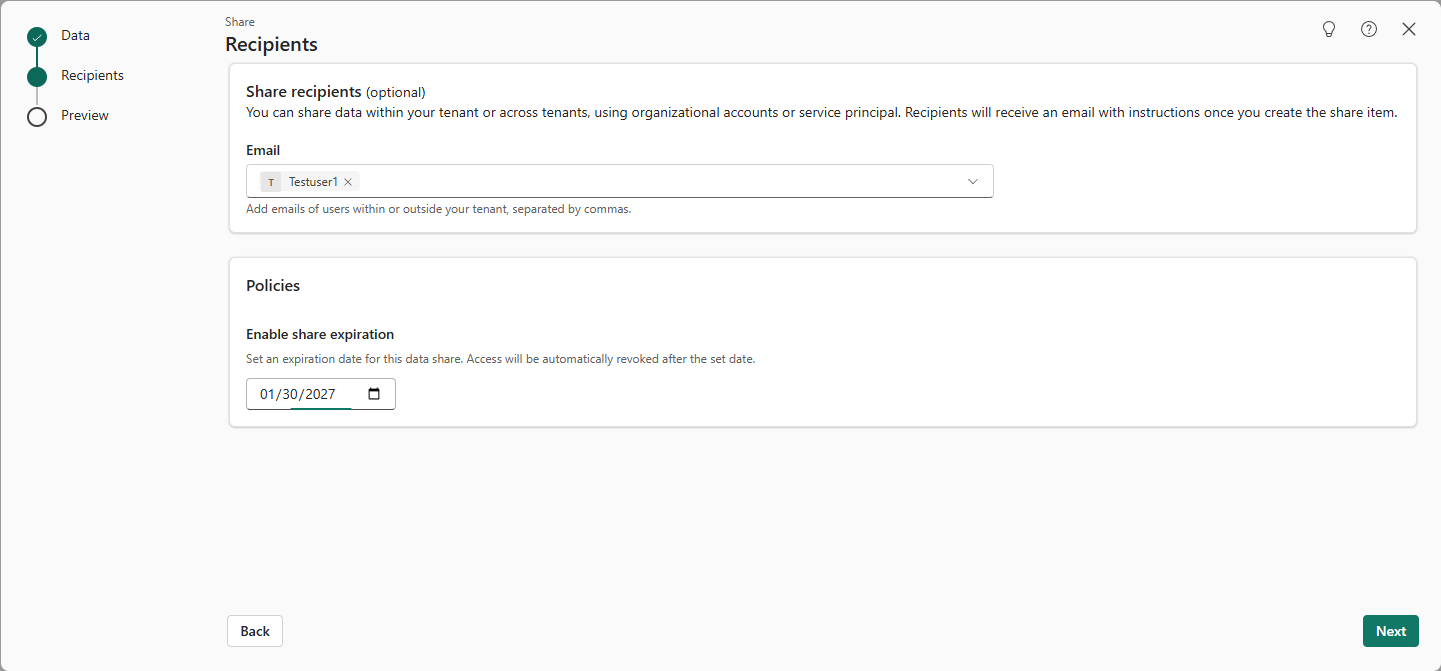
On Recipients, add recipients by entering email addresses or service principals. You can enter multiple recipients.
Under Configurations, set the expiration date. Then select Next.
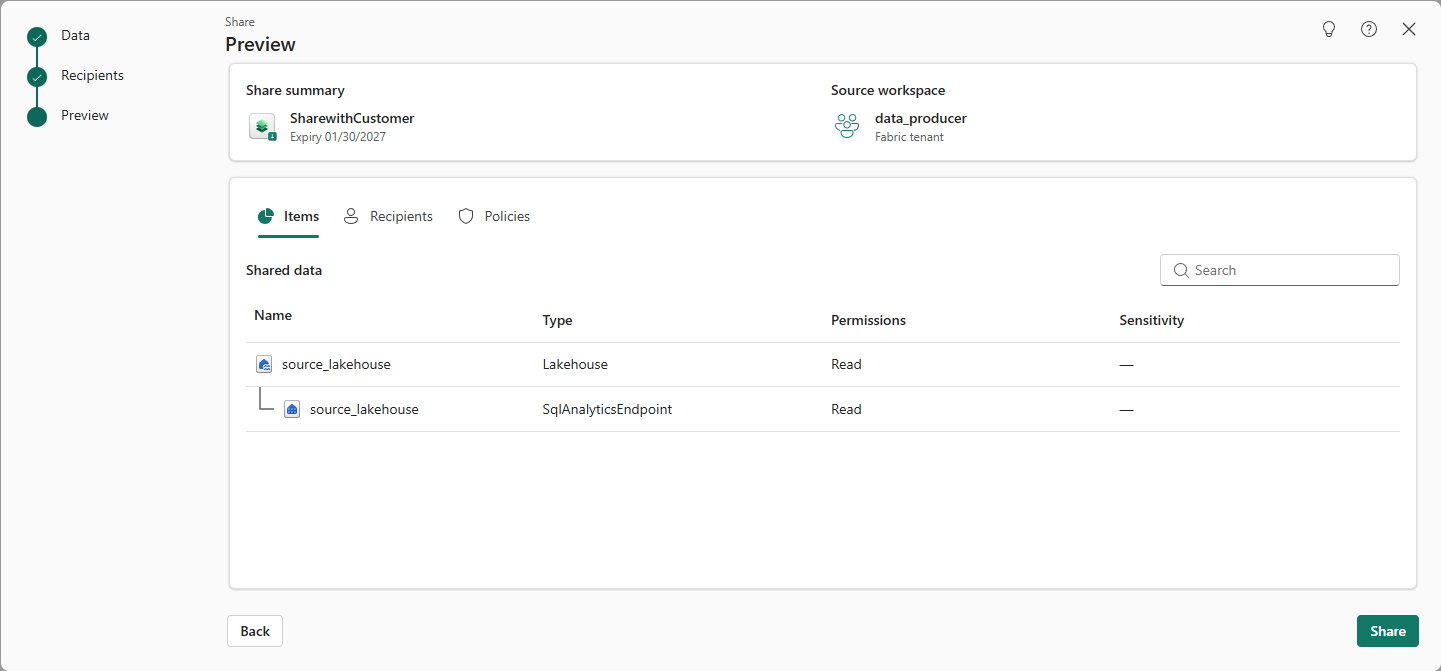
On Preview, review the Share summary, source workspace, selected item, recipients, and configurations. Select Share.
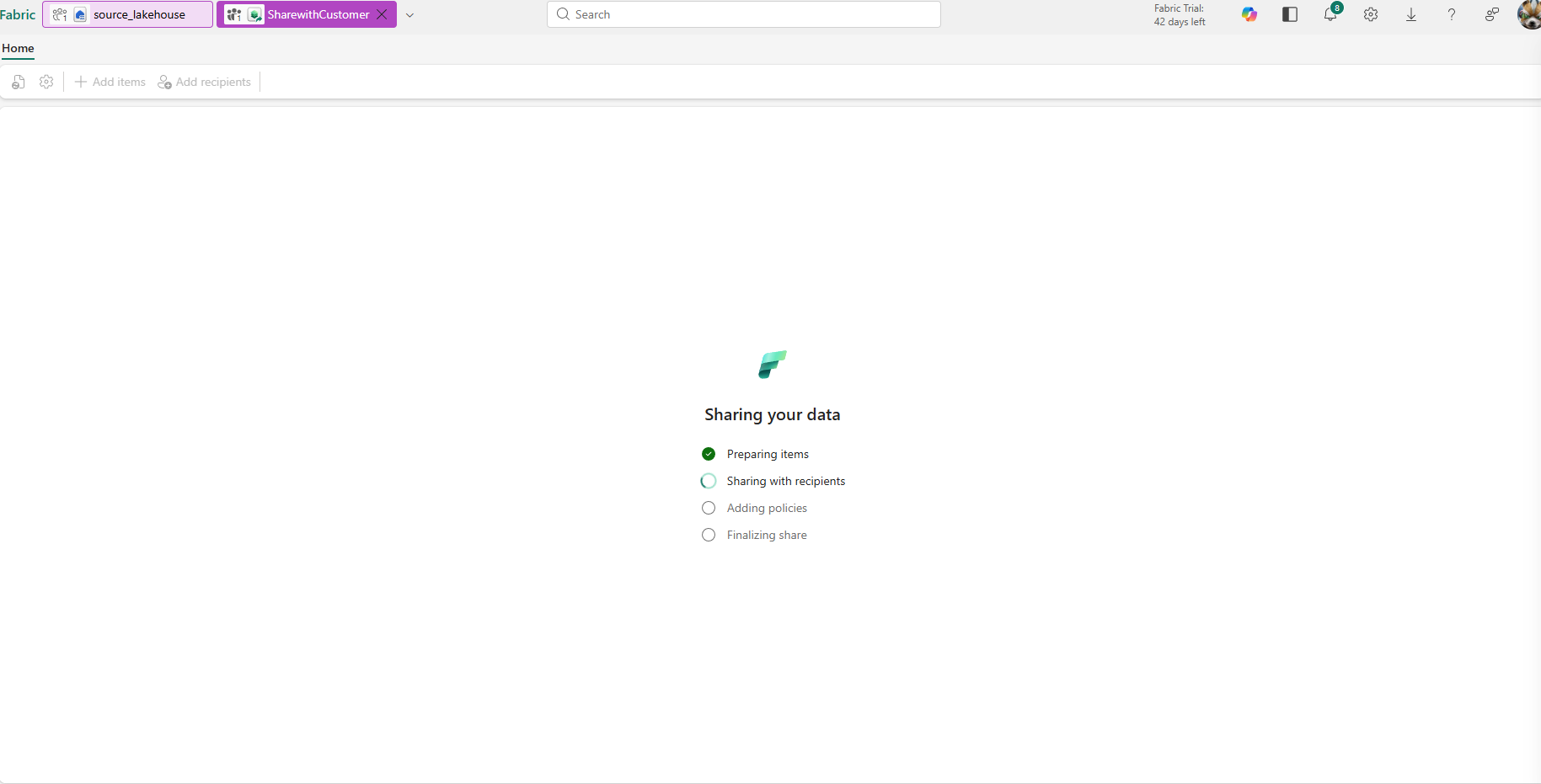
Wait while Fabric prepares the item, shares it with recipients, applies configurations, and finalizes the Share.
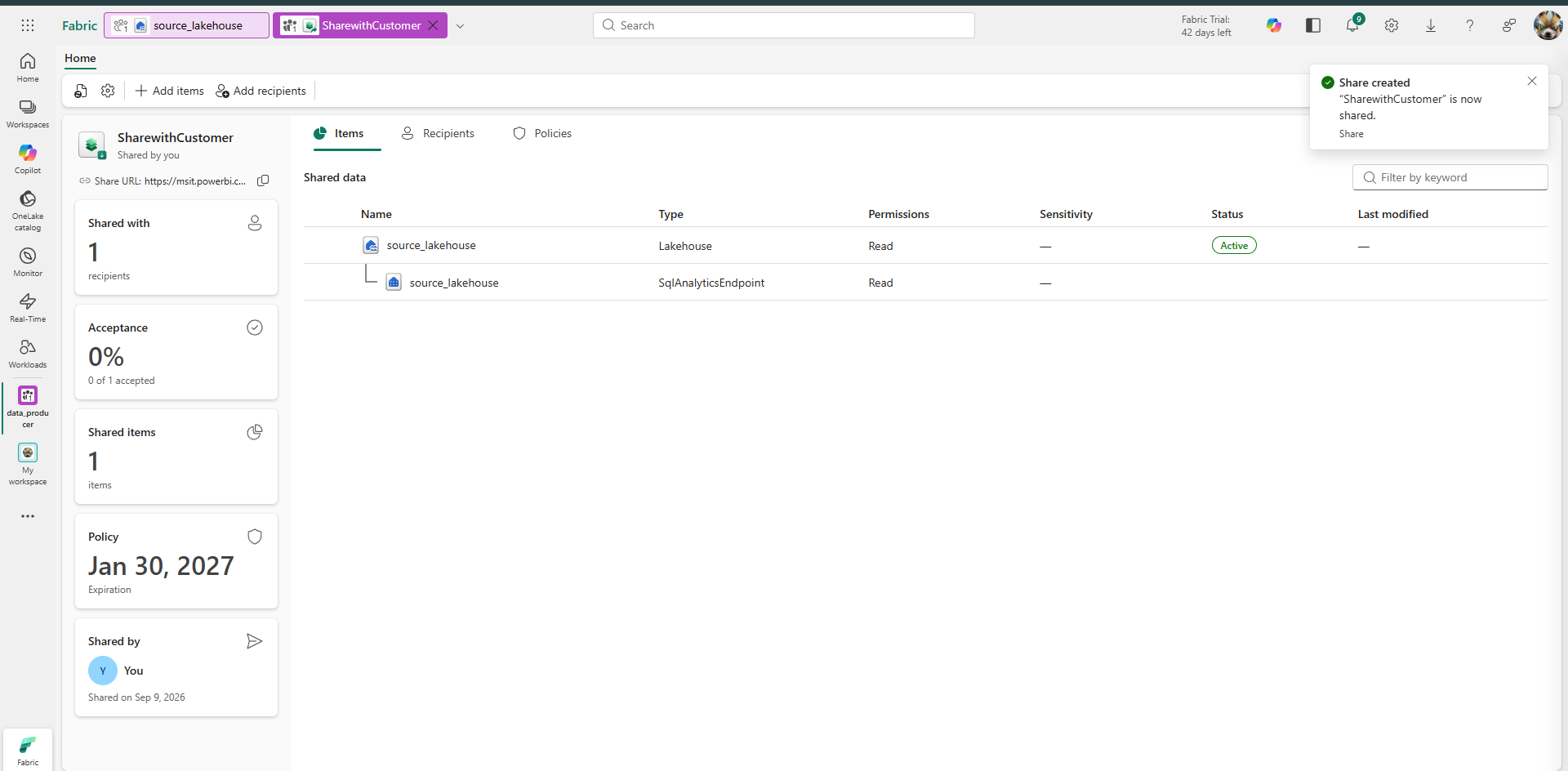
Verify that the confirmation says Share created. The Share page displays the shared item, recipients, acceptance status, expiration configuration, and Share URL.
Distribute the invitation
IQ Sharing doesn't send email notifications when you create a Share. After you create the Share, copy the Share URL from the Share page and send it to the intended recipients. Recipients use this invitation URL to review the shared content and accept the Share into a workspace in their Fabric tenant.
Important
Send the URL only to intended recipients.
Permissions and security
Review the tenant settings, item permissions, and recipient controls before you create a Share.
Tenant settings
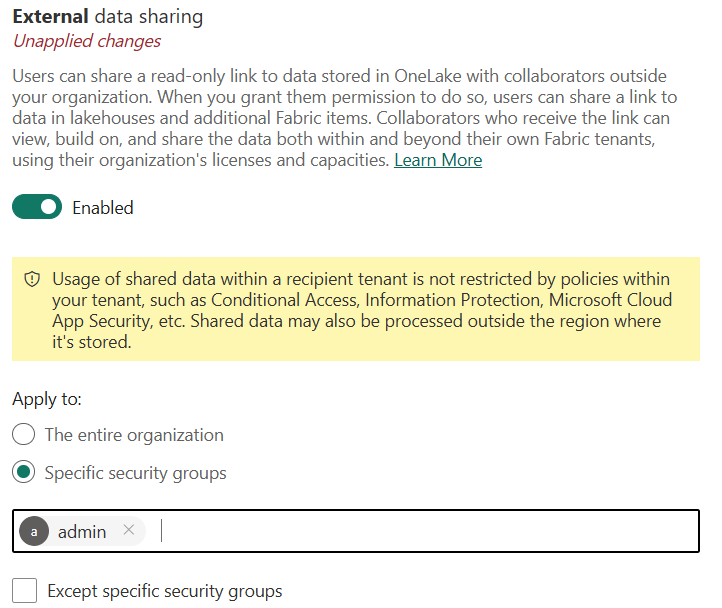
Fabric administrators can control who creates Shares by scoping the External data sharing tenant setting to specific security groups. Under Apply to, select Specific security groups, add the permitted groups, and select Apply. Only users in those groups can create Shares, subject to the required item permissions.
Item permissions
The permissions required on each source item depend on whether OneLake security is enabled:
- Without OneLake security: The producer needs Read and Reshare permissions.
- With OneLake security: The producer needs Write and Reshare permissions.
Write permission grants access to all data in the item without evaluating OneLake security role assignments. This is the current OneLake security behavior and might change. OneLake security rules on the source item aren't honored when consumers access shared data through IQ Sharing.
Consumer access depends on the Share creator's permissions. If the creator loses a permission required for sharing, or loses access to the source item or workspace, consumers of that Share also lose access.
Permissions at a glance
| Action | Required permissions |
|---|---|
| Create a Share with OneLake security disabled | Read and Reshare on the item. |
| Create a Share with OneLake security enabled | Write and Reshare on the item. |
Limit recipients and access duration
Add only the intended users or service principals as recipients. Recipients must sign in with the invited identity; the invitation URL alone doesn't grant access. Consumers receive read-only access and don't need a guest identity in your tenant.
Every Share requires an expiration date. Access ends automatically when the Share expires. You can revoke a recipient or delete the Share to end access earlier.