Note
Access to this page requires authorization. You can try signing in or changing directories.
Access to this page requires authorization. You can try changing directories.
As a data producer, manage the Share you created with IQ Sharing. Use it to review shared items, manage recipients, and check acceptance status and expiration.
Note
IQ Sharing is currently in preview. This preview is provided without a service-level agreement and isn't recommended for production workloads. Certain features might not be supported or might have constrained capabilities. For more information, see Supplemental Terms of Use for Microsoft Azure Previews.
View a Share
You can also find your Shares in the OneLake catalog.
Open the workspace that contains the Share.
Open the Share.
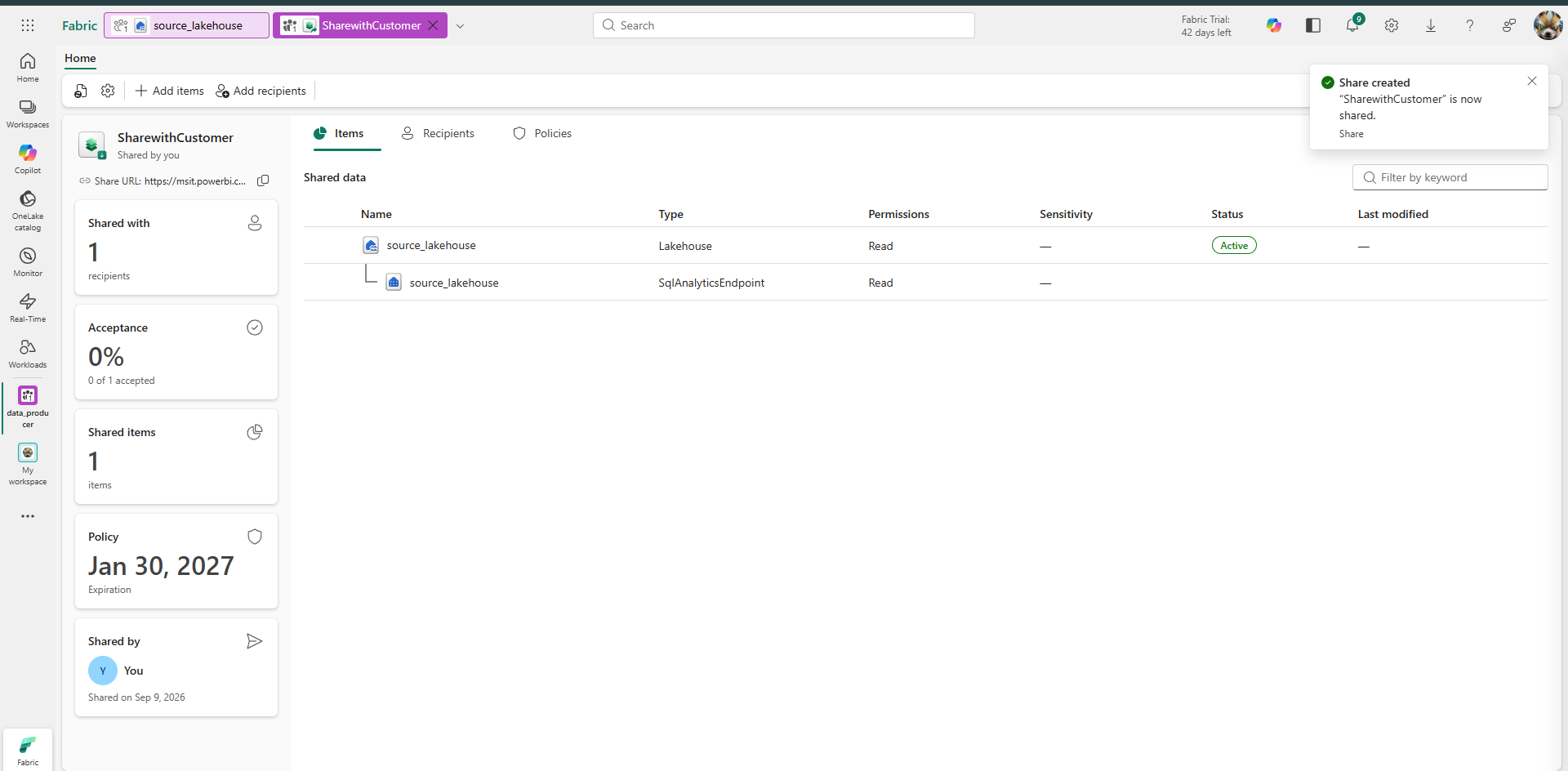
On Items, review the shared item, permission, sensitivity, status, and last-modified information.
Select Recipients to review the intended recipients and their acceptance status.
Select Configurations to review the Share expiration.
Add a recipient
Open the Share.
Select Recipients.
Add one or more users or service principals to the Share.
Revoke a recipient
Open the Share.
Select Recipients.
Revoke the user or service principal.
The recipient immediately loses access to the shared data. When the recipient refreshes the Share Subscription, Fabric deletes the corresponding shared items from the consumer workspace. As a result, downstream items that depend on the shared data, such as data agents and semantic models, might become unusable.
Share expiration
Every Share requires an expiration date. The expiration configuration defines when access ends. After the expiration date, data consumers lose permission to the shared data. An expired Share can't be extended.
Add items
Open the Share and add the items that you want to share. The items are added to the recipient's Share Subscription when the recipient refreshes the Share Subscription.
Remove items
Open the Share and remove the items that you no longer want to share. The removed items no longer appear to the recipient after the recipient refreshes the Share Subscription.
Delete a Share
Warning
Deleting a Share removes access to its shared content for all data consumers. Before you delete it, confirm the affected recipients.