Note
Access to this page requires authorization. You can try signing in or changing directories.
Access to this page requires authorization. You can try changing directories.
Regulatory application processes often span multiple business areas, stakeholders, and approval stages. This architecture shows how to use Microsoft Power Platform and Copilot Studio AI agents to provide a consistent applicant experience while supporting application management, assessments, approvals, and reporting in a single solution.
Tip
This article provides an example scenario and a generalized example architecture to illustrate how to build a regulatory application management solution by using Power Platform. The architecture example can be modified for many different scenarios and industries.
Architecture diagram
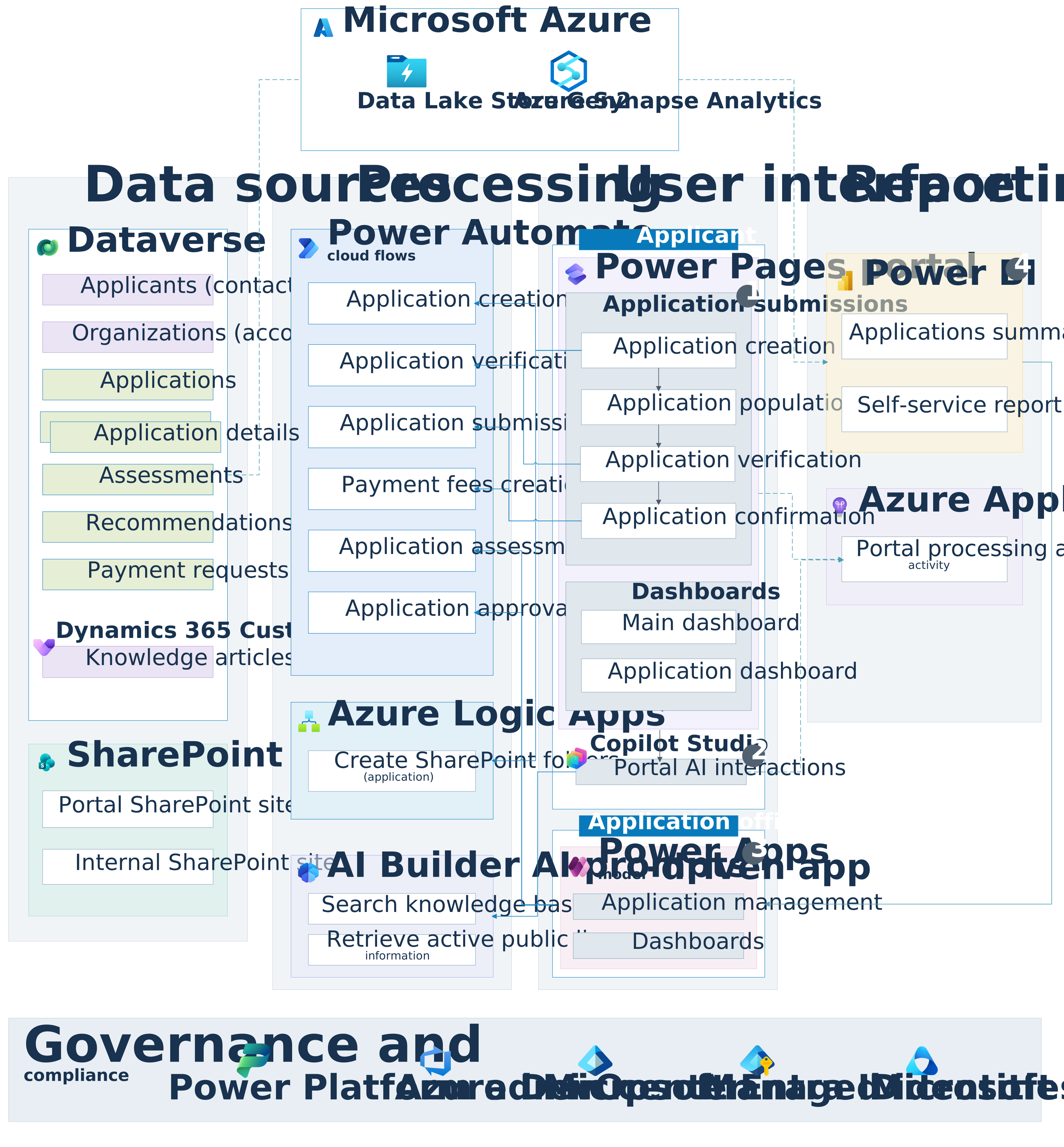
Application details (multiple tables) represents business-area-specific application detail tables linked to the Application table through a polymorphic lookup. This approach allows each business area to capture unique application data while maintaining a common application submission process and supporting future expansion.
Workflow
The following steps describe the workflow shown in the architecture diagram.
1. Application submissions
Applicants use Power Pages to create, complete, and submit applications, then track their progress.
Applicant creates an application
A user navigates to the Power Pages portal and signs in.
The Power Pages portal renders an application landing page (web template), where the user can select the type of application to create based on the business area and any other common information.
The user selects Start application to create a "multi-stepper" application.
The Power Pages portal triggers a Power Automate cloud flow to create the application record based on the initial inputs. In addition, a real-time workflow creates an application detail record and populates the polymorphic lookup (application detail) to the application table, based on the selected business area. Each business area has a relevant business-centric application detail record based on the real-time workflow that it triggers.
When the application record is created, an Azure Logic App triggers to rename the Portal SharePoint folder accordingly and create an internal SharePoint folder linked to the application record. Officers use the internal folder to manage assessment documents without exposing them in Power Pages.
The Power Pages portal redirects the user to the first step of the multi-stepper application.
Applicant populates each application step
Power Pages renders all form fields as optional so users can navigate freely between application steps. Each step is a web page with a basic form and links to the other steps.
Each step of the multi-stepper application uses either the application record or the related application detail record, based on the GUID parameter in the URL. Fetch queries that use the Liquid scripting language within web templates render the application form layout.
The portal marks required fields with an asterisk (*) so users can complete the form progressively and verify it before submission.
The user completes each step and selects Save and next. Basic form submission uses the default save-and-next or save-and-previous behavior. A custom Save button saves changes on the client side through a content snippet. These mechanisms redirect the user to the previous or next step as appropriate.
The Power Pages portal redirects to the next step (web page).
Applicant uploads supporting documentation
The user uploads a supplementary document during an application step.
The document is uploaded to the Portal SharePoint folder against the application table through the default SharePoint API integration.
Power Pages shows confirmation of the upload and displays the item in the document list.
Applicant submits an application for verification
The user reviews the application and submits the application.
Power Pages redirects the user to a verification page.
Power Automate cloud flows retrieve preconfigured verification step records based on the application's type and business area. They check the required fields and related records, then display the results on the portal verification page.
Portal confirms submission
Power Pages submits the application only after server-side verification confirms that all required fields and related records meet the configured submission requirements. A Web API call sets the application to submitted and assigns it to a team representing the relevant business area in the model-driven app.
A Power Automate cloud flow creates a payment request record containing the required fees. It determines the fees from reference data in a custom table and parameters related to the application's type and business area.
The user is redirected to a thank-you page. Liquid FetchXML queries display application information, including the reference number.
The application assessor can view incoming submitted applications on their team's dashboard in the model-driven app.
Applicant views active applications
The user signs in to the Power Pages portal.
The Power Pages portal redirects the user to the main portal dashboard, which lists their active applications, including those created and submitted. The dashboard uses a default entity list, portal Web API calls, or Liquid FetchXML queries to Dataverse. A web template supports further customization and UI branding.
Applicant views an active application's details
The user signs in to the Power Pages portal.
The Power Pages portal redirects the user to the main portal dashboard, which lists their applications.
The user selects the desired application from the list.
The Power Pages portal redirects the user to the Application Dashboard, which displays general application details and related records through the portal Web API for tracking.
The user opens the read-only form to view the submitted application information.
2. Portal AI agent interactions
Applicants use the portal AI agent to get assistance, find knowledge articles, and view public license details.
Applicant interacts with the portal AI agent
The user engages with the portal agent for assistance.
The agent uses Copilot Studio, which is configured to search the portal content to understand and respond to user queries.
AI agent searches knowledge articles
The agent extracts search terms from the user's query using an AI Builder prompt.
The agent uses the Dataverse connector to search for knowledge articles that match the criteria.
The agent provides results from the matching knowledge articles.
AI agent provides results for active licenses
The agent returns the search results to the user in an Adaptive Card.
The user can select a listing to view details of a public license. Power Pages uses a record GUID parameter to redirect the applicant to the public License Details page.
3. Application management
Officers use the model-driven app to validate applications, manage internal documents, and submit recommendations for manager approval.
Officer validates an application
The officer opens a submitted application record and reviews its contents.
The officer views all contents of the application, including the business-centric "application detail" directly on the application form through the polymorphic lookup and "form component" controls.
The officer marks whether the application is "valid" or "invalid".
The application's status is updated by a classic Dataverse workflow for real-time responsiveness.
- For a valid application, the workflow sets the status reason to "under assessment".
- For an invalid application, the workflow sets the status to "invalid".
Officer uploads a document for internal work management
The officer opens a submitted application record and navigates to the Documents tab on the form.
The officer selects Internal SharePoint Site and uploads a document.
The control uploads the documents to the relevant folder of the application within the Internal SharePoint Site. The portal doesn't display documents in this site.
Officer creates a recommendation to approve the application
The officer uses the model-driven app to view a valid application.
The officer can also create and update applications, upload more documents, create assessments, and capture information that the portal doesn't expose.
The officer creates a recommendation record during an assessment to determine the stage-based outcomes of the application, such as assessment level determination, public reviews, or granting a new license.
The officer completes the recommendation details to grant the application and submits the recommendation for approval.
A Power Automate cloud flow triggers to set the status of the application to "approval required" and assigns the record to the nominated manager. The flow also sends an in-app notification to the manager.
Manager approves a recommendation
The manager views the list of recommendations requiring approval and approves the application through the field-level security column on the form.
A Power Automate cloud flow triggers to set the status reason of the recommendation to "approved" and the parent application record's status reason to "granted."
The same flow creates a new active license record for further management and compliance enforcement until expiration.
4. Reporting and analytics
This workflow covers application reporting and solution monitoring.
Reporting: Users retrieve data from the data lake through Power BI reports and create ad-hoc reports and dashboards for visualization and analysis.
Activity and telemetry: Users browse the Power Pages portal and create applications, generating telemetry in Application Insights. Application Insights also captures telemetry from Power Automate flows, Azure Logic Apps, and the Copilot Studio agent, including page views, user queries, agent responses, error logs, and performance metrics.
Components
The following components work together to support application submissions, assessments, approvals, and reporting.
Microsoft Dataverse: Serves as the central repository for information related to applicants, applications, assessments, approvals provided via recommendations from assessors, fees that are required to be paid, and knowledge articles containing supporting contextual information related to an application type. Serves as the "source of truth" for all information contained in the regulatory system.
Power Pages: Serves as the main hub for creating, submitting, and monitoring progress of an application. Users authenticate to the Power Pages portal, via Microsoft Entra ID, ensuring secure access to data. Power Pages integrates with other Power Platform components to retrieve application data in real time.
Dynamics 365 Customer Service: Includes key features such as the knowledge management module and AI insights. The knowledge management module integrates Dynamics 365 with the Power Pages portal so users can quickly find guidance. It also supports a predefined internal approval process.
Power Apps: A model-driven app is used to manage incoming applications and perform the necessary assessments, administrative tasks, and approvals.
AI Builder prompts in Copilot Studio: Enables users to analyze user interactions, query key elements of the application process, and provide guidance based on knowledge articles and relevant active licenses.
SharePoint Online: Integrates directly with the application in both the Power Pages portal and the model-driven app, allowing applicants and officers to upload documents within their respective workspaces. A SharePoint site for each platform is created accordingly, such as a public site for Power Pages and an internal site for Power Apps.
Power Automate: Automates internal processes in Dataverse, including application creation, validation, payment generation, and approvals.
Azure Logic Apps: Handles business-critical processes between platforms. In this architecture, Azure Logic Apps creates an additional SharePoint folder for each application, providing an internal workspace where officers can upload documents without exposing them through the Power Pages portal. Azure Logic Apps was chosen over Power Automate because its workflows provide more robust enterprise-level monitoring and alerting and support higher volumes, greater logic complexity, and additional security policies for SharePoint folder creation.
Power BI: Enables visualization of operational and application data to deliver actionable insights. Selected for its seamless integration with Dataverse and its ability to create interactive, real-time dashboards that allow end users to track progress and make informed, data-driven decisions.
Azure Data Lake Storage (Gen2): Stores and enables advanced analytics on large datasets. Provides scalability and the ability to handle structured and unstructured data. Provides direct integration to Dataverse via Azure Synapse Link, which creates a continuous automatic export of the Dataverse tables.
Azure Synapse Analytics: Cloud-based analytics capabilities for application and operational data. Combines big data analytics and data warehousing in a single platform.
Application Insights: Collects and analyzes application telemetry such as performance, availability, and usage. Used primarily to monitor any interactions with AI agents, Power Pages portal activity and process logs from Power Automate cloud flows and Logic Apps workflows. Selected to enable administrators to help detect issues, diagnose problems, and optimize application reliability and user experience.
Power Platform admin center: Used to enforce governance and maintain compliance across solutions.
Azure DevOps: Used for continuous integration and continuous delivery (CI/CD), automating workflows to ensure consistent and efficient testing, validation, and deployment. Automated build pipelines are triggered to push changes to solutions to a branch. Release pipelines deploy solutions to test, user acceptance testing (UAT), and production environments when appropriate. This approach enables rapid implementation and a streamlined process for managing deployments of Dynamics 365 and Power Platform solutions across environments.
Microsoft Entra ID: Ensures that only authenticated users have access to data. Selected for its integration with Microsoft services and ability to manage user identities and access.
Microsoft Purview: Ensures data compliance and governance by monitoring and classifying data. Chosen to meet regulatory requirements in the government sector.
Scenario details
Government agencies need to modernize permit and license application processes that rely on paper submissions and manual assessments. This solution uses Power Platform and AI agents to streamline submissions, assessments, and approvals, improve applicant guidance and transparency, and reduce administrative effort.
Business challenge
Government agencies need to digitize and streamline the application processes for services such as permits and licenses. These processes often still rely on paper-based submissions and manual assessments. These outdated practices result in lengthy processing times and inadequate guidance and transparency. They negatively affect economic growth and public confidence. While agencies face increasing pressure to modernize, navigating large-scale digital transformation can be complex and challenging.
Business value and outcomes
The regulatory application management solution addresses the business challenges by providing an integrated, end-to-end platform that supports application submissions, assessments, approvals, and licensing processes. AI agents provide a supplementary and centralized guidance mechanism throughout the process. The platform supports the flow from submission by external entities through assessments and approvals by governing bodies, culminating in the issuance of permits or licenses for ongoing compliance. The solution enhances the applicant experience by minimizing manual form handling and improving data quality, reliability, and reporting accuracy. At the same time, it reduces administrative overhead for regulatory officers by streamlining day-to-day processing and decision-making activities.
Considerations
These considerations implement the pillars of Power Platform Well-Architected, a set of guiding tenets that improve the quality of a workload. Learn more in Microsoft Power Platform Well-Architected.
Reliability
Simplicity and efficiency: Use out-of-the-box capabilities wherever possible and minimize customization. Design each process step with a clear purpose and minimal dependencies.
Critical flows classification: Identify critical business processes early in the design phase. Evaluate each process based on business requirements, complexity, and operational needs to determine the most appropriate implementation approach, such as Power Automate or Azure Logic Apps.
High availability: Ensure high availability with Power Platform's built-in redundancy.
Error handling and transient fault handling: Use error handling, retries, and parallel execution in Power Automate flows and Logic Apps to handle failures. Apply try-catch-finally patterns where applicable.
Monitoring and alerting: Monitor the health of the Power Pages portal, Power Automate cloud flows, and Logic Apps workflows by using Application Insights. Set up alerts for critical issues to ensure timely responses and minimize downtime. The Power Platform admin center provides additional monitoring capabilities and readily available reports.
Disaster recovery: Use Power Platform's built-in capabilities to automate Dataverse data backups and manually restore data as needed. Use SharePoint Online's self-service recovery and restoration capabilities, with automatic resilience through replication across multiple data centers.
Security
Authentication: All components support various authentication methods, including Microsoft Entra ID, Microsoft accounts, and external identity providers. All sensitive data is encrypted at rest and in transit. Only authenticated users can access the designated components.
Role-based access control (RBAC): RBAC restricts access to specific pages, data, and functionalities based on user roles (Power Pages web roles, Dataverse security roles, and SharePoint Online security groups). In addition, column-level security for specific columns in Dataverse ensures greater granularity in data access requests. This security measure ensures that users have access only to the information and actions that are relevant to their roles.
Data loss prevention (DLP): Both Power Platform and SharePoint Online have built-in data policies to prevent unauthorized sharing of sensitive information. These policies protect data across all Power Platform and SharePoint Online services.
Web application firewall: Azure Front Door protects the portal from common web vulnerabilities and attacks, such as SQL injection and cross-site scripting.
Auditing and compliance: The architecture complies with relevant data protection regulations. Security policies are regularly reviewed and updated to maintain compliance. Audit logs are enabled for agent interactions, Dataverse tables, and SharePoint documents (via version control).
Microsoft Purview: Microsoft Purview, used for data governance and compliance management, maintains data integrity and ensures data handling practices meet regulatory requirements.
Operational Excellence
ALM pipelines: Implement automated solution-aware ALM pipelines by using Azure DevOps to ensure that changes to the portal and applications are tested, validated, and deployed consistently and efficiently to target environments.
Automation: Use Power Automate and Azure Logic Apps to streamline routine tasks such as notifications and approvals, reducing manual effort and minimizing the risk of human error.
Power Platform admin center: Centralize control and oversight of the platform's environments, security, capacity, and policies by using the Power Platform admin center. Support consistent operations through proactive monitoring, environment and lifecycle management, enforcement of data policies, and rapid issue resolution.
Performance Efficiency
Optimization: Use indexed Dataverse tables to query large volumes of incoming application records and other secondary records. Train AI Builder models for relevant languages and optimize them regularly to improve accuracy.
Scalability: Configure concurrency controls in Power Automate flows and Azure Logic Apps workflows to handle peak demand efficiently. Use Azure Data Lake Storage Gen2 to scale data storage as you add new business areas to the system.
Experience Optimization
Consistent UI design pattern: Design Power Pages portal and model-driven app layouts to provide a consistent user experience, improve accessibility, and reduce cognitive load. Reusable components and configuration-driven approaches also help accelerate the implementation of new application forms.
Greater user engagement: Provide a simple and intuitive user experience by using modern user interface elements and AI-powered assistance. Greater transparency throughout the application process helps improve user engagement, increase adoption, and reduce training requirements.
Adaptive and responsive design: Design layouts that adapt to different devices and screen sizes to provide a consistent user experience.
User guidance through AI: Design AI interactions to guide users throughout the application process. Help users complete complex tasks, such as filling out application forms with multiple navigation steps and subsections that require detailed contextual understanding.
Responsible AI
Fairness: AI models are trained on consistent datasets in Dataverse that draw from knowledge articles and information queried directly from the data source.
Reliability and safety: The architecture delivers reliable AI-powered decisions through confidence scoring. Human oversight is required to review cases with low confidence scores. Use try-catch-finally patterns in Power Automate flows to manage exceptions effectively.
Privacy and security: Data stays in secure environments to maintain confidentiality with proper data policies in place.
Transparency: The AI outputs are effectively tracked and stored in Dataverse to support traceability and transparency.
Accountability: Comprehensive access and audit logs are captured to ensure accountability and traceability of all system activities.
Contributors
Microsoft maintains this article. The following contributors wrote this article.
Principal authors:
- Karthik Subramanian, AI Business Solutions Team Lead