Note
Access to this page requires authorization. You can try signing in or changing directories.
Access to this page requires authorization. You can try changing directories.
The SharePoint module in the Power Query Online get data experience lets you browse the SharePoint sites that you can access. Browse a site's folders to connect to a specific file, a selected folder, or the files at your current location.
Important
The SharePoint browsing module is currently in preview.
Note
The site names, file names, and tenant addresses in this article's screenshots are fictional examples.
Choose a file or a folder-based query
Use the SharePoint browser when you want to find data by navigating sites and folders instead of locating and pasting a URL.
- Connect to a file when you want that file's contents, such as one Excel workbook.
- Connect to a folder or the current location when you want a list of files to filter or combine in the editor.
The file list and the combined data are different results. Connecting to a folder doesn't automatically append all its files into one table. To combine them, use the combine files experience after checking that the intended files have a compatible schema.
Browse sites and folders
In the get data experience, select SharePoint in the left navigation bar.
The Sites list displays the SharePoint sites that you can access. Open the site that contains your data by using its navigation arrow or by double-clicking it.
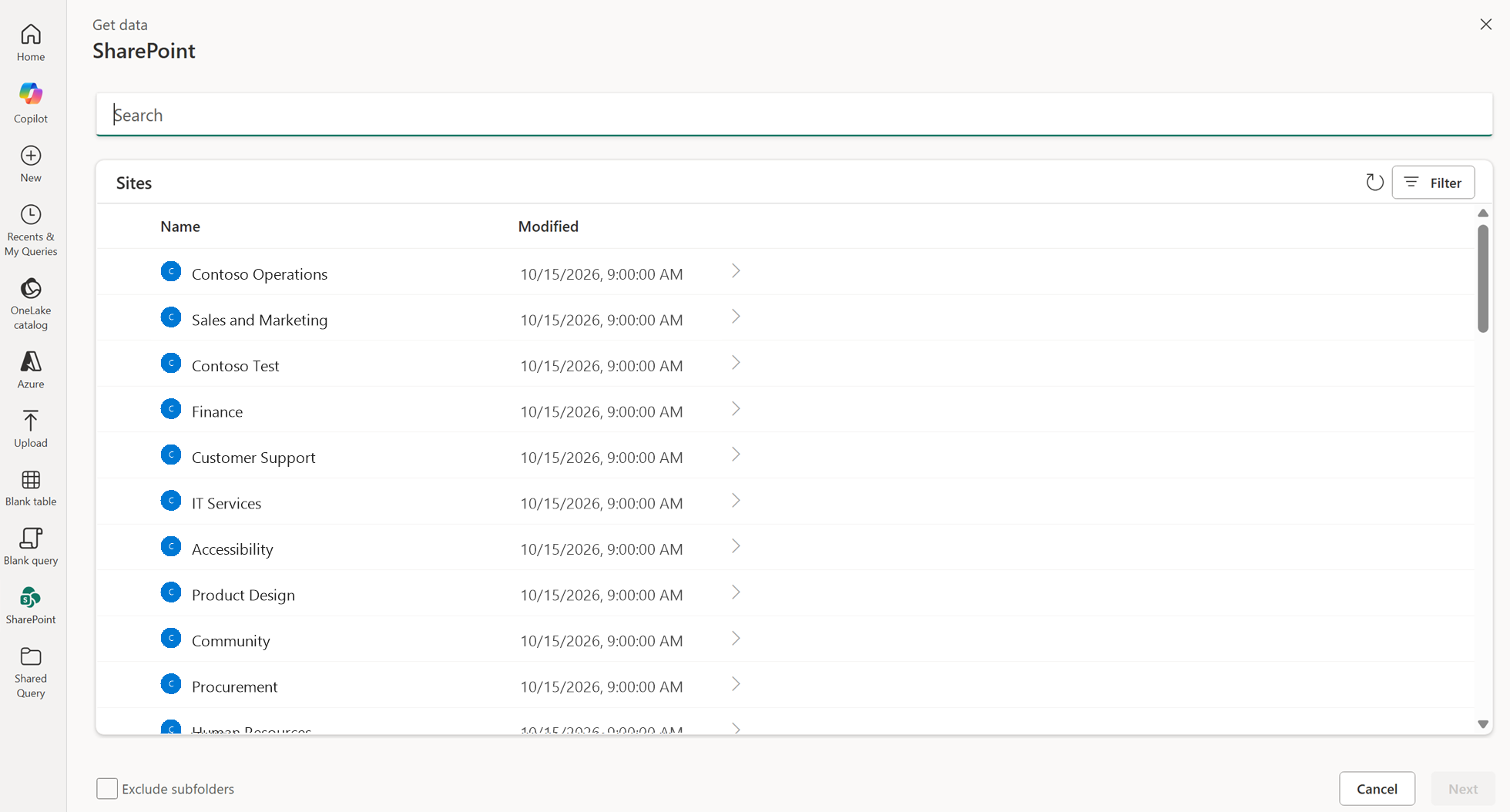
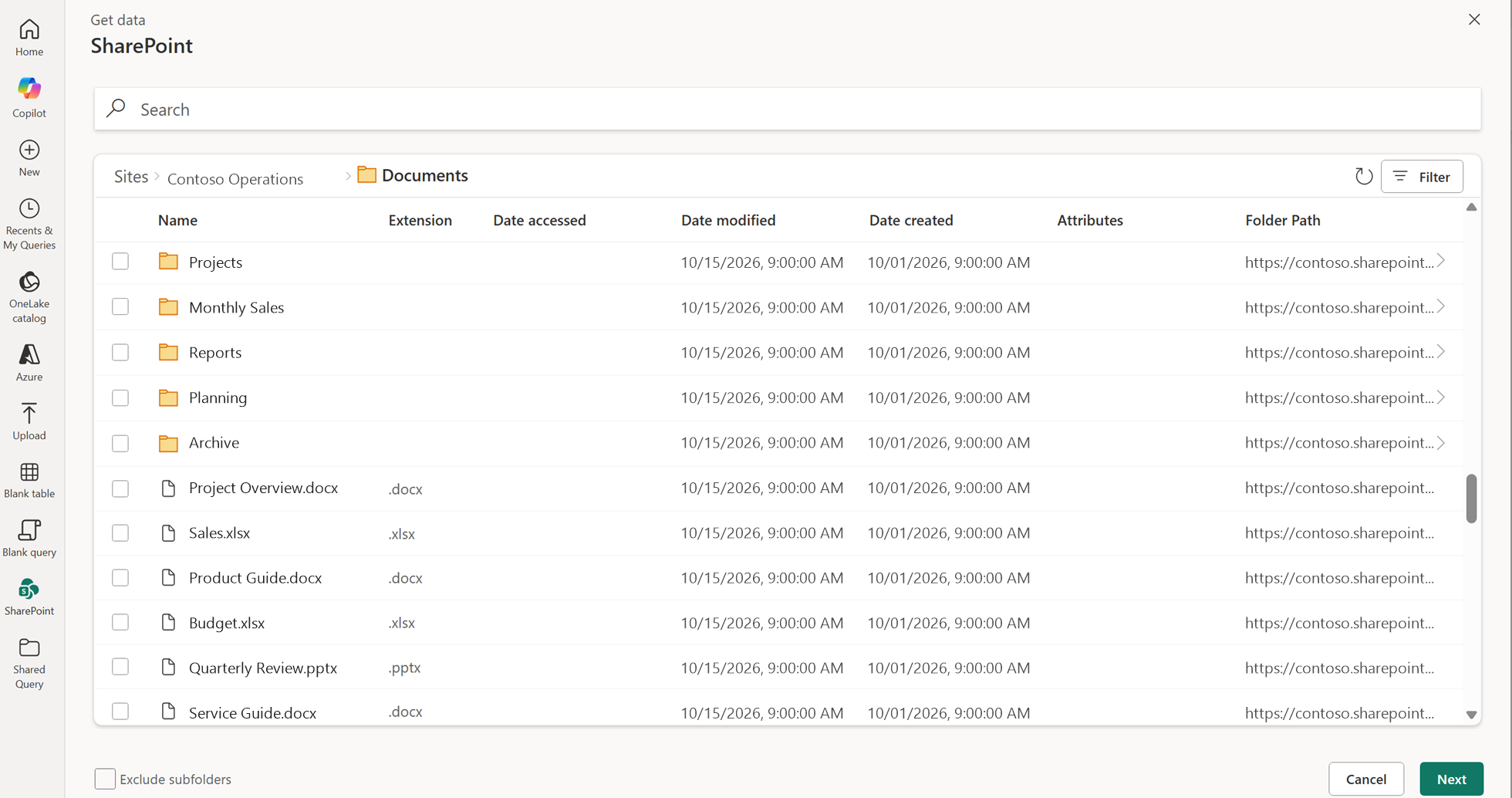
Open a folder to browse its contents. Use the navigation arrow at the right of its row or double-click the folder. Select the checkbox to choose the folder for a connection without navigating into it.

Continue until you reach the file or folder you want to connect to. The breadcrumb above the list updates as you browse. For example, Sites > Contoso Operations > Documents identifies the current location. Select an earlier location in the breadcrumb to go back to it.

Choose what to connect to
After you navigate into a site, you can connect to a file, select a folder, or use the current location without selecting an item.
| To connect to | Action |
|---|---|
| A specific file | Select the checkbox next to the file, and then select Next. |
| A specific folder | Select the checkbox next to the folder, and then select Next. |
| The files at the current location | Leave all item checkboxes cleared, and then select Next. The current location is the last location in the breadcrumb. |
For example, select Sales.xlsx and then select Next to connect to that file.
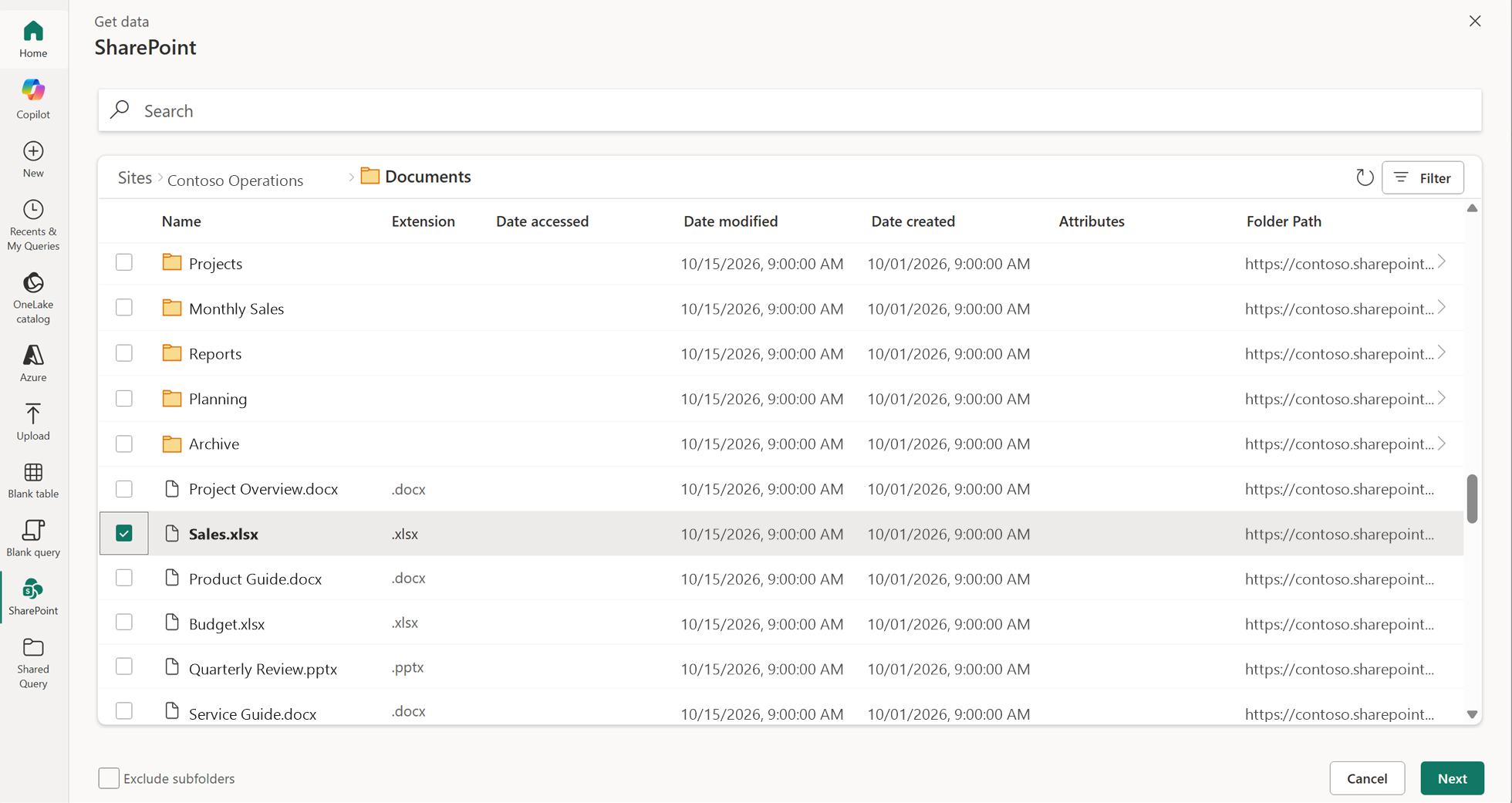
To create a query listing the files in Documents, leave all items unselected while the breadcrumb ends at Documents, and select Next. You can then use the combine files experience in the Power Query editor to combine files that have the same schema.
Note
Open a site before connecting to its contents. Next isn't available at the initial Sites list.
Exclude subfolders
When you connect to a folder or the current location, use Exclude subfolders at the lower left to control whether the query includes files from subfolders.
- Select Exclude subfolders to include only files directly within the folder you're connecting to.
- Leave Exclude subfolders cleared to include files from that folder and its subfolders.
For example, if the breadcrumb ends at Documents and no items are selected, selecting Exclude subfolders limits the query to files directly in Documents.
If you navigate into a folder instead of selecting its checkbox, that folder becomes the current location. Leaving all items unselected then connects to that location, not to the parent location you left.
Preview the selected file
After you select a file and select Next, the next experience depends on the selected item's type. For example, a JSON file can open a table preview, while an Excel workbook can open a Navigator where you select the sheets, tables, or other workbook items you want to connect to.
Review the preview or select the required workbook items before continuing. Selecting a workbook file doesn't necessarily mean connecting to every item in that workbook.
Search, filter, and refresh
Use these controls to find items while you browse:
| Control | Behavior |
|---|---|
| Search | Searches only the current level. It doesn't search across all sites or recursively through subfolders. Go to another location to search within that location. |
| Filter | Narrows the displayed list by the available fields at the current location. |
| Refresh | Reloads the items at the current location. The refresh icon is at the upper right of the list, next to Filter. |
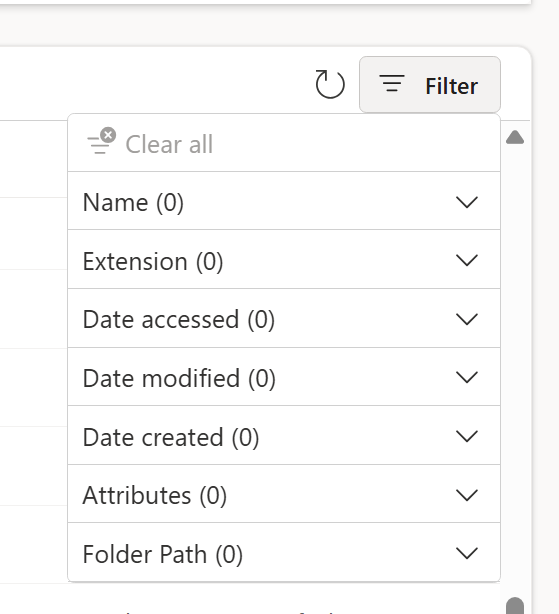
Within a folder, the filter menu offers Name, Extension, Date accessed, Date modified, Date created, Attributes, and Folder Path. Expand a field to access its filter options. Use Clear all to remove applied filters.
Prepare the returned file list
For a folder-based query, review the file list before combining it. Filter out unrelated files, verify which subfolders are included, and confirm the files you want to combine have the same structure.
In the editor's file-system view, the Content column contains each file's binary content. You can open one file from that column or use Combine files to process multiple files. For the editor workflow, go to Combine files overview.
You need permission to read the selected SharePoint content. Browsing a location doesn't grant access to files you couldn't otherwise read. If the browser isn't available in your host, use the SharePoint folder connector or another documented SharePoint file connection method.
For more information about working with SharePoint files, see:
- Combine files overview
- SharePoint and OneDrive for work or school files import
- SharePoint folder connector