Note
Access to this page requires authorization. You can try signing in or changing directories.
Access to this page requires authorization. You can try changing directories.
Learn how to upgrade your agent experiences in SharePoint and OneDrive. Upgrading allows your agents to leverage Copilot in SharePoint and all the functionality of the Microsoft Copilot extensibility ecosystem.
What is changing?
Microsoft is upgrading the agent experience in SharePoint and OneDrive. Upgrading better aligns your agents with the Microsoft Copilot extensibility ecosystem, ensuring your agents are part of the Microsoft Copilot app Home experience and the Microsoft plugin registry, the shared catalog for discovering, publishing, and governing organization-approved and custom-built plugins across Microsoft Copilot experiences, Microsoft 365 apps, OneDrive and SharePoint.
Existing agents in the .agent file format will continue to work across SharePoint, Microsoft Teams, and the Copilot app until the end of March 2027. You can start upgrading or moving each experience to a supported path that best fits its purpose now. After March 2027, .agent files will stop responding and you will have to upgrade to continue using them.
The right upgrade path depends on what each agent helps users accomplish today:
| Agent role | Recommended path |
|---|---|
| Primarily answers questions about content on the current SharePoint site | Use Copilot in SharePoint directly |
| Performs a repeatable action, workflow, or task within the SharePoint site | Convert the agent to a skill |
| Provides a customized Q&A, retrieval, or analysis experience | Upgrade the agent with Microsoft Copilot Agent Builder |
| Is a custom engine agent built in Copilot Studio and published to SharePoint | Publish the existing Copilot Studio agent to Microsoft Copilot app |
Starting in mid-November 2026, you'll use Microsoft Copilot Agent Builder to create agents for SharePoint and OneDrive. You can still select SharePoint and OneDrive content as knowledge sources and use a provided prompt to start building a conversational agent. However, creating an agent no longer saves a .agent file in SharePoint or OneDrive. You can edit, share, and monitor your agents through the Copilot app and manage them through Agent 365.
Are agents in SharePoint and OneDrive being retired?
No, only the .agent file format is being retired. You can continue to deliver named conversational experiences and focused site tasks grounded in SharePoint content through Copilot in SharePoint and Microsoft Copilot Agent Builder.
How these agents are incorporated back into SharePoint will change with the Agent Chat web part (coming soon) as the primary experience. Agents saved as .agent files will stop working after March 2027.
Why is Microsoft making this change?
Copilot in SharePoint and the Copilot extensibility ecosystem provide a consistent foundation for creating, discovering, sharing, governing, monitoring, and managing agents and plugins. Upgraded agents can continue to use SharePoint and OneDrive content, with more customization options, broader distribution, and centralized administration through Agent 365. Skills add focused, reusable capabilities directly to Copilot in SharePoint.
Which agents are affected?
This change applies to agents stored as .agent files in SharePoint or OneDrive. You might currently use these agents in the SharePoint chat pane, through the Agent Link web part, in the agent immersive viewer, in a Microsoft Teams chat or channel, or in the Copilot app.
You don't need to recreate Copilot Studio agents published to SharePoint because of this change. Review their publishing configuration and publish them to Microsoft Copilot app to make them available to the Agent Chat web part for display.
Do I need to take action immediately?
No. Existing .agent files will continue to work until the end of March 2027. However, you should start planning your upgrade to take full advantage of Copilot in SharePoint, Copilot extensibility updates, and the governance and analytics of Agent 365.
What happens after March 2027?
Agents in .agent file format stop responding to prompts:
.agent files that you added to a Teams chat or channel stop responding.
.agent files that you used in Microsoft Copilot app stop responding.
In SharePoint and OneDrive:
- Accessing a .agent file (directly or through a share link) displays a message that indicates an upgrade is required.
- The agent no longer opens in the immersive viewer, Copilot app, or SharePoint side chat pane.
- The agents icon on the SharePoint navigation no longer appears.
- The only main agent available on a SharePoint site is Copilot, so this setting is no longer needed and will be removed.
Upgrade paths
You can choose from different Copilot capabilities to upgrade to based on what your existing agent does and where people need to use it.
As you upgrade an existing SharePoint or OneDrive agent, consider the outcome it provides today and choose the upgrade path that best preserves that outcome. Also consider reviewing agents with no recent use or no clear owner for archival or deletion, instead of upgrading them.
Agents
If your existing .agent file provides a named Q&A, retrieval, or analysis experience that users need to access beyond the current SharePoint site, consider creating an agent with Microsoft Copilot Agent Builder.
Agents created through Microsoft Copilot Agent Builder can be used across supported Microsoft 365 experiences, including Copilot app, Teams, and SharePoint. Users can monitor agents in this builder, and administrators can govern, analyze, and manage agents through Microsoft Agent 365.
In SharePoint, site owners can bring agents directly to their audience by adding them to the pages where people need them using the Agent Chat web part. Site owners control where these agents appear as part of the overall site experience. Usage by unlicensed users is consolidated under Copilot app pay-as-you-go (PAYG).
Upgrade the agent with Microsoft Copilot Agent Builder
The agent is a customized Q&A, retrieval, or analysis experience with an identity, description, starter prompts, and instructions.
Some examples:
A named subject matter expert that users recognize and revisit to get information
Used across SharePoint, Microsoft Copilot, and Teams
Agents grounded in SharePoint and OneDrive content for question‑and‑answer using Retrieval‑Augmented Generation (Q&A/RAG) scenarios
Before you start, confirm you have the following access:
Edit permissions to the .agent file
Ability to share that agent
Permission to edit pages so an Agent chat web part can be added to the page
To upgrade:
Note
The upgrade experience described here will be available starting mid-November 2026.
Take note of who has access to the agent and where the agent is used.
Edit the .agent file.
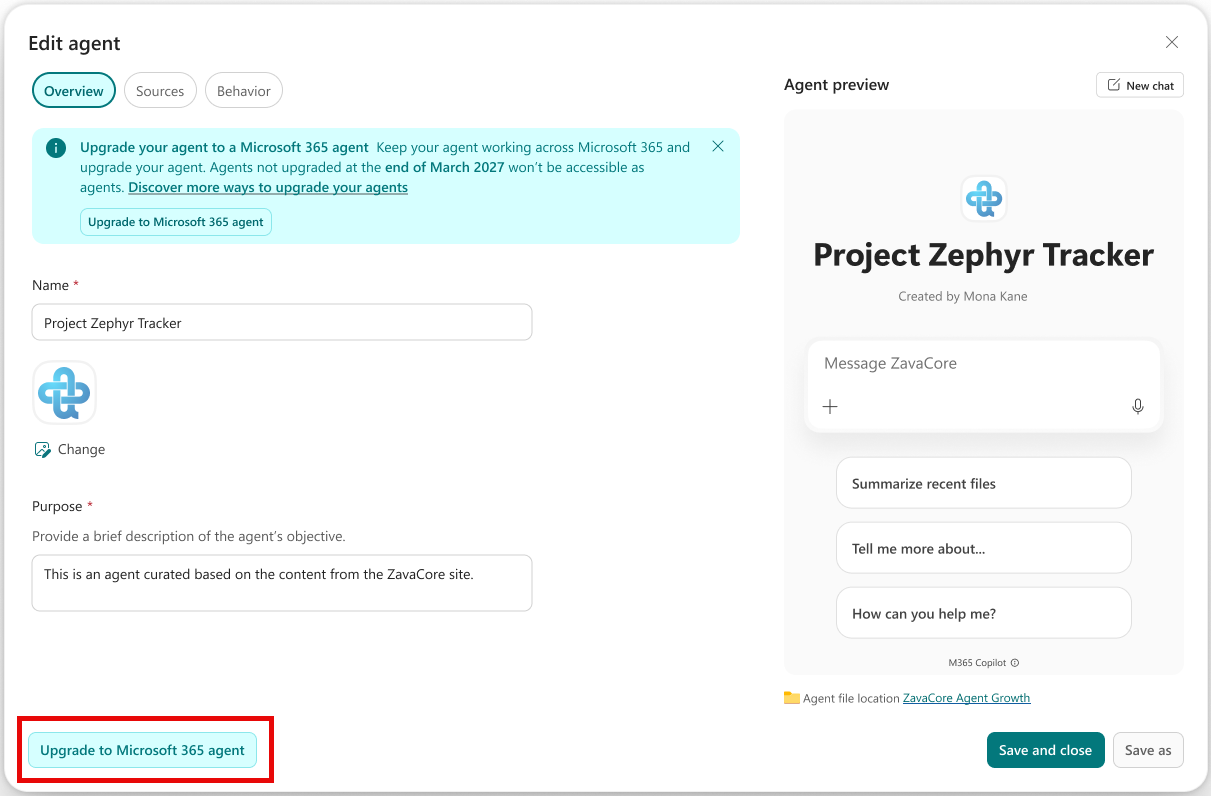
Select Upgrade to Microsoft 365 agent. A confirmation dialog appears.
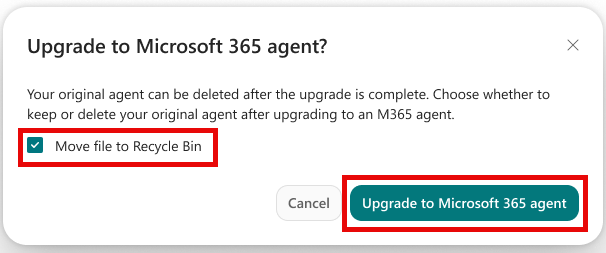
Select Upgrade to Microsoft 365 agent to confirm. Teams and Copilot app will automatically use the upgraded agent.
If you plan to add the agent to a page Agent Chat web part, select Move file to Recycle bin.
If you want to continue using the .agent file configuration as the main agent for the site until March 2027, through an Agent Link web part open in the SharePoint chat pane, don't select Move file to Recycle bin.
On a successful upgrade, the agent uses Microsoft Copilot Agent Builder for all future updates. You can no longer edit the original .agent file and it won't be changed by Microsoft Copilot Agent Builder.
If the original agent was shared with everyone in the organization, this access continues in the upgraded agent. Otherwise, the agent is private to you and you can share it to the necessary Microsoft 365 groups. Verify that users who need the agent can access both the agent and the selected knowledge sources.
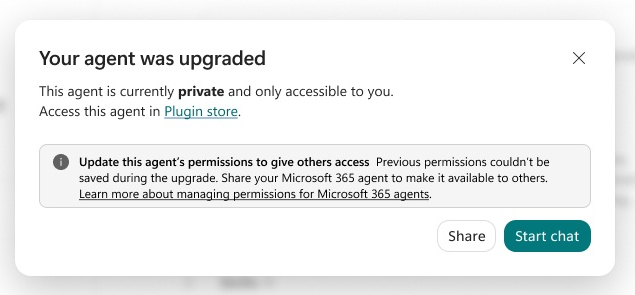
- The agent is now available through the plugin store in the Copilot app according to sharing and administrative policies. Not every upgraded agent is automatically published broadly.
You control the agent your audience uses during the transition period:
If you don't delete the original .agent file, you can open it in the SharePoint chat pane. If you link to it from the Agent Link web part, set it as the main agent, or open the file directly in the side pane, the original configuration loads and users can interact with it.
To direct users to the upgraded agent instead:
If the original agent is on a SharePoint page through a link or the Agent Link web part, update the page to use Agent Chat web part, instead.
Upgraded agents can't be used in the site's chat pane, so you won't be able to set one as the main agent for the site. Instead, add the Agent Chat web part to a page, so it's prominent on the site and set the main agent as Copilot.
In the Copilot app, the upgraded agent automatically loads when requested.
In a Teams chat or channel, the agent is upgraded but needs to be re-added to the chat or channel. Remove the agent that's in the chat or channel now, then add the agent again by copying the sharing link and posting it to the chat or channel.
Here are some important differences between the .agent file and the Microsoft 365 agent:
You don't manage Microsoft 365 agent permissions through SharePoint site permissions. Set share access through Microsoft Copilot Agent Builder. If you shared the .agent file with everyone in the organization, you can carry that organization-wide access over during the upgrade. Otherwise, the upgraded agent is private and the creator needs to share it with the people, groups, and email addresses that need to access it from the SharePoint site.
Usage data starts collecting for the upgraded agent.
Custom engine agents
If you have a .agent file that resulted from publishing a custom engine agent created in Copilot Studio to the SharePoint channel, you don't need to rebuild it as a Microsoft Copilot Agent Builder agent.
To add these agents to the Agent Chat web part, you need to make them available to the Microsoft Copilot app and Teams channel. For more information about publishing, see Key concepts - Publish and deploy your agent - Microsoft Copilot Studio.
You can delete the .agent file after you add it to a SharePoint page by using the Agent Chat web part.
Copilot in SharePoint
Copilot in SharePoint helps people work directly with content on a SharePoint site.
If your .agent file primarily helps people ask questions about or understand content from the current site, you might not need to maintain a separate named agent. You can use Copilot in SharePoint directly.
Copilot in SharePoint answers questions about content on the current SharePoint site. It doesn't include special instructions beyond answering authoritatively.
Some examples:
Catch me up on the most recent changes
Tell me more about this [topic] on this site
Users need a Microsoft Copilot license to use Copilot in SharePoint. Verify that Copilot is available on the site.
To ensure that users discover Copilot in SharePoint, set Copilot as the Main agent for the site through the site’s AI Settings. When you complete this step, you can delete the .agent file.
Skills for Copilot in SharePoint
Note
The convert-agent-file-to-skill skill will be available mid-November 2026.
Skills customize what Copilot in SharePoint can do for specific business outcomes.
A .agent file might be a good candidate for a skill if it performs a repeatable action, workflow, or task within the context of a SharePoint site instead of primarily providing a Q&A experience. The skill should run only in this site context and should be discoverable and executable through interactions with Copilot in SharePoint.
A simple way to distinguish between the two is:
Use a skill when Copilot should perform a focused, repeatable task or multistep workflow within the SharePoint site.
Use an agent when users need a customized Copilot experience for Q&A, retrieval, analysis, or other scenarios.
Some examples:
Drafting a document from SharePoint content on this site.
Reviewing a document to recommend updates.
Organizing files for a business outcome.
Applying focused instructions or guardrails to a narrow task.
Convert the agent to a skill
Before you start, confirm you have the following:
Confirm the intended users have a Microsoft Copilot license. Only Microsoft Copilot licensed users can access Copilot in SharePoint and its services.
Confirm Copilot in SharePoint is available on the site.
Confirm the actions of this agent don't need to be accessible in the Copilot app or Teams.
To convert the agent to a skill:
Prompt to use the skill,
convert-agent-file-to-skill, with the .agent or .copilot agent file. You will have the option to create a site or personal skill.To help users discover a site skill, add a Button web part to the page to open Copilot in SharePoint to run a prompt with the skill. This step is optional.
You can delete the .agent file after the conversion.
Upgrade guidance
Who can upgrade an agent?
The agent owner, creator, or site owner is best suited to decide the upgrade path for the agent. They can make the decision based on how users discover and engage with the agent.
To upgrade the agent, you need:
Edit permissions to the .agent file
Ability to share that agent
Permission to edit pages so the Agent chat web part can be added to the page
To convert to a skill, you need Copilot in SharePoint available on the site.
How do I find agents that need to be upgraded?
Individuals with OneDrive agents can prioritize those that they use most frequently. On SharePoint sites, prioritize agents with high usage, broad audiences, business-critical scenarios, custom instructions, pay-as-you-go dependencies, Teams distribution, or prominent SharePoint placement.
In OneDrive, you can find your agents through the filters on Home, Shared, or Favorites folders and the save location My Files > Documents > Agents.
In SharePoint, you have a few options for finding your agents:
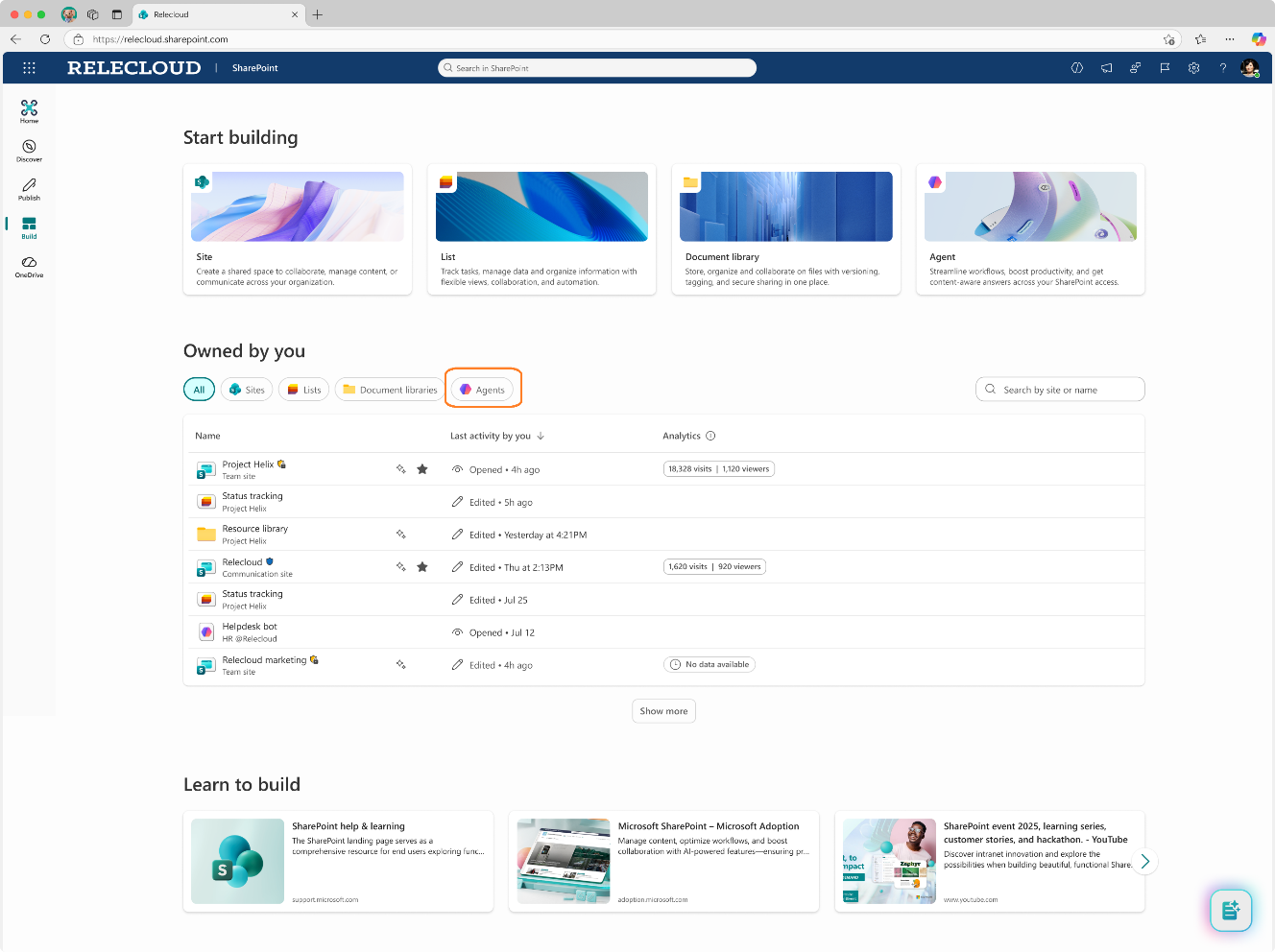
As the agent owner, visit the Owned by you Agents section of Build in SharePoint to see agents you own and are candidates for upgrade.
Use the agent reports on SharePoint Advanced Management to inventory agents.
Use the agent registry to see "SharePoint" agents.
Use search to find your agents on the site.
What should I do if I use an agent that someone else created?
Contact the agent owner or the SharePoint site owner and ask whether a replacement is planned. Permission to use an agent doesn't necessarily provide the edit and creation permissions needed to upgrade it. Confirm that you can access and use the replacement before the .agent experience stops working.
Permissions, sharing, and data
Do existing permissions and sharing automatically transfer?
No. Sharing a Microsoft Copilot Agent Builder agent is separate from sharing files on a SharePoint site.
A .agent file uses SharePoint file permissions and might inherit access from its site or library. After the upgrade, the Microsoft Copilot Agent Builder agent uses agent-level sharing to share with people, groups, and email addresses, but not to SharePoint groups. If you shared the .agent file with everyone in the organization, that organization-wide access can carry over during the upgrade. Otherwise, the upgraded agent is private until the owner shares it.
Creators and owners should review and share the upgraded or new agent with the people and groups that will see the agent on the SharePoint site.
Access to an agent doesn't grant access to its underlying SharePoint or OneDrive content. Users must have permission to both the agent and the knowledge sources it uses.
What happens to existing usage history and analytics?
Existing .agent usage history doesn't transfer to the replacement. Analytics for the upgraded skill or agent begin as a new experience. Capture any legacy reporting needed for records or adoption analysis before completing the transition.
What happens to existing links and placements?
In SharePoint, update the page to use Agent Chat web part. Note that the upgraded agent can't be used in the site's chat pane, so you won't be able to set it as the Main agent for the site. Set the Main agent to be Copilot after adding the upgraded agent to a page.
In Copilot app, the upgraded agent automatically loads when requested. OneDrive users should use Copilot app to use their agents.
In a Teams chat or channel, the agent is upgraded but needs to be re-added to the chat or channel. Remove the agent that's in the chat or channel now, then add the upgraded agent by grabbing a link to it and adding it to a message to the chat or channel.
How do I know an agent is upgraded?
Deleting the .agent file after you choose an upgrade path is the easiest way to track which agents remain to upgrade.
If the agent was converted to a skill for the SharePoint site, there's no indication on the .agent file that a conversion happened, but the file moves to the skill location as a backup.
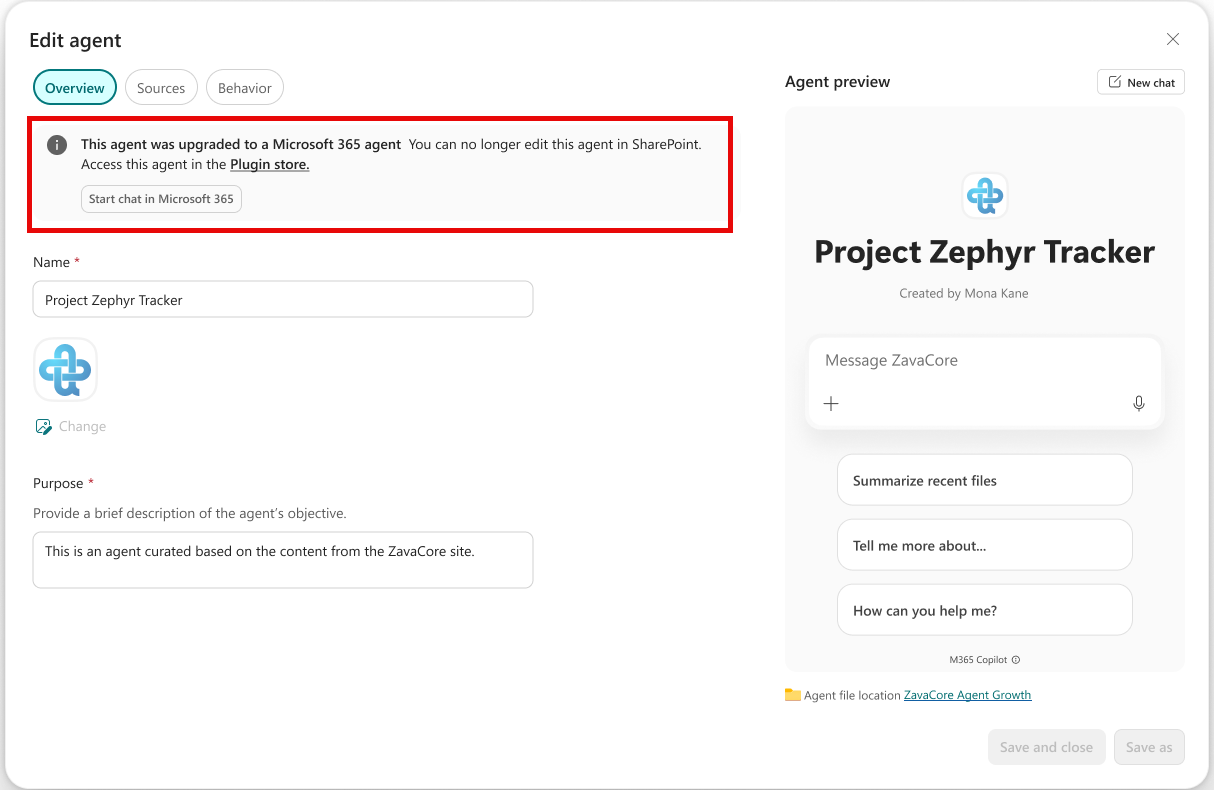
If the .agent file was upgraded to a Microsoft Copilot Agent Builder declarative agent, the SharePoint agent builder shows a banner indicating that the agent is upgraded and no longer editable.
Timing and preparation
Is my existing agent already gone?
No. You can use existing .agent files during the transition. The announcement provides time to inventory, evaluate, upgrade, and test experiences before .agent files stop responding to prompts after March 2027.
When will the experience change?
Expect the following changes starting mid-November 2026:
When you create an agent from SharePoint or OneDrive, you use Microsoft Copilot Agent Builder, and no longer create .agent files.
The Upgrade to Microsoft 365 Agent button appears in the builder.
The convert-agent-file-to-skill skill becomes available in Copilot in SharePoint.
When will existing .agent files stop working?
Existing .agent files will stop responding to prompts after March 2027. After that time, they will no longer respond in the SharePoint chat side pane, Teams, or the Copilot app. The Agent Link web part and the current immersive viewer will also no longer provide access to these agents.
Do I need to take action now?
You don't need to take any action now, but you should begin preparing. Start with the agents that are business-critical, actively used, broadly shared, embedded on SharePoint pages, added to Teams, or dependent on pay-as-you-go consumption.
Inventory .agent files in SharePoint and OneDrive.
Identify each agent's owner, audience, purpose, knowledge sources, and current access points.
Choose the best-fit upgrade path.
Upgrade or re-create the experience, then configure sharing and placement.
Test with representative users and familiar prompts before switching.
Archive or delete the original .agent file after validating the replacement.
Will Microsoft automatically upgrade my agents?
No. There's no automatic upgrade. An agent owner or site owner should review .agent files and choose the appropriate upgrade paths. This approach ensures that a named chat experience isn't converted into a skill, or a focused site task into a broader agent without considering the original business outcome. In some cases, the best thing to do is delete the .agent file because it's no longer used. Deleted files appear in the recycle bin.
Are these changes available in Microsoft Government Cloud?
All these upcoming changes apply to Microsoft Government Cloud.
Copilot extensibility is available in Microsoft Government Cloud, so upgrading to Microsoft Copilot Agent Builder declarative agents preserves your agents' capabilities.
Converting to a skill in Copilot in SharePoint will be available when Copilot in SharePoint is available in Microsoft Government Cloud (coming soon).
Administrator guidance
How should administrators prepare?
Learn about Microsoft Agent 365.
Ensure your agent creators can share that agent.
Identify active and business-critical .agent files.
Engage site owners and agent creators to assign ownership and choose an upgrade path.
Confirm licensing and consumption configuration for each destination.
Update internal guidance, support processes, training, and communications before the creation experience changes.
Allow time to test sharing, content access, Teams placement, SharePoint placement, and representative prompts.
Where will users find upgraded agents?
Users can discover declarative agents and Copilot Studio agents through supported Microsoft 365 experiences, including the plugin store, Microsoft Copilot app, and Teams.
SharePoint site owners can place relevant agents directly on pages through the Agent Chat web part (coming soon).
Users discover and use skills through Copilot in SharePoint and can highlight them with Quick Steps, Button web part, or other site entry points.
What is happening with SharePoint Agents pay-as-you-go?
SharePoint Agents pay-as-you-go only applies to .agent files. The upgraded agents follow the capabilities and licensing model for agents in Microsoft Copilot app.
SharePoint Agents pay-as-you-go doesn't apply to Copilot in SharePoint.