Note
Access to this page requires authorization. You can try signing in or changing directories.
Access to this page requires authorization. You can try changing directories.
PIX can replay the GPU work in a GPU Capture and measure how long each piece of work takes. Use this timing data to find the events that cost the most GPU time in a frame. This article explains how to collect timing data and how to read the results in the Events and Timeline views.
To profile CPU and GPU work over a longer period, including work that overlaps across queues, take a Timing Capture instead.
Collect timing data
PIX doesn't collect timing data when you open a capture. The Events and Timeline views are both on the Overview tab of the default layout. To add either view to another tab, see Arrange views. To collect timing data, replay the capture in one of these ways:
- In the Events view, select Collect Timing Data on the toolbar.
- In the Timeline view, select the Click here link in the message Click here to start analysis and collect timing data.
If analysis is already running without timing data, the Timeline view instead shows Click here to collect timing data.
PIX replays the capture and records timing for each event. If your app annotates its work with PIX events, the timing data is also available for each annotated region. After you start timing collection, the Collect Timing Data button is no longer shown in the Events view.
Tip
For the most accurate results, don't interact with your computer while PIX collects timing data, and close other apps that use the GPU.
You can also collect hardware counters and occupancy data with timing data. For more information, see Collect hardware counters.
To collect timing data programmatically, call IPixGpuCaptureAnalysis::CollectTiming. To also collect occupancy and high-frequency counters in the same playback, set collectAdditionalDataSources to TRUE, and then read the high-frequency counters with IPixGpuCaptureTiming::GetHighFrequencyCounterData.
Understand the timing measurements
PIX records two kinds of GPU timestamps for each piece of work:
- A start-of-pipe timestamp, which is when the GPU starts processing the work.
- An end-of-pipe (EOP) timestamp, which is when the GPU finishes processing the work.
GPUs are massively parallel and deeply pipelined, so it's common for adjacent pieces of work to overlap. To show how the hardware runs your work, PIX reports two durations:
| Duration | Measured from | Behavior when work overlaps |
|---|---|---|
| TOP to EOP Duration (ns) | The start-of-pipe timestamp to the end-of-pipe timestamp of the same piece of work. | Work that runs in parallel with earlier work can look longer than it would in isolation, because of contention on the GPU. |
| EOP to EOP Duration (ns) | The end-of-pipe timestamp of the previous piece of work to the end-of-pipe timestamp of this piece of work. | Work that runs in parallel with earlier work looks shorter than it would in isolation, and can be reported as zero if it finishes entirely in parallel with the previous work. |
In the Events view, you can show these durations as columns by using the Counters panel. EOP to EOP Duration (ns) is one of the columns that the Events view shows by default.
To get these durations programmatically, call IPixGpuCaptureTiming::GetEventData. In the PIX_EVENT_TIMING structure that it returns, TopDuration is the TOP to EOP duration and EopDuration is the EOP to EOP duration.
Read timing in the Timeline view
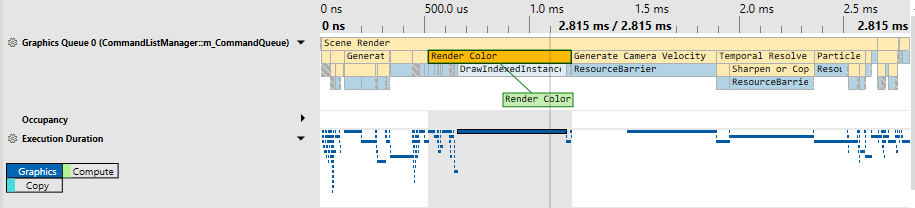
The Timeline view draws the timing of each GPU operation in lanes:
- One event lane for each GPU queue that the app used, such as graphics, compute, or copy. The lane is named for the queue and shows the EOP to EOP duration of each event.
- One Execution Duration lane that combines the TOP to EOP duration of events from all queues. This lane is collapsed by default, so expand it to see its events.
Hover over an event in a lane to see its durations. Select an event to select it in the other views.
To get the timing of each event on a queue programmatically, call IPixGpuCaptureTiming::GetQueueData.
Note
The Timeline view might also show lanes for counters and occupancy after you collect them. For more information, see Collect hardware counters.
Async compute in GPU Captures
If your app uses async compute to run rendering and compute work at the same time, PIX usually replays the queues one after the other when it collects timing data, instead of overlapping them. As a result, the durations of individual events can be shorter than in your app because there's less contention on the GPU, but the total time can be longer because there's less parallelism. To see timing for work that overlaps across queues, take a Timing Capture.