Note
Access to this page requires authorization. You can try signing in or changing directories.
Access to this page requires authorization. You can try changing directories.
PIX can step through a shader's code for a single invocation, such as one pixel, vertex, or compute thread, and show you the values of its variables. You can also edit a shader's HLSL directly in PIX and immediately see how the change affects rendering results or performance.
Prerequisites
- Open a GPU Capture, select an event that runs the shader, and select Start Analysis to replay the capture.
- Make sure PIX can find your shader PDBs. To see HLSL source instead of only disassembly, see Use automatic shader PDB resolution.
Start a shader debugging session
You can start a session from several places. Whichever you choose, PIX opens the Shader Debugger view.
- From a shader in the Pipeline view:
- Under the shader stage that you want to debug, select the shader entry.
- Select the green debug button, or right-click the shader and select Open in Debugger.
- In the Shader Debugger view, enter the parameters that identify the invocation to debug. For example, enter the instance ID and vertex ID for a vertex shader, or the pixel coordinates for a pixel shader.
- Select the green play button, which has the tooltip Start.
- From a pixel: right-click the pixel in a resource viewer, such as a render target, SRV, or UAV, and select Debug Pixel. Alternatively, select a pixel and then select Debug Pixel in the Pixel Details view. PIX debugs the selected event's pixel, compute, or ray generation shader at that pixel's coordinates and starts the session. For a compute or ray generation shader, PIX assumes that thread X and Y match the pixel coordinates, so use Pixel History to find the invocation that actually wrote the pixel.
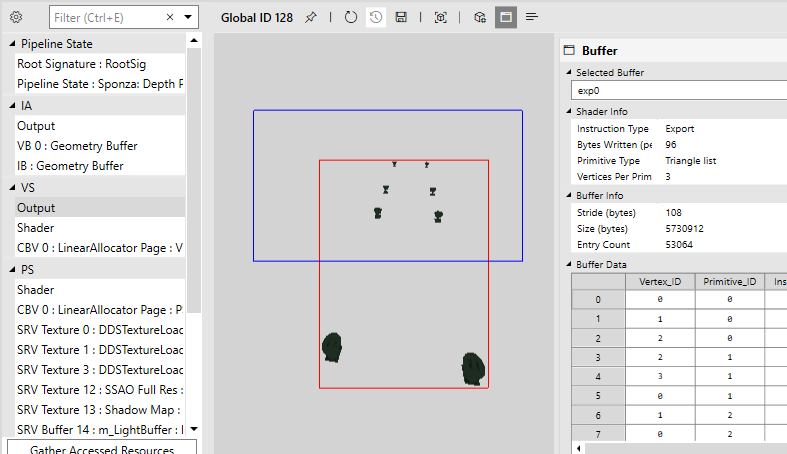
- From a vertex: in the Pipeline view, right-click a row in the vertex shader output, or a vertex in the mesh viewer, and select Debug Vertex ID followed by the vertex number.
- From Pixel History: right-click a modification in the Pixel History view and select Debug This Pixel. For modifications made by a compute or ray generation shader, select Debug compute shader or Debug raygen shader instead. These commands are available only for modifications that a shader made, such as draws and dispatches, and not for copies, clears, or resolves.
- From the Shader Sources view, which is in the Pipeline tab of the default layout: select the shader entry and use its debug button or Open in Debugger, the same way as in the Pipeline view.
Tip
If PIX reports that no invocation records exist for a pixel, the pixel wasn't drawn during the selected event. PIX offers to open Pixel History so that you can find an event that drew it.
If you can't see the shader source, PIX is missing debug information. Generate shader PDBs for your app, and then see Use automatic shader PDB resolution. If PIX reports that a PDB is a slim PDB, recompile your shaders without the /Zs flag, or select Generate full PDB from the shader's context menu.
Debug a shader
Use the toolbar in the Shader Debugger view and the following shortcuts to control execution.
| Action | Shortcut |
|---|---|
| Run | F5 |
| Stop | Shift+F5 |
| Step over | F10 |
| Step in | F11 |
| Step out | Shift+F11 |
| Toggle breakpoint | F9 |
| Run to NaN or infinity | Ctrl+F5 |
| Run back | Alt+F5 |
| Run back to NaN or infinity | Ctrl+Alt+F5 |
When a draw or dispatch has more than one invocation that matches your parameters, use the Invocations view or the invocations slider to select one.
PIX also supports debugging node shaders for DispatchGraph events in work graph captures. Use the Invocations view to switch between node invocations.
Shader debugger views
The Debug tab of the default layout contains the Shader Debugger, Autos, Watch, Constants, Call Stack, and Invocations views. To add a view that isn't in the layout, such as Breakpoints, see Arrange views.
| View | Shows |
|---|---|
| Shader Debugger | The shader source or disassembly, the current statement, and the execution controls. |
| Watch | Variables that you add, with a Lane Range and Register Format that you can set. PIX highlights values that changed, inactive lanes, and NaN or infinity values. |
| Autos | A read-only version of Watch that PIX fills in for you. |
| Constants | The constant buffers that the debugged shader stage uses. |
| Call Stack | The functions that the current invocation is executing. |
| Invocations | The invocations that the debugger can select from, so that you can switch between them. |
| Breakpoints | The breakpoints that you set, which you can enable, disable, and, where supported, give conditions. |
Edit and continue a shader
You can edit HLSL in PIX and see the effect on rendering immediately. This workflow shortens the turnaround time when you prototype or optimize a shader.
- Select the shader in the Pipeline view or the Shader Sources view.
- Edit the HLSL in the editor.
- In the PIX toolbar, select Apply, or press F6.
- Look at other views, such as the render target in the Pipeline view, to see the effect of your change.
Tip
To see a render target and edit a shader at the same time, dock two instances of the Pipeline view next to each other.
After you apply an edit, the same toolbar button becomes Show Original or Show Applied so that you can compare results before and after the change. The button's drop-down menu also has Apply, Revert to Original, and View All Edits.
Review and revert edits
- Open the Edits view, which is in the Pipeline tab of the default layout, or select View All Edits on the toolbar menu, to see every edit you made. The Source, Status, Type, and Affected columns describe each edit. For a shader edit, Affected shows the pipeline stage.
- To compare a shader with its original source, right-click the shader code, or an edit in the Edits view, and select Compare with original source.
- To undo edits, right-click a shader entry and select Revert unapplied edits or Revert to original. In the Edits view, select an edit and select Revert to original.
Save edits
When you save the capture, PIX saves your shader edits in it. Edits mark the capture as modified, so PIX asks whether to save it when you close it.