Note
Access to this page requires authorization. You can try signing in or changing directories.
Access to this page requires authorization. You can try changing directories.
When a frame renders incorrectly, select the event that draws the wrong result and inspect the Direct3D 12 state, resources, and pixels at that point. This article shows how to find the state that an event used, view the contents of its resources, and trace the operations that affected a single pixel.
Start analysis
Most of the views in this article need PIX to replay the capture and collect state and resources. This replay is called analysis. To start it, select Start Analysis in the toolbar at the top of the PIX window, or in any view that shows the Start Analysis button instead of data. If your computer has more than one GPU, select the GPU to use from the Select analysis adapter drop-down first.
Select an event
- Open a GPU Capture and select the Pipeline tab. In the default layout, it contains the Events, Event Details, State, Pipeline, Resources, API Objects, Pipeline States, and Descriptor Heaps views, among others.
- In the Events view, select the event that you want to inspect. By default, the list shows only events that do GPU work. To also show non-GPU work items, such as calls that only set state, turn off !G in the search bar.
The other views update to show information about the selected event. If you select a non-GPU event, the State and Pipeline views show the GPU work item that it applies to.
View parameters and state
Use these views to see what the selected event did and what state it ran with:
- Event Details shows the API call parameters for the selected event, when they're available.
- Pipeline shows the root signature, the pipeline state object (PSO), the bound resources, and the shader stages of the selected event, along with its inputs and outputs. For example, you can inspect the VS output, or the contents of each render target that the event wrote to.
- State shows the Direct3D state at the time of the event.
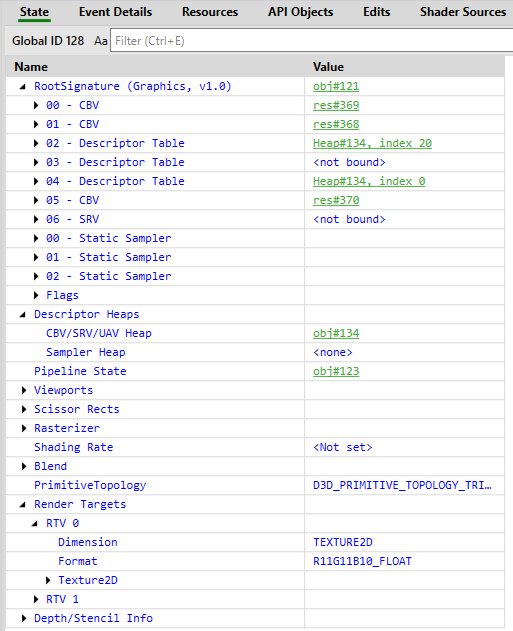
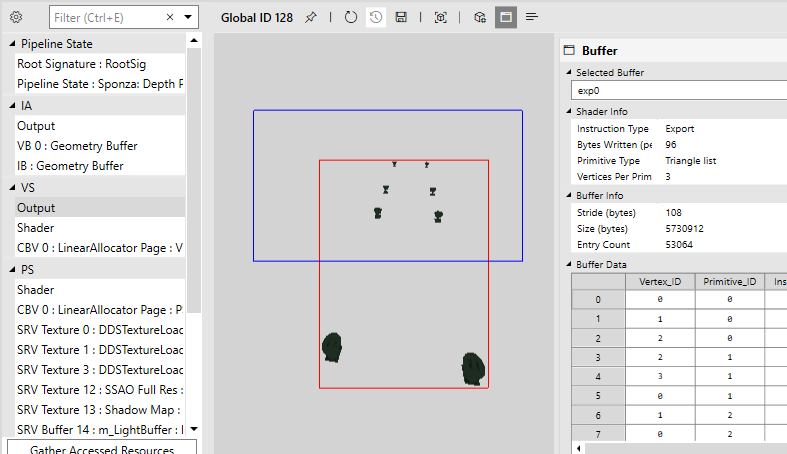
To get some of this data programmatically:
- For the Event Details parameters, read the
ApiCallDatafield of the event'sPIX_EVENT_INFO. - For the Pipeline data, call
IPixGpuCaptureDocument::GetProgramState, and thenIPixProgramState::GetGpuProgram. TheIPixGpuProgramthat it returns describes the root signature and the shaders. For the bound resources of a draw or dispatch, request anIPixGenericPipelinefromGetGpuPrograminstead, and callIPixGenericPipeline::GetResourceViews.GetPipelineStatereturns the PSO that the event used.
The API doesn't expose the State view.
The Pipeline view is also where you start debugging a shader. For more information, see Debug and edit shaders.
Browse objects across the capture
Some views show everything in the capture instead of one event. All of them are in the Pipeline tab of the default layout. To add a view to another tab, see Arrange views.
- API Objects lists the Direct3D 12 objects that the capture created.
- Resources lists the resources that the capture created.
- Pipeline States lists the pipeline state objects.
- Descriptor Heaps lists the descriptor heaps and their contents. Start analysis to view the contents.
To get these objects programmatically, call IPixGpuCaptureDocument::GetD3D12ApiObjects for API objects, including pipeline states and descriptor heaps, and GetD3D12Resources for resources. The API doesn't return the contents of descriptor heaps.
For reserved resources and heaps, see the Mappings tab and View tile mappings. For DirectX Raytracing, see the DXR Invocations view, also in the Pipeline tab, in Analyze DirectX Raytracing.
View resource contents
To see the contents of a resource, select it in the Pipeline view, such as a render target, a shader resource view (SRV), or an unordered access view (UAV). PIX shows the resource in a viewer, for example a texture viewer or a buffer viewer.
To get the contents of a buffer programmatically, call IPixGpuCaptureAnalysis::GetBufferBytesFromResourceView or GetBufferBytesFromResource. For a texture, call GetTextureBytesFromResourceView or GetTextureBytesFromResource.
By default, a texture appears as a normal image. To change how PIX presents it, select a different option in the Visualization panel. To create your own visualizations, see Create custom visualizers.
Inspect a pixel
When you view a texture, Pixel Details shows the values of the pixel under the cursor. Use it to read the pixel's value and to start deeper investigation.
- Select Debug Pixel to step through the shader that produced the pixel. For more information, see Debug and edit shaders.
- Select Pixel History to open the Pixel History view.
You can also open pixel history by right-clicking a pixel and selecting Show Pixel History.
Pixel History lists the operations in the capture that affected the pixel, so you can find which events changed it. It works for textures that are bound as an SRV, a UAV, or a render target.
Tip
If shader source doesn't appear when you debug, PIX is missing debug information. For more information, see Use automatic shader PDB resolution.