Note
Access to this page requires authorization. You can try signing in or changing directories.
Access to this page requires authorization. You can try changing directories.
PIX on Windows supports DirectX Raytracing (DXR) analysis in GPU Captures. Use the same GPU Capture workflow that you use for other Direct3D 12 applications, then inspect raytracing events, shader tables, acceleration structures, state objects, ray invocations, and DXR shader execution.
Capture and inspect DXR work
Install the latest version of PIX, then capture your Direct3D 12 raytracing application as described in Take GPU Captures. After you open the capture and start analysis, the Events view shows raytracing work such as DispatchRays and BuildRaytracingAccelerationStructure events.
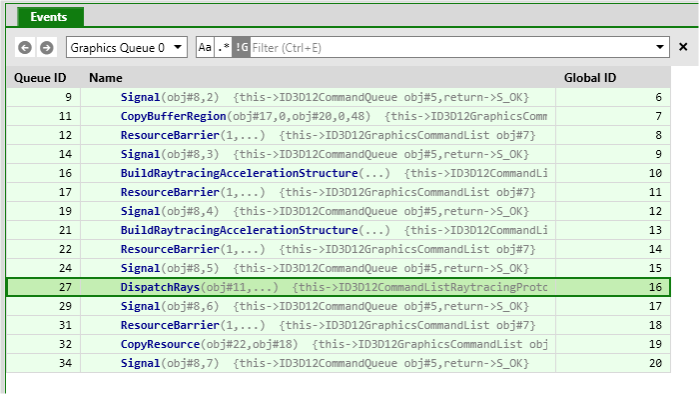
Select a DispatchRays event and open the Pipeline view to see the resources and raytracing stages that PIX associated with that event. PIX shows ray-generation shader records, shader tables, and acceleration structures alongside the other resources used by the workload.
For acceleration structure build events, the Pipeline view shows the build inputs and outputs, such as instance descriptions, geometry buffers, and the source and destination acceleration structures. For DXR tier 2.0 indirect operations, PIX labels each buffer by its role, such as [Build PTLAS Dest] or [Build Cluster Source], and formats indirect argument buffers so that you can read their contents.
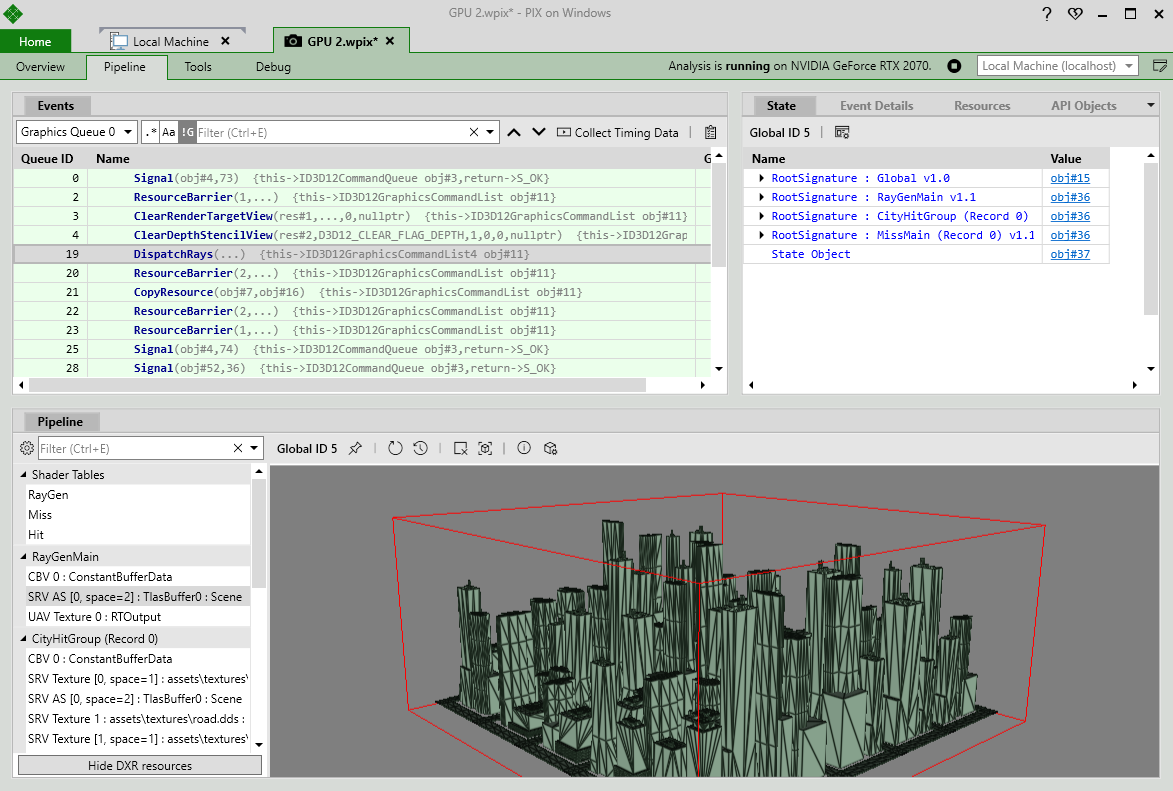
Find resources accessed by raytracing shaders
DXR shaders often access resources through dynamic indexing, so PIX can't always determine them from root signature bindings alone. To find them, select Gather Accessed Resources at the top of the Pipeline view. PIX replays the whole capture to record which resources each shader accessed. If you later apply edits to the capture, such as shader edits, the button changes to Regather Accessed Resources so that you can refresh the results.
The API can gather accessed resources with IPixGpuCaptureAnalysis::GatherAccessedResources and GetAccessedResources, but only for draws and dispatches. It doesn't yet return them for DispatchRays events.
Inspect shader tables
The Pipeline view includes a Shader Tables section for DispatchRays events. Select a shader-table entry to open the shader table viewer and see how PIX interprets each shader record.
To get shader tables programmatically, call IPixGpuCaptureDocument::GetProgramState for a DispatchRays event. Then call IPixProgramState::GetGpuProgram to request an IPixRaytracingPipeline. IPixRaytracingPipeline::GetShaderTable returns each IPixShaderTable. Call IPixShaderTable::GetRecord for the interpreted records, or GetRawBytes for the raw bytes.
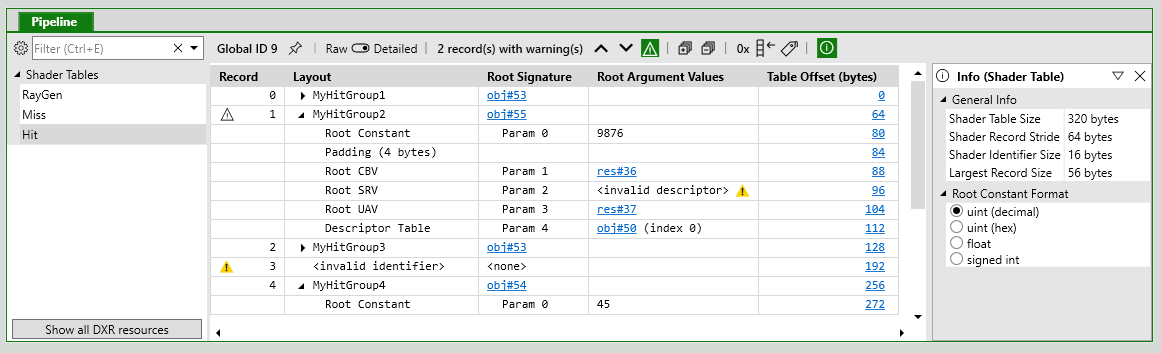
Each shader record shows the export name from the state object, the record index within the shader table when applicable, and the resources bound through its Local Root Signature. Use this view to verify ray-generation, miss, hit-group, and callable shader records, including the local root arguments that each record contributes. PIX also supports local root signatures defined in DXIL.
Use the Detailed / Raw toggle on the toolbar to switch between this interpretation and the shader table's raw bytes. Select History to open the shader table buffer in the Resource History view.
Visualize acceleration structures
Select a top-level or bottom-level acceleration structure resource to open the AS Viewer. PIX reads built acceleration structures back from the GPU, so the visualization reflects driver build output, including driver-side optimizations such as combined geometry.
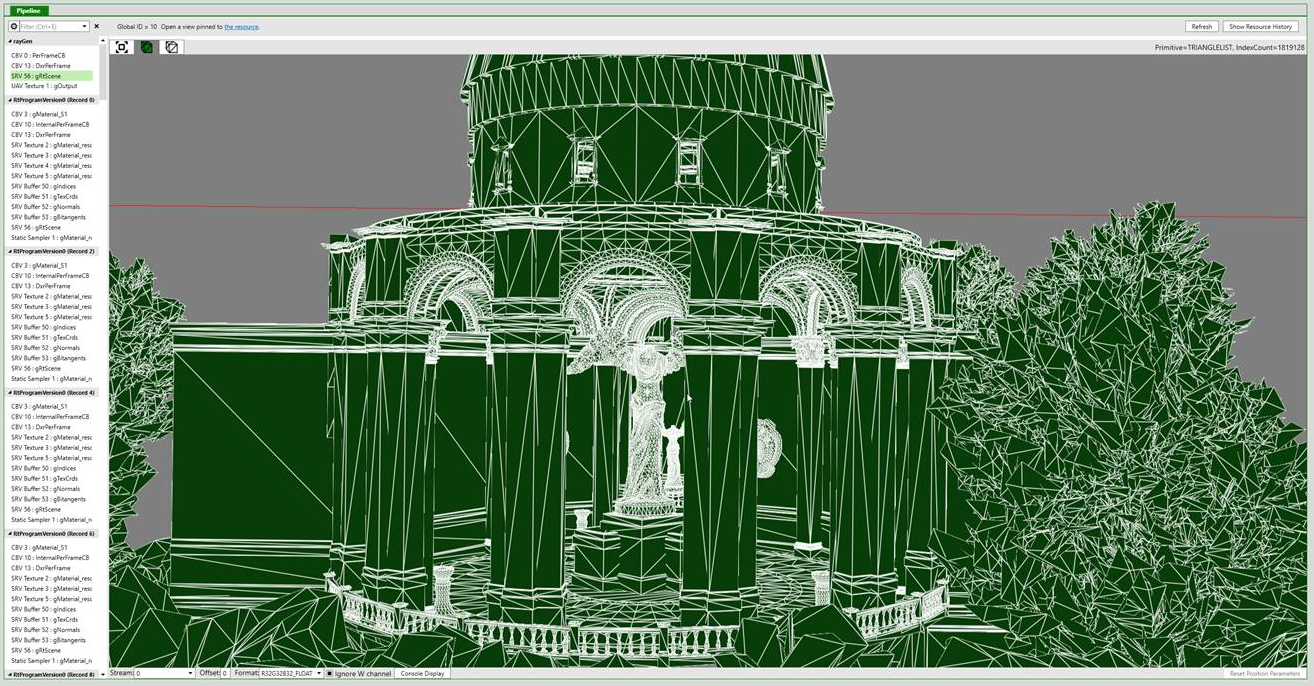
(Screenshot from NVIDIA Falcor.)
Navigate the scene
The AS Viewer uses a free-roam camera:
- Use W, A, S, and D to move the camera, and Q and E to move it up and down.
- Right-click and drag, or use the arrow keys, to rotate the camera.
- Hold Left Shift to move faster, or use the camera-speed buttons on the toolbar.
- Select Recenter to frame the whole acceleration structure.
- Type a name in the camera box and press Enter to save the current camera. To remove a saved camera, select it, clear the name, and press Enter. You can't remove the default camera.
The toolbar also toggles between Z-up and Y-up and between right-handed and left-handed coordinates. By default, PIX picks the camera orientation automatically based on the scene dimensions. To set fixed defaults instead, go to Settings > Raytracing and clear BVH Viewer: Ignore default orientation settings and set automatically based on scene dimensions, then choose BVH Viewer: Default to Y-Up coordinate system and BVH Viewer: Default to Left-Handed coordinate system.
Select the prior-state button on the toolbar to show the acceleration structure as it was before the current event.
Hierarchy tree and details
The Hierarchy Tree panel lists the contents of the acceleration structure. For a top-level acceleration structure (TLAS), use Group By to group items by Instance or by BLAS. When you group by BLAS, you can sort BLASes by size in descending order to find the largest ones.
Select an item in the tree to see its details:
| Item | Details |
|---|---|
| TLAS | Number of instances, number of unique BLASes, and the sum of BLAS sizes in video memory. |
| Instance | InstanceID, transform, InstanceMask, InstanceContributionToHitGroupIndex, and flags. |
| BLAS | Number of instances and size in video memory. |
| Geometry | Geometry type, flags, and a description of its triangles or AABBs. |
| Clustered BLAS | Number of instances and size in video memory. |
| CLAS | ClusterID, flags, triangle count, and vertex count. |
For DXR tier 2.0 content, the hierarchy also shows partitioned TLASes, clustered BLASes, and CLASes. When you group a PTLAS by instance, it contains a Global Partition followed by the other partitions, and each partition contains its instances. When you group by BLAS, each BLAS contains the partitions that reference it. Instances of clustered BLASes contain their CLASes instead of geometries.
Change rendering options
The Options panel controls how PIX renders the acceleration structure:
- Coloring: Random color per geometry (default), Random color per BLAS, Random color per instance, or None.
- Cull Mode: None, Front, or Back.
- Lighting: None or Flat.
- Wireframe: draws triangle edges.
- Camera options: the camera orientation toggles, plus Near Plane Distance, Far Plane Distance, and FoV Degrees.
Visualize opacity micromaps
In the Visualization panel, set Visualization to OpacityMicromap to color triangles by their opacity micromap state. In this mode, PIX shows these options and a legend:
- Discard Transparent: discards pixels in transparent subtriangles.
- Force 2-state: treats unknown opaque subtriangles as opaque and unknown transparent subtriangles as transparent.
- Legend: opaque, transparent, unknown opaque, and unknown transparent regions.
Analyze ray invocations
Open the DXR Invocations view after selecting a DispatchRays event to inspect collected ray invocation data. The shader-type filter includes All Shader Types, Intersection, AnyHit, ClosestHit, Miss, and Callable. The DispatchRays index filter has X, Y, and Z fields for the dispatch coordinates.
To draw rays in the AS Viewer:
- In the Pipeline view, select an acceleration structure from the
DispatchRaysevent. - In DXR Invocations, set any filters, then select AS Viewer.
PIX draws all collected rays, or the subset that matches your filters. If no acceleration structure is open, PIX asks you to select one in the Pipeline view. Use the Draw Rays toggle on the AS Viewer toolbar to show or hide the rays.
If a dispatch produces more invocations than PIX can record, DXR Invocations shows a warning that the log was truncated, along with how many invocations it shows out of the total.
Debug DXR shaders
PIX supports DXR shader debugging from DispatchRays workloads. Start debugging from the ray-generation shader record, then use the shader debugger's Invocations view to switch to supported DXR invocations, including intersection, any-hit, closest-hit, miss, and callable shaders. Debugging works with state objects extended with AddToStateObject and with root signatures defined in DXIL.
PIX also supports debugging DXR 1.1 inline raytracing that uses RayQuery::TraceRayInline. Inline raytracing runs in a regular shader stage such as a compute shader, not in a DispatchRays event.
Use Shader PDB Resolution to make sure PIX can find symbols for your shaders before you debug them.
Inspect state objects
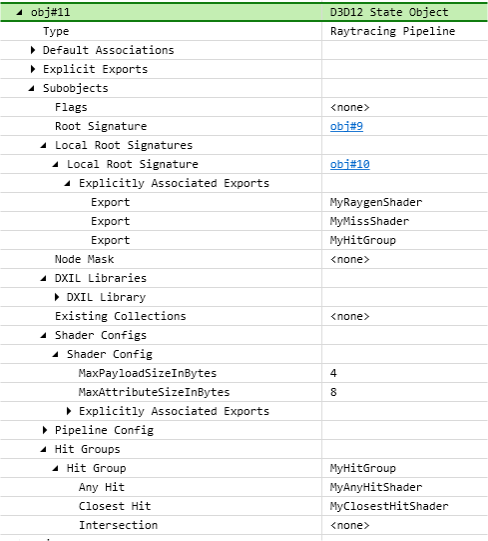
Open the API Objects view to inspect captured DXR state objects. PIX lists DXR state objects as D3D12 State Object API objects and shows their D3D12_STATE_OBJECT_DESC data and subobjects in a hierarchy.
To get state objects programmatically, call IPixGpuCaptureDocument::GetD3D12ApiObjects, and then IPixStateObject::GetDesc on each state object.
Supported DXR features
PIX supports capture, replay, and analysis for each DXR tier. Your GPU and driver must report the matching D3D12_RAYTRACING_TIER for the application to use these features.
| DXR tier | Features |
|---|---|
| 1.0 | DispatchRays, state objects and collections, shader tables, and acceleration structure builds, copies (clone, compact, serialize, and deserialize), and postbuild info. |
| 1.1 | Inline raytracing with RayQuery, DispatchRays from ExecuteIndirect, AddToStateObject, and state subobjects defined in DXIL libraries. |
| 1.2 | Opacity micromaps (OMMs) and Shader Execution Reordering (SER). |
| 2.0 | Cluster acceleration structures (CLAS), cluster templates, clustered bottom-level acceleration structures, partitioned top-level acceleration structures (PTLAS), and indirect acceleration structure operations. |
Your app also needs an Agility SDK version that exposes these features. SER is also available without tier 1.2 on devices that support Shader Model 6.9 and DXR tier 1.0 or later.
Note
As of October 2026, DXR tier 2.0 features are available only in preview versions of the Agility SDK.
PIX supports acceleration structures in committed and placed resources. Reserved acceleration-structure resources aren't supported for capture or replay.