नोट
इस पेज तक पहुँच के लिए प्रमाणन की आवश्यकता होती है. आप साइन इन करने या निर्देशिकाओं को बदलने का प्रयास कर सकते हैं.
इस पेज तक पहुँच के लिए प्रमाणन की आवश्यकता होती है. आप निर्देशिकाओं को बदलने का प्रयास कर सकते हैं.
APPLIES TO: All API Management tiers
This article describes how to import an OData (Open Data Protocol) service into Azure API Management by using OData metadata. The following example uses SAP Gateway Foundation.
In this article, you learn how to:
- Retrieve OData metadata from your SAP service
- Import OData metadata to Azure API Management, either directly or after converting it to an OpenAPI specification
- Complete API configuration
- Test the API in the Azure portal
Prerequisites
Create an API Management instance.
An SAP system and service that's exposed as OData v2 or v4.
If your SAP backend uses a self-signed certificate (for testing), you might need to disable the verification of the trust chain for SSL. To do so, configure a backend in your API Management instance:
- In the Azure portal, under APIs, select Backends > + Create new backend.
- Add a Custom URL that points to the SAP backend service.
- Expand the Advanced section, then clear the Validate certificate chain and Validate certificate name checkboxes.
Note
In production scenarios, use proper certificates for end-to-end SSL verification.
Tip
For the full feature scope of API Management, convert the SAP OData API to OpenAPI specification before registering.
Retrieve OData metadata from your SAP service
Use one of the following methods to retrieve metadata XML from your SAP service. If you plan to convert the metadata XML to an OpenAPI specification, save the file locally.
- Use the SAP Gateway Client (transaction
/IWFND/GW_CLIENT). - Make a direct HTTP call to retrieve the XML:
http://<OData server URL>:<port>/<path>/$metadata. - Use the SAP Business Accelerator Hub if applicable.
Go to your API Management instance
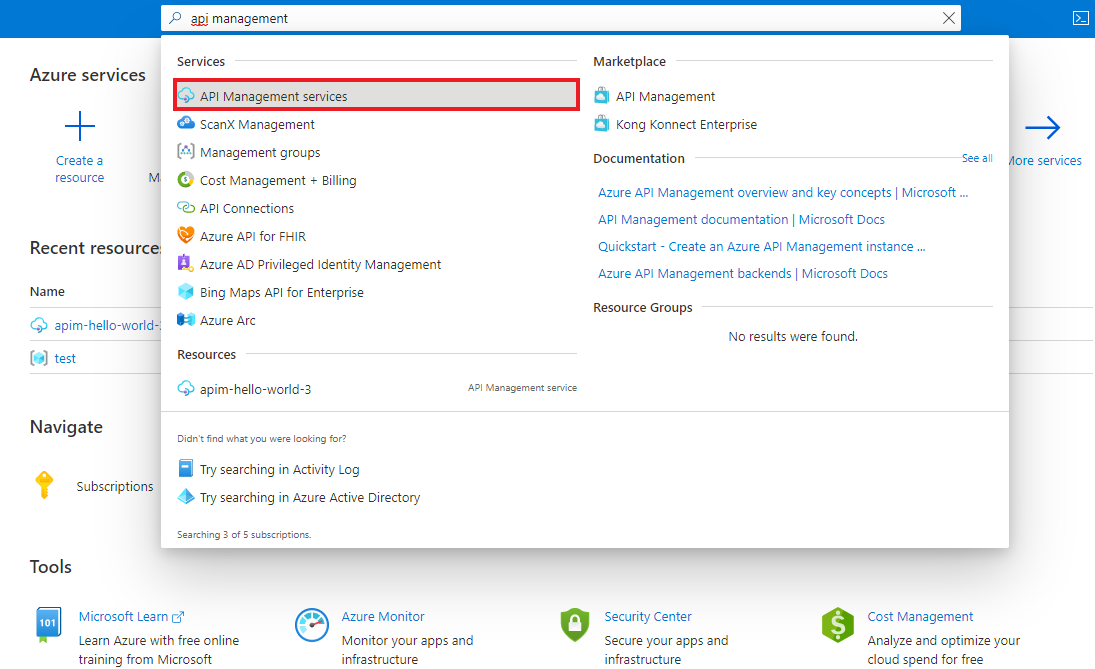
In the Azure portal, search for and select API Management services:
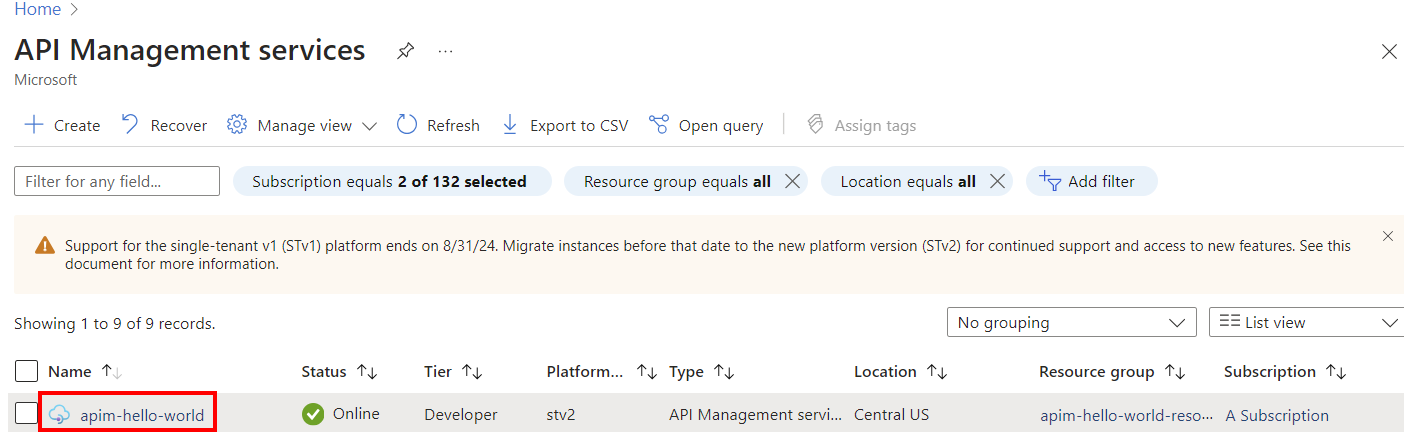
On the API Management services page, select your API Management instance:
Import an API to API Management
Choose one of the following methods to import your API to API Management:
- Convert the metadata XML to an OpenAPI specification (recommended).
- Import the metadata XML as an OData API directly.
Convert OData metadata to OpenAPI JSON
Use the Microsoft converter built on-top of the OASIS open-source tool.
The following example converts OData v2 XML for the test service
epm_ref_apps_prod_man_srv:oasis-converter convert epm_ref_apps_prod_man_srv.xml api.jsonNote
For testing with a single XML file, you can use the web-based experience.
Save the openapi-spec.json file locally for import to API Management.
Import OpenAPI specification
In the sidebar menu, in the APIs section, select APIs.
Under Create from definition, select the OpenAPI tile:

Choose Select a file, and then select the openapi-spec.json file that you saved locally in a previous step.
Enter API settings. You can set these values when you import the API or configure them later by going to the Settings tab.
For the API URL suffix, we recommend using the same URL path as that of the original SAP service.
For more information about API settings, see Import and publish your first API tutorial.
Select Create.
You also need to configure authentication to your backend by using an appropriate method for your environment. For examples, see Authentication and authorization.
Note
For information about API import limitations, see API import restrictions and known issues.
Test your API
Navigate to your API Management instance.
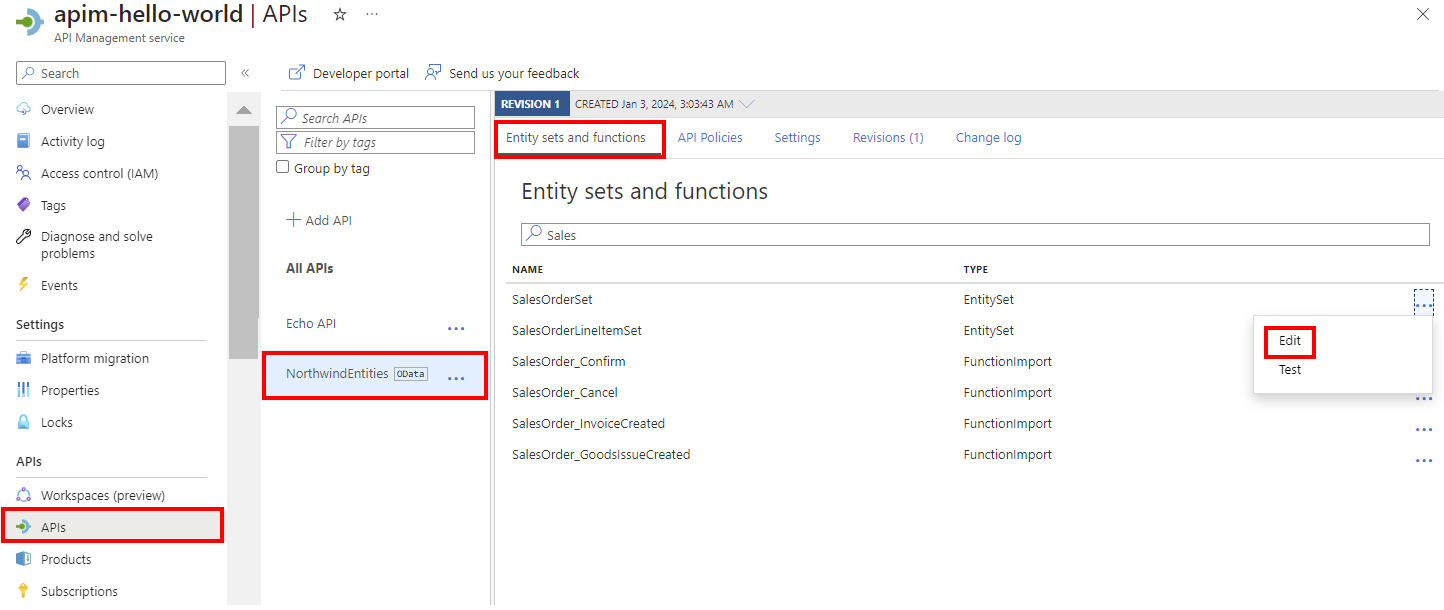
In the sidebar menu, select APIs > APIs.
Under All APIs, select your imported API.
Select the Test tab to access the test console.
Select an operation, enter any required values, and then select Send.
For example, test the
GET /$metadatacall to verify connectivity to the SAP backend.View the response. To troubleshoot, trace the call.
When you're done testing, exit the test console.


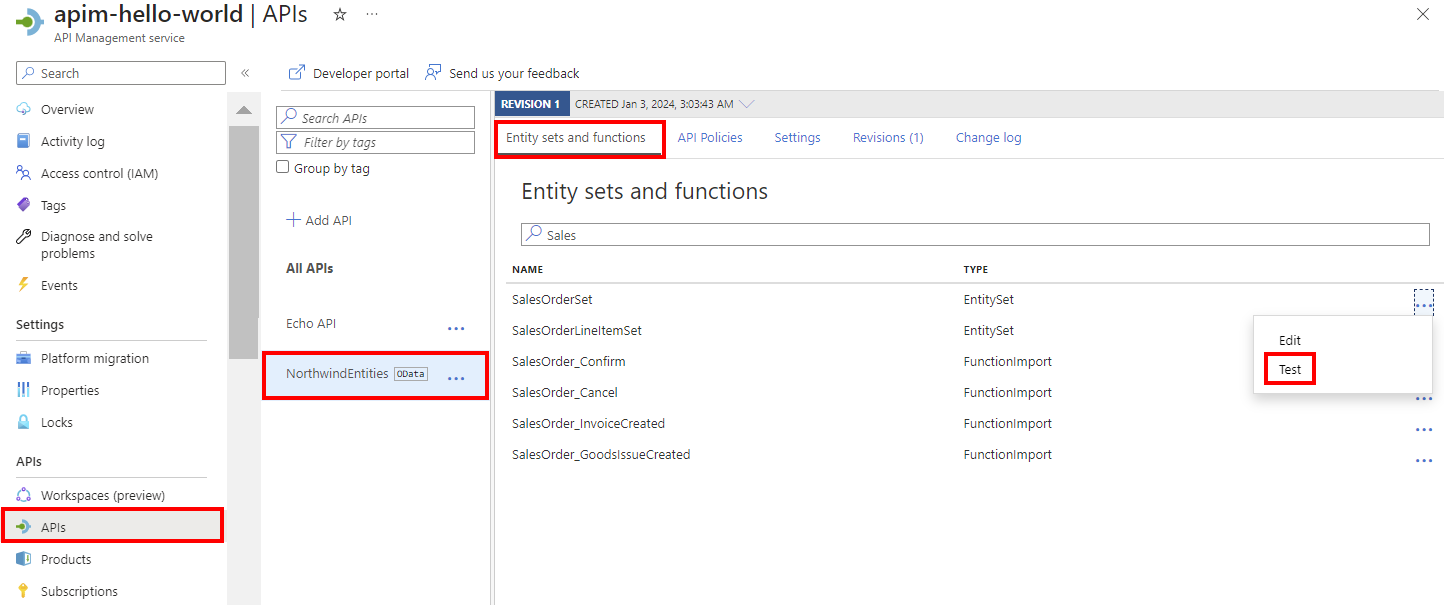
Production considerations
- Use Defender for APIs for full lifecycle protection, detection, and response coverage for APIs.
- See an example end-to-end scenario for integrating API Management with an SAP gateway.
- Control access to an SAP backend by using API Management policies. For example, if the API is imported as an OData API, use the validate OData request policy. There are also policy snippets for SAP principal propagation for SAP ECC or S/4HANA or SAP SuccessFactors and fetching an X-CSRF token.
- For guidance on deploying, managing, and migrating APIs at scale, see:
Related content
- API import limitations
- Import an OpenAPI specification
- Import a SOAP API
- Import a SOAP API and convert it to REST
- Import an App Service API
- Import a container app API
- Import a WebSocket API
- Import a GraphQL API
- Import a GraphQL schema and set up field resolvers
- Import a function app API
- Import a logic app API
- Import a Service Fabric service
- Import a Microsoft Foundry API
- Import an Azure OpenAI API
- Import an LLM API
- Import an OData API
- Export a REST API as an MCP server
- Expose an existing MCP server
- Import an A2A agent API
- Import SAP OData metadata
- Import a gRPC API
- Edit an API