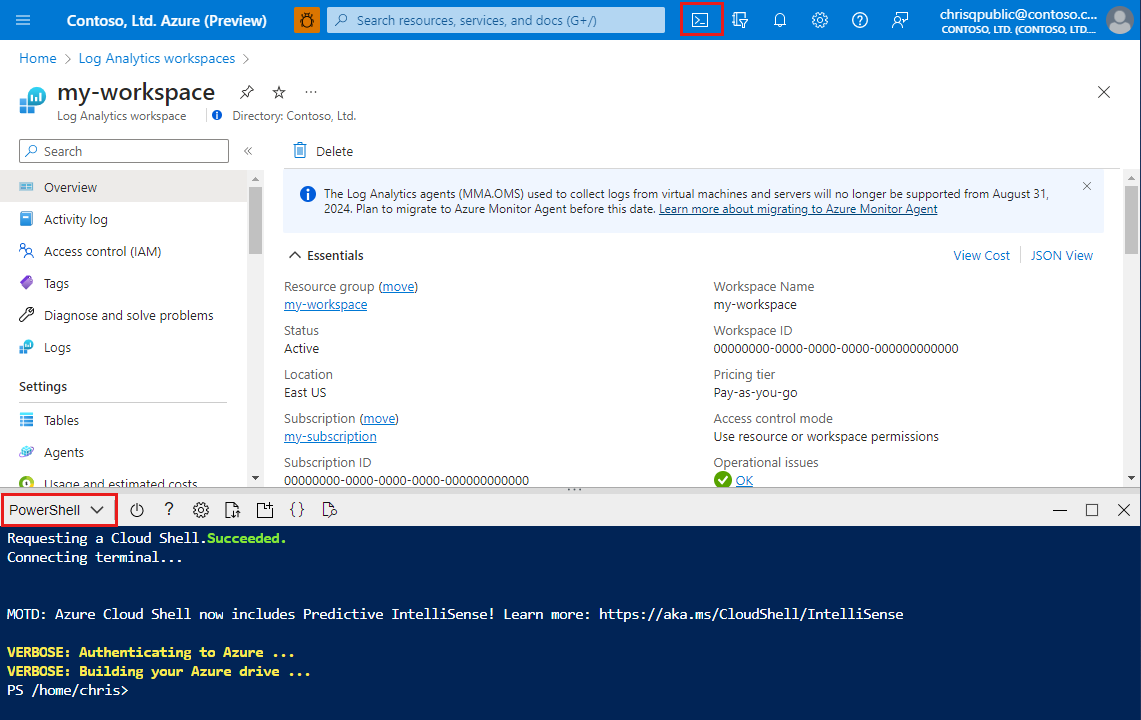
この記事では、データ収集規則の例 (DCR) を使用してカスタム テーブルを作成する方法と、カスタム列を使用してテーブル スキーマを管理する方法について説明します。
データ収集規則 (DCR) は、データAzure Monitor収集する方法を制御します。 ログ データは、Azureまたはカスタム テーブルに到達する前にフィルター処理および変換できます。
カスタム列は、データ ソースまたは組織の分析要件の変更に対応するために、テーブルのスキーマを拡張します。 テーブル スキーマを更新するときは、そのテーブルにデータを送信するすべての DCR を更新します。
前提条件
| アクション |
アクセス許可が必要 |
| テーブルの管理 |
Log Analytics ワークスペース以上のスコープでの Microsoft.OperationalInsights/workspaces/* アクセス許可。 たとえば、特権付きの組み込みロールである Log Analytics 共同作成者 によって提供されるように。 |
テーブルにデータを取り込むには、次のものが必要な場合があります。
- データ収集エンドポイント (DCE)。 詳細については、 DCE を参照してください。
- JSON ファイル内のソース データの少なくとも 1 つのレコードのサンプル。 このサンプルを使用して、 VM からテキストと JSON データ ソースを収集する場合など、ポータルでカスタム テーブルを作成します。
次の追加要件を検討してください。
- Log Analytics ワークスペース内のすべてのテーブルには、レコードのインジェスト時間を識別する
TimeGenerated列が必要です。 列が存在しない場合、Azure Monitor はそのテーブルの DCR の変換にその列を自動的に追加します。 詳細については、 サポートされている datetime 形式を参照してください。
- 補助テーブルプランまたは Lake テーブル プランでは、有効桁数 (マイクロ秒) の小数点以下 6 桁の ISO 8601 形式の
TimeGenerated 列のみがサポートされます。 詳細については、 サポートされている ISO 8601 datetime 形式を参照してください。
カスタム テーブルを作成する
Azure テーブルには、定義済みのスキーマがあります。 ログ データを別のスキーマで格納するには、データ収集ルールを使用してデータを収集、変換し、Log Analytics ワークスペースのカスタム テーブルに送信する方法を定義します。 カスタム テーブルを作成する場合は、データの使用状況とコストの要件に基づいて 、テーブル プラン (Analytics (既定)、 Basic、または Auxiliary /Lake) を選択します。
カスタム テーブルには、_CL というサフィックスが付いています。たとえば tablename_CL です。 Azure portal では、テーブル名に _CL サフィックスが自動的に追加されます。 別のメソッドを使用してカスタム テーブルを作成する場合は、 _CL サフィックスを自分で追加する必要があります。 データ収集ルールの DataFlows Streams プロパティの tablename_CL は、Log Analytics ワークスペースの tablename_CL 名と一致する必要があります。
警告
Azureは課金にテーブル名を使用するため、名前に機密情報を含めないでください。
Azure ポータルを使用してカスタム テーブルを作成するには:
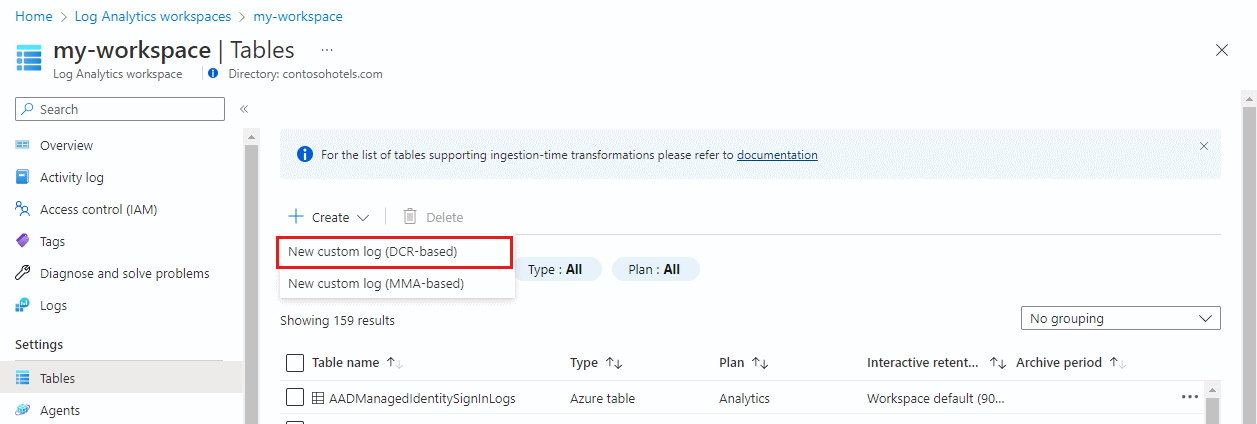
[Log Analytics ワークスペース] メニューから [テーブル] を選択します。
を選択してを作成します。
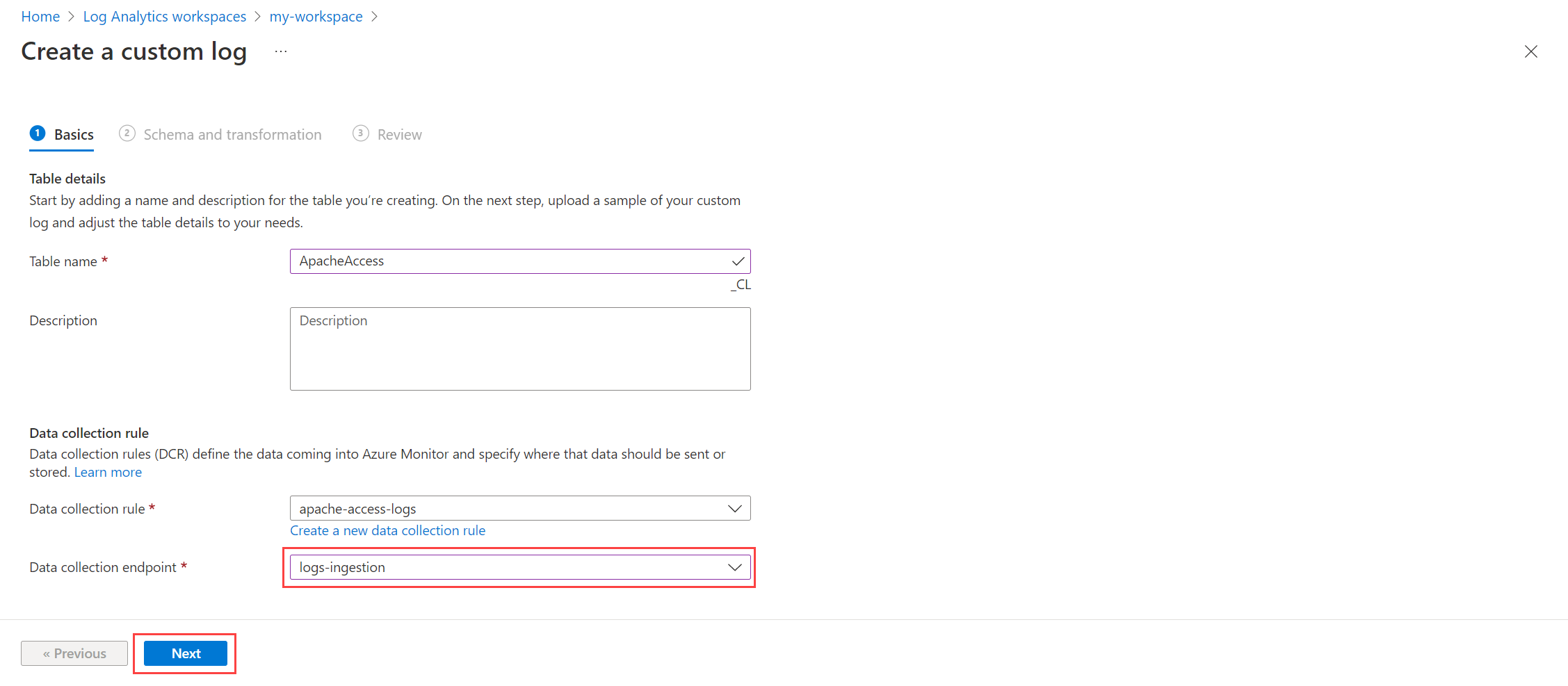
名前と、必要に応じてテーブルの説明を入力します。 カスタム テーブルの名前に _CL サフィックスを追加する必要はありません。 ポータルでは、指定した名前にサフィックスが自動的に追加されます。
[ テーブルプラン] で [ 分析 ](デフォルト)、[ 基本]、または [ 補助/湖] を選択します。
[データ収集ルール] ドロップダウンから既存のデータ収集ルールを選択します。または、[新しいデータ収集ルールの作成] を選択して、新しいデータ収集ルールの [サブスクリプション]、[リソース グループ]、[名前] を指定します。
[データ収集エンドポイント] を選択し、[次へ] を選択します。 既に DCE に関連付けられている DCR を選択した場合、このドロップダウンは使用できません。
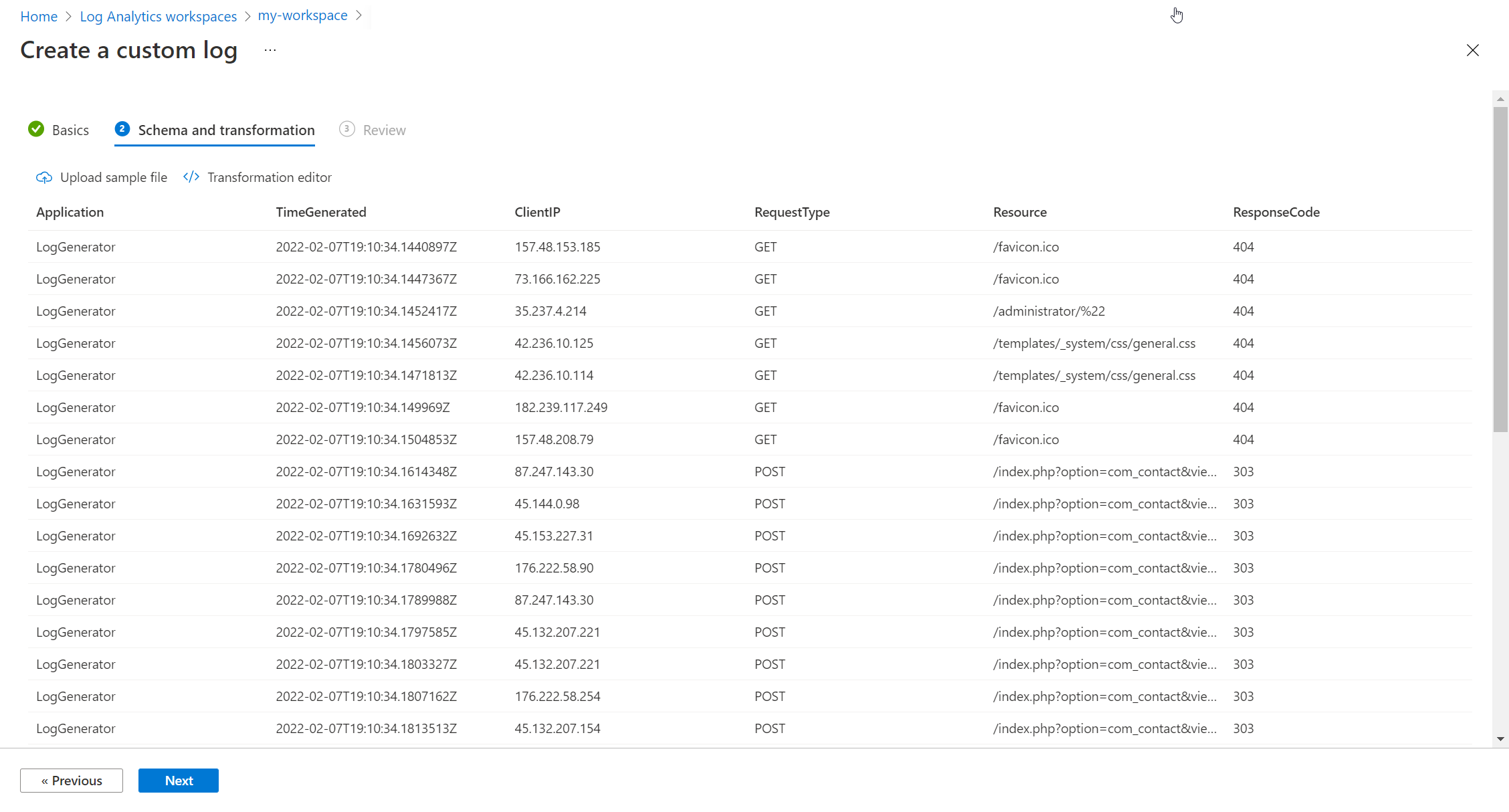
[ファイルの参照] を選択し、新しいテーブルのサンプル データを含む JSON ファイルを見つけます。 次のスクリーンショットでは、「チュートリアル: Azure Monitor ログにデータを送信する」のスクリプトのサンプル JSON ファイルを使用しています。
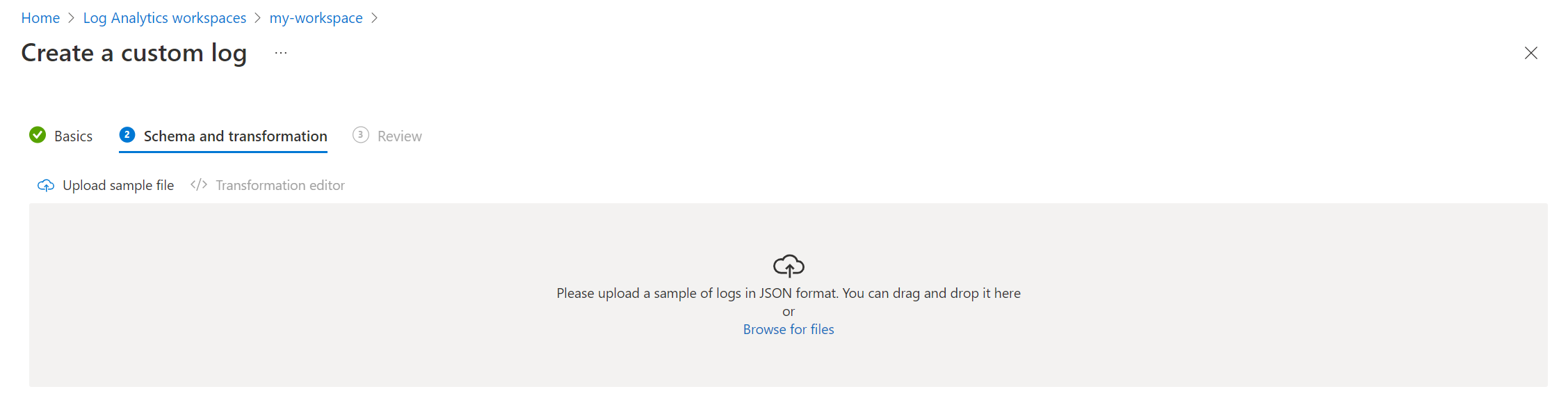
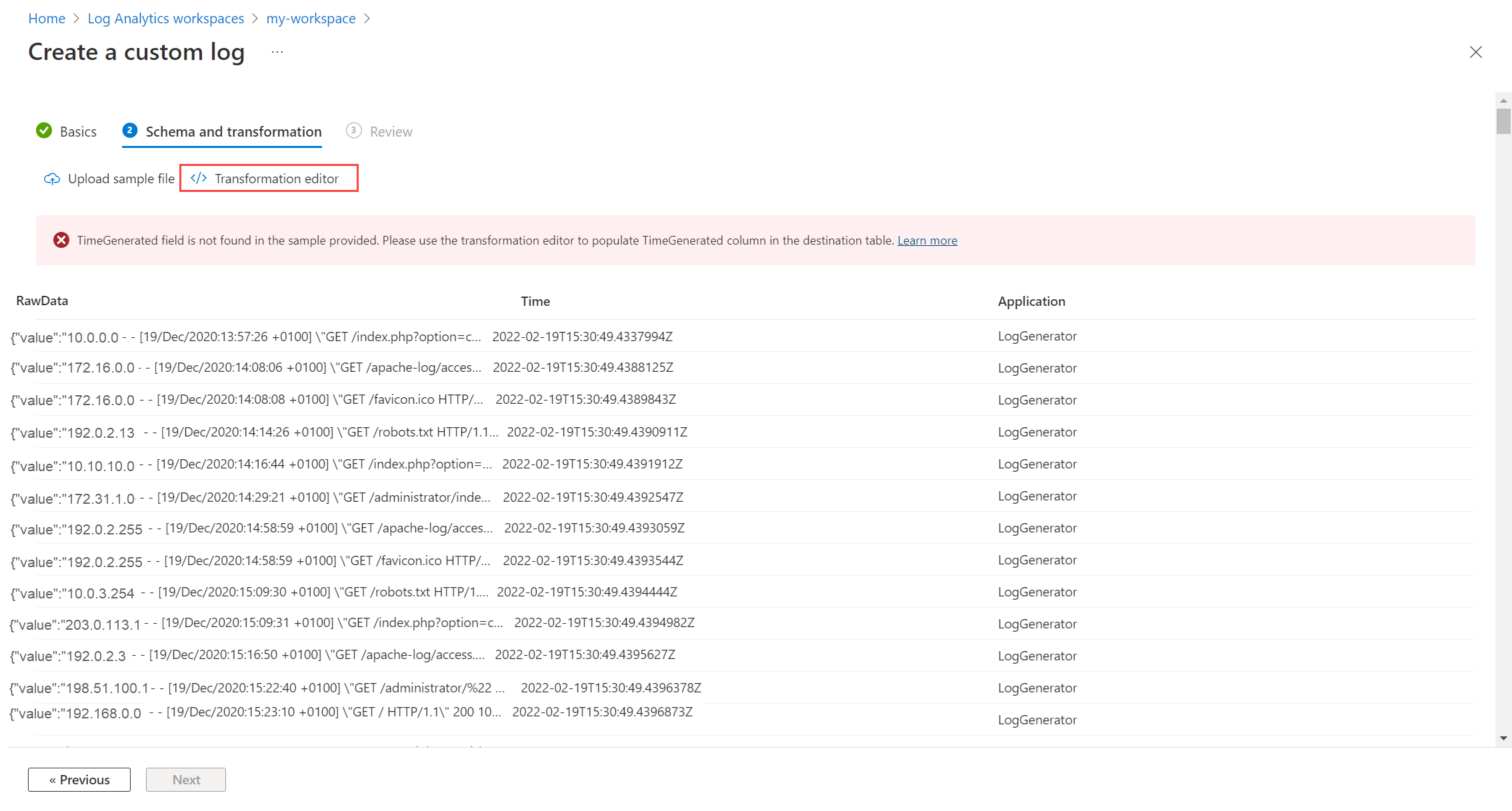
サンプル データに TimeGenerated 列が含まれていない場合は、ポータルがこの列を使用して変換を作成するというメッセージが表示されます。
テーブルに取り込む前にログ データを変換する場合:
[変換エディター] を選択します。
変換エディターを使用すると、受信データ ストリームの変換を作成できます。 変換は、各受信レコードに対して実行される Kusto クエリ言語 (KQL) クエリです。 Azure Monitor ログでは、クエリの結果が変換先のテーブルに格納されます。
[実行] をクリックして結果を表示します。
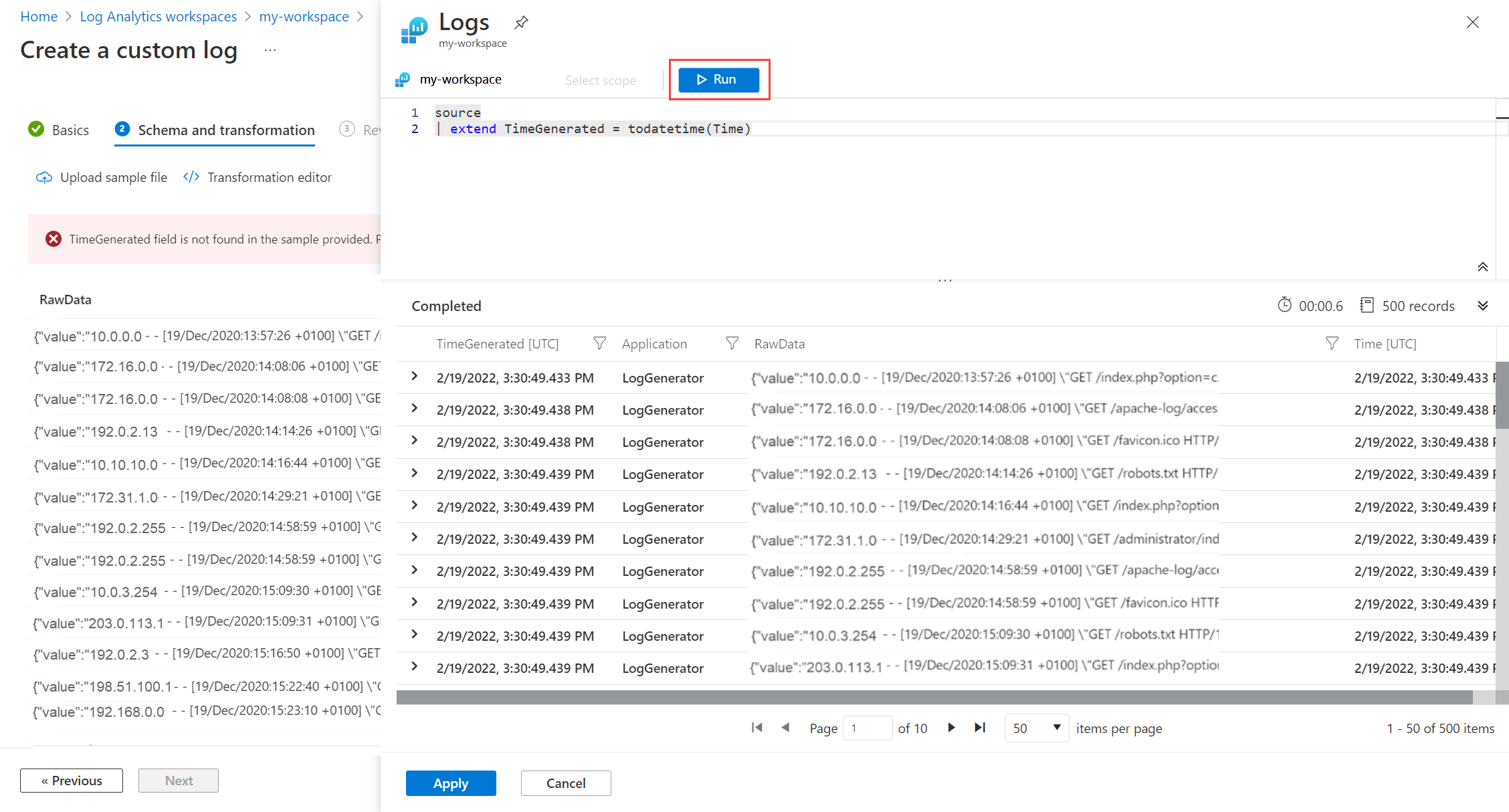
[ 適用] を選択して変換を保存し、新しいテーブルのスキーマを表示します。
次へを選択します。
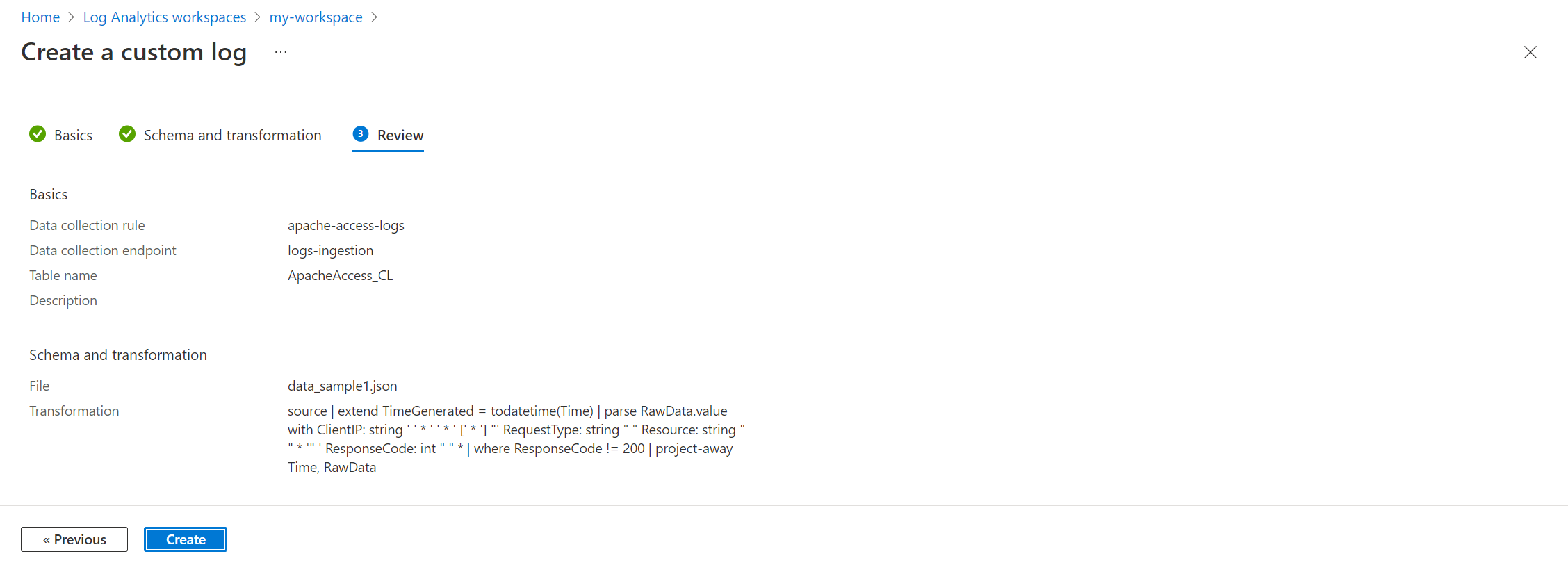
最後の詳細を確認し、[作成] を選択してカスタム ログを保存します。
次のAzure CLI例では、az monitor log-analytics workspace table createコマンドと az monitor data-collection rule create コマンドを使用します。 補助プランの例では、 az rest を使用して Tables REST API 操作を呼び出します。
カスタム テーブルを作成します。 次の使用例は、 Analytics プランを使用してカスタム テーブルを作成します。 次に、データ ソースからデータを収集してカスタム テーブルに送信する方法を定義する DCR を作成します。
# Set variables
resourceGroupName="<ResourceGroupName>"
workspaceName="<WorkspaceName>"
tableName="<TableName>_CL"
# Create the custom table
az monitor log-analytics workspace table create \
--resource-group "$resourceGroupName" \
--workspace-name "$workspaceName" \
--name "$tableName" \
--plan Analytics \
--columns TimeGenerated=datetime RawData=string
Auxiliary プランでカスタム テーブルを作成するには、az rest コマンドを使用して、PUT要求をログ管理 REST API に送信します。 要求本文では、テーブル スキーマとテーブル プランを指定します。
# Set variables
resourceGroupName="<ResourceGroupName>"
workspaceName="<WorkspaceName>"
tableName="<TableName>_CL"
apiVersion="<ApiVersion>"
payloadFile="./my-table.json"
# Get the subscription ID from the current Azure CLI context
subscriptionId=$(az account show --query id --output tsv)
# Build the request URL
path="/subscriptions/$subscriptionId/resourceGroups/$resourceGroupName"
provider="Microsoft.OperationalInsights/workspaces/$workspaceName/tables/$tableName"
url="$path/providers/$provider"
# Create the custom table
az rest \
--method put \
--url "$url?api-version=$apiVersion" \
--body @"$payloadFile"
Note
このサンプルでは、 guidを除く、サポートされているすべての列データ型を一覧表示します。 Log Analyticsstringとして列を定義した場合でも、GUID をguid型として格納およびクエリします。
展開して、my-table.json ファイルを表示します。
{
"properties": {
"schema": {
"name": "<TableName>_CL",
"columns": [
{
"name": "TimeGenerated",
"type": "dateTime"
},
{
"name": "StringProperty",
"type": "string"
},
{
"name": "IntProperty",
"type": "int"
},
{
"name": "LongProperty",
"type": "long"
},
{
"name": "RealProperty",
"type": "real"
},
{
"name": "BooleanProperty",
"type": "boolean"
},
{
"name": "DateTimeProperty",
"type": "dateTime"
},
{
"name": "DynamicProperty",
"type": "dynamic"
}
]
},
"totalRetentionInDays": 365,
"plan": "Auxiliary"
}
}
データ ソースからデータを収集し、カスタム テーブルに送信するデータ収集ルールを作成します。 この例では、 az monitor data-collection rule コマンド グループを使用して、Syslog ソースからデータを収集し、前の手順で作成したカスタム テーブルに送信する DCR を作成します。
# Set variables
resourceGroupName="<ResourceGroupName>"
dataCollectionRuleName="<DataCollectionRuleName>"
ruleFile="./my-dcr.json"
# Add the extension that provides the data collection commands
az extension add --name monitor-control-service
# Create the data collection rule
az monitor data-collection rule create \
--resource-group "$resourceGroupName" \
--name "$dataCollectionRuleName" \
--rule-file "$ruleFile"
Note
Azure CLIコマンドは現在の CLI コンテキストからAzure Resource Manager エンドポイントを使用するため、コマンド構文で management.azure.com を指定する必要はありません。
展開して、my-dcr.json ファイルを表示します。
{
"location": "<Location>",
"kind": "Direct",
"properties": {
"streamDeclarations": {
"Custom-<TableName>_CL": {
"columns": [
{
"name": "TimeGenerated",
"type": "datetime"
},
{
"name": "StringProperty",
"type": "string"
},
{
"name": "IntProperty",
"type": "int"
},
{
"name": "LongProperty",
"type": "long"
},
{
"name": "RealProperty",
"type": "real"
},
{
"name": "BooleanProperty",
"type": "boolean"
},
{
"name": "DateTimeProperty",
"type": "datetime"
},
{
"name": "DynamicProperty",
"type": "dynamic"
}
]
}
},
"destinations": {
"logAnalytics": [
{
"workspaceResourceId": "/subscriptions/<SubscriptionId>/resourceGroups/<ResourceGroupName>/providers/Microsoft.OperationalInsights/workspaces/<WorkspaceName>",
"name": "<WorkspaceName>"
}
]
},
"dataFlows": [
{
"streams": [
"Custom-<TableName>_CL"
],
"transformKql": "source",
"destinations": [
"<WorkspaceName>"
],
"outputStream": "Custom-<TableName>_CL"
}
]
}
}
次のAzure PowerShell例では、New-AzOperationalInsightsTable コマンドレットを使用します。 補助プランの例では 、Invoke-AzRestMethod を使用して Tables REST API 操作を呼び出します。
テーブルを作成します。 次の使用例は、 Analytics プランを使用してカスタム テーブルを作成します。
# Set variables
$resourceGroupName = "<ResourceGroupName>"
$workspaceName = "<WorkspaceName>"
$tableName = "<TableName>_CL"
# Define parameters for New-AzOperationalInsightsTable
$newAzOperationalInsightsTableParams = @{
ResourceGroupName = $resourceGroupName
WorkspaceName = $workspaceName
TableName = $tableName
RetentionInDays = 31
TotalRetentionInDays = 365
Plan = 'Analytics'
Description = 'My custom table created with PowerShell'
Column = @{'TimeGenerated'='DateTime'; 'RawData'='String'}
}
New-AzOperationalInsightsTable @newAzOperationalInsightsTableParams
Auxiliary プランでカスタム テーブルを作成するには、Invoke-AzRestMethod コマンドを使用して、PUT要求をログ管理 REST API に送信します。 要求本文では、テーブル スキーマとテーブル プランを指定します。
# Set variables
$resourceGroupName = "<ResourceGroupName>"
$workspaceName = "<WorkspaceName>"
$tableName = "<TableName>_CL"
$apiVersion = "<ApiVersion>"
$payloadFile = ".\my-table.json"
# Get the subscription ID from the current Azure PowerShell context
$subscriptionId = (Get-AzContext).Subscription.Id
# Build the request URL
$path = "/subscriptions/$subscriptionId/resourceGroups/$resourceGroupName"
$provider = "Microsoft.OperationalInsights/workspaces/$workspaceName/tables/$tableName"
$url = "$path/providers/$provider"
# Define parameters for Invoke-AzRestMethod
$invokeAzRestMethodParams = @{
Method = "PUT"
Path = "$url?api-version=$apiVersion"
Payload = Get-Content -Raw -Path $payloadFile
}
# Create the custom table
Invoke-AzRestMethod @invokeAzRestMethodParams
Note
このサンプルでは、 guidを除く、サポートされているすべての列データ型を一覧表示します。 Log Analyticsstringとして列を定義した場合でも、GUID をguid型として格納およびクエリします。
展開して、my-table.json ファイルを表示します。
{
"properties": {
"schema": {
"name": "<TableName>_CL",
"columns": [
{
"name": "TimeGenerated",
"type": "dateTime"
},
{
"name": "StringProperty",
"type": "string"
},
{
"name": "IntProperty",
"type": "int"
},
{
"name": "LongProperty",
"type": "long"
},
{
"name": "RealProperty",
"type": "real"
},
{
"name": "BooleanProperty",
"type": "boolean"
},
{
"name": "DateTimeProperty",
"type": "dateTime"
},
{
"name": "DynamicProperty",
"type": "dynamic"
}
]
},
"totalRetentionInDays": 365,
"plan": "Auxiliary"
}
}
データ ソースからデータを収集し、カスタム テーブルに送信するデータ収集ルールを作成します。 この PowerShell の例では、 New-AzDataCollectionRule コマンドレットを使用して、Syslog ソースからデータを収集し、前の手順で作成したカスタム テーブルに送信する DCR を作成します。
# Set variables
$resourceGroupName = "<ResourceGroupName>"
$dataCollectionRuleName = "<DataCollectionRuleName>"
$jsonFilePath = ".\my-dcr.json"
$newAzDataCollectionRuleParams = @{
Name = $dataCollectionRuleName
ResourceGroupName = $resourceGroupName
JsonFilePath = $jsonFilePath
}
New-AzDataCollectionRule @newAzDataCollectionRuleParams
Note
Azure PowerShellコマンドレットは現在の Az コンテキストからAzure Resource Manager エンドポイントを使用するため、コマンドレット構文で management.azure.com を指定する必要はありません。
展開して、my-dcr.json ファイルを表示します。
{
"location": "<Location>",
"kind": "Direct",
"properties": {
"streamDeclarations": {
"Custom-<TableName>_CL": {
"columns": [
{
"name": "TimeGenerated",
"type": "datetime"
},
{
"name": "StringProperty",
"type": "string"
},
{
"name": "IntProperty",
"type": "int"
},
{
"name": "LongProperty",
"type": "long"
},
{
"name": "RealProperty",
"type": "real"
},
{
"name": "BooleanProperty",
"type": "boolean"
},
{
"name": "DateTimeProperty",
"type": "datetime"
},
{
"name": "DynamicProperty",
"type": "dynamic"
}
]
}
},
"destinations": {
"logAnalytics": [
{
"workspaceResourceId": "/subscriptions/<SubscriptionId>/resourceGroups/<ResourceGroupName>/providers/Microsoft.OperationalInsights/workspaces/<WorkspaceName>",
"name": "<WorkspaceName>"
}
]
},
"dataFlows": [
{
"streams": [
"Custom-<TableName>_CL"
],
"transformKql": "source",
"destinations": [
"<WorkspaceName>"
],
"outputStream": "Custom-<TableName>_CL"
}
]
}
}
次の REST の例では、 テーブル と データ収集ルール の REST API 操作を使用します。
テーブルを作成します。 この例では、要求ペイロードに "plan": "Auxiliary" を含むカスタム テーブルを作成します。
Note
このサンプルでは、 guidを除く、サポートされているすべての列データ型を一覧表示します。 Log Analyticsstringとして列を定義した場合でも、GUID をguid型として格納およびクエリします。
PUT https://management.azure.com/subscriptions/{subscriptionId}/resourceGroups/{resourceGroupName}/providers/Microsoft.OperationalInsights/workspaces/{workspaceName}/tables/{tableName}_CL?api-version={apiVersion}
Authorization: Bearer {accessToken}
Content-Type: application/json
{
"properties": {
"schema": {
"name": "<TableName>_CL",
"columns": [
{"name": "TimeGenerated",
"type": "dateTime"},
{"name": "StringProperty",
"type": "string"},
{"name": "IntProperty",
"type": "int"},
{"name": "LongProperty",
"type": "long"},
{"name": "RealProperty",
"type": "real"},
{"name": "BooleanProperty",
"type": "boolean"},
{"name": "DateTimeProperty",
"type": "dateTime"},
{"name": "DynamicProperty",
"type": "dynamic"}
]
},
"totalRetentionInDays": 365,
"plan": "Auxiliary"
}
}
データ収集ルールを作成します。
kindをDirectに設定したサンプルを次に示します。 この DCR 型では、独自の logsIngestion エンドポイントが作成されるため、データ収集エンドポイント (DCE) は必要ありません。
-
<WorkspaceName> は、Log Analytics ワークスペースの名前です。
-
<TableName>_CL は、テーブルの名前です。
-
columns には、テーブルの作成時に定義したのと同じ列が含まれます。
PUT https://management.azure.com/subscriptions/{subscriptionId}/resourceGroups/{resourceGroupName}/providers/Microsoft.Insights/dataCollectionRules/{dataCollectionRuleName}?api-version={apiVersion}
Authorization: Bearer {accessToken}
Content-Type: application/json
{
"location": "<Location>",
"kind": "Direct",
"properties": {
"streamDeclarations": {
"Custom-<TableName>_CL": {
"columns": [
{
"name": "TimeGenerated",
"type": "datetime"
},
{
"name": "StringProperty",
"type": "string"
},
{
"name": "IntProperty",
"type": "int"
},
{
"name": "LongProperty",
"type": "long"
},
{
"name": "RealProperty",
"type": "real"
},
{
"name": "BooleanProperty",
"type": "boolean"
},
{
"name": "DateTimeProperty",
"type": "datetime"
},
{
"name": "DynamicProperty",
"type": "dynamic"
}
]
}
},
"destinations": {
"logAnalytics": [
{
"workspaceResourceId": "/subscriptions/<SubscriptionId>/resourceGroups/<ResourceGroupName>/providers/Microsoft.OperationalInsights/workspaces/<WorkspaceName>",
"name": "<WorkspaceName>"
}
]
},
"dataFlows": [
{
"streams": [
"Custom-<TableName>_CL"
],
"transformKql": "source",
"destinations": [
"<WorkspaceName>"
],
"outputStream": "Custom-<TableName>_CL"
}
]
}
}
次のBicep例を使用してテーブルを作成します。 この例では、カスタム スキーマを持つ Auxiliary テーブルを作成するために、Microsoft.OperationalInsights workspaces/tables リソースの種類を使用します。
このサンプルでは、 guidを除く、サポートされているすべての列データ型が一覧表示されます。 Log Analyticsstringとして列を定義した場合でも、GUID をguid型として格納およびクエリします。
param workspaceName string = '<WorkspaceName>'
param tableName string = '<TableName>_CL'
resource workspace 'Microsoft.OperationalInsights/workspaces@<ApiVersion>' existing = {
name: workspaceName
}
resource table 'Microsoft.OperationalInsights/workspaces/tables@<ApiVersion>' = {
parent: workspace
name: tableName
properties: {
schema: {
name: tableName
columns: [
{
name: 'TimeGenerated'
type: 'dateTime'
}
{
name: 'StringProperty'
type: 'string'
}
{
name: 'IntProperty'
type: 'int'
}
{
name: 'LongProperty'
type: 'long'
}
{
name: 'RealProperty'
type: 'real'
}
{
name: 'BooleanProperty'
type: 'boolean'
}
{
name: 'DateTimeProperty'
type: 'dateTime'
}
{
name: 'DynamicProperty'
type: 'dynamic'
}
]
}
totalRetentionInDays: 365
plan: 'Auxiliary'
}
}
次の Bicep の例では、Microsoft.Insights dataCollectionRules リソースの種類を使用して DCR を作成します。
@description('Specifies the name of the data collection rule to create.')
param dataCollectionRuleName string = '<DataCollectionRuleName>'
@description('Specifies the region in which to create the data collection rule. It must be the same region as the destination Log Analytics workspace.')
param location string = '<Location>'
@description('Specifies the ID of the subscription that contains the Log Analytics workspace.')
param subscriptionId string = '<SubscriptionId>'
@description('Specifies the name of the resource group that contains the Log Analytics workspace.')
param resourceGroupName string = '<ResourceGroupName>'
@description('Specifies the name of the Log Analytics workspace in which you created a custom table with the Auxiliary plan.')
param workspaceName string = '<WorkspaceName>'
var workspaceResourceId = resourceId(
subscriptionId,
resourceGroupName,
'Microsoft.OperationalInsights/workspaces',
workspaceName
)
resource dataCollectionRule 'Microsoft.Insights/dataCollectionRules@<ApiVersion>' = {
name: dataCollectionRuleName
location: location
kind: 'Direct'
properties: {
streamDeclarations: {
'Custom-<TableName>_CL': {
columns: [
{
name: 'TimeGenerated'
type: 'datetime'
}
{
name: 'StringProperty'
type: 'string'
}
{
name: 'IntProperty'
type: 'int'
}
{
name: 'LongProperty'
type: 'long'
}
{
name: 'RealProperty'
type: 'real'
}
{
name: 'BooleanProperty'
type: 'boolean'
}
{
name: 'DateTimeProperty'
type: 'datetime'
}
{
name: 'DynamicProperty'
type: 'dynamic'
}
]
}
}
destinations: {
logAnalytics: [
{
workspaceResourceId: workspaceResourceId
name: workspaceName
}
]
}
dataFlows: [
{
streams: [
'Custom-<TableName>_CL'
]
transformKql: 'source'
destinations: [
workspaceName
]
outputStream: 'Custom-<TableName>_CL'
}
]
}
}
output dataCollectionRuleId string = dataCollectionRule.id
次の例の Azure Resource Manager テンプレート (ARM テンプレート) を使用して、テーブルを作成します。 この JSON の例では、Microsoft.OperationalInsights workspaces/tables リソースの種類を使用して、カスタム スキーマを持つ Auxiliary / Lake テーブルを作成します。
Note
このサンプルでは、 guidを除く、サポートされているすべての列データ型を一覧表示します。 Log Analyticsstringとして列を定義した場合でも、GUID をguid型として格納およびクエリします。
{
"$schema": "https://schema.management.azure.com/schemas/2019-04-01/deploymentTemplate.json#",
"contentVersion": "1.0.0.0",
"parameters": {
"workspaceName": {
"type": "string",
"defaultValue": "<WorkspaceName>"
},
"tableName": {
"type": "string",
"defaultValue": "<TableName>_CL"
}
},
"resources": [
{
"type": "Microsoft.OperationalInsights/workspaces/tables",
"apiVersion": "<ApiVersion>",
"name": "[format('{0}/{1}', parameters('workspaceName'), parameters('tableName'))]",
"properties": {
"schema": {
"name": "[parameters('tableName')]",
"columns": [
{
"name": "TimeGenerated",
"type": "dateTime"
},
{
"name": "StringProperty",
"type": "string"
},
{
"name": "IntProperty",
"type": "int"
},
{
"name": "LongProperty",
"type": "long"
},
{
"name": "RealProperty",
"type": "real"
},
{
"name": "BooleanProperty",
"type": "boolean"
},
{
"name": "DateTimeProperty",
"type": "dateTime"
},
{
"name": "DynamicProperty",
"type": "dynamic"
}
]
},
"totalRetentionInDays": 365,
"plan": "Auxiliary"
}
}
]
}
データ ソースからデータを収集し、カスタム テーブルに送信するデータ収集ルールを作成します。 次の ARM テンプレートの例では、Microsoft.Insights dataCollectionRules リソースの種類を使用します。
{
"$schema": "https://schema.management.azure.com/schemas/2019-04-01/deploymentTemplate.json#",
"contentVersion": "1.0.0.0",
"parameters": {
"dataCollectionRuleName": {
"type": "string",
"defaultValue": "<DataCollectionRuleName>",
"metadata": {
"description": "Specifies the name of the data collection rule to create."
}
},
"location": {
"type": "string",
"defaultValue": "<Location>",
"metadata": {
"description": "Specifies the region in which to create the data collection rule. It must be the same region as the destination Log Analytics workspace."
}
},
"subscriptionId": {
"type": "string",
"defaultValue": "<SubscriptionId>",
"metadata": {
"description": "Specifies the ID of the subscription that contains the Log Analytics workspace."
}
},
"resourceGroupName": {
"type": "string",
"defaultValue": "<ResourceGroupName>",
"metadata": {
"description": "Specifies the name of the resource group that contains the Log Analytics workspace."
}
},
"workspaceName": {
"type": "string",
"defaultValue": "<WorkspaceName>",
"metadata": {
"description": "Specifies the name of the Log Analytics workspace in which you created a custom table with the Auxiliary plan."
}
}
},
"variables": {
"workspaceResourceId": "[resourceId(parameters('subscriptionId'), parameters('resourceGroupName'), 'Microsoft.OperationalInsights/workspaces', parameters('workspaceName'))]"
},
"resources": [
{
"type": "Microsoft.Insights/dataCollectionRules",
"name": "[parameters('dataCollectionRuleName')]",
"location": "[parameters('location')]",
"apiVersion": "<ApiVersion>",
"kind": "Direct",
"properties": {
"streamDeclarations": {
"Custom-<TableName>_CL": {
"columns": [
{
"name": "TimeGenerated",
"type": "datetime"
},
{
"name": "StringProperty",
"type": "string"
},
{
"name": "IntProperty",
"type": "int"
},
{
"name": "LongProperty",
"type": "long"
},
{
"name": "RealProperty",
"type": "real"
},
{
"name": "BooleanProperty",
"type": "boolean"
},
{
"name": "DateTimeProperty",
"type": "datetime"
},
{
"name": "DynamicProperty",
"type": "dynamic"
}
]
}
},
"destinations": {
"logAnalytics": [
{
"workspaceResourceId": "[variables('workspaceResourceId')]",
"name": "[parameters('workspaceName')]"
}
]
},
"dataFlows": [
{
"streams": [
"Custom-<TableName>_CL"
],
"transformKql": "source",
"destinations": [
"[parameters('workspaceName')]"
],
"outputStream": "Custom-<TableName>_CL"
}
]
}
}
],
"outputs": {
"dataCollectionRuleId": {
"type": "string",
"value": "[resourceId('Microsoft.Insights/dataCollectionRules', parameters('dataCollectionRuleName'))]"
}
}
}
テーブルを削除する
Azureテーブルは削除できません。 Azure で他のテーブルを削除する際にデータがどのように削除されるかは、テーブルの種類によって異なります。
詳細については、「Log Analytics ワークスペース内のテーブルを削除したときにデータがどうなるか」を参照してください。
Azure portal からテーブルを削除するには:
[Log Analytics ワークスペース] メニューから [テーブル] を選択します。
削除するテーブルを名前で検索するか、[種類] フィールドで検索結果を選んで検索します。
削除するテーブルを選択し、テーブルの右側にある省略記号 (...)、[削除] の順に選択します。「yes」と入力して削除を確定します。
次のAzure CLI例では、az monitor log-analytics workspace table delete コマンドを使用します。
# Set variables
resourceGroupName="<ResourceGroupName>"
workspaceName="<WorkspaceName>"
tableName="<TableName>_CL"
# Delete the table
az monitor log-analytics workspace table delete \
--resource-group "$resourceGroupName" \
--workspace-name "$workspaceName" \
--name "$tableName" \
--yes
次のAzure PowerShell例では、Invoke-AzRestMethod を使用して Tables REST API 操作を呼び出します。
# Set variables
$resourceGroupName = "<ResourceGroupName>"
$workspaceName = "<WorkspaceName>"
$tableName = "<TableName>_CL"
$apiVersion = "<ApiVersion>"
# Get the subscription ID from the current Azure PowerShell context
$subscriptionId = (Get-AzContext).Subscription.Id
# Build the request URL
$path = "/subscriptions/$subscriptionId/resourceGroups/$resourceGroupName"
$provider = "Microsoft.OperationalInsights/workspaces/$workspaceName/tables/$tableName"
$url = "$path/providers/$provider"
# Define parameters for Invoke-AzRestMethod
$invokeAzRestMethodParams = @{
Method = "DELETE"
Path = "$url?api-version=$apiVersion"
}
# Delete the table
Invoke-AzRestMethod @invokeAzRestMethodParams
次の REST の例では、 Tables REST API 操作を使用します。
DELETE https://management.azure.com/subscriptions/{subscriptionId}/resourceGroups/{resourceGroupName}/providers/Microsoft.OperationalInsights/workspaces/{workspaceName}/tables/{tableName}_CL?api-version={apiVersion}
Authorization: Bearer {accessToken}
カスタム列を追加または削除する
カスタム テーブルを使用すると、テーブルの作成後に列を追加または削除してスキーマを変更できます。 Azureテーブルでは、カスタム列のみを追加および削除できます。
重要
テーブル スキーマを更新するときは必ず、テーブルにデータを送信するデータ収集ルールを更新してください。 データ収集ルールで定義するテーブル スキーマによって、Azure Monitor でターゲット テーブルにデータがストリーミングされる方法が決まります。 テーブル スキーマを変更しても、Azure Monitor によってデータ収集ルールが自動的に更新されることはありません。
カスタム テーブルの列名を定義する場合は、次の規則を使用します。
- 列名は文字 (A ~ Z または a ~ z) で始まる必要があります。
- 最初の文字の後には、文字、数字、またはアンダースコアのみを使用します。
- 列名にスペース、ドット、ダッシュ、またはその他の句読点を使用しないでください。
- ASCII 以外の文字 (Æ、É、Ö など) は列名ではサポートされていません。
- 列名の大文字と小文字が区別されるのは、Analytics と Basic テーブルの場合のみです。 唯一の違いが大文字と小文字の違いである場合、補助ログ テーブルの取り込みによって、列名が重複するデータが削除されます。
- 列名の長さは 2 ~ 45 文字にする必要があります。
- Azure テーブルのカスタム列名は、
_CF で終わる必要があります。
-
GUID 型は論理注釈ですが、値は格納され、文字列として照会されます。 詳細については、「Azure Monitor ログのColumn データ型を参照してください。
-
id、BilledSize、IsBillable、InvalidTimeGenerated、TenantId、Title、Type、UniqueId、_ItemId、_ResourceGroup、_ResourceId、_SubscriptionId、_TimeReceivedなど、システムまたは予約列と競合する名前は使用しないでください。
これらのスキーマ規則は、 一般的な Kusto 識別子規則よりも厳密です。 Kusto はクエリで引用符で囲まれた通常とは異なるプロパティ名を参照できますが、カスタム テーブル スキーマでは列名に対して文字、数字、アンダースコアのみを受け入れます。
Log Analytics ワークスペースのテーブルにカスタム列を追加するか、列を削除するには:
[Log Analytics ワークスペース] メニューから [テーブル] を選択します。
編集するテーブルの右側にある省略記号 (...)、[スキーマの編集] の順に選択します。
この操作により、[ スキーマ エディター] 画面が開きます。
[スキーマ エディター] 画面の [カスタム列] セクションまで下にスクロールします。
新しい列を追加するには:
-
[列の追加] を選択します。
- 列の名前と説明 (省略可能) を設定し、[型] ドロップダウンから必要な値の型を選択します。
-
[保存] を選択して新しい列を保存します。
列を削除するには、削除する列の左側にある [削除] アイコンを選択します。
次のAzure CLI例では、az monitor log-analytics workspace table update コマンドを使用します。
--columns引数は、カスタム列セットに追加するのではなく、その列セットを置き換えます。 テーブルに保持するカスタム列をすべて一覧表示します。 省略した列はすべて削除されるため、同じコマンドによって列が追加および削除されます。 すべてのカスタム列を削除するには、REST または Azure PowerShell の例を空のcolumns配列と共に使用します。
# Set variables
resourceGroupName="<ResourceGroupName>"
workspaceName="<WorkspaceName>"
tableName="<TableName>"
# Replace the custom column set
az monitor log-analytics workspace table update \
--resource-group "$resourceGroupName" \
--workspace-name "$workspaceName" \
--name "$tableName" \
--columns Custom1_CF=string
次のAzure PowerShell例では、Invoke-AzRestMethod を使用して Tables REST API 操作を呼び出します。
カスタム列を追加する
# Set variables
$resourceGroupName = "<ResourceGroupName>"
$workspaceName = "<WorkspaceName>"
$tableName = "<TableName>"
$apiVersion = "<ApiVersion>"
$payloadFile = ".\add-column.json"
# Get the subscription ID from the current Azure PowerShell context
$subscriptionId = (Get-AzContext).Subscription.Id
# Build the request URL
$path = "/subscriptions/$subscriptionId/resourceGroups/$resourceGroupName"
$provider = "Microsoft.OperationalInsights/workspaces/$workspaceName/tables/$tableName"
$url = "$path/providers/$provider"
# Define parameters for Invoke-AzRestMethod
$invokeAzRestMethodParams = @{
Method = "PUT"
Path = "$url?api-version=$apiVersion"
Payload = Get-Content -Raw -Path $payloadFile
}
# Add the custom column
Invoke-AzRestMethod @invokeAzRestMethodParams
展開して、add-column.json ファイルを表示します。
{
"properties": {
"schema": {
"name": "<TableName>",
"columns": [
{
"name": "Custom1_CF",
"type": "string",
"description": "First custom column"
}
]
}
}
}
PUT呼び出しは、新しく追加された列を含む更新されたテーブル プロパティを返します。
カスタム列を置き換える
列を削除して別の列を追加するには、保持する列のみを含む PUT 要求を送信します。 次の例では、 Custom1_CF を Custom2_CF に置き換えます。
展開して、replace-column.json ファイルを表示します。
{
"properties": {
"schema": {
"name": "<TableName>",
"columns": [
{
"name": "Custom2_CF",
"type": "datetime",
"description": "Replacement custom column"
}
]
}
}
}
すべてのカスタム列を削除する
テーブルからすべてのカスタム列を削除するには、空のPUT配列を使用してcolumns要求を送信します。
展開して、delete-all-columns.json ファイルを表示します。
{
"properties": {
"schema": {
"name": "<TableName>",
"columns": []
}
}
}
次の REST の例では、 Tables REST API 操作を使用します。
カスタム列を追加するには、更新されたスキーマを使用して PUT 要求を送信します。
columns配列に新しい列を含めます。 要求は、更新されたテーブルのプロパティを返します。
カスタム列を削除するには、同じ PUT 要求を送信しますが、 columns 配列から列を省略します。 すべてのカスタム列を削除するには、空の columns 配列を送信します。
PUT https://management.azure.com/subscriptions/{subscriptionId}/resourceGroups/{resourceGroupName}/providers/Microsoft.OperationalInsights/workspaces/{workspaceName}/tables/{tableName}?api-version={apiVersion}
Authorization: Bearer {accessToken}
Content-Type: application/json
{
"properties": {
"schema": {
"name": "<TableName>",
"columns": [
{"name": "<ColumnName>",
"type": "string",
"description": "Custom column description"}
]
}
}
}
関連コンテンツ