Pastaba.
Prieigai prie šio puslapio reikalingas įgaliojimas. Galite bandyti prisijungti arba pakeisti katalogus.
Prieigai prie šio puslapio reikalingas įgaliojimas. Galite bandyti pakeisti katalogus.
Run your custom Python functions as part of automated data workflows by adding a user data functions activity to a Fabric pipeline. This integration lets you centralize business logic in functions and call them during scheduled ETL processes, eliminating the need to duplicate code across notebooks and scripts.
When to use functions in pipelines
Add a user data functions activity to your pipeline when you need to:
- Apply business rules during data movement: Validate, cleanse, or transform data as it flows through your pipeline. For example, standardize product categories or apply pricing rules before loading to a warehouse.
- Schedule reusable logic: Run the same business logic on a schedule without maintaining separate infrastructure.
Prerequisites
To get started, you must complete the following prerequisites:
- A Fabric workspace with an active capacity or trial capacity.
- A user data functions item with at least one function.
Add the Functions activity to a pipeline
Fabric pipelines provide a visual way to orchestrate data movement and transformation activities. In this section, you create a pipeline and add a Functions activity to it. In a later section, you configure the activity specifically for user data functions.
To create a pipeline with a Functions activity:
In your workspace, select + New item.
In the New item dialog, search for Pipeline and select it.
In the New pipeline dialog, enter a name for the pipeline and select Create.
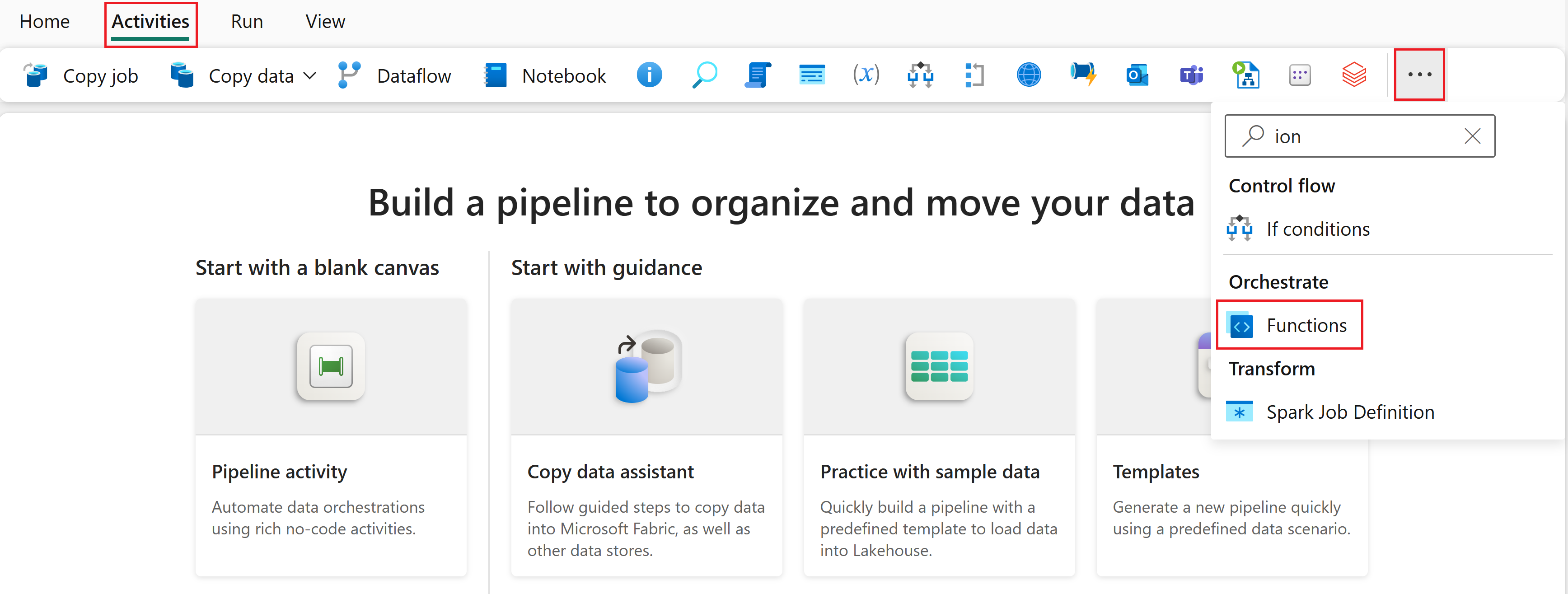
On the pipeline home page, select the Activities tab.
In the Activities ribbon, select the ... (ellipsis) icon to see more activities.
Search for Functions in the list of activities under Orchestrate, then select it to add the functions activity to the pipeline canvas.
Configure the activity for user data functions
After you add the functions activity to the canvas, configure it to call your user data function.
Configure general settings
Select the functions activity on the canvas.
Select the General tab.
Enter a Name for the activity.
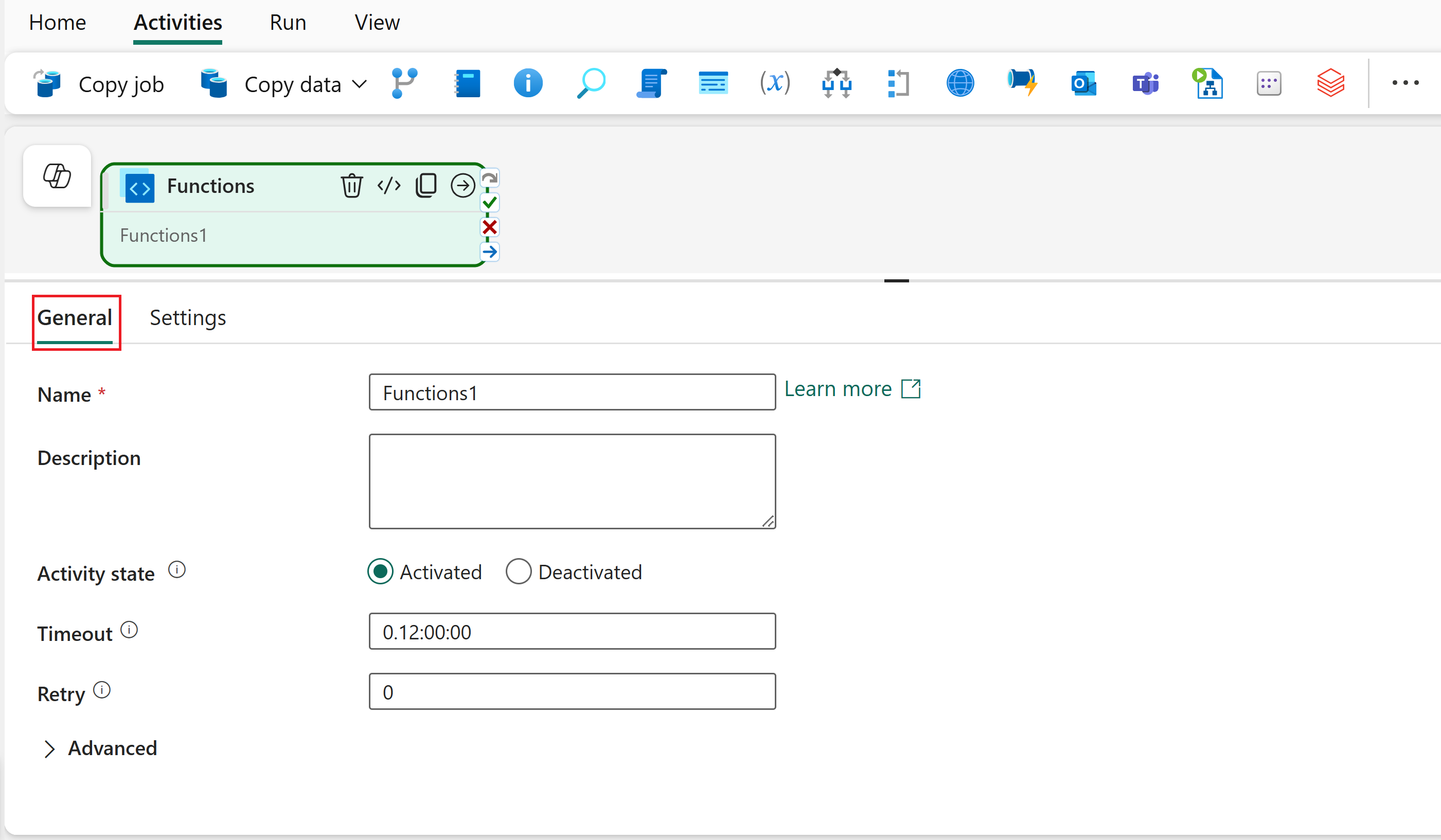
Optionally, configure retry settings and specify whether you're passing secure input or output.
Configure function settings
Select the Settings tab.
Select Fabric user data functions as the Type.
In the Connection dropdown, select a connection that you want to use. If you don't see the connection you want, select Browse all.
In the Choose a data source to get started dialog, search for User Data Functions and select it. You should see it listed under New sources.
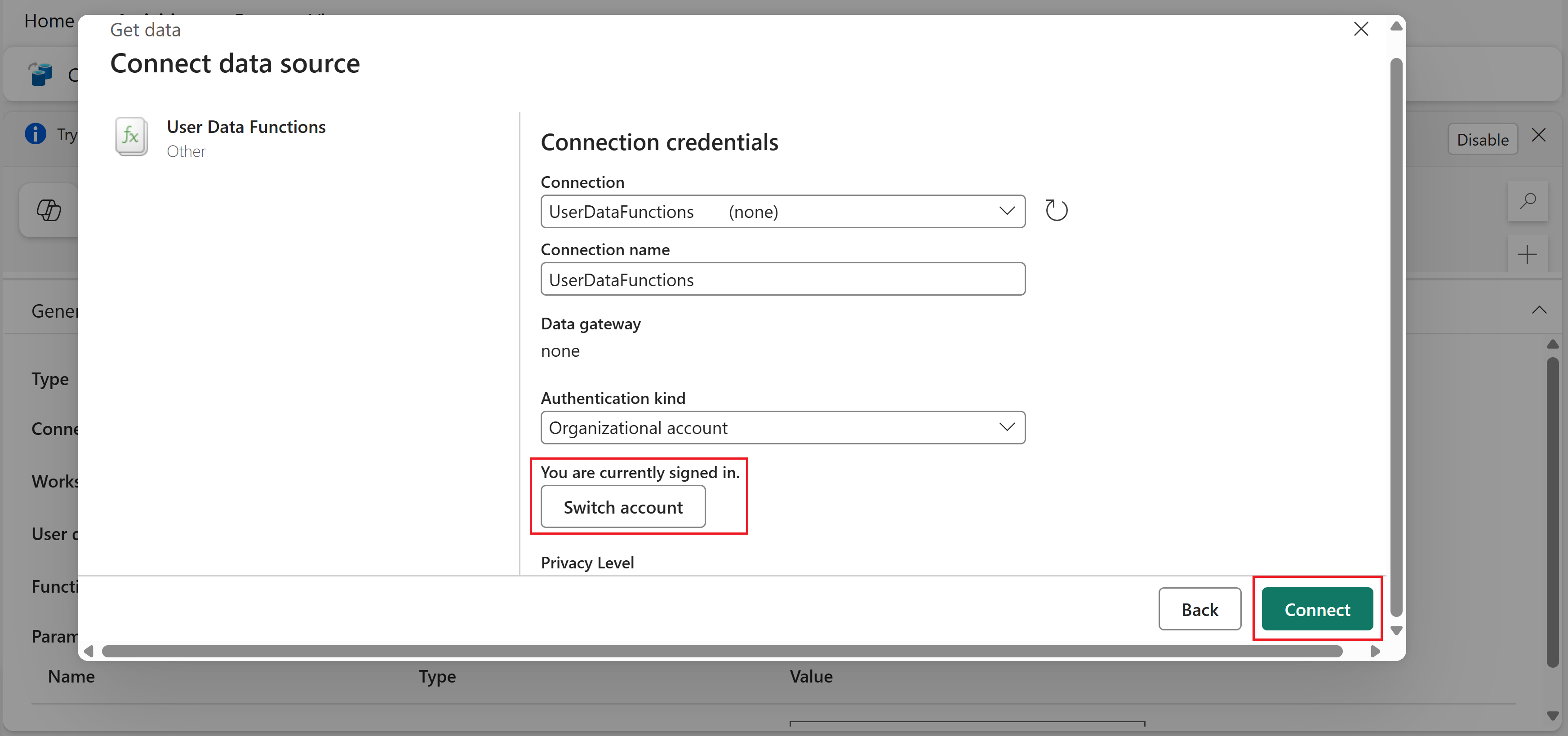
In the Connect to data source dialog, you can keep the default connection name and credentials. Make sure you're signed in, then select Connect.
Note
If you already have a connection, it might be preselected in the dialog. You can keep the existing connection or select Create new connection from the dropdown to create a new one.
Back on the activity settings, select UserDataFunctions from the Connection dropdown. This is the connection you just created.
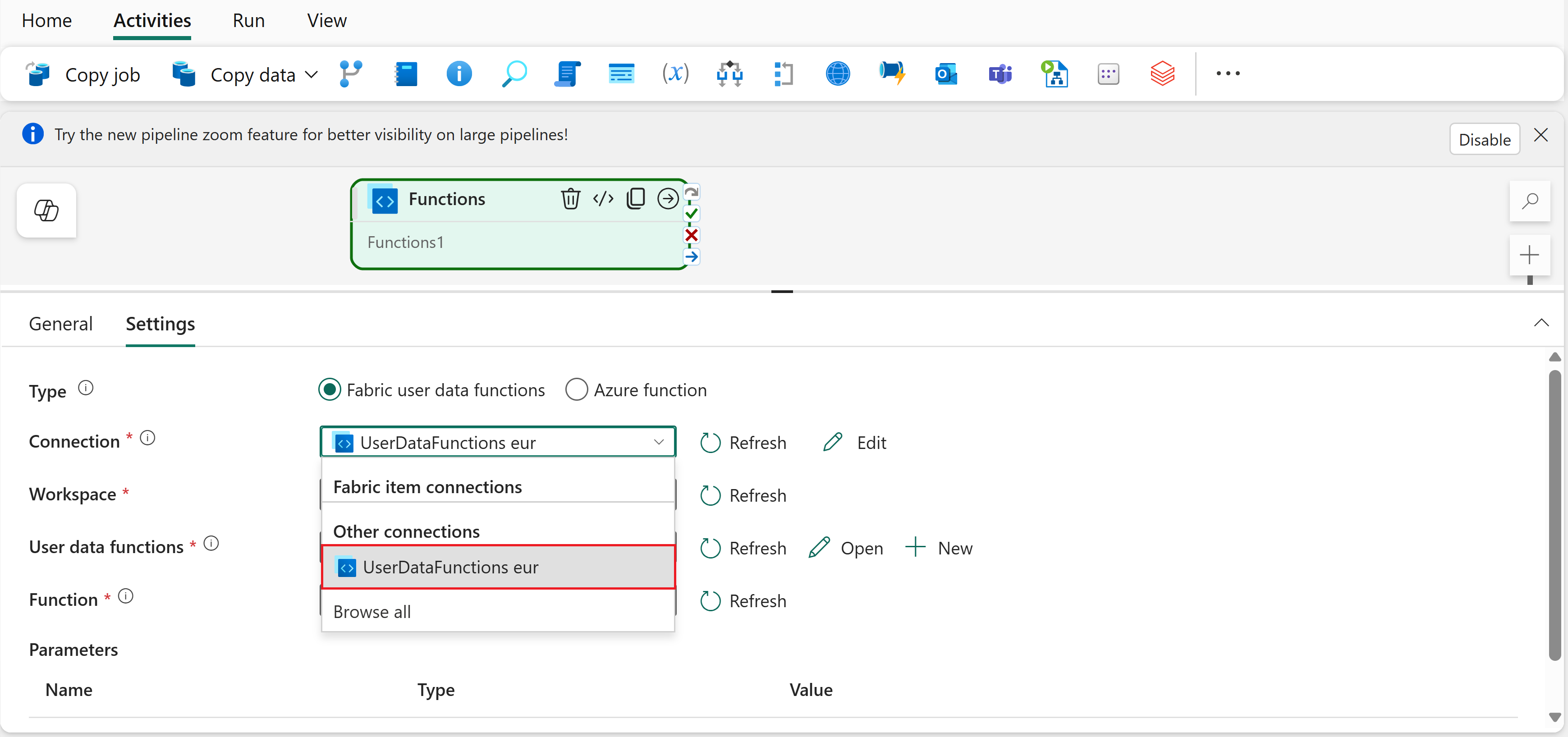
Select the Workspace containing your user data functions item.
Select the User data functions item name.
Select the Function that you want to invoke.
Provide input parameters for your selected function. You can use static values or dynamic content from pipeline expressions.
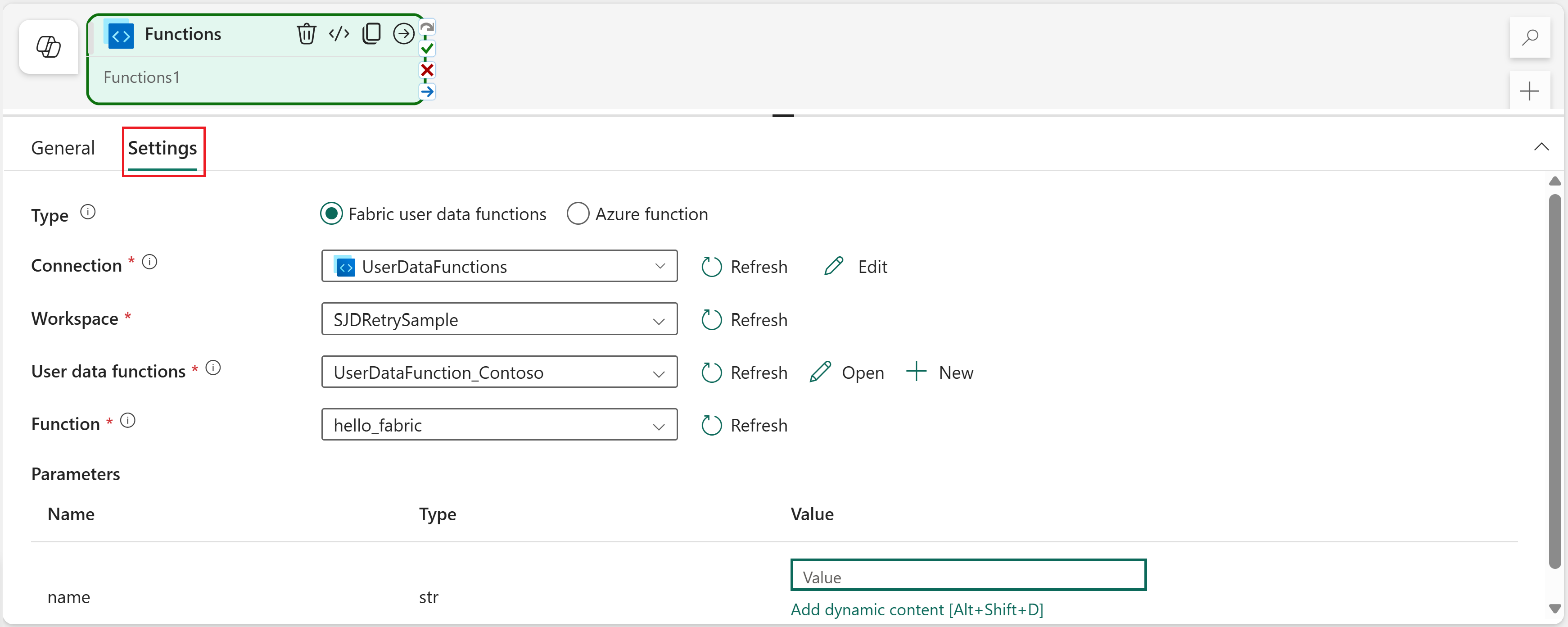
Note
To enter dynamic content, select the field you want to populate, then press Alt+Shift+D to open the expression builder.
Pass dynamic parameters
To pass values from other pipeline activities or variables to your function:
Select a field that supports dynamic content, such as the Value field for the
nameparameter shown previously.Press Alt+Shift+D to open the expression builder.
Use pipeline expressions to reference variables, parameters, or output from previous activities. For example, use
@pipeline().parameters.PipelineNameto pass a pipeline parameter to your function.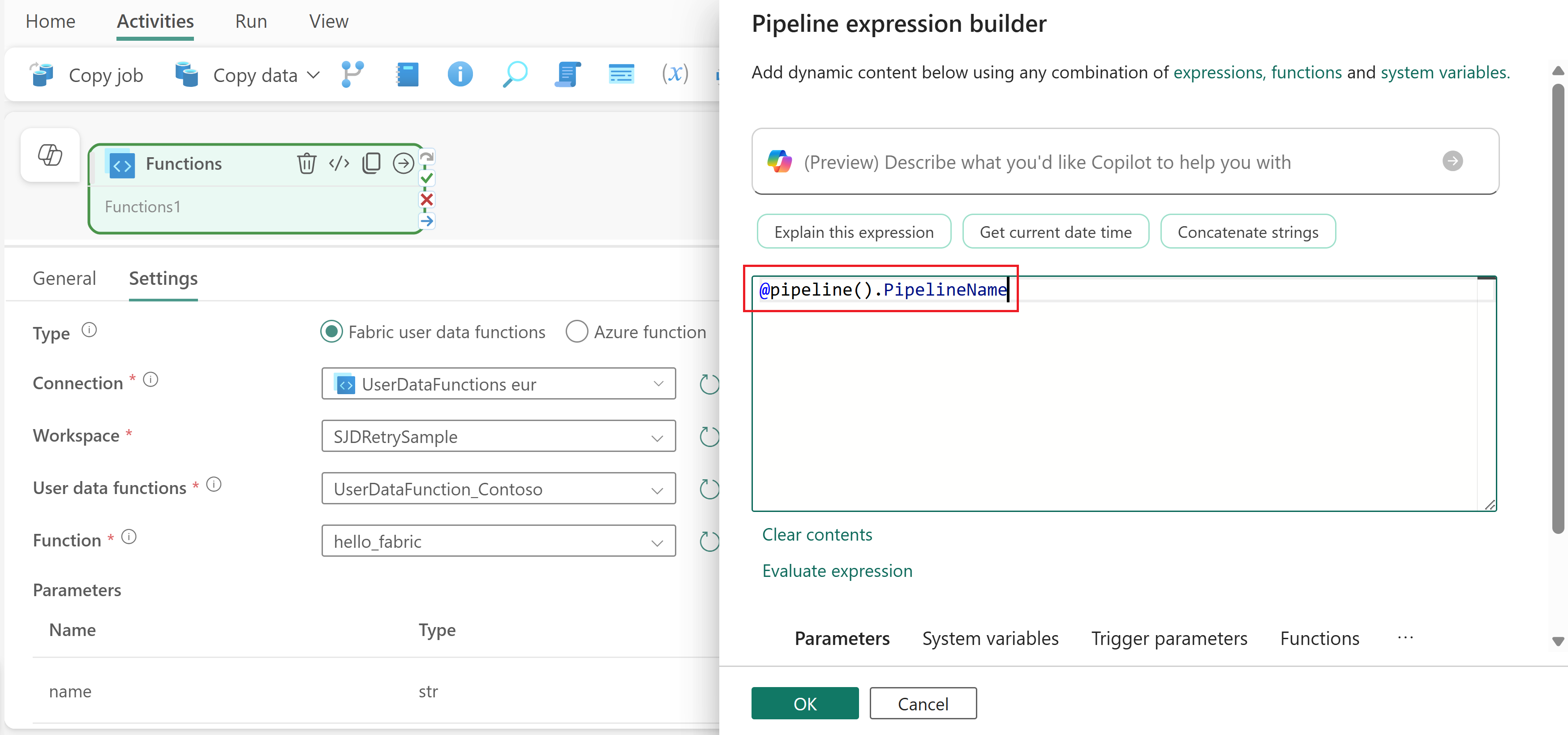
For more information about pipeline expressions, see Expressions and functions.
Use function output in downstream activities
Your function's return value is available in the activity output. To reference the output in subsequent activities:
Add another activity to your pipeline after the Functions activity.
Select the Functions activity and drag its On success output (the green checkmark on the right side of the activity) to the new activity. This creates a dependency so the new activity runs after the function completes successfully.
Select the new activity and find a field that supports dynamic content.
Press Alt+Shift+D to open the expression builder.
Use the expression
@activity('YourFunctionActivityName').outputto reference the function's return value. For example, the name of the function activity isFunctions1, you can use@activity('Functions1').outputto reference its output.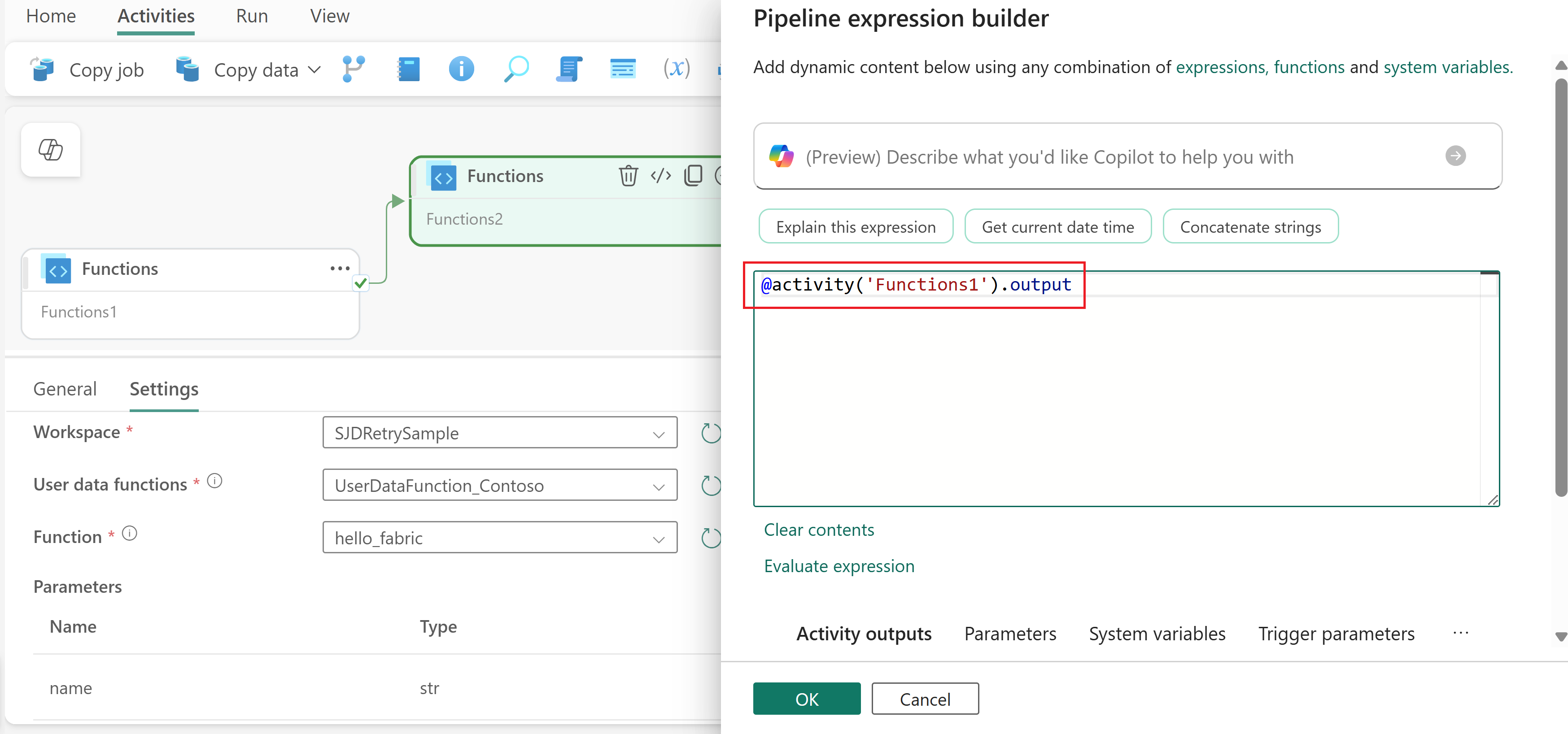
The exact structure of the output depends on what your function returns. For example, if your function returns a dictionary, you can access specific properties like @activity('YourFunctionActivityName').output.propertyName.
Save and run the pipeline
After you configure the Functions activity and any other activities for your pipeline:
- Select the Home tab at the top of the pipeline editor.
- Select Save to save your pipeline.
- Select Run to run the pipeline immediately, or select Schedule to set up a recurring schedule.
After running, you can monitor the pipeline execution and view run history from the Output tab below the canvas. For more information, see Monitor pipeline runs.