หมายเหตุ
การเข้าถึงหน้านี้ต้องได้รับการอนุญาต คุณสามารถลอง ลงชื่อเข้าใช้หรือเปลี่ยนไดเรกทอรีได้
การเข้าถึงหน้านี้ต้องได้รับการอนุญาต คุณสามารถลองเปลี่ยนไดเรกทอรีได้
As people embrace and incorporate generative AI apps, such as Microsoft 365 Copilot and non-Microsoft AI apps into daily work, it's important for your organization's security team to be able to manage those apps. Microsoft applies a multi-layered, defense-in-depth strategy to secure Microsoft 365 Copilot at every level (see Security for Microsoft 365 Copilot).
But what about non-Microsoft AI apps?
Using capabilities in Data Security Posture Management (DSPM) for AI (part of Microsoft Purview), Microsoft Defender for Cloud Apps (part of Microsoft Defender), and Cloud Security Posture Management (CSPM) for AI security posture management in Microsoft Defender for Cloud, your security team can empower people in your organization to use generative AI apps more securely, including both Microsoft and non-Microsoft AI apps.
This article describes how to:
- Use DSPM for AI to discover and manage AI app usage; and
- Use Defender for Cloud Apps to discover, monitor, or block generative AI apps; and
- Use Defender for Cloud's CSPM to assess and manage AI security posture.
Discovering, monitoring, and managing AI apps is essential to prevent data leaks, maintain compliance, enforce governance, and uphold trust in enterprise AI adoption. This article describes how to perform these tasks using DSPM for AI, Defender for Cloud Apps, and CSPM for AI security posture management.
Before you begin
Make sure you have appropriate permissions assigned to perform the tasks in this article.
To use DSPM for AI, configure Purview. Select one or more of the Microsoft Purview deployment models, which include:
To use Defender for Cloud Apps, set up Microsoft Defender XDR, including these components:
- Microsoft Defender for Cloud Apps for discovering, monitoring, and blocking specific AI applications
- Microsoft Defender for Endpoint for preventing unsanctioned AI apps from running on onboarded devices
Use DSPM for AI to discover and manage AI app usage
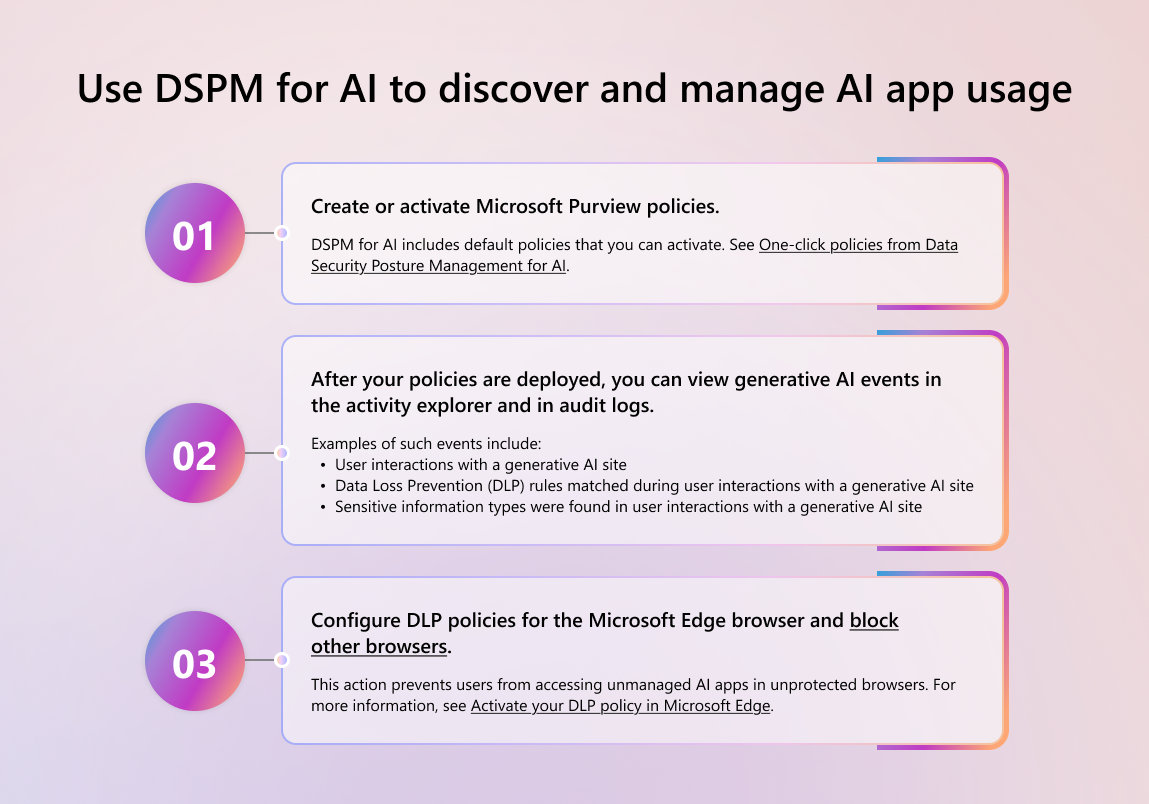
DSPM for AI provides your security and compliance team to discover AI activity, protect data in AI prompts, and govern data handling. Learn more about DSPM for AI.
Create or activate Purview policies. DSPM for AI includes default policies that you can activate. See One-click policies from Data Security Posture Management for AI.
After your policies are deployed, you can view generative AI events in the activity explorer and in audit logs. Examples of such events include:
- User interactions with a generative AI site
- Data Loss Prevention (DLP) rules matched during user interactions with a generative AI site
- Sensitive information types were found in user interactions with a generative AI site
For more information, see Activity explorer events and Audit logs for Copilot and AI applications.
Configure DLP policies for the Microsoft Edge browser and block other browsers. This action prevents users from accessing unmanaged AI apps in unprotected browsers. For more information, see Activate your DLP policy in Microsoft Edge.
Use Defender for Cloud Apps to discover, monitor, or block generative AI apps
With Defender for Cloud Apps, you can discover, monitor, or block generative AI applications in your organization, as described in the following sections.
Use the cloud app catalog to discover AI apps
You can use the Microsoft Defender portal to see a list of AI apps your organization is using. Defender for Cloud Apps provides a catalog of apps with security and compliance risk scores. See Cloud app discovery overview.
Go to the Microsoft Defender portal and sign in.
In the navigation pane, expand Cloud apps, and then select Cloud app catalog.
In the Category filter, select Generative AI.
Review the list of apps, along with their risk scores. Make a note of the apps you might want to monitor or block. For more information about risk scores, see Find your cloud app and calculate risk scores.
Create a policy to monitor AI apps
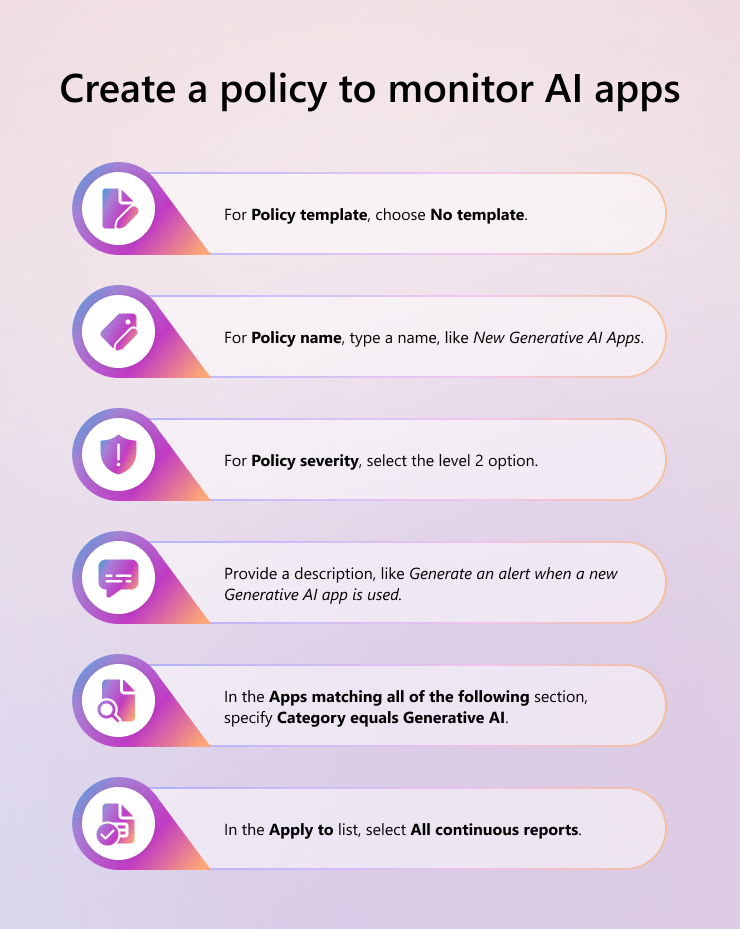
Make sure to review the prerequisites. Also see Control cloud apps with policies.
Create a new custom policy, specifying the following settings:
- For Policy template, choose No template.
- For Policy name, type a name, like New Generative AI Apps.
- For Policy severity, select the level 2 option.
- Provide a description, like Generate an alert when a new Generative AI app is used.
- In the Apps matching all of the following section, specify Category equals Generative AI.
- In the Apply to list, select All continuous reports.
Create a policy to block specific AI apps
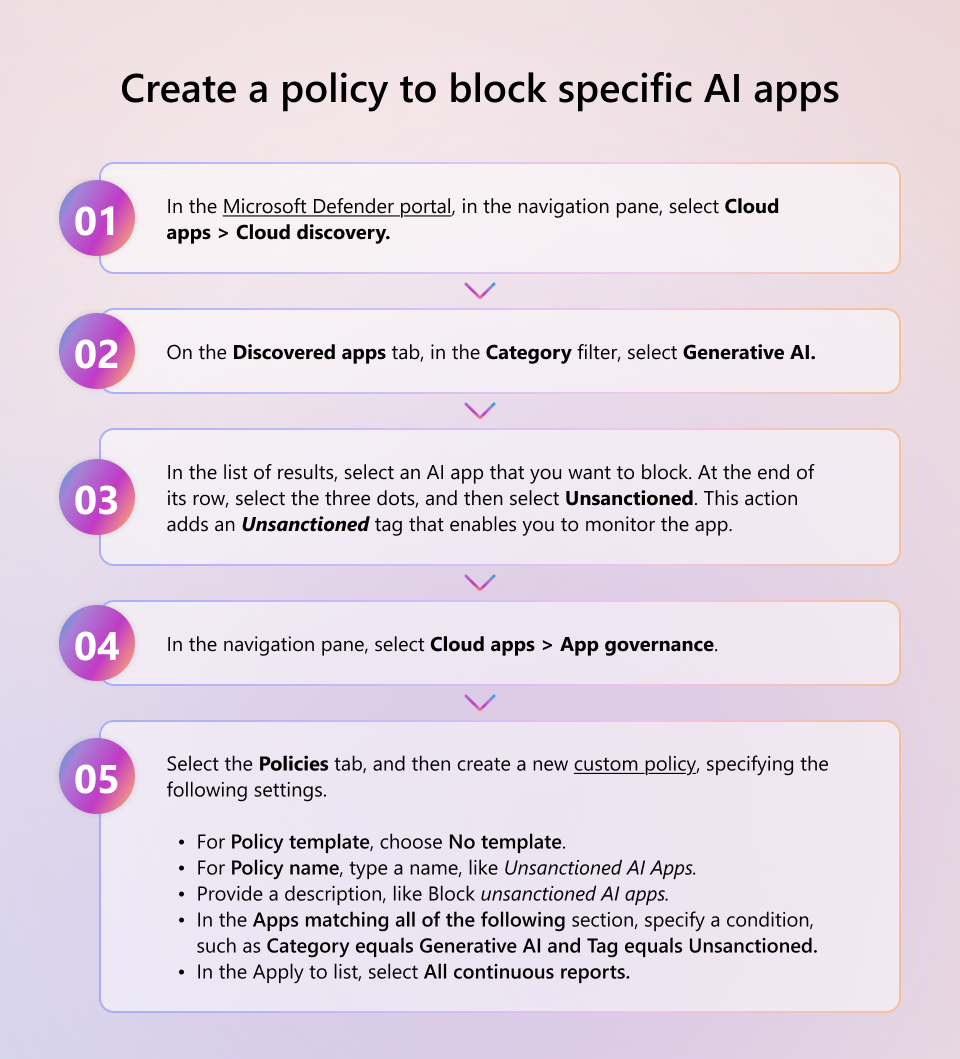
Make sure to review the articles Control cloud apps with policies and Create app governance policies.
In the Microsoft Defender portal, in the navigation pane, select Cloud apps > Cloud discovery.
On the Discovered apps tab, in the Category filter, select Generative AI.
In the list of results, select an AI app that you want to block. At the end of its row, select the three dots, and then select Unsanctioned. This action adds an Unsanctioned tag that enables you to monitor the app.
Important
When an app is marked as unsanctioned, it's automatically blocked across devices that are onboarded to Defender for Endpoint. However, your security team can specify whether to warn and educate users instead of blocking apps. See Educate users when accessing risky apps.
In the navigation pane, select Cloud apps > App governance.
Select the Policies tab, and then create a new custom policy, specifying the following settings:
- For Policy template, choose No template.
- For Policy name, type a name, like Unsanctioned AI Apps.
- Provide a description, like Block unsanctioned AI apps.
- In the Apps matching all of the following section, specify a condition, such as Category equals Generative AI and Tag equals Unsanctioned.
- In the Apply to list, select All continuous reports.
Use Defender for Cloud's CSPM for AI Security Posture Management
Cloud Security Posture Management (CSPM) for AI security posture management in Microsoft Defender for Cloud helps you discover, assess, and improve the security posture of your generative AI applications. Defender for Cloud provides visibility into your AI workloads, identifies vulnerabilities and misconfigurations, and helps you prioritize and remediate risks across your environment.
Discover AI workloads and models
Use the cloud security explorer to identify generative AI workloads and models running in your environment.
Go to the Azure portal and sign in.
Search for and select Microsoft Defender for Cloud > Cloud Security Explorer.
Select the AI workloads and models in use query template.
Select Search.
Select a result to review its details, including deployed models and specific model metadata regarding those deployments.
Select a node to review the findings.
Identify vulnerable generative AI container images
Use the cloud security explorer to identify containers running generative AI container images with known vulnerabilities.
Go to the Azure portal and sign in.
Search for and select Microsoft Defender for Cloud > Cloud Security Explorer.
Select the Container running container images with known Generative AI vulnerabilities query template.
Select Search.
Select a result to review its details.
Select a node to review the findings.
In the insights section, select a CVE ID from the drop-down menu.
Select Open the vulnerability page.
Identify vulnerable generative AI code repositories
Use the cloud security explorer to identify vulnerable generative AI code repositories that provision Azure OpenAI.
Go to the Azure portal and sign in.
Search for and select Microsoft Defender for Cloud > Cloud Security Explorer.
Select the Generative AI vulnerable code repositories that provision Azure OpenAI query template.
Select Search.
Select a result to review its details.
Select a node to review the findings.
In the insights section, select a CVE ID from the drop-down menu.
Select Open the vulnerability page.
Review and remediate IaC misconfigurations
DevOps security detects Infrastructure as Code (IaC) misconfigurations that can expose generative AI applications to security vulnerabilities, such as overexposed access controls or inadvertently publicly exposed services. To prevent complex problems later, remediate detected misconfigurations early in the development cycle.
Defender for Cloud assesses your generative AI apps configuration and provides security recommendations. Review and remediate the following IaC AI security checks:
- Use Azure AI Service Private Endpoints
- Restrict Azure AI Service Endpoints
- Use Managed Identity for Azure AI Service Accounts
- Use identity-based authentication for Azure AI Service Accounts
To review and remediate recommendations:
Go to the Azure portal and sign in.
Search for and select Microsoft Defender for Cloud > Recommendations.
Filter recommendations by Resource type to find generative AI-related resources (such as Azure OpenAI Service).
Review each recommendation and select it to understand the security posture issue.
Follow the remediation steps provided in each recommendation to address the misconfiguration.
Explore risks with attack path analysis
Attack path analysis detects and mitigates risks to AI workloads by identifying weaknesses and potential vulnerabilities. Data might be exposed during the grounding of AI models to specific data and the fine-tuning of a pretrained model on a specific dataset to improve its performance on a related task.
By continuously monitoring AI workloads, attack path analysis can identify potential attack paths and follow up with recommendations. This extends to cases where the data and compute resources are distributed across Azure, AWS, and GCP.
To explore attack paths:
Go to the Azure portal and sign in.
Search for and select Microsoft Defender for Cloud > Attack path analysis.
Review identified attack paths that could expose your AI workloads and data.
Select an attack path to review the details and recommended remediations.
Follow the recommendations to remediate the identified risks.
See also
- AI Security Posture Management
- Identify AI Workload Model
- Explore AI Risk
- Microsoft Purview data security and compliance protections for generative AI apps
- App governance in Microsoft Defender for Cloud Apps
- Tech Community blog: Discover, monitor, and protect the use of Generative AI apps
- Considerations to manage Microsoft 365 Copilot and Channel Agent in Teams for security and compliance
- Learn about using Microsoft Purview Data Loss Prevention to protect interactions with Microsoft 365 Copilot and Copilot Chat