當你將 Microsoft Copilot Studio Agent 複製到本地電腦時,可以依 Microsoft Visual Studio Code 的文字編輯功能來編輯其組件。 Copilot Studio 擴充套件提供 IntelliSense、驗證及 YAML 語言支援,有助於讓編輯更高效且無錯誤。
Agent檔案結構
了解檔案結構是高效編輯的關鍵。
my-agent/
├── actions                   # Connectors
│   ├── DevOpsAction.mcs.yml
│   └── GetItems.mcs.yml
├── knowledge/files                # Knowledge sources
│   ├── source1.yaml
│   └── source2.yaml
├── topics/                   # Conversation topics
│   ├── greeting.mcs.yaml
│   ├── help.mcs.yaml
│   └── escalate.mcs.yaml
├── workflows/                    # Agent tools and actions
│   └── GetDevOpsItems
│       ├── metadata.yaml
│       └── workflow.json
│   └── GetMeetings
│       ├── metadata.yaml
│       └── workflow.json
├── trigger/                 # Event triggers
│   └── welcometrigger.mcs.yaml
├── agent.mcs.yaml                # Main agent definition
├── icon.png                      # Icon used for the agent, visible in test panel and in supported channels
├── settings.mcs.yml              # Configuration settings for the agent
└── connectioreferences.mcs.yml   # Connection References used by Connectors and other actions
編輯主要Agent設定
IntelliSense 功能
在輸入時,系統會顯示建議,並將無效值標註。 這些建議會根據節點層級而變更。
- 使用
Ctrl+Space以取得根據節點層級的建議。 - 使用
Ctrl+F來搜尋整個 Agent 中的變數名稱和其他資訊,以便快速更新
檢視表問題
你可在 Visual Studio Code 的「問題」面板中檢視問題。 另外,當你打開檔案時,可以看到紅色底線標示問題。
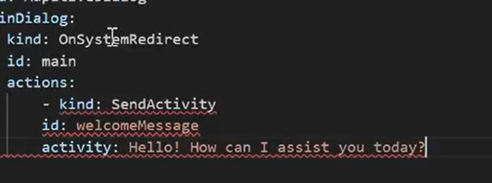
問題窗格
使用
Ctrl+Shift+M開啟問題面板(或前往檢視>問題)。檢視所有錯誤與警告。
選取任何問題即可跳至對應位置。
處理變更
當有變更並儲存後,會在 Visual Studio 中以不同顏色顯示,以便於辨識。
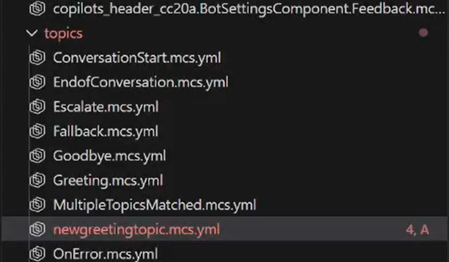
編輯 Agent 元件
主題
主題定義交談流程與對話。 其類型為 AdaptiveDialog。
你可以使用 GitHub Copilot 或其他 Agent 來協助建立 新 元件,或者如果願意,也可以自己撰寫主題。
主題檔案結構
以下是一個簡單的問候主題範例:
# This is the name of the topic that will appear in the 'topics' list in Copilot Studio

kind: AdaptiveDialog
beginDialog:
  kind: OnConversationStart
  id: main
  actions:
    - kind: SendActivity
      id: sendMessage_M0LuhV
      activity:
        text:
          - Hello, I'm {System.Bot.Name}. How can I help?
        speak:
          - Hello and thank you for calling {System.Bot.Name}.
進階主題功能
你可以在主題中使用其他元件,例如:
實體:
- kind: Question id: question_1 alwaysPrompt: true variable: init:Topic.Continue prompt: Can I help with anything else? entity: BooleanPrebuiltEntity變數:
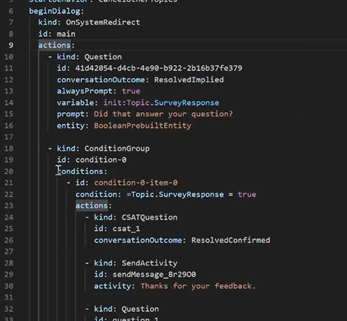
actions: - kind: Question id: 41d42054-d4cb-4e90-b922-2b16b37fe379 conversationOutcome: ResolvedImplied alwaysPrompt: true variable: init:Topic.SurveyResponse prompt: Did that answer your question? entity: BooleanPrebuiltEntity-
            - kind: ConditionGroup
              id: condition-1
              conditions:
                - id: condition-1-item-0
                  condition: =Topic.Continue = true
                  actions:
                    - kind: SendActivity
                      id: sendMessage_4eOE6h
                      activity: Go ahead. I'm listening.
其他節點、例如 HTTP 節點
調適型卡片
工具
工具定義Agent可以執行的動作。 你可以在 工具區域於Copilot Studio Agent使用者介面看到它們。
工具 可能包括:
- 提示
- 工作流程 (Power Automate 流程)
- CUA 工具
- 自訂連接器
- REST API
- MCP 連接器
工具會出現在擴充功能中的Agent /actions 資料夾下,但也可能出現在含有額外元資料的其他資料夾中。 例如,工作流程和觸發程序有自己的資料夾和 JSON。
編輯觸發程序
觸發程序定義主題或動作何時啟動。 你可以將它們設定為排程、事件或條件類型。 觸發程序通常會參考一個工作流程。
kind: ExternalTriggerConfiguration
externalTriggerSource:
  kind: WorkflowExternalTrigger
管理遠端知識檔案
如果您使用Copilot Studio的上傳功能上傳文件,這些文件可在遠端知識檔案視窗中點擊名稱下載。 這些文件不會自動下載,必須在視窗中選取下載。 下載成功時,您會看到通知。
如需上傳新檔案,可將其置於Agent定義中的 knowledge/files 資料夾。 套用這些變更時,會透過Agent內容上傳功能上傳。
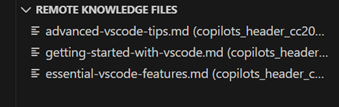
最佳做法
命名慣例
檔案儲存體:
- 使用 kebab-case:
create-ticket.tool.yaml - 請使用具描述性的名稱:
product-pricing-faq.yaml,而非faq.yaml - 使用類型尾碼:
.topic.yaml、.tool.yaml、.trigger.yaml
識別碼和變數:
- 使用 camelCase:
userOrderNumber、productDetails - 請使用具描述性的名稱:
checkPaymentStatus,而非check1 - 避免使用縮寫:
customerEmail,而非custEmail
意見
為了解釋複雜的邏輯,請新增註解。
nodes:
  # Check if user is within business hours and eligible for live support
  # Business hours: 9 AM - 5 PM EST, Monday-Friday
  # Eligibility: Premium tier customers only
  - id: check-live-support-availability
    type: condition
後續步驟
你已了解編輯:
- 了解同步.