Bemærk
Adgang til denne side kræver godkendelse. Du kan prøve at logge på eller ændre mapper.
Adgang til denne side kræver godkendelse. Du kan prøve at ændre mapper.
Overview
The Teams Silent Testing feature enables IT admins of Microsoft Teams to schedule and simulate tests between users of a subnet in their organization and Microsoft Calling Servers. Teams Silent Testing consists of two distinct test types:
- Silent Test Calls: Simulate standard Teams calls to test call quality and network performance.
- Silent Test Town halls: Simulate large-scale events to test broadcast capabilities and network capacity. This feature applies to Teams events optimized for large audiences.
This feature enables proactive monitoring of call quality and network monitoring by having tests run according to the schedule set silently in the background without interrupting users. Once a test is run, IT admins can view a report detailing call quality and potential issues so proactive measures can be taken to help improve the end-user calling, meeting, and event experience.
Why Silent Test?
Existing monitoring tools (Call Quality Dashboard (CQD), Real-Time Monitoring, Alerts) are reactive; they detect issues after users experience them. Teams Silent Testing offers proactive monitoring, allowing IT teams to detect and address network issues before they affect users.
Imagine scenarios such as:
Network Changes: You update your network firewall rules or Wi-Fi configurations. Running Silent Tests helps validate performance proactively before users report issues.
New Location Setup: You launch a new office location. Even with only a few Teams clients available, Silent Tests can provide early indicators of network readiness.
Routine Health Checks: Scheduling daily or weekly Silent Tests allows continuous monitoring to catch degradations early, reducing the risk of outages impacting end users.
By integrating Teams Silent Testing into your operational routines, you can detect and resolve potential issues proactively, ensuring better reliability and user satisfaction.
Key points
General characteristics (both test types):
- Tests run silently in the background on the Teams client at scheduled times.
- Tests target a specific subnet.
- Tests run only on the desktop client - Windows and macOS.
- Tests only run if the device is idle (user isn't in an active Teams call).
- No user experience disruption: no notifications, sounds, or visible changes.
Silent Test Calls:
- Call tests run for 60 seconds on users' machines in the background.
Silent Test Town halls:
- Town hall tests can be configured to run up to 180 minutes.
Endpoint requirements:
- Device must be located in the targeted subnet.
- Teams client must be installed and running.
- Device must be powered ON.
- User must not be on an active Teams call.
Licensing requirements
- Silent Test Calls (meetings): Requires Teams Premium.
- Silent Test Town halls: Currently in private preview for eligible customers without Teams Premium. Customers participating in private preview must have at least one Teams Premium license to start testing. Expected to become available to Teams Enterprise customers in early 2027.
Networking requirements
For Silent Testing to work properly, your network infrastructure must meet specific requirements to ensure successful communication with Microsoft Teams services. The following external connections are required to be accessible:
| Hostname | Ports | Protocol | Description |
|---|---|---|---|
| *.ecdn.teams.microsoft.com | 443 | HTTPS/WebSocket over TCP | Silent Test scheduler |
| *.ecdn.teams.cloud.microsoft | 443 | HTTPS/WebSocket over TCP | Unified domain |
Important
As part of the Unified Domains initiative, domains are transitioning from *.teams.microsoft.com to *.teams.cloud.microsoft. Both domains are required during the transition period to ensure uninterrupted service.
How to schedule a Silent Test
Teams Silent Tests can be scheduled via the Teams Admin Center.
To schedule tests, you must have either the Global Admin or Teams Admin role.
In the left navigation of the Teams admin center, go to Analytics & reports > Silent Tests.
Select Schedule Test.
Select Town hall or Meeting (for Call)
Fill out the form:
Test name
Target subnets - Multiple subnets can be entered comma separated. Subnet IDs must be in valid CIDR format. For example, 192.168.1.0/24. Only IPv4 is currently supported.
Frequency - Once only, Daily, Weekly, etc.
[Town hall only] Maximum participants
[Town hall only] Duration
Start date and time
Save the schedule.
View scheduled tests at the bottom of the page. You can edit or abort existing schedules if necessary.
How to view Silent Test reports
The method for reviewing results differs depending on the test type.
Silent Test Calls
On the Silent Test Calls page, select Download Report to download a Power BI report file.
When a test is completed, open the Power BI report, sign in with your admin credentials, and choose the subnet/test name to view a report.
If you don't have Power BI set up, see the following articles to learn how to download and configure it:
Reports
When you first open the Power BI report, you see an overview of your results from using Silent Test Calls.
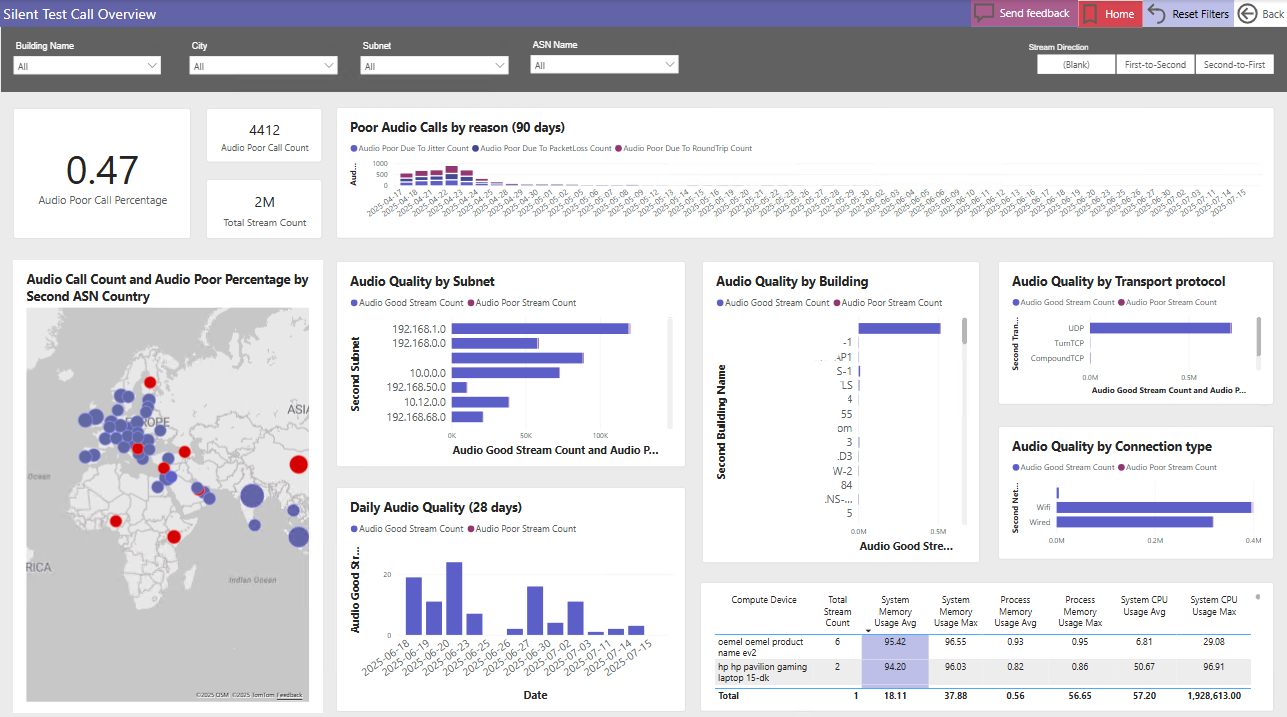
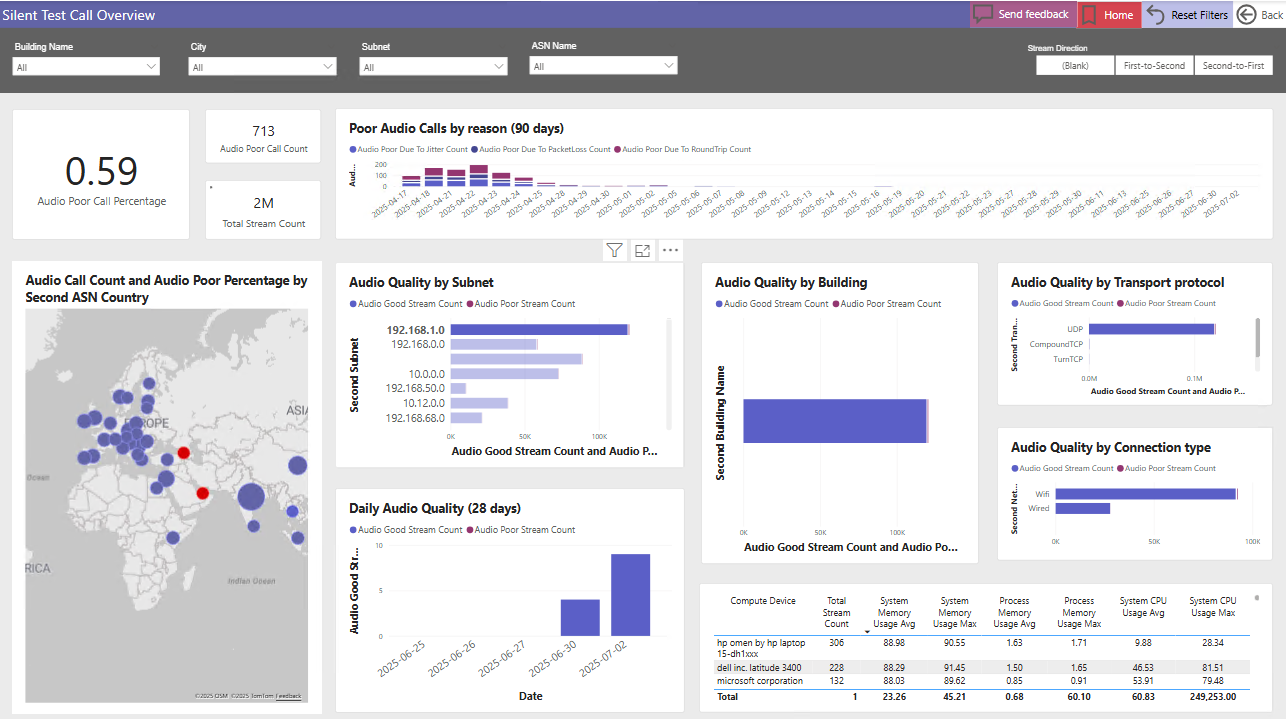
As you select data points such as subnet or building name, the report changes to reflect that scope.
Silent Test Town halls
Silent Test Town hall performance can be viewed in the Microsoft eCDN Analytics pages.
Performance data can be viewed in the Analytics dashboards shortly after the test begins.
For more information on how to read the analytics, see the following articles: