Note
Access to this page requires authorization. You can try signing in or changing directories.
Access to this page requires authorization. You can try changing directories.
The simplest way to use the Observability Agent is to chat with your observability data. The agent lets you ask natural-language questions about logs, metrics, and related telemetry so you can explore patterns, understand changes, and decide whether you need a deeper investigation.
The chat experience is scoped to a specific resource. The chat is temporary, which means it isn't saved for later access or use unless you continue the work through an issue or another supported workflow. The agent accesses the resource through which it was launched and provides suggestions to help you explore and analyze the resource's telemetry.
Start chat from the Logs page
To ask the Observability Agent anything about your data, open the Azure portal and select your Application Insights or Log Analytics workspace resource.
In the resource menu, go to the Logs page and select the Observability Agent button to open a chat window. From here, you can start interacting with the agent. You can ask questions about your data or start an investigation.
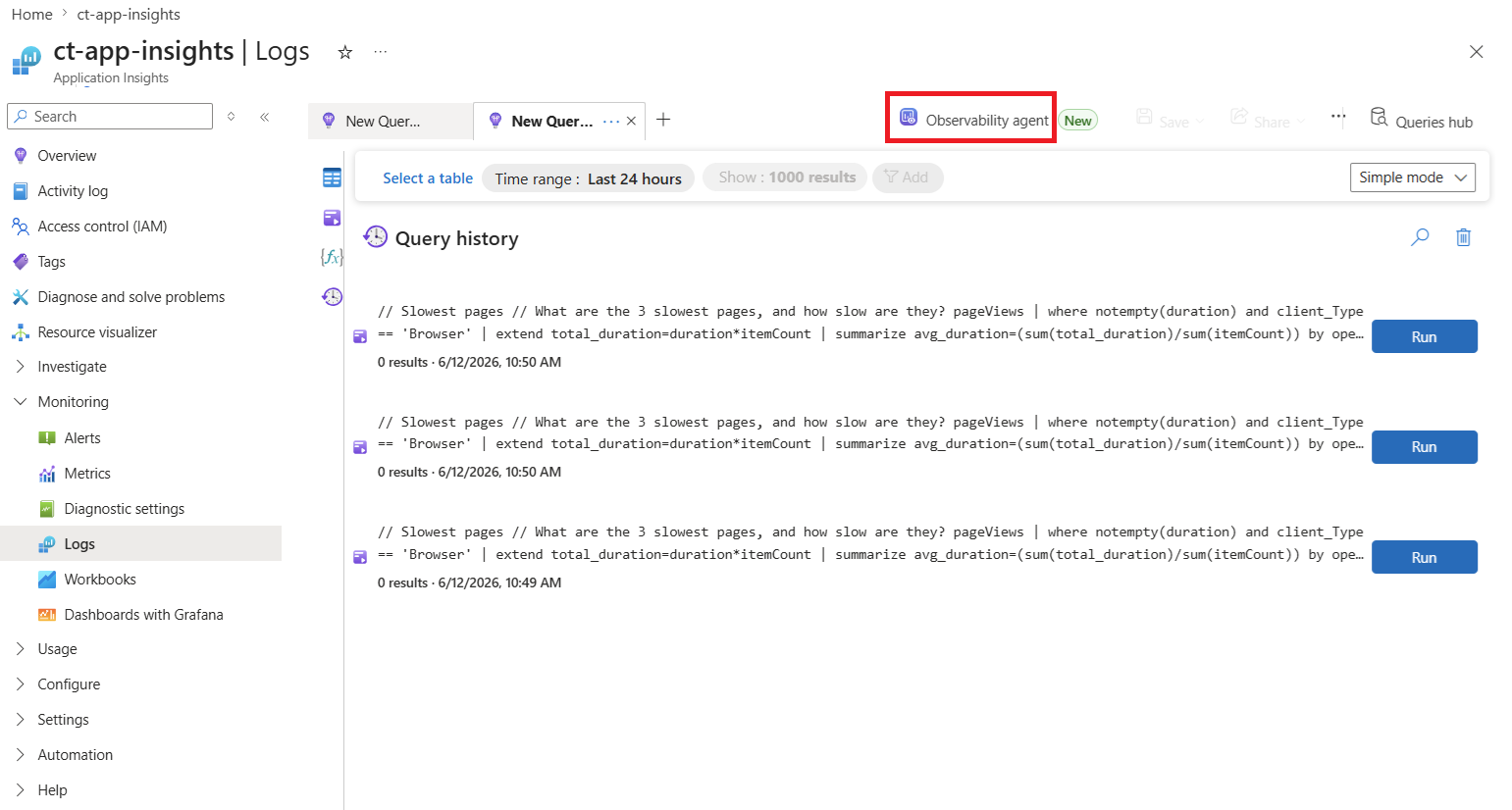
Work with the agent through chat
The Observability Agent provides a conversational experience for exploring and understanding your observability data. You interact with the agent through chat and investigation follow-up to ask questions, explore signals, and gain insights in an iterative way.
For example, you can select Show error summary or some other option to get started.
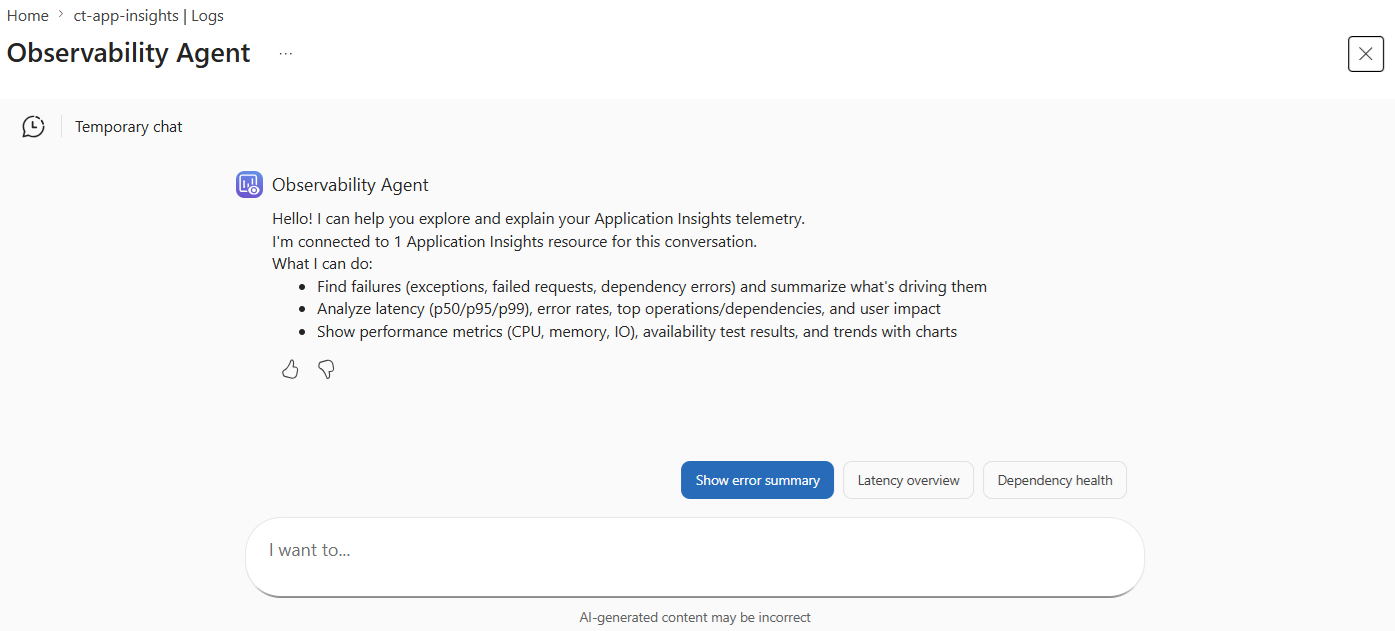
As the agent generates insights, it explains its reasoning. It highlights which signals it considered and how they relate to one another. This transparency helps you understand not only what the agent surfaced, but why it identified the information as relevant.
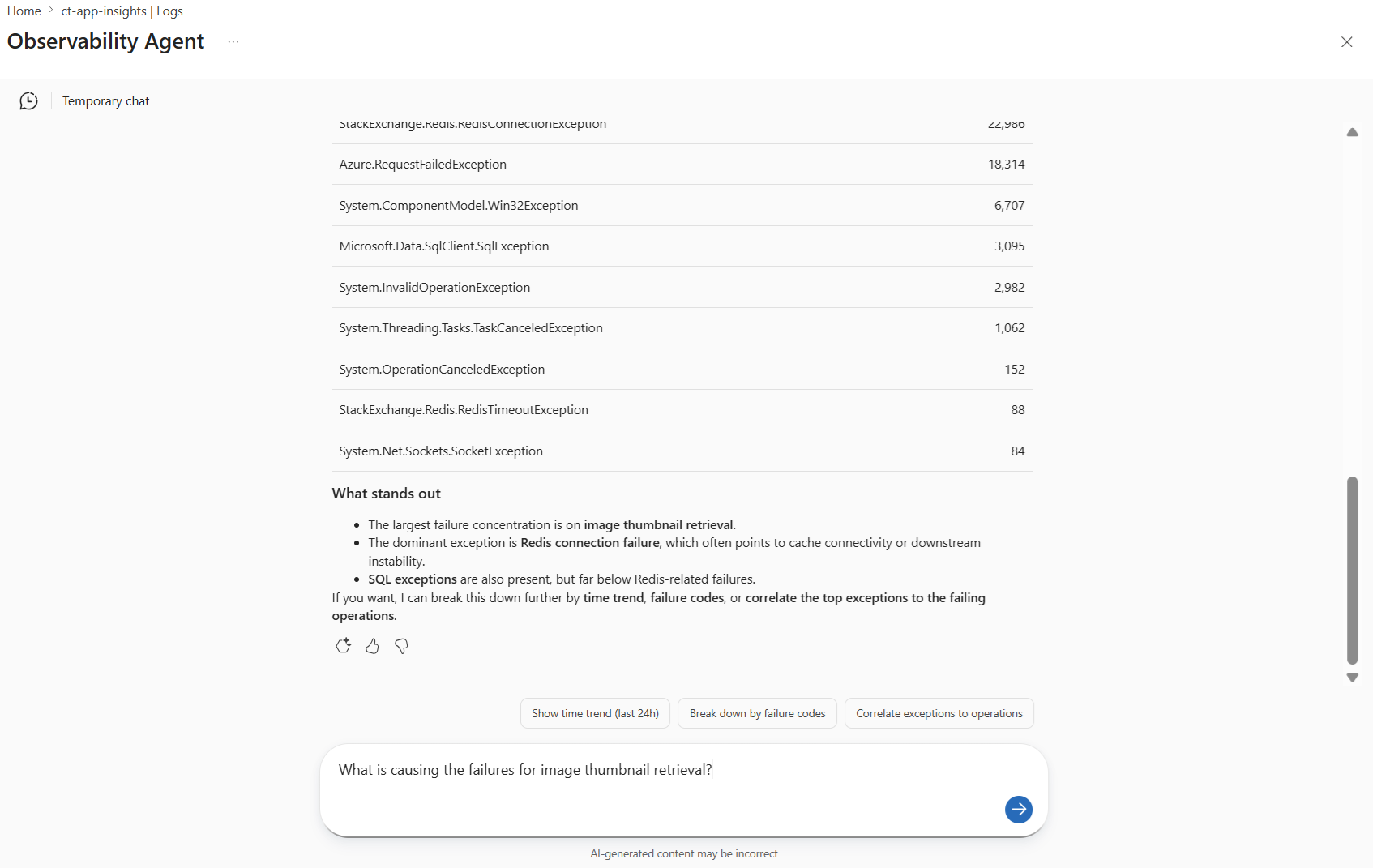
The conversation continues as your understanding evolves. You can ask follow-up questions to dig deeper into the information already presented - for example, to clarify a specific behavior, focus on a particular resource or signal, or explore a related angle - while maintaining context across the conversation.
If you want to preserve that context beyond the temporary session, save the investigation as an issue with Create Issue. Issues let you continue the analysis later and share the operational context with others.
Continue into a deep investigation
If chat exploration surfaces an active incident or a more complex problem, continue the work through a deep investigation. Deep investigations collect and correlate application, infrastructure, and Azure platform signals to explain what happened and what to do next.
For more information, see Deep investigations in the Azure Copilot Observability Agent.
Continue analysis through issues
If you want to preserve the context of an investigation or continue collaborating over time, save the investigation as an Azure Monitor issue.
For more information, see Azure Monitor issues overview and Use Azure Monitor issues.
Related content
- Azure Copilot Observability Agent
- Deep investigations in the Azure Copilot Observability Agent
- Azure Monitor issues overview
- Use Azure Monitor issues
- Custom instructions for the Azure Copilot Observability Agent — teach the agent about your environment for consistent autonomous analysis