Note
Access to this page requires authorization. You can try signing in or changing directories.
Access to this page requires authorization. You can try changing directories.
The Azure Copilot Observability Agent helps you identify, investigate, and explain service degradations. When such degradations occur, you often want to preserve the context, share findings with your team, and continue working on the problem over time.
An issue is the persistent record that makes this possible. It keeps related signals together and gives your team a shared place to continue troubleshooting instead of starting over from separate alerts, resources, or investigation sessions.
Issues versus alerts
Alerts and issues serve different purposes.
An alert represents a specific signal observed on a resource. It's triggered when monitored data meets the conditions of an alert rule.
An issue is the persistent record used to investigate, manage, and resolve a service degradation. While alerts help identify individual symptoms, issues help teams understand and manage the broader operational problem. A single issue can span multiple alerts and resources, providing a unified view of the incident throughout its lifecycle.
How issues get created
You can create an issue in two ways:
- From a deep investigation when you want to continue working from the context generated by an Observability Agent investigation. For the user-started investigation path, see Deep investigations in the Azure Copilot Observability Agent.
- Autonomously when the Azure Copilot Observability Agent runs autonomous operations in the background. Depending on your configuration, the agent can create issues by correlating related alerts into a single incident or by promoting individual prominent alerts into issues. For the background correlation path, see Autonomous operations in the Azure Copilot Observability Agent.
Each issue is saved under an Azure Monitor Workspace (AMW).
You need the Contributor, Monitoring Contributor, or Issue Contributor role on the Azure Monitor Workspace to create an issue. For more information about role management, see Assign Azure roles using the Azure portal.
What an issue contains
An issue preserves the context of a service degradation as it moves from initial detection into ongoing investigation and response. Depending on how the issue was created, it can include:
- Issue metadata such as title, severity, state, and impact time.
- Background information that summarizes the issue, its impact, and the context gathered so far.
- Investigations performed by the Azure Copilot Observability Agent, including investigation results, analysis, recommended next steps, and the ability to continue refining the investigation with the Observability Agent.
- Related alerts associated with the issue.
- Related resources that are impacted by or connected to the issue.
This model makes issues the durable handoff point between agent-driven investigation and the human response workflow.
View issues
You can view a list of issues in the following locations:
- Azure Monitor — Shows issues across all Azure Monitor Workspaces (AMWs) under the selected subscriptions.
- Azure Monitor Workspace — Shows issues that are stored within a specific AMW.
Azure Monitor Workspace as an issue container
Azure Monitor Workspaces (AMWs) act as containers for issues.
You can configure an AMW as the default container for all issues in a subscription. When you set a default AMW, the investigation process saves issues in the same workspace when alerts fire on resources in that subscription. Saving them in the same workspace helps ensure that all related issues are stored and managed in a consistent location.
To learn how to associate a subscription with an Azure Monitor Workspace, see Use Azure Monitor issues.
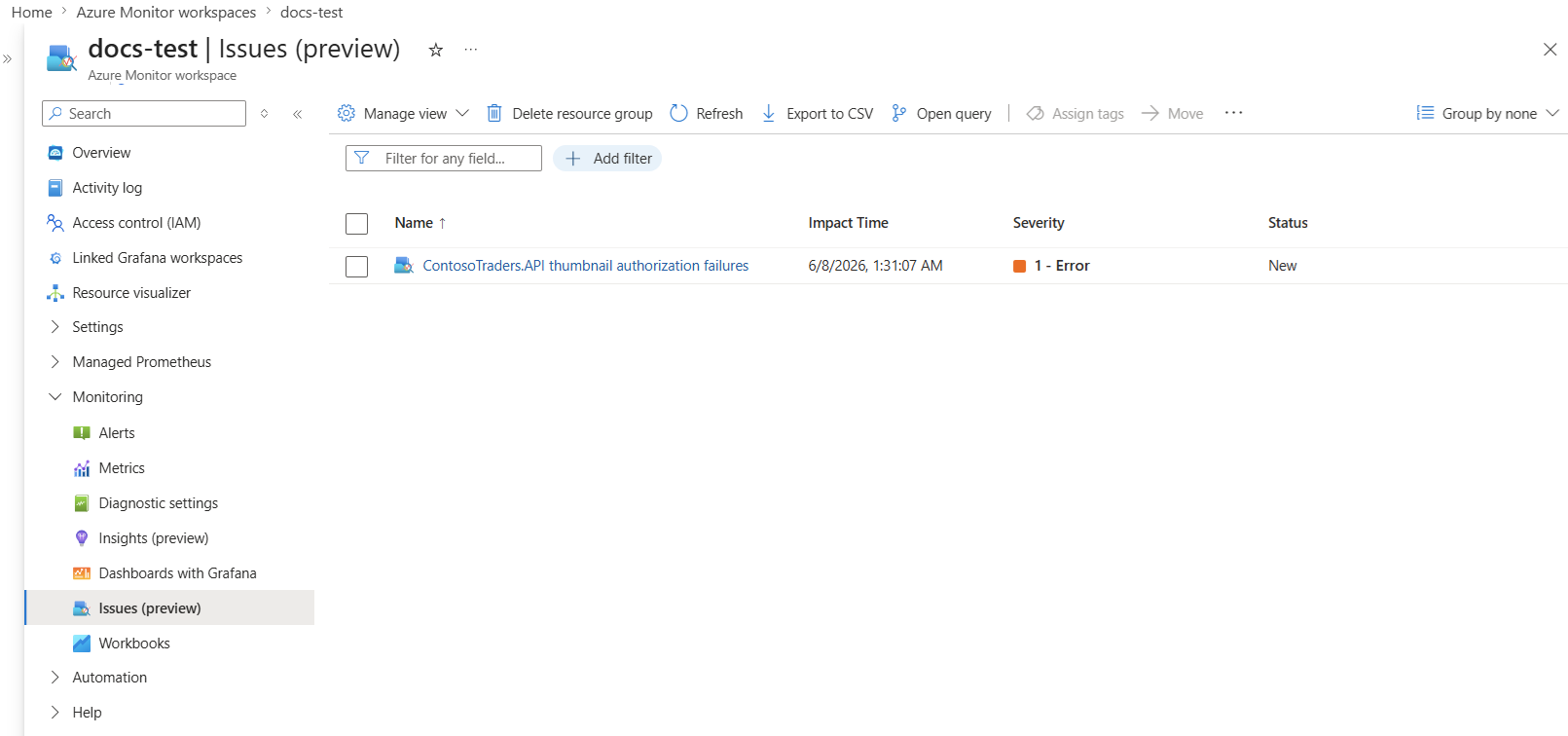
Here's an example of an issue contained in an AMW.
Issue actions
When an issue is created or updated, issue actions let you trigger notifications or automated workflows at that point in the response flow. Because actions are based on a correlated and enriched issue, rather than on individual alerts, they carry consolidated context: severity, impacted resources, and investigation findings. This gives downstream workflows enough information to apply targeted, consistent responses instead of reacting to isolated signals.
When notifications are triggered
Notifications are sent in the following situations:
- A new issue is created — either as a result of a saved investigation or by an autonomous agent.
- An existing issue is updated — when the severity or status of the issue changes.
Supported action types
The following action types are supported:
- Email (individual recipients or Azure Resource Manager roles)
- SMS/text
- Voice
- Logic Apps
- Event Hubs
- Azure Functions
- Automation Runbook
- Secure webhook
- Webhook
Configure actions
Configure actions through action groups on the Azure Monitor Workspace (AMW) where the issue is stored. You can configure one or more action groups as the default actions for that workspace.
When an issue is created or updated, the action groups configured on the associated AMW are triggered automatically.
You can also define actions through the Azure Copilot Observability Agent resource configuration. For more information, see Create an Azure Copilot Observability Agent resource in the Azure portal.
For more information about action groups, see Action groups.
Example scenarios
The following examples show how issue actions can support different response scenarios:
Ticket creation and workflow integration — Use a Logic App to create or update a work item in systems such as Azure DevOps or Jira when an issue is created or updated. The work item can include issue details such as severity, impacted resources, and operational context, helping teams track ownership, coordinate work, and manage resolution through their existing engineering processes.
Intelligent routing — Use an Azure Function or Logic App to inspect issue properties such as severity, impacted service, or affected resources and route the issue to the appropriate team, channel, or workflow. For example, route issues that affect a customer-facing application to an on-call engineering team, while routing issues that affect internal systems to a different operational workflow.
Streaming issue data to downstream systems — Send issue lifecycle events to Azure Event Hubs for processing by external systems. Use this approach to power custom dashboards, operational analytics, reporting pipelines, data lakes, or internal platforms that consume and analyze issue data alongside other operational signals.