Manage columns on your board
Azure DevOps Services | Azure DevOps Server 2022 - Azure DevOps Server 2019
Your board helps you visualize your team's workflow, including the types of work and handoffs that occur regularly as your team progresses work items. Each column on your board corresponds to work that your team does before that stage is considered done.
Note
- To manage columns on a sprint Taskboard, see Customize a Taskboard.
- To manage columns on a backlog or in query results, see Change column options.
Note
- To add columns to a Taskboard, you need to customize the workflow. For more information, see Add or modify a work item type.
- To add columns to a backlog or query results, see Change column options.
- For an overview of the features supported on each backlog and board, see Backlog, board, and plan views.
Prerequisites
- To configure team settings, you must be added to the Team Administrator role or be a member of the Project Administrators security group. To get added, see Add a team administrator or Change project-level permissions.
- You must be assigned Basic access or higher to exercise all backlog and board features. Users with Stakeholder access can only edit work items on the board and add existing tags to a work item. Stakeholders can't add work items or update fields displayed on cards. For more information, see About access levels.
- To configure team settings, you must be added to the Team Administrator role or be a member of the Project Administrators security group. To get added, see Add a team administrator or Change project-level permissions.
- You must be assigned Basic access or higher to exercise all backlog and board features. Users with Stakeholder access can only edit work items on the board and add existing tags to a work item. Stakeholders can't do the following tasks. For more information, see About access levels.
- Add work items to a board
- Drag-and-drop work items to update status or reorder cards
- Update fields displayed on cards
To avoid revisiting your configuration, do the following tasks.
We recommend that you review the following articles:
- Kanban board overview
- Configure and customize Azure Boards
- Set up your backlogs and boards
- Workflow states and state categories
Map workflow states
Your board uses the Work item type and State categories to group work items that you want handled in the same manner.
Identify your team's workflows. The following table lists example workflows and their descriptions.
Workflow Description Backlog Make a prioritized list of work items that the team isn't yet ready to work on Analyze Identify well-understood and shared acceptance criteria, along with overall work required to develop and test the item Develop Code and run unit tests for the item Test Run exploratory, automated, integration, and other tests Done Hand off to production because the item is ready Familiarize yourself with the different work item types and their corresponding boards. Understanding where each type appears helps you manage your work effectively.
Work item type category Work items appear here Requirement Only on the product board Feature Only on the Feature portfolio board Epic Only on the Epic portfolio board Custom Only on a custom portfolio board Tip
We recommend that you map each workflow state to a column, as if it's not mapped, it doesn't appear on the board.
Specify the workflow State for each work item type and column, using one of the following four categories.
State category Description Proposed The first board column is automatically mapped to the default state for each work item In Progress Work flow state must be specified for each WIT and column Completed Can only map to the last board column Removed Workflow state doesn't need to be specified
Note
When you add bugs or other work items to a board, it might create new workflow states that require adjustments to column-to-state mappings in the following situations:
- When a team admin shows bugs on backlogs and boards
- When a project admin adds work item types to backlogs and boards
- When a project collection or project admin customizes the workflow for a work item type in the Requirement category using inherited process or on-premises XML process
Add and edit columns
Column titles and choices depend on the process that you used to create your project and whether your team chose to treat bugs like requirements or like tasks.
Do the following steps to add and edit your columns.
Select Configure team settings
 to configure the board and set general team settings.
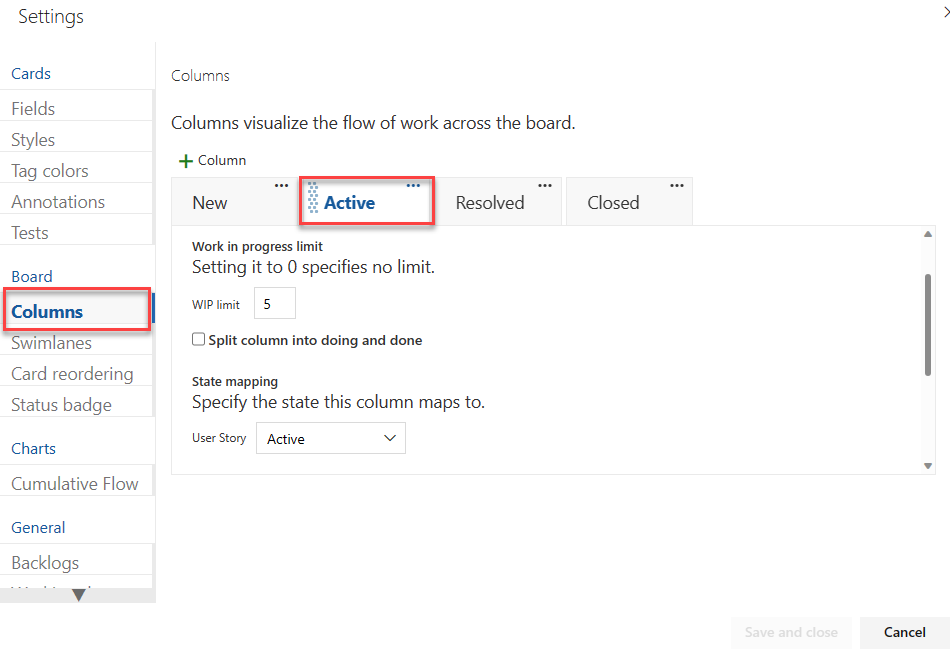
Select Columns and then a column tab to see all the settings that you can modify. Your initial column settings look similar to the settings shown in the following image.
Change your column titles to map to your workflow stages. You can add, rename, and move columns to support more stages.
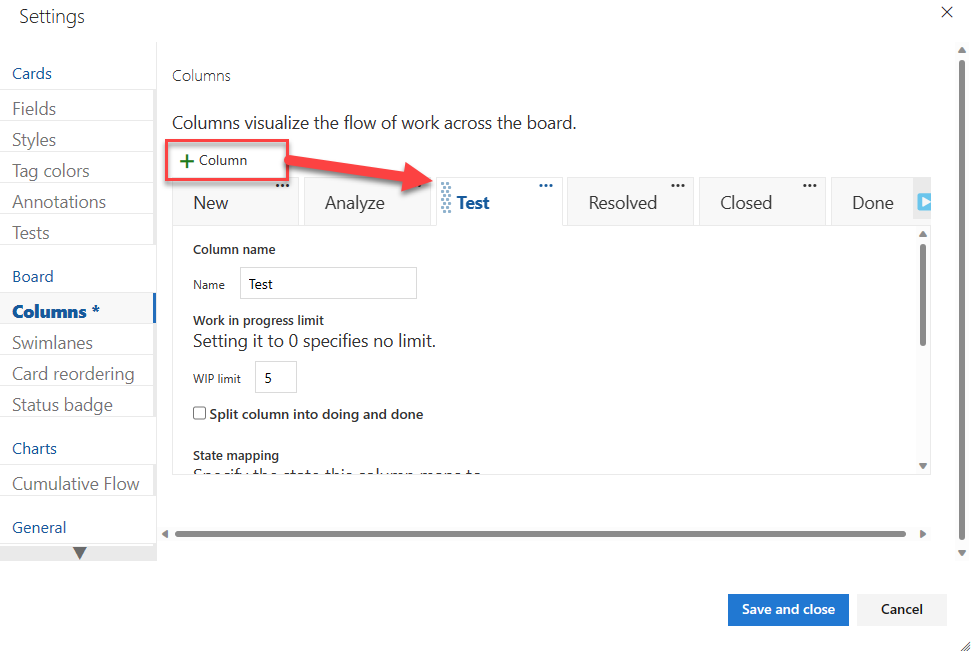
Rename the first three columns to Backlog, Analyze, and Develop. Then, add a column and label it Test.
You can rename a column directly from the board.

Or, you can open the dialog and change one or more settings for a column.
To change the column order, drag the column tab to the position that you want.
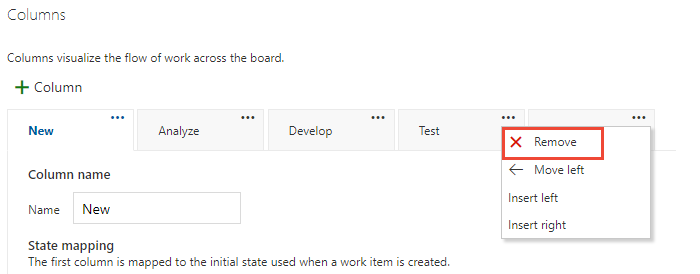
To delete a column, first make sure that the column doesn't contain any work items. If it does, move the items to another column. Then:
- Open Settings and select Columns > Actions
 from the column tab.
 - Select Remove from the menu.
- Open Settings and select Columns > Actions
Change state mappings as needed for added columns, added workflow states, or added WITs.
Usually, you need to update state mappings when you change the Working with bugs setting, add WITs to the Requirement category, or customize the workflow.
When you're done with your changes, select Save.
Update status and handoff items
Drag-and-drop your work items to update the status. For example, to signal when work can start in a downstream stage, drag items to the next column.
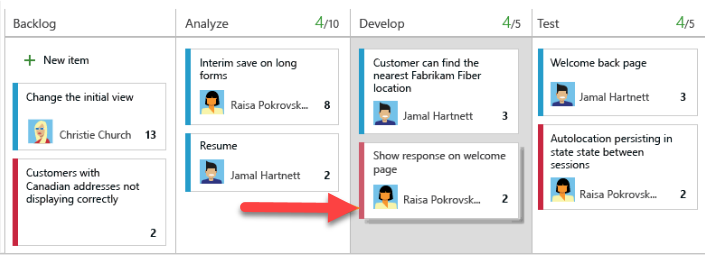
You can move an item from one column to any other column on the board, forward and back. To hand off work to another team member, reassign it directly from the board.
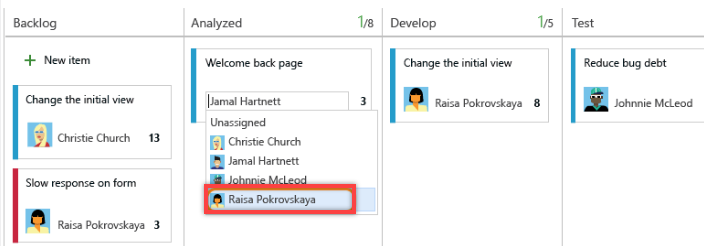
Team members who receive the handoff can set alerts to get immediate email notifications of their newly assigned work.
Change your team's priorities
Drag an item up or down within a column.
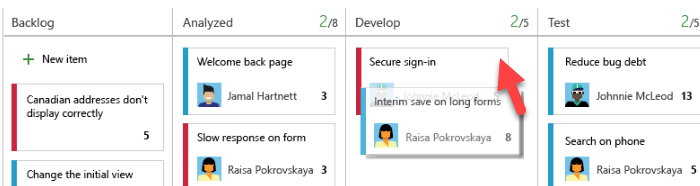
Track column status
Use the query tool to list a subset of work items for review, triage, update, or chart generation. For example, you can create a query to list all active user stories (specify two clauses: Work Item Type=User Story and State=Active).
Specify WIP limits, split columns, and definition of done
Split columns
Because each column corresponds to a stage of work, you can quickly see the number of items in progress at each stage. However, a lag often exists between when work gets moved into a column and when work actually starts. To counter that lag and reveal the actual state of work in progress, you can turn on split columns. When they're split, each column contains two subcolumns, Doing and Done.
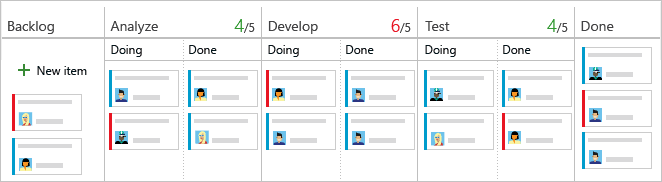
Split columns let your team implement a pull mechanism within the workflow process. Without split columns, teams push work forward, to signal that they completed their stage of work. However, pushing it to the next stage doesn't necessarily mean that a team member immediately starts work on that item.
With split columns, your team knows exactly how many items sit idle, waiting for work to begin. You have greater visibility into the quantity of items that sit idle at each stage throughout your workflow process.
Move items into the Doing and Done columns
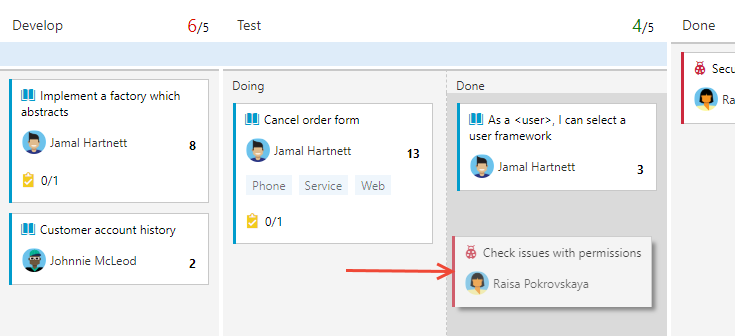
With split columns turned on, you update status of items on the board in the same way you have before. However, now when you complete work on an item, you move it into Done, instead of a downstream column. When the next team member becomes free to work on the next high priority item, they pull it into Doing and reassign it to themselves.
For example, as a team member completes their coding task, they move the item into Done under the Develop column. When the tester is ready to test the item, they pull it into Doing under the Test column.
Identify bottlenecks
Split columns provide you even greater insight into how many items sit idle in a Done column. Your team can readily see when items pile up, which signal a potential bottleneck.
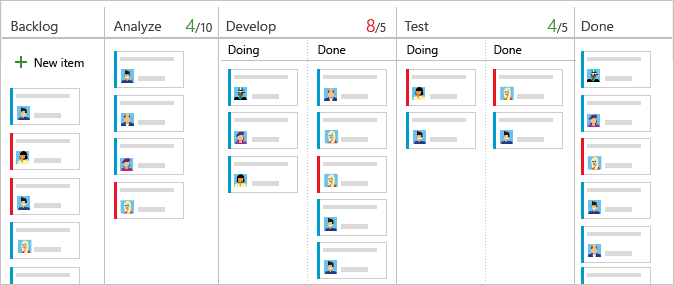
By reviewing the frequency of pile ups and where they occur, your team can adjust their processes to eliminate the bottlenecks. Workflow processes that incur no or few bottlenecks correspond to perfect flows. No item sits in a queue for any
Choose which columns you want to split
Before you split columns, ensure you mapped each stage of your team's process to a column. Only split columns where clear hand-offs exist and you want teams to pull the item into the next stage.
Open your board and choose the
gear icon to configure the board and set general team settings.
Choose Columns and then choose the column tab that you want to split. Add a check mark in the checkbox to cause the column to split.
Note
There are different column titles and choices based on the process used to create your project and whether your team chose to treat bugs like requirements or like tasks.
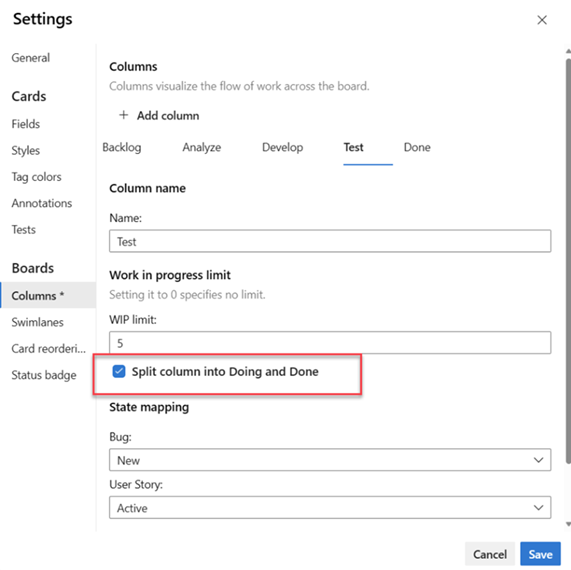
When you're done, choose Save.
Tip
You can filter queries and create charts using the Board Column Done field.
List work items in a Doing or Done column
You can query for work items in a split column using the Board Column Done field. This field takes of a value of False when in the Doing column and True when in the Done column.
For examples on querying Board columns, see Query by assignment or workflow changes.
Add the Definition of Done to a column
When your team advances from one stage to the next in their work, it's crucial that they have a shared understanding of what constitutes as "done." You can define the criteria for the Definition of Done in each column. By doing so, the team can identify the necessary tasks that need to be completed before advancing an item to the next stage. This task also implements one of the core tenets, make processes and policies explicit.
Team members can quickly double-check the criteria by choosing the Information tooltip  info icon.
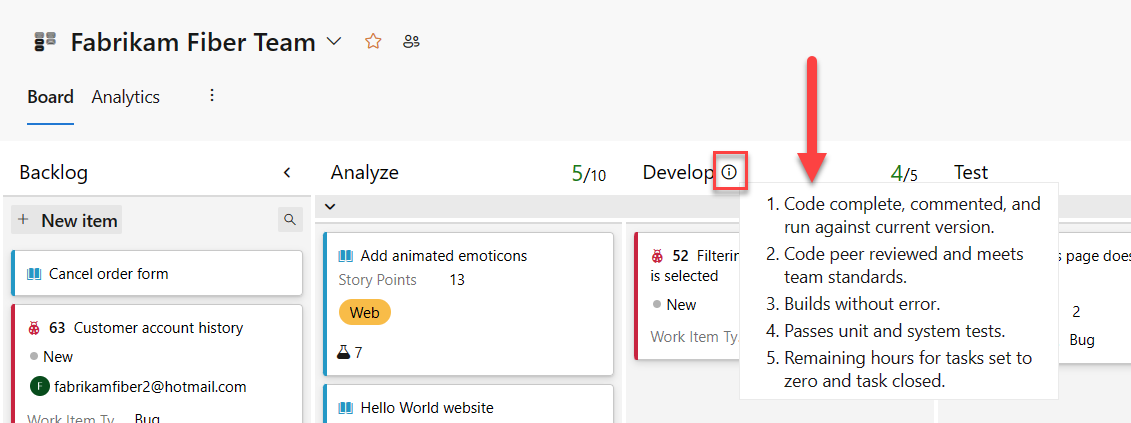
Open your board.
Choose the
gear icon to configure the board and set general team settings.
Choose Columns and then a column tab to configure the Definition of Done for that column.
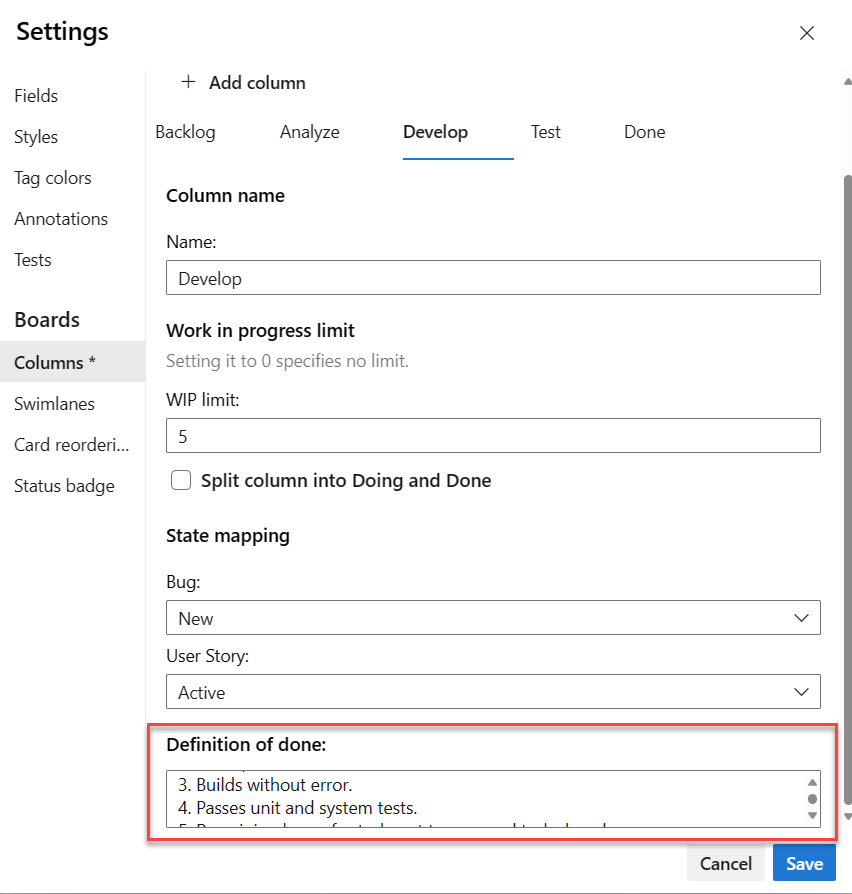
When you're done with your changes, select Save.
Do more tasks
In the following table, we list tasks and their associated articles, so you can do more with your board.
| Article | Task |
|---|---|
| Interactively filter backlogs, boards, queries, and plans | Filter your board to focus on select work based on assignment to a team member or sprint, tags, or parent feature. |
| Update status | Update workflow status through drag-and-drop operations. |
| Change priorities | Reorder cards to change priority of work items. |
| Customize cards | View and quickly assign values to key field. |
| Track board column status | Create queries and charts based on board columns. |
| View and configure a cumulative flow diagram | Review a cumulative flow diagram based on column assignments. |
Related articles
Feedback
Coming soon: Throughout 2024 we will be phasing out GitHub Issues as the feedback mechanism for content and replacing it with a new feedback system. For more information see: https://aka.ms/ContentUserFeedback.
Submit and view feedback for