Note
Access to this page requires authorization. You can try signing in or changing directories.
Access to this page requires authorization. You can try changing directories.
Cost controls let you set a spending or token budget for a Foundry resource or a project, and send alerts or block requests as usage approaches it. In this article, you create, monitor, edit, and delete cost controls in the Microsoft Foundry portal, and you create them programmatically with the REST API. To learn how cost controls count usage and enforce limits, see Cost controls overview.
Important
Items marked preview in this article are currently in preview. This preview is provided without a service-level agreement, and Microsoft doesn't recommend it for production workloads. Certain features might not be supported or might have constrained capabilities. For more information, see Supplemental Terms of Use for Microsoft Azure Previews.
Prerequisites
An Azure subscription with a Foundry resource and at least one project that has deployed models or agents.
A role that can create cost controls at the scope that you manage:
- For a Foundry resource's cost controls: Foundry Account Owner or Foundry Owner. Owner and Contributor also work.
- For a project's cost controls: Foundry Account Owner, Foundry Owner, or Foundry Project Manager. Owner and Contributor also work.
All Foundry roles, and Reader, can view cost controls. For the permissions behind these roles, see Permissions for cost data and cost controls.
To see usage against each budget, an Application Insights resource for the cost controls on the Foundry resource, and read access to it, for example through Monitoring Reader or Log Analytics Reader. You select the resource under Usage data when you create a cost control. Alerts and blocks work without it.
To send alerts, an Azure Event Grid topic in the subscription that uses the CloudEvents v1.0 input schema and allows key-based authentication. To connect a cost control to the topic, you need the EventGrid Contributor role on the topic. To create a topic, see Create a custom topic.
Important
The Foundry RBAC roles were recently renamed. Foundry User, Foundry Owner, Foundry Account Owner, and Foundry Project Manager were previously named Azure AI User, Azure AI Owner, Azure AI Account Owner, and Azure AI Project Manager. You might still see the previous names in some places while the rename rolls out. The role IDs and core permissions are unchanged by the rename.
Create a cost control for a Foundry resource
Create a cost control on the Foundry resource when a budget spans several projects, model deployments, agents, or sessions.
-
Sign in to Microsoft Foundry. Make sure the New Foundry toggle is on. These steps refer to Foundry (new).

Select Manage in the upper-right navigation.
In the left pane, select Cost, and then select the Cost Control tab.
Select Create.
Under What are you controlling?, enter a Cost control name. The name identifies the cost control in its URL, and you can't change it later. In Resource, select the Foundry resource that owns the cost control.
Under What does it apply to?, the cost control covers all usage in the resource. To narrow it, select Add filter. Then select a filter type, Deployment, Project, or Session, and select its values. Deployment lists only the GPT model deployments that cost controls support. You can use each filter type once. For Session, enter up to 20 hosted agent session IDs, separated by commas.
To filter by agent, first add a Project filter with one project. Then add a filter and select Agent.
Under How should the budget be shared?, select One budget for everything so that all matching usage counts toward one total. Or select Budget per, and then choose Agent, Session, or Project so that each one gets the full amount.
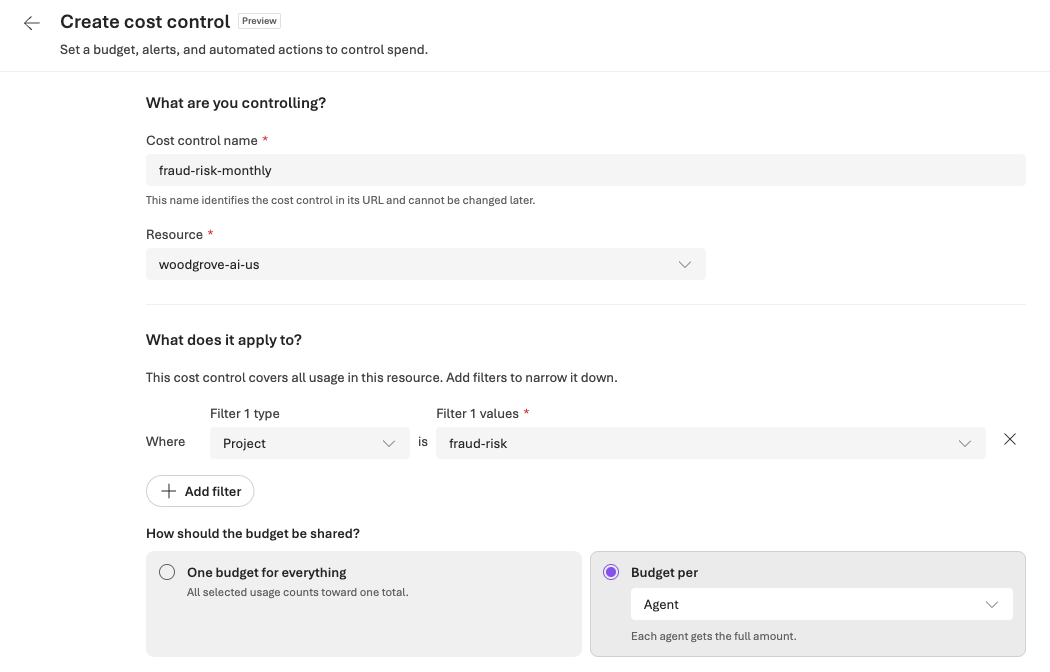
Under Set the budget, select a budget type:
- Spending: enter an Amount (USD).
- Tokens: under Token types to count, select All token types, or select Only specific types and then Input, Output, or both. Enter a Token limit, optionally with K, M, B, or T shorthand. For example,
10Mis 10,000,000 tokens.
In Resets, select Daily, Weekly, or Monthly. The text under the field shows when usage next resets.
Enter a Start date and an End date in your local time zone. The text under each date shows the UTC time that Foundry saves. The start date must be today or later.
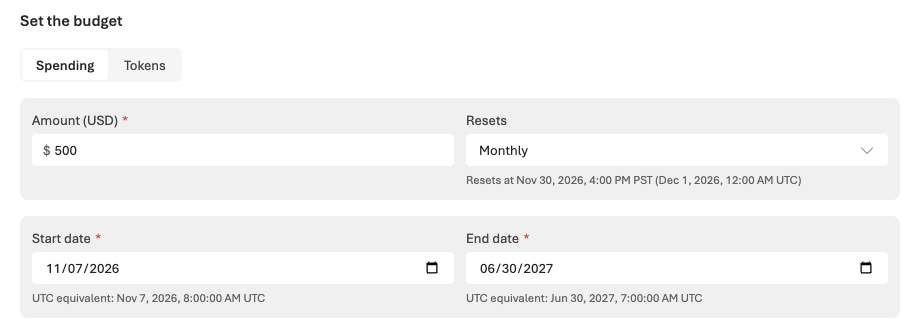
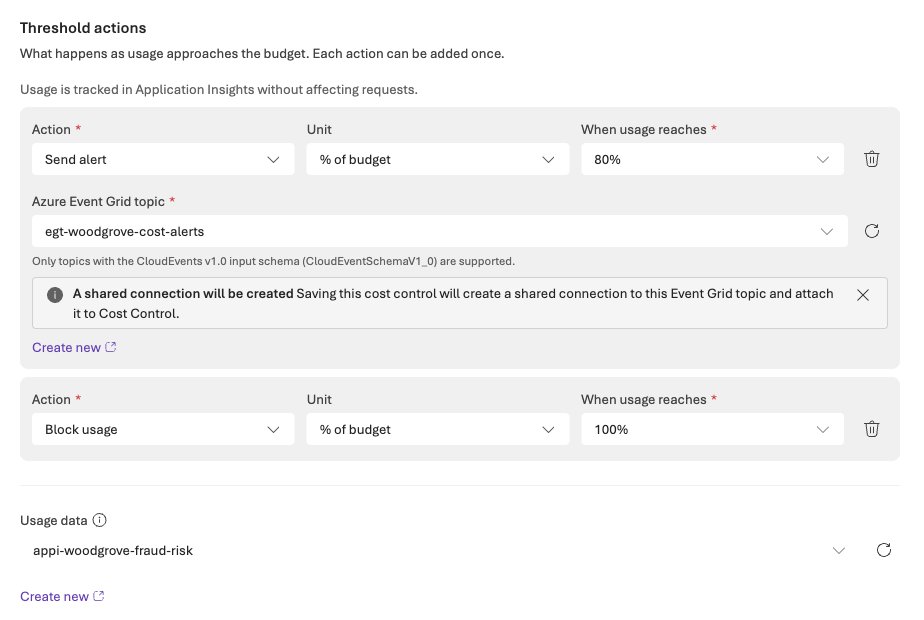
Under Threshold actions, select Add threshold, and then select an Action:
- Send alert sends a notification through Azure Event Grid. Select an Azure Event Grid topic. When you save, Foundry creates a shared connection to the topic.
- Block usage blocks new requests that the cost control covers when usage reaches the threshold.
In When usage reaches, select 50%, 75%, 80%, 90%, or 100% of the budget. To enter an amount instead, change Unit from % of budget to the budget's unit. You can add each action once, and an alert must be at or below the block. For example, send an alert at 80% and block usage at 100%. If you don't add any threshold actions, the cost control tracks usage without affecting requests.
Under Usage data, select the Application Insights resource that records usage for the cost controls on this Foundry resource. If one is already connected, the section shows it. It's shared by every cost control on the resource, so changing it affects all of them.
Select Create.
The cost control appears on the Cost Control tab and takes effect within 15 minutes.
Create a cost control for a project
Create a cost control in a project when the budget covers only that project's usage.
- Sign in to Microsoft Foundry. Make sure the New Foundry toggle is on. These steps refer to Foundry (new).
- Select Build in the upper-right navigation, and then select your project from the project selector at the top of the page.
- In the left pane, select Monitor, and then select the Cost Control tab.
- Select Create to open the form.
- Enter a Cost control name. Scope shows the project. The cost control covers usage in this project and stays in the project.
- Under What does it apply to?, the cost control covers all usage in the project. To narrow it, select Add filter. Then select a filter type, Deployment, Agent, or Session, and select its values. As for a resource, Deployment lists only the GPT model deployments that cost controls support.
- Under How should the budget be shared?, select One budget for everything, or select Budget per and then Agent or Session.
- Complete Set the budget and Threshold actions as for a resource.
- Check Usage data. It shows the Application Insights resource for the Foundry resource. For a Foundry Project Manager, it's read-only. If it isn't set up, ask an admin of the Foundry resource to set it up.
- Select Create. The cost control appears on the project's Cost Control tab and takes effect within 15 minutes.
You can also start from the Monitor > Cost tab. When the project has no budget, the Project budget card shows Create a cost control.
Create cost controls programmatically
Cost controls are Azure Resource Manager resources, so you can create and manage them with the REST API, for example from a deployment pipeline. A Foundry resource's cost controls have the type Microsoft.CognitiveServices/accounts/costControls, and a project's cost controls have the type Microsoft.CognitiveServices/accounts/projects/costControls. You need the same roles as in the Foundry portal.
Send each request with API version 2026-11-15-preview. The REST API reference and the Azure SDK management libraries for Python, .NET, Java, JavaScript, and Go cover other operations on Foundry resources. They don't include cost controls for this API version yet, so use the REST API as this section shows.
The following table maps the fields in the Foundry portal to the request body.
| Foundry portal | Request body | Values |
|---|---|---|
| Cost control name | The resource name at the end of the URL | 1 to 63 letters, numbers, hyphens, or underscores. |
| Budget type | category |
Cost for a Spending budget in US dollars, or Tokens. You can't change it after you create the cost control. |
| Amount (USD) or Token limit | amount |
A positive number. Token limits are whole numbers. |
| Resets | timeGrain |
Daily, Weekly, or Monthly. |
| Start date and End date | timePeriod.startDate and timePeriod.endDate |
UTC times in ISO 8601 format that end in Z, such as 2026-12-01T00:00:00Z. The cost control counts usage from the start time until just before the end time. |
| Filters | filter |
An additionalInfo condition with a name, the operator In, and a list of values. The names are project, deployment, agent, sessionId, and, for a Tokens budget, tokenType, whose values are input or output. Values are names, such as a project or deployment name, not resource IDs. To filter by agent, also add a project filter with exactly one project. To combine conditions, list them in an and array, and use each name once. |
| Budget per | grouping |
One entry with the type AdditionalInfoKey and the name agent, sessionId, or project. Omit it for One budget for everything. Only a Foundry resource's cost controls can use project. |
| Send alert | notifications |
One named entry with thresholdType (Percentage or Absolute), threshold, the operator GreaterThanOrEqualTo, enabled set to true, and eventGridConnectionId. A percentage threshold can be up to 100, and an absolute threshold up to the amount. |
| Block usage | providerProperties.actions |
One named entry with the type Block, thresholdType, threshold, and the operator GreaterThanOrEqualTo. The threshold follows the same rules as an alert's. |
An alert needs the resource ID of a Foundry connection to your Event Grid topic, in the form /subscriptions/<subscription-id>/resourceGroups/<resource-group>/providers/Microsoft.CognitiveServices/accounts/<foundry-resource>/connections/<connection-name>. Foundry creates this connection on the Foundry resource when you save a cost control with a Send alert threshold in the Foundry portal. To reuse it, send a GET request for that cost control and copy the eventGridConnectionId from its notification.
The following example creates a cost control named fraud-risk-monthly: a monthly budget of 500 US dollars for each agent in the fraud-risk project, from December 1, 2026, through June 30, 2027, with an alert at 80% and a block at 100%. Save the request body as fraud-risk-monthly.json:
{
  "properties": {
    "category": "Cost",
    "amount": 500,
    "timeGrain": "Monthly",
    "timePeriod": {
      "startDate": "2026-12-01T00:00:00Z",
      "endDate": "2027-07-01T00:00:00Z"
    },
    "filter": {
      "additionalInfo": {
        "name": "project",
        "operator": "In",
        "values": ["fraud-risk"]
      }
    },
    "grouping": [
      { "name": "agent", "type": "AdditionalInfoKey" }
    ],
    "notifications": {
      "Actual_GreaterThanOrEqualTo_80_Percent": {
        "enabled": true,
        "operator": "GreaterThanOrEqualTo",
        "threshold": 80,
        "thresholdType": "Percentage",
        "eventGridConnectionId": "<event-grid-connection-id>"
      }
    },
    "providerProperties": {
      "actions": {
        "Block_GreaterThanOrEqualTo_100_Percent": {
          "type": "Block",
          "operator": "GreaterThanOrEqualTo",
          "threshold": 100,
          "thresholdType": "Percentage"
        }
      }
    }
  }
}
Then send it with the Azure CLI:
az rest --method put \
  --url "https://management.azure.com/subscriptions/<subscription-id>/resourceGroups/<resource-group>/providers/Microsoft.CognitiveServices/accounts/<foundry-resource>/costControls/fraud-risk-monthly?api-version=2026-11-15-preview" \
  --body @fraud-risk-monthly.json
PUT replaces a cost control that has the same name. To create the cost control only if it doesn't exist yet, add --headers "If-None-Match=*".
For a project's cost control, add /projects/<project> before /costControls in the URL. A project's cost control covers only that project, so leave out the project grouping. To filter it by agent, still add a project filter with that project.
To manage cost controls after you create them:
- List a Foundry resource's or project's cost controls: send a
GETrequest to thecostControlsURL without a name. - Change a cost control: send the complete definition again with
PUT, or send only the properties that change withPATCH. - Delete a cost control: send a
DELETErequest to its URL.
Cost controls that you create with the API appear in the Foundry portal and take effect within 15 minutes, the same as cost controls that you create in the portal.
Monitor your cost controls
The Cost Control tab on Manage > Cost, and the one on a project's Monitor page, list cost controls with the following columns. On Manage > Cost, select the Subscription and Resource to see a Foundry resource's cost controls. A project's tab also lists the Foundry resource's cost controls that apply to the project, marked with a badge. You can view them there, but you edit them on Manage > Cost.
| Column | What it shows |
|---|---|
| Policy name | The name of the cost control. |
| Applies to | The usage that the cost control covers, such as the resource, or the projects, agents, deployments, or sessions in its filters. |
| Budget | The amount and reset period, and how the budget is shared, such as One total or Per agent. |
| Start date and End date | When the cost control starts and ends. |
| Closest to limit (estimated) | Estimated usage compared with the budget. For a budget per agent, session, or project, it shows the one closest to its limit. |
| State | For example, On track or Limit reached. For every state, see Cost control states. |
To see a cost control's settings and its usage this period, select its name. The details pane shows the scope, the budget and period, when it resets, and each threshold action, such as 100% · Block. Usage can take about 15 minutes to reflect the latest requests.
To see cost controls that need attention across a subscription, go to Manage > Cost > Overview. The Cost controls card shows how many need attention, checking each budget over its current reset period. Select View cost controls to open the list.
Developers can check the limit that applies to their project on its Monitor > Cost tab. For details, see Check the limits that apply to your project.
Receive alerts
A Send alert action publishes an event to the Azure Event Grid topic that you selected when usage reaches the threshold. To notify people or start automation, create an event subscription on the topic. For example, route events to an Azure Logic Apps workflow that sends email, to Azure Functions, or to a webhook. For steps, see Subscribe to events through the Azure portal.
Foundry publishes alert events in the CloudEvents v1.0 schema, with the event type costControl.alert. To route only cost control alerts, filter your event subscription on that type. Here's an example event for the fraud-risk-monthly cost control in the earlier example, a spending budget for each agent:
{
    "specversion": "1.0",
    "type": "costControl.alert",
    "source": "/subscriptions/00000000-0000-0000-0000-000000000000/resourceGroups/rg-contoso/providers/Microsoft.CognitiveServices/accounts/contoso-foundry",
    "id": "5d0c9a3e7b14f2a86c3e91d04b7a5f2e8c61d39a0b4e7f25c8d1a6e39b0f4c72",
    "time": "2026-12-20T17:42:10.1234567+00:00",
    "subject": "Cost control warning",
    "data": {
        "unit": "usd",
        "threshold": "80.0%",
        "action": "alert",
        "severity": "warning",
        "windowEnd": "2027-01-01T00:00:00.0000000+00:00",
        "costBasis": "estimate",
        "inputTokens": 1850,
        "outputTokens": 420,
        "cachedTokens": 0,
        "reasoningTokens": 0,
        "projectName": "fraud-risk",
        "model": "gpt-5.4-mini",
        "deploymentName": "gpt-5.4-mini",
        "deploymentType": "GlobalStandard",
        "region": "eastus2",
        "agentName": "fraud-case-review",
        "agentVersion": "3",
        "startDate": "2026-12-01T00:00:00.0000000+00:00",
        "endDate": "2027-07-01T00:00:00.0000000+00:00",
        "callCost": 0.0021,
        "totalConsumed": 400.12,
        "limit": 500,
        "remaining": 99.88
    }
}
| Field | What it contains |
|---|---|
source |
The resource ID of the Foundry resource that owns the cost control. |
data.projectName, data.agentName, data.model, data.deploymentName |
The project, agent, and deployment of the request that triggered the event. Fields that don't apply to the request are left out. |
data.unit |
usd for a spending budget, or tokens for a token budget. |
data.threshold |
The threshold that usage reached. |
data.costBasis |
estimate for a spending budget, which Foundry prices as described in How cost controls price usage, or usage for a token budget. |
data.totalConsumed, data.limit, data.remaining |
The usage counted so far in the current period, the budget, and what's left. For a token budget, these values are strings, and data.tokensConsumed replaces data.callCost. |
data.callCost and the token counts |
The cost and tokens of the request that triggered the event. |
data.startDate, data.endDate |
The cost control's start and end dates, in UTC, when it has them. |
data.windowEnd |
When the current period ends and usage resets, in UTC. |
The event doesn't include the cost control's name. To tell cost controls on the same Foundry resource apart, compare data.unit, data.limit, and data.startDate, or send each cost control's alerts to its own topic.
While usage is at or above a threshold, Foundry sends an alert event for every request that counts toward the cost control, so one threshold can send many events. If your automation sends notifications, send one for each threshold and period. For example, keep the first event for each source, data.limit, data.threshold, and data.windowEnd, and also data.agentName or data.projectName for a budget per agent or project.
Edit or delete a cost control
- Go to the Cost Control tab where the cost control was created: Manage > Cost for a resource, or Monitor in the project.
- Select the name of the cost control. A details pane opens with its Scope, Details, such as the budget, period, and thresholds, and its usage this period.
- Select Edit or Delete.
- To edit, change the amount, reset period, dates, what it applies to, or the threshold actions, and then save your changes.
Changes take effect within 15 minutes. If you change how the budget is shared, or the reset period, usage starts counting again from zero. In the Foundry portal, you can't change the budget type or the token types after you create a cost control. To measure something different, create a new cost control and delete the old one. When you delete a cost control, its alerts and blocks stop.
Respond when requests are blocked
When a cost control blocks usage, new requests that count toward it fail with HTTP status code 429 and the header x-ms-budget-cause: budget_exceeded. The error message starts with "Budget exceeded for cost control". For example, a blocked chat completions request returns this error:
{
    "error": {
        "code": "RateLimitReached",
        "message": "Budget exceeded for cost control.",
        "details": "Budget exceeded for cost control."
    }
}
The error code and other fields depend on the API that you call. The code can be the same one that a rate limit returns, as in this example. The response also has these headers:
| Header | Value |
|---|---|
x-ms-budget-cause |
budget_exceeded. Only cost control blocks have this header. |
x-ms-applicable-policy-id |
The resource ID of the cost control that blocked the request. |
x-ms-budget-window-reset |
When the budget resets, in UTC. |
Some responses might name the ID header x-ms-applied-cost-control-id instead of x-ms-applicable-policy-id. If your app reads the cost control's ID, check for both names.
Requests that the cost control doesn't cover keep running. When an agent streams its response, the HTTP status code is 200, and the block arrives as an error event in the stream, with a message that starts with "Budget exceeded for cost control".
A 429 response can also come from quota or rate limits, and retrying with backoff helps for those. A cost control block doesn't clear until the budget allows usage again. So in your app, check for the x-ms-budget-cause header before you retry. For example, with the OpenAI Python library, where client is a client for your Foundry endpoint:
import openai

try:
    response = client.responses.create(model="gpt-5.4-mini", input="Summarize the case notes.")
except openai.RateLimitError as e:
    if e.response.headers.get("x-ms-budget-cause") == "budget_exceeded":
        # A cost control blocked the request. Don't retry until the budget resets.
        reset_time = e.response.headers.get("x-ms-budget-window-reset")
        print(f"Blocked by a cost control until {reset_time}: {e.message}")
    else:
        raise  # Quota or rate limit: retry with backoff.
For quota and rate limits, see Manage quotas.
To restore access, do one of the following:
- Raise the budget, or the threshold of the Block usage action.
- Wait for the next reset.
- Change what the cost control applies to.
- Delete the cost control.
Troubleshoot cost controls
| Symptom | Cause | Resolution |
|---|---|---|
| Usage against the budget shows Usage unavailable or Application Insights isn't connected. | No Application Insights resource is set up for the cost controls on the Foundry resource. | Select Connect, or ask an admin of the Foundry resource to select an Application Insights resource under Usage data. |
| Usage shows Permission required. | You can't read the usage data in the Application Insights resource. | Ask an admin for read access to that Application Insights resource, such as Monitoring Reader or Log Analytics Reader. |
| The Azure Event Grid topic field shows "Unsupported Azure Event Grid input schema". | The topic uses an input schema that cost controls don't support. | Select or create a topic that uses the CloudEvents v1.0 input schema. |
| You can't select Agent as a filter on a Foundry resource's cost control. | Agent filters need a Project filter with exactly one project. | Add a Project filter with one project first. To cover agents in several projects, create one cost control per project. |
| Requests still succeed after you save a Block usage action. | Changes take up to 15 minutes, and the request that crosses the threshold completes. When an agent streams its response, the block arrives as an error event in the stream, with HTTP status code 200. |
Wait 15 minutes, check streamed responses for a "Budget exceeded for cost control" error, and check that the cost control applies to the agents, models, or projects that send the requests. |
Requests fail with 429, but no cost control is near its limit. |
The deployment reached its quota or rate limit. | Check for the x-ms-budget-cause header. Only cost control blocks have it. The error code alone can't tell a block from a rate limit. For quota, see Manage quotas. |
| A cost control's spending doesn't match the cost in the Foundry portal. | During public preview, cost controls price usage with a snapshot of your negotiated prices, and they aren't reconciled with your bill. The cost pages show Azure Cost Management data, 8 to 24 hours after usage. | No fix is needed. For details, see How cost controls price usage. |
| Saving a Send alert action fails, or you can't select the topic. | You don't have the EventGrid Contributor role on the topic, or the topic doesn't allow key-based authentication. | Ask for EventGrid Contributor on the topic, and allow key-based authentication. |
| Alerts don't arrive, and the Event Grid topic shows no published events. | The cost control's alert uses an Event Grid connection that alerts can't use, such as an AzureEventGrid connection that you created yourself. Alerts skip it without an error. |
Use the connection that Foundry creates when you select the topic under Send alert in the Foundry portal. With the REST API, use the eventGridConnectionId of a cost control that you created in the portal. |
| You can't see the Cost Control tab, or you can't create cost controls. | You don't have the required role. | See Prerequisites, and Permissions for cost data and cost controls. |
Related content
- To understand budgets, sharing, and how several cost controls combine, see Cost controls overview.
- To track spending across your subscription, see View subscription costs.
- To compare cost controls with Azure Cost Management budgets and other limits, see Compare cost controls with other ways to manage spending.