Note
Access to this page requires authorization. You can try signing in or changing directories.
Access to this page requires authorization. You can try changing directories.
When you create a parameter group, at least one parameter must be provided. The underlying operation in the backend merges your input with the system defaults for the specified pgVersion.
Steps to create parameter groups
Using the Azure portal:
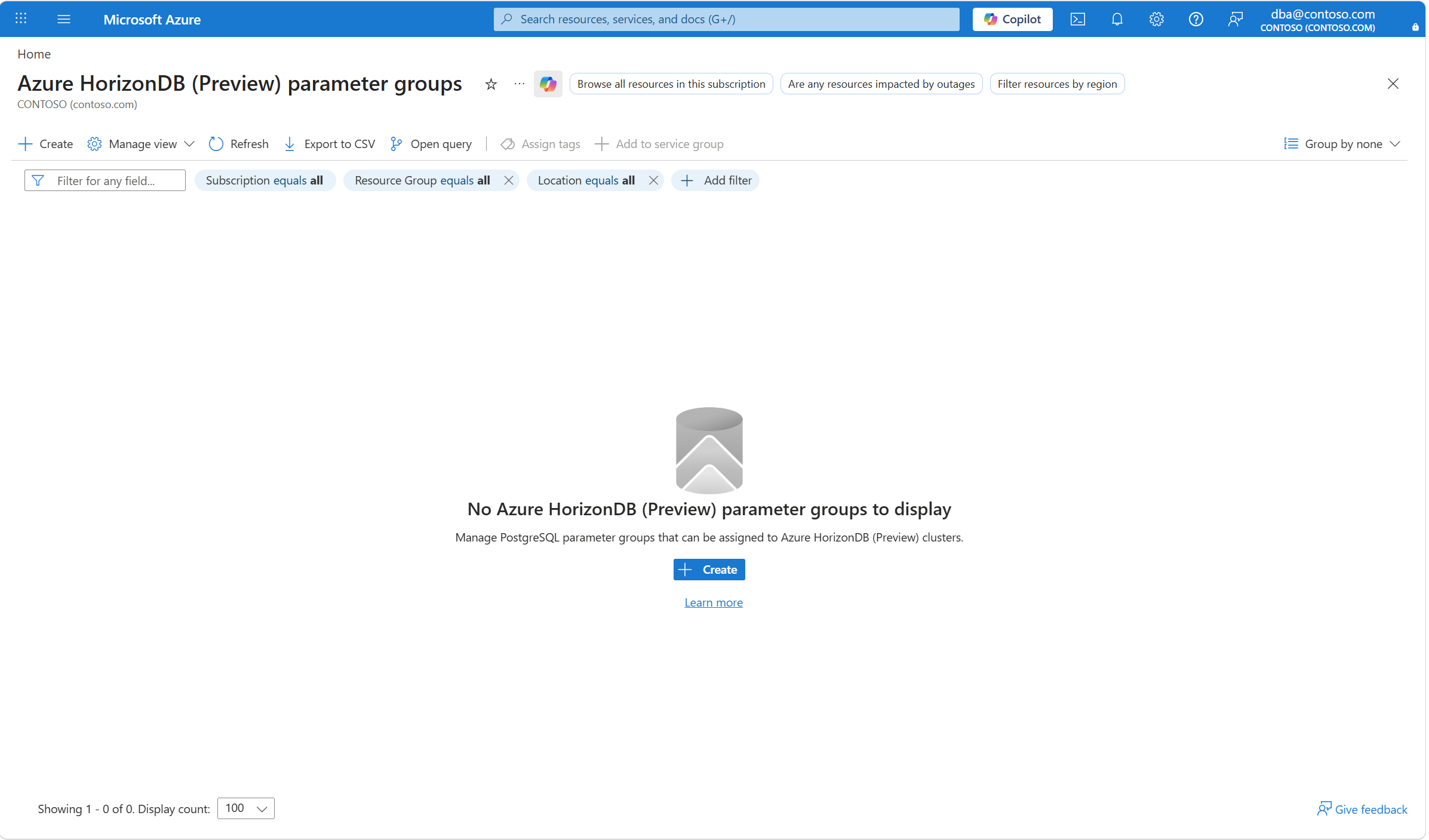
Browse the Azure HorizonDB (Preview) parameter groups.
In the command bar, select Create.
In the Create a parameter group page, select the subscription and resource group in which you want to create the parameter group.
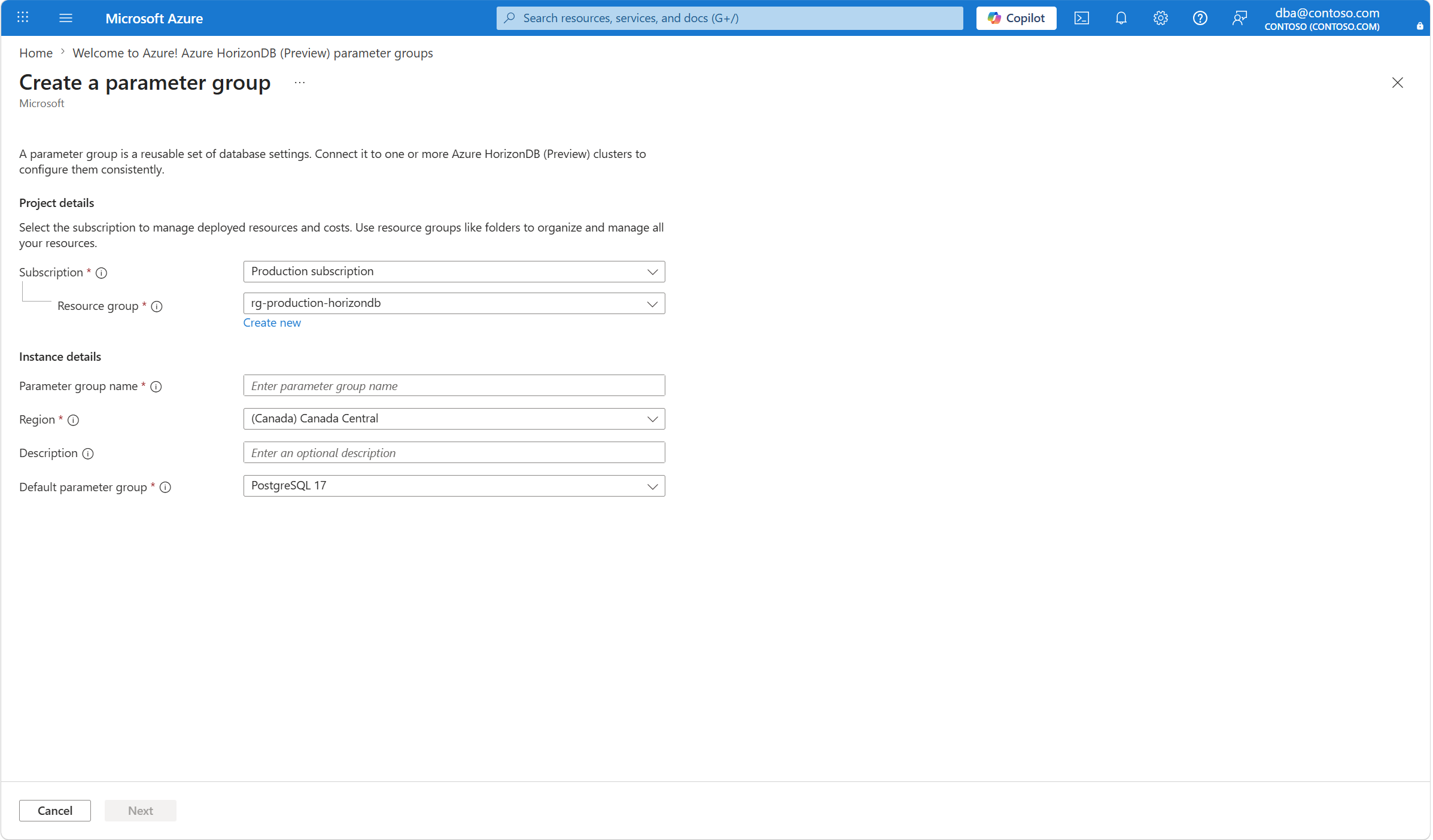
Provide a name which is unique among all the parameter groups that already exist in that resource group of that subscription. Preferably, embed some form of encoded description in the name so that you can later identify the potential target clusters of that configuration.
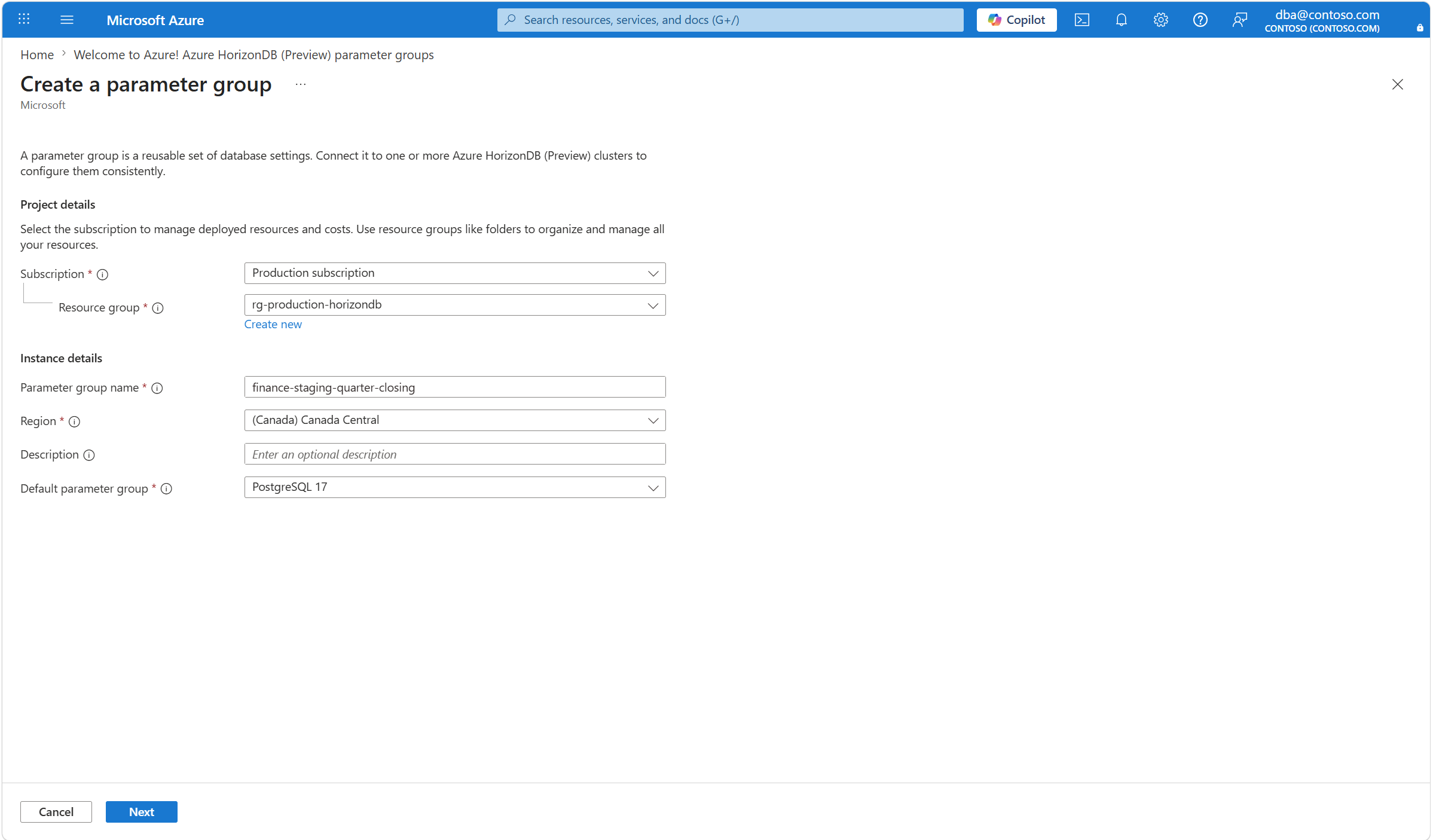
Select a location in which you want to create the parameter group. Notice that you can only connect parameter groups created in a location to clusters that also exist in that same location.
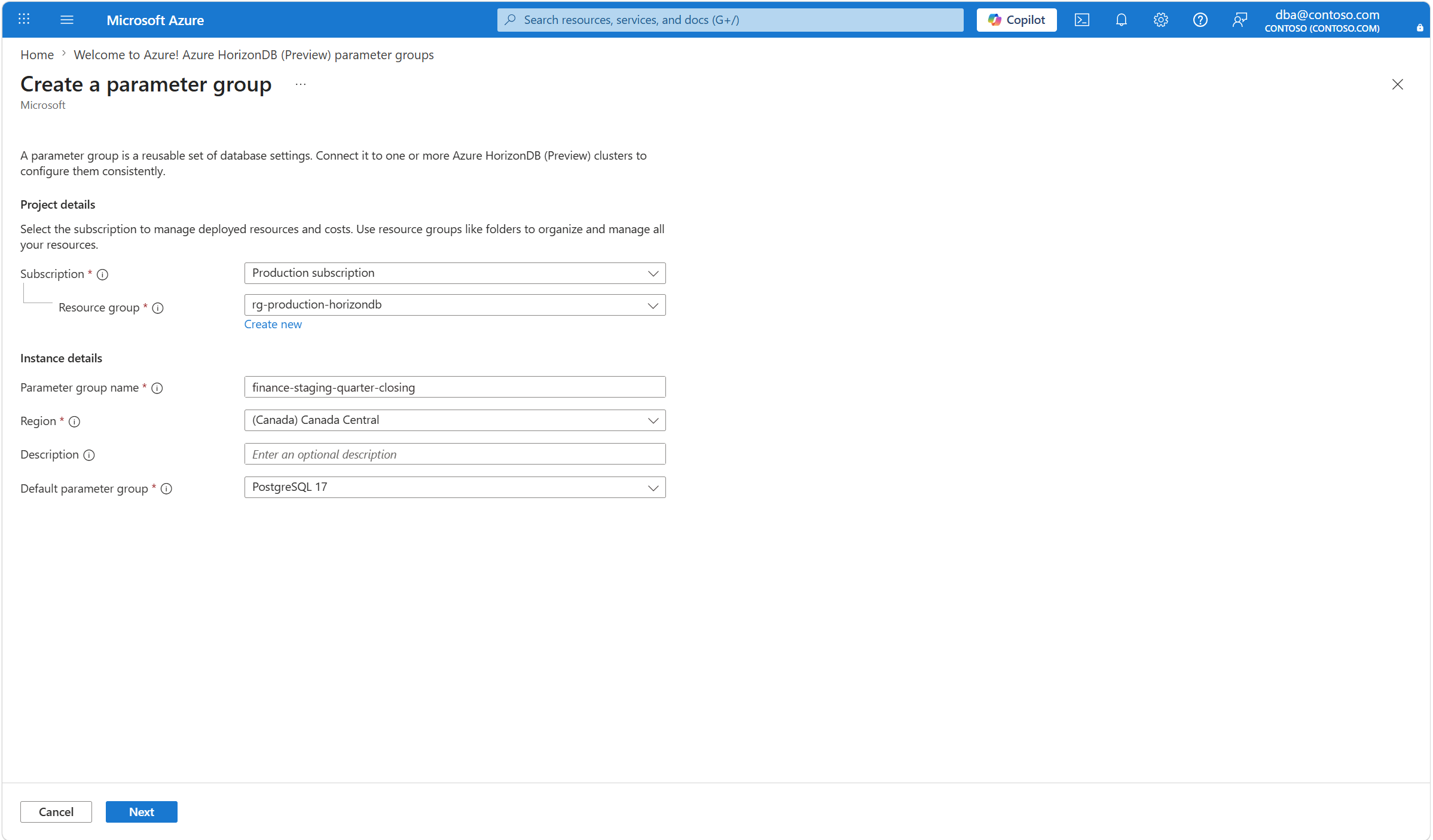
Although not required, we recommend providing a description explaining in more detail what's the purpose of the parameter group configuration you're creating. It can also describe what are the ideal target clusters for which it was conceived.
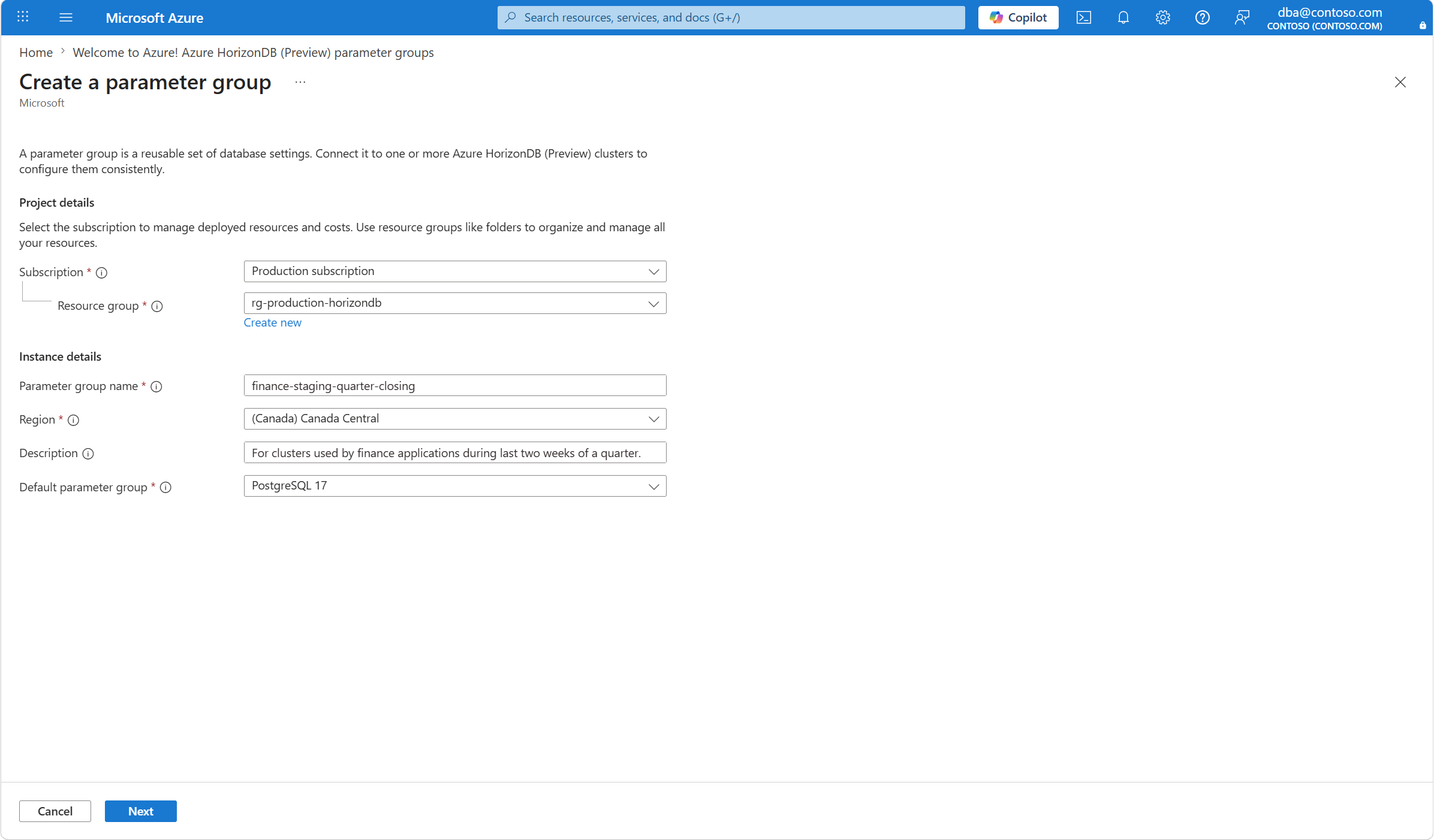
Finally, select the version of PostgreSQL for which the parameter group is supported. Notice that parameter groups created for a given version of PostgreSQL can't be applied to clusters of a different version of PostgreSQL.
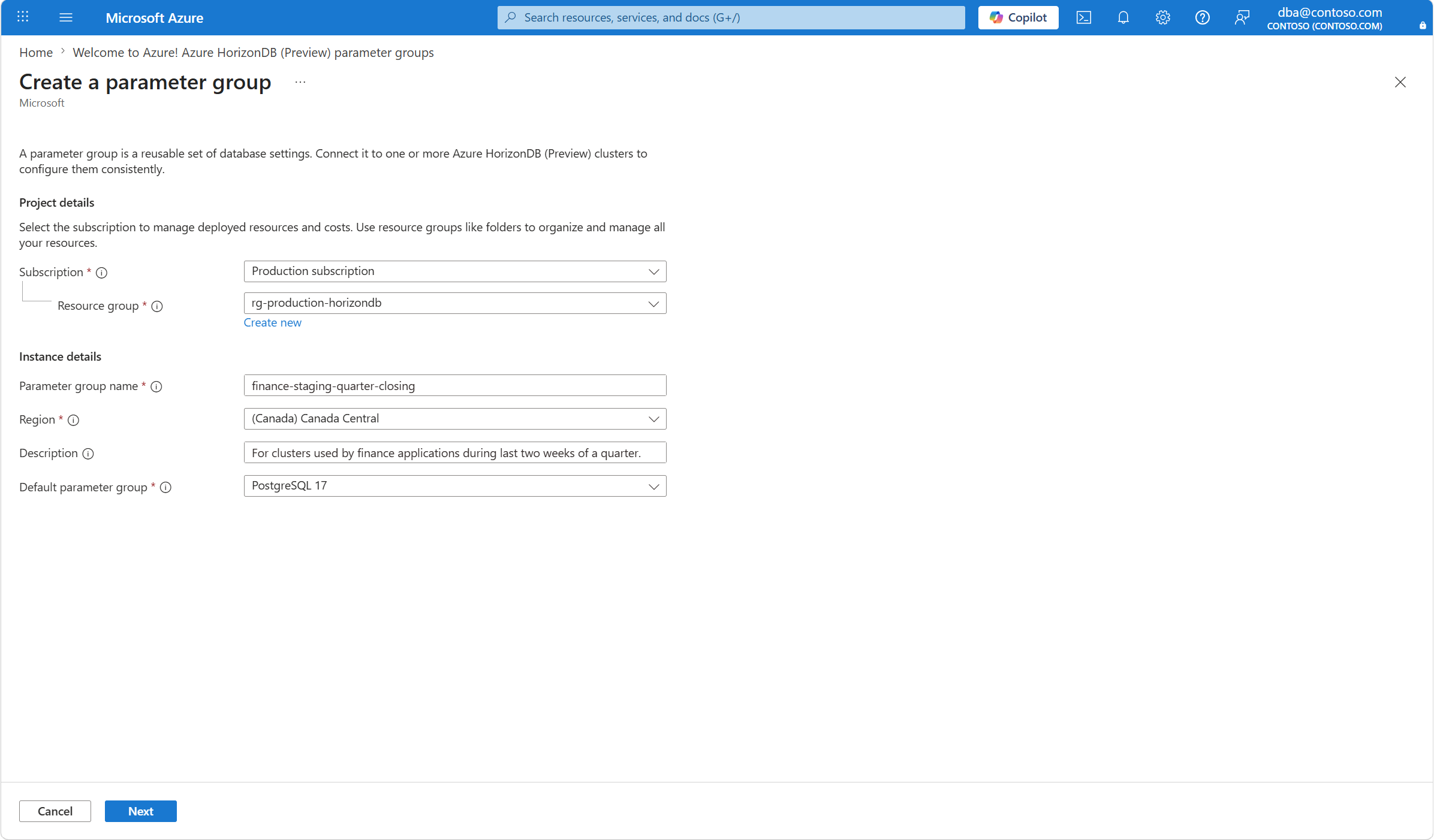
Select Next so that you can configure the values of the modifiable parameters whose defaults you want to change in this parameter group.
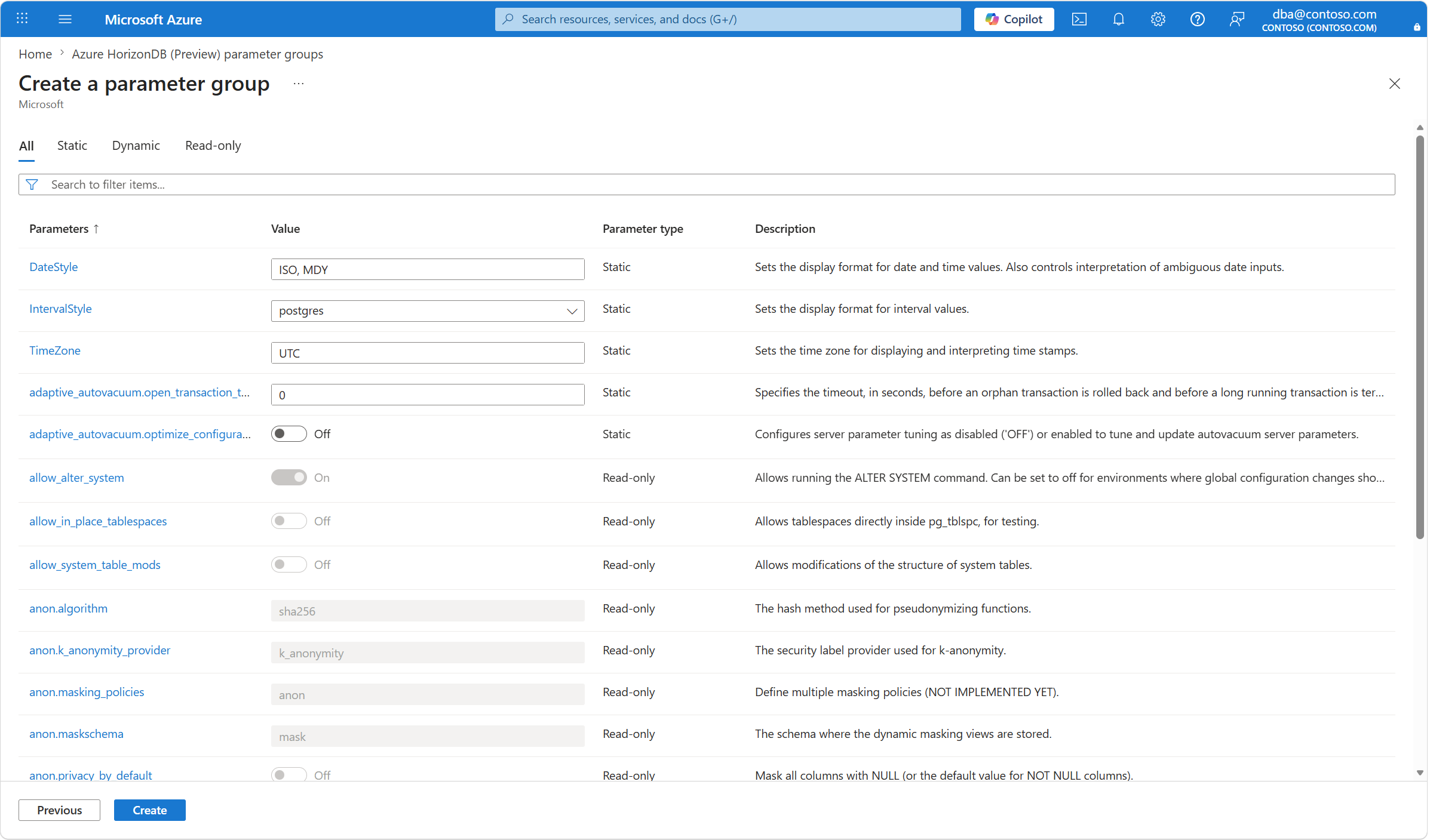
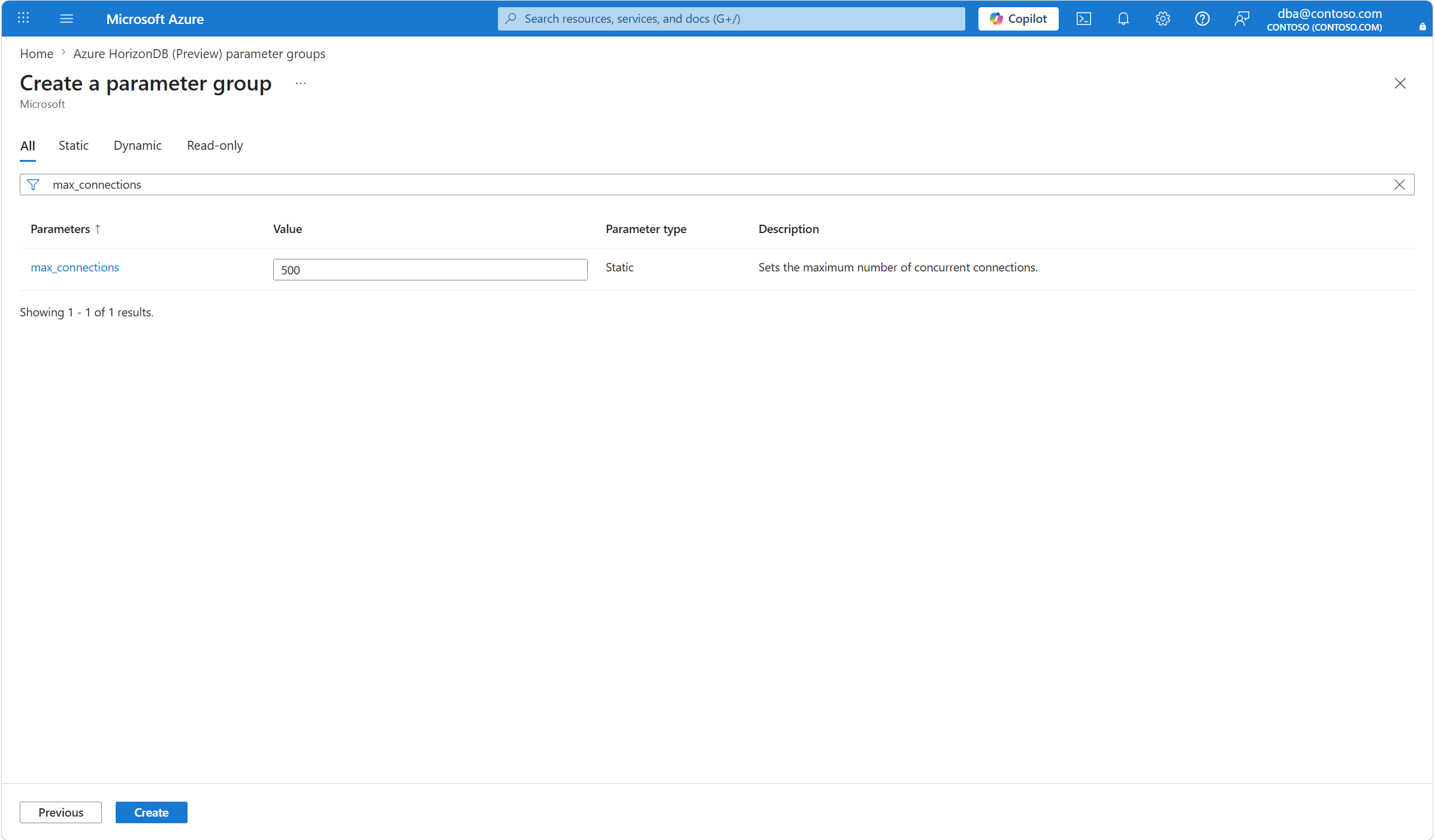
Search for the names of the parameters whose default values you want to override, and change their defaults. Once finished with the list of parameters whose defaults you want to change, select Create.
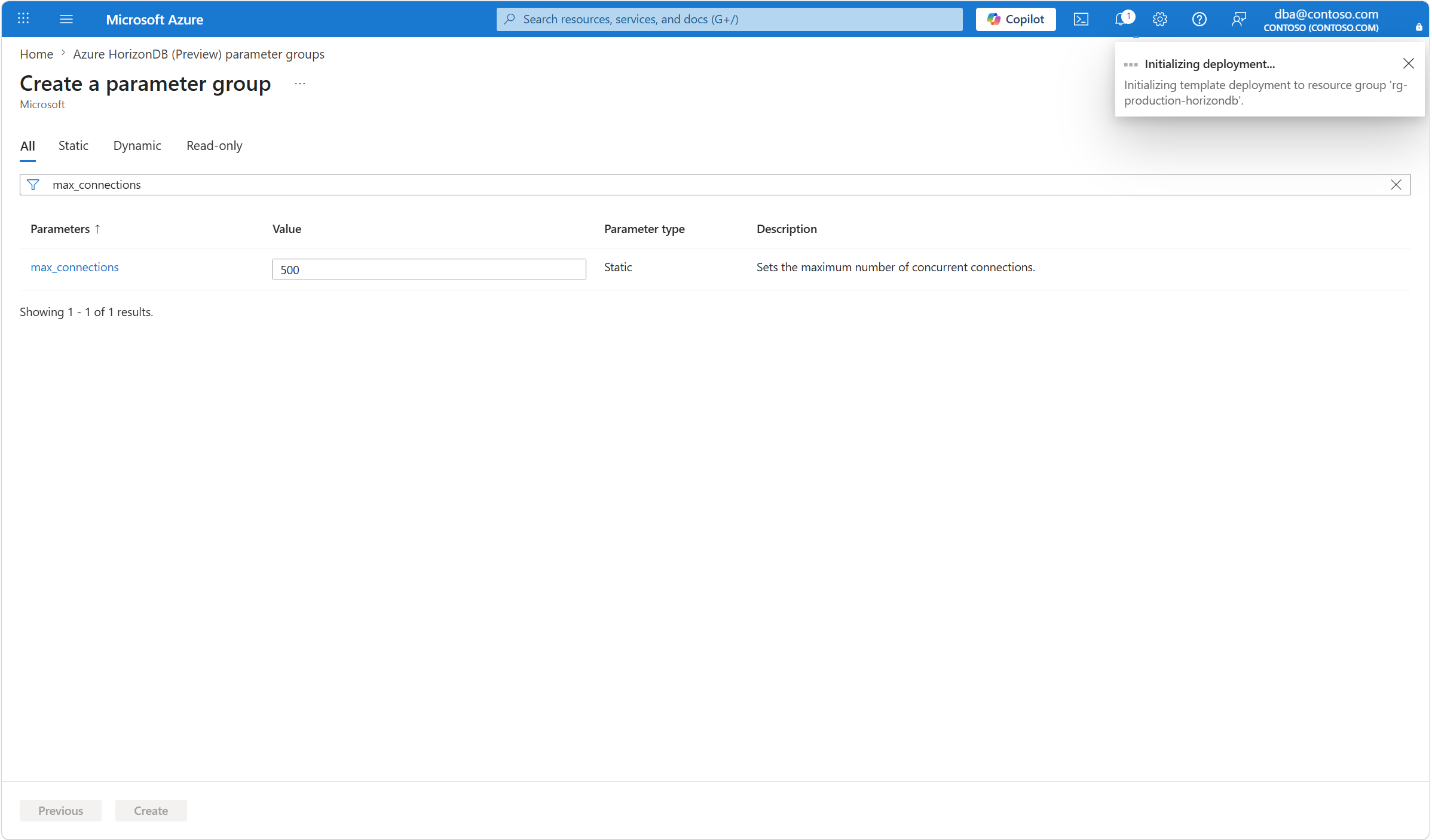
A new deployment is initialized to create the parameter group.
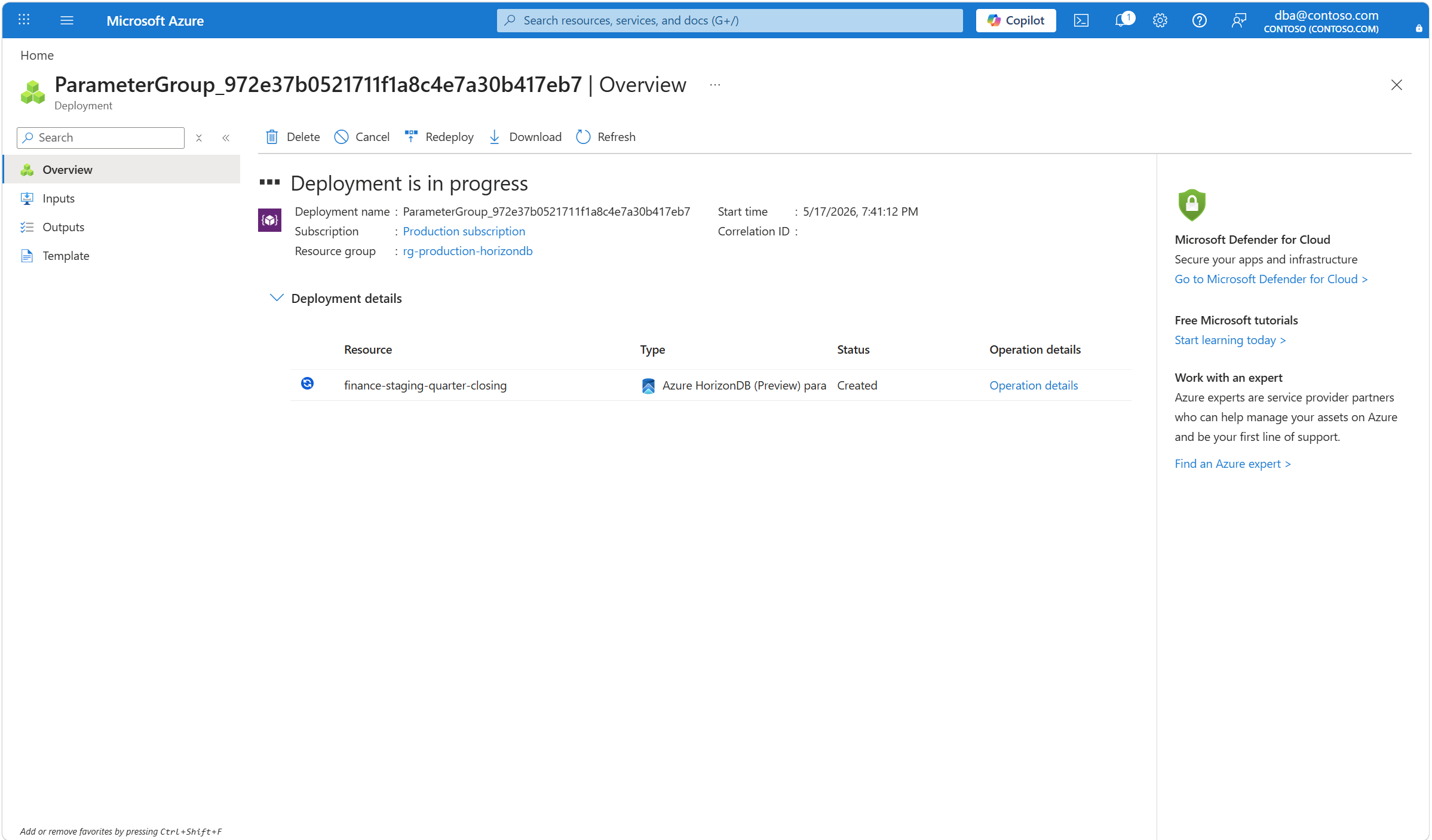
Wait until the deployment completes.
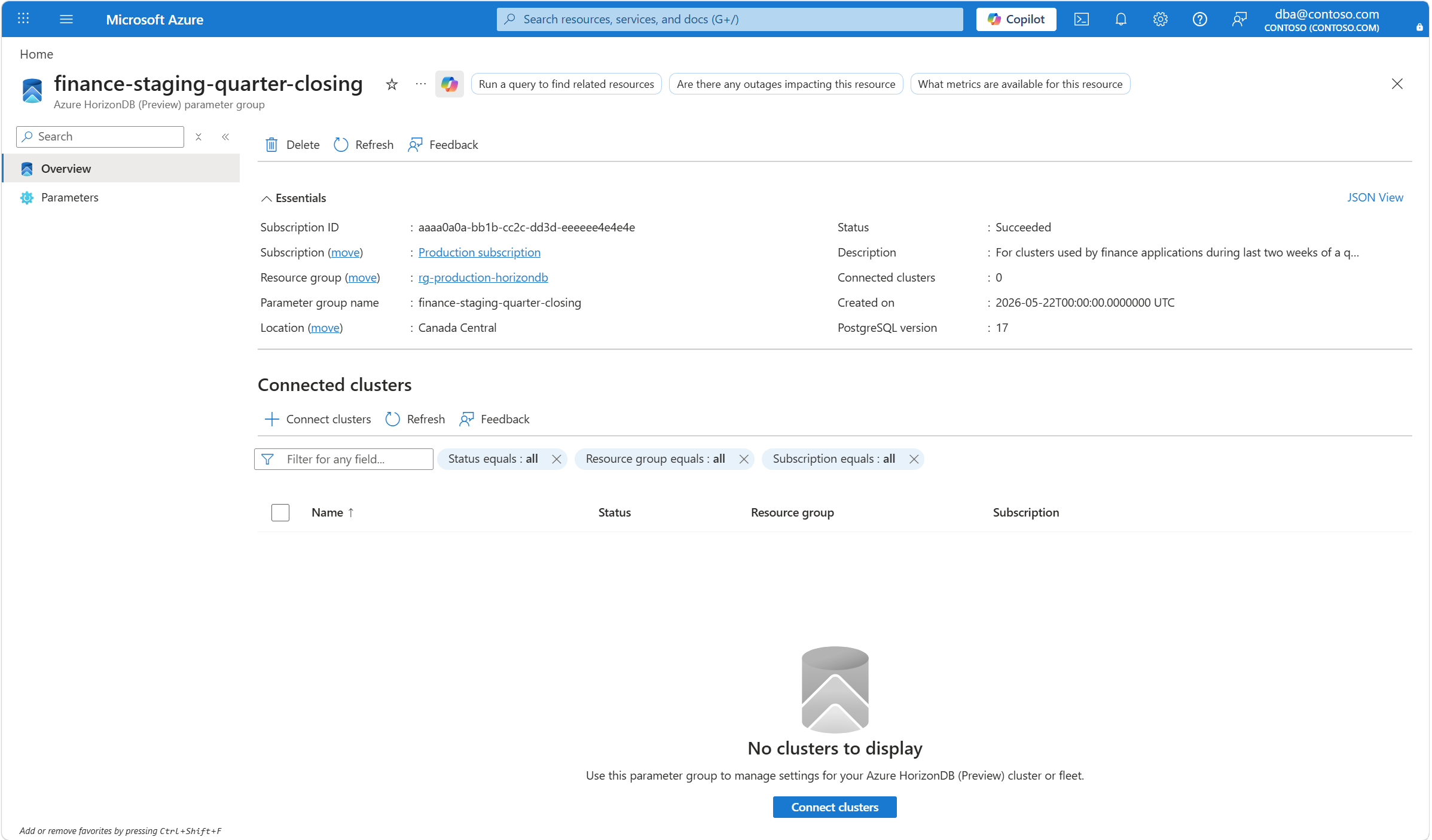
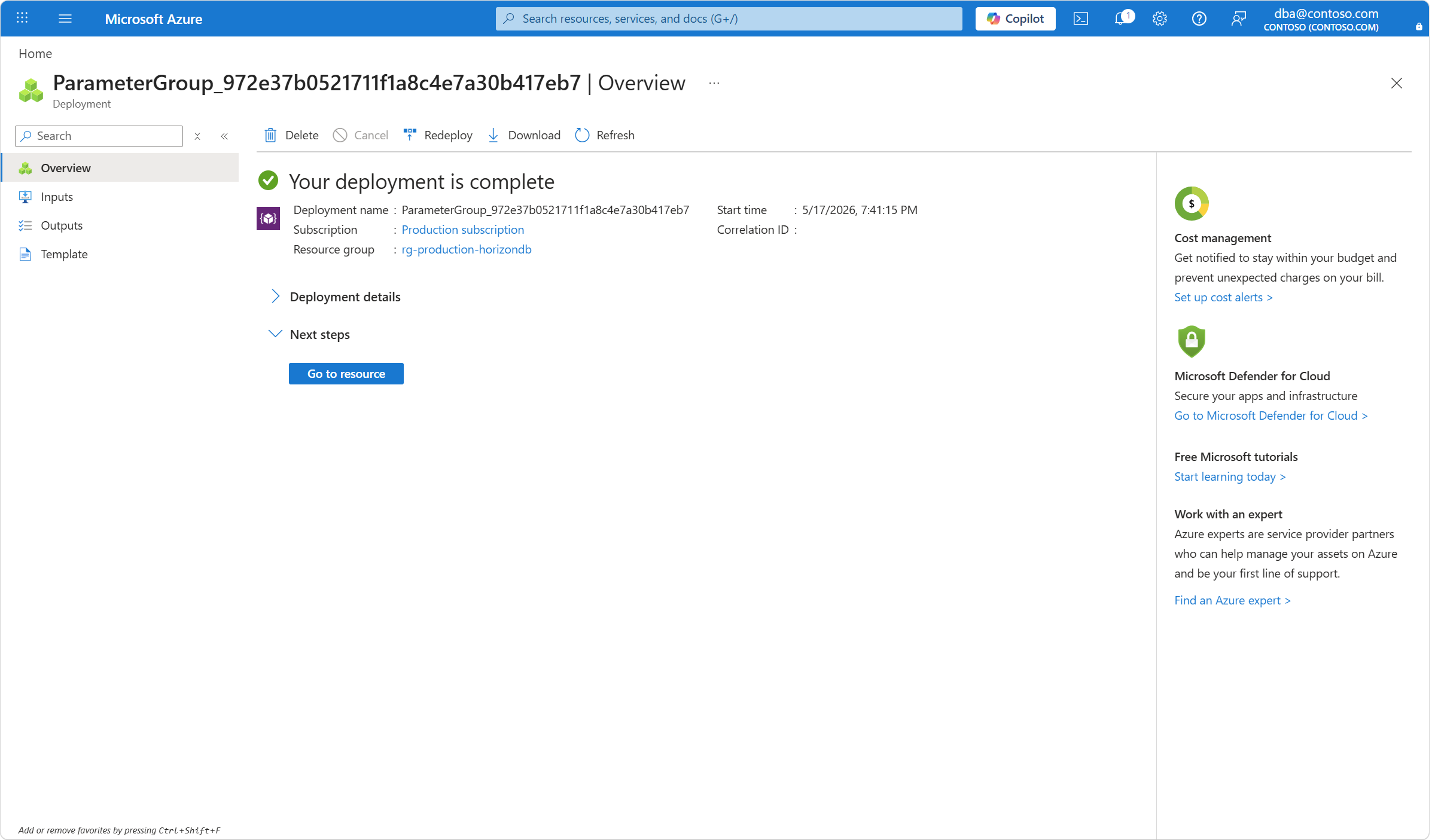
When the deployment completes, select Go to resource to visit the newly created parameter group.
You can now inspect all details associated to the newly created parameter group.