Note
Access to this page requires authorization. You can try signing in or changing directories.
Access to this page requires authorization. You can try changing directories.
You can identify which parameter group is connected to a cluster.
Steps to identify which parameter group connected to a cluster
Using the Azure portal:
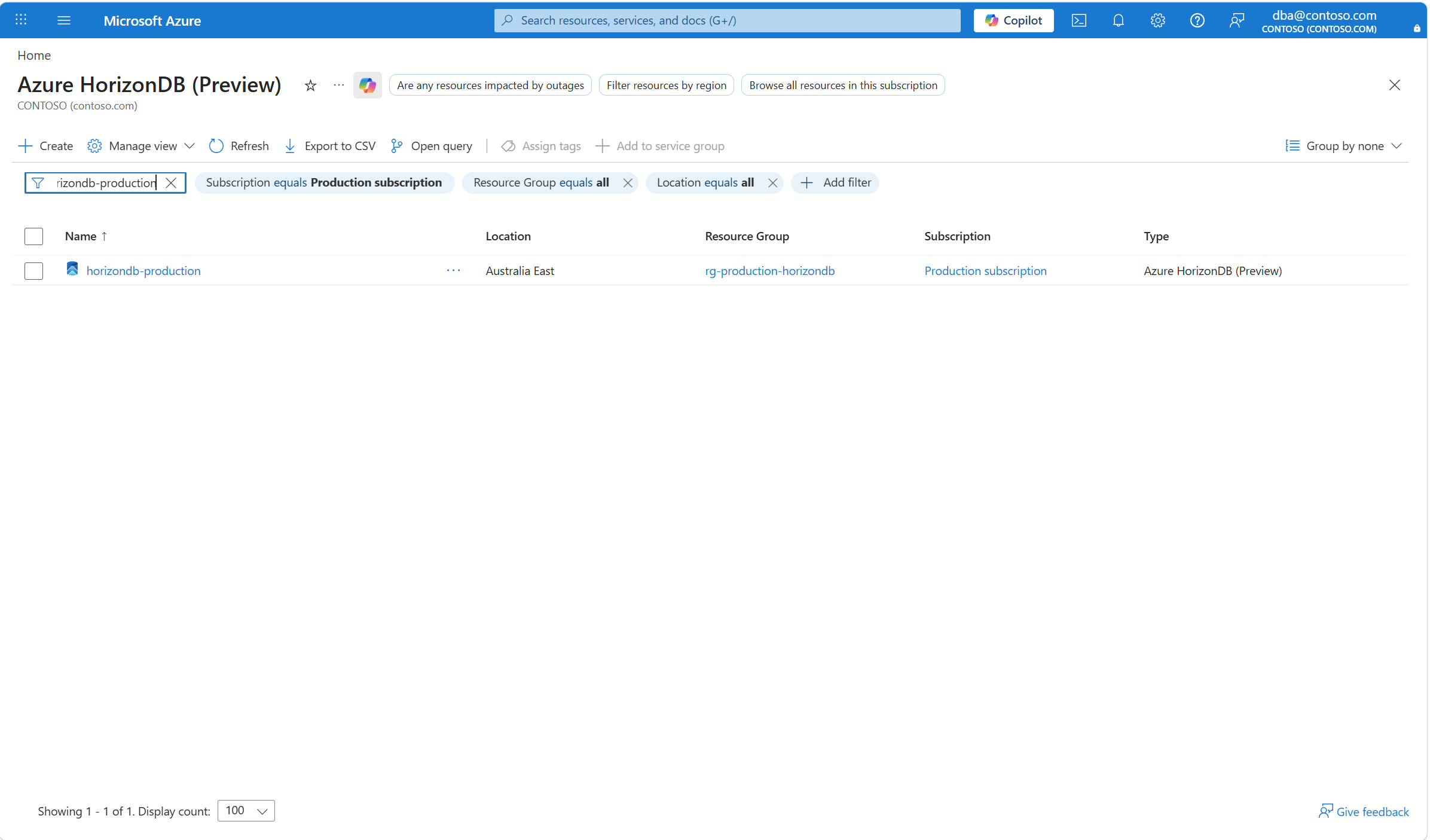
Browse the Azure HorizonDB (Preview).
By using the filtering buttons and the search box, find the cluster for which you want to check what parameter group it's connected to, and select it.
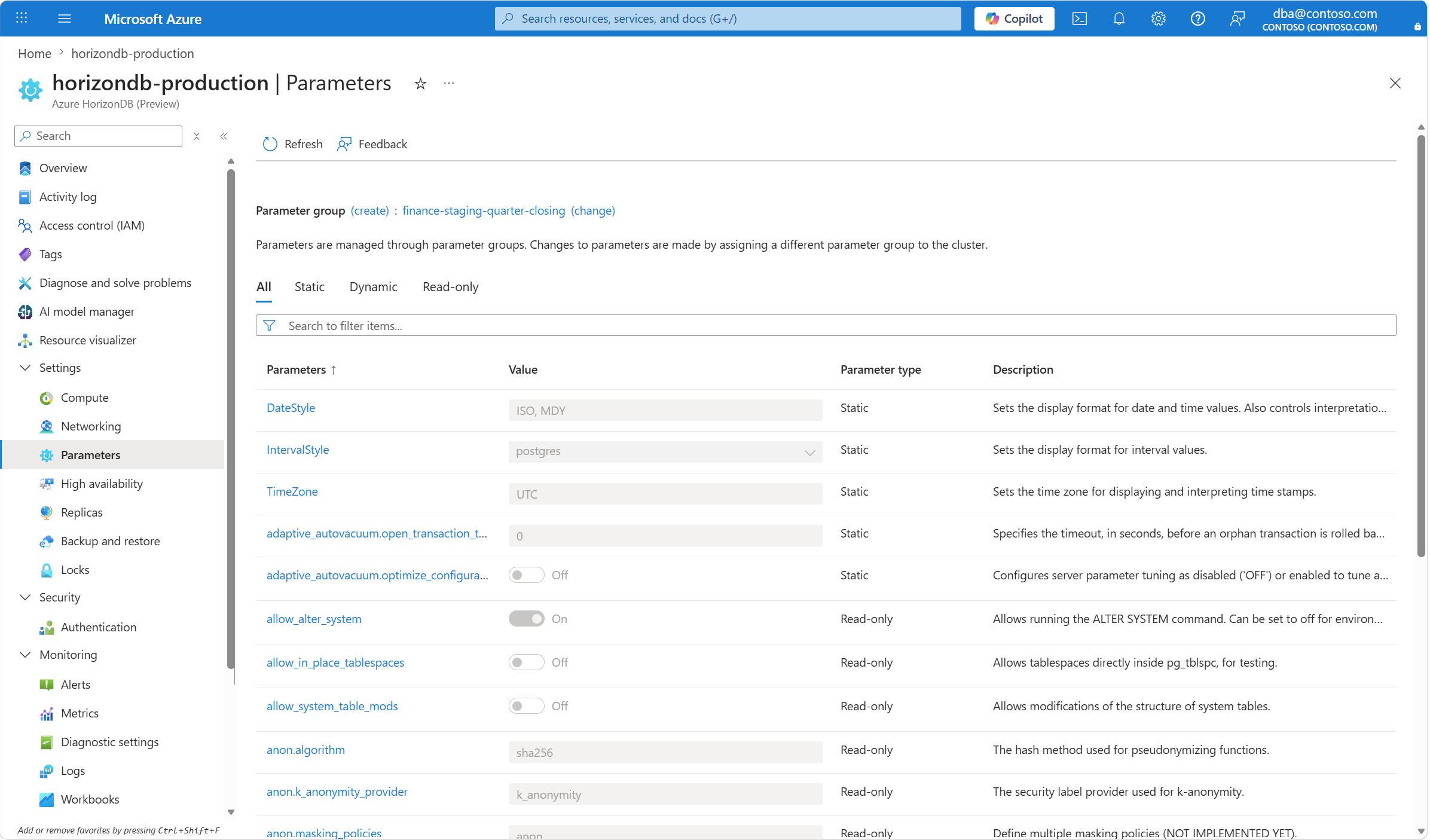
In the resource menu, under Settings, select Parameters. The name of the parameter group to which the cluster is connected appears to the side of the Parameter group (create): label. You can also scroll or search for parameter names to check how each parameter is configured in that parameter group.
Note
If the parameter group assigned to a cluster is the default, you don't see any parameters listed. This issue is known and will be fixed.
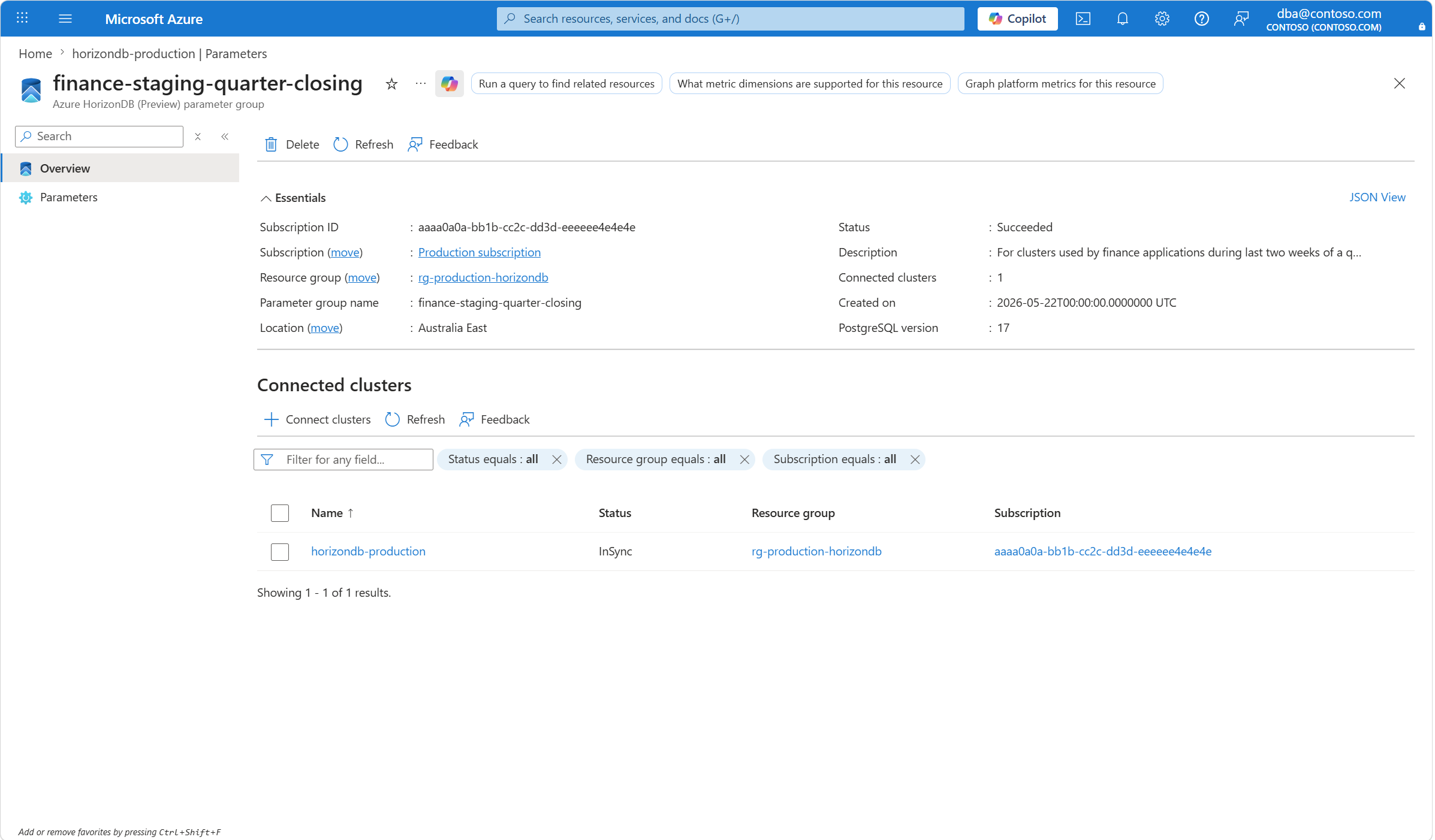
If you select the name, you're taken to the Overview page of the parameter group resource.