Note
Access to this page requires authorization. You can try signing in or changing directories.
Access to this page requires authorization. You can try changing directories.
Azure Device Registry uses jobs to apply software updates to devices. An onboarding update job targets a namespace: compatible devices check for the update when they onboard to the namespace, before they register and start operating. In contrast, a software update job targets a group of devices that are already in operation. An onboarding update job remains active until you end it. Use an onboarding update to bring devices that ship with older firmware up to date as they come online, so they're current before they start operating.
This article shows you how to use the Azure portal or Bicep to create an onboarding update job, run or schedule it against a namespace, and monitor the results. Use this article after you import the software update that you want to apply. To learn how jobs, groups, and software updates work together, see Software updates concepts (preview).
Important
Azure Device Registry software updates is currently in preview. The current preview is scoped to IoT Hub-connected devices. This preview is provided without a service-level agreement, and the capability and its portal experience might change before it becomes generally available. For more information, see Supplemental Terms of Use for Microsoft Azure Previews.
Note
During the preview, you can use software updates only with IoT hubs that don't have an existing Device Update for IoT Hub instance. To use software updates, link an IoT hub without a Device Update for IoT Hub instance to your namespace, or delete the existing instance before you link the hub. For more information, see Software updates and Device Update for IoT Hub.
Prerequisites
- An Azure Device Registry namespace that your devices onboard to.
- A software update imported into the namespace. To learn more, see Import a software update (preview).
- Devices that use the software updates client in the unified Azure IoT SDKs (preview) and check for onboarding updates before they register.
- Software updates enabled on the namespace. To learn more, see Get started with Azure Device Registry.
- Azure Resource Manager control-plane permissions, such as the Contributor role, to create, read, update, and delete jobs.
- To run jobs, the namespace's managed identity must have access to the software updates instance that's linked to the namespace. If you enable software updates in the Azure portal, these role assignments are created for you.
Create an onboarding update job
An onboarding update job targets a namespace and applies an imported software update to compatible devices when they onboard. Use the Azure portal or Bicep to create the job.
In the Azure portal, go to your Azure Device Registry and select the namespace that contains the devices you want to update.
In the namespace, select Jobs. The Jobs screen lists the defined jobs with their status, job type, and target. From this screen, you can also view the software updates in the namespace.
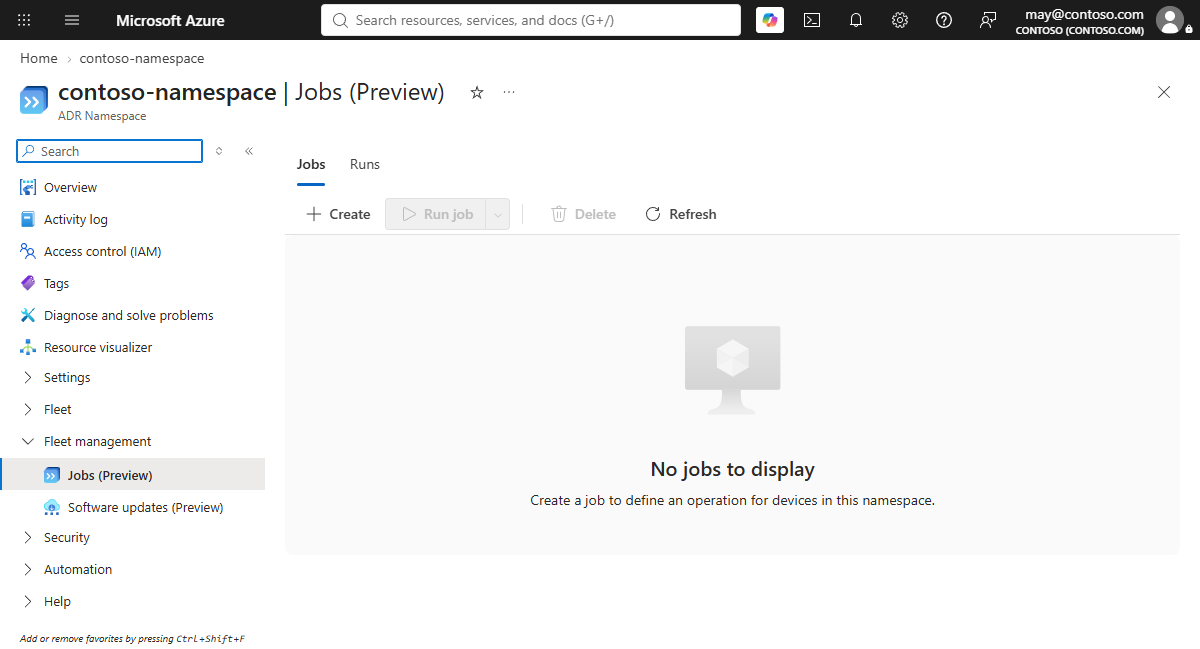
Select Create to start a new job.
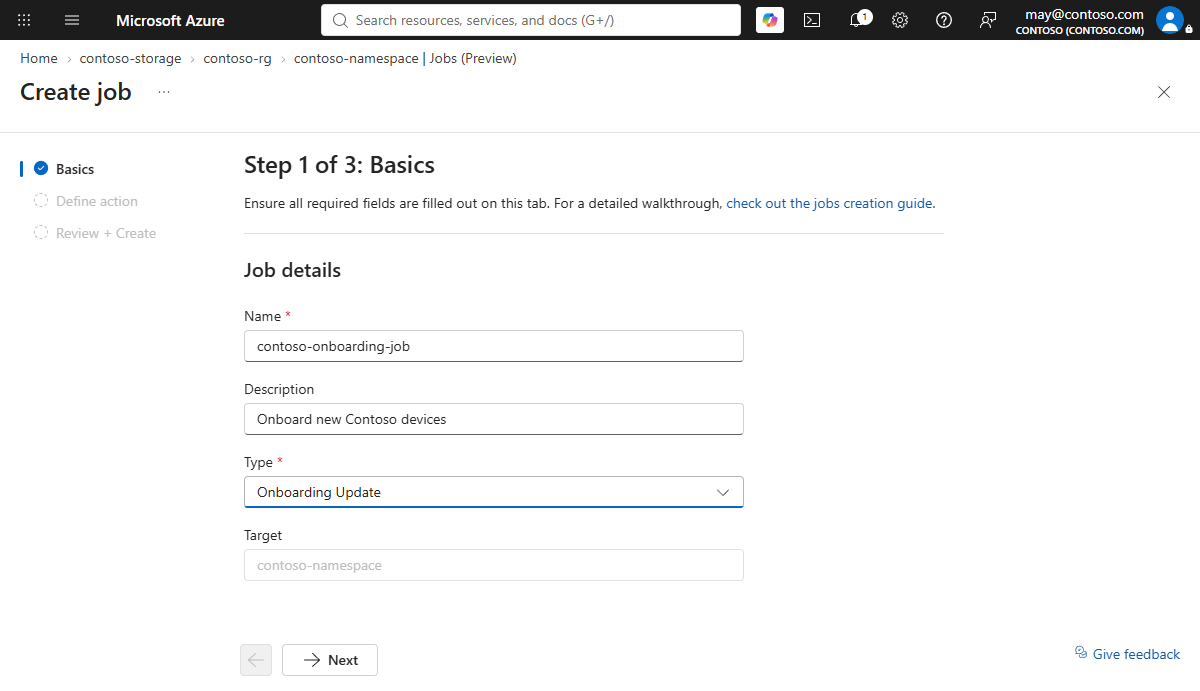
For the job type, select Onboarding update.
In preview, the available job types are Software update and Onboarding update. A software update job targets a group of devices, and an onboarding update job targets devices that onboard to a namespace. This article covers the onboarding update job.
Target the namespace. An onboarding update job always targets the namespace that your devices onboard to.
Define the action to run by selecting one of the software updates imported into the namespace. Each software update includes a compatibility check that determines whether it applies to a device. The portal runs a compatibility check for the namespace to determine whether the software update is compatible.
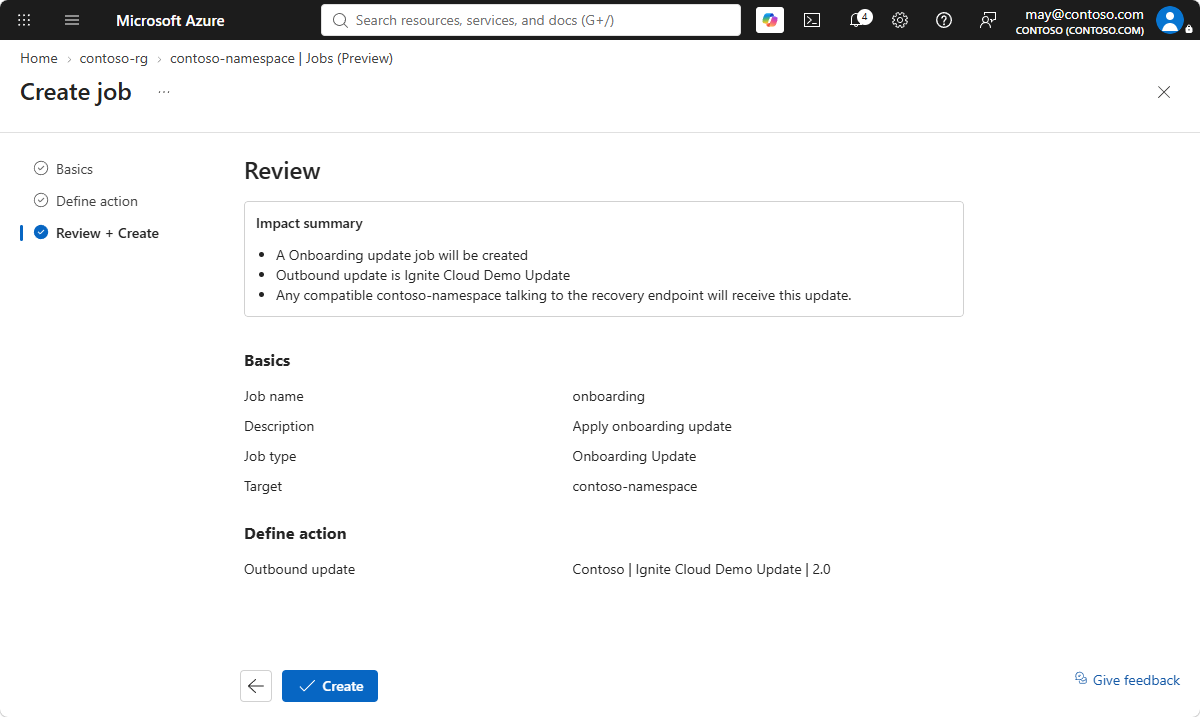
Select Next to view a summary of the job. The summary shows that the job targets the namespace and lists the software update that the job applies.
Select Create. The job status shows Creating and then changes to Ready after a moment.
Run or schedule the job
After a job is ready, you can run it immediately or schedule it to run later.
On the Jobs screen, select the job that you want to run.
Select one of the following options:
- Run now: The job runs immediately.
- Schedule for later: Pick a later time today. The job runs at the time you select.
After you run or schedule the job, the portal moves to the Runs tab.
Monitor the job run
The Runs tab shows the jobs, including running, completed, and scheduled runs.
Select the Runs tab to view the runs and their status.
Select a completed run to view its statistics. The run details show the status of the devices that the job targeted.
Check a specific device. To confirm whether a specific device was updated, use the search box in the run details to find the device.