Note
Access to this page requires authorization. You can try signing in or changing directories.
Access to this page requires authorization. You can try changing directories.
Before you can deploy a software update to a group of devices or to devices that onboard to a namespace, you need to import the update into your Azure Device Registry namespace. Each software update consists of one or more update files and an import manifest. The import manifest describes the update's identity, the devices it's compatible with, and how to install it, so Azure Device Registry knows which devices the update applies to.
This article shows you how to import a software update from an Azure Storage container into a namespace, and how to delete an imported update that you no longer need.
Important
Azure Device Registry software updates is currently in preview. The current preview is scoped to IoT Hub-connected devices. This preview is provided without a service-level agreement, and the capability and its portal experience might change before it becomes generally available. For more information, see Supplemental Terms of Use for Microsoft Azure Previews.
Prerequisites
- An active Azure subscription. If you don't have one, create a free account.
- An Azure Device Registry namespace with software updates enabled. To create a namespace and enable software updates, see Get started with Azure Device Registry.
- Permissions to read the update files in your storage account, such as the Storage Blob Data Contributor role.
- Permissions to import software updates to the namespace, such as the Device Update Content Administrator role on the software updates instance that's linked to your namespace.
- An Azure Storage account with a container that holds your update files and an import manifest:
- Update files: The files that your device installs, such as an image, a package, or a script (for example,
.swuor.sh). - Import manifest: A JSON file with the
.importmanifest.jsonextension that describes the update. Every software update requires an import manifest. To learn how to create one, see Prepare an update to import and the import manifest schema.
- Update files: The files that your device installs, such as an image, a package, or a script (for example,
Go to software updates in your namespace
- In the Azure portal, go to your Azure Device Registry namespace.
- In the resource menu, under Operations, select Software updates (preview).
- On the Software updates (preview) page, select the Imports tab to view the software updates that are already imported to the namespace.
If you haven't imported any updates yet, the page shows No updates to display.
Import a software update
On Software updates (preview), select + Import.
On Import software updates, under File selection, select + Add files.
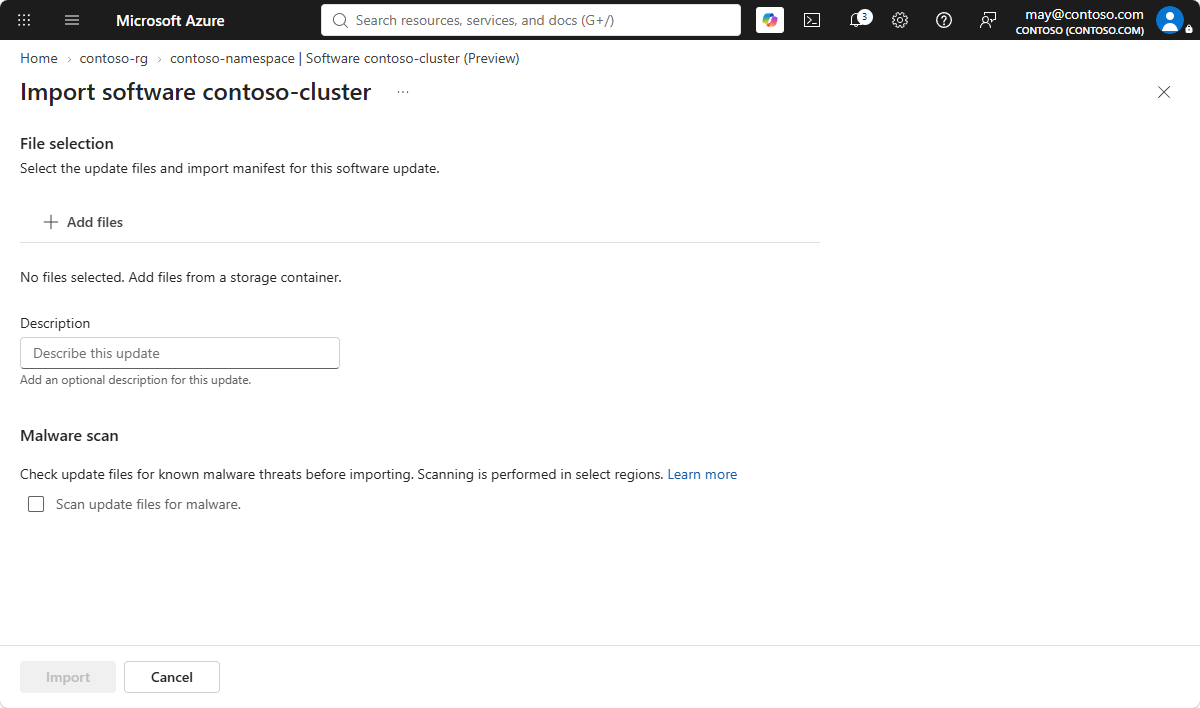
Select the storage account that contains your update files, and then select Next.
Select the container that contains your update files, and then select Next.
On Select files, select the update files and the import manifest file (with the
.importmanifest.jsonextension) that you want to import.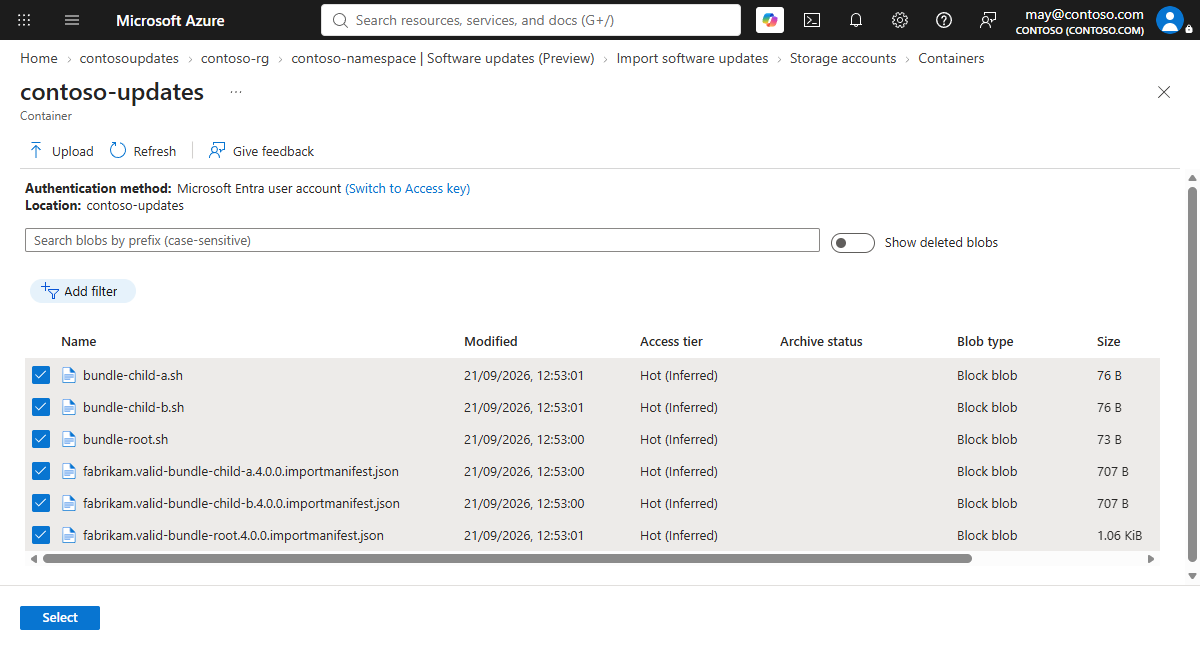
Close the file picker to return to Import software updates.
In the Description box, optionally enter a description for the update.
Under Malware scan, select Scan update files for malware if you want the update files checked for known malware before they're imported. Malware scanning is available in select regions.
Select Import.
When the import succeeds, the update appears in the Imports list with its name, provider, version, and description. You can now deploy it by using a software update job or an onboarding update job.
Fix a missing import manifest
If you select Update files without an import manifest, the import fails with the message No import manifest was found.
- Review the error banner on the Import software updates page. It reminds you that import manifest files use the
.importmanifest.jsonextension. - Add an import manifest that describes the update to your storage container.
- Select Replace files, and then select your update files and the import manifest.
- Select Import again.
Note
In this preview, you can't create or edit an import manifest in the Azure portal. Create the import manifest before you import the update.
Import parent and child updates
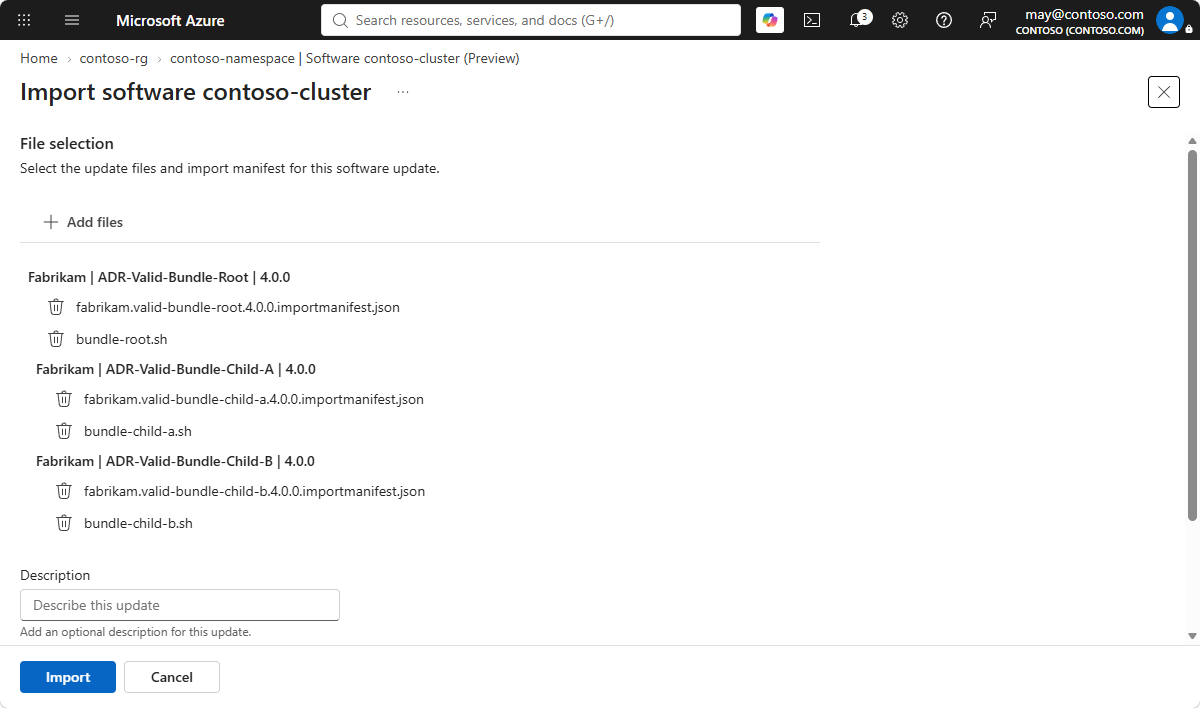
An import manifest can reference other updates. For example, a parent update can reference one or more child updates that must be installed together or in a specific order. When you import a parent update together with its child updates, the Imports list shows the parent update with its associated child updates.
Note
In this preview, the software updates client in the unified Azure IoT SDKs doesn't install updates that reference other updates. To deploy to devices that use the software updates client, import updates whose import manifests don't reference child updates. For more information, see Preview limitations.
Delete a software update
If you no longer need an imported update, you can delete it from the namespace.
- On the Software updates (preview) page, select the Imports tab.
- Select the checkbox next to the update that you want to delete.
- Select Delete.
- When prompted, select Delete to confirm.
Deleting a software update doesn't affect devices that already installed it. However, you can no longer use the update in a new job.