Note
Access to this page requires authorization. You can try signing in or changing directories.
Access to this page requires authorization. You can try changing directories.
Use Software updates, a capability of Azure Device Registry, to deliver over-the-air updates to your devices at scale. Import updates into an Azure Device Registry namespace, and then use jobs and groups in that namespace to deploy them to devices.
Important
Azure Device Registry software updates is currently in preview. The current preview is scoped to IoT Hub-connected devices. Don't use preview features for production workloads. For production workloads, continue to use Device Update for IoT Hub, which remains generally available.
See the Supplemental Terms of Use for Microsoft Azure Previews for legal terms that apply to Azure features that are in beta, preview, or otherwise not yet released into general availability.
Service applicability
| Feature | Azure IoT Operations | Azure IoT Hub |
|---|---|---|
| Software updates | Not applicable | Preview |
Software updates and Device Update for IoT Hub
Software updates brings over-the-air update capabilities into Azure Device Registry. It uses the same import manifest format as Device Update for IoT Hub, and lets you manage updates at the namespace level by using Azure Device Registry groups and jobs.
Use the following guidance to choose the right option:
| If you... | Use |
|---|---|
| Need over-the-air updates for production workloads | Device Update for IoT Hub, which remains generally available and supported. |
| Want to evaluate managing updates through Azure Device Registry namespaces, groups, and jobs | Software updates (preview), described in this article. |
Keep the following considerations in mind if you already use Device Update for IoT Hub:
- You can't use both on the same IoT hub. In this preview, you can use software updates only with IoT hubs that don't have an existing Device Update for IoT Hub instance. To try software updates, connect an IoT hub that doesn't use Device Update for IoT Hub to your namespace.
- Devices use a different client. Devices that run the Device Update agent can't receive updates from software updates. To receive software updates, a device uses the software updates client in the unified Azure IoT SDKs (preview).
How software updates work
You enable software updates on an Azure Device Registry namespace, either when you set up the namespace or later. To learn how, see Get started with Azure Device Registry (preview). The capability introduces the following components:
- Software update: An update that you import into a namespace. A software update consists of one or more update files and an import manifest. After you import a software update, it's available to software update jobs and onboarding update jobs in that namespace.
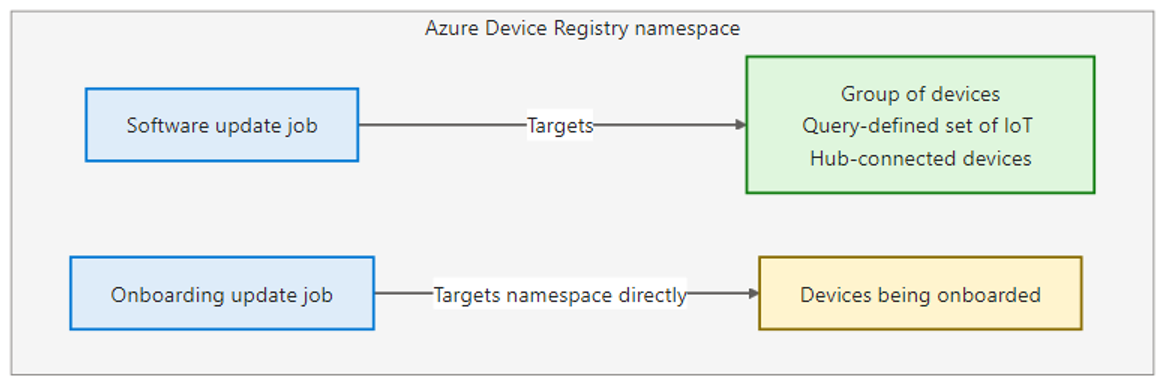
- Software update job: Applies a software update to the compatible devices in a target group.
- Onboarding update job: Applies a software update to compatible devices when they check for updates during onboarding, before they register and start operating.
- Software updates client: The part of the unified Azure IoT SDKs (preview) that your device application uses to check for, download, and install software updates, and to report the results.
A typical update flow looks like this:
- You upload the update files and the import manifest to an Azure Storage container.
- You import the software update into your namespace.
- You create a job that targets a group or, for onboarding, the namespace.
- Each device checks for updates and reports its compatibility properties. If the device is compatible, it receives the update.
- The device downloads and installs the update, and then reports the result. You monitor progress and device-level results in the job run.
Software updates
A software update consists of two components that you upload together:
- Update files: The payload that the device installs. The payload can be a firmware image, a software package, a script, or multiple related files.
- Import manifest: A JSON file with the
.importmanifest.jsonextension that describes the update. The import manifest declares:- Update identity: The provider, name, and version that uniquely identify the update. The provider and name together identify an update family, such as all versions of the firmware for one device model.
- Compatibility properties: The device properties that determine which devices can install the update. For more information, see Device compatibility.
- Installation instructions: The installation steps, their order, and the handler for each step. The handler tells the device how to apply that step, such as by installing a package, running a script, or writing an image.
- File metadata: The name, size, and hash of each update file. The service uses the hashes to verify file integrity at import, and the device can use them to verify each file before installation.
Every software update requires an import manifest. If you try to import update files without an import manifest, the import fails. When you import, you can optionally scan the update files for malware. Malware scanning is available in select regions. For step-by-step instructions, see Import a software update.
The following example shows an import manifest for an image-based update:
{
  "updateId": {
    "provider": "Contoso",
    "name": "IrrigationControllerV2-Image",
    "version": "1.3.0"
  },
  "isDeployable": true,
  "compatibility": [
    {
      "manufacturer": "Contoso",
      "model": "IrrigationControllerV2"
    }
  ],
  "instructions": {
    "steps": [
      {
        "type": "inline",
        "description": "Update the device image to version 1.3.0",
        "handler": "microsoft/swupdate:1",
        "files": [
          "contoso-irrigation-controller-v2-1.3.0.swu"
        ],
        "handlerProperties": {
          "installedCriteria": "1.3.0"
        }
      }
    ]
  },
  "files": [
    {
      "filename": "contoso-irrigation-controller-v2-1.3.0.swu",
      "sizeInBytes": 112738816,
      "hashes": {
        "sha256": "wPdNKUSmWTZkR6Pum9oR/EIzdn5AvON4dsXME+/gHVw="
      }
    }
  ],
  "createdDateTime": "2026-10-01T06:56:51.2002204Z",
  "manifestVersion": "5.0"
}
Software updates use the same import manifest format as Device Update for IoT Hub. To learn how to author an import manifest, see:
Device compatibility
The compatibility properties in an import manifest determine which devices can install a software update. When a device checks for updates, it reports its own compatibility properties. Azure Device Registry compares those properties with the compatibility properties declared in the software update.
You define compatibility properties as name-value pairs. Every software update must declare at least one compatibility property. manufacturer and model are common choices, but they're not required. Use any properties that fit your fleet, such as region or environment.
The compatibility section of the import manifest is an array of property sets. For example:
"compatibility": [
  {
    "manufacturer": "Contoso",
    "model": "IrrigationControllerV2"
  }
]
Matching works as follows:
- A device must match every property in a set. The preceding update applies only to devices that report both
manufacturerasContosoandmodelasIrrigationControllerV2. It doesn't apply to a ContosoSoilSensorV1device, or to anIrrigationControllerV2device that reports a different manufacturer. - A device needs to match only one set. If you declare more than one property set, a single software update can apply to multiple device types.
- Each property set belongs to one update family. You can't use the exact same set of compatibility properties with more than one provider and name combination. Plan your update families and compatibility properties together. For more information, see Import concepts.
A group can contain devices with different compatibility properties. A software update job applies the update only to the compatible devices in the target group. For example, if a group contains 18 IrrigationControllerV2 devices and six SoilSensorV1 devices, an update for IrrigationControllerV2 devices is applied to the 18 compatible devices. The six SoilSensorV1 devices aren't affected.
Tip
Devices report their compatibility properties to Azure Device Registry, so you can use them in a group query to create groups that contain only the devices an update applies to.
Jobs, groups, and rollout behavior
You deploy a software update by creating a job in the namespace. Software updates supports two job types:
| Job type | Target | When to use it |
|---|---|---|
| Software update | An Azure Device Registry group | Update registered devices that are already in operation. The group defines the scope of the job, and compatibility properties determine which devices in that scope install the update. |
| Onboarding update | The Azure Device Registry namespace | Bring devices to a required software version as they onboard, before they start operating. For example, use an onboarding update for devices that spent time in storage and are running older firmware. |
A software update job doesn't stop after it reaches the devices that are compatible when it starts. While the job run is active, it continues to apply the update to:
- Devices that were offline when the job started, after they reconnect and check for updates.
- Devices that join the target group. Group membership isn't updated automatically: new devices join the group the next time you refresh its membership. For more information, see Cached membership and refresh.
- Devices that become eligible for the update, for example, because their reported compatibility properties change.
An onboarding update job remains active until you end it, so compatible devices continue to receive the update as they onboard.
For job states, scheduling, and monitoring, see Jobs concepts (preview).
Device SDK considerations
Devices receive software updates through the software updates client in the unified Azure IoT SDKs (preview). Keep the following considerations in mind when you plan your device software:
- Supported devices: In this preview, the software updates client is primarily intended for Linux-based devices with more than 32 MB of available memory.
- Integration: The SDK is a library, not a ready-to-run agent. You integrate the software updates client into your device application and provide the logic that downloads, installs, and applies updates on your hardware. Microsoft provides samples to help you get started.
- Two ways to check for updates: A device that's being onboarded checks for onboarding updates before it registers. A registered device checks for software updates from a software update job. Your device application decides when to check for updates.
- Connectivity: The device checks for updates and reports results over its Device Provisioning Service connection. It doesn't need a separate endpoint or credential to receive updates.
- Security: Before it downloads any update files, the software updates client verifies the signature of the update information that it receives from the service. Devices download update files only over HTTPS, so update content is always encrypted in transit. Ensure that your devices can make outbound HTTPS connections to download update files.
- Status reporting: After an installation attempt, the device reports the result, including error codes if the installation failed. The result appears in the device-level results of the job run.
- Your responsibility: You're responsible for validating the integration in your own environment, including recovery behavior if an installation fails or the device restarts during an update.
Preview limitations
The current preview has the following limitations:
- Software updates supports IoT Hub-connected devices. Azure IoT Operations devices and assets aren't supported in this preview.
- You can't use software updates with an IoT hub that has an existing Device Update for IoT Hub instance.
- Every software update requires an import manifest. You can't create an import manifest in the Azure portal.
- The software updates client doesn't currently support proxy updates or updates that use reference steps (parent and child updates).
For limits that apply to imported updates, such as the maximum update size, see Device Update for IoT Hub limits. For limits that apply to groups and jobs, see Groups concepts (preview) and Jobs concepts (preview).