Note
Access to this page requires authorization. You can try signing in or changing directories.
Access to this page requires authorization. You can try changing directories.
Use tasks in the Microsoft Defender portal to break case work into actionable items, assign ownership, track progress, and document outcomes.
Tasks are available for supported case types, including incident cases and generic cases. Use tasks to coordinate investigation, response, remediation, handoff, and review work across your security operations team.
For an overview of case management, see Case management in the Microsoft Defender portal.
How tasks work
Tasks help analysts organize case work into smaller steps. Each task can include details such as status, priority, assigned user, due date, description, and closing notes.
Using tasks is useful for:
- Assigning investigation or response actions to specific analysts
- Tracking work across shifts or teams
- Onboarding junior analysts
- Working with managed security service providers
- Documenting investigation outcomes
- Supporting post-incident review and audit requirements
When you close a task, add closing notes to document what was done and what the outcome was.
Prerequisites
Before you begin, make sure that you have one of the following Microsoft Defender unified RBAC permissions:
To view generic case tasks: Security data basics (read) in the Security operations group.
To create and manage generic case tasks: Alerts (manage) in the Security operations group.
For more information, see Microsoft Defender unified role-based access control (RBAC).
View tasks
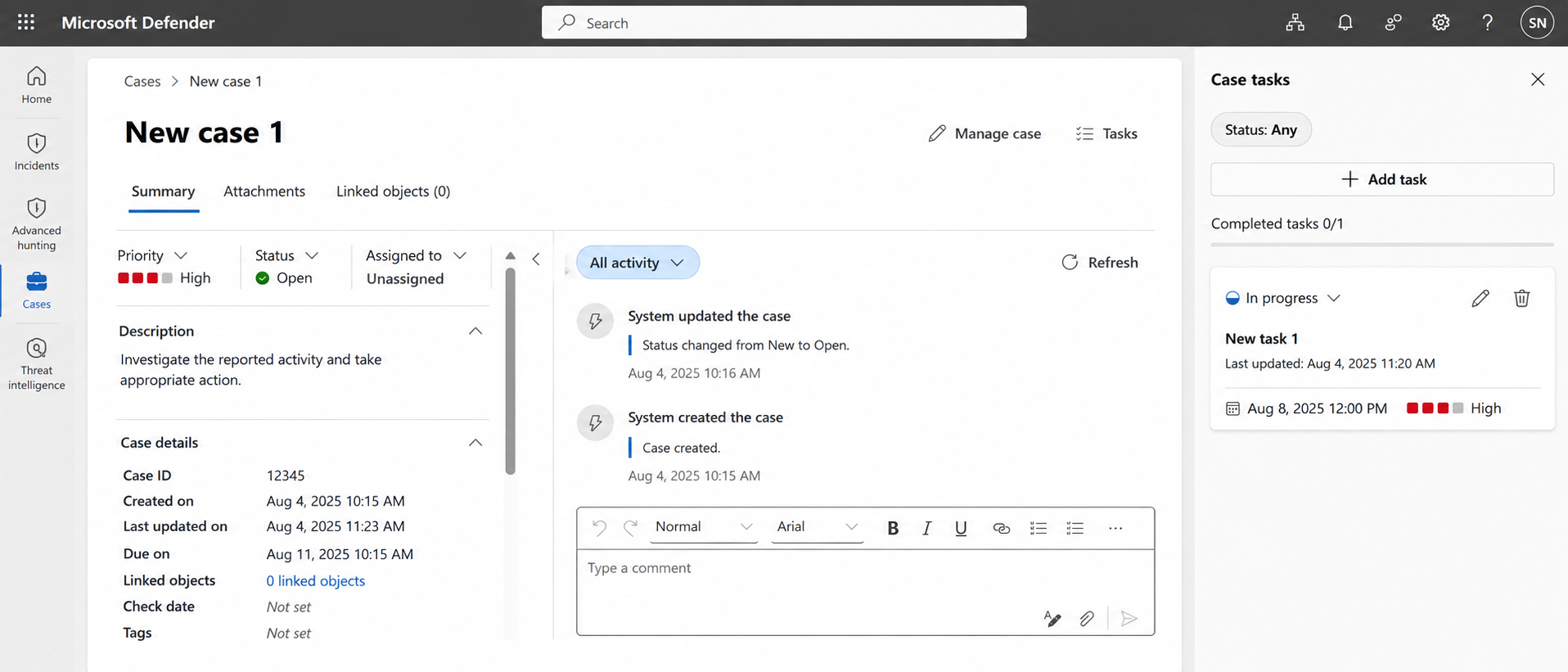
To view tasks for a case:
Sign in to the Microsoft Defender portal.
Select Cases.
Select Generic
Select Tasks.
Create a task
To create a task:
Sign in to the Microsoft Defender portal.
Select Cases.
Select Generic.
Select Tasks.
Select Add task.
Enter a name for your task.
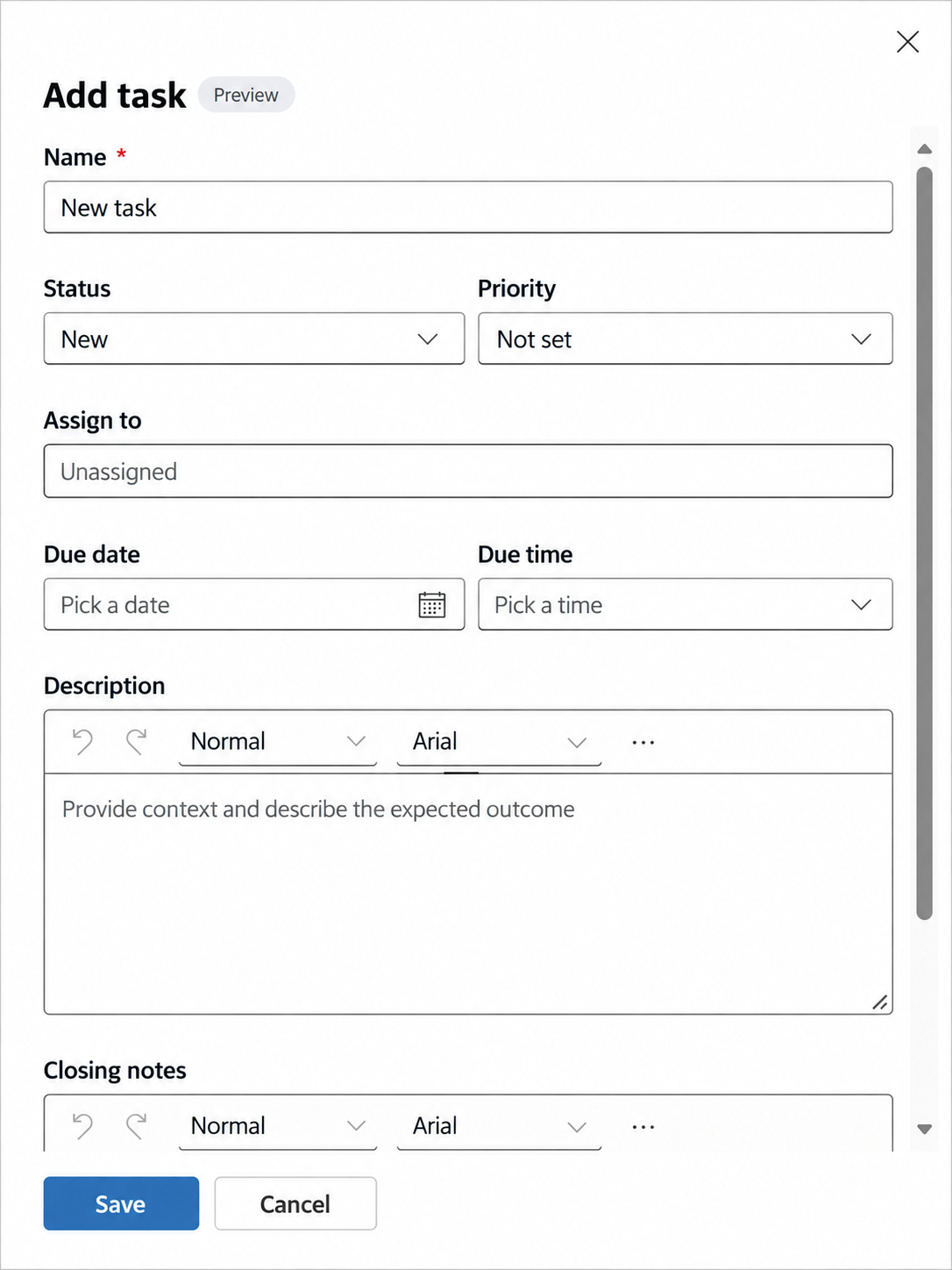
Select a task status.
Select a task priority.
Select a task due date and due time.
Select a category for your task.
Add a description for your task.
If you are closing your task, fill out the Closing notes field.
Select Save.
Update a task
To update a task:
Sign in to the Microsoft Defender portal.
Select Cases.
Select Generic
Open the case that contains the task you want to update.
Select Tasks.
Select the task you want to update.
Select the edit icon.
Update the task details.
Select Save.
Close a task
To close a task:
Sign in to the Microsoft Defender portal.
Select Cases.
Select Generic
Open the case that contains the task you want to close.
Select Tasks.
Select the task you want to close.
Change the task status to Closed.
Add closing notes to document the outcome.
Select Save.
Delete a task
Delete a task only when you're sure it isn't needed.
To delete a task:
Sign in to the Microsoft Defender portal.
Select Cases.
Select Generic
Open the case that contains the task you want to delete.
Select Tasks.
Select the task you want to delete.
Select the delete icon.
Select Yes to confirm.
Automate and synchronize tasks created in Microsoft Sentinel
When you onboard Microsoft Sentinel to the Defender portal, the Defender portal can synchronize incident tasks that were created in Microsoft Sentinel in the Azure portal.
Important
Synchronization is one-way. Tasks created in the Defender portal aren't synchronized back to Microsoft Sentinel in the Azure portal.
The Defender portal doesn't currently support automatic task creation. You can continue to use Microsoft Sentinel task automation rules, Logic App playbooks, or the Incident Tasks REST API in Azure to create tasks for Microsoft Sentinel incidents. These tasks are synchronized to the Defender portal.