Note
Access to this page requires authorization. You can try signing in or changing directories.
Access to this page requires authorization. You can try changing directories.
Use automation integrations with Integrated Security Operations Center (ISOC) in Microsoft Defender to connect automated workflows to Microsoft and third-party services.
Automation integrations provide a centralized catalog of prebuilt integrations. To configure an automation integration, create an integration profile.
An integration profile stores the provider, authentication method, and connection details used by supported playbooks or automation workflows to connect to external services.
Automation integrations reduce manual setup work for SOC engineers, automation administrators, and advanced security analysts who build or maintain automated response workflows.
Note
This feature is in preview. Capabilities and availability might change during the preview period.
How automation integrations work
Playbooks are based on workflows built in Azure Logic Apps. A playbook can use connectors and integrations to interact with other services during an automated workflow.
Automation integrations provide a guided way to configure the connection inputs required by supported providers. The required inputs depend on the provider and authentication type. After you configure an integration, use it in supported playbook or automation scenarios to connect the workflow to the target service.
Automation integrations can support:
- First-party services, such as Microsoft services used by your SOC.
- Third-party services, such as partner or vendor services used for enrichment, ticketing, communication, or response.
- Out-of-the-box scenarios, where the automation experience prompts you for the minimum required connection details.
Important
Provider-specific setup steps, values, permissions, and troubleshooting guidance are owned by each provider. Use the provider's official documentation when you need detailed setup steps for a specific service.
Prerequisites
Before you begin, make sure the following requirements are met:
- Your tenant is eligible for ISOC.
- You have the Automation Integration Unified RBAC permission with Read and Write access.
- You have the required permissions in the provider service to authenticate and perform the necessary actions for the automation scenario.
- For third-party automation, you have a Microsoft Sentinel workspace.
Supported authentication types
The authentication options available for an integration depend on the selected provider. The automation experience prompts you for the fields required by the selected authentication type.
Common authentication patterns include:
| Authentication type | Use when | Typical inputs |
|---|---|---|
| API key | The provider issues a key or token that authorizes requests to its API. | API key or token, and sometimes a service URL or region. |
| OAuth 2.0 | The provider supports delegated or app-based authorization through an OAuth flow. | Sign-in, consent, client details, scopes, or redirect configuration, depending on the provider. |
Store and rotate credentials according to your organization's security requirements and the provider's guidance. Use the least-privileged permissions needed for the automation scenario.
Create an integration profile
To create an integration profile for a predefined provider integration:
Sign in to the Microsoft Defender portal.
Go to Automation.
Select Create > Integration profile.
Select Predefined provider integrations.
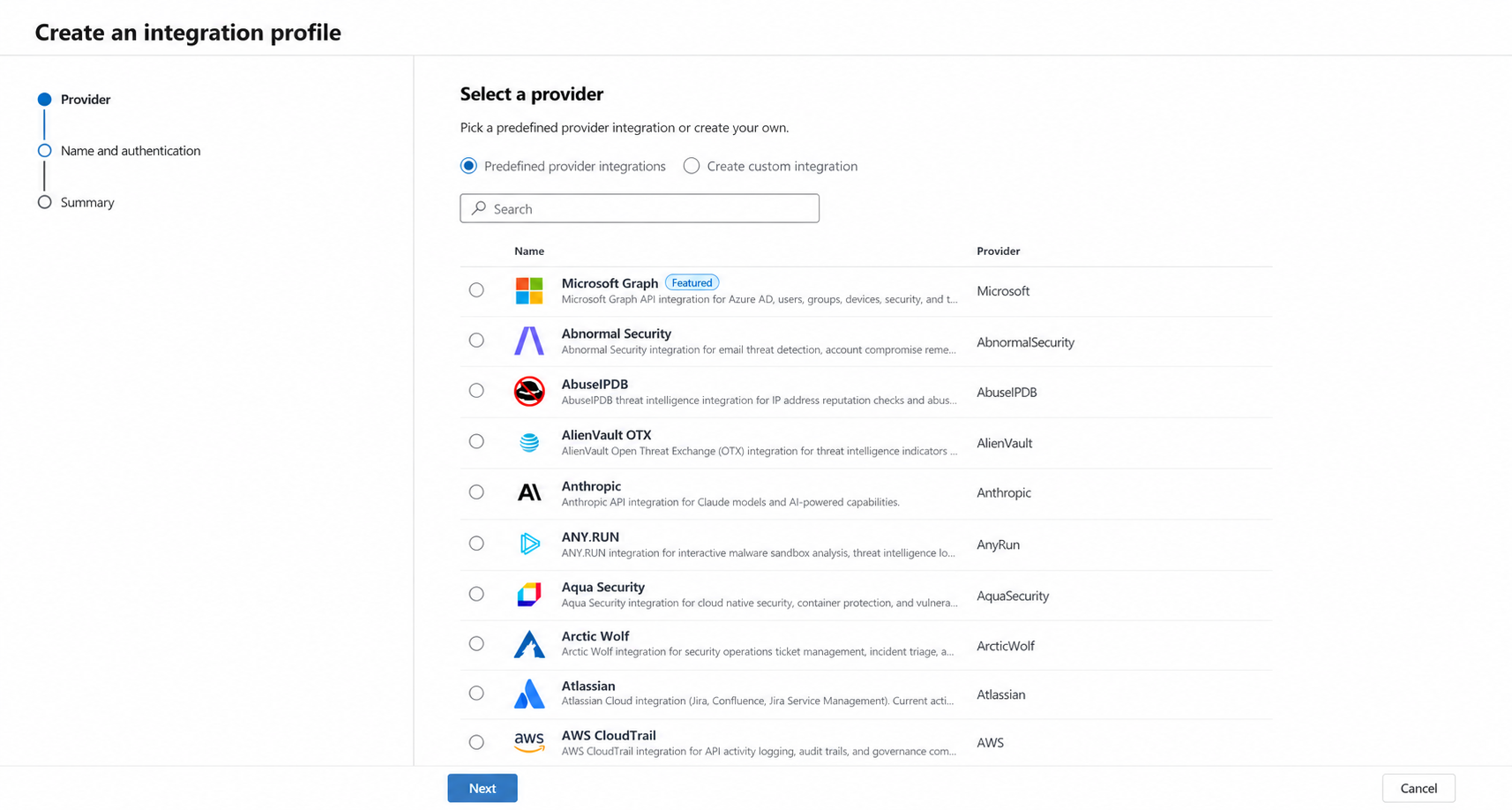
Select the provider you want to connect to.
Select Next.
In Integration name, enter a name for the integration profile.
If needed, enter a description to help your team understand the integration's purpose.
Under Authentication details, enter the required authentication details for the selected provider.
The required fields depend on the provider and authentication method. A provider might require an API domain, API token, OAuth 2.0 details, or other provider-specific values. Select the Learn more link, if available, for provider-specific guidance.
Select Next.
Review the summary page.
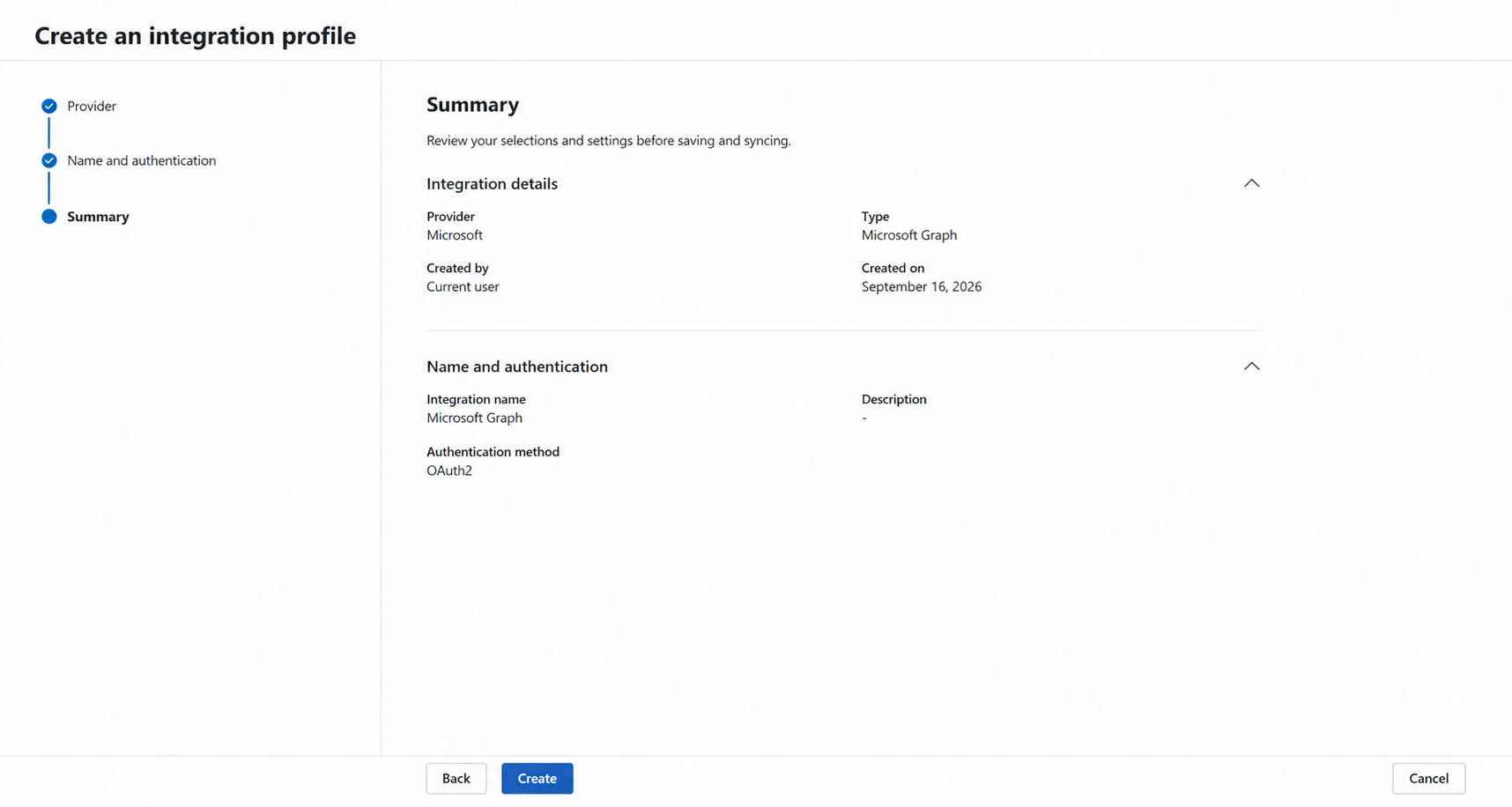
Select Create.
Security considerations
Before you use an automation integration in production, review the following considerations:
- Permissions: Grant only the permissions required for the specific playbook actions.
- Credential storage: Store secrets in approved secure locations. Don't hard-code secrets in playbooks or documentation.
- Credential rotation: Rotate API keys, client secrets, and tokens according to your organization's policy.
- Auditability: Use named service accounts or app identities when possible so your team can audit automated actions.
- Scope: Limit the integration to the tenants, workspaces, queues, or resources required by the automation scenario.
- Testing: Test integrations with nonproduction incidents or sample data before you use them in active response workflows.
When to use provider documentation
Use this article to understand the automation integration experience, authentication patterns, and high-level setup flow. Use provider documentation when you need:
- Exact API key creation steps.
- OAuth app registration values.
- Provider-specific permission names.
- Region-specific endpoints.
- Troubleshooting steps for provider-side errors.