Note
Access to this page requires authorization. You can try signing in or changing directories.
Access to this page requires authorization. You can try changing directories.
Use Playbook Generator to create code-based playbooks from natural language in the Microsoft Defender portal. Describe the automation workflow you want, review the generated plan and code, test the playbook, and activate it for use in automation rules.
Generated playbooks can use alerts or incident cases as input. For incident case workflows, you can run a generated playbook when an incident case is created or updated.
Generated playbooks can use integration profiles to connect to Microsoft and third-party APIs. You can select from supported out-of-the-box providers or create a custom integration for another API.
Prerequisites
Before you begin, make sure that:
- You have access to the Microsoft Defender portal.
- You have the Automation Playbooks Unified RBAC permission with Read and Write access.
- To run automation on third-party data ingested through Log Analytics, you have a Microsoft Sentinel workspace.
- If the playbook calls Microsoft or third-party APIs, you have the Automation Integration Unified RBAC permission with Read and Write access.
- You have configured the required integration profiles. For more information, see Configure integration profiles.
- For generated playbooks that use incident cases as input, the identity configured for your Microsoft Graph integration has the following application permissions, with admin consent granted:
SecurityAlert.ReadWrite.AllSecurityIncident.ReadWrite.AllCaseManagement.Read.AllCaseManagement.ReadWrite.All
Note
Microsoft Graph permission updates to the integration identity can take up to two hours to take effect.
Generate a playbook
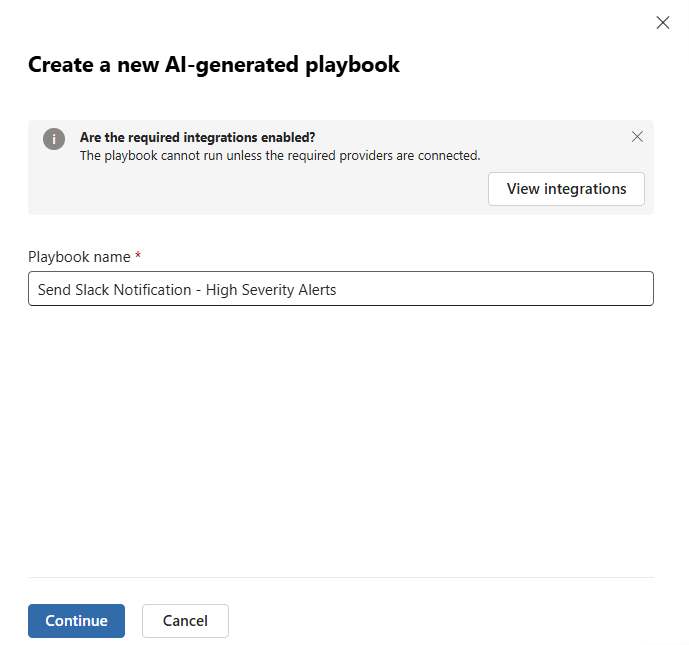
Sign in to the Microsoft Defender portal.
Go to Automation.
Select the Playbooks tab.
Select Generated playbook.
In Playbook name, enter a name for the playbook.
Under Input type, select the input for the generated playbook:
Alert to create a playbook that runs on alert input.
Incident case to create a playbook that runs on incident case input.
Select Continue.
The embedded Visual Studio Code experience opens in Plan mode.
In the chat interface, describe the automation workflow you want to create.
Include details such as:
- What alert or incident case data to process
- Which entities or case fields to use
- Which actions to perform
- Which conditions to evaluate
- Which external services or APIs to call
- What result or response action you expect
For an alert-input playbook, for example:
Create a playbook that enriches URL entities in an alert by using VirusTotal and adds the results as a comment to the related incident.
For an incident case-input playbook, describe the case response you want the playbook to perform. Generated playbooks can work with incident case data and perform supported case actions, such as updating case fields, including custom fields, assigning an owner, changing the case status, and adding a comment.
If prompted, approve access to the API documentation required to generate the playbook.
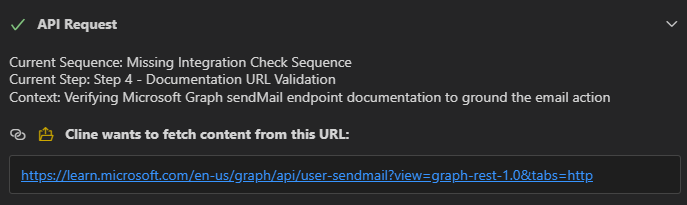
Answer any clarifying questions from Playbook Generator.
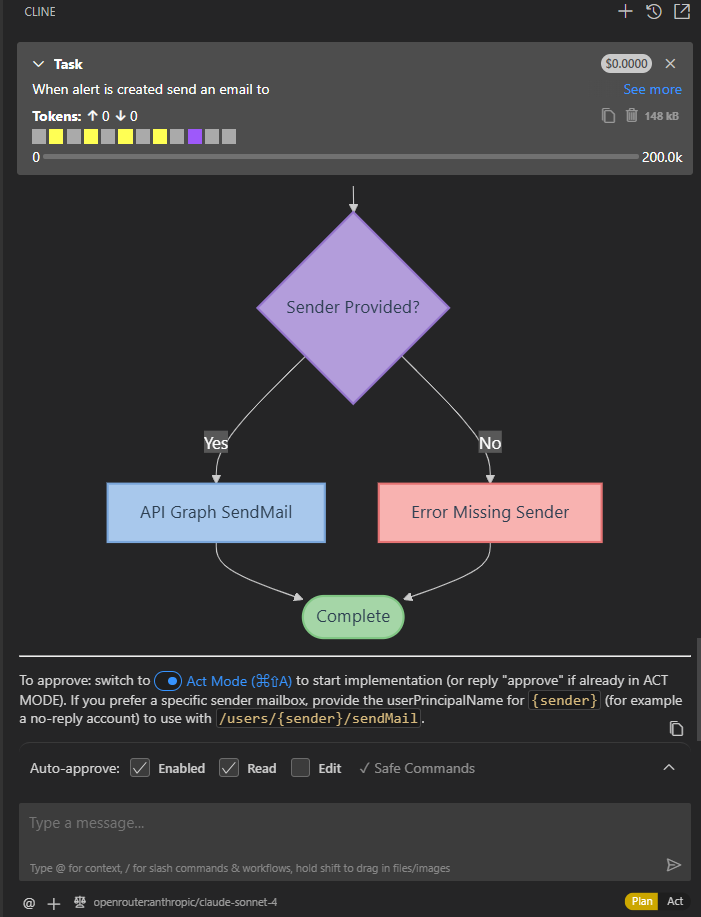
Review the generated plan and flow diagram.
If the plan needs changes, describe the changes in the chat.
If Playbook Generator identifies a missing integration profile, configure the integration before continuing.
You can select from the supported out-of-the-box providers or create a custom integration. For more information, see Configure integration profiles.
When the plan is ready, switch to Act mode to generate the playbook code and documentation.
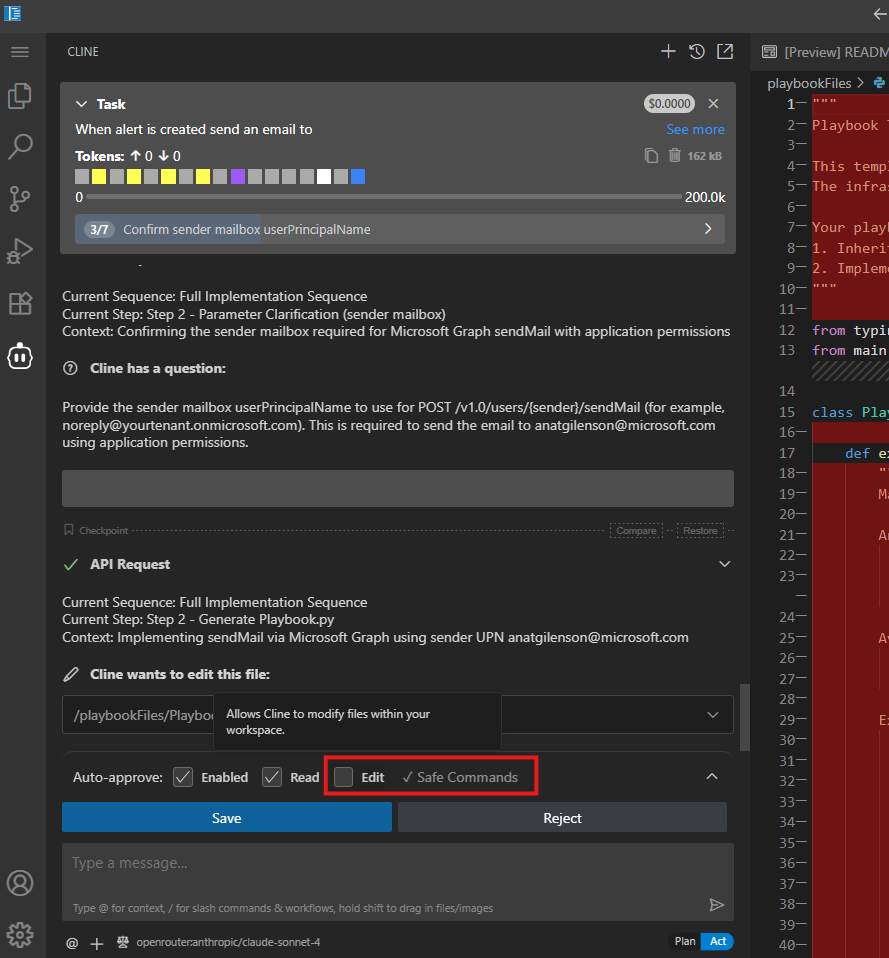
Review and approve the proposed file changes.
To allow Playbook Generator to edit files without requesting approval for each change, select Edit under Auto-approve.
Review the generated code and documentation.
To preview the generated documentation in Markdown format:
- Windows/Linux: Press Ctrl + Shift + V.
- macOS: Press Cmd + Shift + V.
For an alert-input playbook, when prompted, provide an alert ID to test the playbook.
Review the actions that the test performs, and approve the test.
Review the test results.
If the test fails or produces unexpected results, describe the required changes in the chat, regenerate the playbook, and test it again.
Select Save at the bottom of the editor.
The playbook is created in a disabled state.
Close the editor.
Note
Selecting Save in the chat saves or approves the current step. It doesn't save the complete playbook.
Activate a generated playbook
After you save a generated playbook, activate it before using it in automation rules.
Sign in to the Microsoft Defender portal.
Go to Automation.
Select the Playbooks tab.
Find the generated playbook.
Change the playbook status to Activate.
Use a generated playbook in an automation rule
After you activate a generated playbook, add it to an automation rule to define when the playbook runs.
Sign in to the Microsoft Defender portal.
Go to Automation.
Select the Automation rules tab.
Create a new automation rule or edit an existing rule.
Configure the trigger and conditions for the generated playbook.
Add a Run generated playbook action.
Select the generated playbook.
Save the automation rule.
Run a generated playbook when an incident case is created or updated
Use an enhanced automation rule to run an active incident case-input generated playbook when an incident case is created or updated.
Sign in to the Microsoft Defender portal.
Go to Automation.
Select the Automation rules tab.
Create a new enhanced automation rule or edit an existing enhanced automation rule.
Select one of the following triggers:
When case is created
When case is updated
Configure the rule to apply to incident cases.
Add conditions as needed.
You can use supported incident case fields and properties in conditions, including custom fields.
Add the action to run a generated playbook.
Select an active generated playbook that uses Incident case as its input type.
Save the automation rule.
When an incident case that matches the rule is created or updated, the automation rule runs the selected generated playbook.
Monitor a generated playbook
Review the activity log to check the result of a generated playbook run.
Monitor an alert-input playbook
Sign in to the Microsoft Defender portal.
Go to the incident that contains the alert that triggered the playbook.
Select Activity.
Find the playbook activity.
Review the execution status and details.
Monitor an incident case-input playbook
Sign in to the Microsoft Defender portal.
Select Cases.
Select Incident.
Open the incident case that triggered the playbook.
Go to Artifacts > Activities.
Find the playbook activity.
Review the execution status and details.
Note
Automation rule run results are available in the activity log. They aren't written to the Microsoft Sentinel health table.
Limitations
Generated playbooks have the following limitations:
- Only Python is supported for playbook authoring.
- Incident case input for generated playbooks isn't currently supported in IL and UAE environments.
- A generated playbook can't upload an attachment to an incident case. Attachments can still be added manually from within the case.
- A single user can edit only one playbook at a time.
- External libraries aren't supported.
- Users must manually review and validate generated code.
- You can create up to 100 playbooks per tenant.
- Each playbook can contain up to 5,000 lines.
- Each playbook can run for up to 10 minutes.
- You can configure up to 500 integration profiles per tenant.
- Each tenant can use up to 8 million AI interaction tokens per day.
- Playbook nesting isn't supported. A playbook can't invoke another playbook.
Automation rules for generated playbooks have the following limitations:
- Priority ordering isn't supported.
- Available automation rule actions depend on the selected trigger and input type.
- For automation on third-party data ingested through Log Analytics, the rule applies only to Microsoft Sentinel workspaces where you have the required permissions.
- You can create up to 500 active automation rules per tenant.
- Each rule can run one action.