Note
Access to this page requires authorization. You can try signing in or changing directories.
Access to this page requires authorization. You can try changing directories.
Use automation rules with Integrated Security Operations Center (ISOC) in Microsoft Defender to trigger automated response actions. Automation rules help standardize response workflows, reduce repetitive work, and run supported actions when alert or incident conditions are met.
Note
This feature is in preview. Capabilities and availability might change during the preview period.
Prerequisites
Before you begin, make sure the following requirements are met:
- Your tenant is eligible for ISOC.
- You have the Automation Rules Unified RBAC permission with Read and Write access.
- If the automation rule runs a playbook, you have the Automation Playbooks Unified RBAC permission with Read and Write access.
- To run automation on third-party data ingested through Log Analytics, you have a Microsoft Sentinel workspace.
Create an enhanced automation rule
Use an enhanced automation rule to run supported actions when alerts or cases match the conditions you define.
Sign in to the Microsoft Defender portal.
Go to Automation.
Select Create > Automation rule.
Select Enhanced rule.
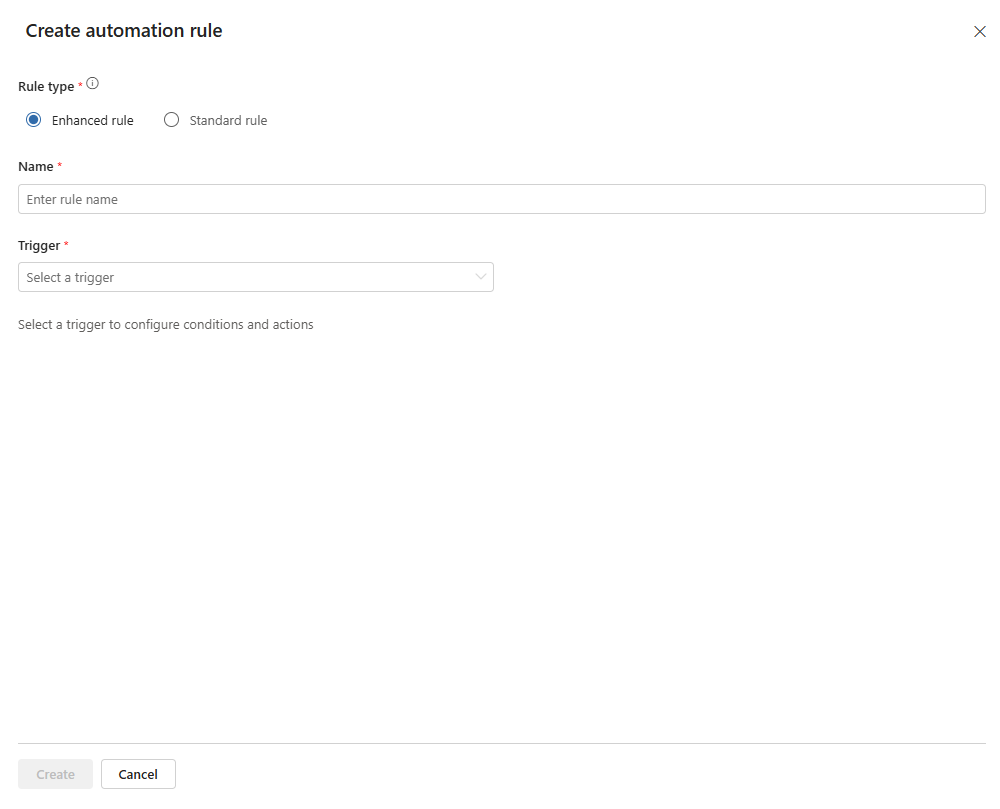
In Name, enter a name for the rule.
Select a Trigger.
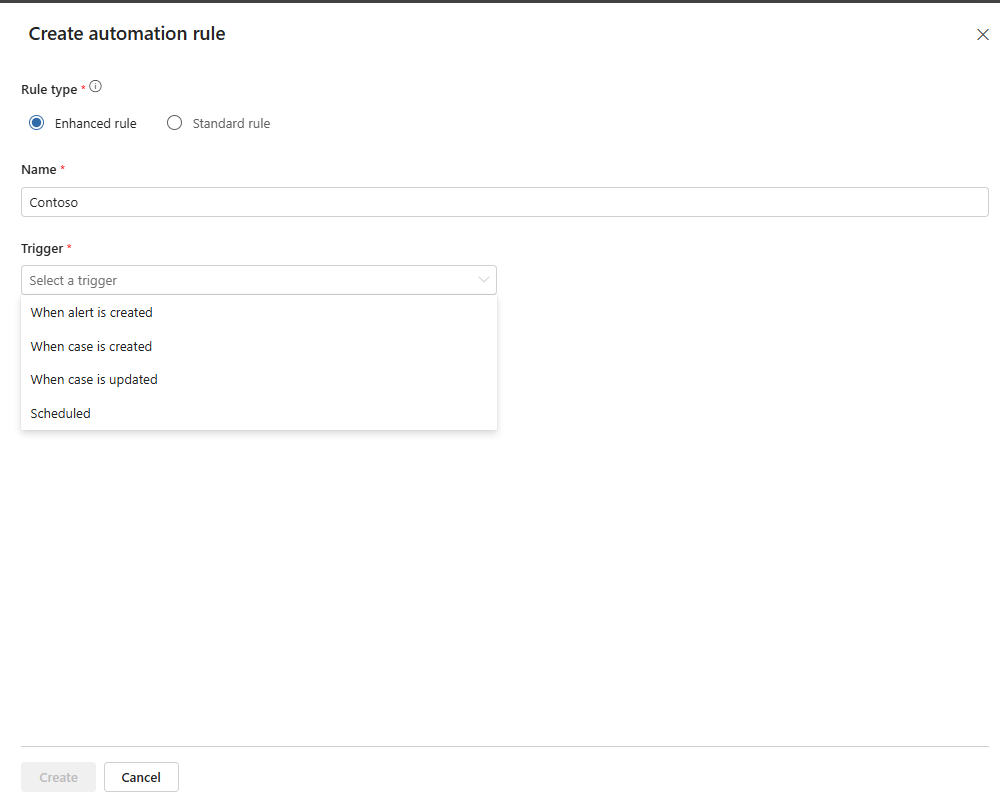
The trigger determines which fields, conditions, and actions are available for the rule.
Trigger Use when Rule behavior When alert is created You want the rule to run when a supported alert is created. Select the workspaces and Sentinel scope for the rule. Add conditions if needed, and then select a generated playbook to run. When case is created You want the rule to run when a case is created. Configure the required Case type condition, and then select a supported case action. When case is updated You want the rule to run when a case is updated. Configure the required Case type condition, and then select a supported case update action. Configure the trigger settings.
For When alert is created: Select the Workspaces where the rule applies. Under Sentinel Scope, select All available and future Sentinel scopes or Specific scoped data.
For When case is created: Configure the required Case type condition.
For When case is updated: Configure the required Case type condition.
Configure the conditions for the selected trigger.
For When alert is created: You can leave conditions empty or select Add to define conditions.
For When case is created or When case is updated: Use the required Case type condition to define which case types the rule applies to. If needed, select Add subgroup to add more condition logic.
Select an action.
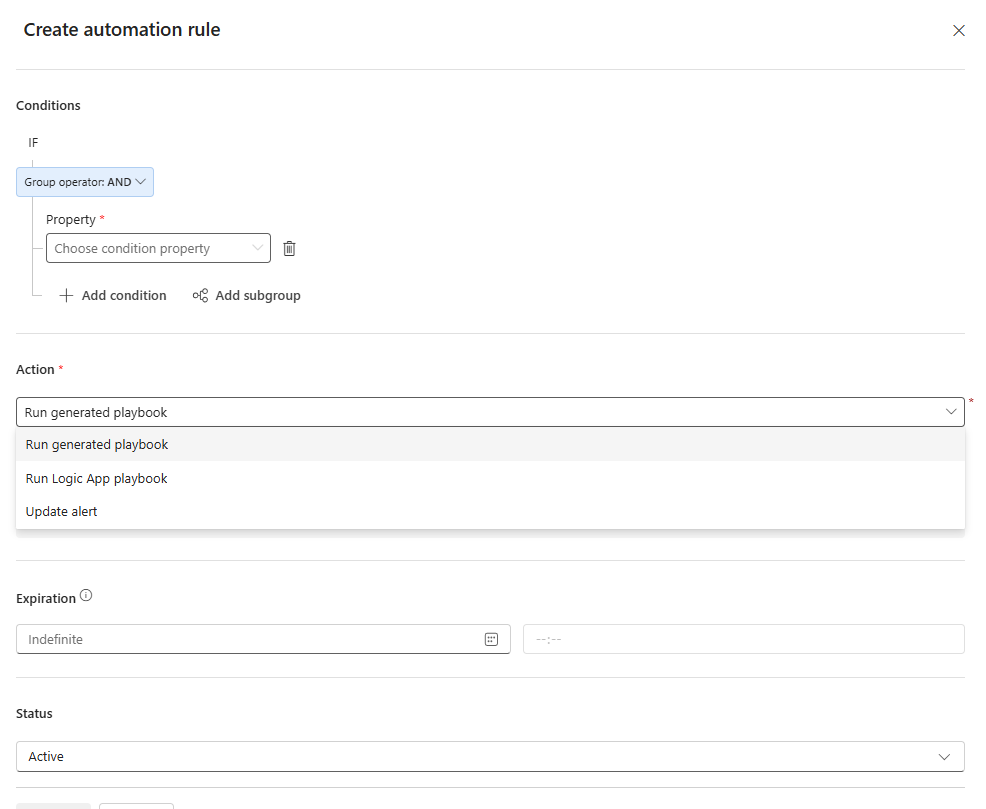
The available actions depend on the selected trigger.
For When alert is created: Select Run generated playbook, and then select the playbook to run.
For When case is created: Select an action such as Send case created email, Update case, or Create case tasks.
For When case is updated: Select a supported case update action, such as Send case updated email.
If the selected action requires more information, fill in the required fields.
If needed, configure Expiration.
Configure Status.
Select Active to enable the rule after creation.
Select Create.
Create a standard automation rule
Sign in to the Microsoft Defender portal.
Go to Automation.
Select Create > Automation rule.
Select Standard rule.
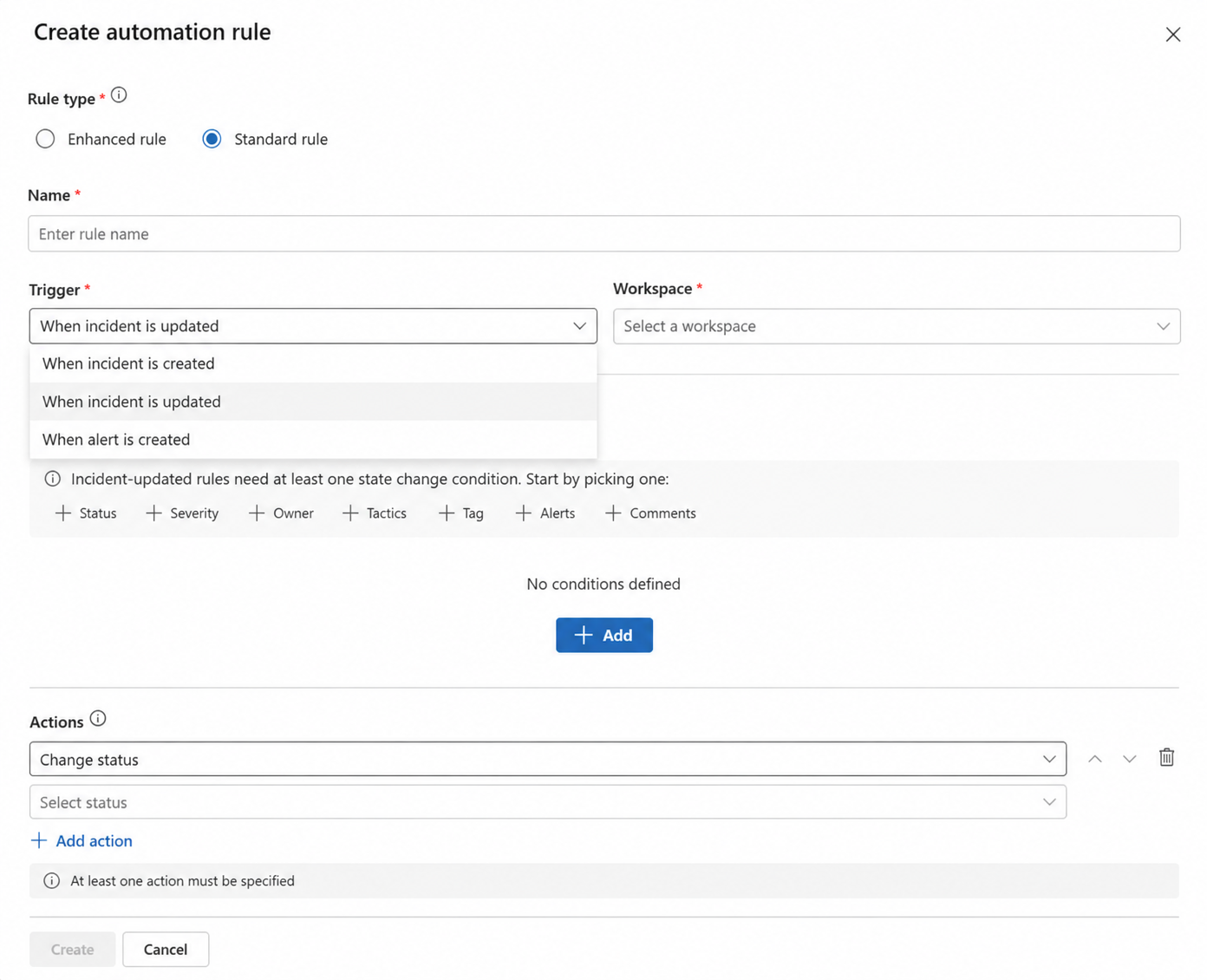
In Name, enter a name for the rule.
Select a Trigger.
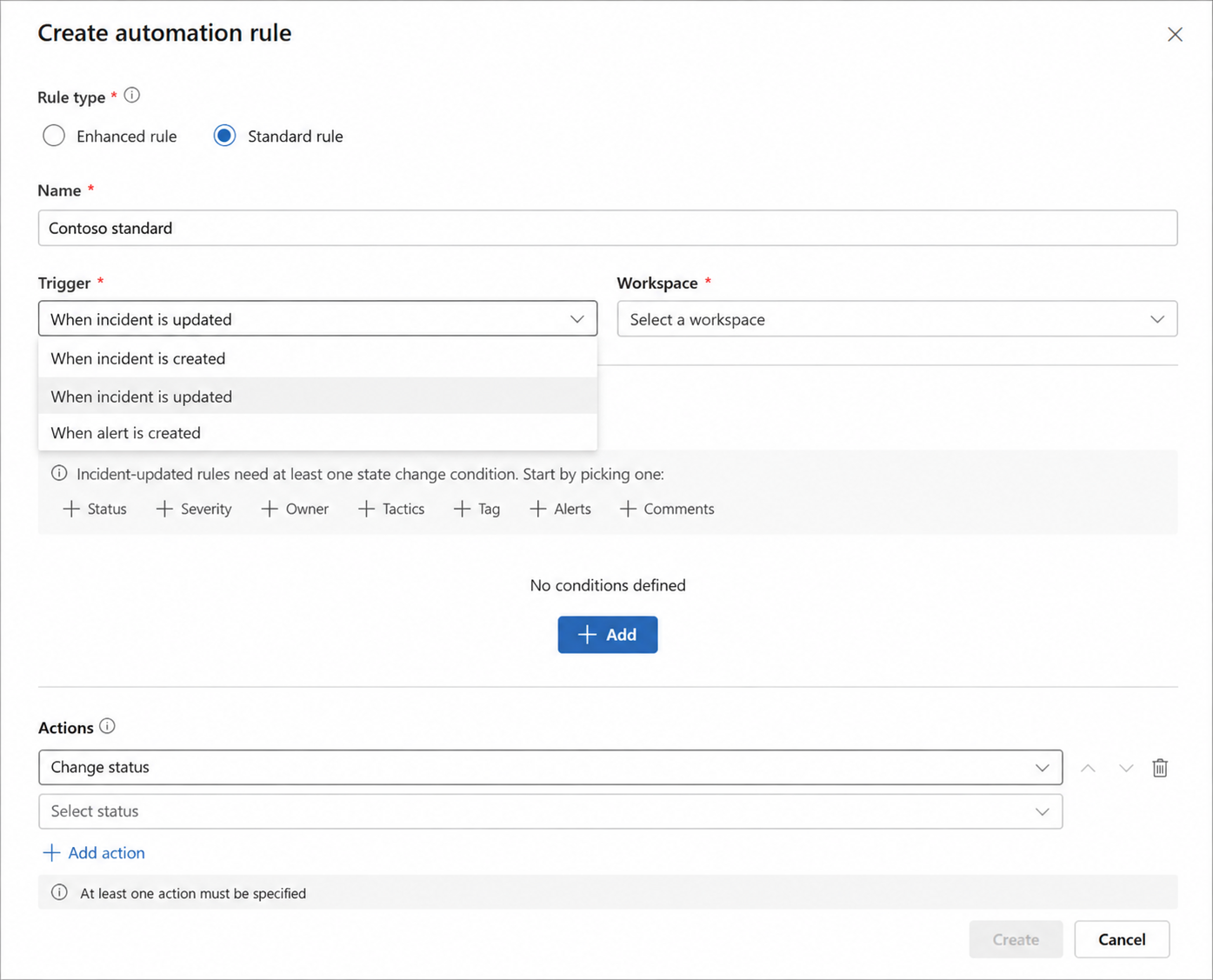
The trigger determines which conditions are available for the rule.
Trigger Use when Condition behavior When incident is created You want the rule to run when a new incident is created. Conditions are optional. Add conditions only when you need to scope the rule. When incident is updated You want the rule to run when an existing incident changes. At least one state-change condition is required. Supported properties include Status, Severity, Owner, Tactics, Tag, Alerts, and Comments. Select a Workspace.
Configure the conditions for the selected trigger.
For When incident is created: You can leave conditions empty or select Add to define conditions.
For When incident is updated: Select one of the supported state-change properties, such as Status, Severity, Owner, Tactics, Tag, Alerts, or Comments.
Add one or more actions.
Available actions include:
- Run Logic Apps playbook
- Change status
- Change severity
- Assign owner
- Add tags
- Add task
If needed, configure Expiration.
If needed, configure Order.
Select Create.
Edit an existing automation rule
Sign in to the Microsoft Defender portal.
Go to Automation.
Select the Automation rules tab.
Select the automation rule you want to update.
Update the rule settings, conditions, or actions.
Select Apply.
Duplicate an automation rule
Duplicate an existing automation rule to create one or more copies that you can configure separately.
Sign in to the Microsoft Defender portal.
Go to Automation.
Select the Automation rules tab.
Select the automation rule you want to duplicate.
Select Duplicate.
In Number of copies (1-10), enter the number of copies to create.
To create the copies in an inactive state, select Create copies as inactive.
Select Duplicate.
The duplicated rules appear in the automation rules list.
Review automation rule behavior
After you create, edit, or duplicate an automation rule, review that the rule behaves as expected.
Trigger or wait for an alert or incident that matches the rule conditions.
Open the related alert or incident.
Review the activity details to confirm whether the automation rule ran.
If the rule didn't run, review the trigger, conditions, permissions, and workspace requirements.