Note
Access to this page requires authorization. You can try signing in or changing directories.
Access to this page requires authorization. You can try changing directories.
[This article is prerelease documentation and is subject to change.]
Use the email canvas in Copilot Service workspace to review earlier messages and respond to customers without leaving the email record.
Important
- This is a preview feature.
- Preview features aren't meant for production use and may have restricted functionality. These features are available before an official release so that customers can get early access and provide feedback.
Prerequisites
- Your administrator enabled the email canvas in Copilot Service admin center. Learn more in Manage canvases in CRM Canvas Designer to publish the email canvas.
- Your administrator configured your mailbox and send permissions. See Configure email.
- Your administrator enabled email drafting to use Copilot. See Enable Copilot to draft emails.
Open an email
- Open Copilot Service workspace.
- From Activities, open an existing email, or open a case and create a new email. When the administrator enables the email canvas experience for you in the app, the email opens in the modern form.
To switch to the classic email form, select Open classic view on the command bar. To return, select Open canvas view on the classic form.
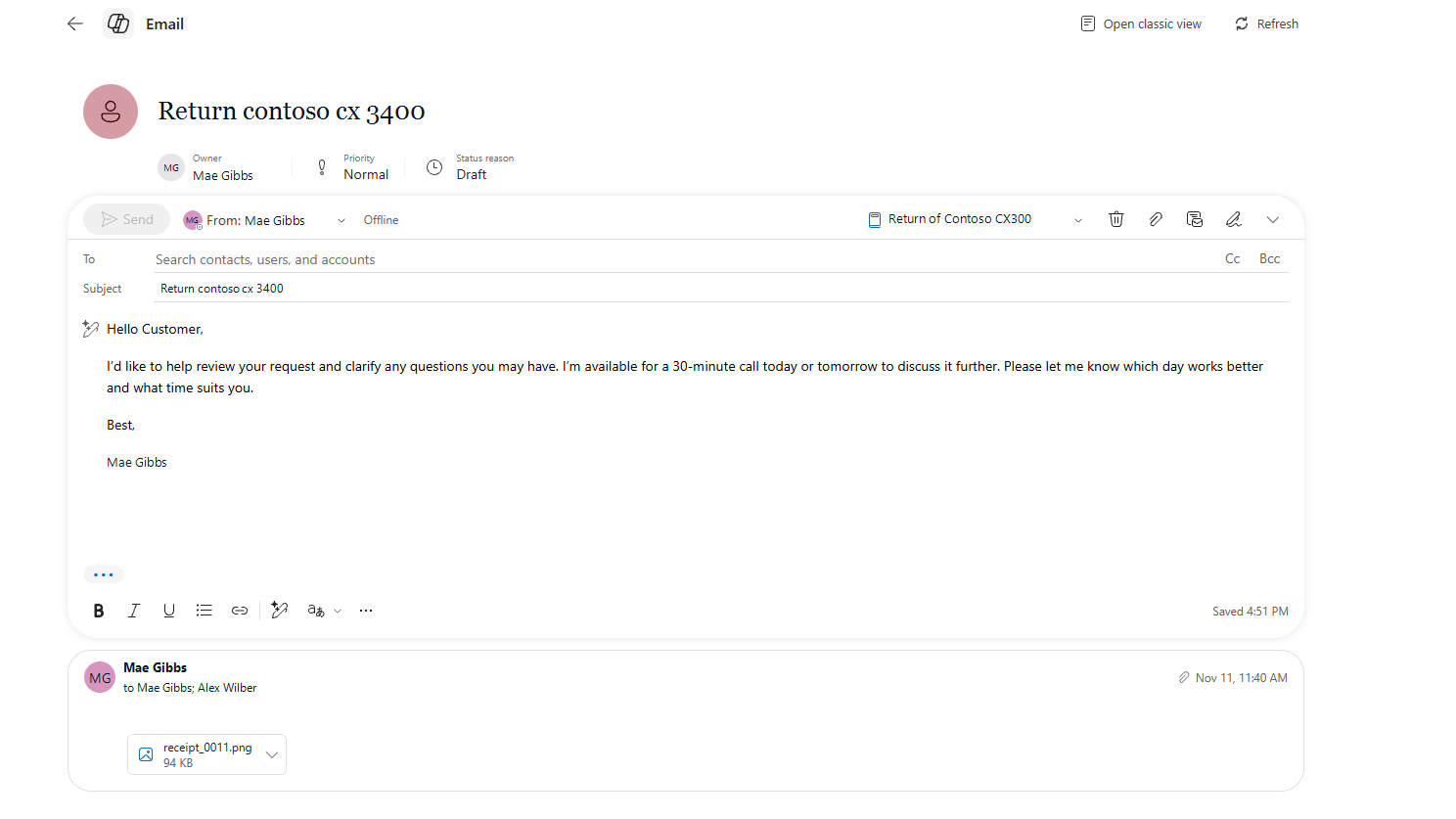
Explore the form
| Action | Where to find it | Related instructions |
|---|---|---|
| Reply, reply to all, or forward. | Reply or More response options on the current message. | View, compose, and respond to email. |
| Review earlier messages. | Expand linked messages below the current email or draft. Only the parent-email chain appears, not every email for the customer or case. | - |
| Choose a sender or related record. | From or Set regarding in the compose command bar. | Anatomy of an email form. |
| Add or resolve recipients. | To, Cc, and Bcc; Review for unresolved addresses. | Enhanced recipient handling. |
| Format a response. | Formatting toolbar in the message editor. | Use the rich text editor toolbar in email. |
| Insert a template. | Insert template, then Recently used or Browse all templates. | Insert an email template. |
| Insert a signature. | Insert signature in the compose command bar. | Use an email signature. |
| Draft or refine a response with Copilot. | Draft with Copilot in the message body. A recommended template remains a preview until you select Keep it. | Draft emails with Copilot. Follow the rich text editor guidance, not the help-pane navigation. |
| Add or review attachments. | Attach file or drag files into the compose area. Preview supported images and PDFs on the current email; download files from earlier messages. | Attach a file to email. |
| Apply a sensitivity label. | Sensitivity label control, when enabled. | Use sensitivity labels in emails. |
| Send a response. | Send in the compose command bar. Pending Send confirms submission, not delivery. | Compose an email. |
| Delete a draft. | Discard draft in the compose command bar. Discarding a response returns you to its parent email. | - |
| Share, check access, or refresh. | More email actions. Copying a link doesn't grant record access. | - |
Related information
Use the canvas experience for cases
Get started with Copilot Service workspace