Note
Access to this page requires authorization. You can try signing in or changing directories.
Access to this page requires authorization. You can try changing directories.
Important
Some or all of this functionality is available as part of a preview release. The content and the functionality are subject to change. Preview features aren't intended for production use and might have restricted functionality. These features are subject to supplemental terms of use, and are available before an official release so that customers can get early access and provide feedback.
Note
Microsoft Sustainability Manager has been rebranded as Dynamics 365 Sustainability. This change reflects a new product name only. Product functionality, capabilities, licensing, and service offerings remain unchanged. Some screenshots and UI labels in this article may show the previous name while visuals are being updated.
Note
This feature is included in Microsoft Dynamics 365 Sustainability Premium.
Create data collection request
Sign in to Microsoft Dynamics 365 Sustainability as an admin or data manager. Select Data collection (preview) > Data requests in the left navigation pane.
Select New and enter the data collection request details:
- Name: A unique name for the data collection request.
- Due date: The deadline for collecting ESG data.
- Sustainability topic: The Microsoft Dynamics 365 Sustainability tables to collect data from.
- Data owner: The user from whom you collect data.
- Description: An optional field to describe the data required.
- Request status: Indicates the current state of a request.
- Draft: The request is being created and isn't yet sent.
- Open: The status automatically changes to Open when you select Send and the request is sent to the data owner.
- Closed: The data manager can manually update the status to Closed at their discretion after receiving responses.
- Reporting period: The date range for collecting ESG data.
- Approval policy to use for responses: An optional field to specify the multilevel approval policy. To learn how to add a new approval policy, see Multi-level approvals for data responses.
- Data collection plan: An optional system field that's automatically populated for requests that are autogenerated through data collection plans.
- Artifact: An optional system field that's automatically populated when the S&G data requests are generated. For more information, see Track your social and governance data - Microsoft for Sustainability | Microsoft Learn.
Select Save.
Create data requests for social and governance facts
For details on creating data requests for social and governance facts, see Social and governance data collection.
Send requests to the data owner by using email
Select the data collection request that you want to send.
Select Send on the command bar at the top to send the request to the data owner.
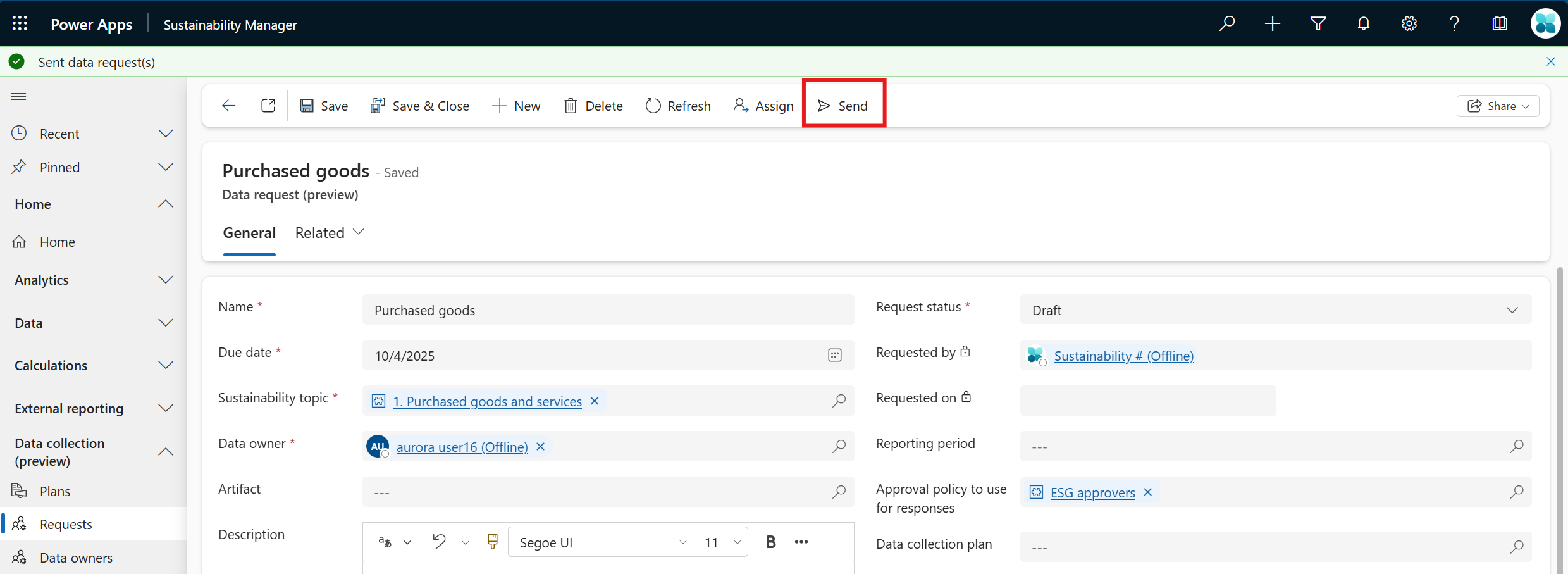
The data owner receives an email notification about the request, and the request status automatically changes to Open.